

Try itFeaturesPricingHow it works QuestionsBlogToolsSign in DownloadContact usRefunds
Try it in your browser

Find any photo on your computer. Just describe it.

Type what you see - “dog on the beach”, “receipt from Costco” - and the right photo, design or PDF appears in a second. Nothing uploaded, nothing to rename.

Just ₹1 a day

Windows 10+ & macOSPay once - no subscription

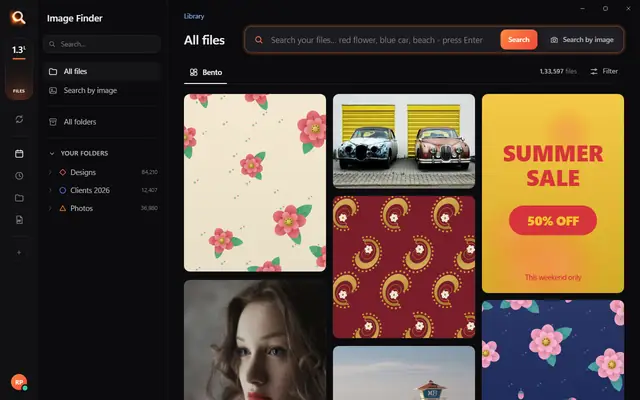
The Image Finder window with sample pictures

The real Image Finder window with sample files - click anywhere in it to try it yourself. In the app it searches hundreds of thousands of your own files in a fraction of a second, all on your PC. Open it full screen

Reads 150+ kinds of files, straight from your folders

JPGHEICPNGRAWPSDAISVGPDFZIP

A photo search that sees what you see

It looks at every picture on your computer once - what is in it, the colours, the faces, the words - so you can find any of them by simply describing it. Even with a hundred thousand files.

Image Finder logo+
Image Finder app icon

Point

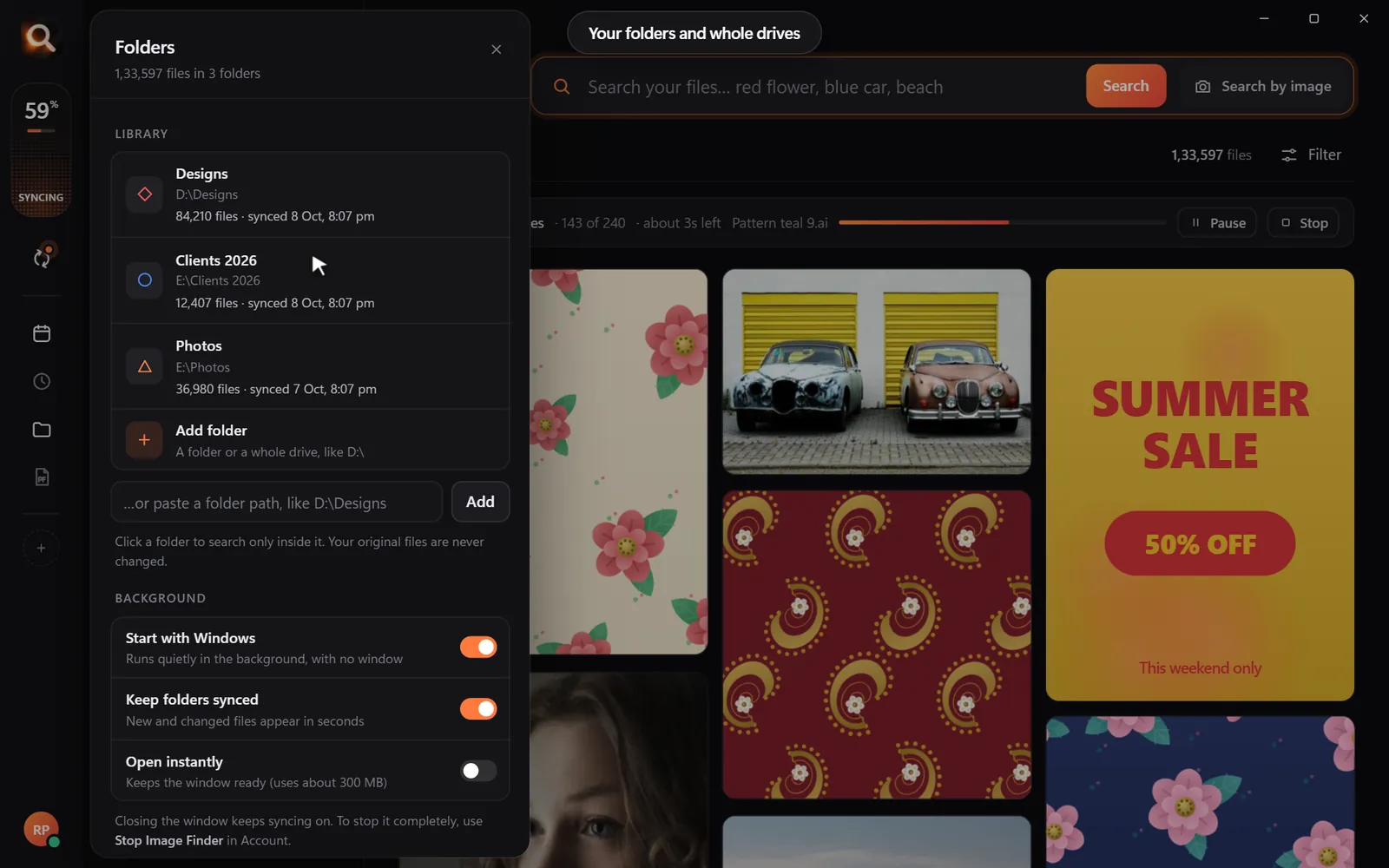
Choose folders or whole drives. No importing, no renaming.

Read

Every picture is looked at once, in the background.

red flower

Describe

Type what you see, drop in a picture, or pick a face.

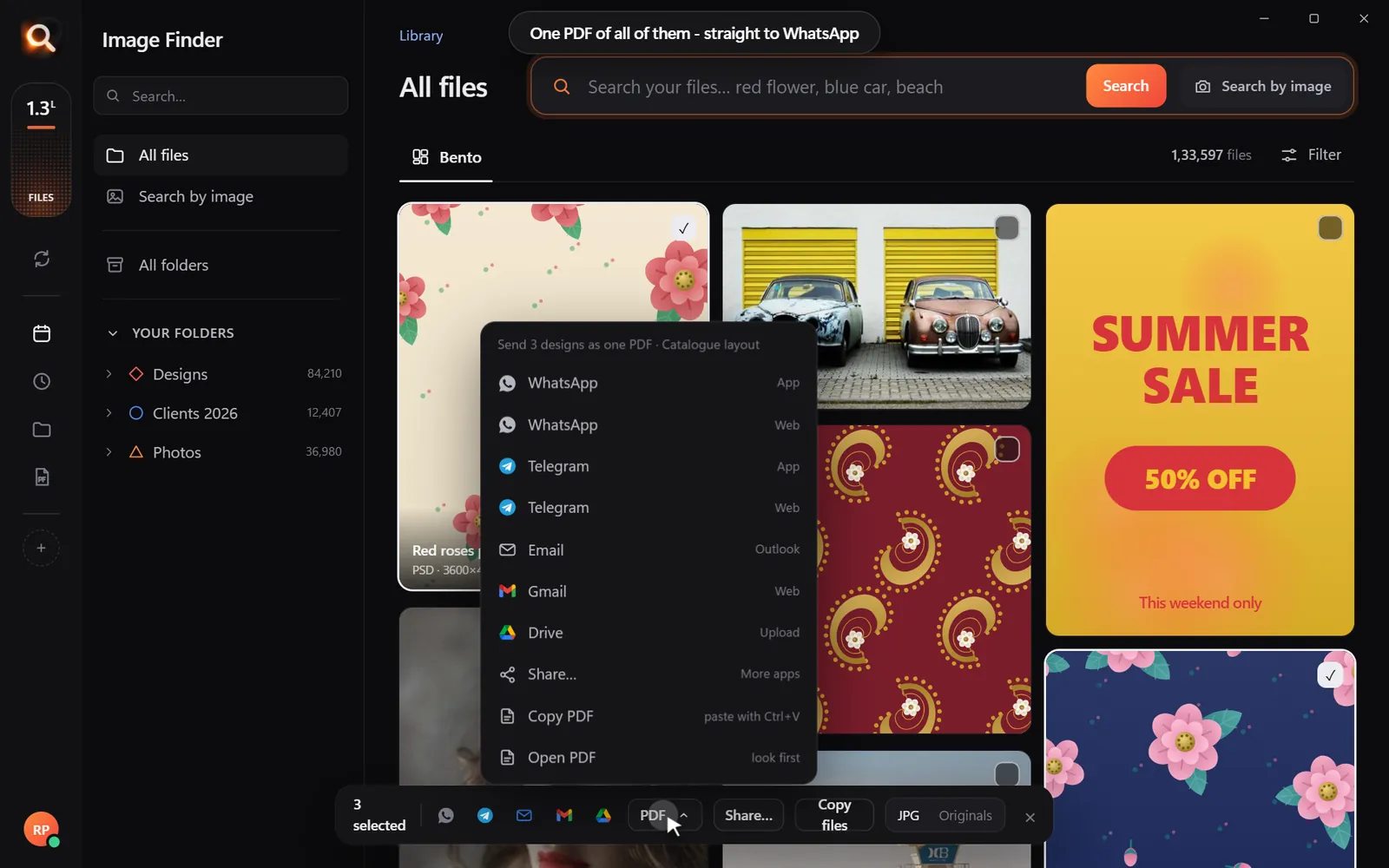
Open in appWhatsAppOne PDF

Use

Open it, copy it, or send many as one PDF.

Search by picture

Have a copy? Find the original.

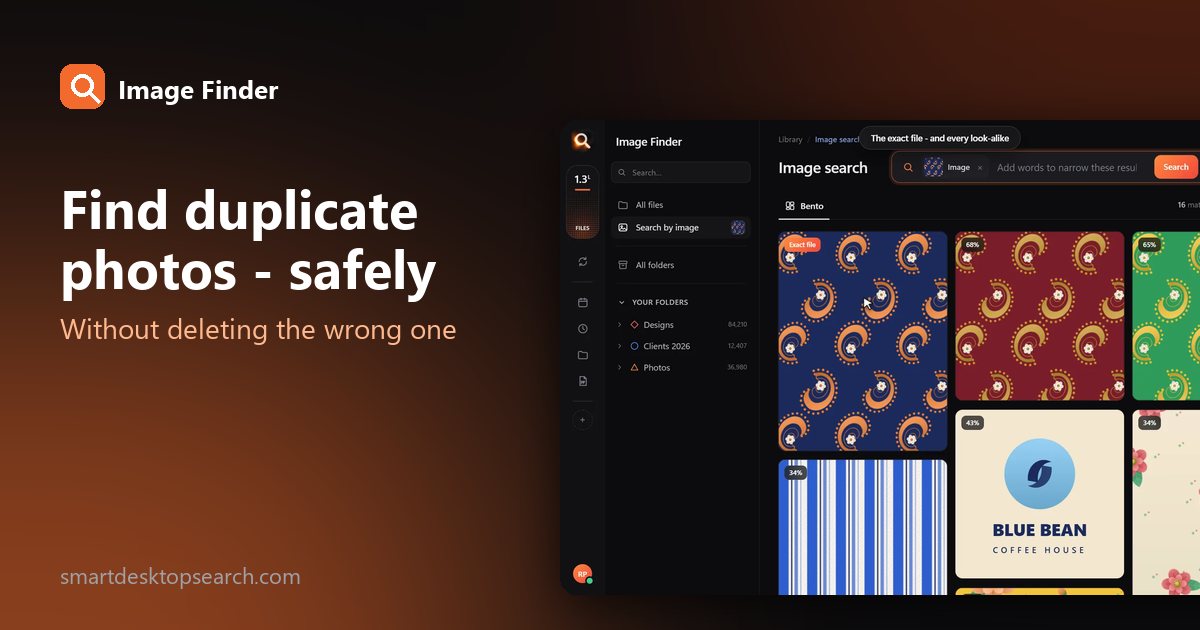
A blurry screenshot, a photo of a print, a crop someone sent you. Drop it in and get the full-size original - and every look-alike, even after crops and filters.

Search with a picture

Understands pictures the way you do - not by their file names.

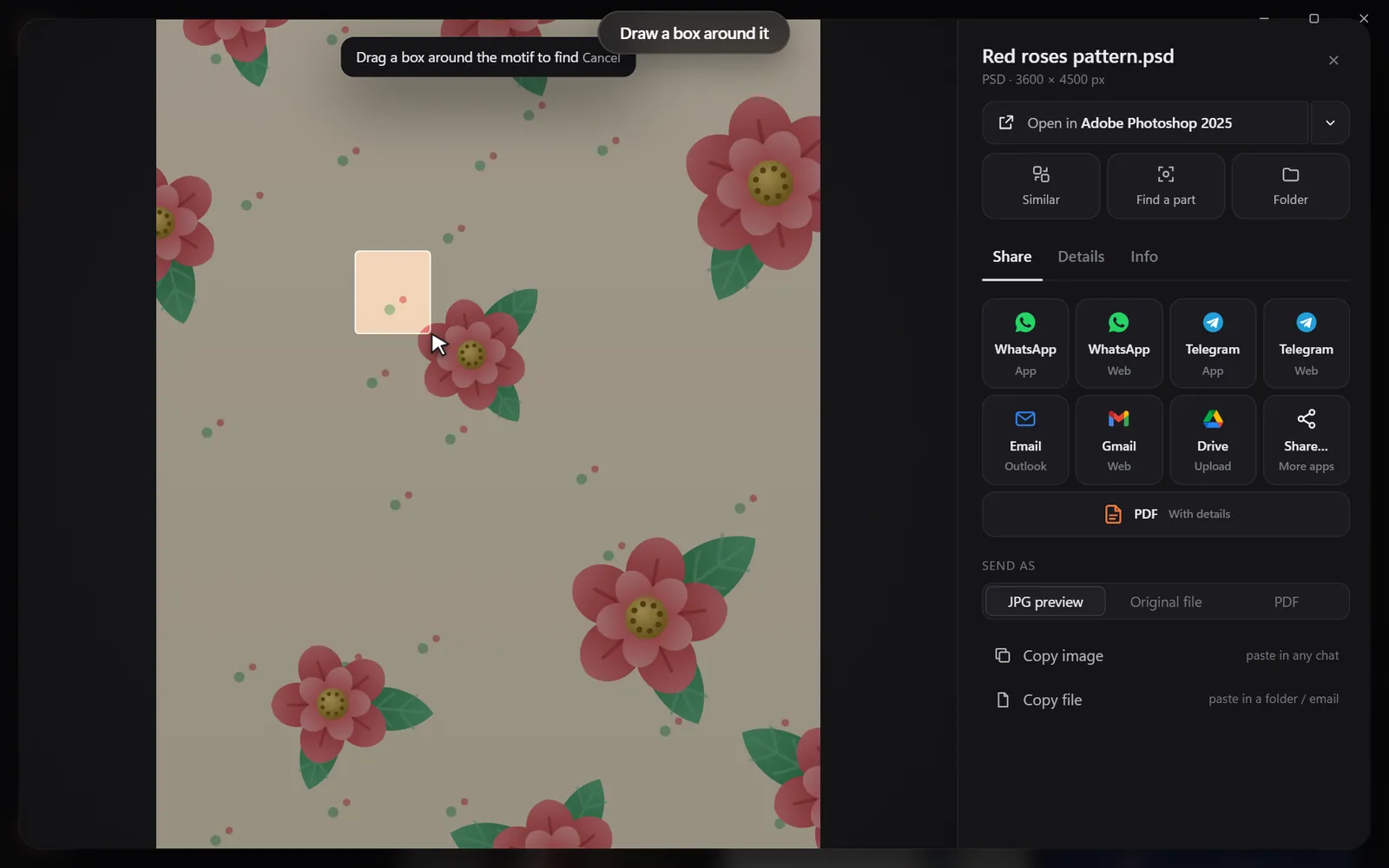
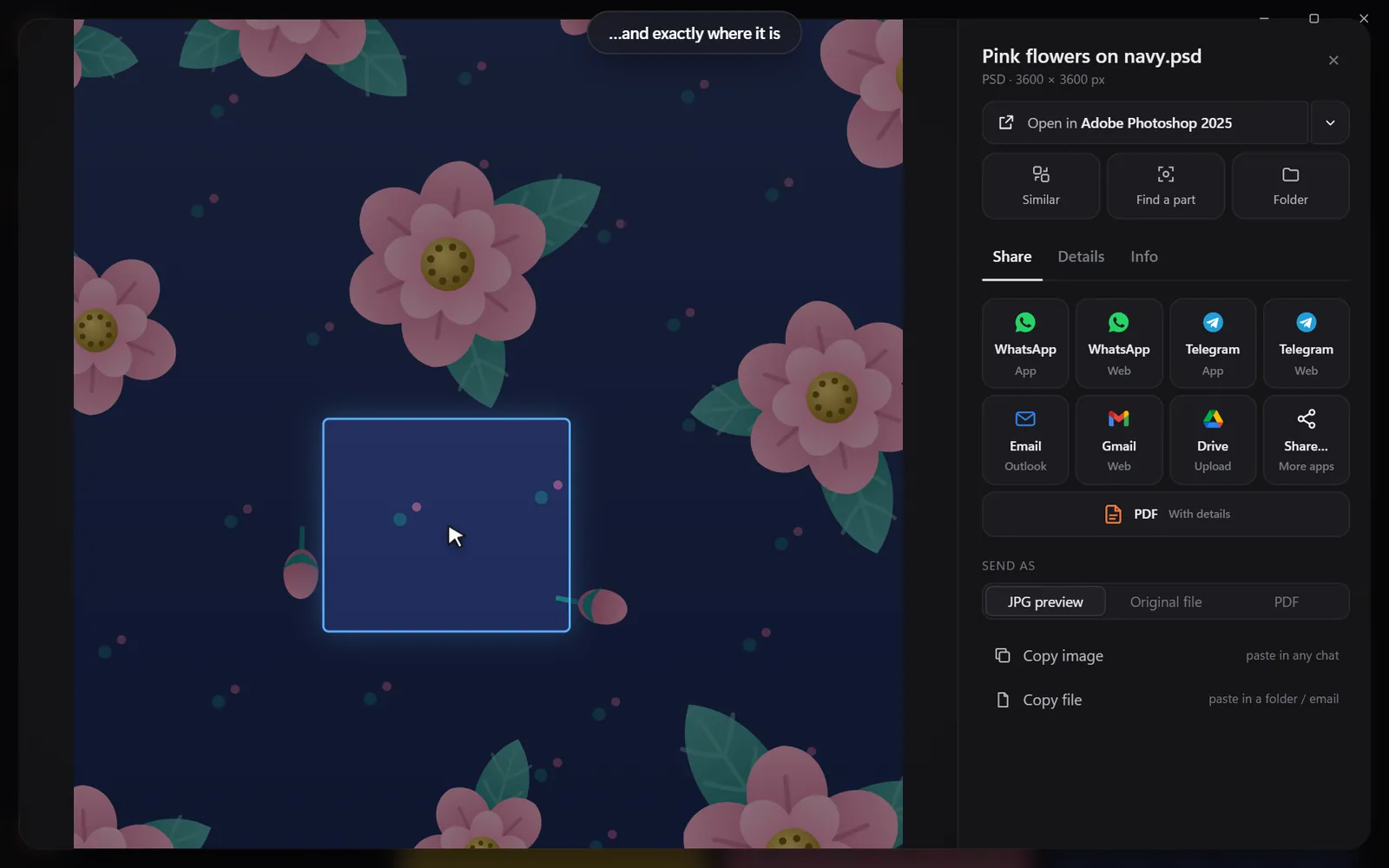
Drop in a pictureThe exact file and every look-alikeDraw a box around one partSee exactly where it is

Found it? Use it.

Every result opens in the app you made it in, copies with one click, or goes out as one tidy PDF.

Open it in your appSend many as one PDFShare in one click

Search

Search the way you remember

You never remember a file name. You remember a colour, a face, a word on a sign. That is enough.

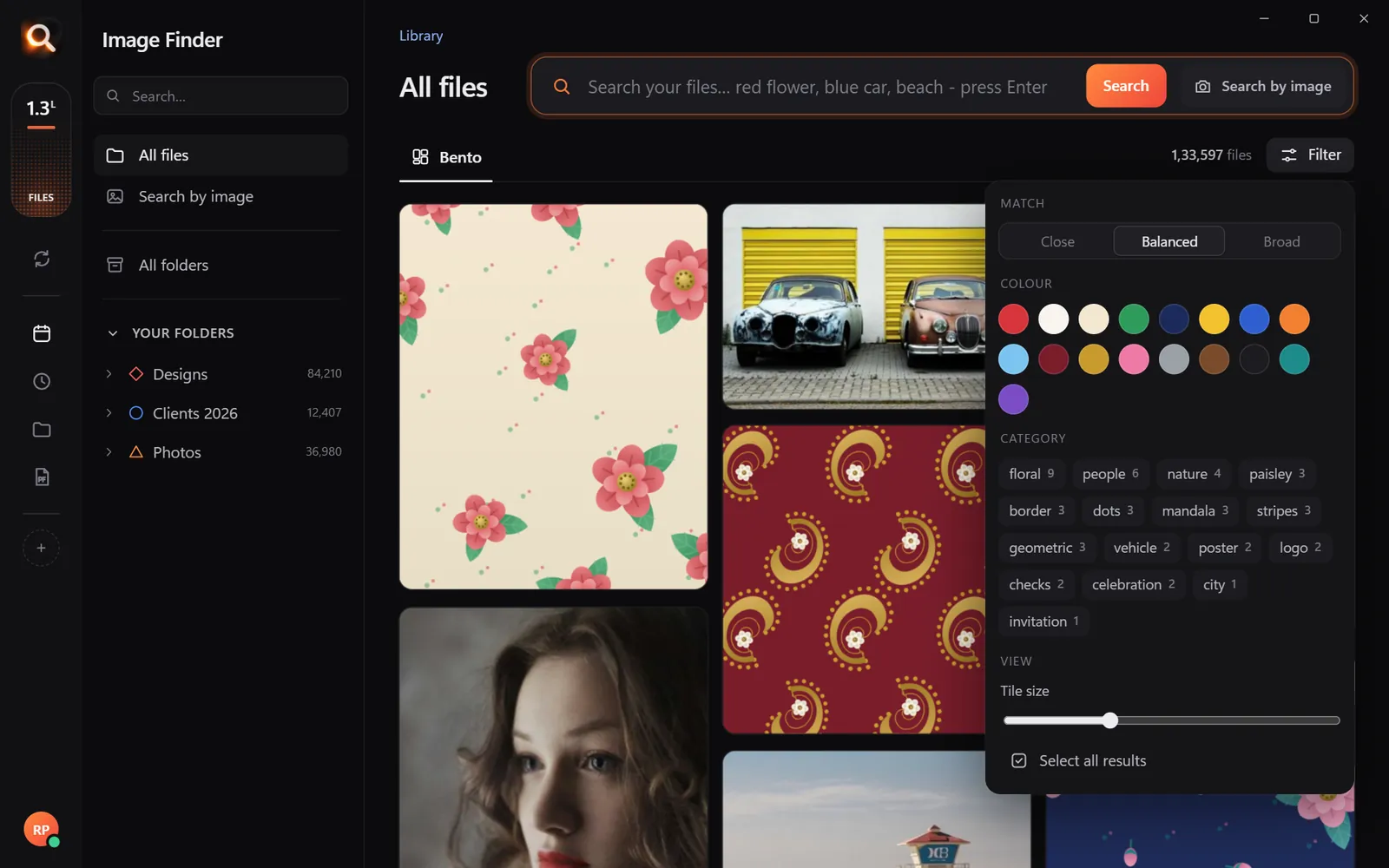
By colour

Pick a colour and the photos with the most of it come first - or narrow any search to it.

Searching by colour

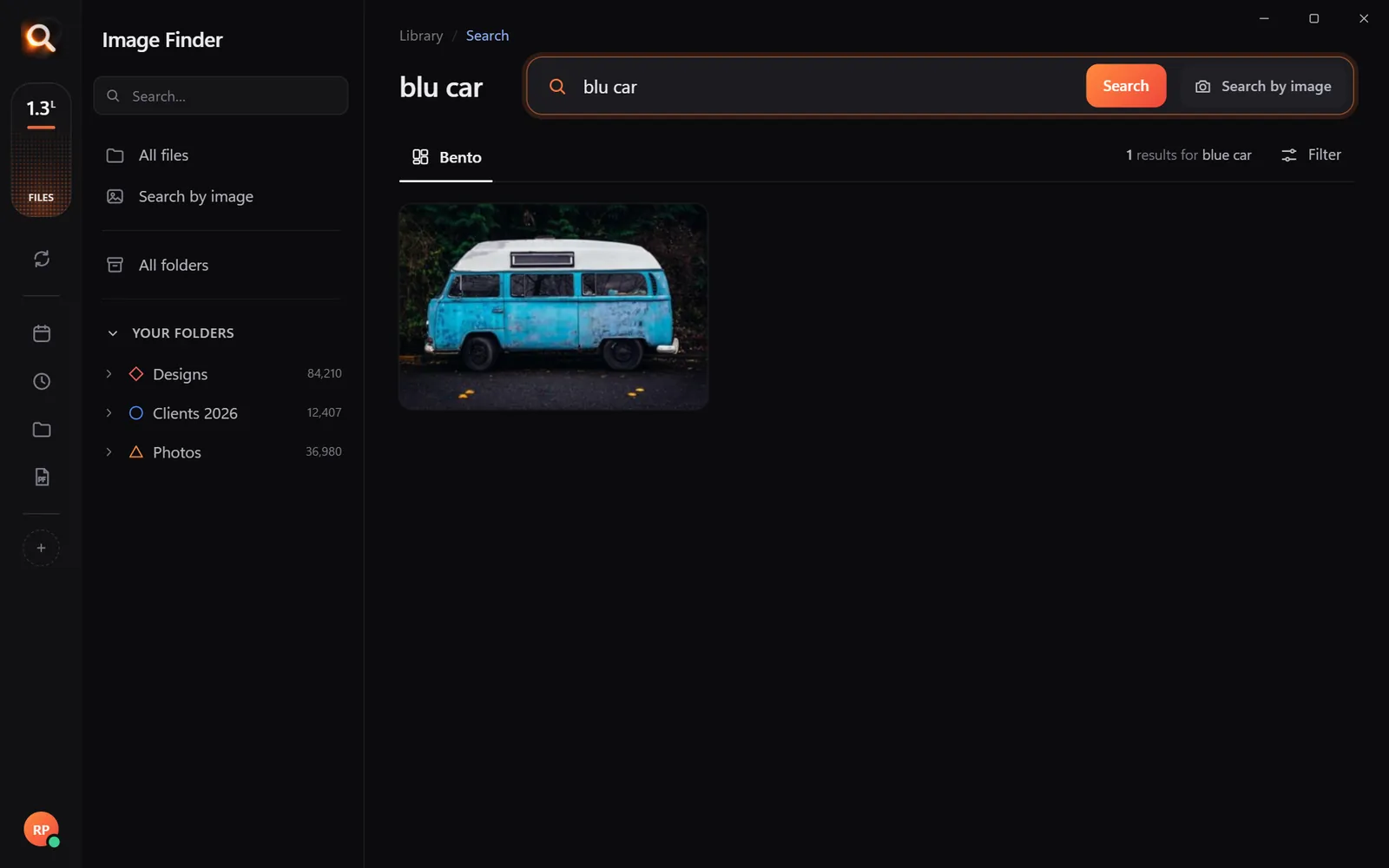
Typos welcome

"blu car" finds the blue car.

A search with a typo

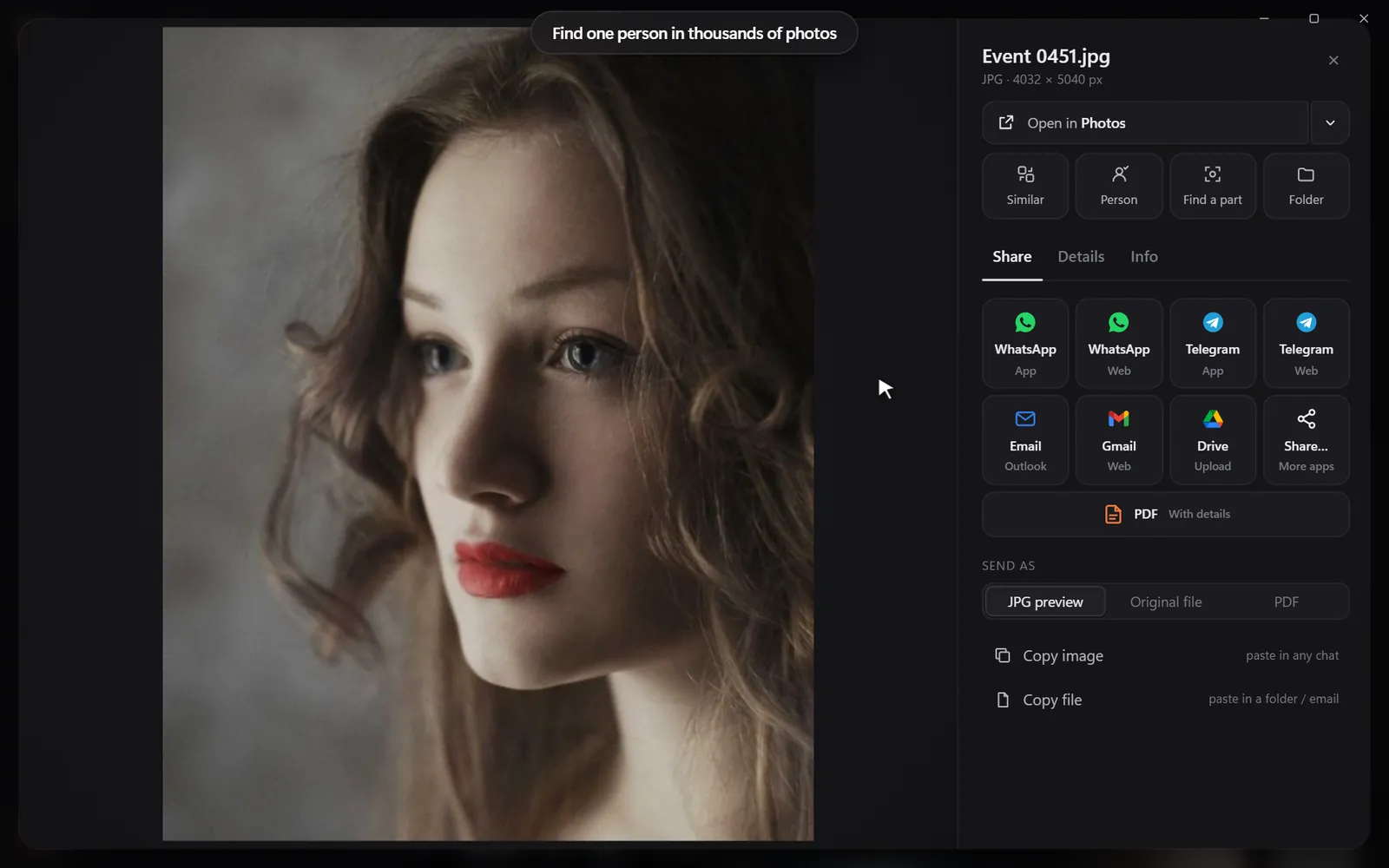
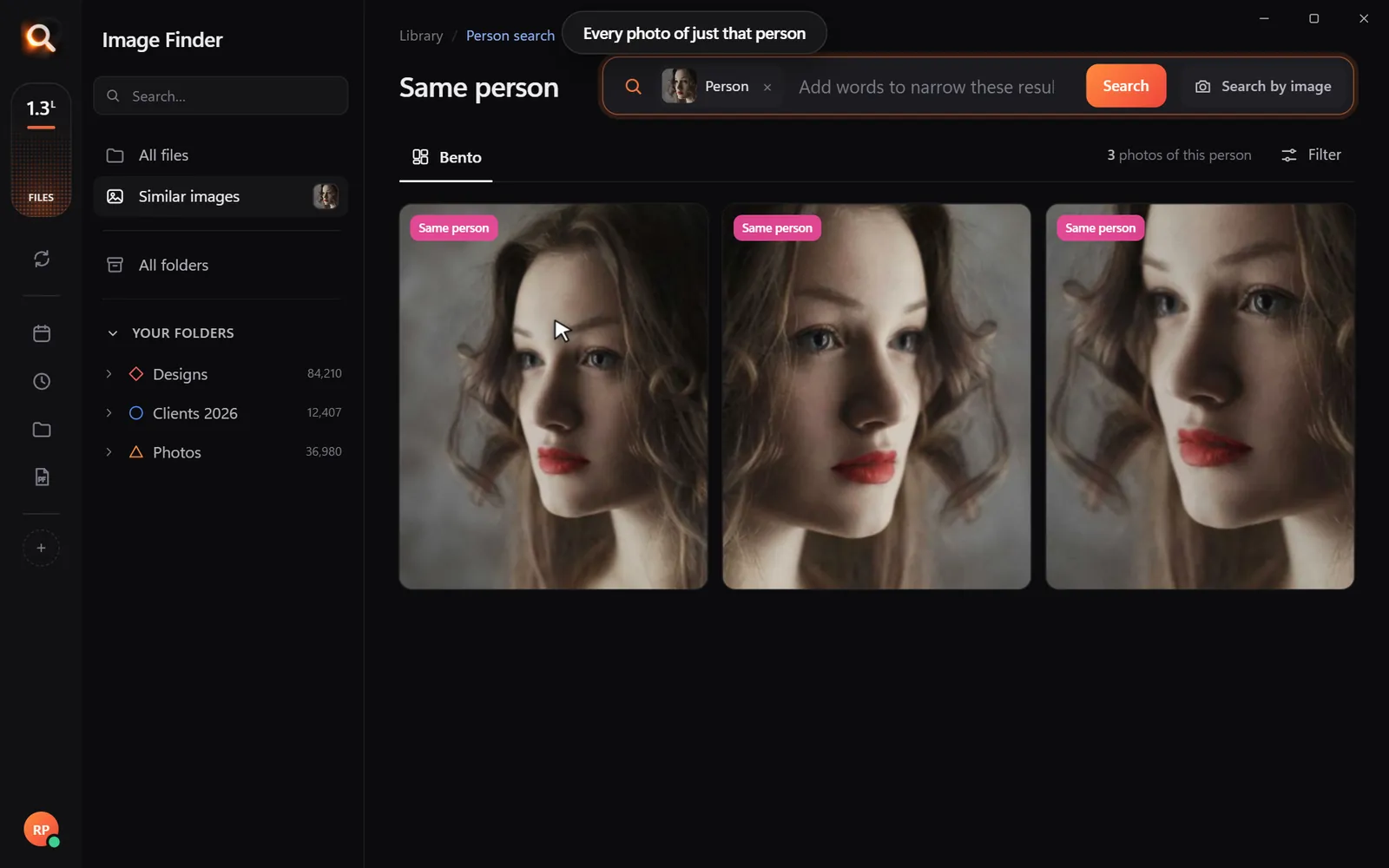
Every photo of one person

Pick a face once - from every folder and every drive.

Every photo of one person

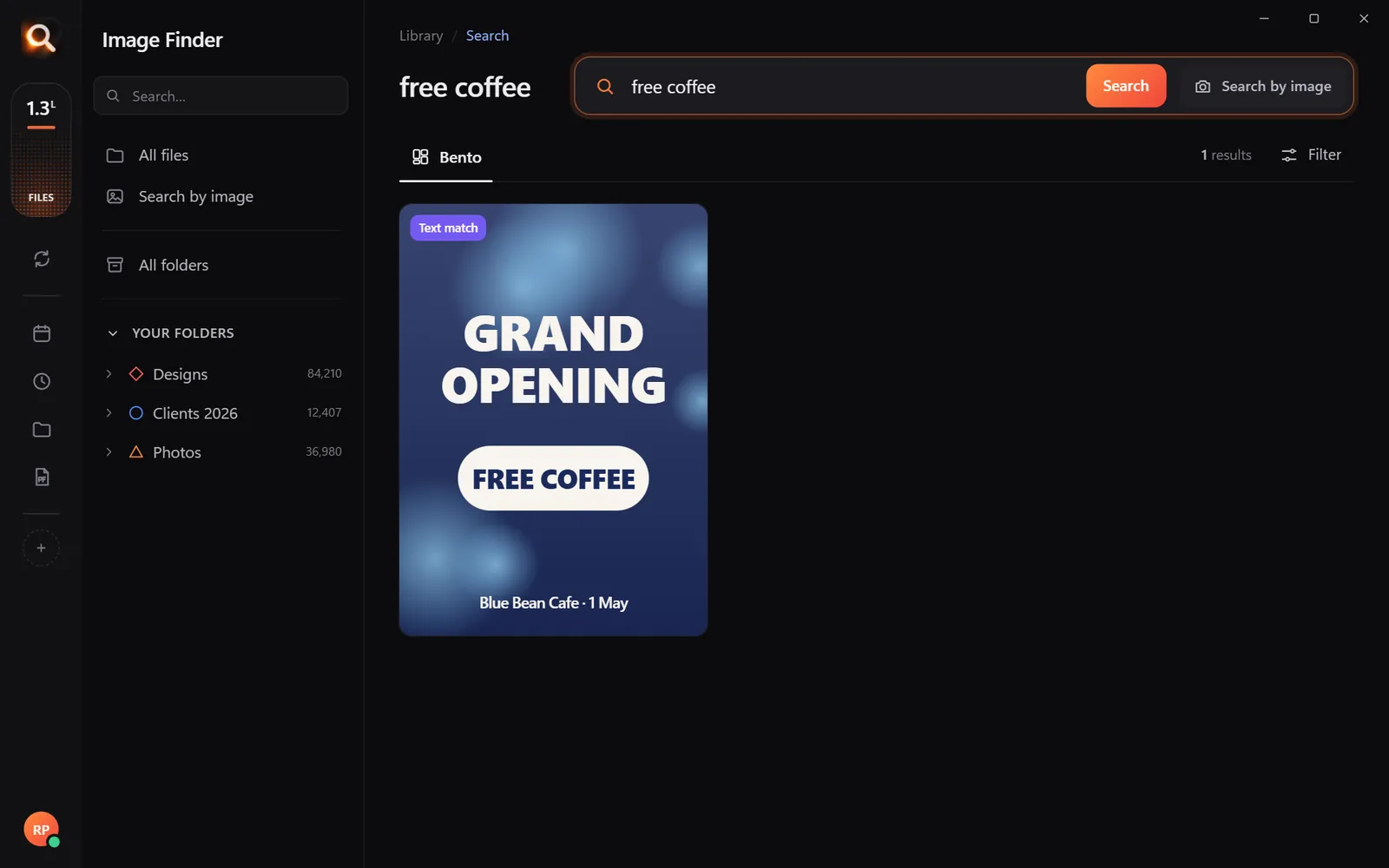
Words inside pictures

Screenshots, receipts, posters and scanned PDFs.

Finding a poster by its words

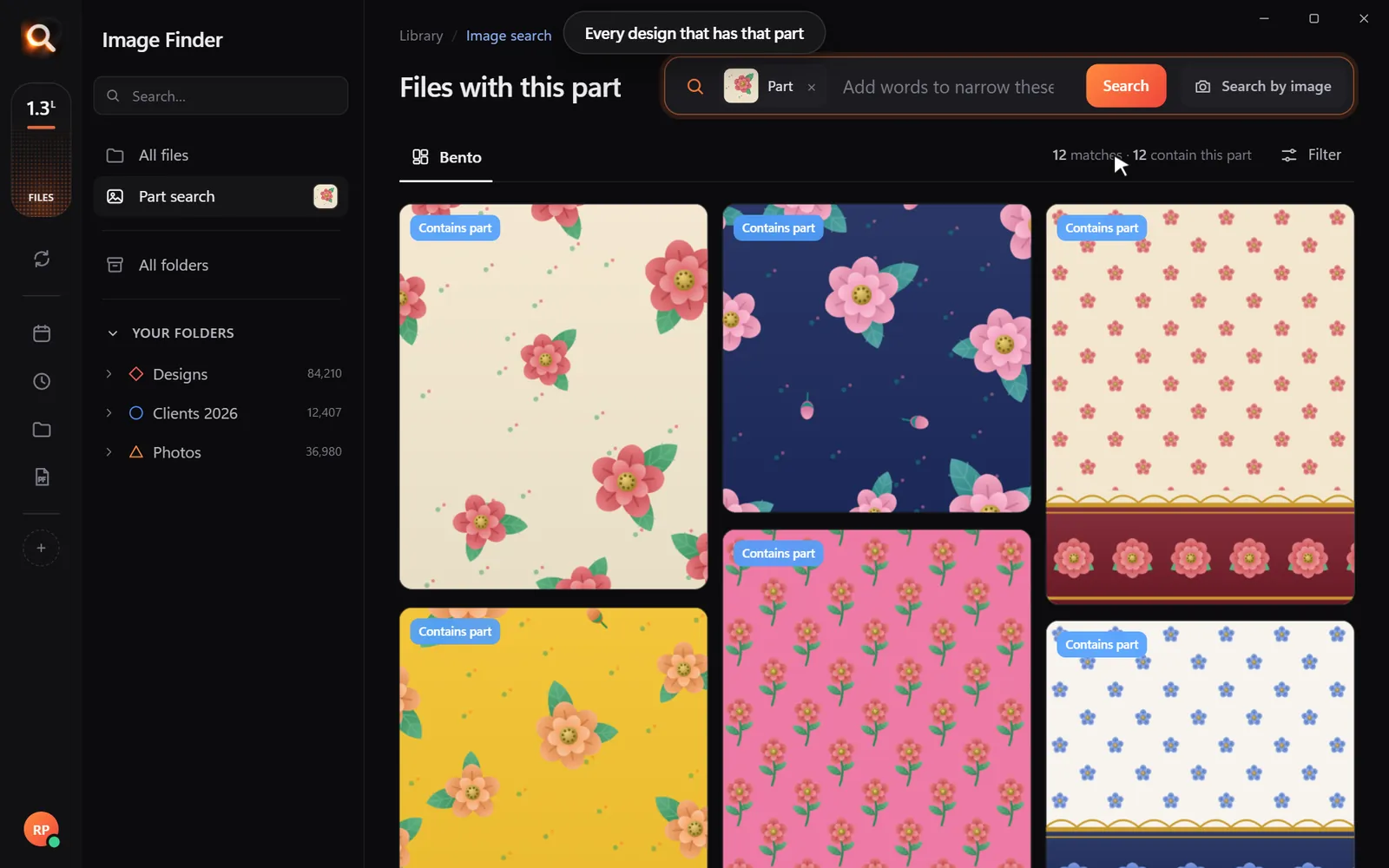
One part of a design

Draw a box around a logo or a motif.

Every design with the same part

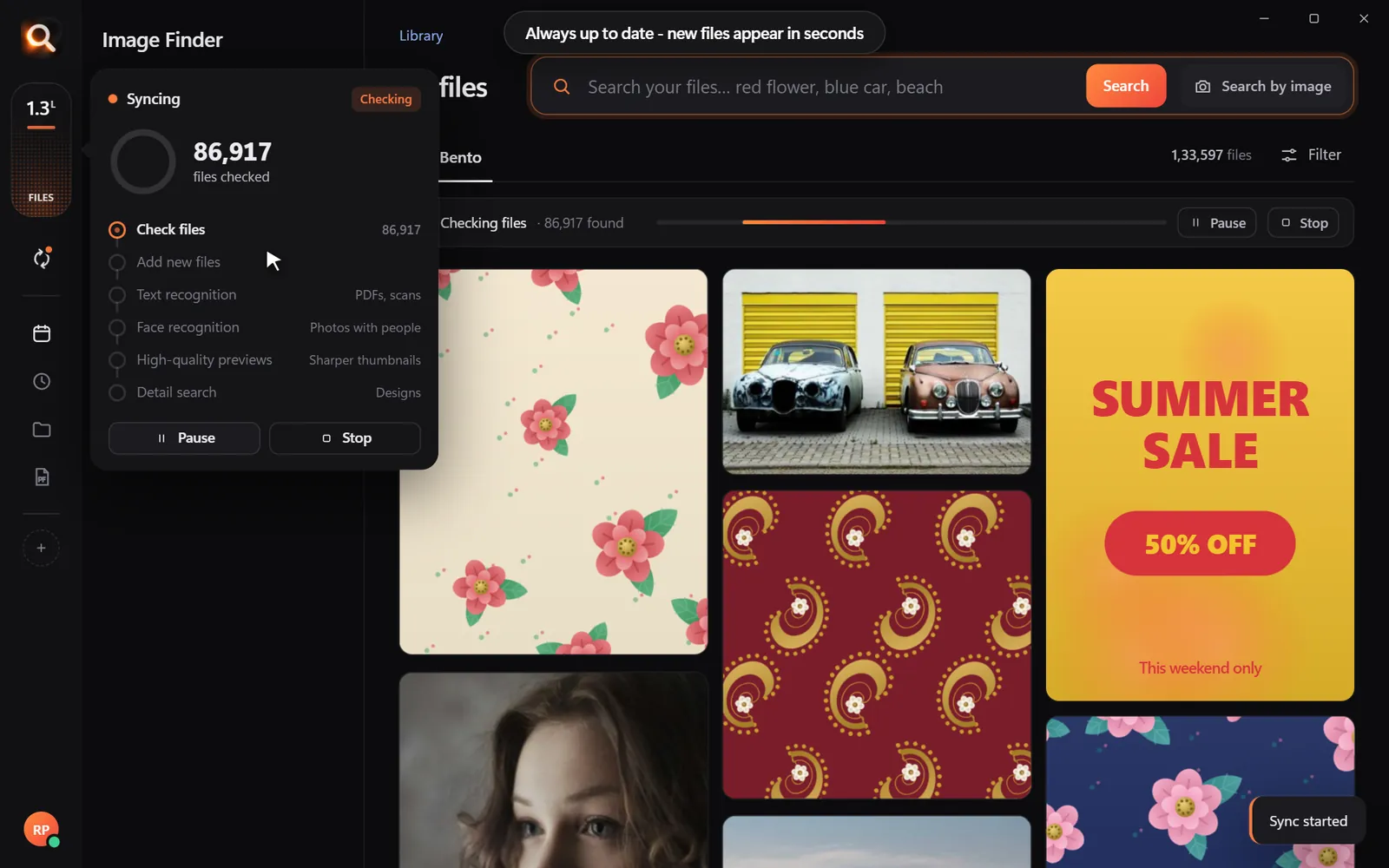
Always in sync

New files appear within seconds, by themselves.

Keeping folders up to date

Folders, whole drives, external disks

Point it at Pictures, Desktop, a whole disk or an external drive. Unplugged drives stay findable, so you know which one to grab.

Choosing folders and drives
150+ file types

JPG, PNG, HEIC, camera RAW, PSD, AI, EPS, SVG, PDF, Office files, fonts, videos and embroidery files.

Inside ZIP and RAR

Pictures inside archives are searchable - without unzipping anything.

External drives

Unplugged drives stay findable, so you know which one to grab.

Always up to date

New and changed files appear within seconds, by themselves.

A tenth of a second

Search 100,000+ files about as fast as you can type.

Typos welcome

"blu car" finds the blue car. The meaning matters, not the spelling.

Steps aside

It reads your library once in the background and pauses while you work.

Windows & Mac

Windows 10 and 11, Macs with Apple chips and Intel Macs.

Private

Your photos never leave your computer

The AI runs on your own PC or Mac. No upload, no cloud copy, no account full of your pictures that could leak.

Nothing uploaded

Your photos, designs and searches stay on your disk. Only your licence is checked now and then.

Works offline

On a plane, in a basement studio, when the internet is down - search works the same.

No subscription

Pay once for the time you choose. Nothing renews by itself, nothing to cancel.

Made for real libraries

Whatever you keep, find it by describing it

What people type - and what it saves them.

P
Photographerssearch for
the one by the window, spring shoot

Pick a client's face once - every shot of them, across every drive.

D
Graphic designerssearch for
blue logo on white

final_FINAL_v3.psd is not a search term. Find PSD, AI and SVG by how they look.

S
Online sellerssearch for
blue mug white background

Five thousand product shots, one blue mug - found in a second.

F
Familiessearch for
grandma at the cake table

Twenty years of photos, searchable without uploading a single one.

T
Teacherssearch for
fractions worksheet

Worksheets and slides, found by the words printed on them.

R
Real estate agentssearch for
white kitchen with island

Every listing photo by room, feature or view.

A
Agenciessearch for
summer sale poster

Ten people, one shared drive, nobody hunting for files any more.

U
Studentssearch for
mitosis slide

Every lecture screenshot, searched by the words on the slide.

Compare

Why not just use what you have?

Image FinderFile Explorer / FinderCloud photo apps
Find a photo by describing itNames onlyPhotos only
Search with a picture-Some
Design files: PSD, AI, EPS, RAWNames only-
Works with no internet-
Your photos stay on your computerUploaded
No monthly subscription-

Pricing

Just ₹1 a day. Paid once.

Every feature in every plan. No subscription - nothing renews by itself.

Every feature for just ₹1 a day - paid once, nothing renews by itself.

One licence works on one computer. Your days start when you activate it.

In India? See the India page - prices in ₹, pay by UPI

Questions? Answers.

How much does it cost?

Plans are priced per day in your own currency - every feature, paid once for the time you choose. Nothing is charged automatically, and nothing renews by itself.

Does it upload my photos?

No. Image Finder runs entirely on your computer. Your photos, designs and searches never leave it - there is no cloud copy to leak. Only your licence is checked online now and then.

Does it work on Mac?

Yes. There are versions for Macs with Apple M-series chips and for older Intel Macs, plus Windows 10 and 11.

Which files can it search?

150+ types: JPG, PNG, HEIC (iPhone), WEBP, camera RAW (NEF, CR2, CR3, ARW, DNG), PSD, AI, EPS, SVG, PDF, Office files, fonts, videos and embroidery files (DST, PES and more) - including files inside ZIP and RAR archives.

Can I hide files from search?

Yes. Select one or many and press Hide - they leave every search but stay on your computer. They wait under Hidden until you show them again.

Is it a subscription?

No. You pay once for the time you choose; nothing renews by itself and there is nothing to cancel.

Do I have to organize or tag anything?

No renaming, no tagging, no importing. Point it at your folders or whole drives and it reads them by itself - new files appear within seconds.

Will it slow down my computer?

It reads your library once in the background and steps aside while you work. Searching takes about a tenth of a second, even with 100,000+ files.

Can I get a refund?

Yes - see the refund policy.

Image Finder

Find any design in a second

Every feature, no credit card. Find the first photo you have been looking for in the next five minutes.

Get it - ₹1 a day
Just ₹1 a day

Blog

Tips for finding, organising and sharing your designs faster.

← All posts

Find Duplicate Images on PC: How to Spot Resized and Look-Alike Copies Safely

If you have used your computer for more than a few months, your storage drives are likely full of repeated photos. You save an image from an email, download a smaller version from a messaging app, transfer photos from your phone, and export edited copies from graphic tools. Before long, thousands of files clutter your folders.

When you need to find duplicate images on pc drives, traditional search tools often leave you empty-handed. Let's look at why duplicate pictures hide so easily, how to spot visual look-alikes across your hard drives, and how to inspect them safely without risking accidental deletion.

Exact Duplicates vs. Visual Look-Alikes: Why the Difference Matters

Most basic computer utilities look for duplicates using a cryptographic checksum or hash (like MD5 or SHA-256). A hash is a digital fingerprint of the exact file data.

  • Exact byte duplicates: Two identical files saved in different folders. They have the same resolution, the same compression, and the same file size. If you make a direct copy of photo.jpg and name it copy-photo.jpg, their hashes match.
  • Visual duplicates (look-alikes): You take a 24-megapixel photo, crop it slightly for social media, resize it to 1200 pixels wide, and save it as a PNG or a compressed WebP. To your eyes, the two pictures are virtually the same. To a hash-based duplicate finder, they are completely different files with zero matching bytes.
AttributeExact Hash DuplicateVisual Look-Alike
File SizeIdenticalUsually different
DimensionsSame width and heightOften resized or cropped
File FormatSame formatCan be JPG, PNG, WebP, HEIC
Detected by Standard Hash Tools?YesNo

If you only scan for exact byte-for-byte duplicates, you miss the vast majority of visual clutter taking up your drive space.

Why Windows File Explorer Fails to Catch Duplicate Pictures

Windows File Explorer is built for general file management, not visual understanding. When you open a folder in Windows, File Explorer can sort files by name, date, size, or file type.

This creates three major hurdles:

  1. Different filenames: A downloaded picture named IMG_4021.JPG and its backup named Sunset_Beach_Edit.jpg will never sit next to each other when sorted alphabetically.
  2. Different sizes: If one photo was compressed when sent over WhatsApp, its file size drops from 8 MB to 400 KB. Sorting by size puts them on opposite ends of your list.
  3. Folder separation: Windows search does not easily compare an image in your Downloads folder against thousands of pictures spread across Pictures, Desktop, and external drives at the same time.

For a deeper look at search tools on Windows, read our comparison on Everything Search vs Image Finder.
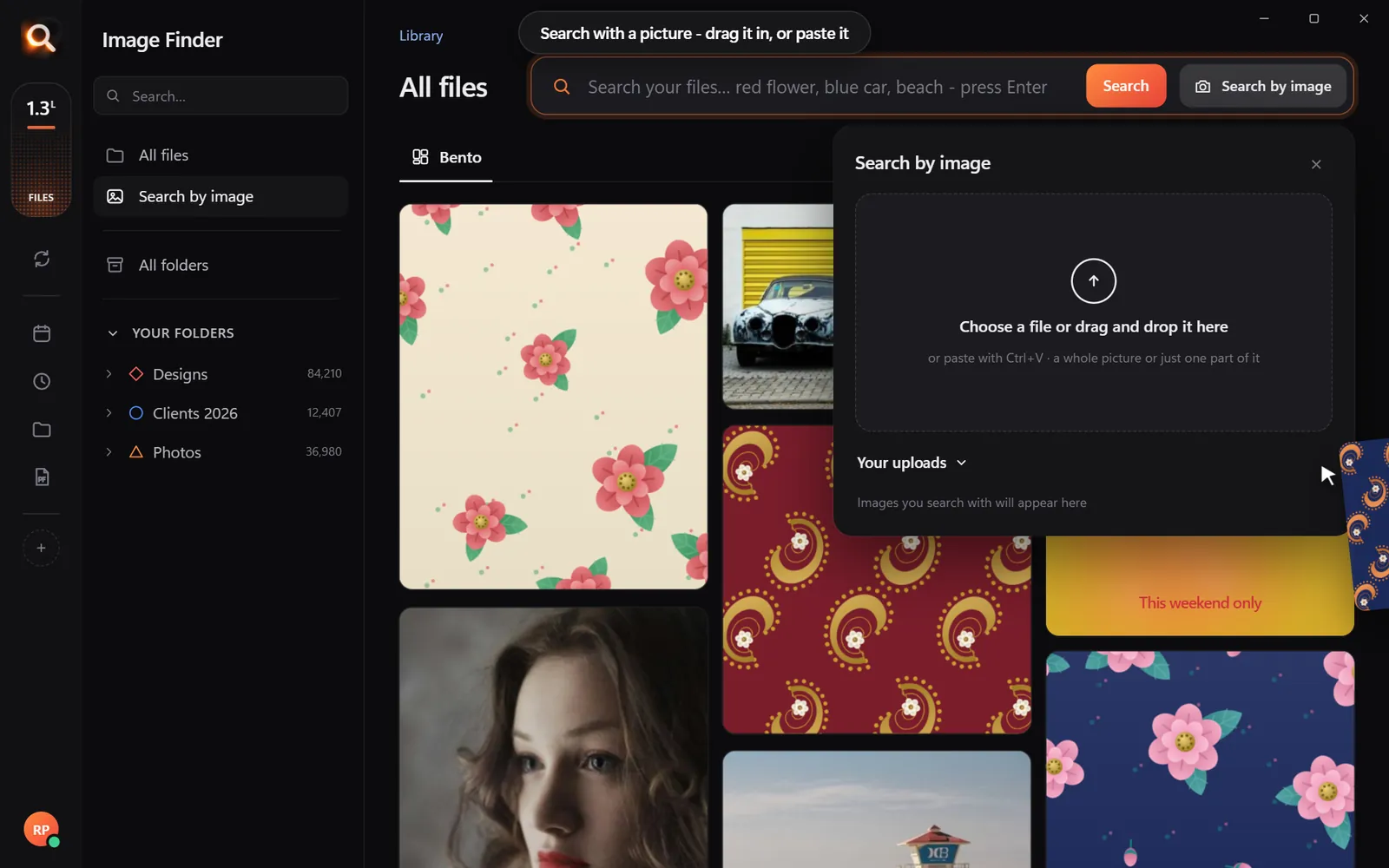
Search by image drop
Drop an image to instantly find identical copies and close variations

Step-by-Step: How to Find Duplicate Images on PC

To reliably find duplicate images on PC drives, you need software that understands the visual contents of each file. Image Finder is a desktop application for Windows 10, Windows 11, and Mac that indexes your visual files locally and allows you to find matches in roughly a tenth of a second.

Here is how to locate identical and similar pictures across all your connected drives:

Step-by-Step Duplicate Image Discovery 0/5

Because the app reads over 150 file types—including RAW camera files, HEIC iPhone photos, Photoshop PSDs, Illustrator AI files, and images packed inside ZIP or RAR archives—you do not have to unpack or convert files just to check if you already own them.
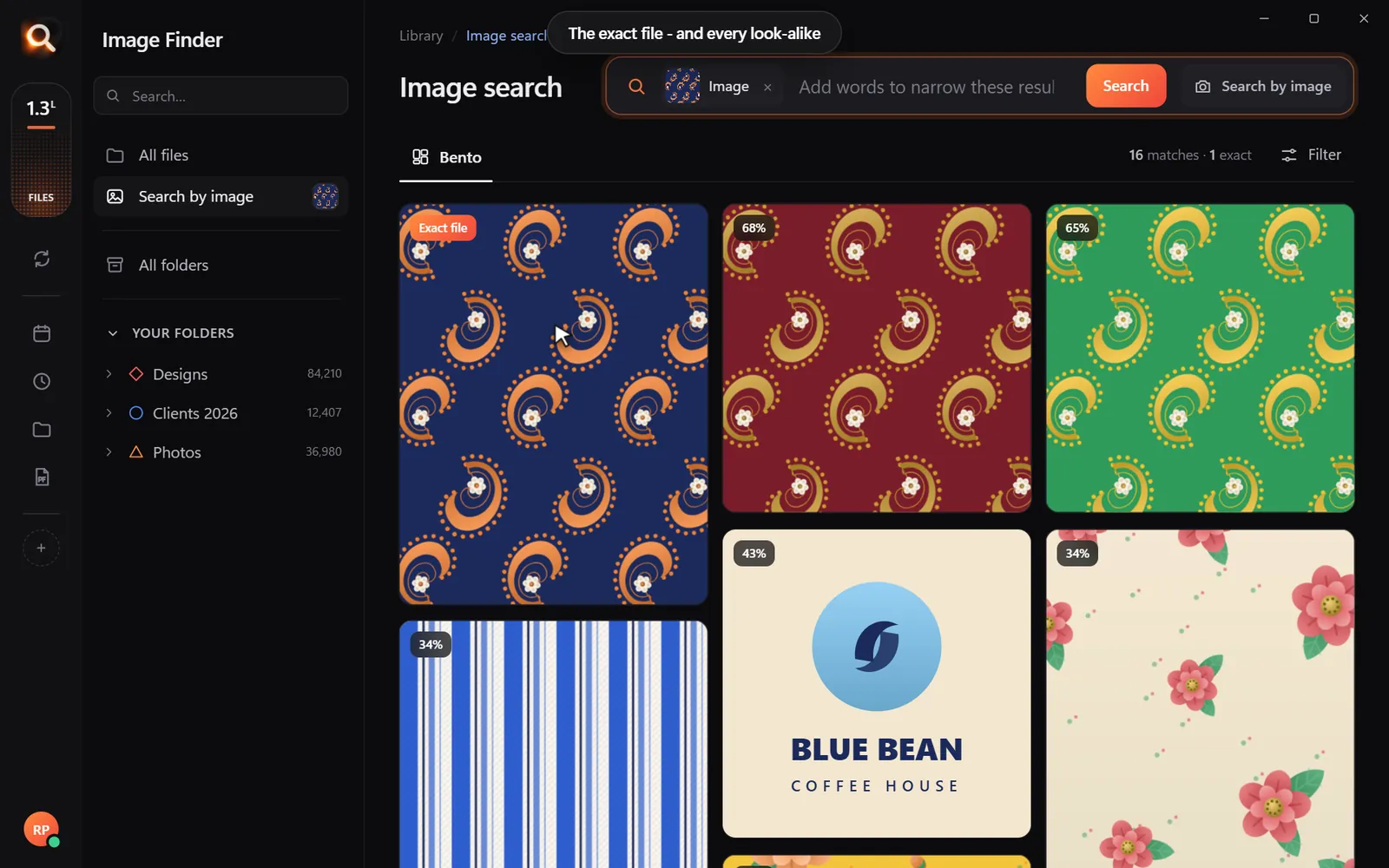
Exact matches and lookalikes
See the exact file first followed by visually identical and resized copies

If you frequently move photos from mobile devices to your computer, our guide on iPhone photos on Windows provides additional tips for managing Apple formats.

Reviewing Clutter Safely: Why Read-Only Search Protects Your Files

Many aggressive duplicate cleaners on the market feature automatic "one-click cleanup" buttons. While this sounds convenient, automated file deletion is risky:

  • It can delete an original high-resolution RAW file while keeping a tiny, compressed thumbnail.
  • It can break project files in design apps or video editors that depend on an asset remaining in an exact folder path.
  • It might delete a family photo because it cannot tell which folder was your primary archive and which was a temporary backup.

Image Finder takes a strictly read-only approach. The software never deletes, renames, edits, or moves your files automatically. It reads your pictures, indexes their visual features on your local hardware, and shows you where every copy lives.

You stay completely in control. When you spot five versions of an image, you can open each folder path, verify which file is your high-resolution master copy, and decide what to keep. To learn more about setting up a safe overall storage workflow, explore the 3-2-1 photo backup plan and our guide on how to free up space from duplicate photos safely.

Keeping Your PC Library Organized Going Forward

Once you locate your duplicate pictures, establishing a few simple habits will keep your PC clean without constant manual sorting:

  1. Designate a single intake folder: Send phone transfers, camera cards, and downloaded assets into one central _Inbox directory before distributing them.
  2. Check before you redownload: If you remember having a photo of a beach or a red flower border, simply search your computer by describing it in your own words rather than downloading it from the cloud again.
  3. Keep sync enabled: In Image Finder, monitored folders and drives stay up to date automatically as you save, export, or adjust files.
Try it here

A tiny sample library in your browser. The app does this with AI across every file on your computer - try the real app in your browser.

Image Finder runs 100% offline on your machine; your private photos never get uploaded to an external server. You can test how visual search works directly in your web browser at /try, or view our simple one-time payment options on our /pricing page (available in 1, 2, or 3-month plans with no recurring subscriptions).

If you find Image Finder helpful, invite a friend via our /refer program: you receive 15 free days added to your plan for each friend who starts using it, and your friend gets 5 extra days.

Questions People Ask

Can Image Finder detect duplicate images inside ZIP files?

Yes. Image Finder indexes files stored inside ZIP, RAR, and 7z archives without requiring you to unzip them first. It will show matching images residing inside compressed archives alongside standard folders.

What happens if the duplicate image has a different resolution or file format?

Because visual search evaluates the visual content of the image rather than file metadata, it readily identifies copies that have been resized, compressed, converted from PNG to JPG, or exported at different quality levels.

Will Image Finder automatically delete my duplicate files?

No. Image Finder is strictly read-only. It helps you find, inspect, compare, and locate your files across drives in a fraction of a second, but it never moves, modifies, or deletes anything on your computer.

Test visual search in your browser right now or download Image Finder to inspect your PC drives safely.

Windows and Mac. Private, offline, no subscription.
More posts

Free Up 100 GB: Find Duplicate and Look-Alike Photos Safely

Free Up 100 GB: Find Duplicate and Look-Alike Photos Safely

Your drive is full and half of it is copies of copies. How to find exact duplicates and near-duplicates (bursts, edits, resized copies) and delete them without losing a single original.

31 Oct 2026
How to Find Duplicate Photos on Windows (Without Deleting the Wrong One)

How to Find Duplicate Photos on Windows (Without Deleting the Wrong One)

Exact copies, resized versions, edited near-copies: how to find every copy of a photo on Windows, and when a bulk duplicate cleaner is the better tool.

8 Oct 2026
R

Reverse Image Search Software for PC: Find Local Files Offline

Discover why web search tools fail on your hard drive and how dedicated reverse image search software for PC helps you match crops, RAW files, and designs offline.

4 Nov 2026