Duplicate photos pile up quietly: a phone backup imported twice, a folder copied "just in case", an edited version saved next to the original, a picture downloaded from WhatsApp that you already had. This guide shows how to find duplicate photos on Windows - and how to avoid the classic mistake of deleting the one copy you actually needed.
Two kinds of "duplicate"
Before picking a tool, know what you are looking for.
- Exact duplicates are byte-for-byte the same file, often with different names (
IMG_2041.JPGandIMG_2041 (1).JPG). - Near-duplicates are the same picture saved differently: resized, cropped, color-corrected, re-saved as PNG, or sent through a chat app that shrank it.


Simple duplicate finders only catch exact copies, because they compare file contents. To catch near-copies, a tool has to compare what the pictures look like.
Method 1: Windows File Explorer (free, small folders)
For a single folder with a few hundred photos:
It is free and safe, but it stops working once your photos are spread over many folders and drives.
Method 2: a bulk duplicate cleaner (whole drives)
If your goal is "free up space on this drive", a dedicated duplicate cleaner is the right tool. Many free and paid ones scan a drive, group exact duplicates and let you delete extras in bulk. Several also catch similar photos.
Method 3: find every copy of one photo (Image Finder)
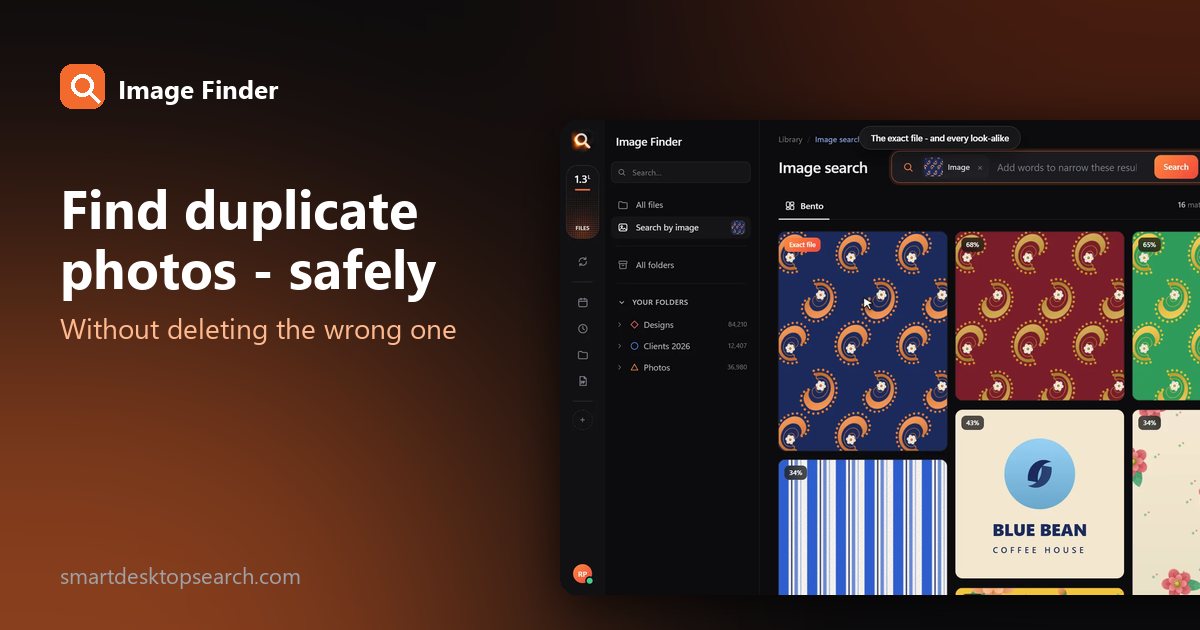
Often the question is narrower: "Where are all the copies of this picture - and which one is the original?" That is what Image Finder does. You drop in one photo (or paste a screenshot of it) and get:
- Exact copies first, wherever they are on your folders and drives;
- then near-copies - resized, cropped, recolored, re-saved - each with a similarity percentage.
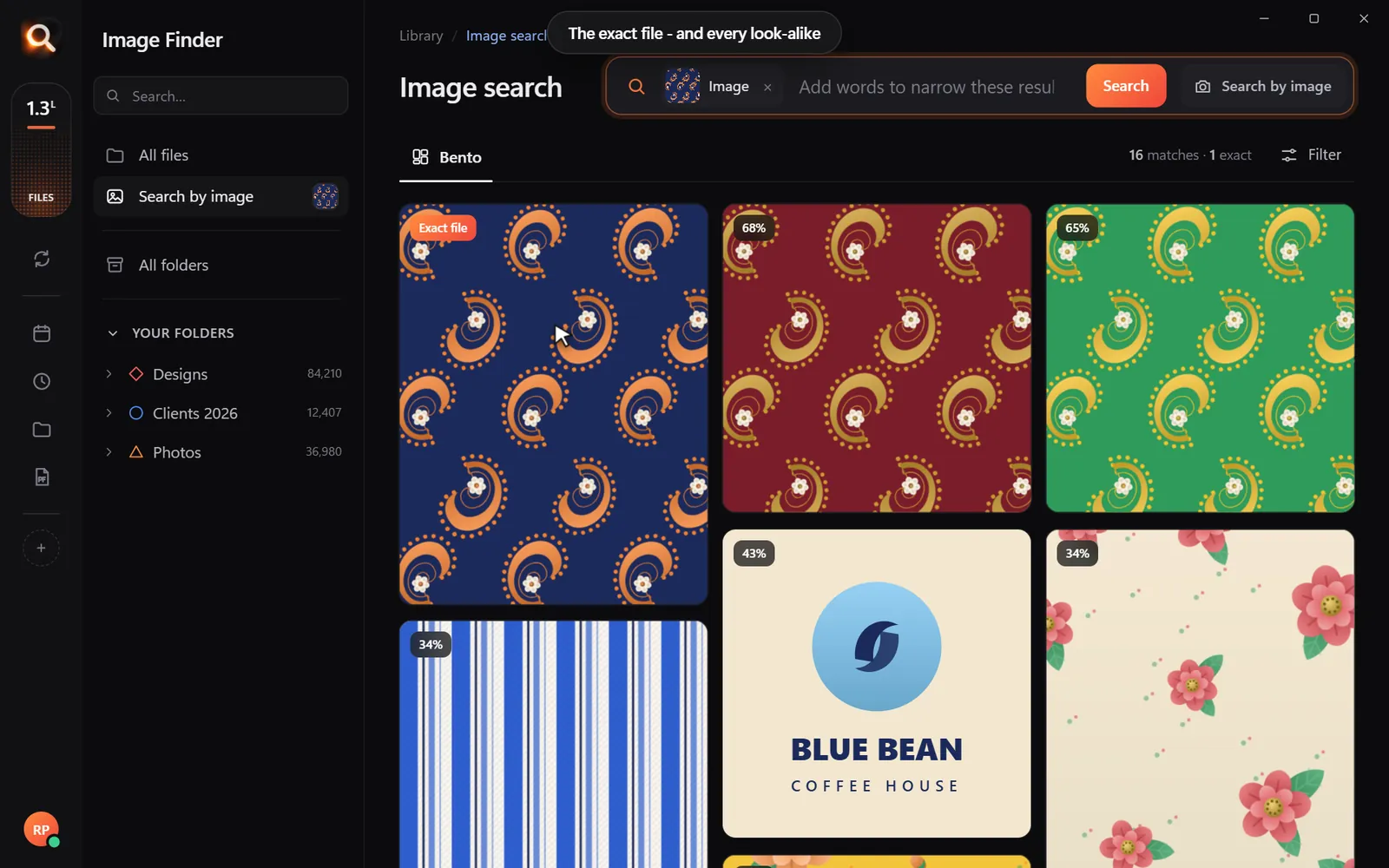
You see each copy with a preview and its folder, then decide yourself. Image Finder never deletes, moves or renames files, so nothing disappears by mistake. It is not a bulk cleaner: it will not list every duplicate on a drive. See the duplicate image finder page.
Which copy should you keep?
When you find several versions of a photo, keep:
- The largest original - most pixels, straight from the camera or the designer.
- The final edit you delivered or published, if it differs.
- One copy per backup location - duplicates in a backup are not clutter, they are the point.
Questions people ask
Does Windows 11 have a built-in duplicate photo finder?
No. File Explorer can sort and search by name, size and date, but it cannot compare what photos look like. You need a separate app.
Can it find duplicates saved in different formats?
Exact-copy finders usually cannot, because a JPG and a PNG of the same photo are different files. Image Finder compares the pictures themselves, so a copy saved in another format still shows up as a close match.
Will Image Finder delete my duplicate photos?
No. It shows you every copy with a preview and where it is stored. You decide what to keep, and you delete files yourself in File Explorer.
Windows and Mac. Private, offline, no subscription.