Try itFeaturesPricingHow it works QuestionsBlogSign in DownloadContact usRefunds

For Windows & Mac · Works offline

Find any image on your computer.
Just describe it.

Type "red flower", drop in a photo, or pick a face - Image Finder finds the right file among lakhs of photos, designs (PSD, CDR, AI) and PDFs in about a tenth of a second. Nothing is uploaded.

On your phone? Image Finder runs on your computer. Send yourself the link and open it there.

Choose your computer and a plan - the download starts by itself right after paying

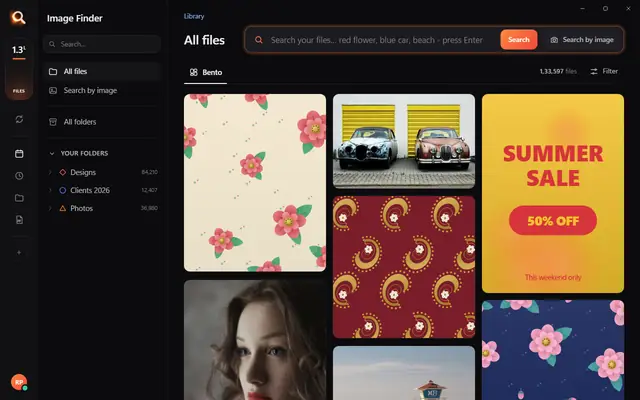
The Image Finder window with sample pictures

The real Image Finder window with sample files - click anywhere in it to try it yourself. In the app it searches lakhs of your own files in a fraction of a second, all on your PC. Open it full screen

Sound familiar?

You remember the picture,
not the file name.

It's somewhere in IMG_4821, final_final_v3.psd or New folder (7).

Windows search only
knows names.

It can't see a red flower, a logo or a face inside your files.

Photo apps want
your files uploaded.

And they can't open PSD, CDR or AI designs at all.

Image Finder looks inside every file - so you find it the way you remember it.

Four ways to find it. One click to share it.

By words

Type what you see.

By a picture

Drop in any picture.

By one part

One motif. Every file that has it.

By a face

One face. Every photo.

Then share it

WhatsApp, PDF, Drive. One click.

Always ready

New files show up in seconds.

Why not just use Windows search?

Because it only knows file names. Here is what changes.

Image FinderWindows File Explorer searchCloud photo apps
Find a picture by describing what is in it Names and dates onlyPhotos only
Search with a picture - find the original and look-alikes Some apps
Find every file that has one part of a design
Opens design files - PSD, CDR, AI, EPS - and camera RAW Names only
Works with no internet
Your files stay on your computer Uploaded
Works on any Windows 10 / 11 PC or Mac

Windows 11's Photos app can search by description only on new Copilot+ PCs, and only in photos.

Built for real libraries.

Lakhs of files, many folders, many names - and people who have no time to look.

Private by design.

Your designs, photos and searches stay with you - on your own PC. Nothing is uploaded, and nobody else can see them.

Fast on any PC.

About a tenth of a second per search - even in a lakh-plus library.

1,33,597 files searched

107 file types.

Photoshop, CorelDRAW, Illustrator, PDF, camera RAW, videos, fonts - with real previews.

Selected 0
107 types

Made for anyone with a big library.

Designers & print shops

"floral border maroon" - the right PSD or CDR from lakhs of designs, while the client waits.

Photographers & studios

Every photo of one person from a whole wedding, in one click.

Offices & agencies

Logos, posters and PDFs found by the words printed inside them.

Everyone with years of photos

"beach", "birthday cake", "red car" - no folders to dig through.

Simple pricing.

₹1 per day. Pay once for the time you need - no auto-debit.

One licence works on one PC. Your time starts when you activate Image Finder on your PC.

Searching in three minutes.

1

Choose a plan and pay

UPI, cards, net banking or wallets. Your website account is made with your email and password.

2

Download - your key is inside

Your licence key is made the moment the payment is done. Download Image Finder right away.

3

Install and choose folders

Click Install, pick the drives and folders to search - and start finding while it reads them.

Questions? Answers.

How do I find a picture on my computer if I don't know its name?

Open Image Finder and describe it - "red flower", "blue car", "birthday cake". It looks at what is inside every picture, so the file name does not matter. You can also drop in a similar picture, or pick a face.

Is it better than Windows search?

Windows File Explorer finds files by their names and dates. Image Finder finds them by what is in them - words, pictures, a part of a design or a face - and it also opens design files like PSD, CDR and AI. Windows 11's own describe-search in the Photos app needs a new Copilot+ PC; Image Finder works on any Windows 10 or 11 PC.

Does it upload my files?

No. Image Finder works fully on your computer. Your files, pictures and searches never leave it. Only your licence is checked online, once every few days.

Does it work without internet?

Yes. Searching, previews and sharing to folders work offline. It needs the internet only to check your licence now and then, and to send to WhatsApp, Gmail or Drive.

Which file types does it search?

107 types: Photoshop (PSD, PSB), CorelDRAW (CDR), Illustrator (AI, EPS), PDF, every photo format including camera RAW (NEF, CR2, ARW), HEIC, SVG, Office files, fonts and videos - all with real previews.

Can it search inside PSD and CDR files?

Yes. It sees the design itself, so "red rose border" finds the right PSD or CDR, and a photo of a printed design finds its original file.

Does it work on Mac?

Yes - there are versions for Macs with Apple M chips and for older Macs with Intel chips, and for Windows 10 and 11.

What computer do I need?

Windows 10 or 11 (or a Mac), 8 GB RAM or more, and about 2 GB free space plus room for previews of your files. No special graphics card is needed.

How much does it cost?

About ₹1 a day - from ₹30 for a month. You pay once for the time you choose; there is no auto-debit and nothing renews by itself.

Can I use one licence on two PCs?

One licence works on one PC. If you change your PC, remove the licence from the old one (in the app, or in your account on this website) and activate it on the new PC.

How do I pay?

UPI (GPay, PhonePe, Paytm), debit and credit cards (also international cards), net banking and wallets. You get an invoice by email.

Can I get a refund?

Yes - see our refund policy.

Stop searching.
Start finding.

Blog

Tips for finding, organising and sharing your designs faster.

← All posts

Blog post

The Best AI Photo Search Apps for Windows and Mac in 2026 (Offline and Private)

"Find the photo of the red car" should be a reasonable thing to ask your own computer. In 2026 it finally is - if you use the right app. This comparison looks at seven ways to get AI photo search on Windows and Mac, what each is good at, and where each falls short.

We make one of these apps (Image Finder), so we have been careful to describe the others fairly. Features change quickly, so check each app's own site before you decide.

What to look for in an AI photo search app

Which matters most to you?

Five questions sort most apps quickly:

  1. Does it search your existing folders, or do you have to import everything into its own library or catalog?
  2. What can you search by - words, a sample picture, a face, a color, words printed in the image?
  3. Which files does it understand - only photos, or also design files (PSD, AI, SVG), PDFs and RAW?
  4. Does it work offline, with nothing uploaded?
  5. How does it handle a big library - tens or hundreds of thousands of files?

The apps at a glance

AppPlatformsSearch by wordsSearch by pictureDesign filesOffline
Image FinderWindows, MacYesYes, plus one part of a pictureYes (PSD, AI, CDR, SVG...)Yes
Excire FotoWindows, MacYesYesMainly photosYes
Windows PhotosWindowsOn Copilot+ PCs-NoYes, on the device
Apple PhotosMacYesNoNoYes
digiKamWindows, Mac, LinuxMostly via tagsYes (fuzzy search)LimitedYes
EagleWindows, MacTags and namesColor filterYes, in its libraryYes
MemoraWindowsYes-Photos and RAWYes

Based on each app's public information in 2026. "Limited" means it works for some cases but is not the main purpose.

1. Image Finder - for big, messy libraries of photos and designs

Image Finder searches the folders and drives you already have, without importing them anywhere. You can search by a description, by a picture, by one part of a picture (a logo, a motif), by a face, by color and by the words printed in a file. It reads 107 file types - photos, RAW, HEIC, PSD, AI, CDR, SVG, PDFs (every page, scanned ones too) and even files inside ZIP and RAR archives.
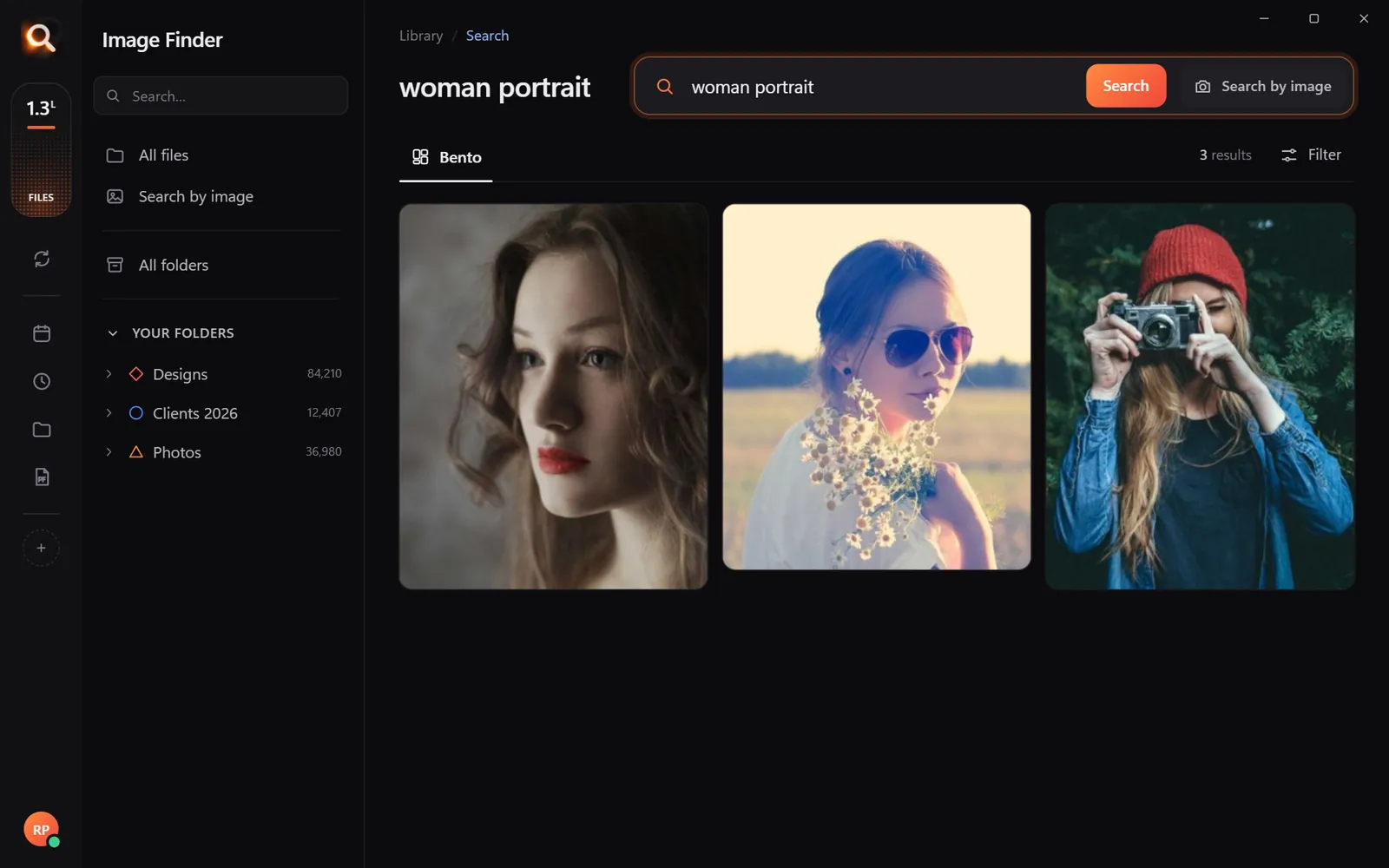
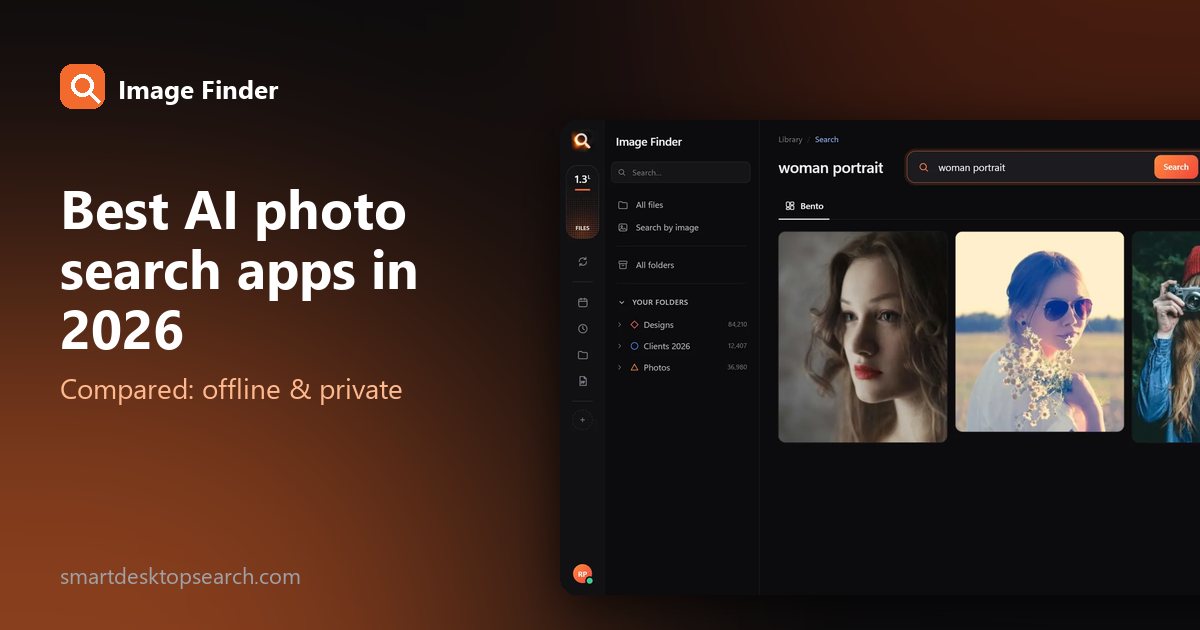
Image Finder: searching 'woman portrait' finds portraits across folders
Image Finder searches the folders you already have - here, 'woman portrait'.
  • Best for: designers, photographers, agencies and anyone with tens of thousands of files and no time to tag them.
  • Good to know: it runs fully offline; plans are paid once for 1, 2 or 3 months, with no automatic renewal. It is a search tool, not an editor or a duplicate cleaner.
  • See how AI image search works or try it in your browser.

2. Excire Foto - for photographers who want AI keywording

Excire Foto is a well-known photo organizer with on-device AI: it can tag photos automatically, search by description and help pick the best shots. It also works alongside Lightroom Classic as a plugin.

  • Best for: photographers who live in a photo catalog and want keywords added for them.
  • Keep in mind: it is built around photos. If much of your library is design files, check how it handles them first.

3. Windows Photos - free, if you have a Copilot+ PC

The Photos app built into Windows has gained AI features on Copilot+ PCs, including searching photos by describing them.

  • Best for: casual photo search on a new Copilot+ laptop.
  • Keep in mind: it is a photo viewer. It does not search design files or every folder and drive, and the AI search depends on newer hardware.

4. Apple Photos - built into every Mac

Apple Photos recognizes objects, scenes, people and text in photos, all on the device.

  • Best for: Mac users whose photos all live in the Photos library.
  • Keep in mind: it only searches photos you imported into Photos. Pictures in Finder folders, on external drives or inside design files are outside it.

5. digiKam - free and open source

digiKam is a powerful free photo manager with face recognition, tags, and a fuzzy "find similar" search.

  • Best for: people happy to spend time tagging and organizing in exchange for a free tool.
  • Keep in mind: most of its power comes from tags you add; plain-language AI search is not its focus.

6. Eagle - a visual library for designers

Eagle collects images, references and design files into its own library with tags, folders and color filters.

  • Best for: designers who like to curate an inspiration and asset library by hand.
  • Keep in mind: files are brought into Eagle's library, and finding things relies mostly on tags, names and colors.

7. Memora - a newer local AI photo app for Windows

Memora describes itself as a private, local photo manager for Windows that searches with natural language and supports RAW.

  • Best for: Windows photographers who want local natural-language search.
  • Keep in mind: it is young and photo-focused; check what file types and library sizes it supports.

Our honest pick
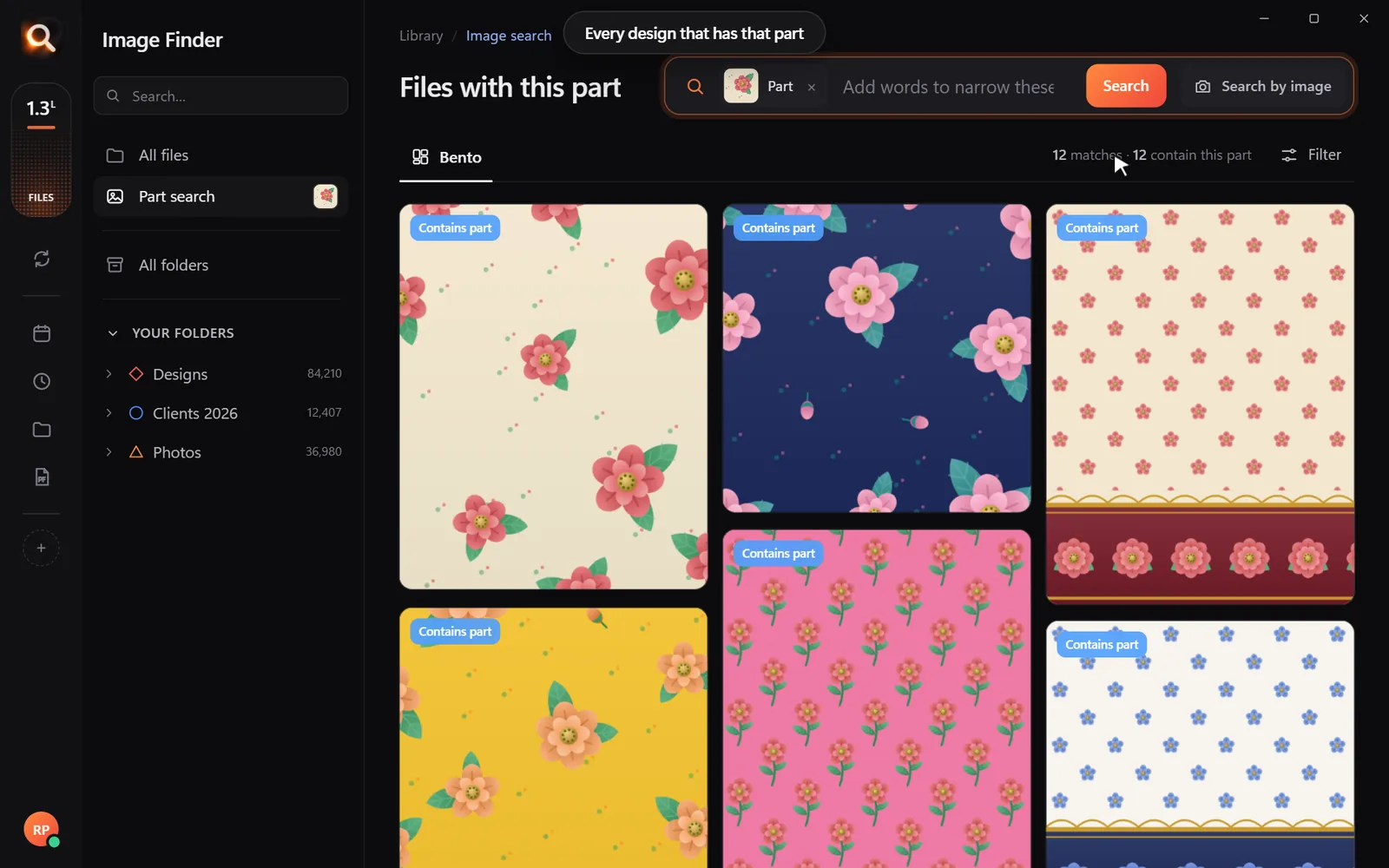
Find every file that contains one part of a design - something photo apps usually cannot do
Searching by one part of a design: every file that contains it, marked.

Questions people ask

What is the best free AI photo search app?

Apple Photos (on Mac) and Windows Photos (with AI features on Copilot+ PCs) are free and fine for photos inside those apps. digiKam is free and powerful if you are willing to tag. For searching every folder, drive and design file, paid tools like Image Finder or Excire Foto go further.

Can I search photos by description without uploading them?

Yes. Every app in this list except cloud photo services works on your own computer. Image Finder never uploads files and searches offline.

Which app can search PSD and AI files by what is in them?

Few photo apps can. Image Finder shows real previews of PSD, AI, CDR, EPS and SVG files and searches them like photos. Eagle stores design files in its library but relies mostly on tags.

Free in your browser. Windows and Mac. Nothing uploaded.

Windows and Mac. Private, offline, no subscription.
Try Image Finder

Search lakhs of designs on your PC in seconds. From ₹1 per day.

See plans
AI image searchAI image search for your own files.Type what you see - "red flower", "invoice with a blue logo" - and Image Finder's on-device AI finds it among hundreds of thousands of your photos, designs and

More posts

How to Search Images by Content on Windows 11 and Mac (No Tags Needed)

How to Search Images by Content on Windows 11 and Mac (No Tags Needed)

Windows Search and Finder only read file names. Here is how to find a photo or design by what is actually in it - a red car, a beach, a logo - in about a second.

8 Oct 2026
How to Find Duplicate Photos on Windows (Without Deleting the Wrong One)

How to Find Duplicate Photos on Windows (Without Deleting the Wrong One)

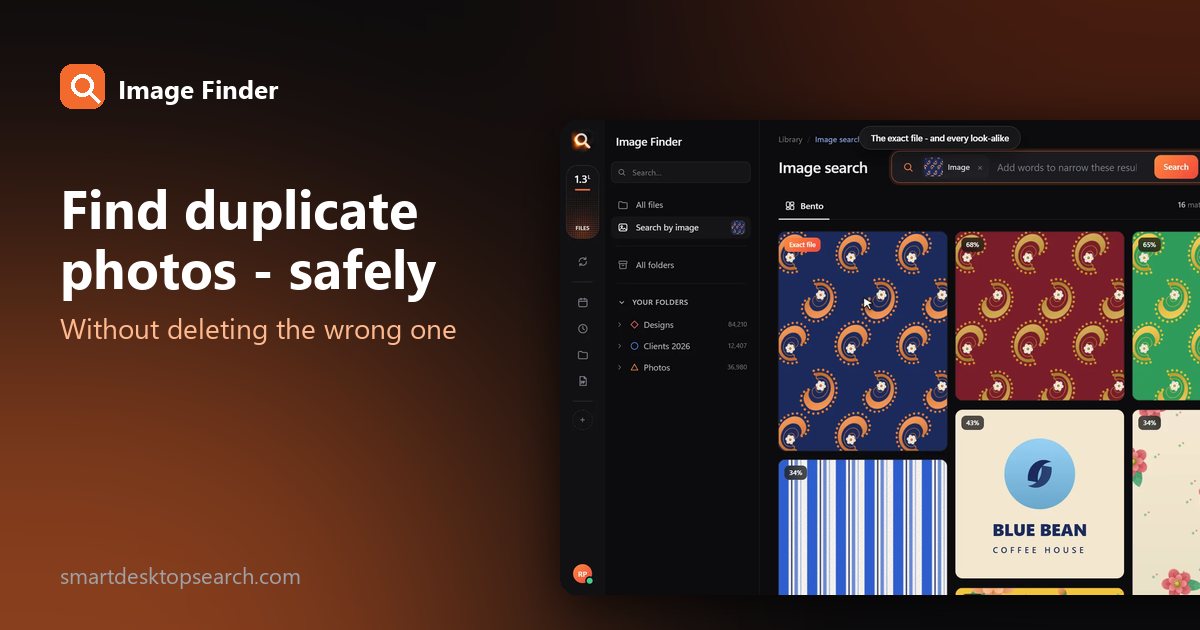
Exact copies, resized versions, edited near-copies: how to find every copy of a photo on Windows, and when a bulk duplicate cleaner is the better tool.

8 Oct 2026
How to Find Every Photo of One Person on Your Computer (Face Search, Offline)

How to Find Every Photo of One Person on Your Computer (Face Search, Offline)

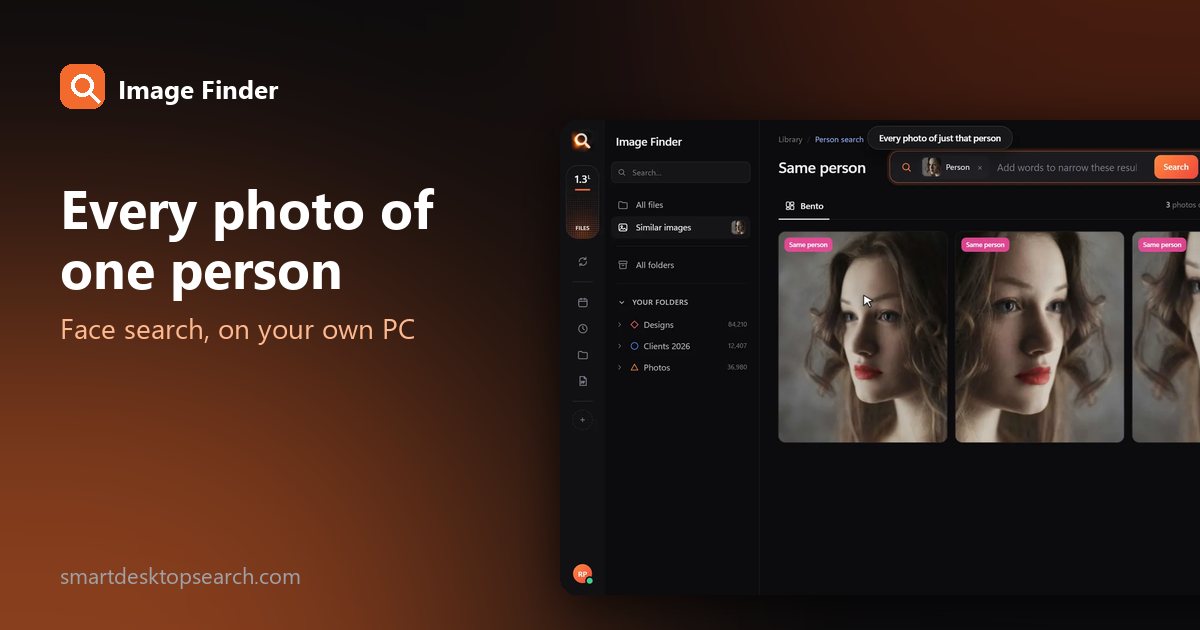
Years of photos in dozens of folders, and you need every picture of one person. Here is how face search works on your own PC or Mac - without uploading a single photo.

8 Oct 2026