 +
+
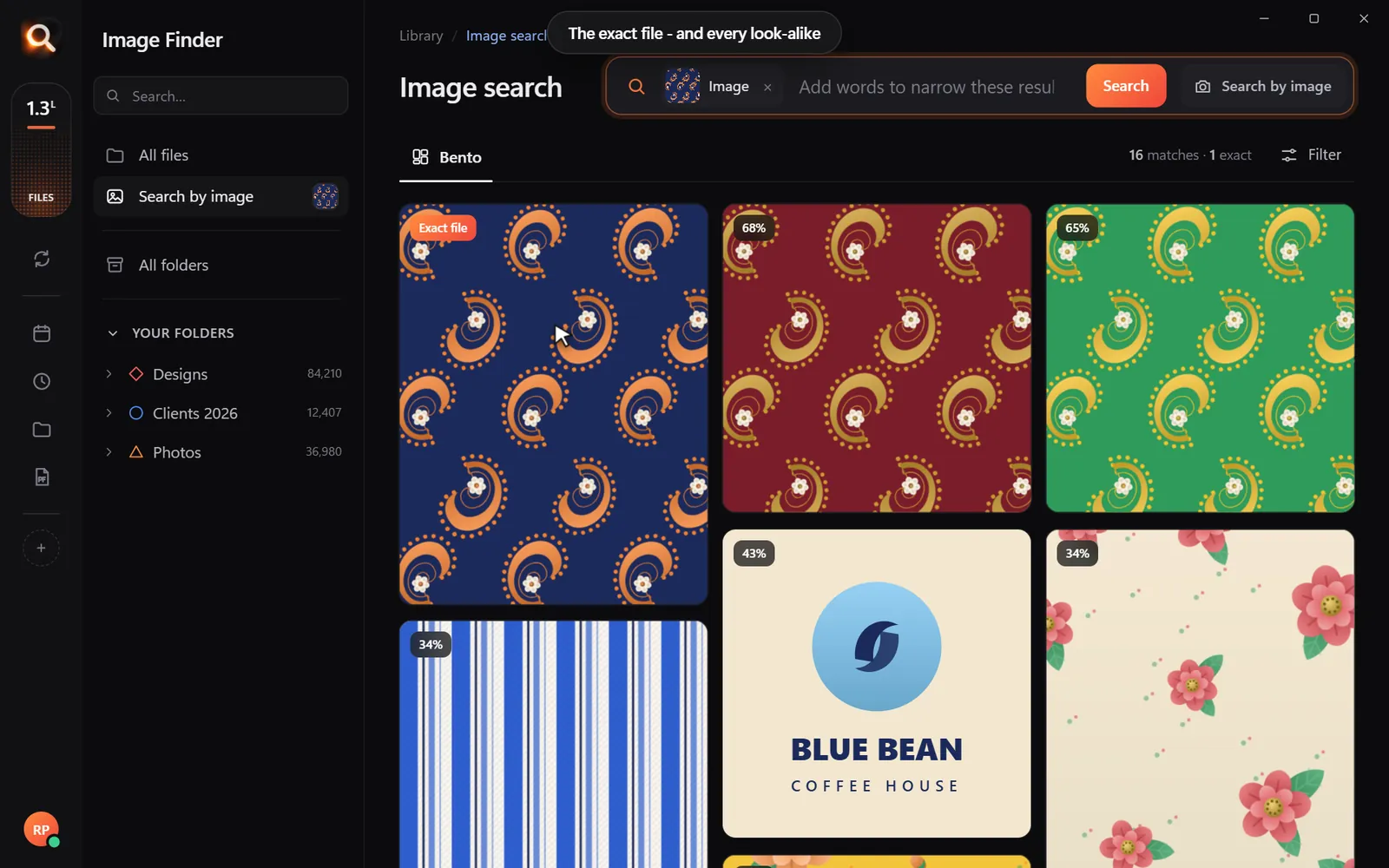

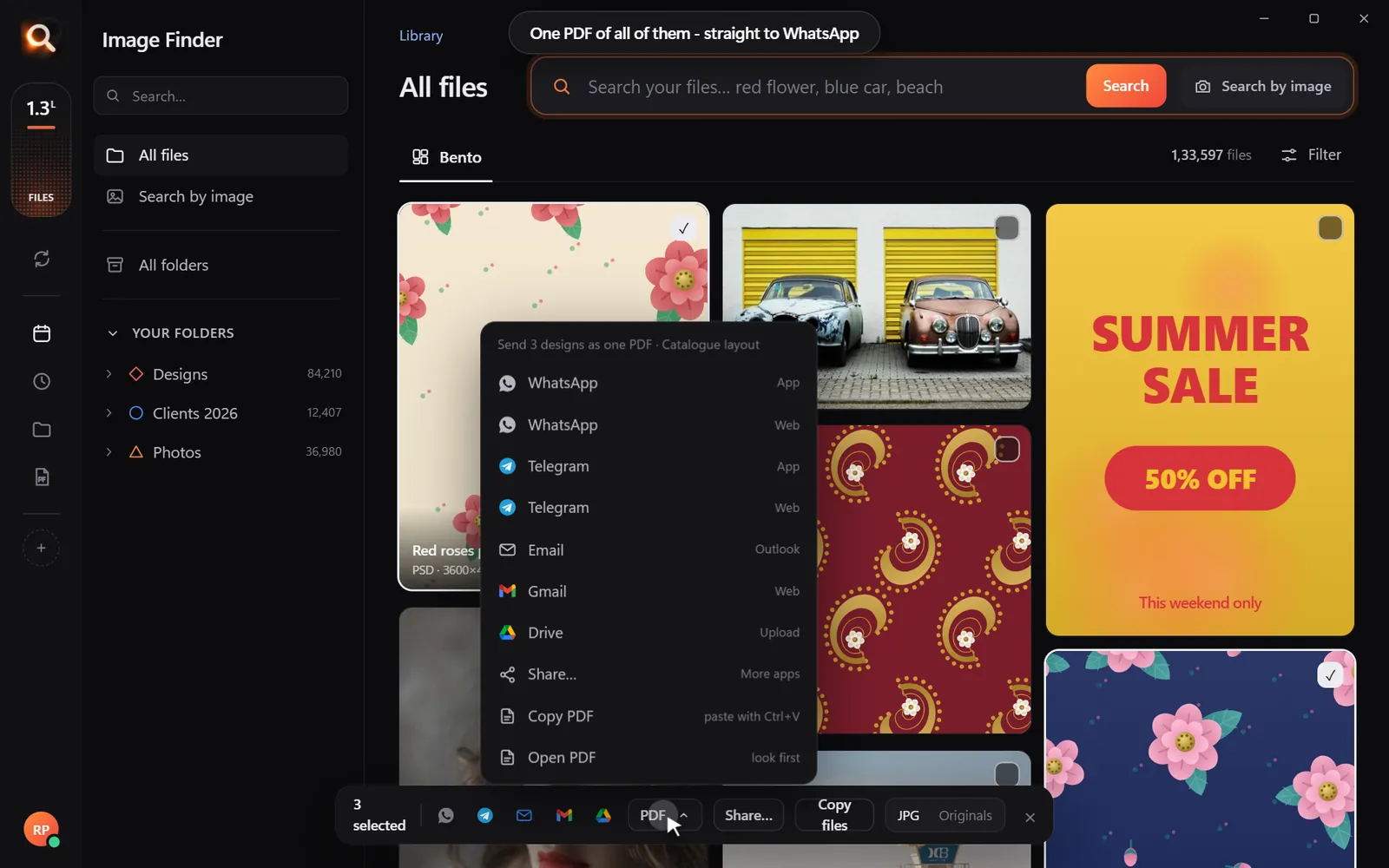
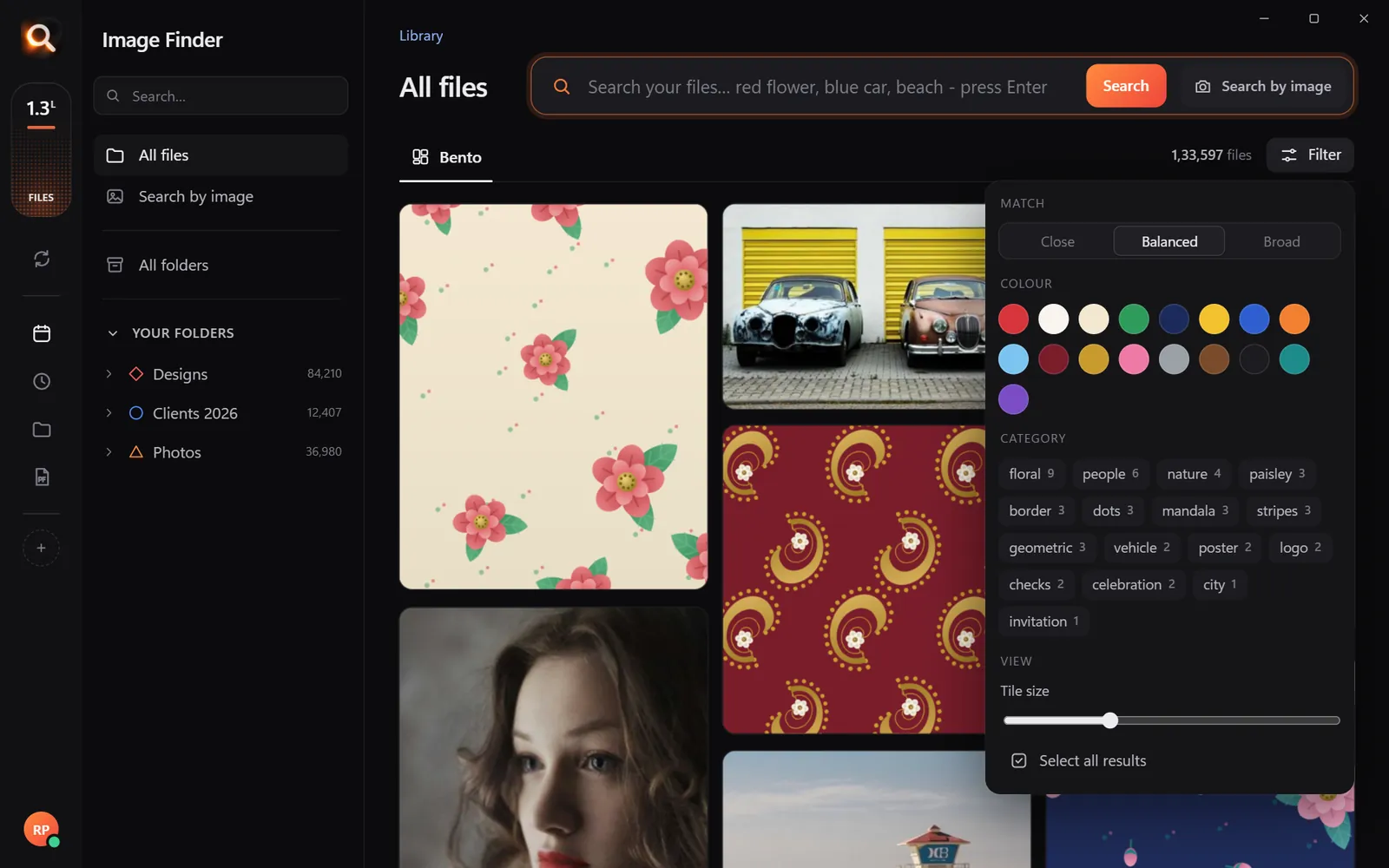
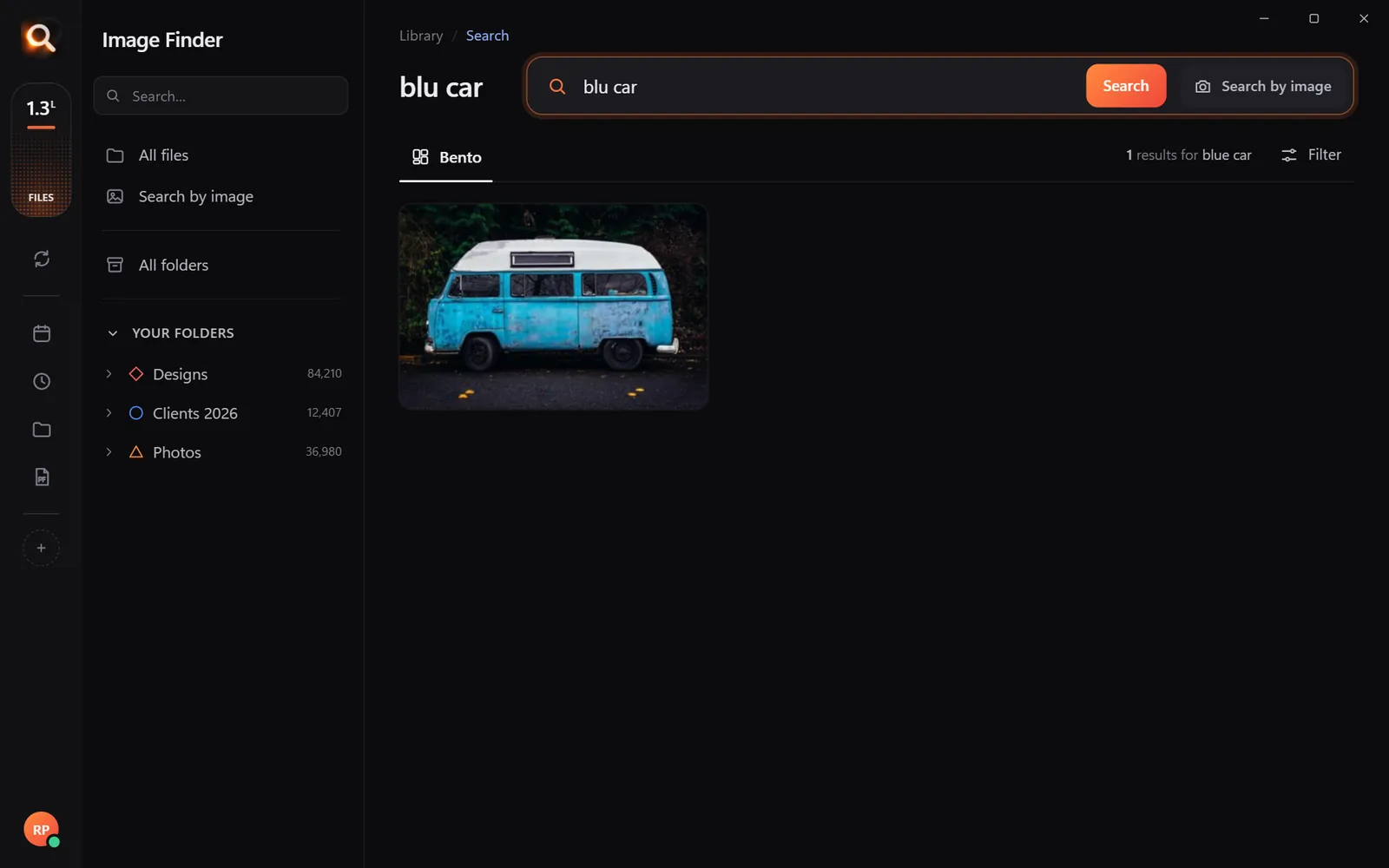
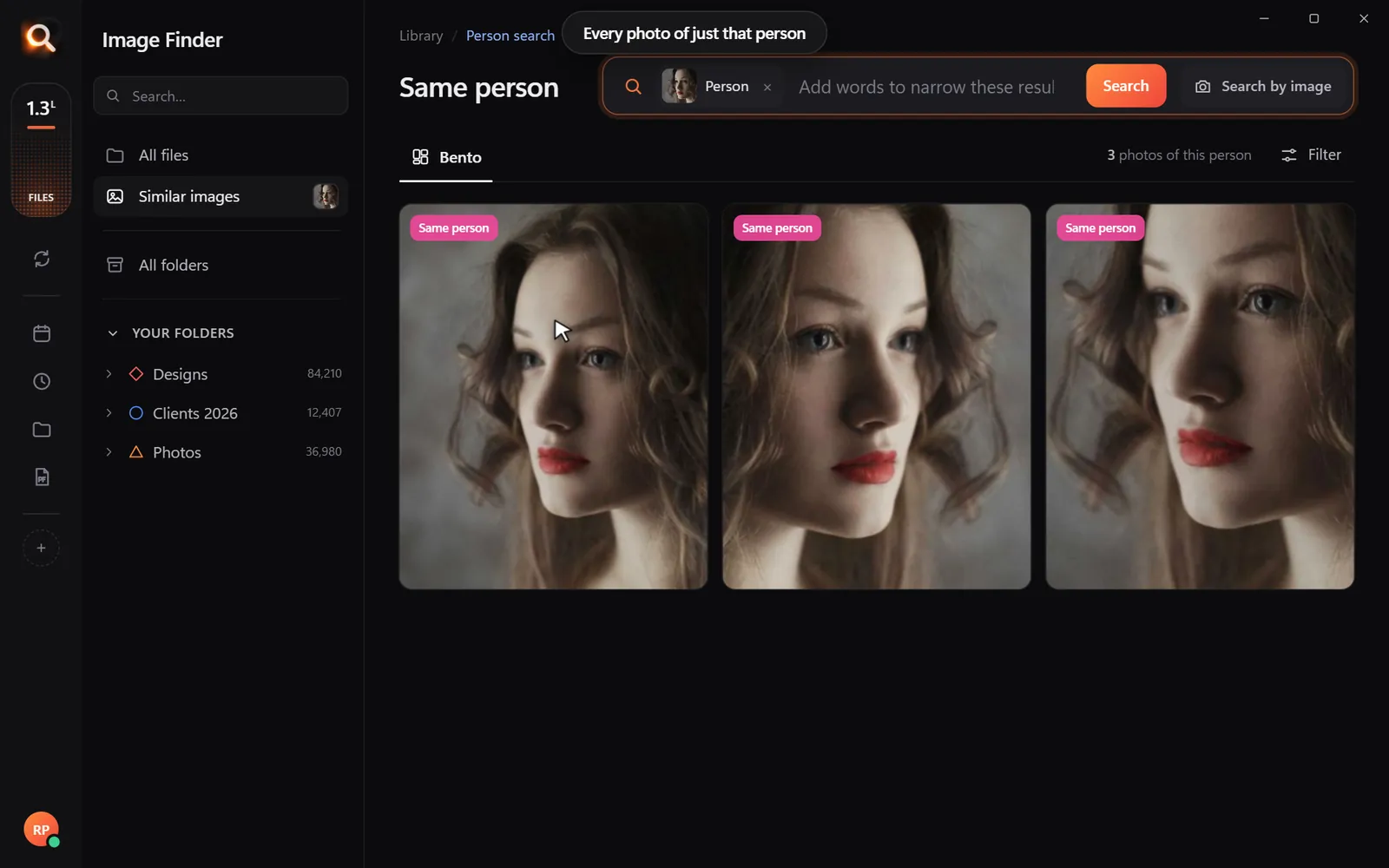



Spotlight is fast and clever - but if you have ever typed "red car" and watched it return nothing, you know its limits with pictures. Here is how to get the most out of Spotlight search for images on Mac, and how to search every picture by what is in it.
Quick fixes when Spotlight finds nothing
Spotlight and Finder tricks for pictures
kind:imageshows only images. Trykind:image beach.kind:image date:this weekfinds pictures saved this week.- In Finder, press Cmd+F, choose Kind > Image, and add rules for date, size or name.
- Save a Finder search as a Smart Folder to reuse it.
What Spotlight can and cannot see
Recent versions of macOS can recognize some things in photos - mostly photos in the Photos library. Pictures that live in normal Finder folders, on external drives or inside design files (PSD, AI, PDF) are mostly searched by name and details.
| You want | Spotlight | Content search |
|---|---|---|
| A file by name | Yes | Yes |
| Photos in the Photos library by object | Often | Yes |
| Pictures in Finder folders by what is in them | Rarely | Yes |
| Words printed in a design or scanned PDF | Sometimes | Yes |
| Every photo of one person, across folders | No | Yes |
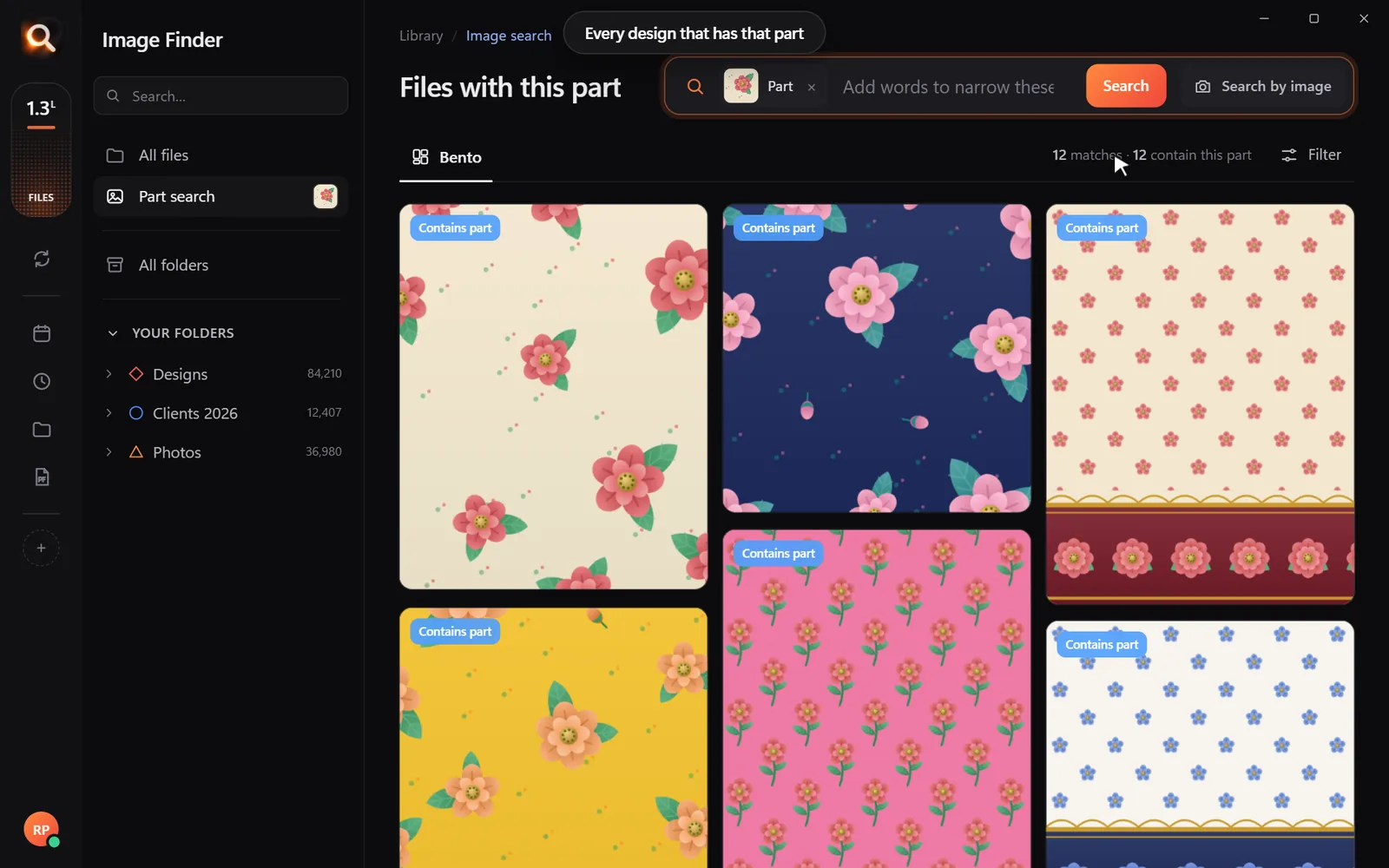
| Files containing one logo or motif | No | Yes |
Search every picture on your Mac by what it shows
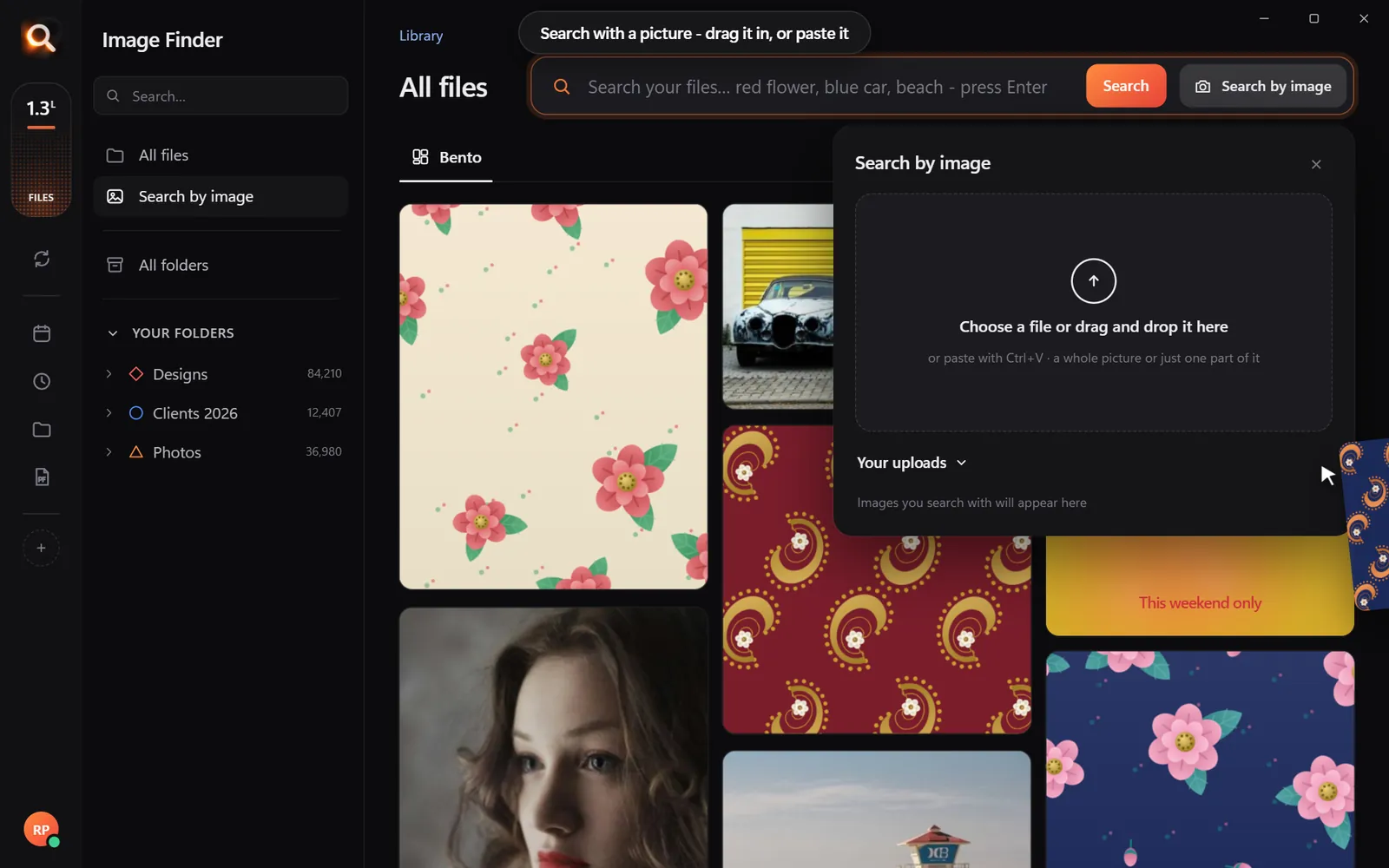
Image Finder for Mac runs on Macs with Apple M chips and on Intel Macs. Add your folders and drives once, then:
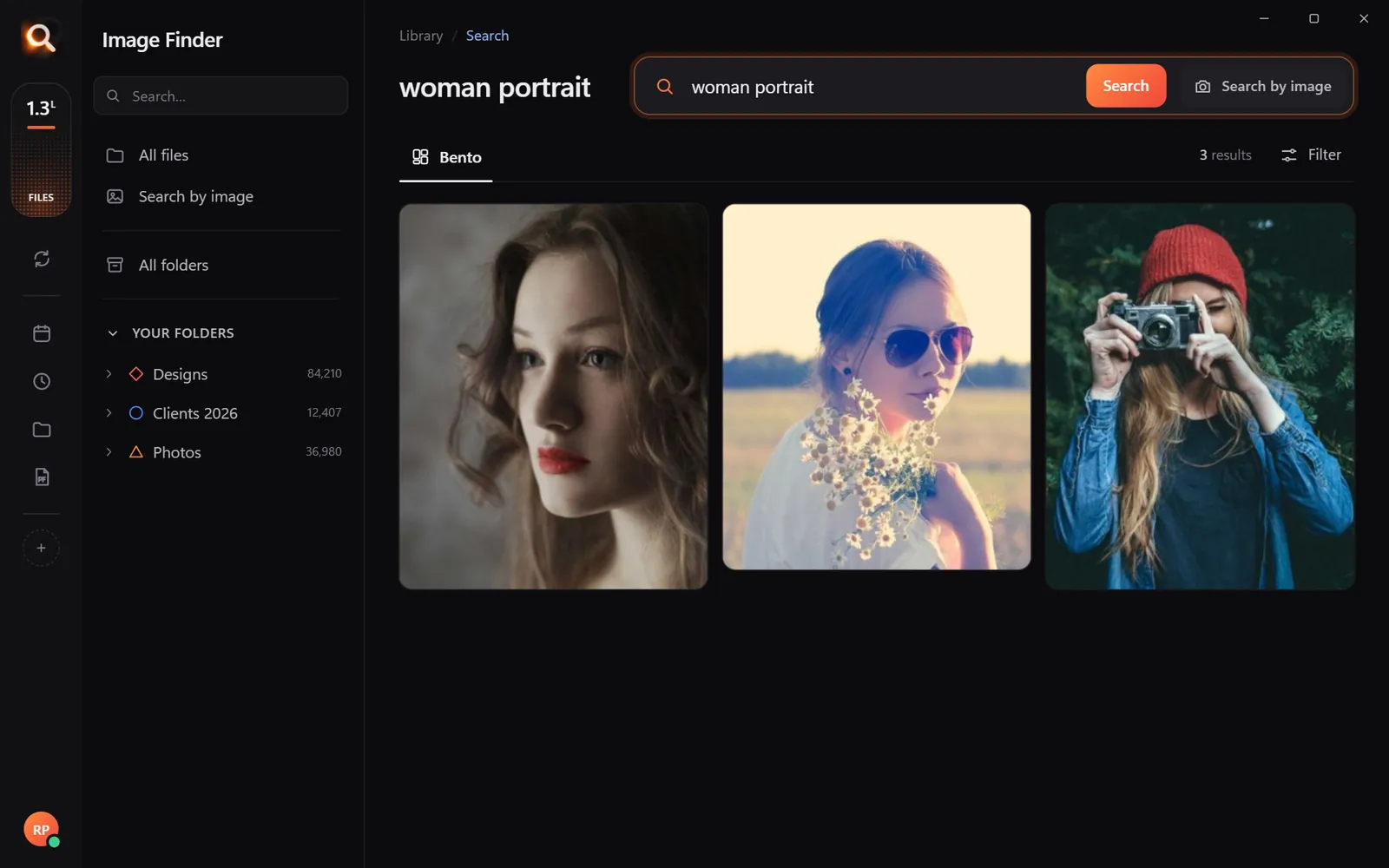
- describe a picture - "blue camper van", "woman with sunglasses";
- paste a picture with Cmd+V to find the original and every look-alike;
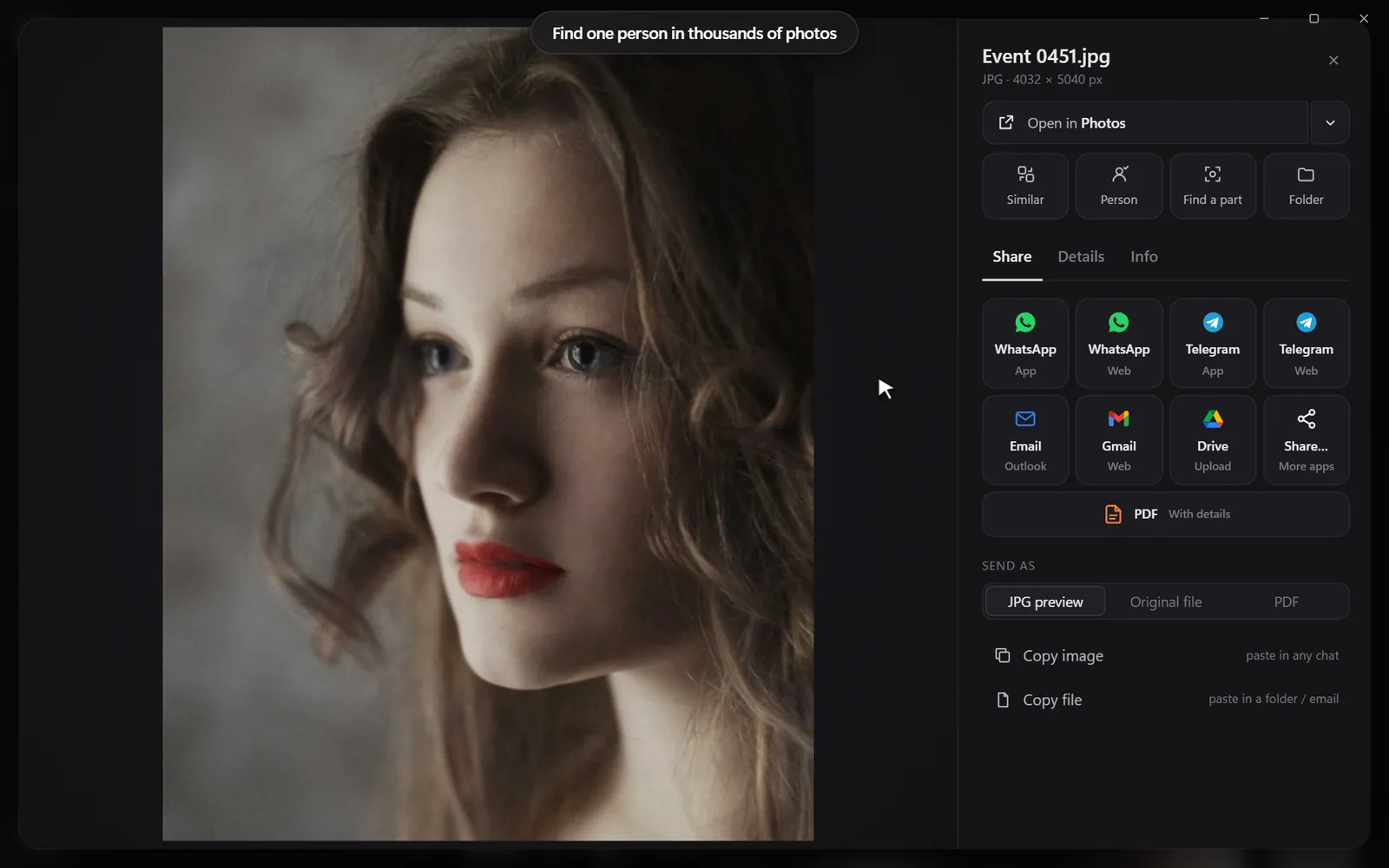
- pick a face to see every photo of that person;
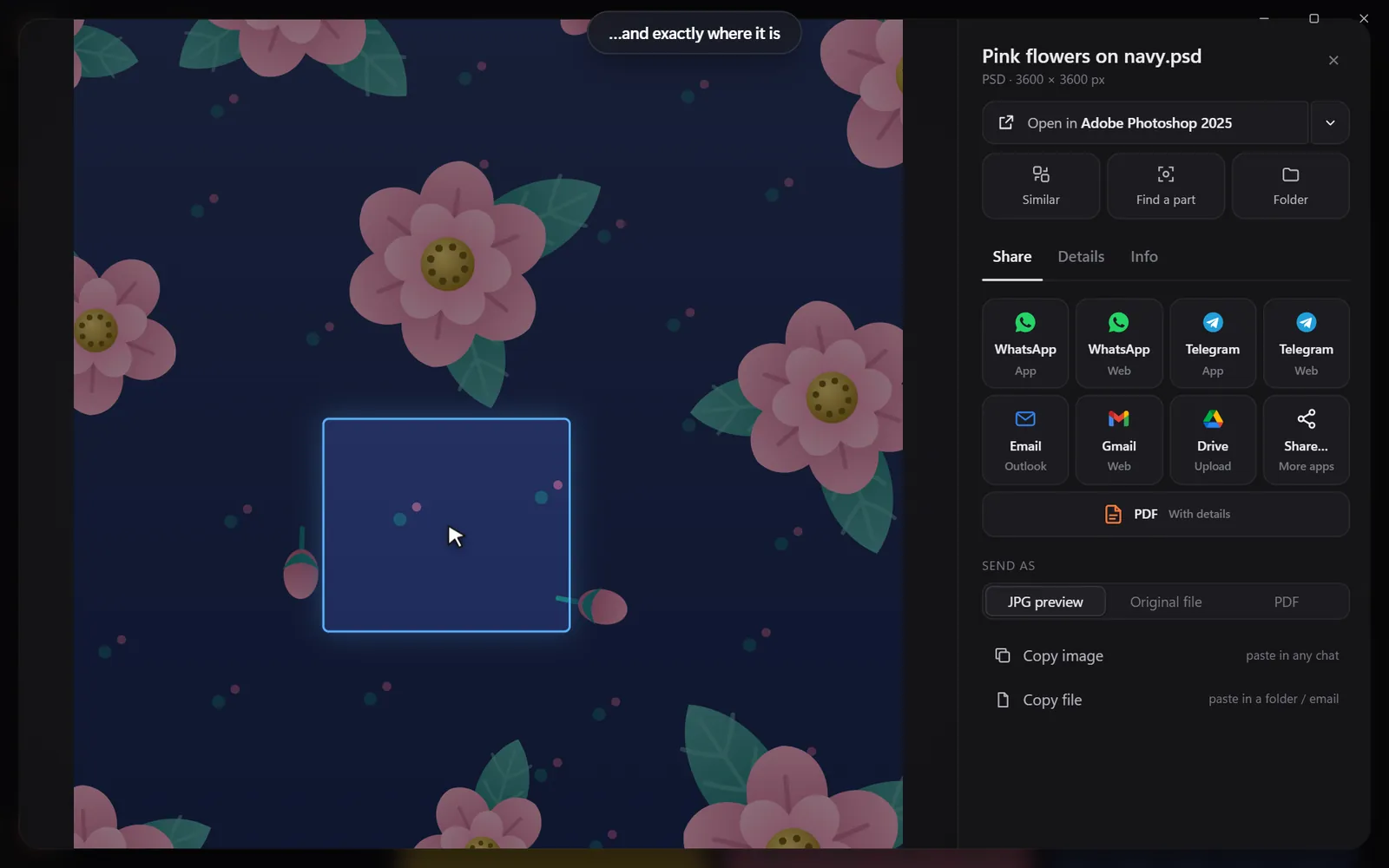
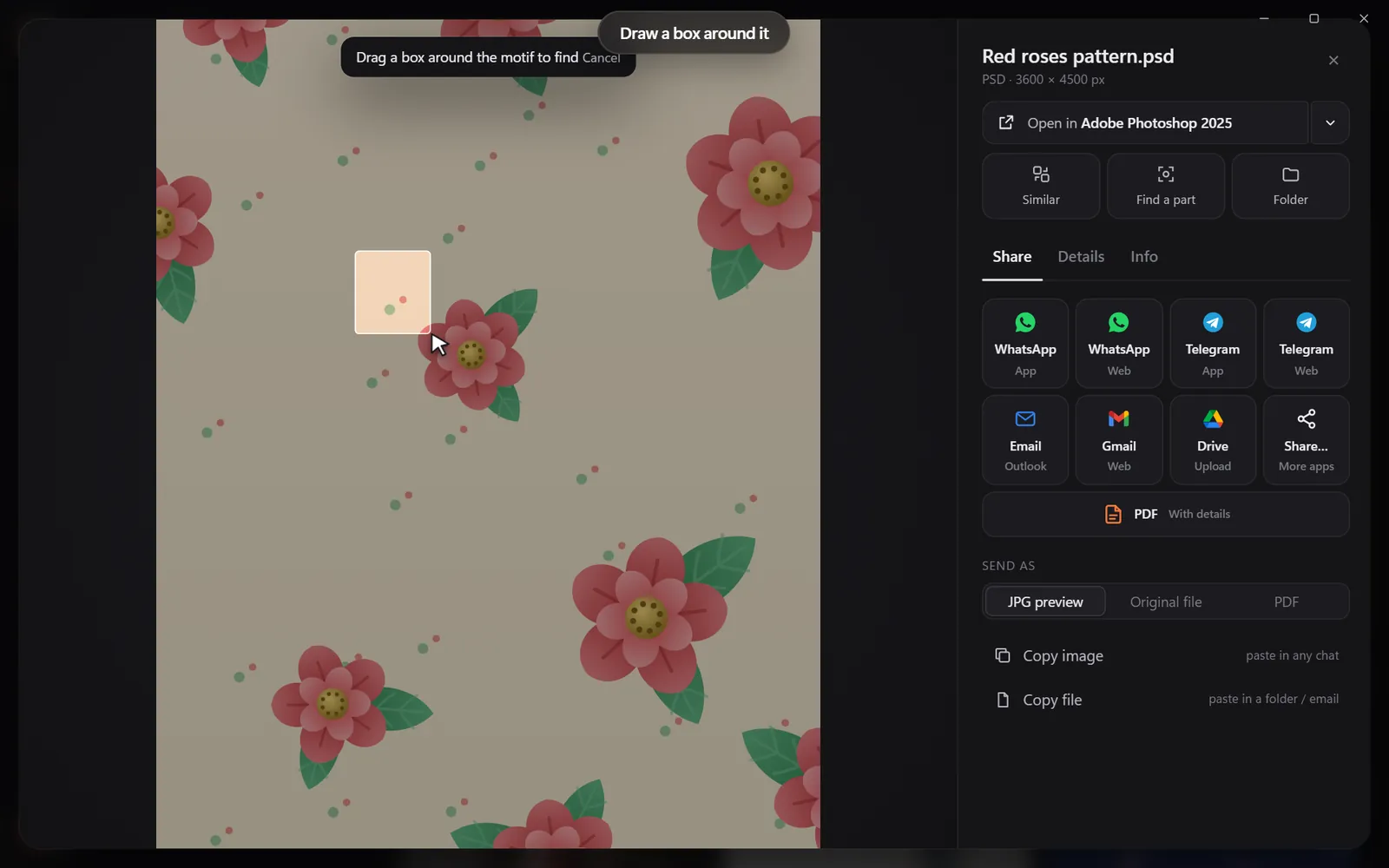
- draw a box around one part to find every file that contains it.
Finder tricks for pictures
| Do this | Result |
|---|---|
| Cmd+F, then Kind > Image | Search only pictures |
| Add rule: Created date > within last 30 days | Recent pictures |
| Add rule: File size > 10 MB | Large photos and designs |
| View > as Gallery | Big previews to scan by eye |
| File > Save (in a search) | A Smart Folder you can reuse |
Photos library vs Finder folders
Many Mac users have pictures in two worlds: the Photos library (phone imports, iCloud Photos) and Finder folders (downloads, design work, external drives). The Photos app searches its own library well. Image Finder searches the folders and drives you add - including design files that Photos never shows. Many people use both.
Why Spotlight misses pictures: the usual suspects
Spotlight is an index. If a file is not in the index, Spotlight cannot find it, no matter how you search. These are the most common reasons a picture is left out:
| Cause | How to check | Fix |
|---|---|---|
| Folder excluded | System Settings > Spotlight > Search Privacy | Remove the folder from the list |
| External drive not indexed yet | The drive was just connected | Wait, keep it connected |
| Drive formatted for Windows (exFAT, NTFS) | Get Info on the drive | Indexing can be limited; copy key folders to an APFS drive |
| Network drive | Files on a NAS or server | Spotlight usually does not index these |
| Index damaged | Search finds nothing anywhere | Rebuild the index (add and remove in Search Privacy) |
Smart Folders: saved searches for pictures
A Smart Folder is a Finder search you can reuse. It updates itself as files change.
Other useful Smart Folders: "Images larger than 20 MB", "PNG files" (screenshots and graphics), "Images on my backup drive".
The Photos library vs Finder folders
Many Mac users have two worlds of pictures:
- The Photos library: imported from an iPhone or camera, searchable by people, places and things inside the Photos app.
- Finder folders: downloads, client work, exports, scanned documents, design files, external drives.
Photos' clever search only covers the first world. Most work pictures live in the second. A content search over Finder folders closes that gap without importing anything into Photos.
Live Text and Visual Look Up: helpful, but one picture at a time
macOS can read text in an image you open (Live Text) and identify some objects (Visual Look Up). They are great inside a single picture - but they do not help you find which of 30,000 pictures has the words "invoice 2024" in it. For that you need a search that has read every picture in advance.
Design files on a Mac
Quick Look previews PSD files and PDFs, and many apps add Quick Look plugins for their formats. Spotlight still searches them by name, not by what they show. Image Finder makes real previews of PSD, AI, EPS, SVG, CDR and PDF files and searches them like photos - describe a logo, or draw a box around a motif to find every file that contains it.
Questions people ask
Why can't Spotlight find my photos?
The folder may be excluded in Spotlight's privacy settings, the drive may still be indexing, or you are searching words that are not in the file names.
Can Spotlight search text inside images?
Newer macOS versions can find some text in photos, mostly from the Photos library. For text in every picture, poster and scanned PDF across your folders, use a content search app.
Does Image Finder work on Intel Macs?
Yes - on Intel Macs and on Macs with Apple M chips.
Does Spotlight index external drives?
Usually yes, for Mac-formatted drives that stay connected. Network drives and some Windows-formatted drives are often not indexed.
How do I rebuild the Spotlight index?
Add the drive to System Settings > Spotlight > Search Privacy, wait a moment, then remove it again. macOS rebuilds that drive's index.
Windows and Mac. Private, offline, no subscription.