Try itFeaturesPricingHow it works QuestionsBlogSign in DownloadContact usRefunds

For Windows & Mac · Works offline

Find any image on your computer.
Just describe it.

Type what you see, drop in a picture or pick a face - the right photo, design or PDF appears in a second. Nothing is uploaded.

Download for Windows · Mac (M chip) · Mac (Intel) · I have a key

On your phone? Image Finder runs on your computer. Send yourself the link and open it there.

Choose your computer and a plan - the download starts by itself right after paying

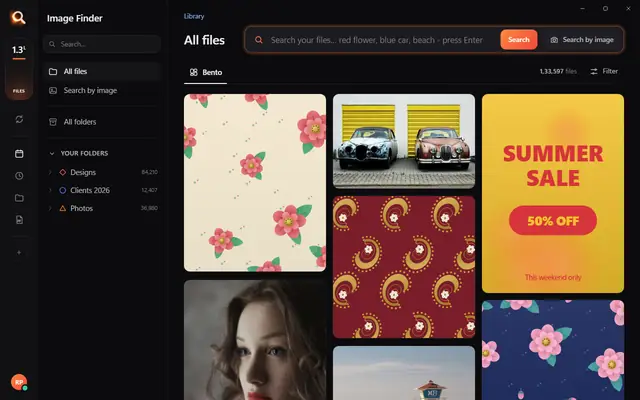
The Image Finder window with sample pictures

The real Image Finder window with sample files - click anywhere in it to try it yourself. In the app it searches hundreds of thousands of your own files in a fraction of a second, all on your PC. Open it full screen

Sound familiar?

You remember the picture,
not the file name.

It's somewhere in IMG_4821, final_final_v3.psd or New folder (7).

Windows search only
knows names.

It can't see a red flower, a logo or a face inside your files.

Photo apps want
your files uploaded.

And they can't open PSD, CDR or AI designs at all.

Image Finder looks inside every file - so you find it the way you remember it.

Four ways to find it. One click to share it.

By words

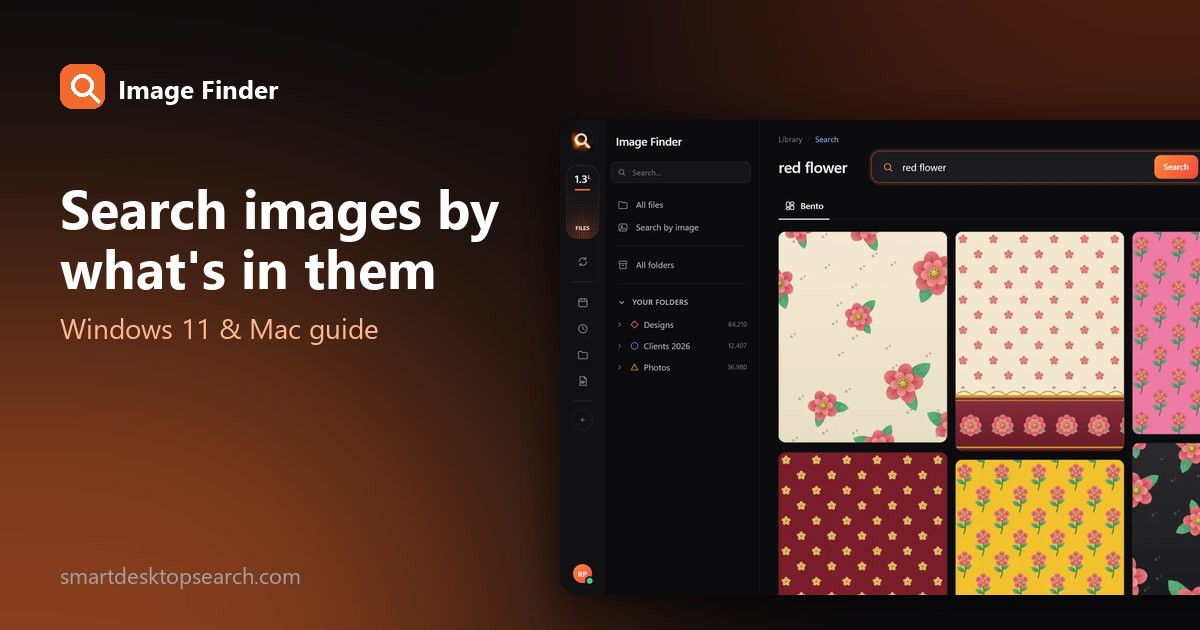
Type what you see.

By a picture

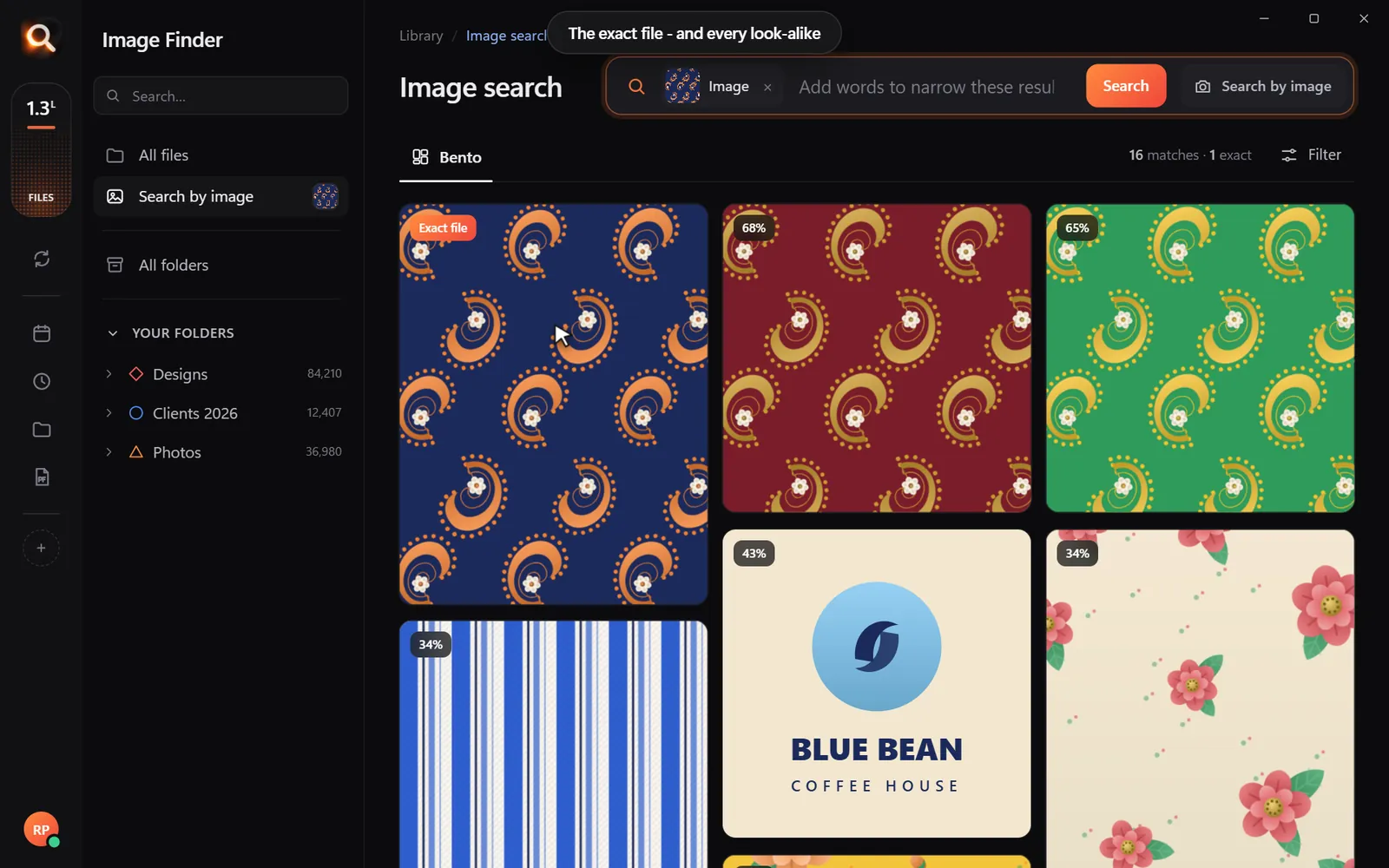
Drop in any picture.

By one part

One motif. Every file that has it.

By a face

One face. Every photo.

Then share it

WhatsApp, PDF, Drive. One click.

Always ready

New files show up in seconds.

Why not just use Windows search?

Because it only knows file names. Here is what changes.

Image FinderWindows File Explorer searchCloud photo apps
Find a picture by describing what is in it Names and dates onlyPhotos only
Search with a picture - find the original and look-alikes Some apps
Find every file that has one part of a design
Opens design files - PSD, CDR, AI, EPS - and camera RAW Names only
Works with no internet
Your files stay on your computer Uploaded
Works on any Windows 10 / 11 PC or Mac

Windows 11's Photos app can search by description only on new Copilot+ PCs, and only in photos.

Built for real libraries.

Hundreds of thousands of files, many folders, many names - and people who have no time to look.

Private by design.

Your designs, photos and searches stay with you - on your own PC. Nothing is uploaded, and nobody else can see them.

Fast on any PC.

About a tenth of a second per search - even in a library of 100,000+ files.

133,597 files searched

107 file types.

Photoshop, CorelDRAW, Illustrator, PDF, camera RAW, videos, fonts - with real previews.

Selected 0
107 types

Made for anyone with a big library.

Designers & print shops

"floral border maroon" - the right PSD or CDR from 100,000 designs, while the client waits.

Photographers & studios

Every photo of one person from a whole wedding, in one click.

Offices & agencies

Logos, posters and PDFs found by the words printed inside them.

Everyone with years of photos

"beach", "birthday cake", "red car" - no folders to dig through.

Simple pricing.

Every feature in every plan. Pay once for the time you need - nothing renews by itself.

Try every feature free for 1 day - no card. Choose a plan only if you love it. Start your free 1-day trial

One licence works on one PC. Your time starts when you activate Image Finder on your PC.

Searching in three minutes.

1

Start your free trial

Your name, email and a password - no card, no payment. 1 day of every feature.

2

Download - your key is inside

Your licence key is made the moment the payment is done. Download Image Finder right away.

3

Install and choose folders

Click Install, pick the drives and folders to search - and start finding while it reads them.

Questions? Answers.

Is there a free trial?

Yes - 1 day free with every feature, no card needed. Your days start when you activate the app. When the trial ends, the app asks you to choose a plan - nothing is charged by itself, and your folders and searches stay just as they are.

How do I find a picture on my computer if I don't know its name?

Open Image Finder and describe it - "red flower", "blue car", "birthday cake". It looks at what is inside every picture, so the file name does not matter. You can also drop in a similar picture, or pick a face.

Is it better than Windows search?

Windows File Explorer finds files by their names and dates. Image Finder finds them by what is in them - words, pictures, a part of a design or a face - and it also opens design files like PSD, CDR and AI. Windows 11's own describe-search in the Photos app needs a new Copilot+ PC; Image Finder works on any Windows 10 or 11 PC.

Does it upload my files?

No. Image Finder works fully on your computer. Your files, pictures and searches never leave it. Only your licence is checked online, once every few days.

Does it work without internet?

Yes. Searching, previews and sharing to folders work offline. It needs the internet only to check your licence now and then, and to send to WhatsApp, Gmail or Drive.

Which file types does it search?

107 types: Photoshop (PSD, PSB), CorelDRAW (CDR), Illustrator (AI, EPS), PDF, every photo format including camera RAW (NEF, CR2, ARW), HEIC, SVG, Office files, fonts and videos - all with real previews.

Can it search inside PSD and CDR files?

Yes. It sees the design itself, so "red rose border" finds the right PSD or CDR, and a photo of a printed design finds its original file.

Does it work on Mac?

Yes - there are versions for Macs with Apple M chips and for older Macs with Intel chips, and for Windows 10 and 11.

What computer do I need?

Windows 10 or 11 (or a Mac), 8 GB RAM or more, and about 2 GB free space plus room for previews of your files. No special graphics card is needed.

How much does it cost?

The plans are under Pricing, in your own currency (in India from ₹30 a month). You pay once for the time you choose - it is not a subscription, nothing renews by itself and there is nothing to cancel.

Can I use one licence on two PCs?

One licence works on one PC. If you change your PC, remove the licence from the old one (in the app, or in your account on this website) and activate it on the new PC.

How do I pay?

Debit and credit cards from any country (Visa, Mastercard, American Express). In India also UPI (GPay, PhonePe, Paytm), net banking and wallets. You get an invoice by email.

Can I get a refund?

Yes - see our refund policy.

Stop searching.
Start finding.

Blog

Tips for finding, organising and sharing your designs faster.

← All posts

The 3-2-1 Photo Backup Plan: Protect Every Photo (and Keep Them Searchable)

The 3-2-1 Photo Backup Plan: Protect Every Photo (and Keep Them Searchable)

Every year, somebody's laptop is stolen, an external drive stops spinning, or a cloud account gets locked - and years of photos vanish with it. The fix is boring, cheap and takes an afternoon: the 3-2-1 backup rule.

This guide explains the rule in plain English, shows a setup for families and one for professionals, and makes sure your photos stay easy to search.

The 3-2-1 rule

NumberMeansWhy
3 copiesThe original + 2 backupsOne copy is no copy
2 kinds of storagee.g. computer + external driveDifferent things fail differently
1 off-siteA drive elsewhere or a cloud backupFire, flood and theft hit one place
How long would it take to replace lost files?

0 hours a year spent looking for files - with a search that takes a second, that is about 0 working days back.

What actually destroys photos

  • Drive failure - every drive eventually fails; old ones fail more often.
  • Theft and accidents - laptops get stolen, drives get dropped.
  • Mistakes - deleting the wrong folder, formatting the wrong card.
  • Ransomware - malware that locks files.
  • Account problems - losing access to a cloud account.
  • Fire, flood - everything in one place goes at once.

A setup for families (about an afternoon)

Family 3-2-1 setup 0/4
ToolWindowsMac
Automatic local backupFile HistoryTime Machine
Manual copyCopy folder to driveCopy folder to drive
Off-siteCloud backup service or drive at relative'sSame

A setup for photographers and studios

CopyWhereHow often
WorkingFast internal or external SSDLive
ArchiveLarge external drive or NASAfter every shoot
Off-siteCloud backup or rotated drivesDaily/weekly

Sync is not backup

Cloud sync (OneDrive, iCloud Drive, Dropbox, Google Drive) mirrors changes - including deletions. Delete a folder by mistake and it disappears everywhere. Many services keep deleted files for a while, but don't count on sync as your only backup. Use a real backup with version history for your off-site copy.

Keep your library searchable

Backups are the safety net. Your main copy is the one you use - so make it searchable. Add it to Image Finder and every photo can be found by moment, face, color or the words in it. Previews are kept, so even when a backup drive is unplugged you can see what's on it.
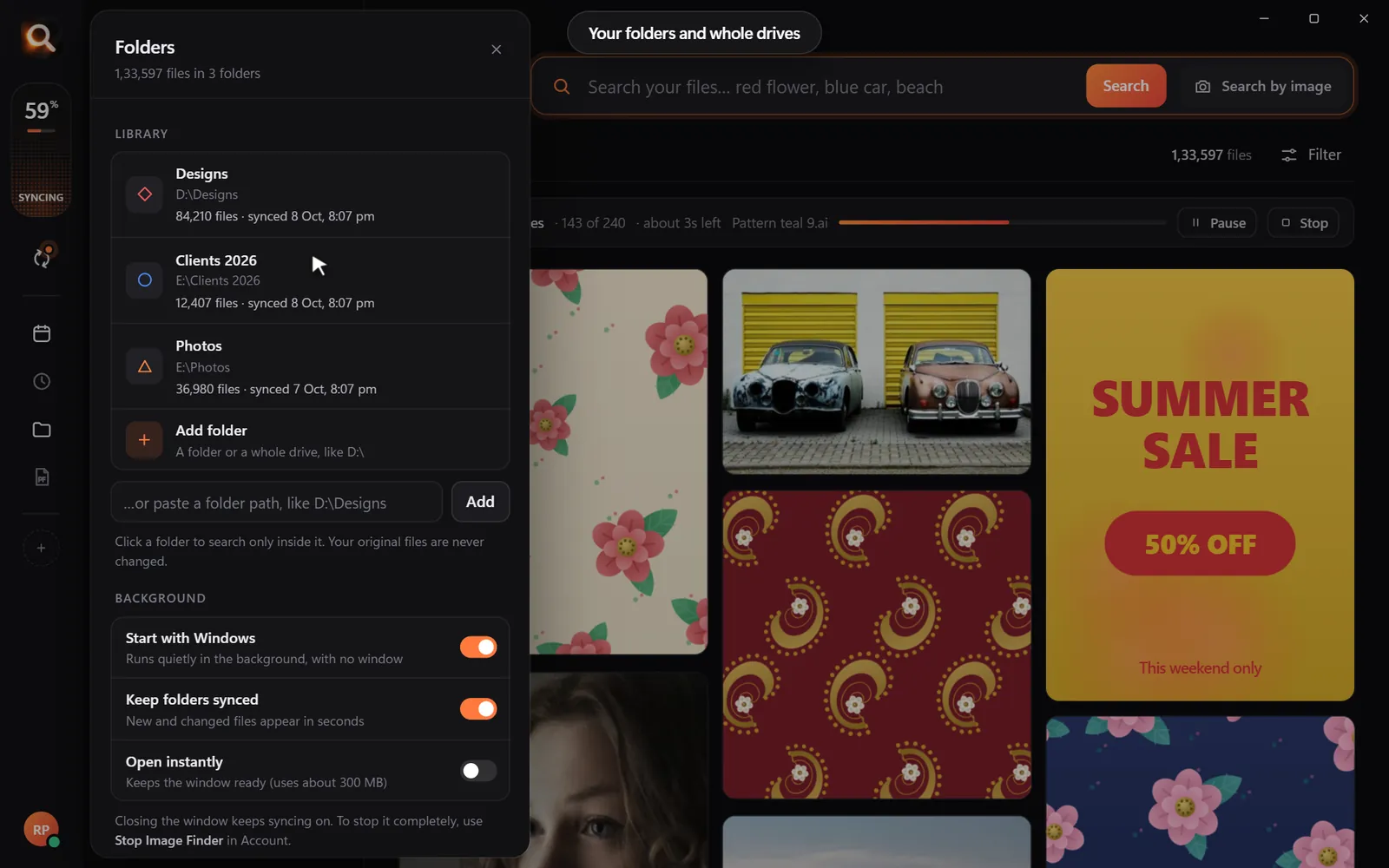
Add folders and drives once
Add your main library - every photo becomes searchable.

Check your backups are real

Yearly backup check (15 minutes) 0/4
Exact copies across drives
Search with one photo - see its copies on each backup drive.

Choosing drives that last

ChoiceRecommendation
TypeHDD for big, cheap backups; SSD for speed and portability
SizeAt least twice your library size to grow into
BrandWell-known brands with good warranties
NumberAt least two - never rely on one
ReplacementPlan to replace backup drives every 4-5 years

Off-site options compared

OptionProsCons
Cloud backup serviceAutomatic, off-siteMonthly cost; first upload is slow
Drive at a relative's or officeOne-time cost, privateManual swaps
Cloud storage (sync)EasyNot a true backup on its own

The best off-site copy is the one you'll actually keep up to date. If you won't swap drives, choose an automatic service.

Encryption

If a backup drive leaves your home, encrypt it:

  • Windows: BitLocker (in Windows Pro editions) or a drive with hardware encryption.
  • Mac: Finder can encrypt a drive (right-click > Encrypt), or format it with encryption in Disk Utility.

Write the password down and keep it somewhere safe - a lost password means a lost backup.

Ransomware protection

Ransomware encrypts every file it can reach - including connected backup drives. Protect yourself:

  • Keep at least one backup disconnected most of the time.
  • Use backup software with version history so you can restore older copies.
  • Keep your computer updated and be careful with email attachments.

Phone photos: the forgotten copy

Phone photos are often the most precious and the least backed up. Make copying phone photos to your main library part of your monthly routine - then they're covered by all three copies.

Restoring: practice once

A backup you've never restored from is a hope, not a plan. Once a year, restore one folder from your backup to a test location and open the files. If it works, you'll know exactly what to do on a bad day.

Questions people ask

What is the 3-2-1 backup rule?

Three copies of your data, on two kinds of storage, with one copy off-site.

Is cloud storage a backup?

Cloud backup with version history is. Simple sync (mirroring a folder) is not a full backup on its own.

How often should I back up photos?

Automatically if possible; at least monthly, and after every important event or shoot.

How long do external drives last?

Often 3-5 years of regular use. Replace old drives and keep more than one copy.

Protect your photos - and find any one in a second.

Windows and Mac. Private, offline, no subscription.
Try Image Finder

Find any photo, design or PDF on your computer in seconds. Free for 1 day - no card.

Start free trial
Photo library searchEvery photo, every year, one search.Twenty years of phone backups, camera cards and WhatsApp downloads. Describe the moment or pick a face - Image Finder finds it in your library, on your computer

More posts

Windows 11 Search for Pictures: 9 File Explorer Tricks (and Where They Stop)

Windows 11 Search for Pictures: 9 File Explorer Tricks (and Where They Stop)

File Explorer can do more than you think: search only pictures, by date taken, size or type. Nine tricks that work today - and what to do when you need to search what is in the picture.

9 Oct 2026
How to Search Images by Content on Windows 11 and Mac (No Tags Needed)

How to Search Images by Content on Windows 11 and Mac (No Tags Needed)

Windows Search and Finder only read file names. Here is how to find a photo or design by what is actually in it - a red car, a beach, a logo - in about a second.

8 Oct 2026
The Best AI Photo Search Apps for Windows and Mac in 2026: Our Top Pick and 6 Alternatives

The Best AI Photo Search Apps for Windows and Mac in 2026: Our Top Pick and 6 Alternatives

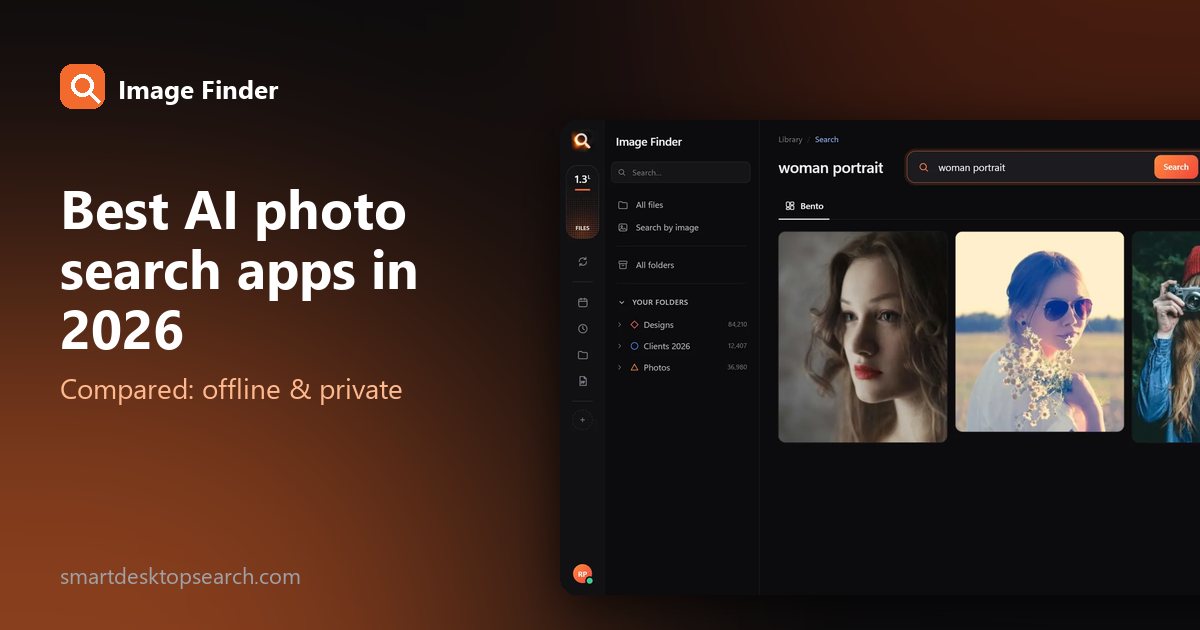
We compared seven ways to find photos and design files by describing them. Our top pick searches every folder you already have, including PSD and PDF files, works offline - and is free right now for early users.

8 Oct 2026