
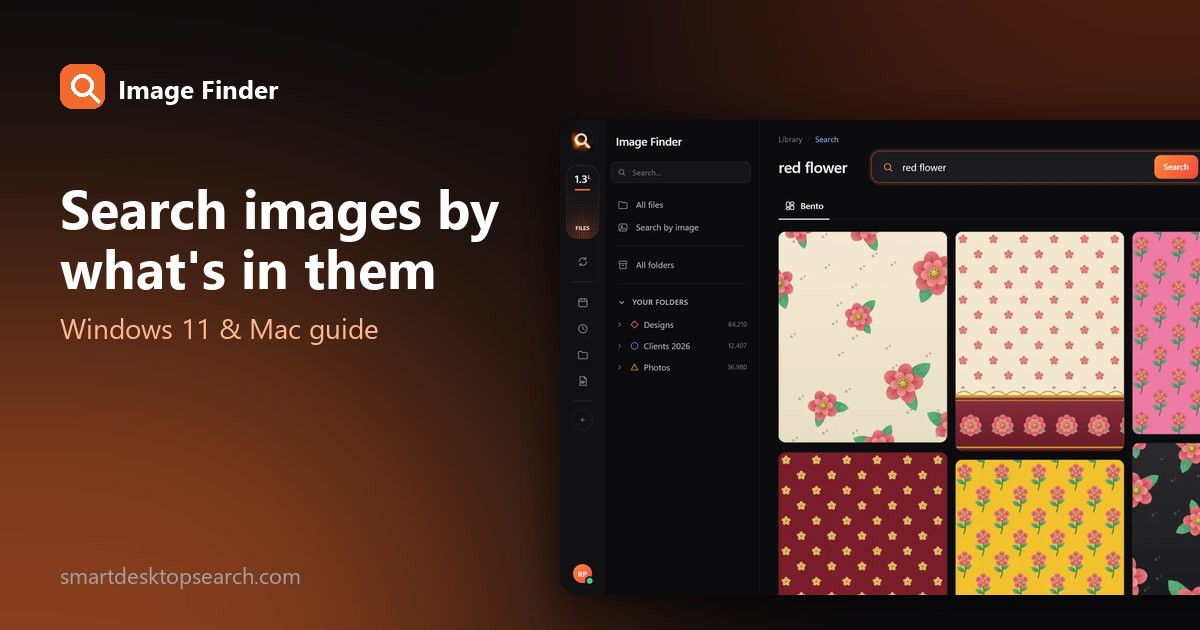
You know the picture. You can almost see it: a red car parked in front of a yellow garage door, a beach with a lifeguard tower, the poster with the coffee cup. What you do not know is its name - and your computer only knows names like IMG_4821.JPG or final-v3-NEW.psd.
This guide shows how to search images by content on Windows 11, Windows 10 and Mac: you describe what is in the picture, and the file comes up. No tags, no renaming, no uploading your photos anywhere.
Why Windows Search and Finder can't find your pictures
Windows File Explorer and macOS Finder are text tools. They look at the file name, the folder, the date and a few hidden details such as the camera model. They never look at the picture itself.
That works for documents with good names. It fails for the files most of us actually have:
- Camera and phone photos named
DSC_0042.JPG,IMG_20240612_181455.jpgorPXL_.... - Downloads and screenshots named
image (7).pngorScreenshot 2026-03-02 at 10.14.33.png. - Design files saved as
final.psd,final-2.psd,final-final-USE-THIS.psd. - Files shared by clients and teammates, named by someone else's rules.
On a Mac, the Photos app can search what is in a photo - but only photos you imported into the Photos library. Pictures sitting in Finder folders, on an external drive, or inside PSD and PDF files are not part of it. On Windows, the Photos app gained some AI search on newer Copilot+ PCs, but it is still a photo viewer, not a search for every folder and design file.
0 hours a year spent looking for files - with a search that takes a second, that is about 0 working days back.
What "search by content" means
Searching by content means the software has looked at every picture once and remembers what is in it - objects, colors, scenes, faces and even the words printed on it. When you type a description, it compares your words with what it saw, and the closest pictures come first.
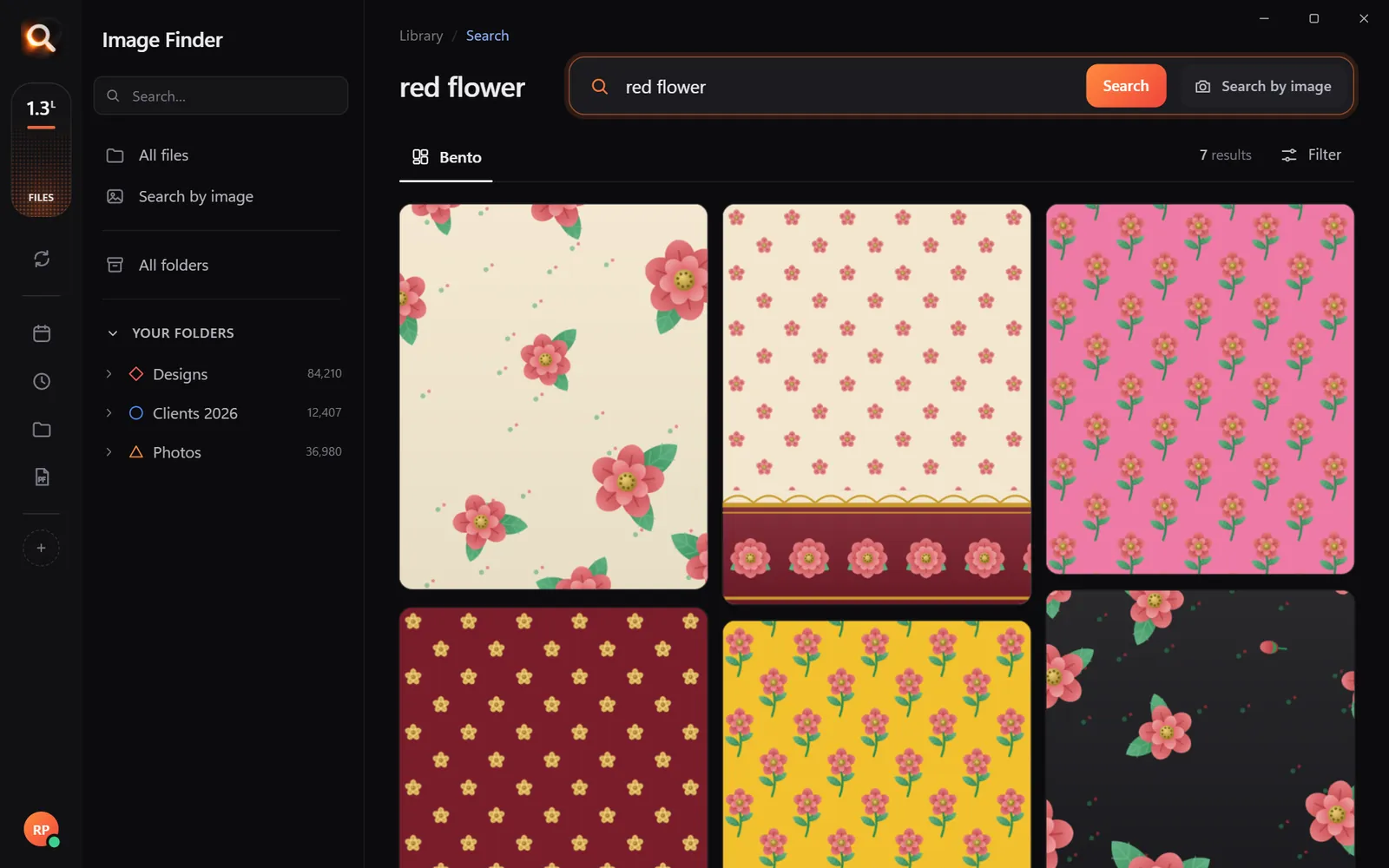
Good content search also forgives you. You type the way you remember, not the way someone named the file years ago:
- a spelling mistake (
blu car) still finds the blue car; - a whole sentence (
red car in front of a yellow garage) works better than one word; - words inside the picture (
free coffee, a brand name, a date on a poster) find it too.
A tiny sample library in your browser. The app does this with AI across every file on your computer - try the real app in your browser.
How to search images by content, step by step
Here is how it works with Image Finder, a desktop app for Windows and Mac that adds this kind of search to the folders you already have.

Tips that make your searches better
- Describe, don't name. "Yellow poster with a big sale sign" beats "sale".
- Add a color. Colors narrow things down fast. You can also use the color filter after a search.
- Use words printed in the picture. Image Finder reads text in images, posters and scanned PDFs, so a line you remember is often the quickest way in.
- Search with a picture instead. If you have a screenshot or a phone photo of what you need, drop it in and get the original file plus every look-alike. See how to find similar images on your PC.
- Mark just one part. Need every file with one logo or motif? Search by part of an image.

Which file types can you search?
Not just JPGs. Image Finder reads 107 file types, including:
| Kind | Examples |
|---|---|
| Photos | JPG, PNG, HEIC (iPhone), WEBP, TIFF, camera RAW |
| Design files | PSD, AI, EPS, SVG, CDR |
| Documents | PDF (every page, scanned ones too), Word, PowerPoint |
| Archives | Files inside ZIP, RAR and 7z |
Windows vs Mac: anything different?
The steps are the same. On Windows 10 and 11 you paste a picture into the search box with Ctrl+V; on a Mac with Cmd+V. Image Finder runs on Macs with Apple M chips and on older Intel Macs.
Questions people ask
Can Windows 11 search images by content?
Not in File Explorer. It searches names, dates and some details, not what a picture shows. The Photos app has some AI search on Copilot+ PCs for photos it knows about, but not for every folder, drive and design file. A desktop search app like Image Finder adds that.
Do I need to tag my photos first?
No. That is the point of content search: the app looks at the pictures itself, so you never add tags or rename anything. Your files stay exactly where and how they are.
Is it safe for private or client photos?
Yes. The search runs on your computer and files are never uploaded. It only reads your files - it never moves, renames, edits or deletes them.
How fast is it with a big library?
About a tenth of a second per search, tested on a library of 133,597 files. The first look through a big library takes longer, depending on your computer.
Windows and Mac. Private, offline, no subscription.