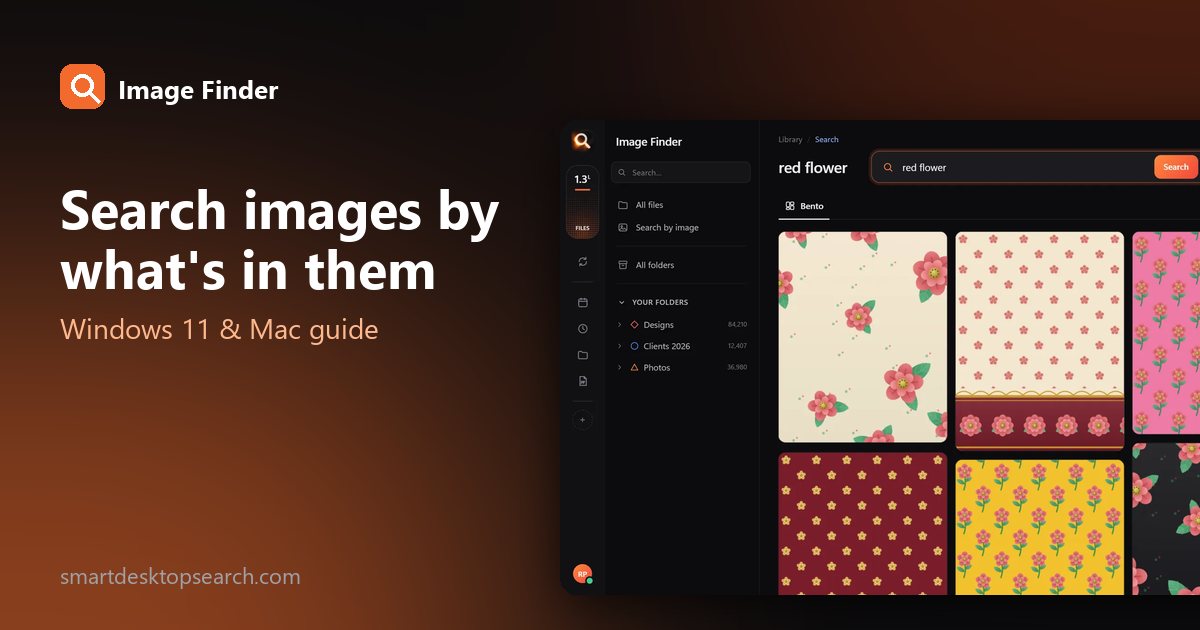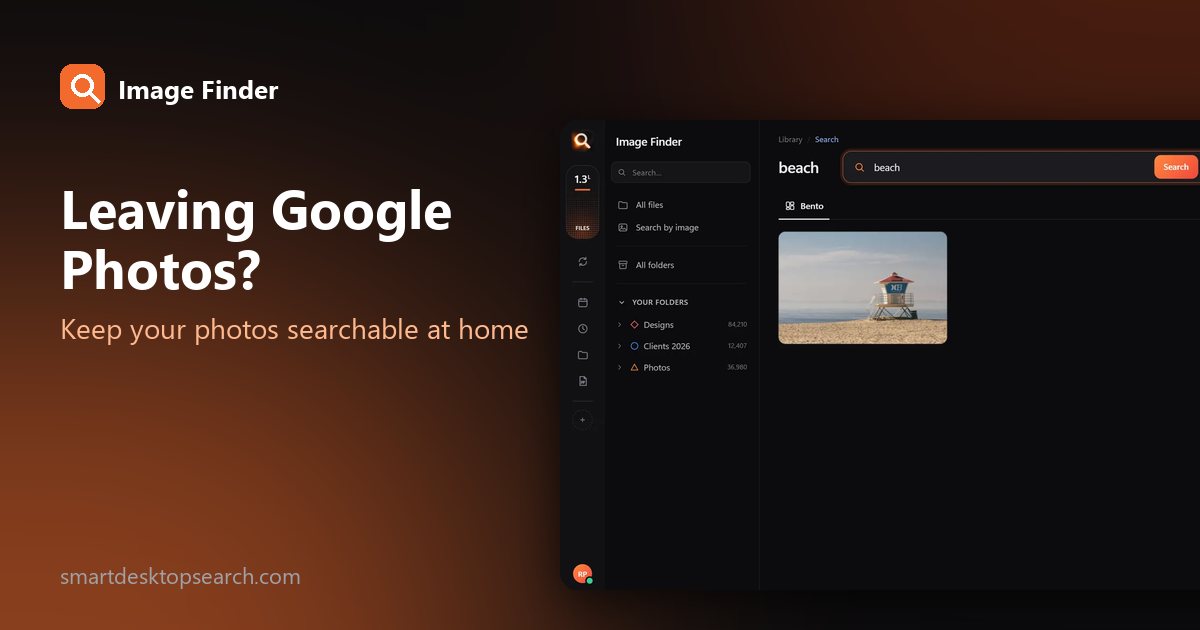
 +


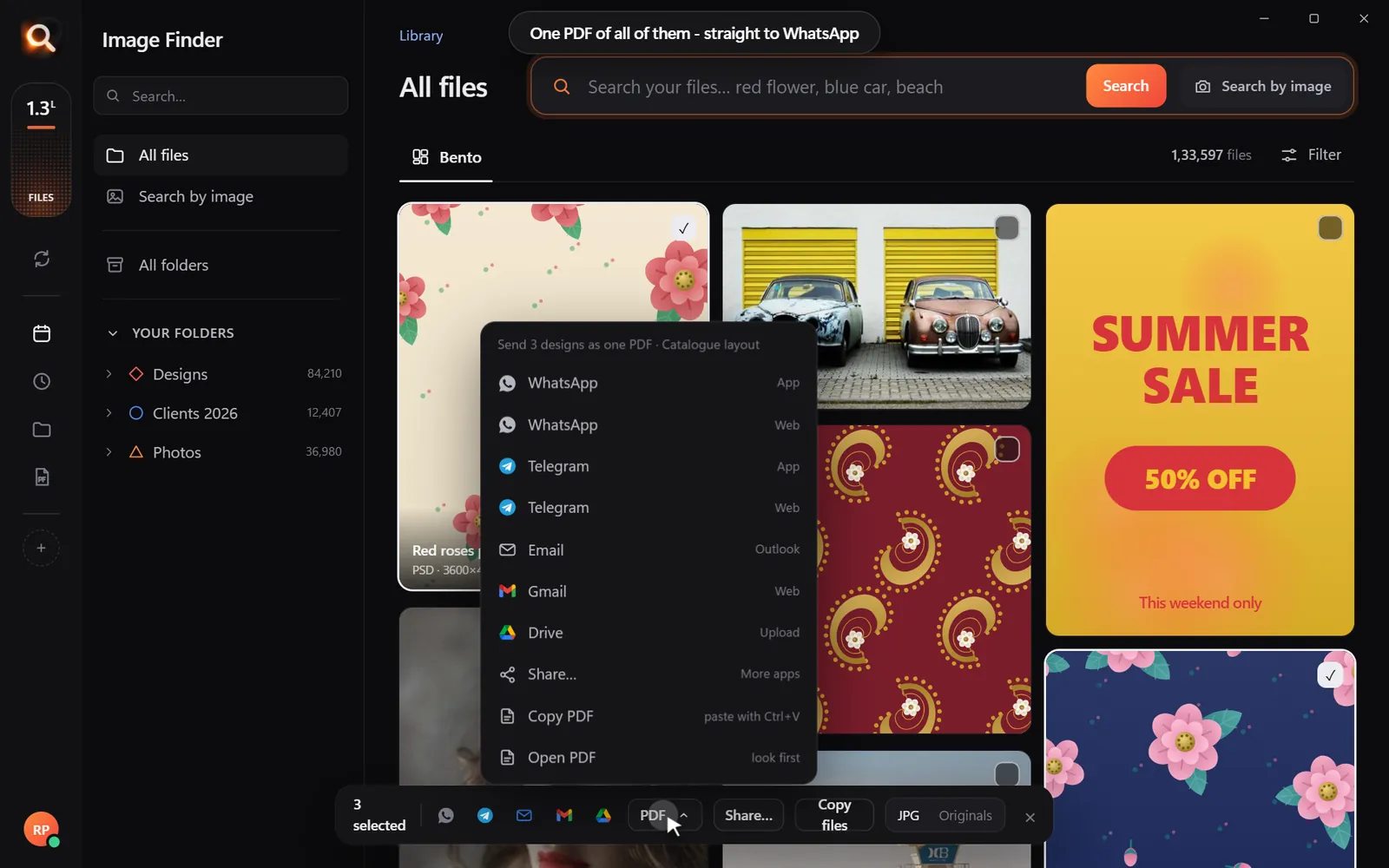
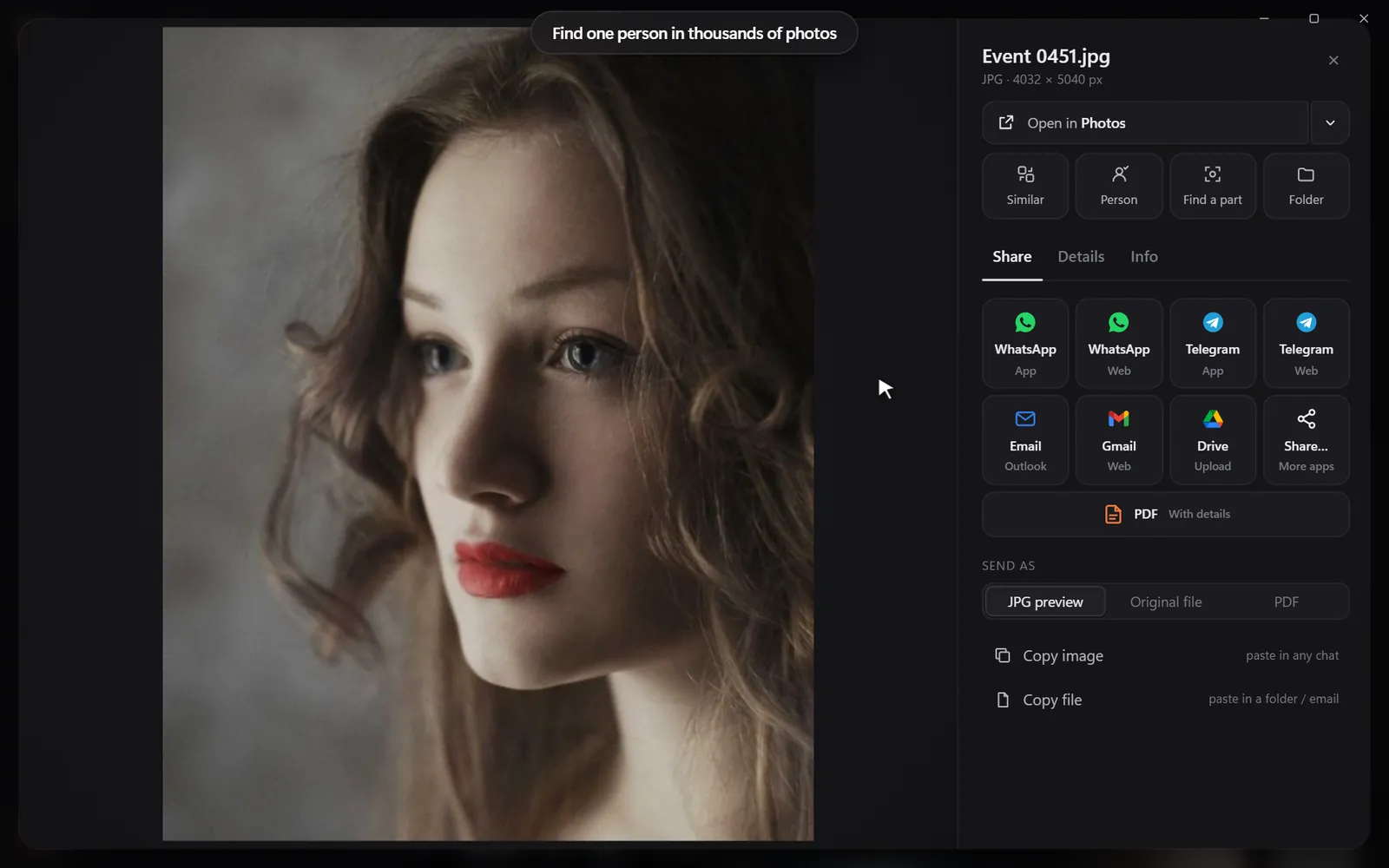
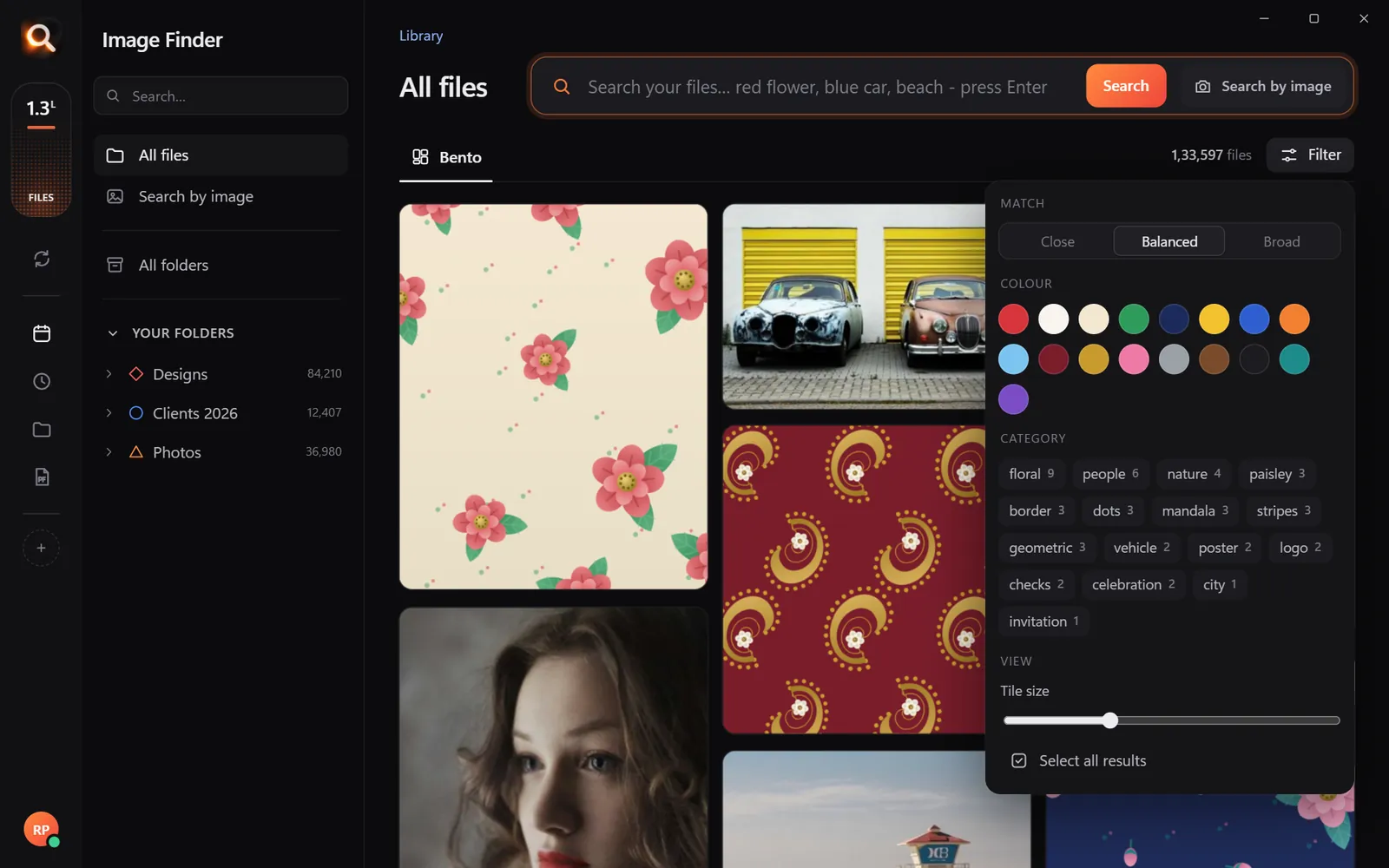





If you're a Windows power user, you probably know Everything by voidtools: a free app that finds any file by name, across all your drives, as fast as you can type. It's brilliant. It also can't help when you're looking for "the photo with the red car" and the file is called IMG_4821.JPG.
This guide explains the difference between name search and content search, when each one wins, and why many power users run both.
Two different questions
| Name search (Everything) | Content search (Image Finder) |
|---|---|
| "Where is the file called invoice-2024?" | "Where is the photo of the red car?" |
| Searches file and folder names | Searches what pictures show and the words in them |
| Instant, almost no setup | Looks at each picture once, then instant |
| Any file type | Pictures, designs, PDFs, Office pages |
| Windows | Windows and Mac |
What Everything does brilliantly
- Instant results across every drive as you type.
- Tiny and light - it uses very little memory.
- Powerful syntax - wildcards, regex, filters like
ext:psdorsize:>100mb. - Free.
If you know (part of) a file name, Everything is hard to beat. Keep it.
Where name search hits a wall
Names describe what someone typed, not what a file is. Pictures are the worst case:
- Cameras and phones name files
IMG_0001,DSC_4821,PXL_2025.... - Downloads are
image (3).png. - Design files are
final_v3_NEW.psd. - Screenshots are just dates.
You can't type what isn't there. That's where content search takes over.
What content search adds
Image Finder looks at every picture in the folders and drives you add - once - and then searches them in about a tenth of a second:
- describe what's in it - "red car", "coffee logo", "beach sunset";
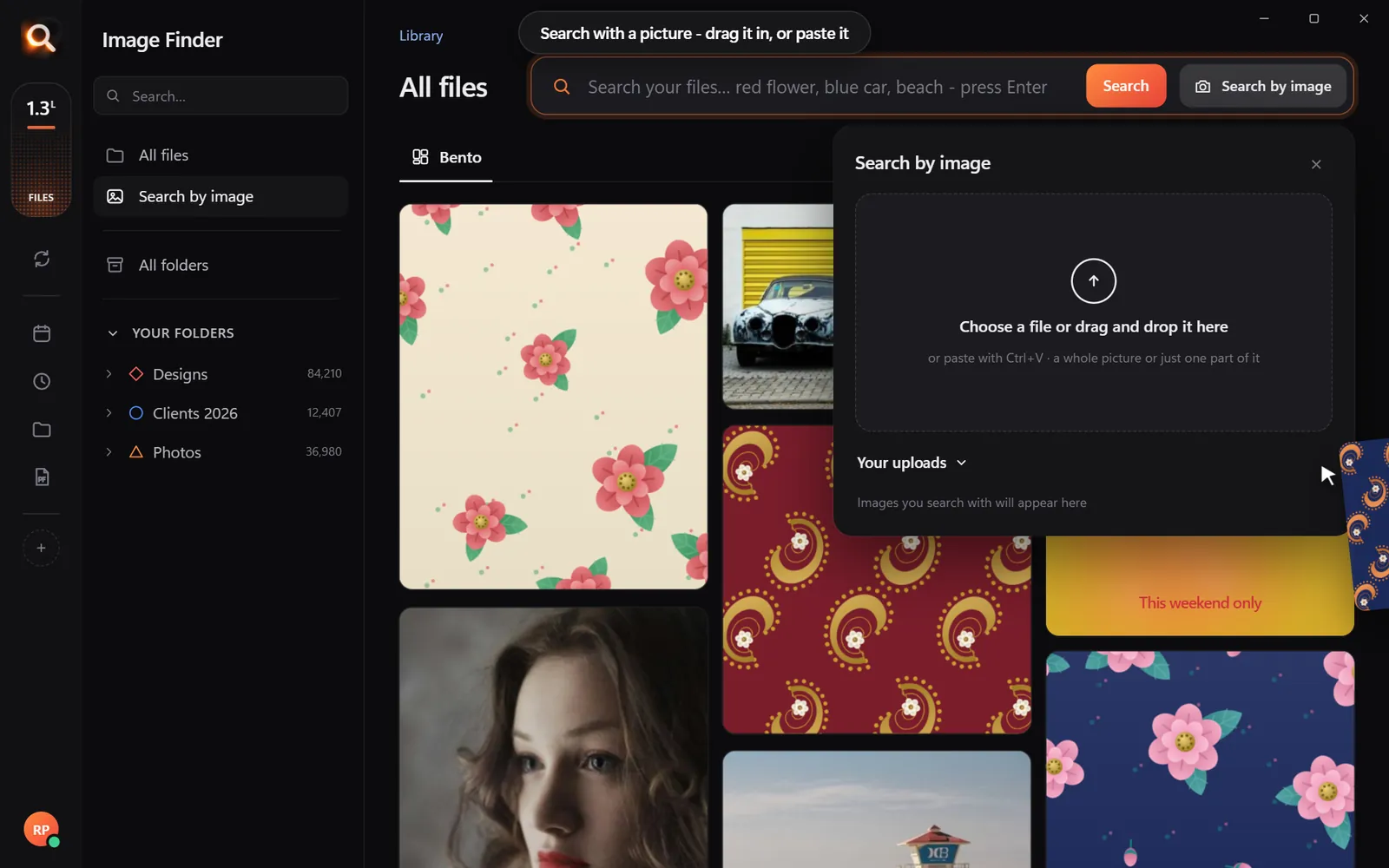
- search with a picture - drop in a copy to find the original and look-alikes;
- find a face - every photo of one person;
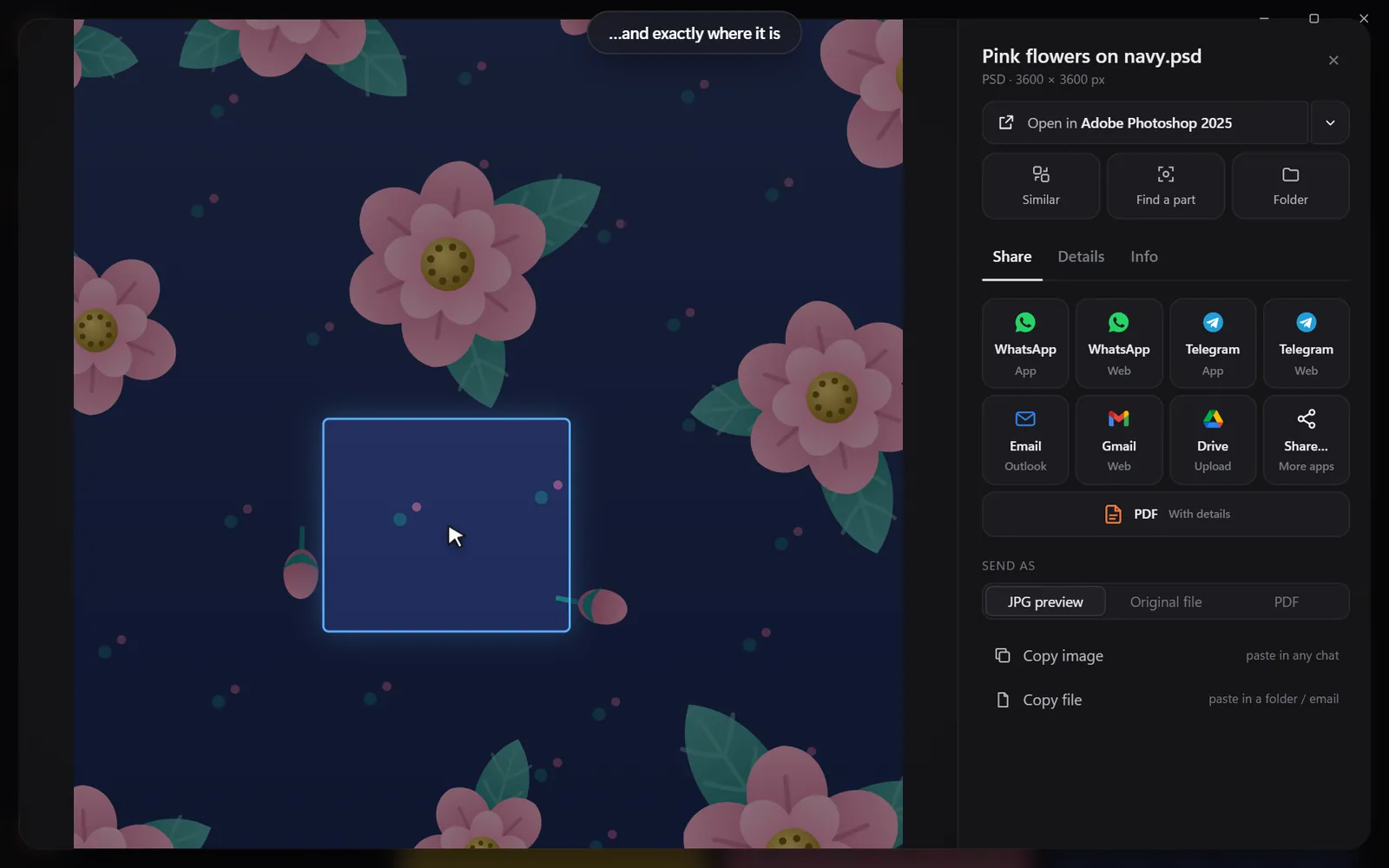
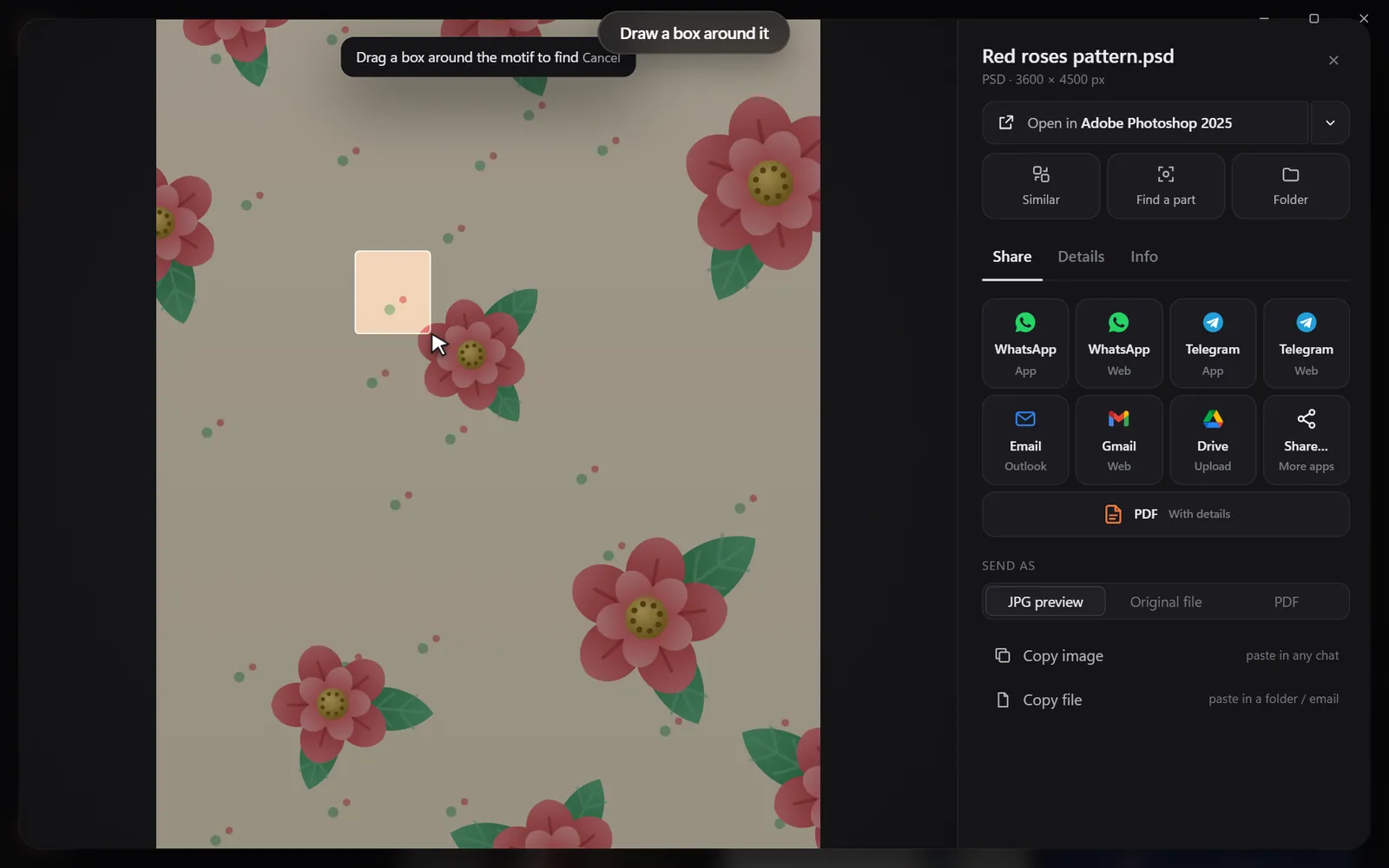
- find one part - draw a box around a motif or logo;
- filter by color;
- search words printed in pictures - screenshots, scans, posters, every PDF page.
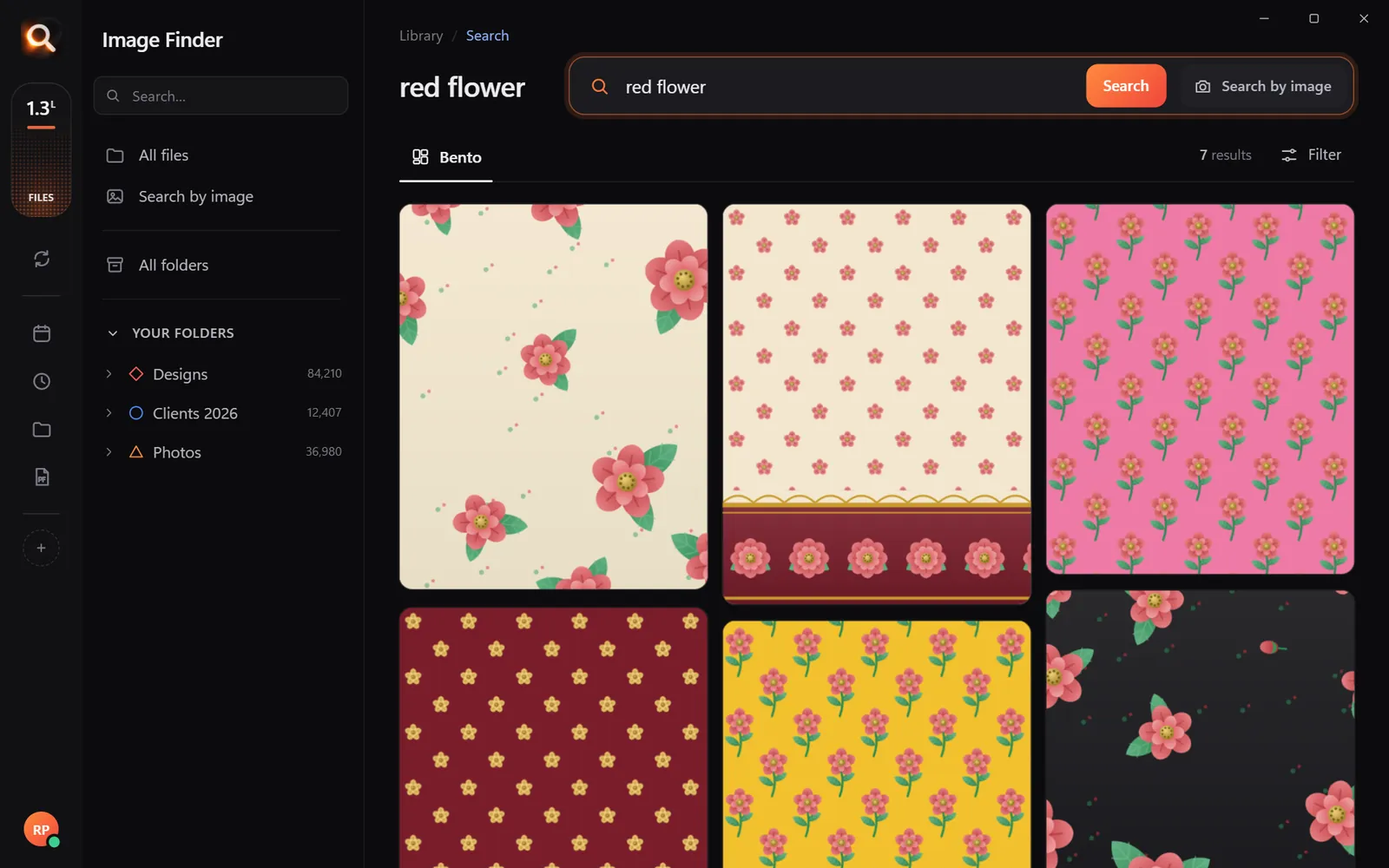
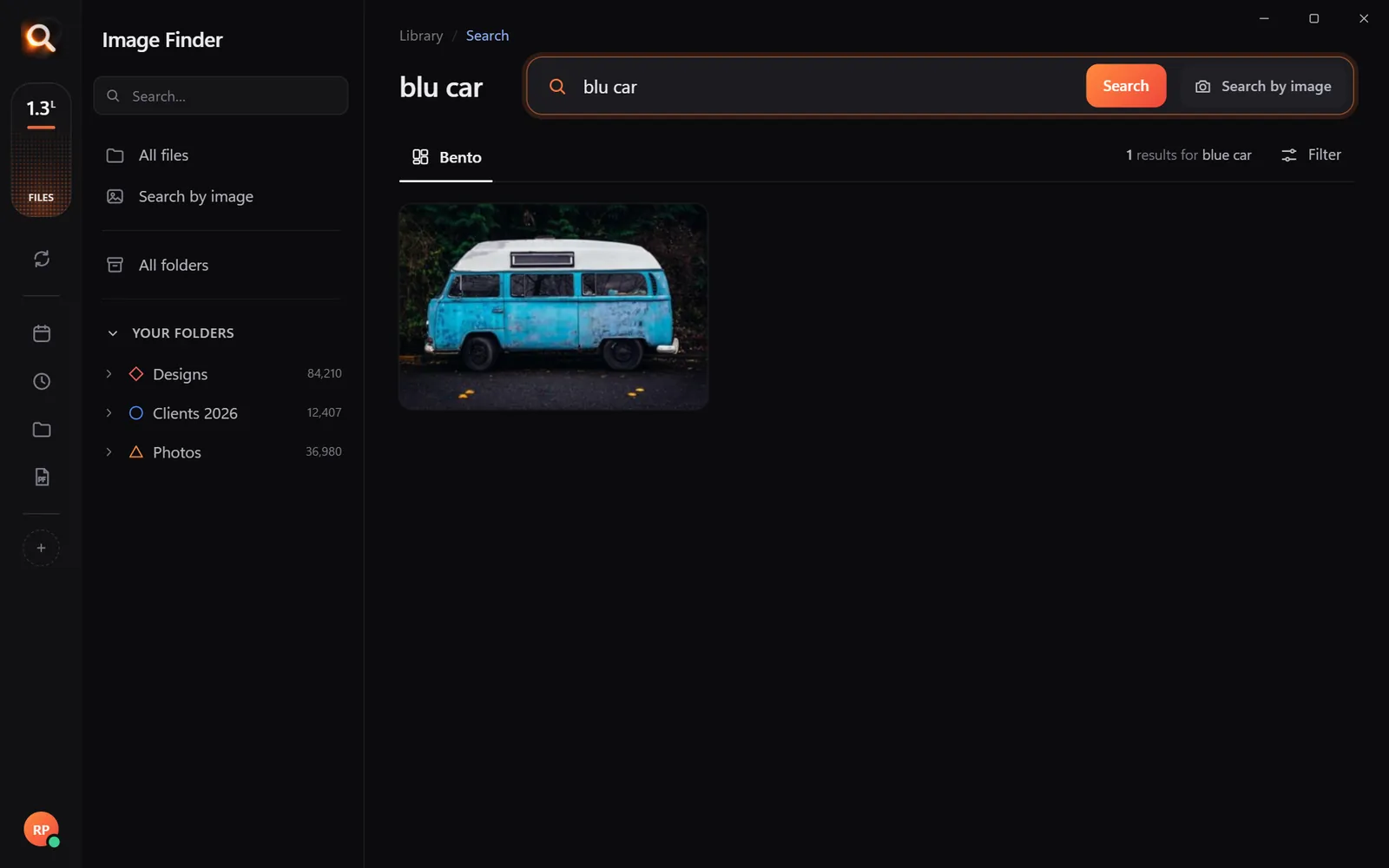
Head to head
| Task | Everything | Image Finder |
|---|---|---|
| File named "budget 2025" | Instant | Finds it if the words are in the file |
| Photo of a red car, named IMG_4821 | No | Yes |
| All PSD files over 100 MB | Yes (ext:psd size:>100mb) | Not its job |
| Original of a WhatsApp copy | No | Yes |
| Every photo of one person | No | Yes |
| Screenshot with "error 404" in it | No | Yes |
| Pictures inside ZIP/RAR files | Names only (with options) | Yes, by content |
| Works on Mac | No | Yes |
Running both
They don't conflict - Everything reads the file system's name index; Image Finder keeps its own picture index. A practical habit: name first, content second. If you remember the name, Everything. If you don't, Image Finder.
How each one works under the hood
Everything
On Windows NTFS drives, Everything reads the drive's master file table - a list of every file name the drive already keeps - and stays updated using the drive's change journal. That's why it can index millions of file names in seconds and stay instant: it never opens the files themselves.
Image Finder
Image Finder opens each picture, design and document page once and records what it shows (objects, scenes, colors, faces, layout) and the words printed in it. That first look takes longer - minutes to hours depending on the library - but afterwards searches take about a tenth of a second, and only new or changed files are looked at again.
| Everything | Image Finder | |
|---|---|---|
| Reads | File names | What's inside pictures and pages |
| First index | Seconds | Minutes to hours (runs in the background) |
| Updates | Instant | As files are added or changed |
| Memory use | Very low | Moderate |
A power-user workflow
- Know the name? Everything:
ext:psd client- done in a second. - Know what it looks like? Image Finder: describe it or drop in a similar picture.
- Know a word inside it? Image Finder: words in screenshots, scans and PDF pages.
- Found it? Both can open the file's folder - continue in File Explorer.
Everything's content search option
Everything can search inside text-based file contents with its content: function - but it reads files at search time, which is slow on large folders, and it doesn't read text inside images or scanned PDFs, or what pictures show. For pictures, that's the gap Image Finder fills.
Other tools in the same space
| Tool | Searches |
|---|---|
| Windows Search / File Explorer | Names, properties, some text contents |
| Everything | Names (instant), optional text contents |
| Agent Ransack / FileLocator | Text inside documents |
| Image Finder | What pictures show, words in pictures and pages, faces, colors |
Each answers a different question. Many power users keep two or three of them.
Questions people ask
Can Everything search inside images?
No. Everything searches file and folder names (and optionally text file contents). It doesn't look at what pictures show.
Is Image Finder a replacement for Everything?
For pictures and documents you remember by content, yes. For name searches of any file type, Everything is excellent - use both.
Is there an Everything for Mac?
Everything is Windows-only. On Mac, Spotlight covers names; Image Finder covers picture content on both.
Does Image Finder find files by name too?
It is built for what's in pictures and the words in them. For pure name search, Everything is faster.
Windows and Mac. Private, offline, no subscription.