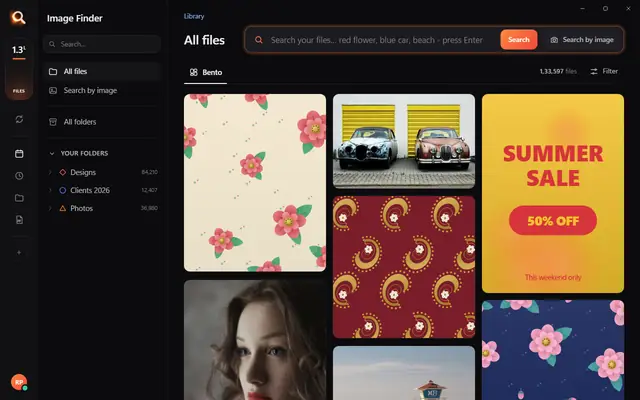
If you are a designer, photographer, or print studio owner, your computer is likely filled with thousands of files. When a client asks for "that one blue flower design" or you have a low-resolution photo and need to find the high-resolution original, you need a way to find similar images on pc quickly. Doing this manually can take hours, especially when files are scattered across different folders and drives.
In this guide, we will cover the most practical ways to search for look-alike images on your Windows computer. We will look at manual tricks, online tools, and dedicated offline software that keeps your files private.
The Challenge of Finding Similar Images Locally
Standard search tools on Windows are built for text. They look at file names, file sizes, or the dates the files were created. This works well if you named your files perfectly, such as "red-rose-clipart-01.jpg".
However, most creative professionals have libraries full of files named "untitled-3.psd", "DSC_0942.raw", or "vector-final-v2.cdr". Windows Search cannot "see" what is inside these files. To find similar images on PC, you need a tool that looks at the actual pixels, colors, shapes, and patterns within the image.
Let us compare the three main methods to solve this problem.
Method 1: The Manual Way (Best for Small Folders)
If you only have a few dozen images in a single folder, you do not need any special software. You can use the built-in features of Windows File Explorer to spot similar files.
- Open the folder containing your images.
- Right-click on an empty space, go to View, and select Extra large icons or Large icons.
- Right-click again, go to Sort by, and choose Size or Date modified. Often, similar photos taken in a sequence or designs exported at the same time will have similar file sizes or dates.
- Scroll through manually to spot the duplicates or look-alikes.
The honest limit: This method fails quickly if you have thousands of files, if your images are spread across different folders, or if you are dealing with different file formats (like a JPG preview and a raw PSD file of the same design).
Method 2: Reverse Image Search Engines (Best for Single Files with No Privacy Concerns)
If you have one specific image and want to find where it came from or find similar versions online, you can use web-based reverse image search tools like Google Images, TinEye, or Bing Visual Search.
- Open your web browser and go to Google Images.
- Click the camera icon in the search bar.
- Drag and drop the image from your PC into the browser.
- Google will show you visually similar images from around the web.
The honest limit: This method is not practical for managing your local library. You cannot upload 50,000 private client designs to the internet. It is slow, requires a constant internet connection, and violates client privacy agreements if you are working with confidential or unreleased designs.
Method 3: Use Offline Desktop Software (Best for Large Libraries and Privacy)
For professionals who need to find similar images on PC across lakhs of files without uploading anything to the internet, dedicated desktop software is the best choice. This is where Image Finder comes in.
Image Finder is a desktop application built specifically for Windows 10 and 11. It indexes your local folders and lets you search your own files using visual AI. Because it runs entirely on your own computer, your files never leave your PC, and you do not need an internet connection to search.
Here is how you can use it to find look-alikes:
- Drag and Drop Search: You can take any image from your computer, drop it into the software, and it will instantly show you all the similar images in your indexed folders.
- Adjustable Similarity: You can set how close the match needs to be. You can look for exact duplicates or loosen the settings to find images with similar color schemes, layouts, or subjects.
- Support for 107 File Types: Unlike basic photo viewers, it reads professional formats including PSD, AI, CDR, TIFF, RAW camera photos, and PDFs.
If you want to see how fast it works on a real library, you can try the live demo directly on our website.
Advanced Visual Search Techniques
Sometimes, you do not want to find an image that is completely similar. You might only want to find a specific part of a larger design, or search using your own words.
Searching by a Part of a Design
If you have a large pattern or a complex design sheet and want to find every file that contains a specific motif or logo, you can crop that specific section. Specialized tools can then scan your entire PC to find every file containing that exact element. To learn more about how this works, read our guide on Search by a Part of a Design: Find Exactly What You Need.
Searching with Natural Words
Another way to find similar images is by describing what you see. Instead of searching for a file name, you can type "beach sunset" or "red flower border" to pull up all matching designs, even if the files are named randomly. You can even use common regional terms or mixed languages. For more details, check out our article on how to Find any design with the words you already use.
Summary: Which Method Should You Choose?
- Choose Method 1 (Manual) if you have fewer than 100 images in a single folder and just want to clean up quickly.
- Choose Method 2 (Google/TinEye) if you found an image on your PC and want to know where it came from on the internet.
- Choose Method 3 (Image Finder) if you are a professional with thousands of local files, need to search across formats like PSD or CDR, and want to keep your client work 100% private and offline.
If you are ready to organize your local design library and save hours of searching every week, you can explore our pricing plans to find the right fit for your business.
Questions People Ask
Can I find similar images on PC without uploading them to the internet?
Yes. By using local desktop software like Image Finder, all image processing and visual analysis happen directly on your computer's processor. Your files are never uploaded to any cloud server, making it completely private and safe for confidential client work.
Does Windows 10 or 11 have a built-in visual search tool for local files?
No. Windows File Explorer only supports text-based searches (searching by file name, extension, date, or tags). It does not have a built-in feature to analyze image pixels and find visually similar files offline.
Can I find similar vector files like AI or CDR on my PC?
Yes, but standard photo viewers cannot read these formats. Image Finder supports 107 file types, including Adobe Illustrator (AI), CorelDRAW (CDR), and Photoshop (PSD) files, allowing you to find similar vector designs just as easily as standard JPG or PNG photos.