 +


Lightroom Classic is a fantastic editor and a capable organizer - for the photos inside its catalog. But talk to any photographer with ten years of work and you hear the same story: two old catalogs, one corrupted, a stack of drives that were never imported, folders of exports and client deliveries, and keywords that stopped after 2019.
This guide shows how to search your whole photo archive without relying on a Lightroom catalog - while keeping Lightroom for what it does best.
What a catalog can and can't do
| Lightroom catalog | Content search over folders |
|---|---|
| Searches imported photos only | Searches every folder and drive you add |
| Finds keywords, ratings, metadata | Finds what is in the photo |
| Needs import and keywording | Needs nothing - add folders |
| One catalog at a time | All archives together |
| Edits, presets, exports | Find, open, share |
They solve different problems. The catalog manages work in progress. Content search answers "where is that shot?" across everything you have ever made.
The photographer's search problem, in real life
Search by description, face or reference
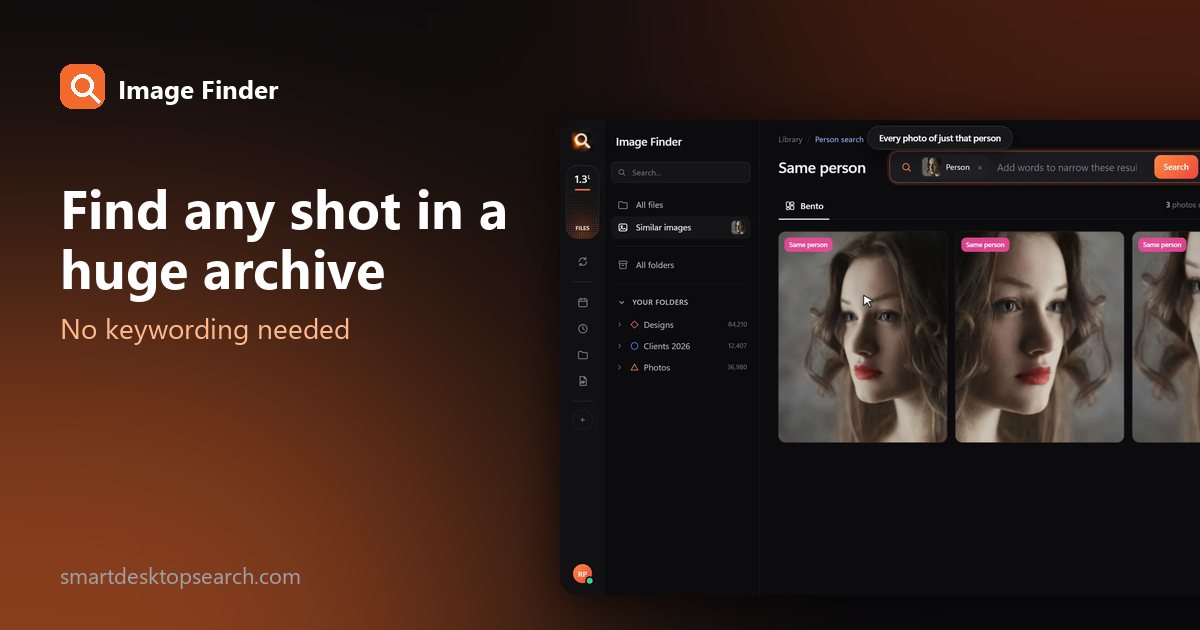
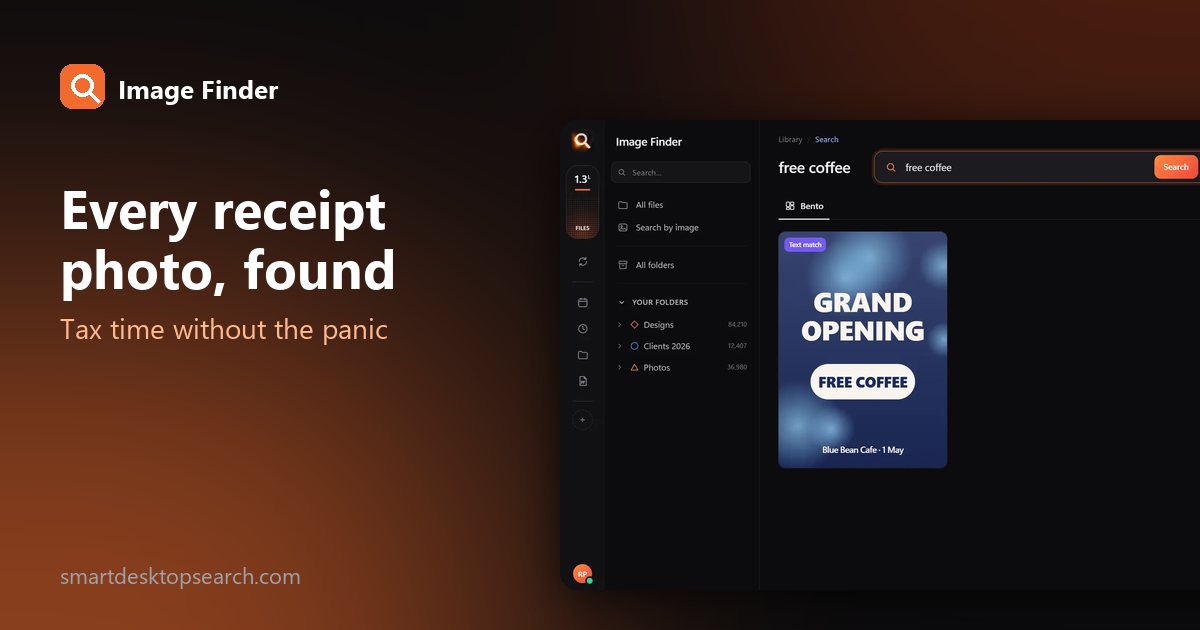
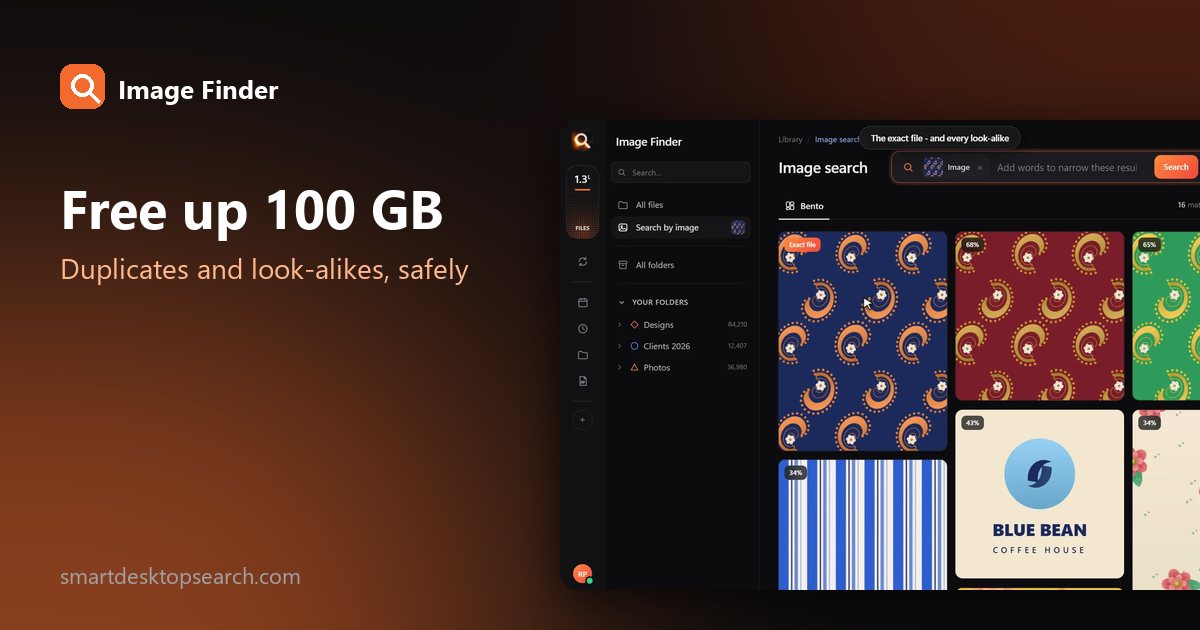
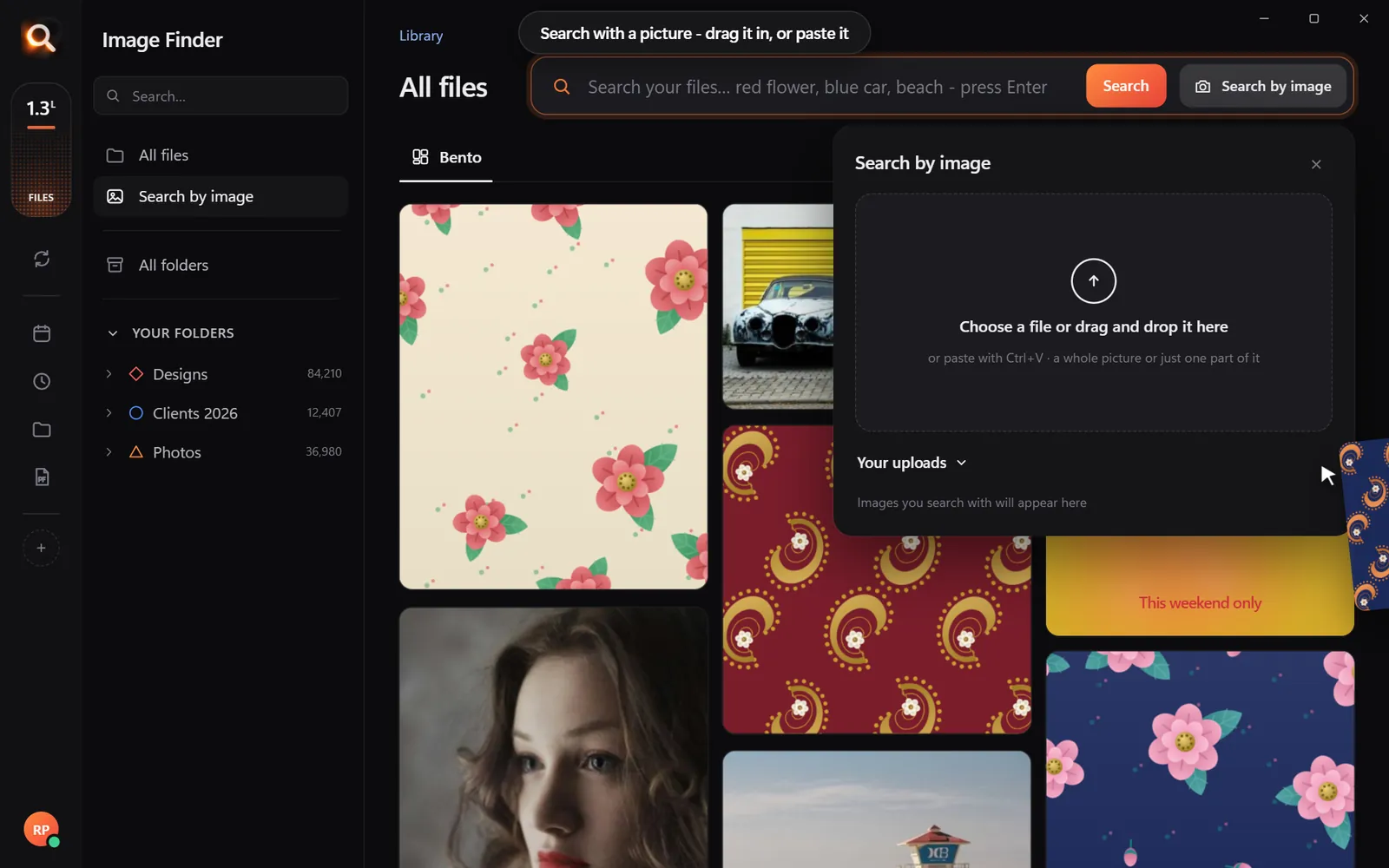
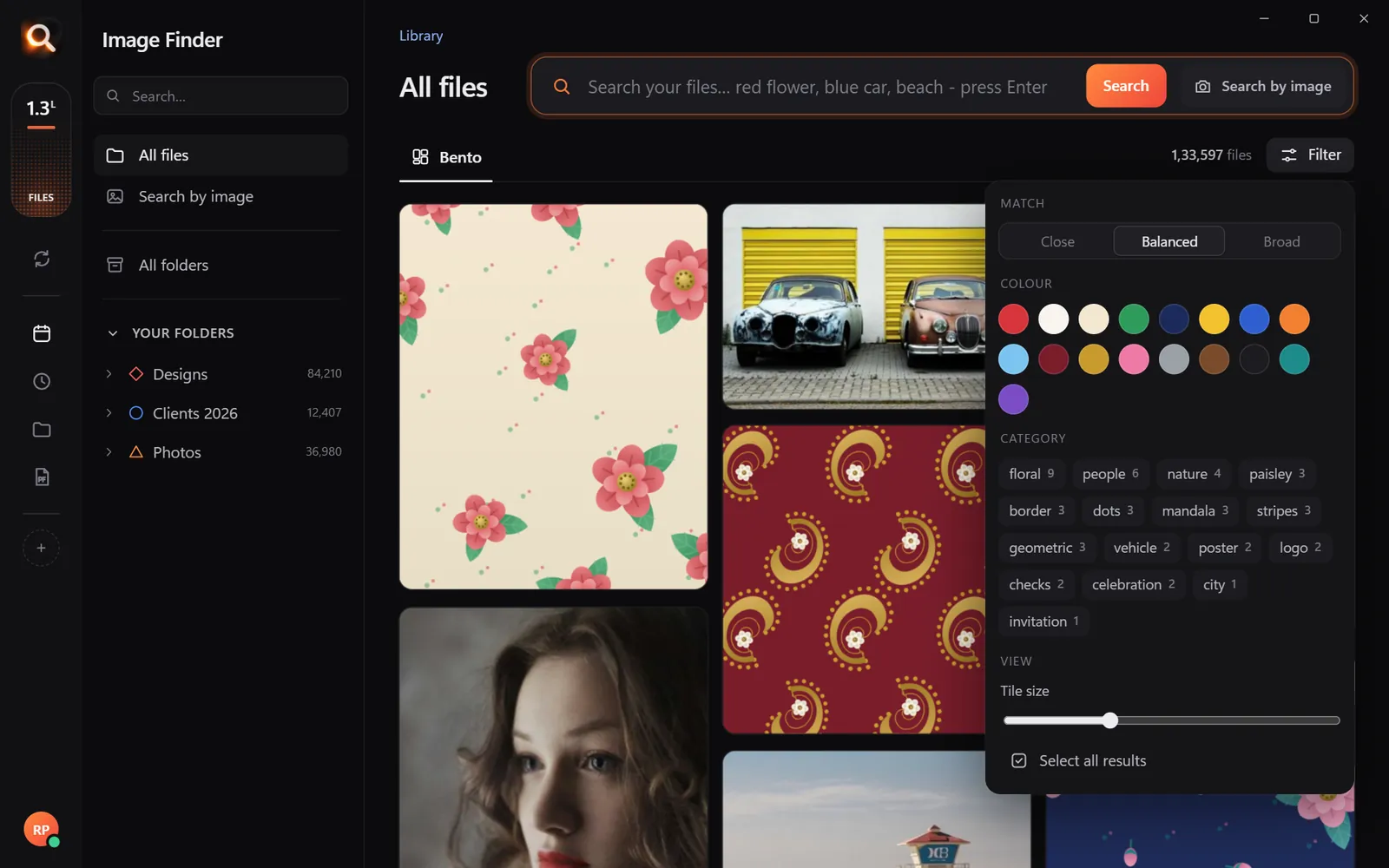
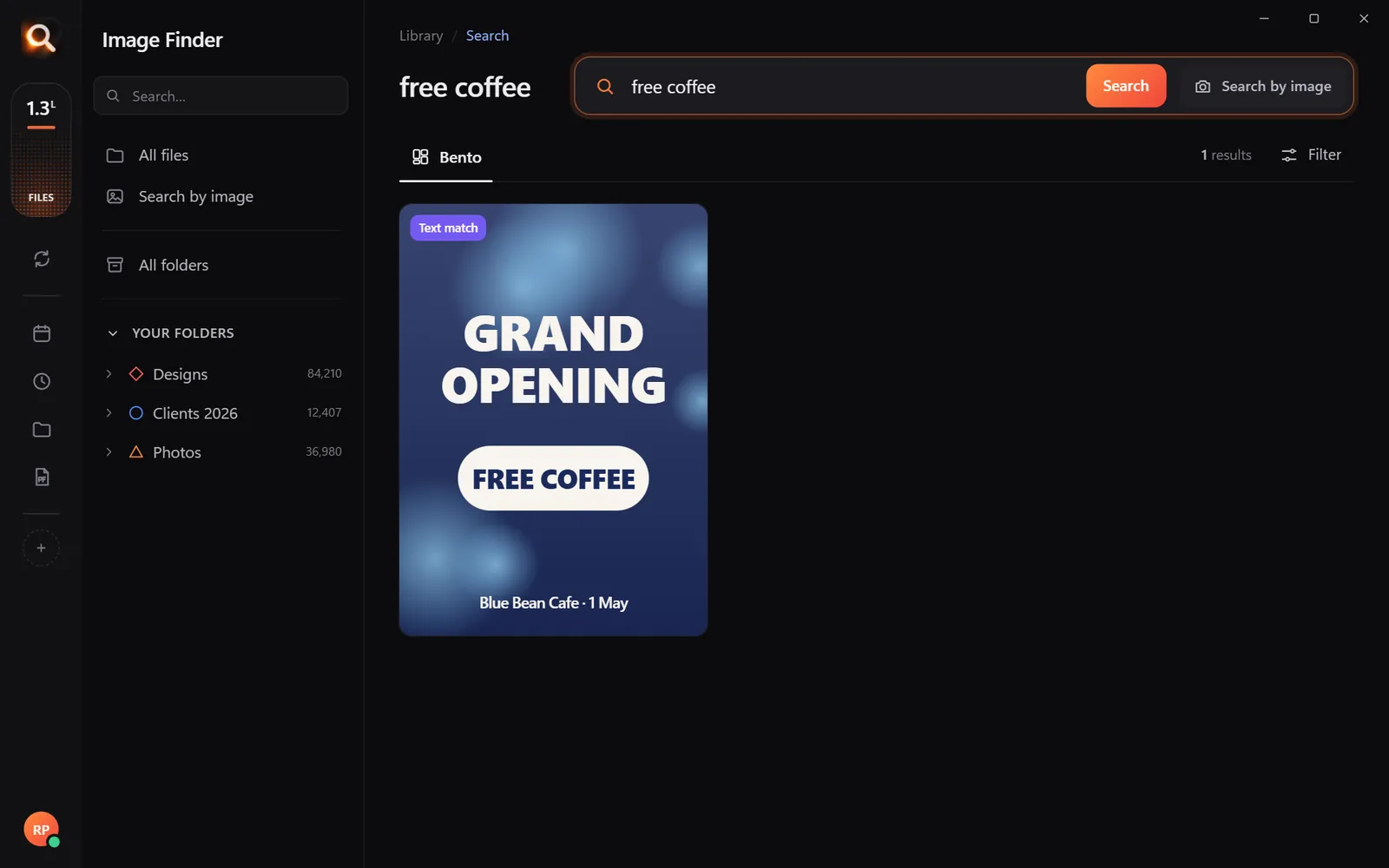
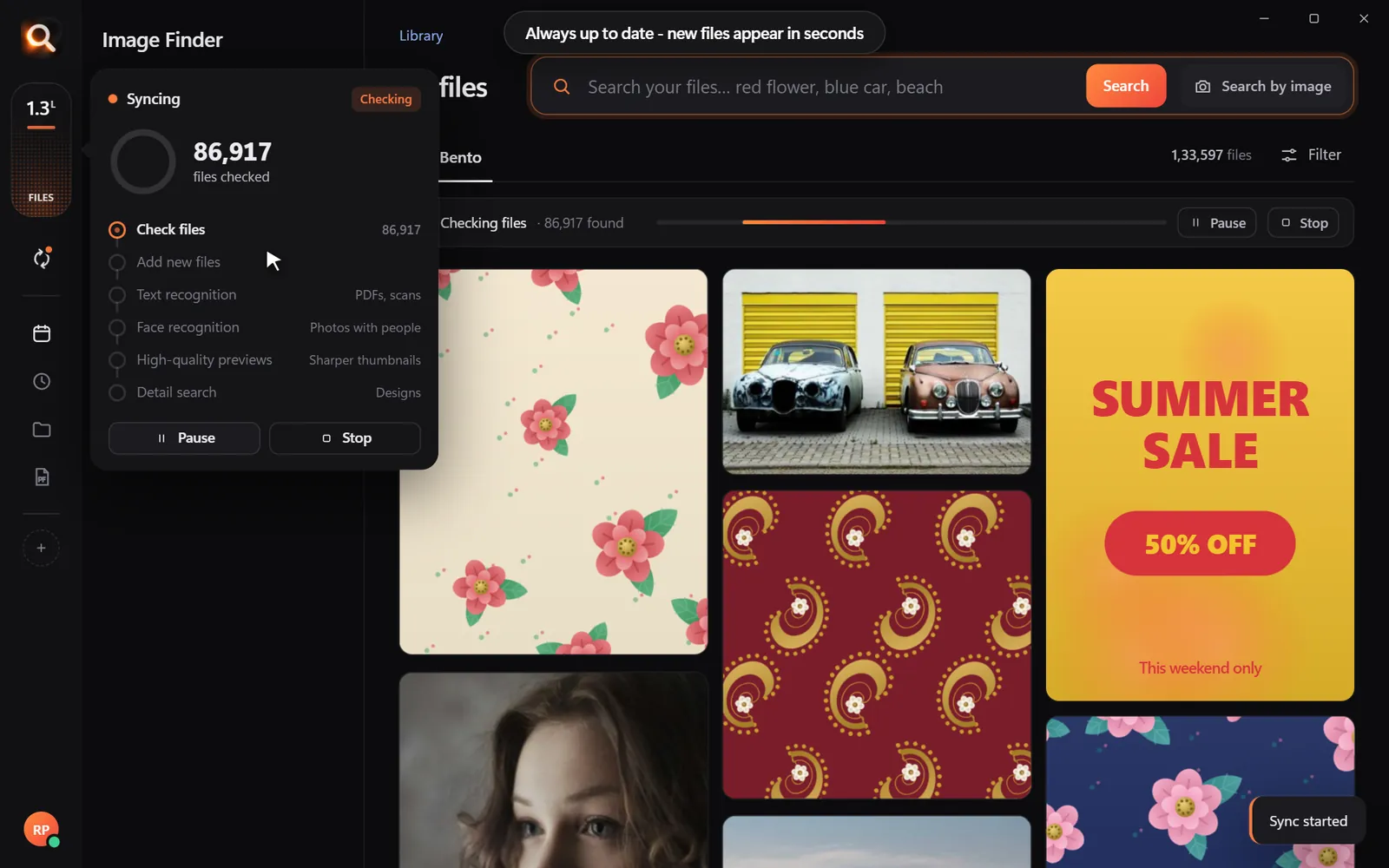
Image Finder looks at every picture in the folders you add - RAW, JPG, TIFF, HEIC, PSD, PDF proofs - and lets you:
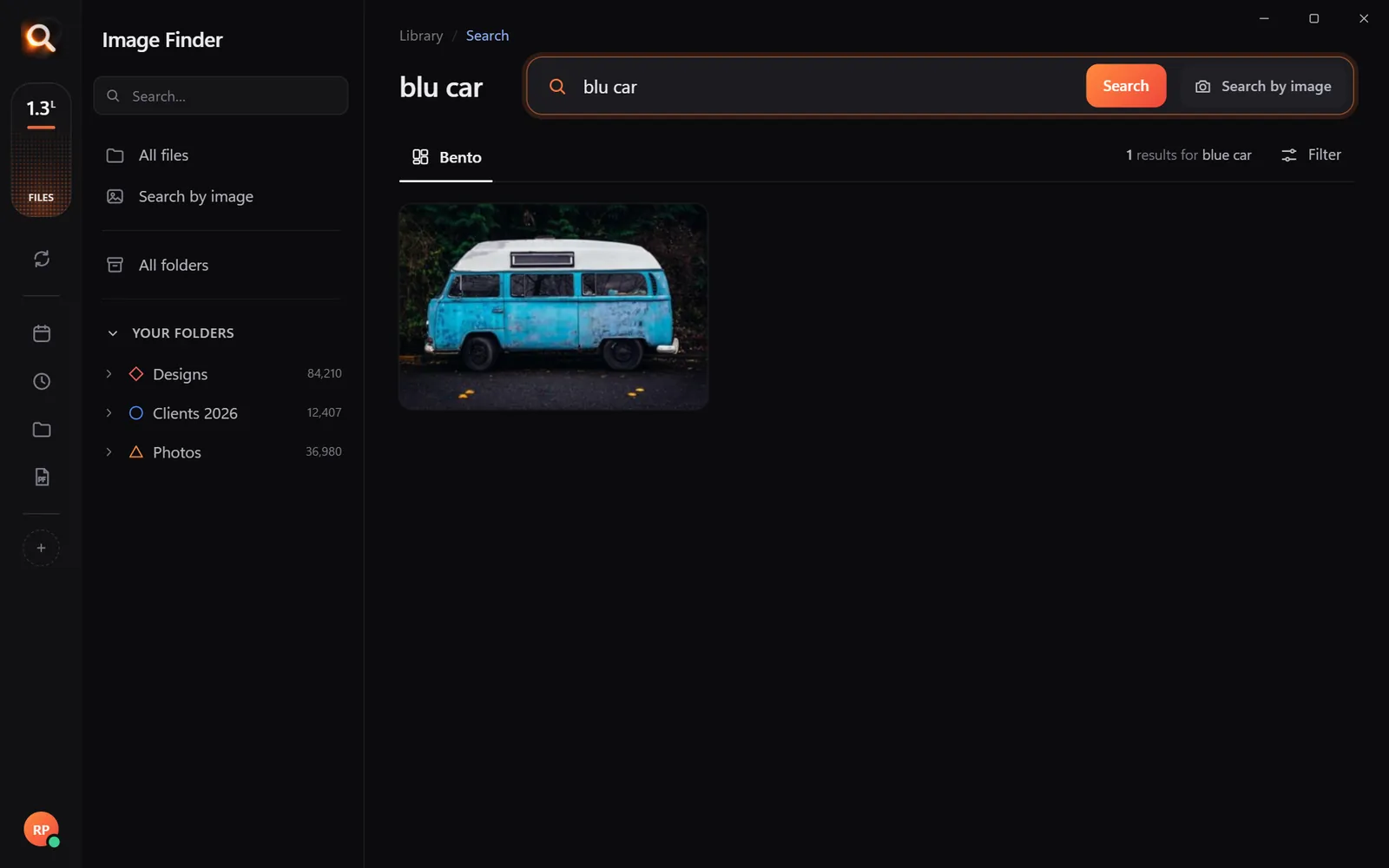
- describe the shot: "bride and groom under umbrella", "backlit portrait", "aerial city at night";
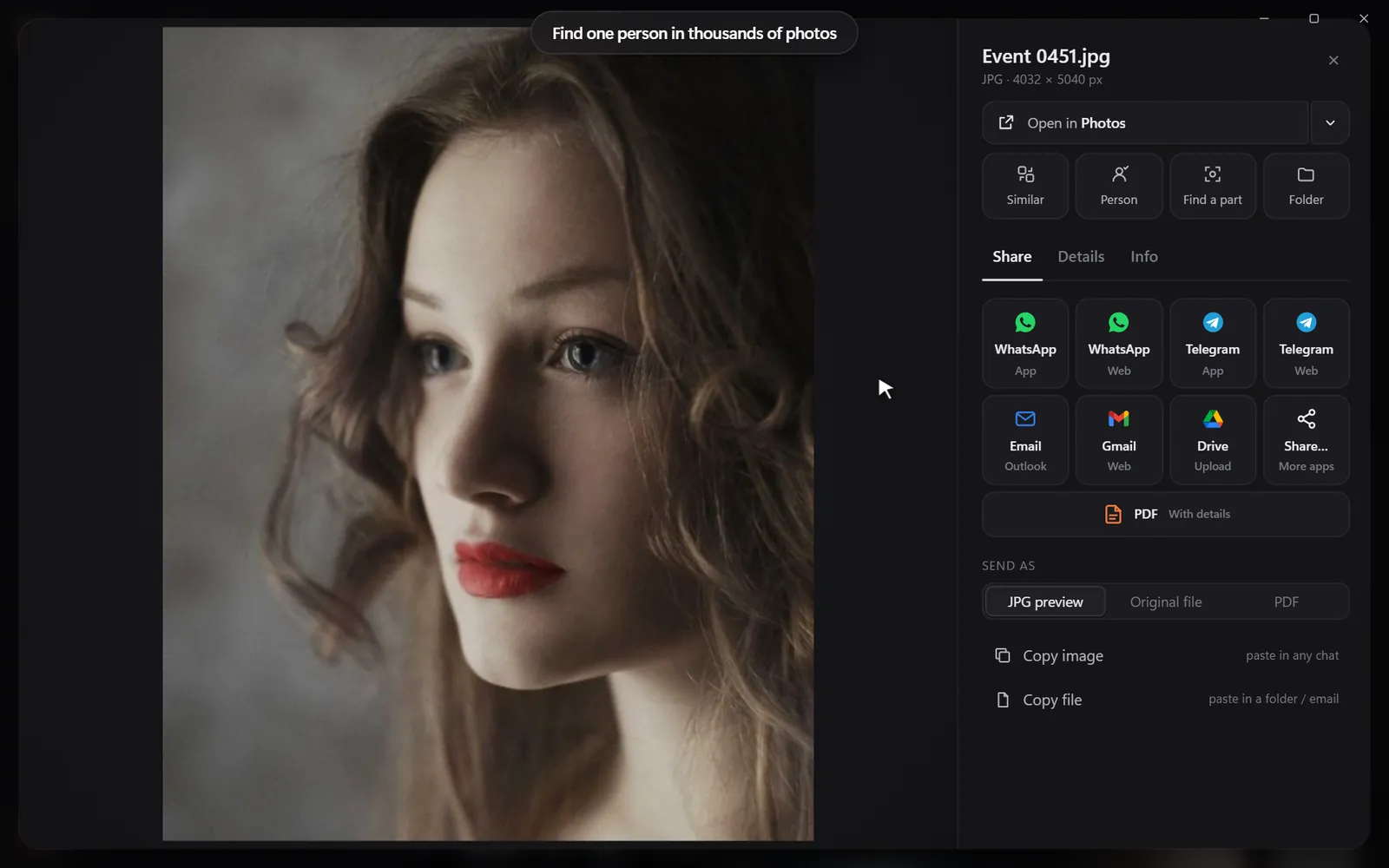
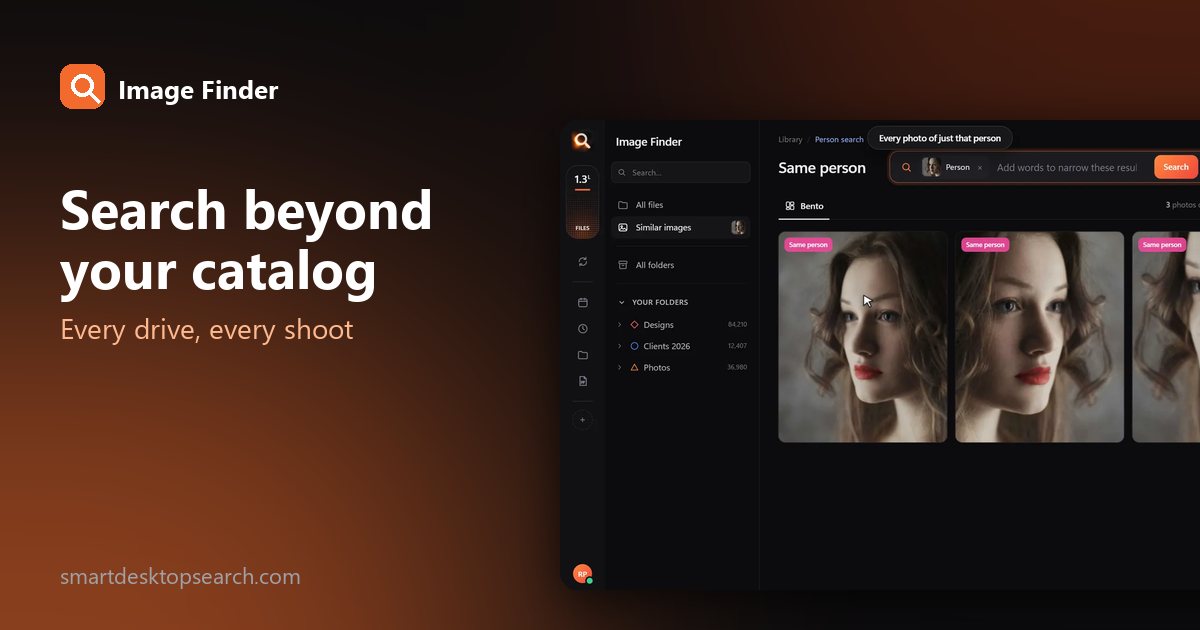
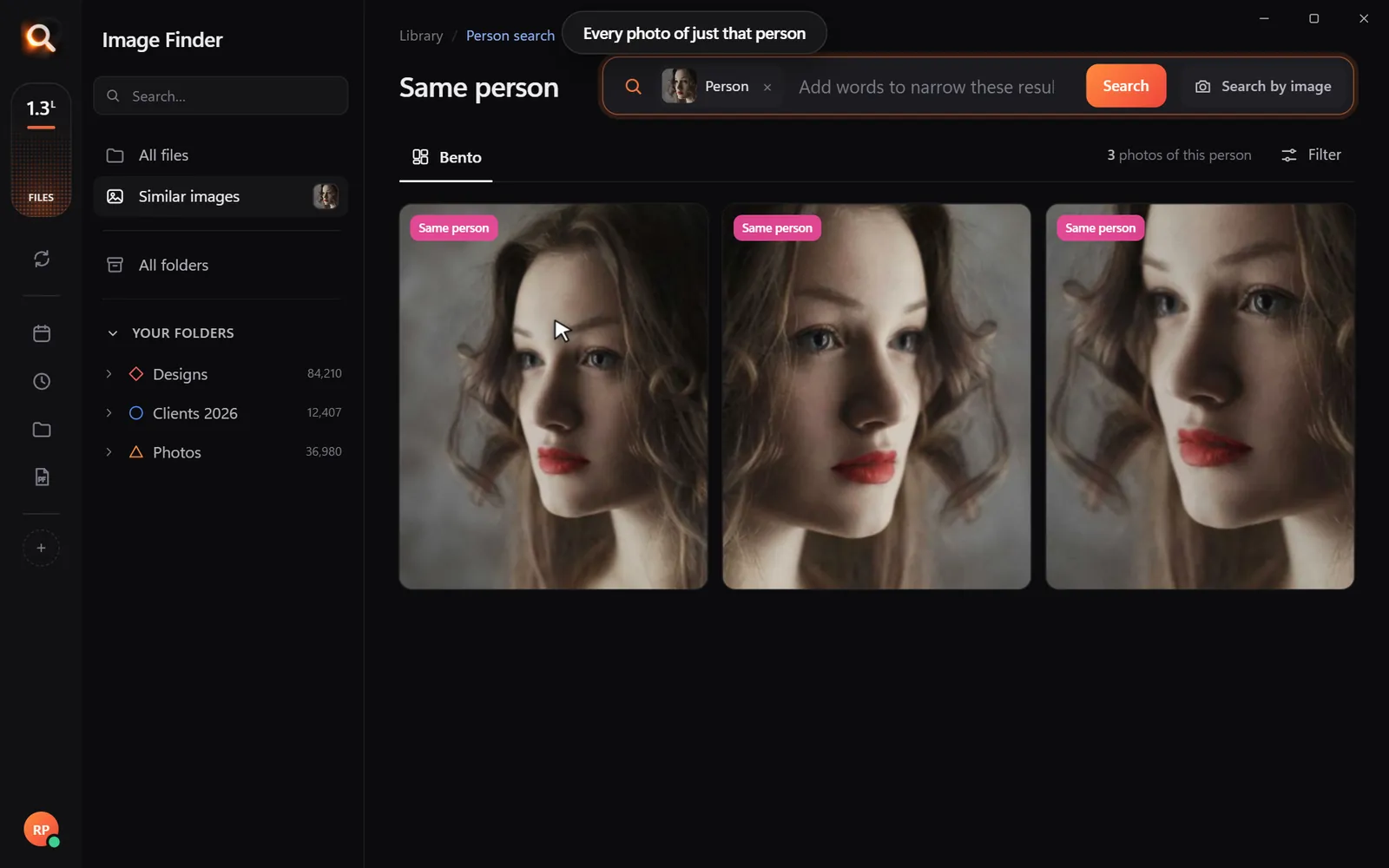
- pick a face: every photo of one client across sessions and years;
- drop in a reference: the client's phone screenshot finds your original;
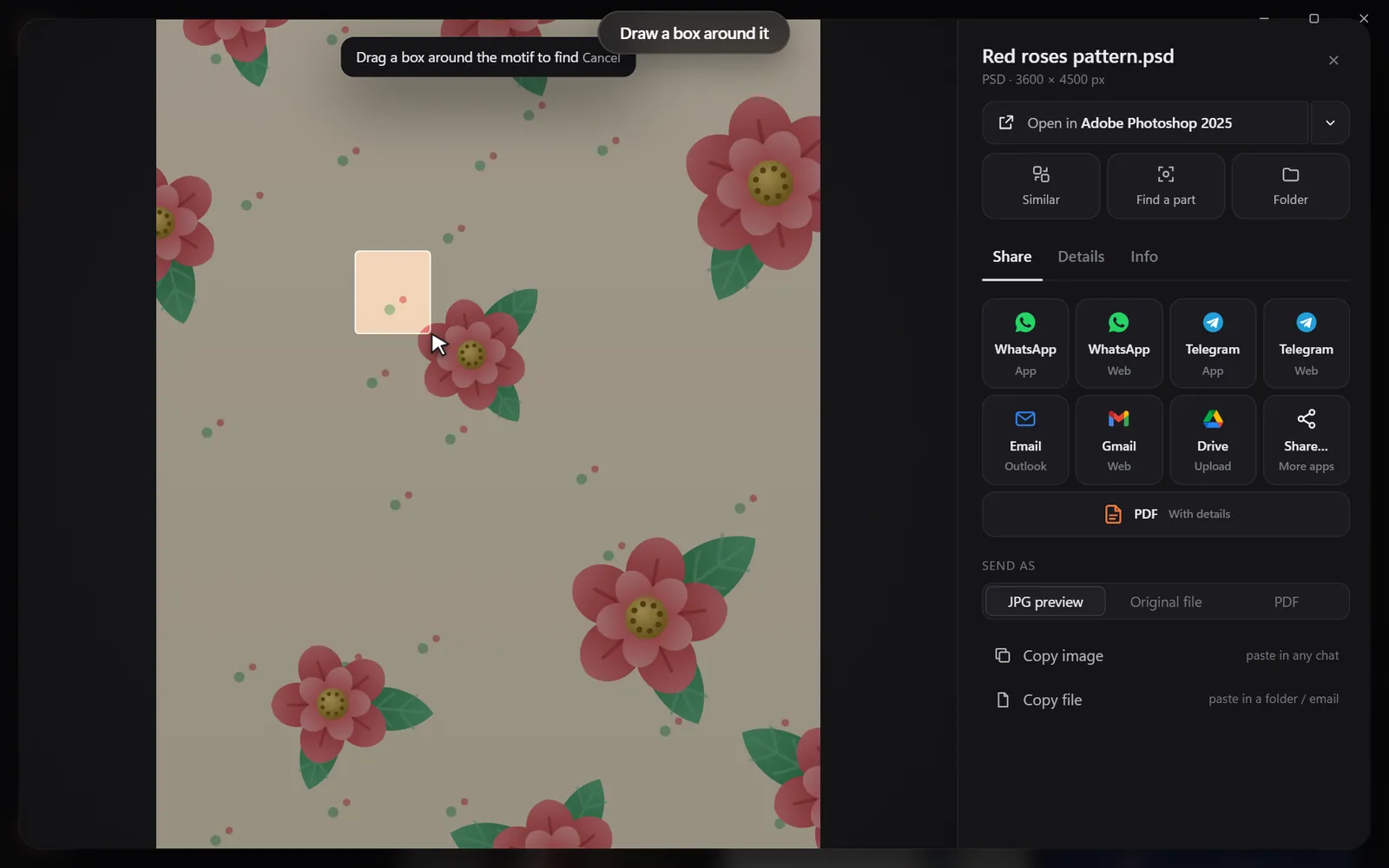
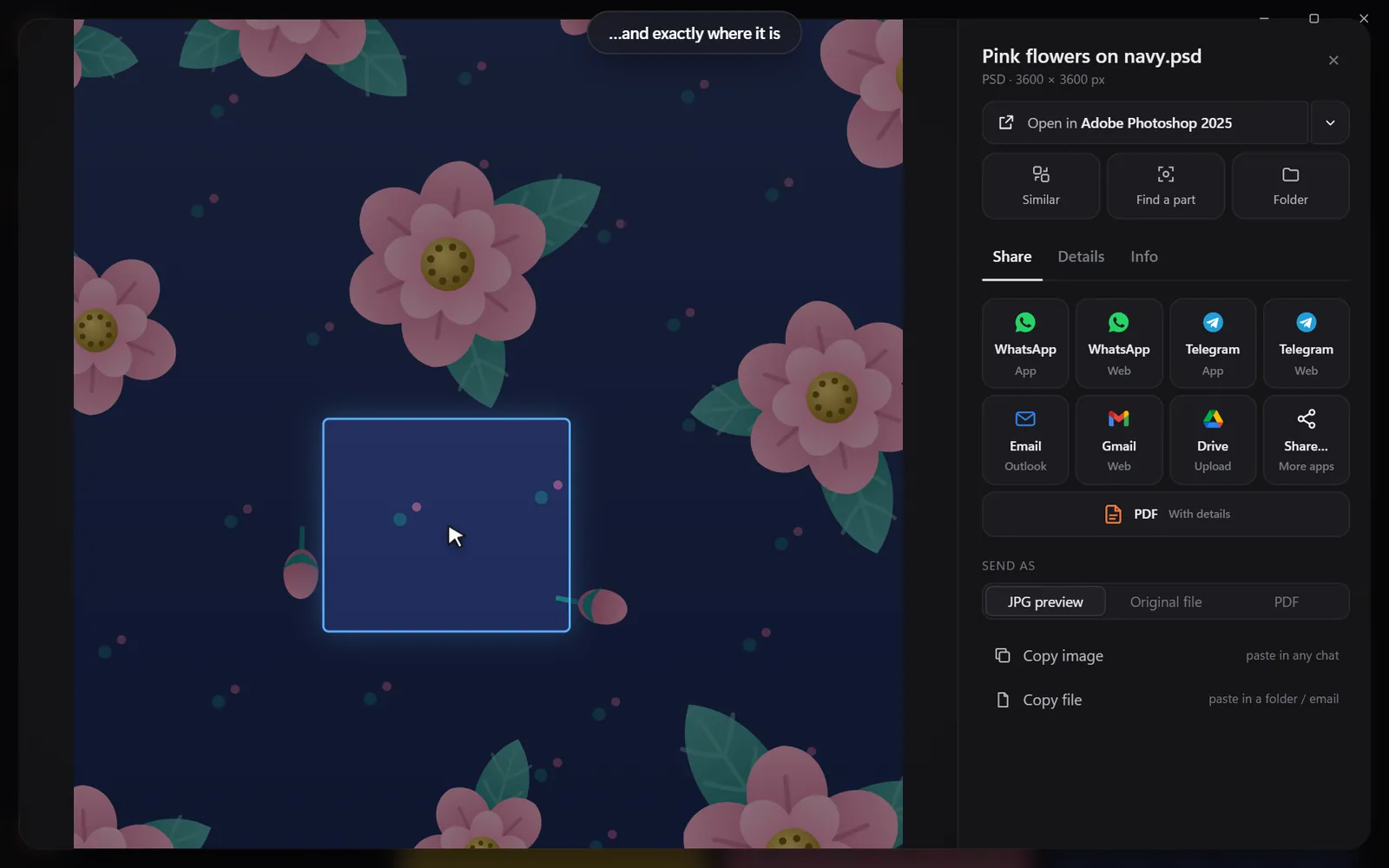
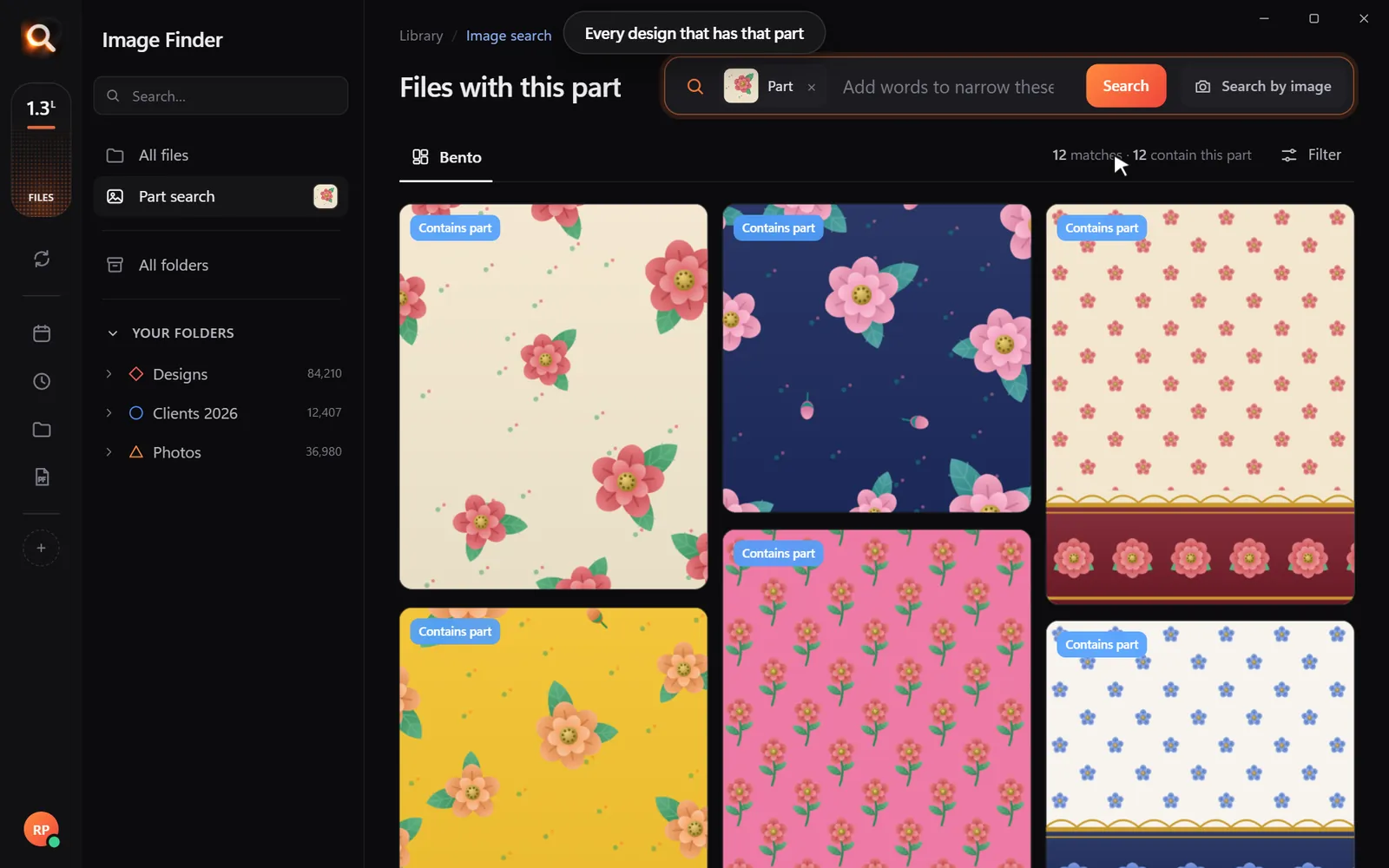
- draw a box: find every photo with a specific product, sign or logo;
- filter by color: golden tones for an autumn post, monochrome for a gallery.

Keep Lightroom, add search
Lightroom (cloud) vs Lightroom Classic vs local search
Adobe's cloud-based Lightroom can search by content - for photos you upload to Adobe's cloud. If your archive is too big for cloud storage, or clients' work must stay off third-party servers, local search covers it without uploading.
| Lightroom (cloud) | Lightroom Classic | Image Finder | |
|---|---|---|---|
| Search by content | Yes, cloud photos | Limited | Yes |
| Photos must be uploaded | Yes | No | No |
| Searches un-imported drives | No | No | Yes |
| Face search | Yes | Yes (people view) | Yes |
| Edits photos | Yes | Yes | No - opens your editor |
Common requests, answered in a minute
| Request | Search |
|---|---|
| "That photo of us laughing at the reception" | Pick their face + "laughing" |
| "The ones in the red dress" | Pick their face + filter red |
| "Do you have shots of the venue from outside?" | Describe: "building exterior garden" |
| "Can I get the original of this?" | Drop in their screenshot |
Bonus: rediscover your best work
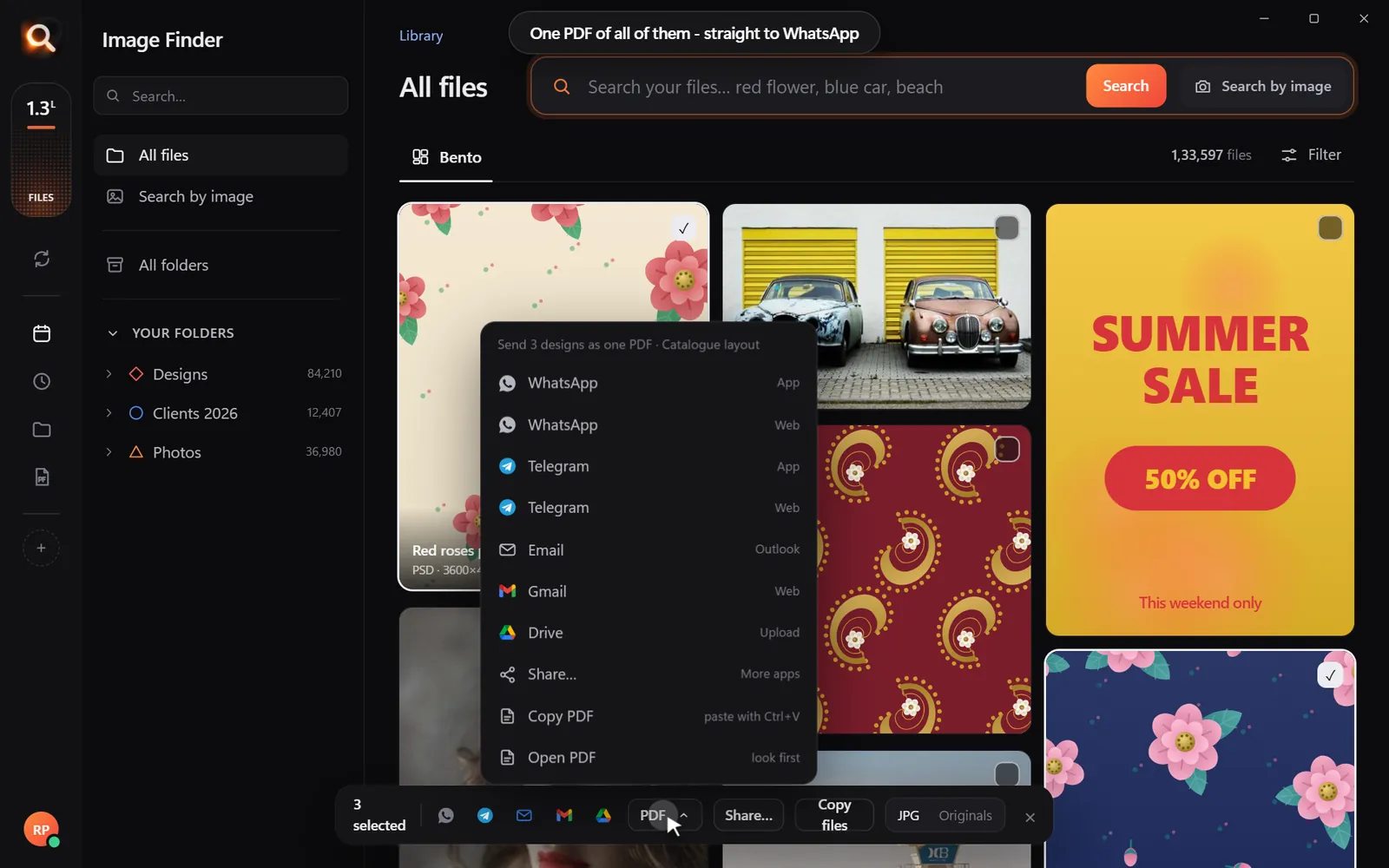
Your archive is full of portfolio pieces you forgot. Try "dramatic sky", "silhouette", "rain", "reflections" - then make a PDF contact sheet of the best to compare. Great for portfolio updates, competitions and social posts.
Catalog troubles photographers know too well
| Problem | What happens |
|---|---|
| Missing files ("?" icons) | Files were moved or a drive renamed outside Lightroom |
| Several catalogs | You don't know which catalog holds which shoot |
| Corrupted catalog | Restore from a backup - if you have one |
| Huge catalog | Slow previews and searches |
| Old catalogs from old versions | Need upgrading before use |
None of these affect a search tool that reads the folders directly. If a drive letter changes or you reorganize folders, Image Finder simply picks up what's there.
Combining metadata habits with content search
You don't need to drop the habits that work for you. Ratings and color labels in Lightroom are still great for culling. Content search fills the gaps:
- Unrated shoots - most of your archive.
- Old drives never imported.
- Exports and deliveries - the JPGs clients actually saw.
- Behind-the-scenes and phone photos - never in the catalog.
Delivering faster
When a past client asks for a photo, speed matters. A practical delivery flow:

Speed: what to expect
The first time Image Finder looks at a big archive, it reads each photo once and builds small previews - for hundreds of thousands of RAW files, plan on letting it run overnight. After that, searches take about a tenth of a second, and new shoots are added as they appear in your folders.
A note on storage
Previews take some space - far less than Lightroom's full previews, but plan a few GB for very large archives. Keep the library on a drive with room to spare.
Where it doesn't help
Image Finder doesn't edit, rate, keyword or export - and doesn't try to. It's the "find it" part of your workflow. Editing stays in Lightroom, Capture One or Photoshop.
Questions people ask
Can I search photos that aren't in my Lightroom catalog?
Yes. Add the folders or drives to Image Finder and search them by content - no import needed.
Does it read Lightroom keywords?
Image Finder searches what is in the photos themselves, so it works whether or not photos have keywords.
Will it slow down Lightroom?
No. It is a separate app. The first look at a large archive uses your computer's power, so you may prefer to let it run overnight.
Does it support my camera's RAW files?
Common camera RAW formats are supported along with JPG, TIFF, HEIC, PNG, PSD and PDF.
Windows and Mac. Private, offline, no subscription.