Try itFeaturesPricingHow it works QuestionsBlogSign in DownloadContact usRefunds

For Windows & Mac · Works offline

Find any image on your computer.
Just describe it.

Type "red flower", drop in a photo, or pick a face - Image Finder finds the right file among lakhs of photos, designs (PSD, CDR, AI) and PDFs in about a tenth of a second. Nothing is uploaded.

On your phone? Image Finder runs on your computer. Send yourself the link and open it there.

Choose your computer and a plan - the download starts by itself right after paying

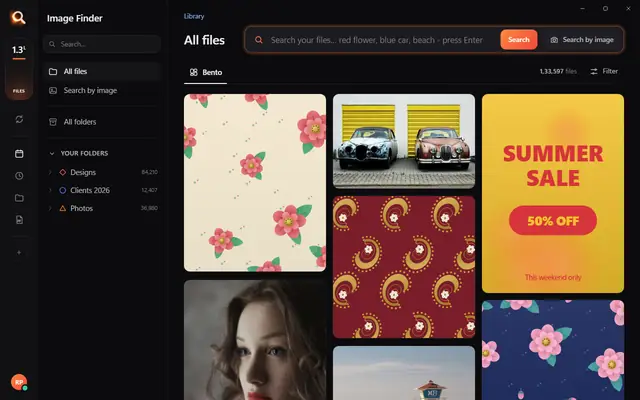
The Image Finder window with sample pictures

The real Image Finder window with sample files - click anywhere in it to try it yourself. In the app it searches lakhs of your own files in a fraction of a second, all on your PC. Open it full screen

Sound familiar?

You remember the picture,
not the file name.

It's somewhere in IMG_4821, final_final_v3.psd or New folder (7).

Windows search only
knows names.

It can't see a red flower, a logo or a face inside your files.

Photo apps want
your files uploaded.

And they can't open PSD, CDR or AI designs at all.

Image Finder looks inside every file - so you find it the way you remember it.

Four ways to find it. One click to share it.

By words

Type what you see.

By a picture

Drop in any picture.

By one part

One motif. Every file that has it.

By a face

One face. Every photo.

Then share it

WhatsApp, PDF, Drive. One click.

Always ready

New files show up in seconds.

Why not just use Windows search?

Because it only knows file names. Here is what changes.

Image FinderWindows File Explorer searchCloud photo apps
Find a picture by describing what is in it Names and dates onlyPhotos only
Search with a picture - find the original and look-alikes Some apps
Find every file that has one part of a design
Opens design files - PSD, CDR, AI, EPS - and camera RAW Names only
Works with no internet
Your files stay on your computer Uploaded
Works on any Windows 10 / 11 PC or Mac

Windows 11's Photos app can search by description only on new Copilot+ PCs, and only in photos.

Built for real libraries.

Lakhs of files, many folders, many names - and people who have no time to look.

Private by design.

Your designs, photos and searches stay with you - on your own PC. Nothing is uploaded, and nobody else can see them.

Fast on any PC.

About a tenth of a second per search - even in a lakh-plus library.

1,33,597 files searched

107 file types.

Photoshop, CorelDRAW, Illustrator, PDF, camera RAW, videos, fonts - with real previews.

Selected 0
107 types

Made for anyone with a big library.

Designers & print shops

"floral border maroon" - the right PSD or CDR from lakhs of designs, while the client waits.

Photographers & studios

Every photo of one person from a whole wedding, in one click.

Offices & agencies

Logos, posters and PDFs found by the words printed inside them.

Everyone with years of photos

"beach", "birthday cake", "red car" - no folders to dig through.

Simple pricing.

₹1 per day. Pay once for the time you need - no auto-debit.

One licence works on one PC. Your time starts when you activate Image Finder on your PC.

Searching in three minutes.

1

Choose a plan and pay

UPI, cards, net banking or wallets. Your website account is made with your email and password.

2

Download - your key is inside

Your licence key is made the moment the payment is done. Download Image Finder right away.

3

Install and choose folders

Click Install, pick the drives and folders to search - and start finding while it reads them.

Questions? Answers.

How do I find a picture on my computer if I don't know its name?

Open Image Finder and describe it - "red flower", "blue car", "birthday cake". It looks at what is inside every picture, so the file name does not matter. You can also drop in a similar picture, or pick a face.

Is it better than Windows search?

Windows File Explorer finds files by their names and dates. Image Finder finds them by what is in them - words, pictures, a part of a design or a face - and it also opens design files like PSD, CDR and AI. Windows 11's own describe-search in the Photos app needs a new Copilot+ PC; Image Finder works on any Windows 10 or 11 PC.

Does it upload my files?

No. Image Finder works fully on your computer. Your files, pictures and searches never leave it. Only your licence is checked online, once every few days.

Does it work without internet?

Yes. Searching, previews and sharing to folders work offline. It needs the internet only to check your licence now and then, and to send to WhatsApp, Gmail or Drive.

Which file types does it search?

107 types: Photoshop (PSD, PSB), CorelDRAW (CDR), Illustrator (AI, EPS), PDF, every photo format including camera RAW (NEF, CR2, ARW), HEIC, SVG, Office files, fonts and videos - all with real previews.

Can it search inside PSD and CDR files?

Yes. It sees the design itself, so "red rose border" finds the right PSD or CDR, and a photo of a printed design finds its original file.

Does it work on Mac?

Yes - there are versions for Macs with Apple M chips and for older Macs with Intel chips, and for Windows 10 and 11.

What computer do I need?

Windows 10 or 11 (or a Mac), 8 GB RAM or more, and about 2 GB free space plus room for previews of your files. No special graphics card is needed.

How much does it cost?

About ₹1 a day - from ₹30 for a month. You pay once for the time you choose; there is no auto-debit and nothing renews by itself.

Can I use one licence on two PCs?

One licence works on one PC. If you change your PC, remove the licence from the old one (in the app, or in your account on this website) and activate it on the new PC.

How do I pay?

UPI (GPay, PhonePe, Paytm), debit and credit cards (also international cards), net banking and wallets. You get an invoice by email.

Can I get a refund?

Yes - see our refund policy.

Stop searching.
Start finding.

Blog

Tips for finding, organising and sharing your designs faster.

← All posts

Blog post

How to Find Every Photo of One Person on Your Computer (Face Search, Offline)

A wedding album for your parents' anniversary. A slideshow for a friend's birthday. A client asking for every shot of the CEO from three events. All of these start with the same job: find every photo of one person - across years of folders, phone backups and memory cards.

Why this is so hard with folders

Folders are organized by date or event, not by people. A single person appears in hundreds of folders. Cloud services like Google Photos can group faces, but only for photos you upload to them, and many people do not want family or client photos in someone else's cloud.

How face search works on your own computer

Face search software looks at each photo once, finds the faces, and remembers what each face looks like. When you pick one face, it shows every other photo with the same person - regardless of the file name, folder or year.
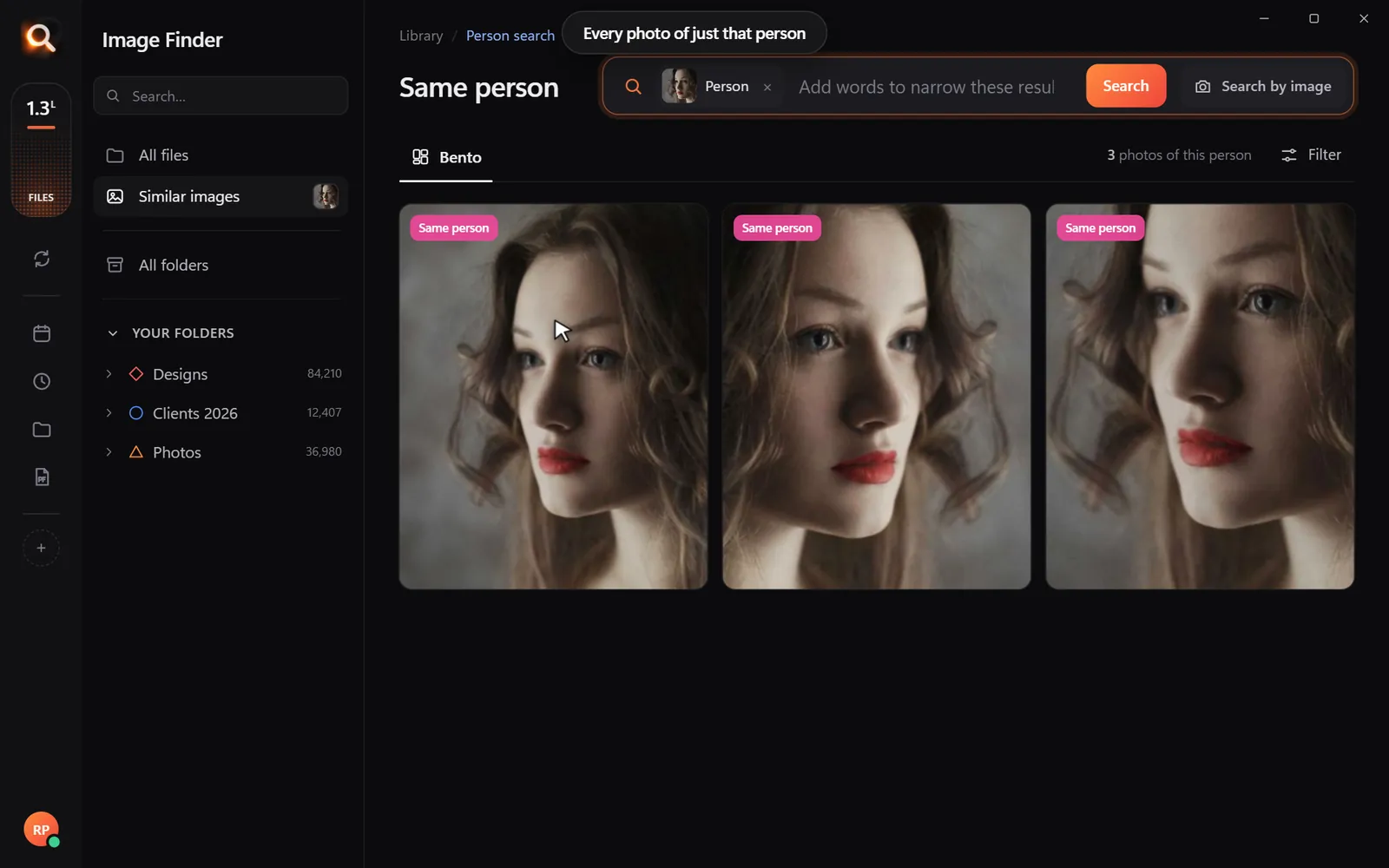
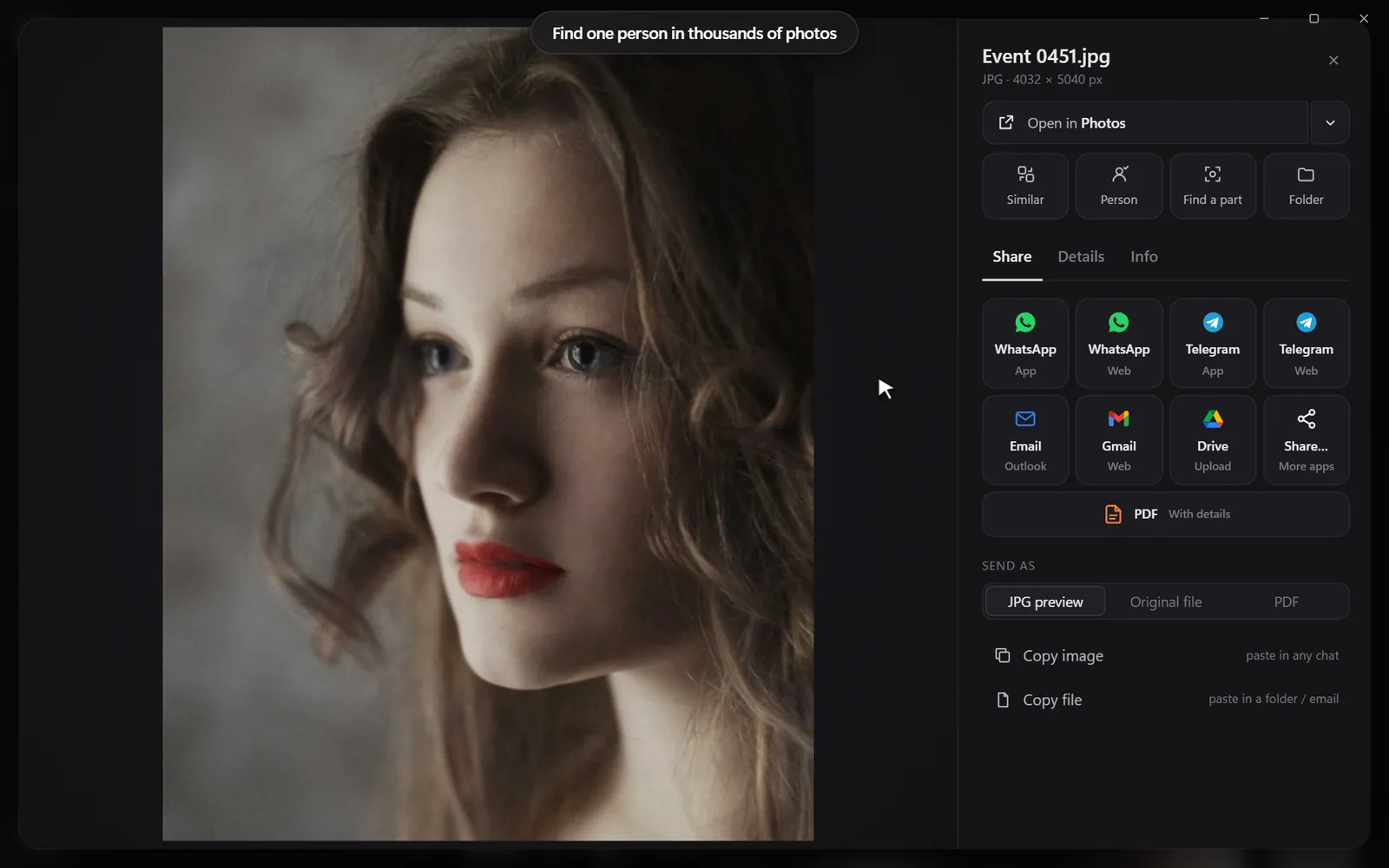
Image Finder: 'Same person' shows every photo of the person you picked
Pick one face: every photo of just that person.

Step by step with Image Finder

Find one person in thousands of photos 0/5
Open a photo, then pick 'Same person'
Open any photo of them, then choose 'Same person'.

Works with phone photos, camera RAW and more

Face search works on the photos you already have: JPG and HEIC from iPhones and Android phones, PNG screenshots, and RAW files from cameras. Pictures inside ZIP archives are searchable too.

Who uses this

  • Families making albums, slideshows and memorial collections.
  • Photographers answering "can you send every photo of the bride's mother?" - see image search for photographers.
  • Schools, clubs and agencies finding every photo of a person who asked to be removed from public material.

Face search vs. tagging faces by hand

Some photo managers ask you to name every face they find before they can help - "Who is this?" hundreds of times. That works for a small family album, but with years of photos it becomes another project you never finish.

Naming faces by handPick one face (Image Finder)
SetupName each person the app asks aboutNone
New photosName the new faces tooFound automatically
Find someoneChoose their namePick any photo of them
Works on existing foldersUsually after importingYes, where files are

Make a gift album in ten minutes

  1. Find them. Open one good photo of the person and choose Same person.
  2. Narrow it down. Add words like "wedding", "beach" or "Christmas tree" to keep only one part of their life.
  3. Pick the best. Select your favorites with Ctrl or Cmd held down.
  4. Make it. Choose PDF to get one neat document of all of them, ready to print or send - or copy them to a folder for a photo book service.

What makes face search fail - and how to help it

  • Tiny faces in big group shots: zoom-level detail is limited. Start from a close photo.
  • Side views and sunglasses hide much of the face. Front-facing photos match best.
  • Very blurry or dark scans of old prints: rescanning at a higher resolution helps.
  • Twins and close siblings can be mixed up by any face search. Glance through the results.

Questions people ask

Can I search photos by face on Windows without Google Photos?

Yes. Image Finder finds every photo of a person on your Windows PC (or Mac) offline, from the folders you already have, with nothing uploaded.

Do I need to name or tag every face first?

No. You pick one photo of the person and choose Same person. There is no list of faces to label.

Does it work with old scanned photos?

Often, yes - if the scan is clear enough to see the face. Very small, blurry or side-on faces are harder for any face search.

Private face search for Windows and Mac. Try it free.

Windows and Mac. Private, offline, no subscription.
Try Image Finder

Search lakhs of designs on your PC in seconds. From ₹1 per day.

See plans
Photo library searchEvery photo, every year, one search.Twenty years of phone backups, camera cards and WhatsApp downloads. Describe the moment or pick a face - Image Finder finds it in your library, on your computer

More posts

How to Search Images by Content on Windows 11 and Mac (No Tags Needed)

How to Search Images by Content on Windows 11 and Mac (No Tags Needed)

Windows Search and Finder only read file names. Here is how to find a photo or design by what is actually in it - a red car, a beach, a logo - in about a second.

8 Oct 2026
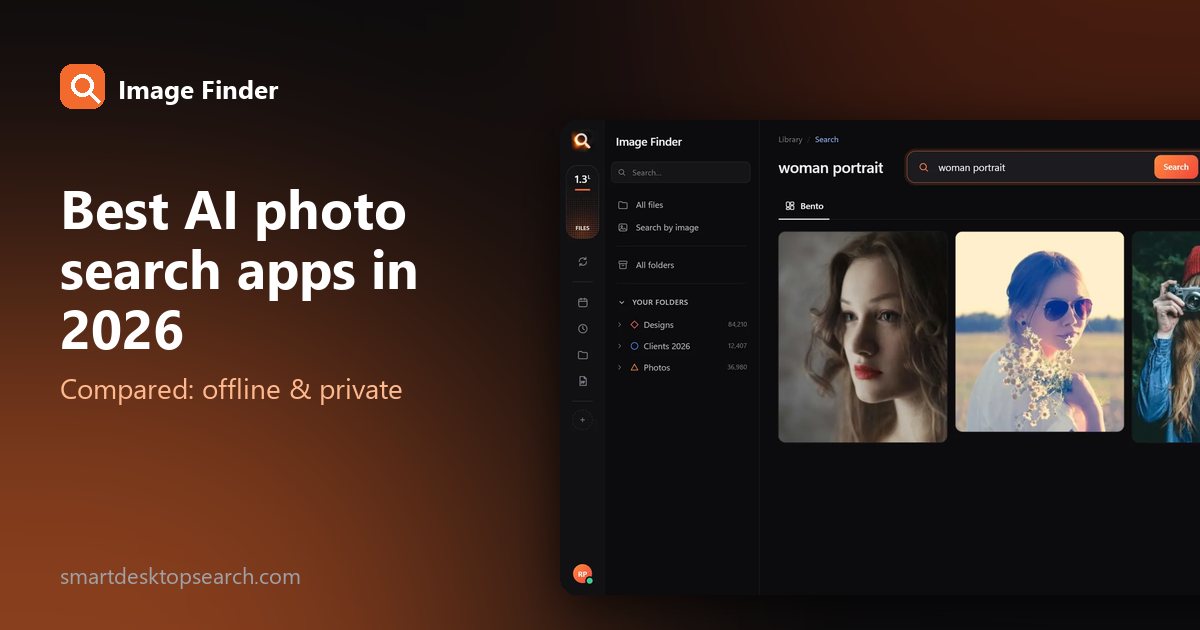
The Best AI Photo Search Apps for Windows and Mac in 2026 (Offline and Private)

The Best AI Photo Search Apps for Windows and Mac in 2026 (Offline and Private)

Seven apps that let you find photos by describing them - compared honestly: what each one searches, whether it works offline, and who it is for.

8 Oct 2026
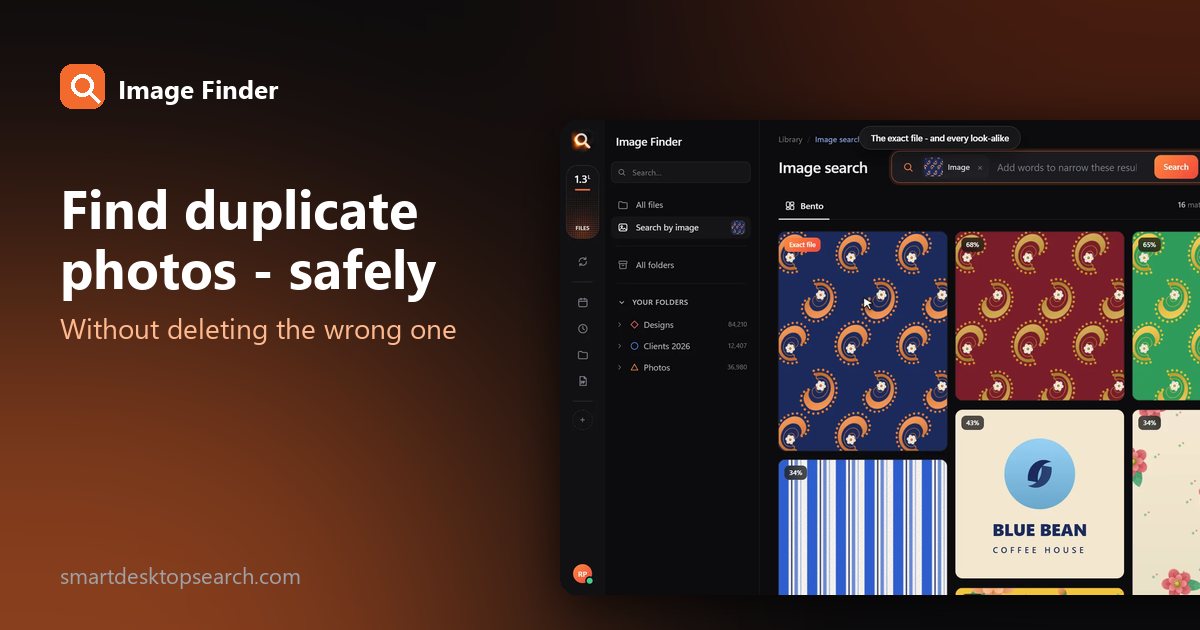
How to Find Duplicate Photos on Windows (Without Deleting the Wrong One)

How to Find Duplicate Photos on Windows (Without Deleting the Wrong One)

Exact copies, resized versions, edited near-copies: how to find every copy of a photo on Windows, and when a bulk duplicate cleaner is the better tool.

8 Oct 2026