 +

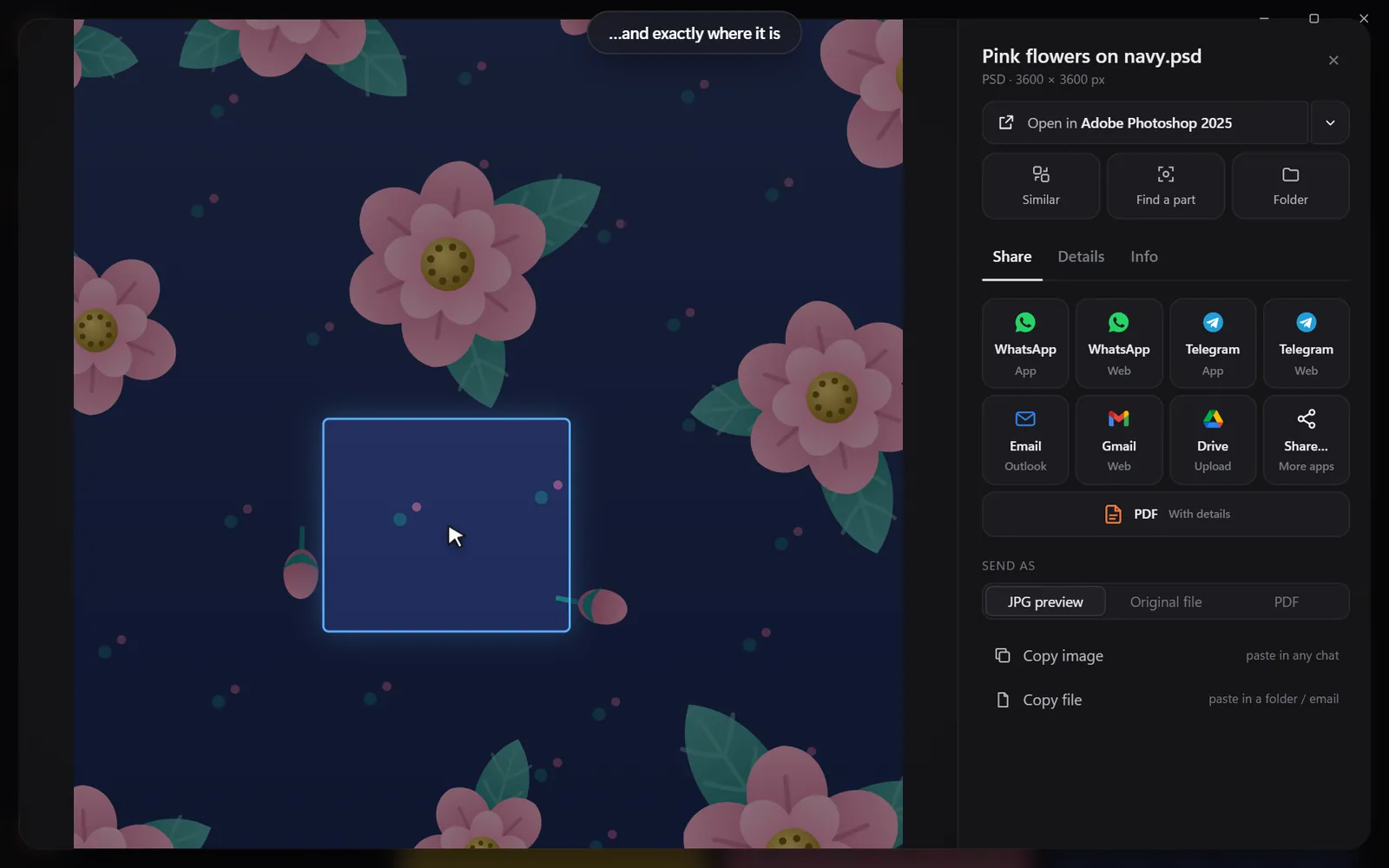

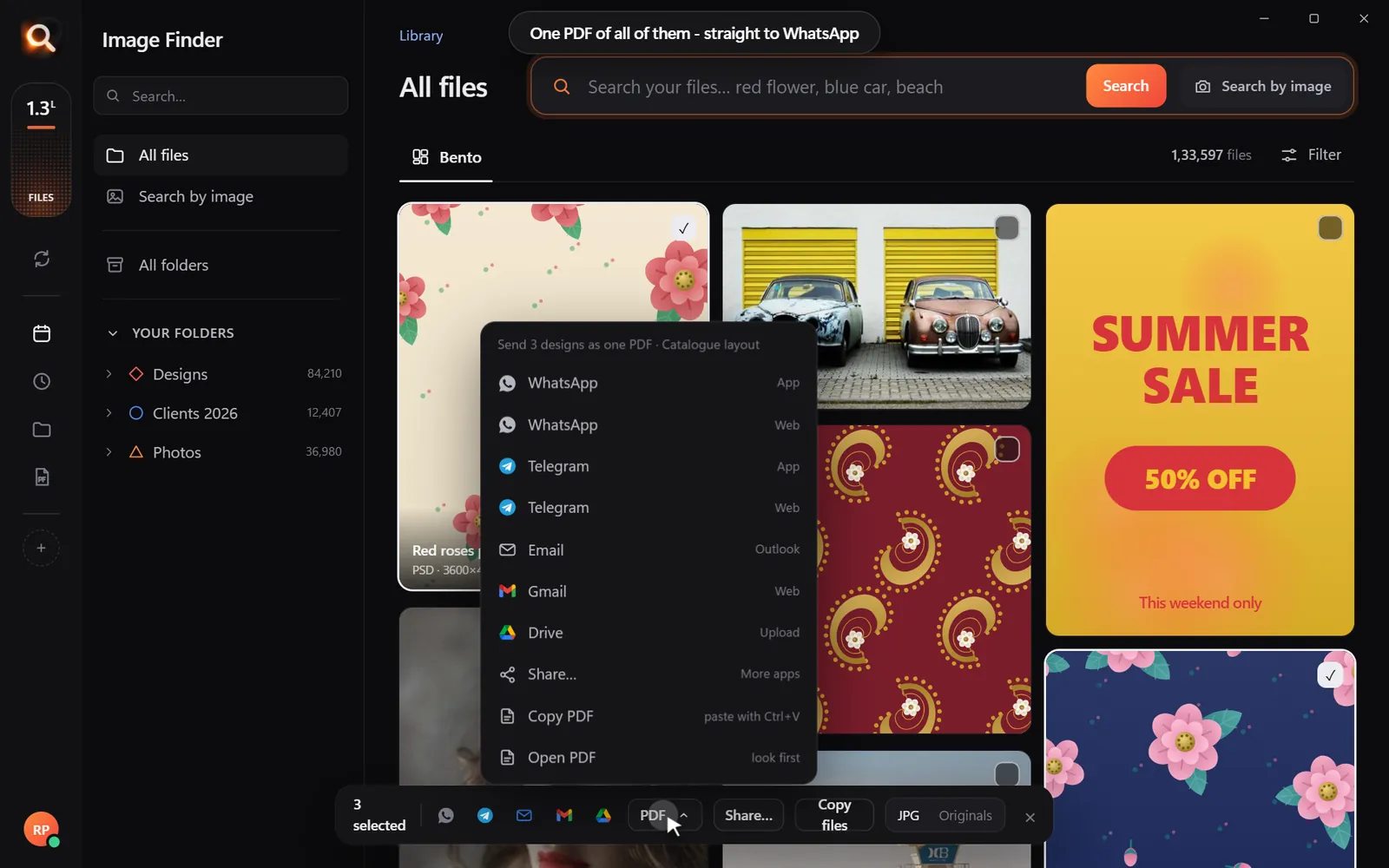
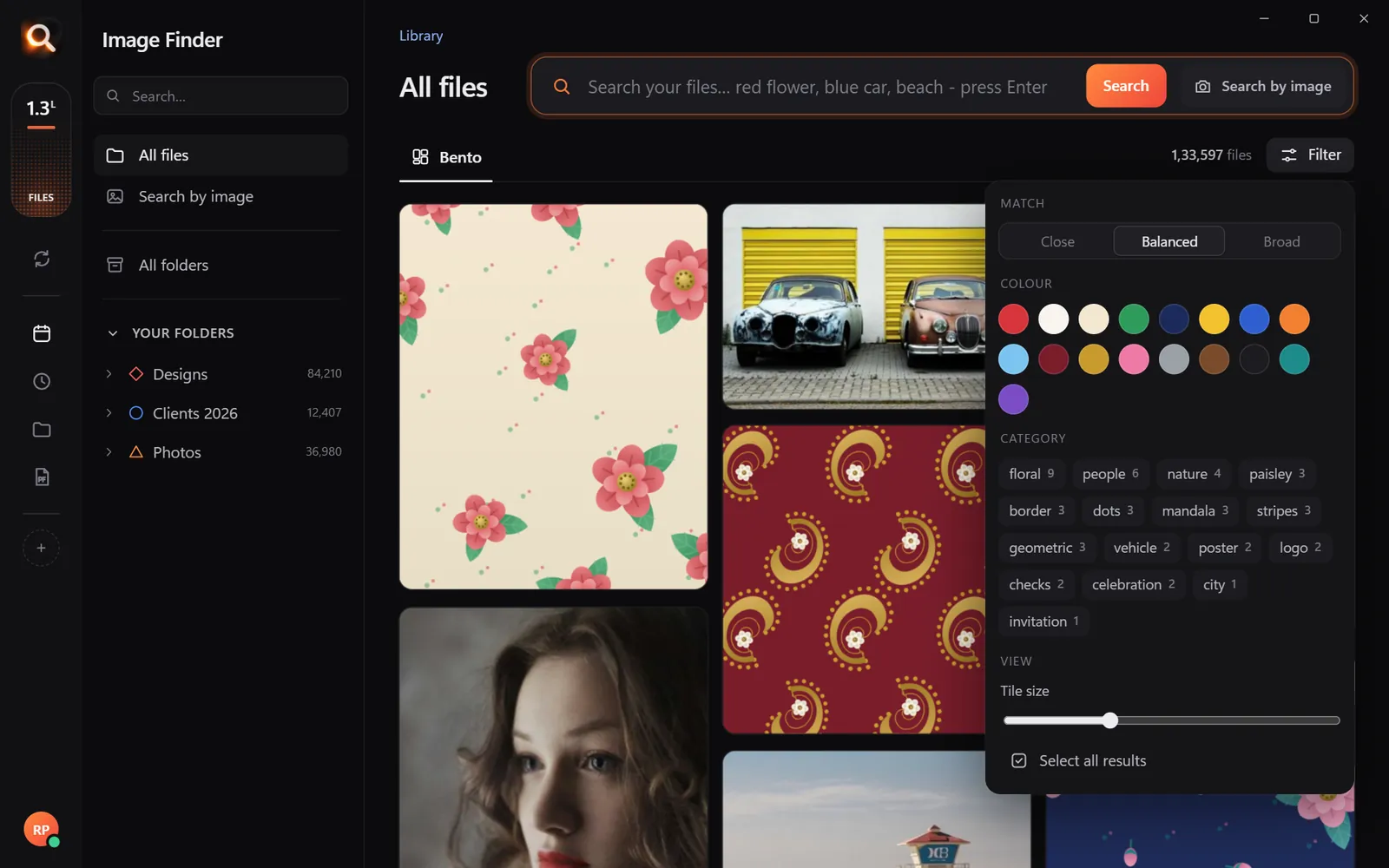
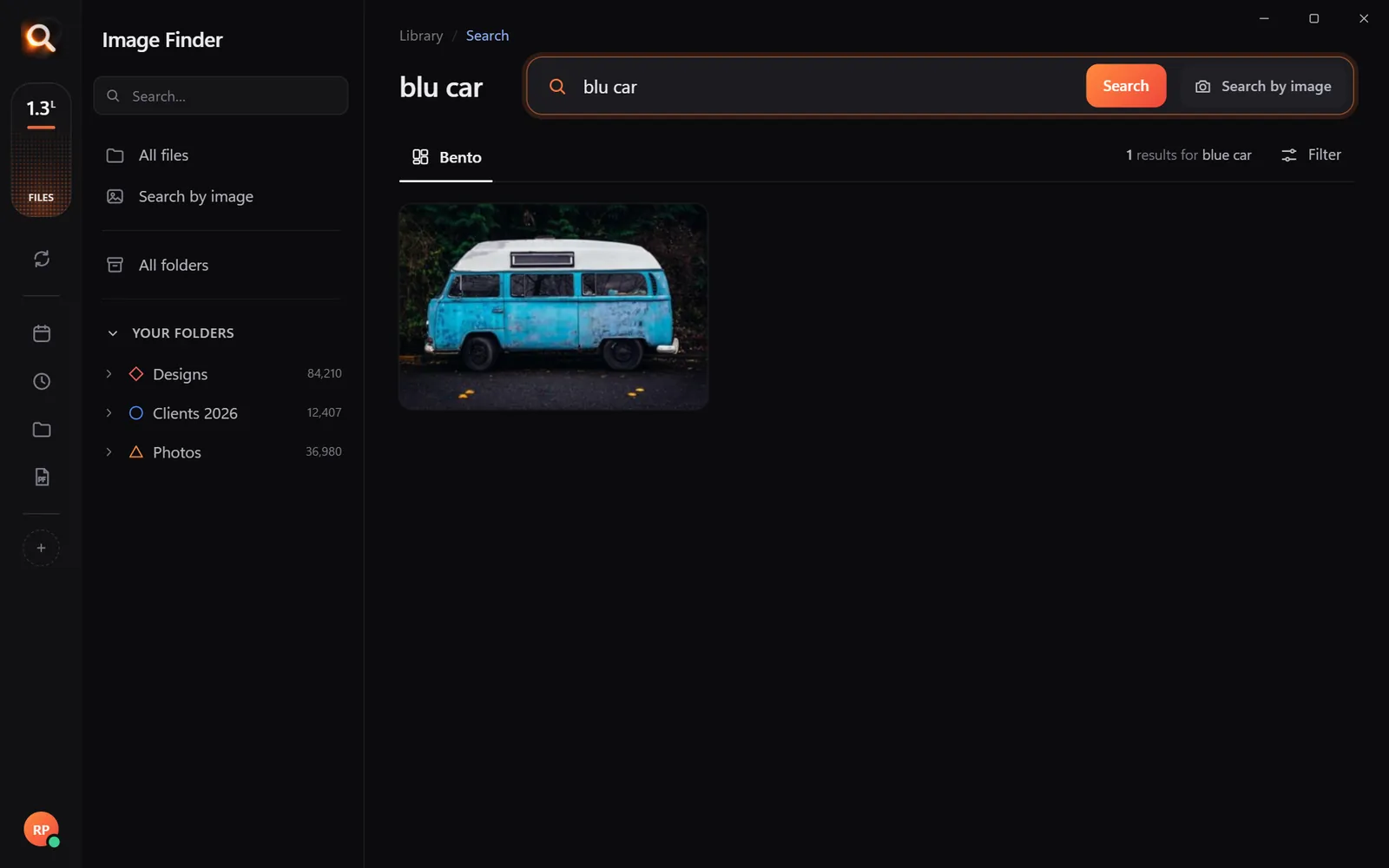



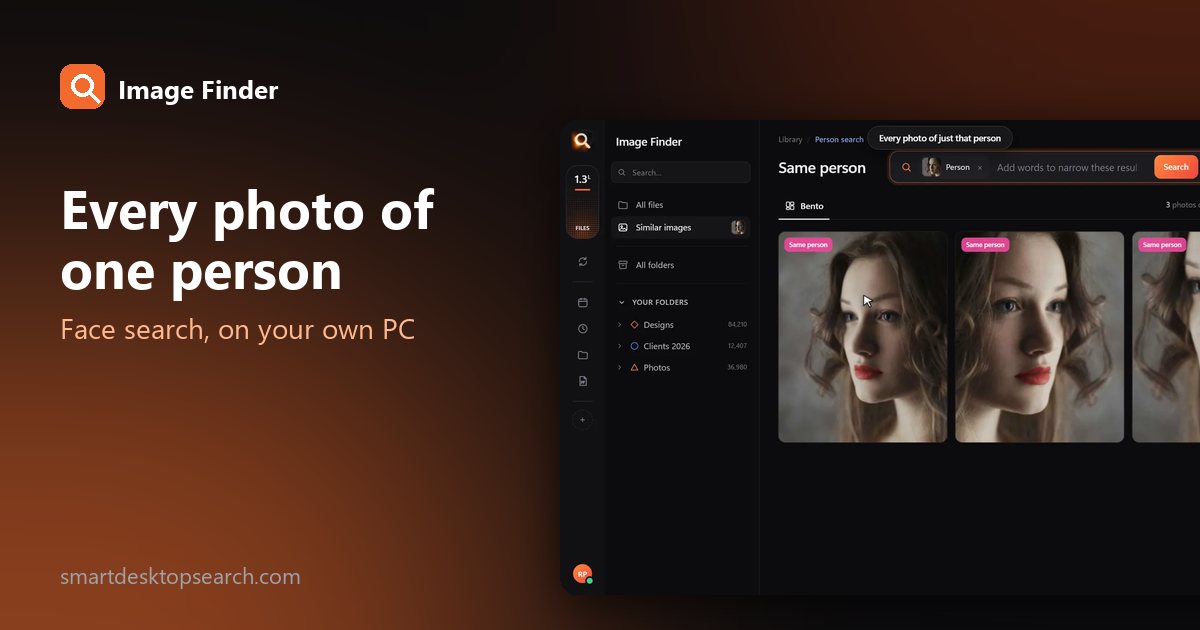
Finding the right photo organizer windows face recognition tool allows you to search thousands of family pictures, event photos, and old memories scattered across your hard drive. Over the years, pictures end up saved in random folders, duplicate directories, and external drives.
Finding every photo of a specific person usually means scrolling through endless thumbnails for hours. Cloud services like Google Photos offer automatic face grouping, but they force you to upload your private albums to external servers. If you care about privacy or have a large photo collection spread across local drives, uploading everything is neither safe nor practical.
In this guide, we will look at how to organize your photos directly on your computer, keep your files 100% private, and find every photo of any person in less than a second.

Why Choose an Offline Photo Organizer Windows Face Recognition Tool
Most modern photo tools rely on cloud artificial intelligence. When you drop your pictures into a web-based gallery, your personal memories travel across the internet. For many users, this creates serious privacy concerns:
- Data Privacy: Personal family pictures, child photos, and private documents should remain on your physical hardware.
- Storage Limits & Fees: Cloud providers charge monthly subscription fees that grow larger as your photo library expands.
- Internet Speed: Indexing gigabytes or terabytes of high-resolution photos over an internet connection takes days or weeks.
- Offline Access: Cloud search stops working when you are traveling or disconnected from the internet.
Using a local desktop photo organizer for Windows with face recognition solves these problems. Your computer processes the visual details directly on your processor or graphics chip. Your pictures never leave your device.
To learn more about how local computer vision keeps your files safe, read our guide on whether AI photo search is truly private.
How Local Person Search Works on Your PC
Desktop software like Image Finder brings fast visual search directly to Windows 10 and Windows 11 (as well as Mac). Instead of making you add manual tags or keywords to every picture, the software indexes visual patterns locally.
When you point the tool at your picture collection, it analyzes the shapes, visual elements, and facial characteristics in each image. It creates a compact mathematical index on your drive without altering, moving, or renaming your original files.
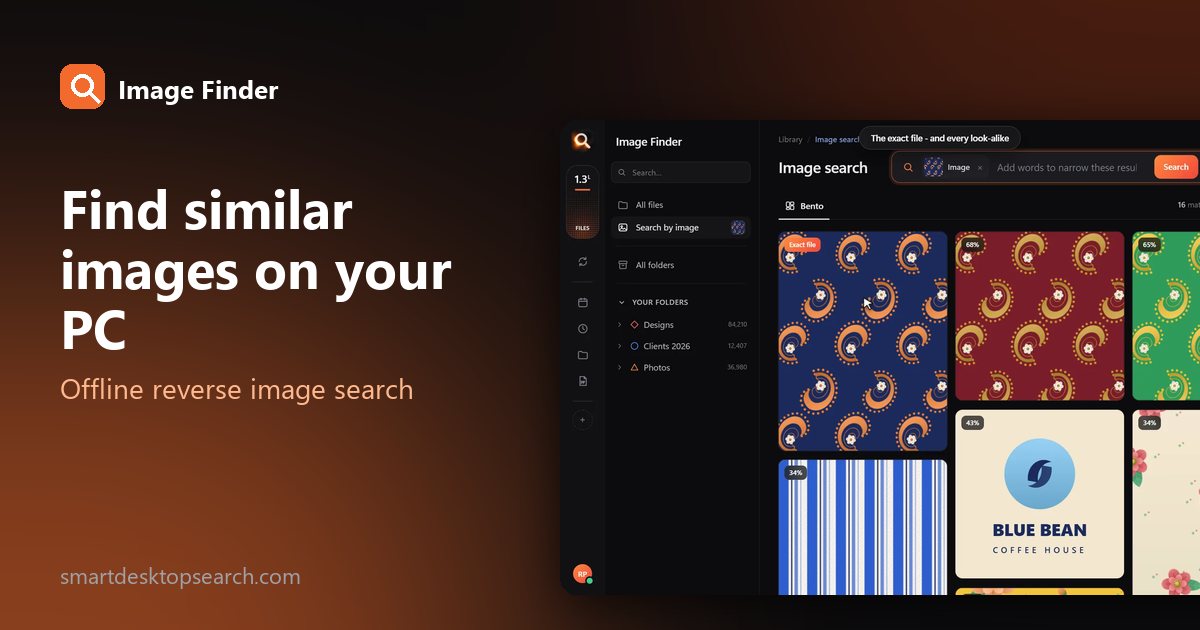
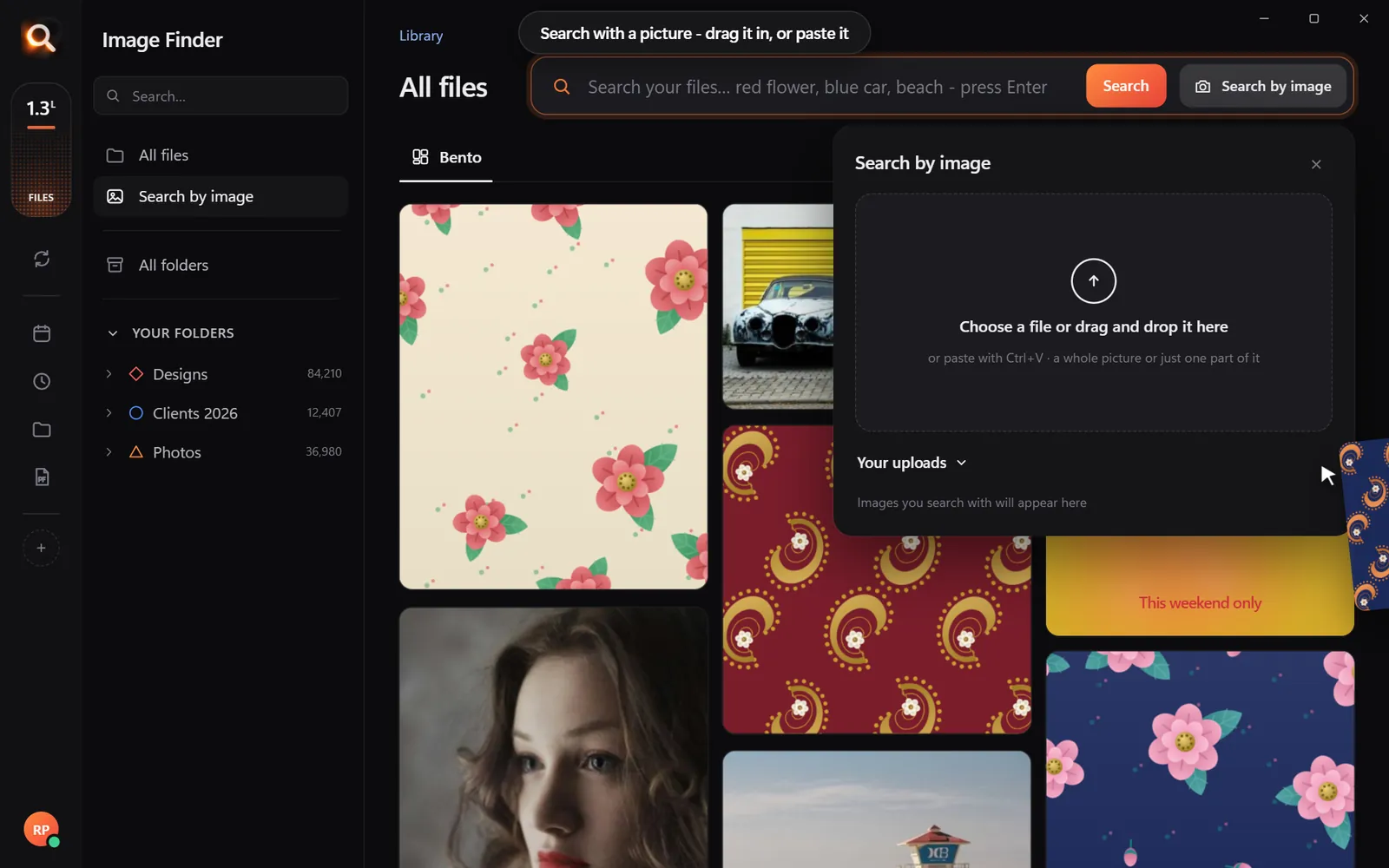
Once indexed, you can search your library using natural words, color swatches, visual similarity, or person matching.
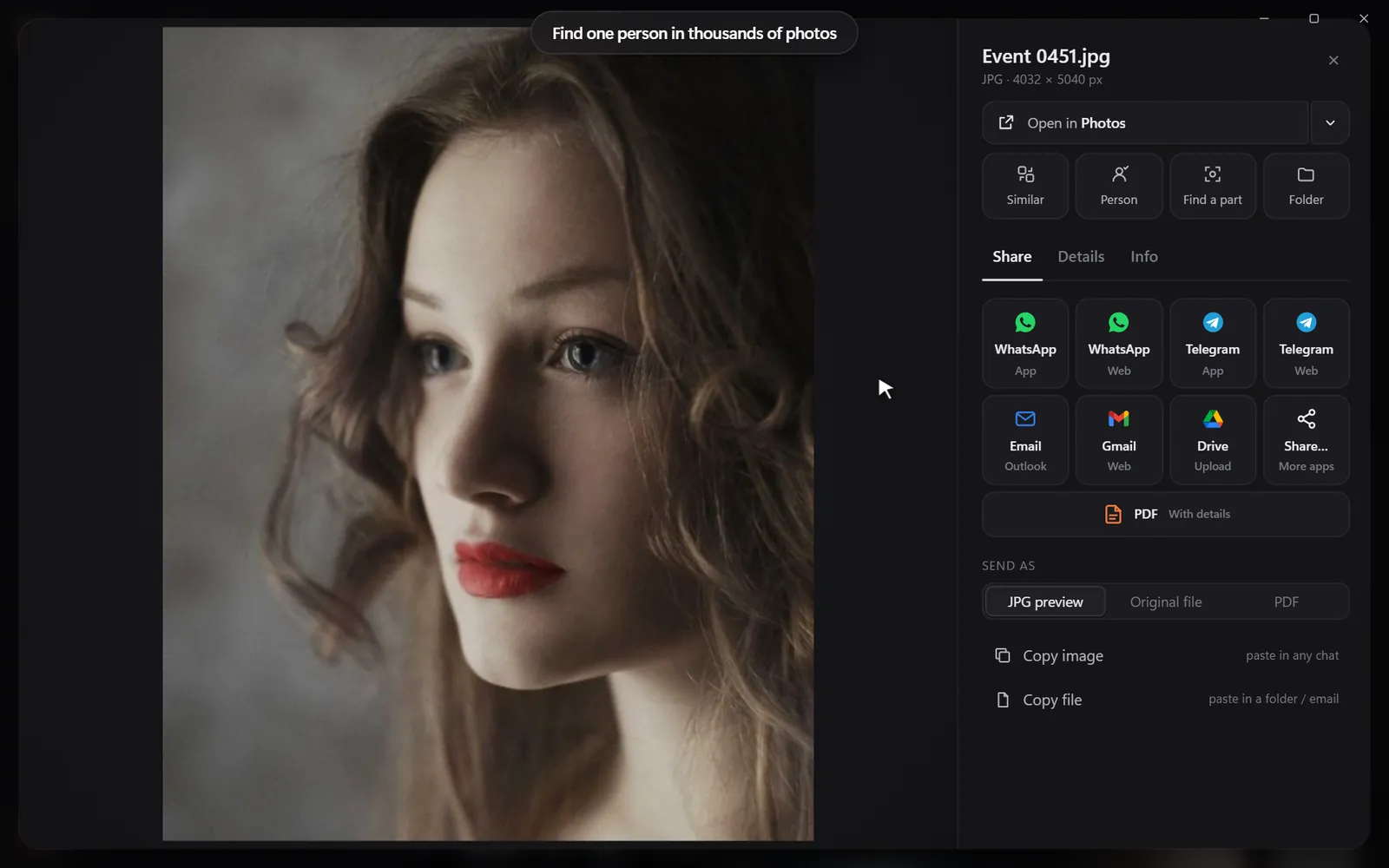
Broad File Support
Family photo collections often span decades of technology. A complete desktop organizer must handle every file format without forcing you to convert pictures first:
- Standard camera images (JPEG, PNG, WEBP, TIFF)
- Modern smartphone pictures, including Apple HEIC files on Windows
- Professional camera RAW formats from Canon, Nikon, Sony, and Fuji
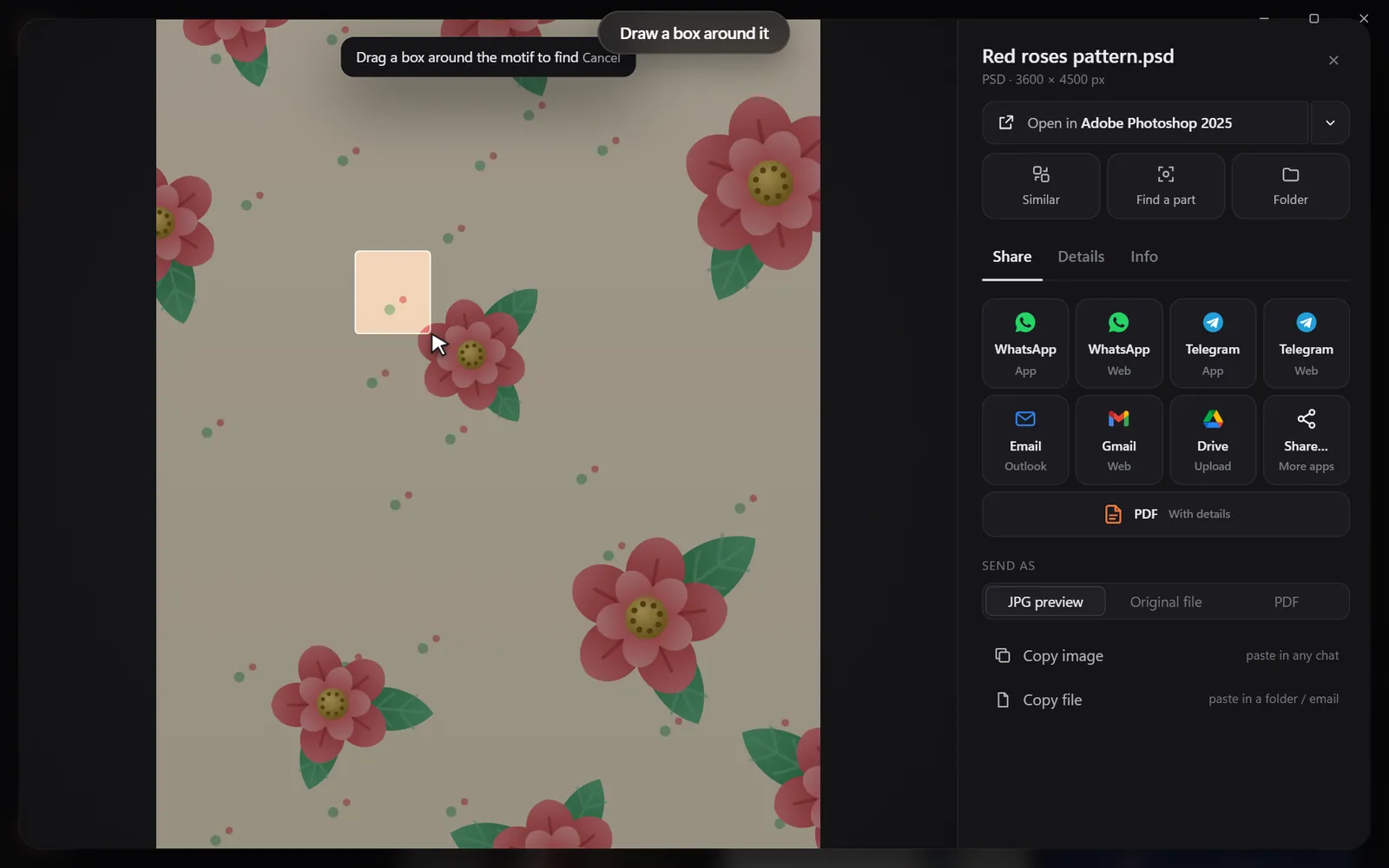
- Vector graphics and design files (PSD, AI, EPS, SVG)
- Archived image sets inside ZIP, RAR, or 7z archives
Step-by-Step: Find Every Photo of a Person Across Your Hard Drives
Finding every picture of your child, spouse, or friend across internal drives and external USB backups takes only a few minutes to set up.
Because the index lives on your machine, searching through 100,000+ files takes roughly 0.1 seconds. You can instantly jump from a recent phone photo to a scanned family snapshot from twenty years ago.

Managing Pictures Across Multiple External Hard Drives
Many household collections are spread across several external hard drives. One drive might contain backups from 2015, while another holds recent holiday pictures.
When you use a dedicated photo organizer windows face recognition workflow, you can index external drives while they are plugged in. The index remembers the visual content of those files. If you need to search for a family event or a specific face, you can quickly locate which drive holds those files without plugging in five different drives to check them manually.
If you want to read more about managing disconnected storage, check out our guide on finding photos on external hard drives.
Comparing Desktop Search Tools to Cloud Services
| Feature | Cloud Storage (e.g. Google Photos) | Standard Windows Explorer | Image Finder (Offline Desktop AI) |
|---|---|---|---|
| Privacy | Uploads photos to remote servers | Fully local | 100% private on your PC |
| Face Recognition | Yes (Cloud AI) | No | Yes (Local AI) |
| Search Speed | Depends on internet connection | Slow (File name search only) | ~0.1 seconds across 100,000+ photos |
| Works Offline | No | Yes | Yes |
| File Safety | Locks you into cloud ecosystems | Does not touch files | Reads files without editing or moving them |
| Pricing Model | Recurring monthly cloud storage fees | Included with Windows | One-off 1, 2, or 3-month pass (no auto-renewal) |
Start Sorting Your Photo Archive Today
Organizing tens of thousands of family photos does not mean spending weeks adding tags or uploading sensitive memories to the internet. By running a local photo organizer windows face recognition application on your desktop computer, you retain complete ownership of your data while enjoying fast visual search.
You can try out the software directly in your browser with our online interactive demo at /try. When you are ready for desktop indexing on your PC or Mac, flexible access plans are available for 1, 2, or 3 months (starting from US$4/month depending on your region) with no auto-renewing subscriptions.
If you enjoy using the app, you can share your personal referral link from your account page. Through our /refer program, you receive 15 free days of full access for every friend who starts using Image Finder, and your friend gets 5 bonus days.
Windows and Mac. Private, offline, no subscription.
Questions People Ask
Is my photo collection private when using local face recognition?
Yes. When using a local desktop tool like Image Finder, facial recognition algorithms run completely on your computer's hardware. No pictures, face data, or metadata are ever uploaded to external servers or cloud accounts.
Does it work with Apple HEIC photos on Windows 10 and 11?
Yes. Image Finder natively supports HEIC files from modern iPhones, as well as RAW files, JPEGs, PNGs, and over 150 other file types without requiring extra codecs or file conversions.
Does the software move or delete my original image files?
No. Image Finder only reads your files to create a fast visual index. It never renames, edits, moves, or deletes your pictures, ensuring your folder structure remains untouched.