 +











Most of us have a drawer like this: four, six, ten external hard drives, some labeled, most not. Somewhere among them is the photo you need - the wedding, the old house, the 2017 client shoot. Finding it means plugging in each drive, clicking through folders and hoping.
Here is a better way to find photos on external hard drives, and to make them searchable once and for all.
First: what is actually on your drives?
| Label | Size | Years | What is on it |
|---|---|---|---|
| D1 | 500 GB | 2008-2012 | Old laptop backup |
| D2 | 1 TB | 2013-2016 | Family photos, some videos |
| D3 | 2 TB | 2015-2020 | Work shoots |
| D4 | 4 TB | 2020-now | Everything recent |
Old drives: check they still work
Hard drives do not last forever. Before you rely on an old one:
- Listen - clicking or grinding sounds mean copy the data off now.
- Check health - Windows:
chkdsk(read-only by default); Mac: Disk Utility > First Aid. - Copy the important folders to a newer drive if a drive is more than 5-7 years old.
Why File Explorer and Finder struggle with external drives
- They search one drive at a time.
- Drives that are not indexed are searched slowly - every file, every time.
- They only search names and dates, and old camera names like
DSC_0042.JPGsay nothing. - Unplugged drives are invisible.
Search every drive at once with Image Finder
Image Finder lets you add whole drives. It looks at each picture once, makes a small preview, and remembers it. After that:
- describe what you want - "red car", "group photo at a lake", "baby in a pumpkin costume";
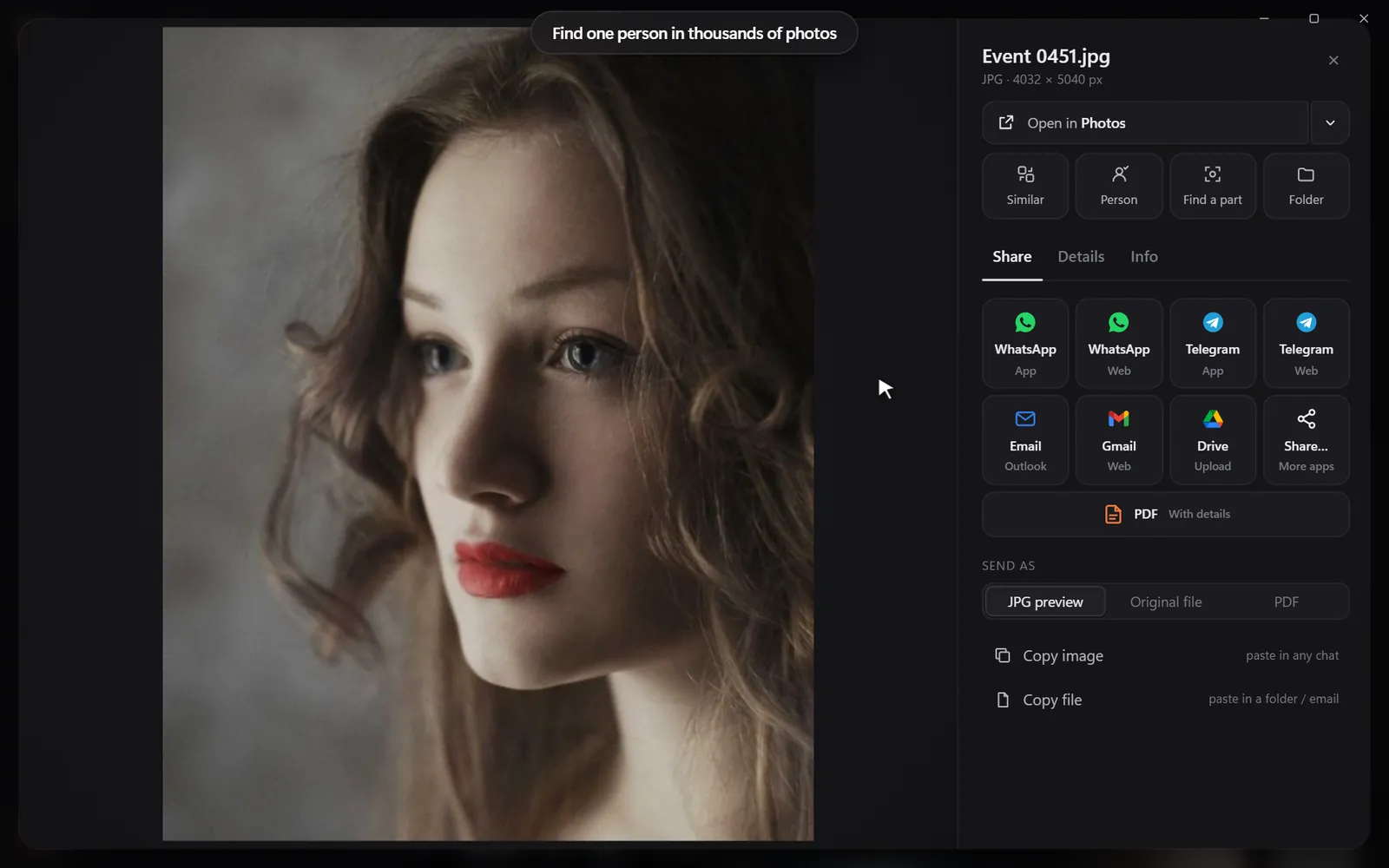
- pick a face to see every photo of one person, across all drives;
- drop in a photo to find its original and copies;
- search the words printed in pictures and scanned documents.
Results show which drive and folder each picture is on - so you know exactly which drive to plug in.


What happens when a drive is unplugged?
Image Finder keeps the previews of what it has already seen, so you can still search and see what a photo looks like and where it is. Plug the drive in to open or share the full file. When a drive comes back, new or changed pictures are picked up by themselves.

Consolidate - or don't
Many people feel they should copy every old drive onto one big new drive. That is a good idea for safety (old drives fail), but it is not needed for finding photos anymore. A sensible middle path:
Duplicates across drives
Backups of backups mean the same photo can exist on four drives. Search with any photo and every exact copy comes up together, each showing its drive - an easy way to see how many copies you have and which to keep.
How to tell which drive is which (when labels fell off)
| Clue | Where to look |
|---|---|
| Drive name | This PC (Windows) or Finder sidebar (Mac) |
| Size and brand | The sticker on the drive |
| Newest and oldest folder dates | Sort the top folders by date |
| Camera models in photos | Windows: Details pane; Mac: Get Info |
Once you know, rename the drive and stick a label on it the same day.
Drive formats in plain English
| Format | Reads on Windows | Reads on Mac | Notes |
|---|---|---|---|
| NTFS | Yes | Read only | Common for Windows drives |
| exFAT | Yes | Yes | Best for drives used on both |
| APFS / Mac OS Extended | No (without extra software) | Yes | Mac drives |
| FAT32 | Yes | Yes | Old; 4 GB file size limit |
If you switch between Windows and Mac, new drives are easiest as exFAT. Don't reformat an existing drive without copying its contents off first - formatting erases everything.
HDD vs SSD for photo archives
| Hard drive (HDD) | Solid-state drive (SSD) | |
|---|---|---|
| Price per TB | Lower | Higher |
| Speed | Slower | Much faster |
| Shock resistance | Fragile when running | Better |
| Best for | Big archives and backups | Working libraries, laptops |
A common setup: an SSD for this year's photos, large HDDs for the archive and backups.
Find a photo when you remember roughly when
If you remember the year but not the drive, the inventory list from the first step tells you which drives cover that year. Then search only within those folders, or describe the photo and check the results that live on those drives.
Find a photo from a description of the scene
Real searches people run on old drives:
- "Christmas morning presents" - the living room photos from every year.
- "Dog in the snow" - finds the dog photos across five drives.
- "Old house front door" - the house you grew up in.
- "Wedding cake" - every wedding you attended.
- "Car on a road trip" - the summer drives.
When the drive isn't recognized at all
Try another cable and another USB port (preferably directly on the computer, not a hub). On Windows, check Disk Management - the drive may be there without a letter. On a Mac, check Disk Utility. If the drive shows but asks to be formatted, don't - that erases it. Get help from a recovery service instead.
Questions people ask
How do I search multiple external hard drives at once?
Add each drive to Image Finder once. After that, one search covers all of them, and results show which drive each photo is on.
Can I search a drive that isn't plugged in?
You can search the previews Image Finder already made and see where each photo is. Plug the drive in to open the full file.
How long do external hard drives last?
Often 3-5 years of regular use, sometimes much longer. Keep a second copy of anything important.
Does it work with drives formatted for Mac or Windows?
Yes - any drive your computer can read.
Windows and Mac. Private, offline, no subscription.