 +

Every family has the same problem. Photos from the last twenty years are spread across old phones, laptops, a box of USB sticks, three cloud accounts, a drawer of CDs and an album nobody has scanned. Someone always says "we should sort the photos out" - usually at the holidays, when everyone wants to see them.
This is a realistic plan to organize family photos in a week of evenings. Not a perfect system - a finished one.
Day 1: make a list of every source
Spend twenty minutes writing down everywhere photos might be. Ask the family - someone always remembers a forgotten laptop.
Day 2: pick the home and buy the drive
Choose one place where every photo will live. For most families that is a large external drive (2-4 TB is plenty for decades of photos) plus a second drive or cloud account for a backup.
| Library size | Rough number of photos | Drive to buy |
|---|---|---|
| Small | Up to 50,000 | 1 TB |
| Medium | 50,000 - 200,000 | 2 TB |
| Large (with videos) | 200,000+ | 4 TB or more |
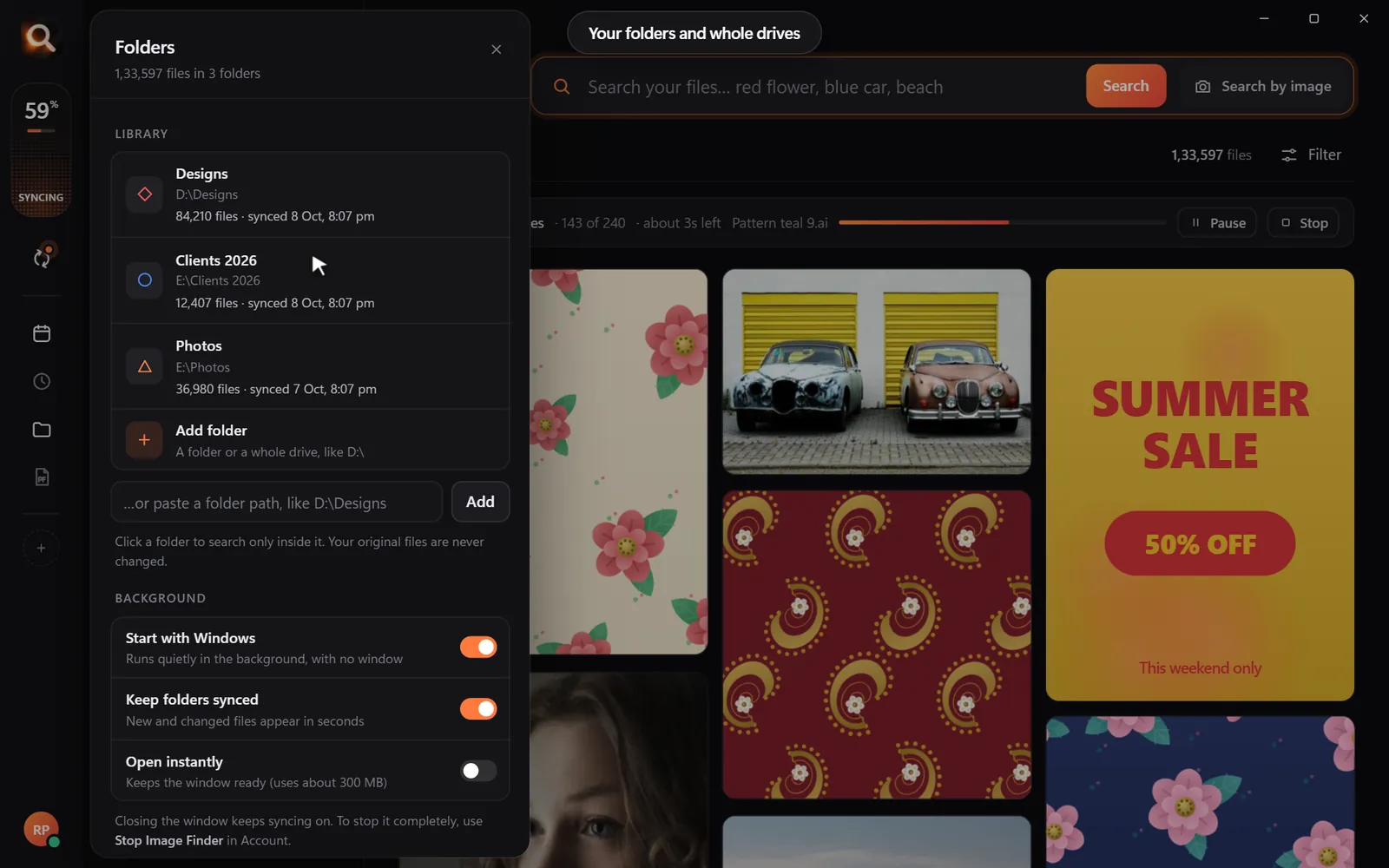
Create one folder - Family Photos - with a folder for each source inside it: Dad's old laptop, Mom's iPhone 2019, Google Photos, Scanned albums. That is all the structure you need.
Day 3: copy from computers and drives
Copy - do not move - each source into its own folder. Do not rename anything. Do not delete duplicates yet. Copying is boring but safe; it can run while you do something else.
Day 4: download the clouds
- Google Photos: Google Takeout, Photos only. See leaving Google Photos.
- iCloud: privacy.apple.com > request a copy of your data, or iCloud for Windows.
- Facebook: Settings > Download your information > Photos and videos.
Takeout and similar downloads arrive as ZIP files. You can leave them zipped - Image Finder searches inside ZIP files - or unpack them into their source folders.
Day 5: scan the best prints (not all of them)
Scanning every print is how family photo projects die. Instead, pick the 100-200 prints that matter most - grandparents, weddings, the house you grew up in - and scan those.
| Method | Speed | Quality |
|---|---|---|
| Phone scanning app (e.g. Google PhotoScan) | Fast | Good for sharing |
| Flatbed scanner at 600 dpi | Slow | Best for printing |
| Photo scanning service | No effort | Good to excellent, costs money |
Day 6: make it searchable
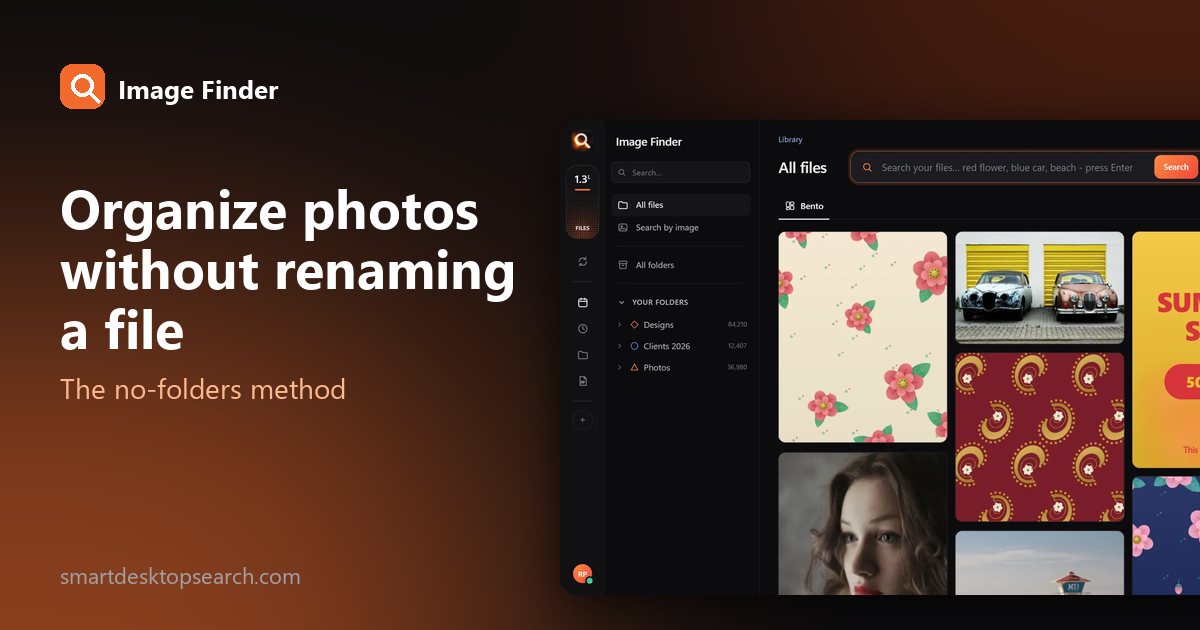
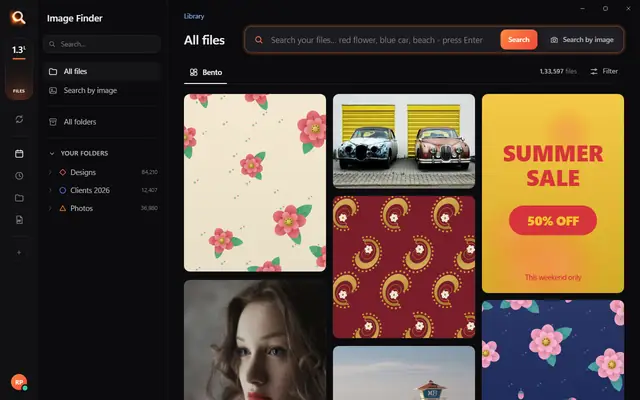
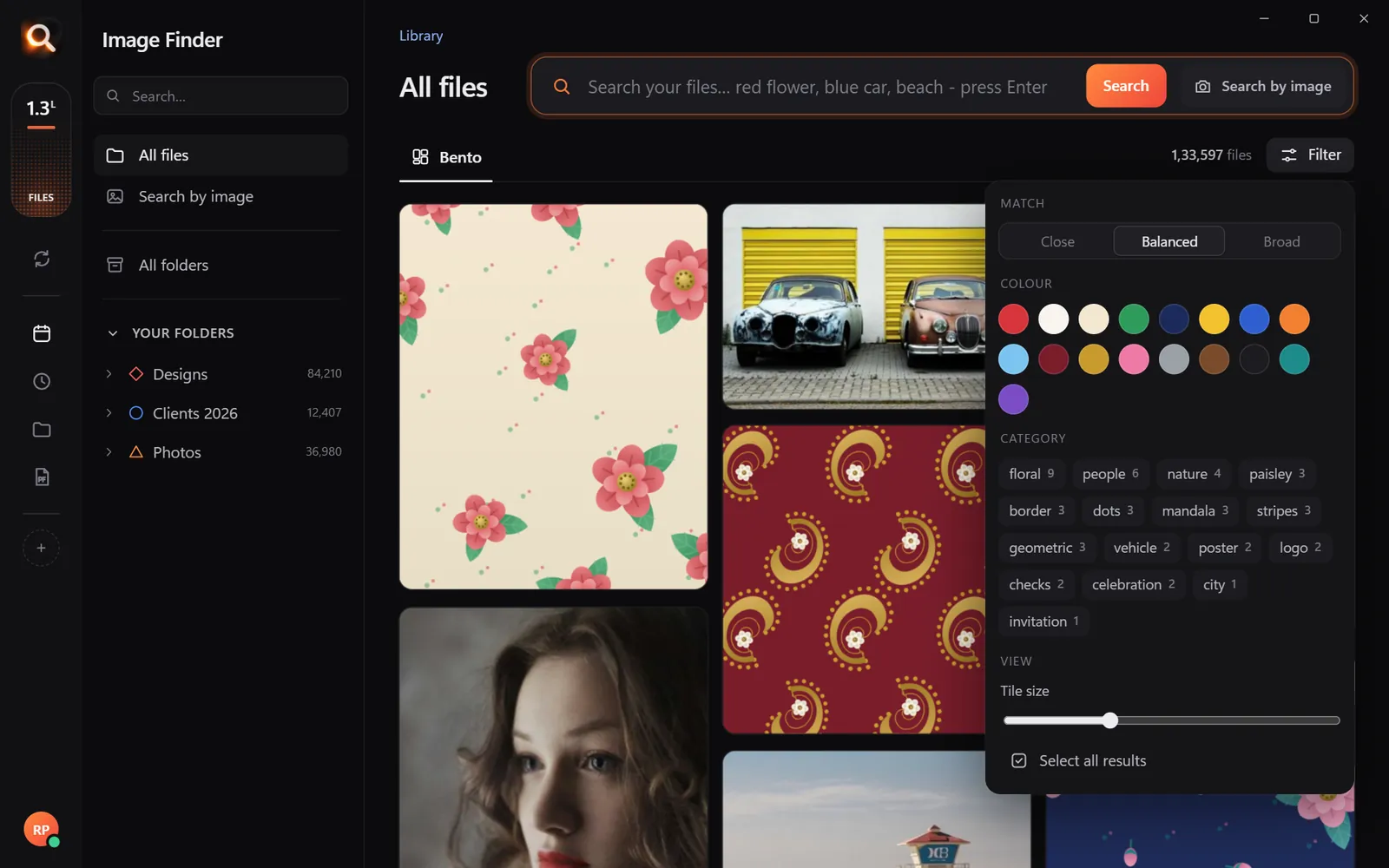
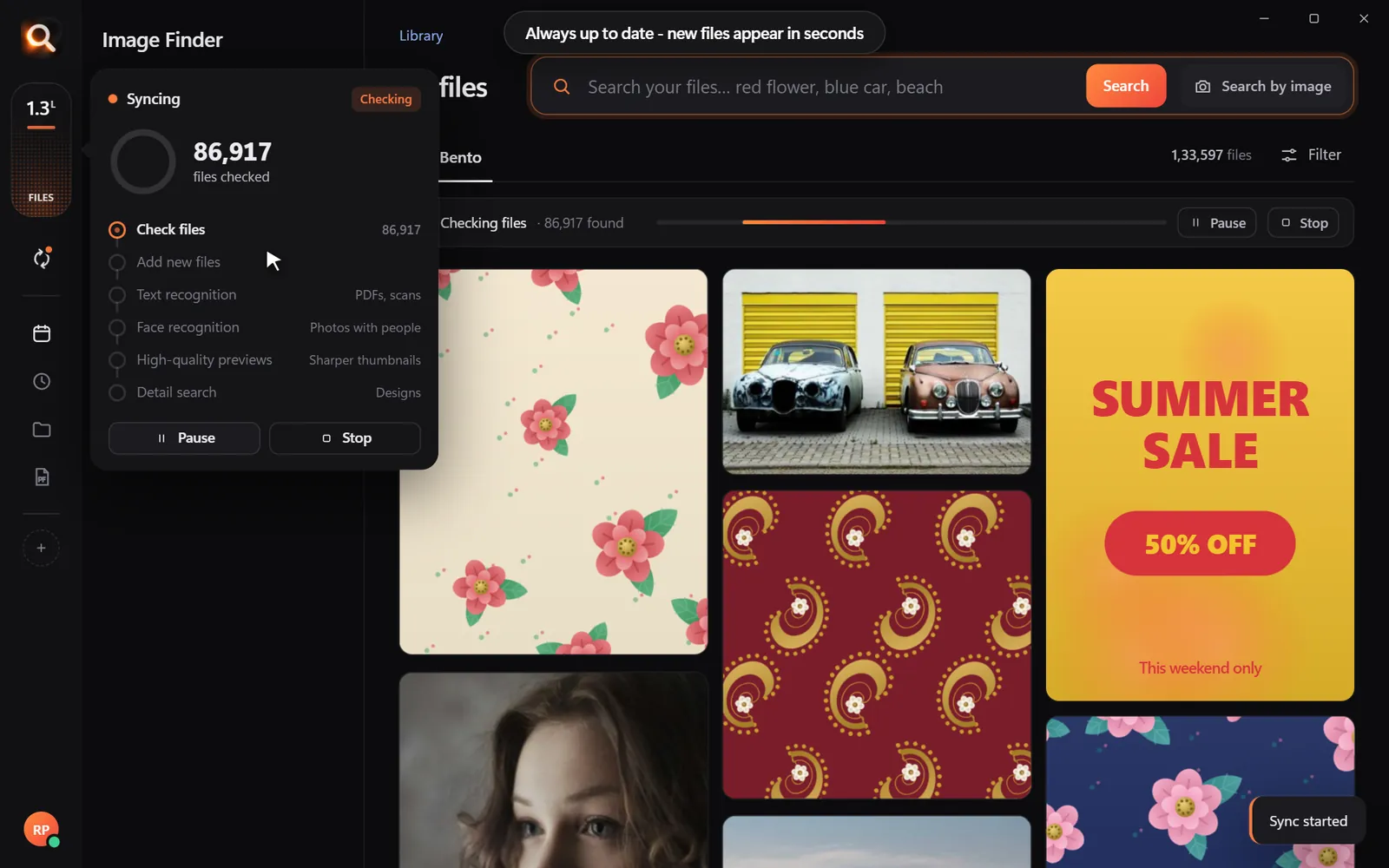
This is the step that turns a pile of files into something the family actually uses. Add the Family Photos folder to Image Finder and let it look at every picture. Then anyone can:
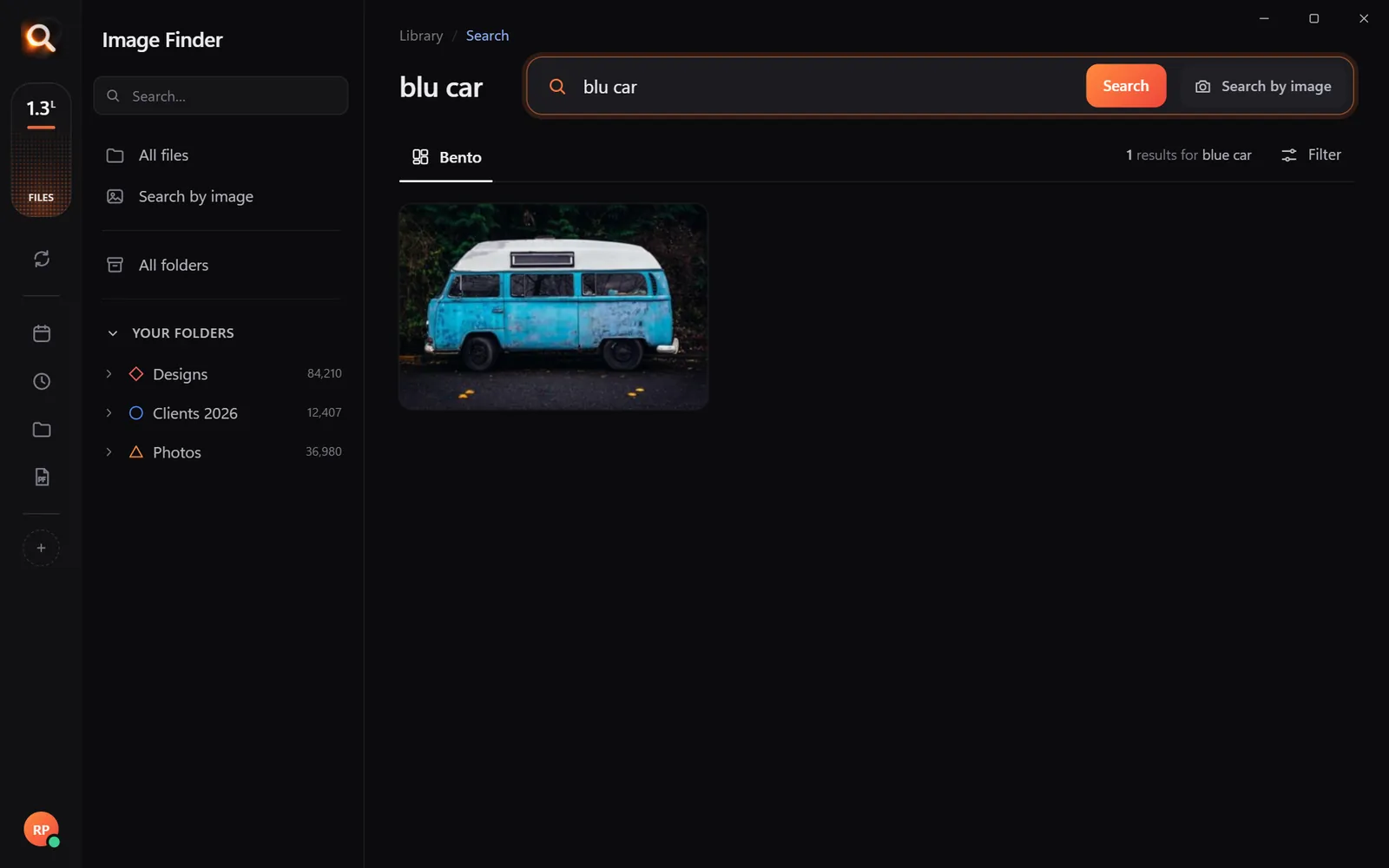
- describe a moment - "birthday cake", "beach", "snowman", "graduation";
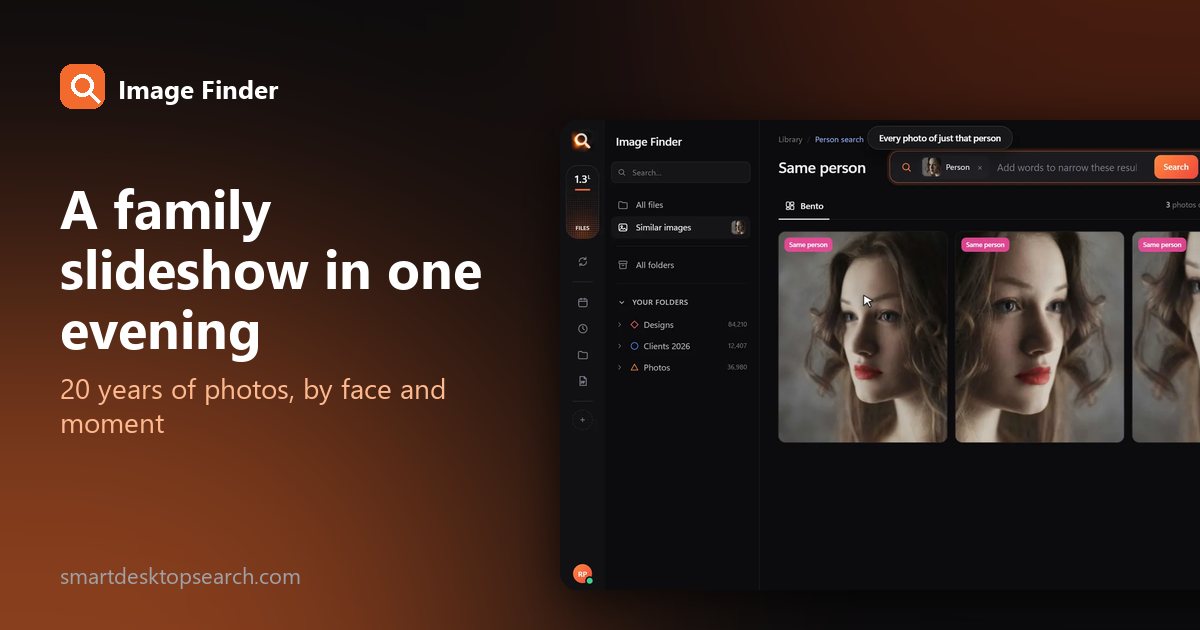
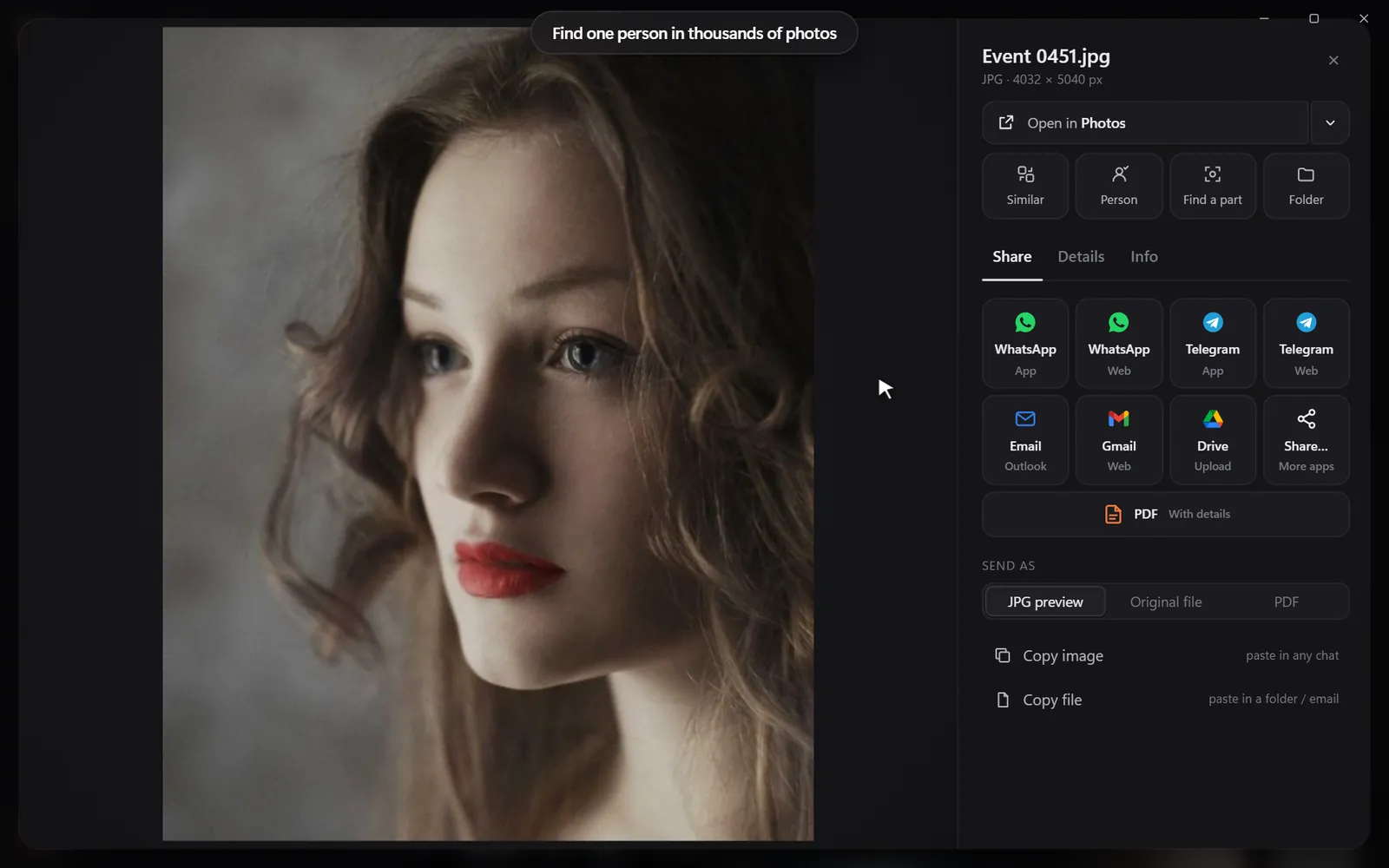
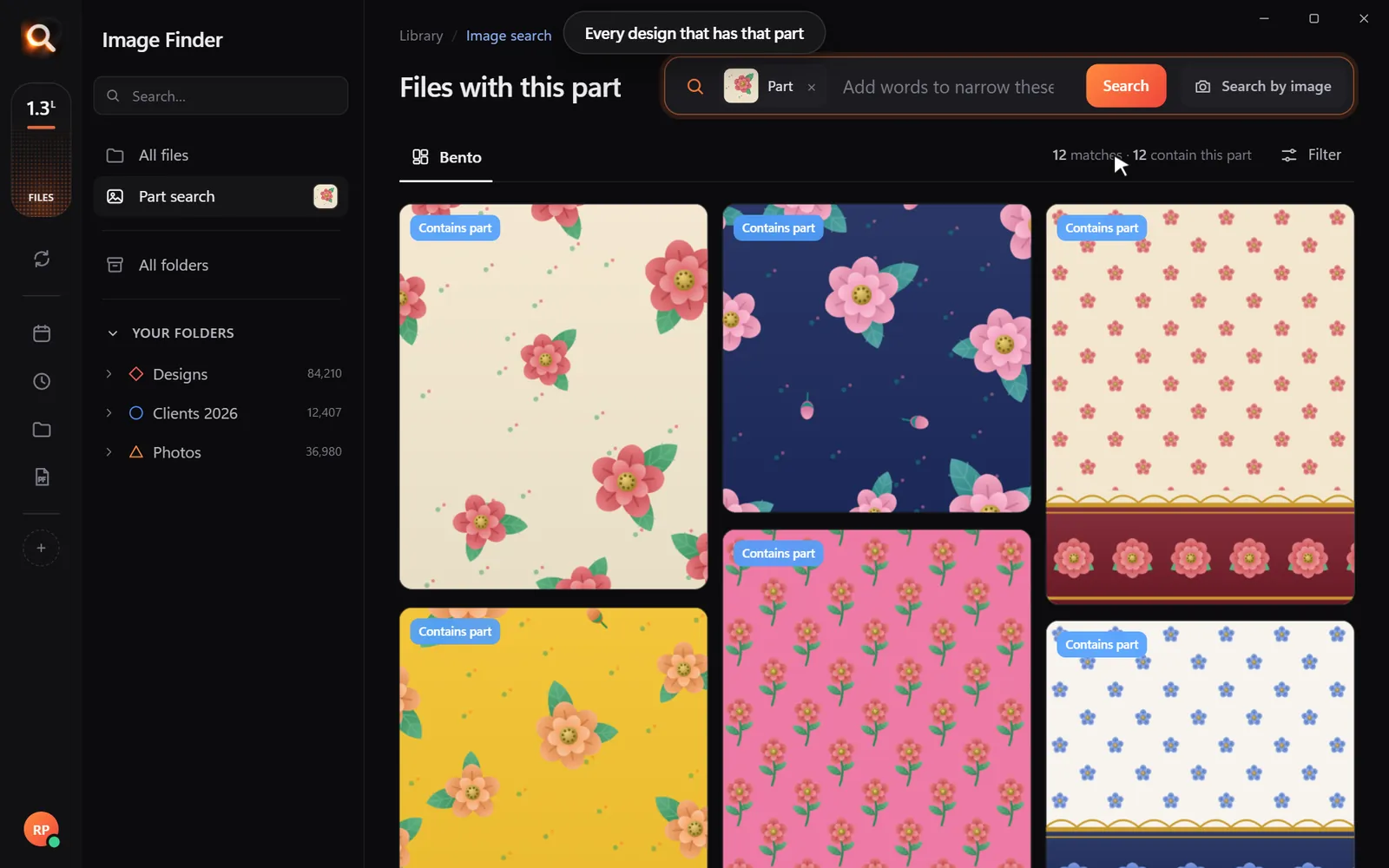
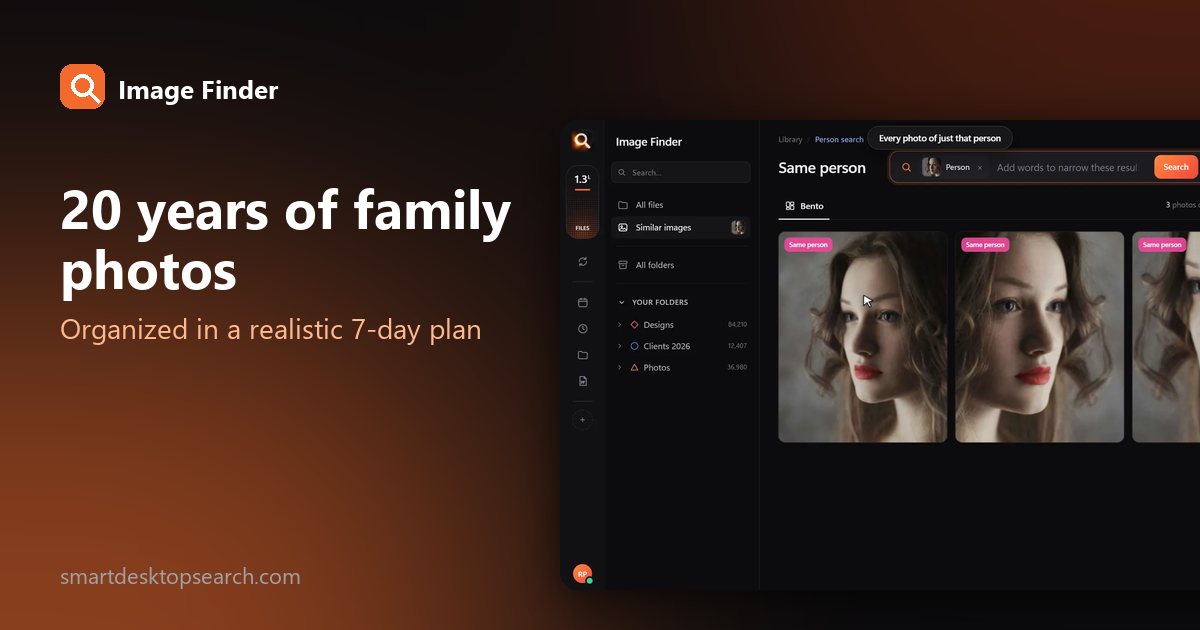
- pick a face to see every photo of Grandma, across every source and decade;
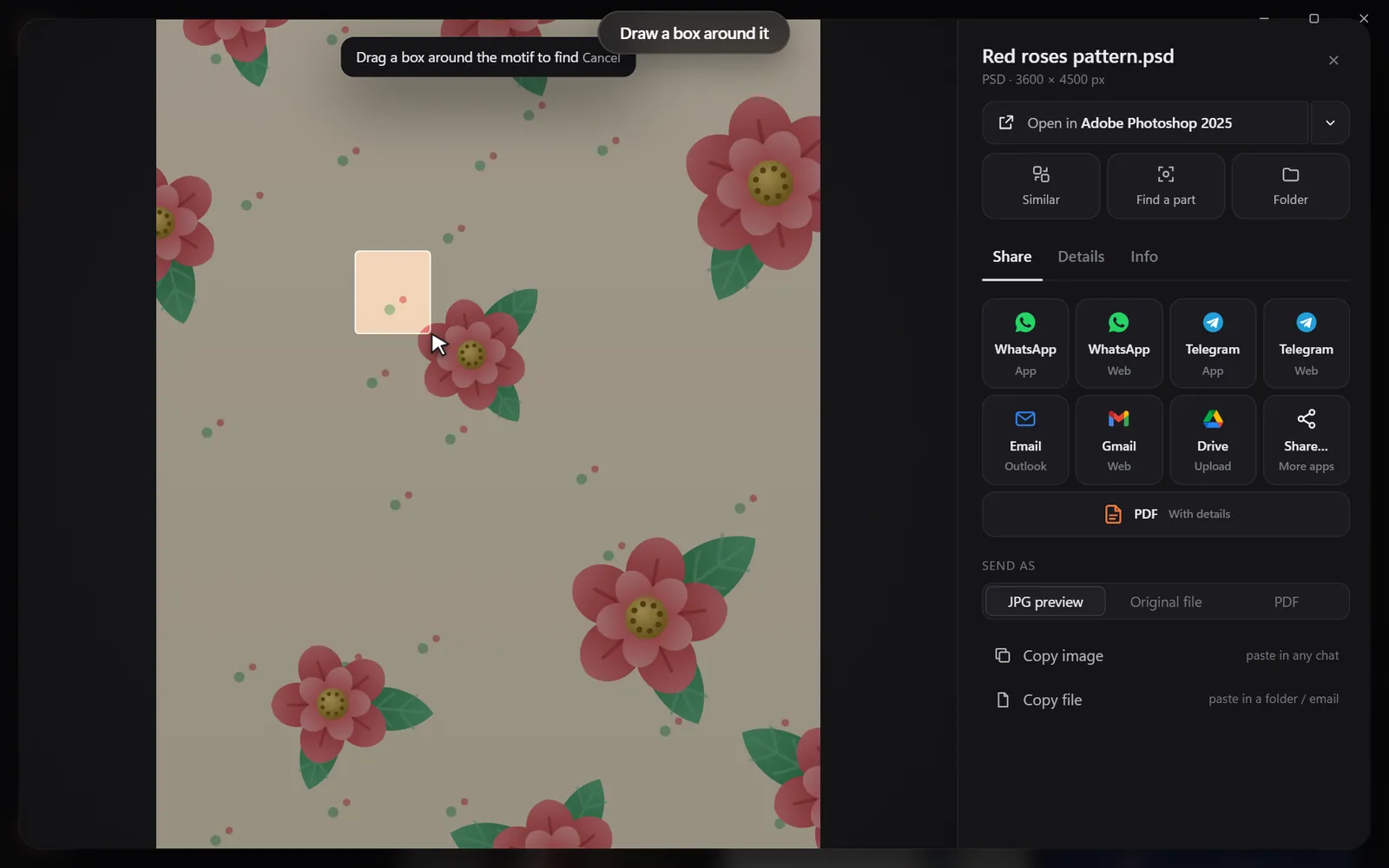
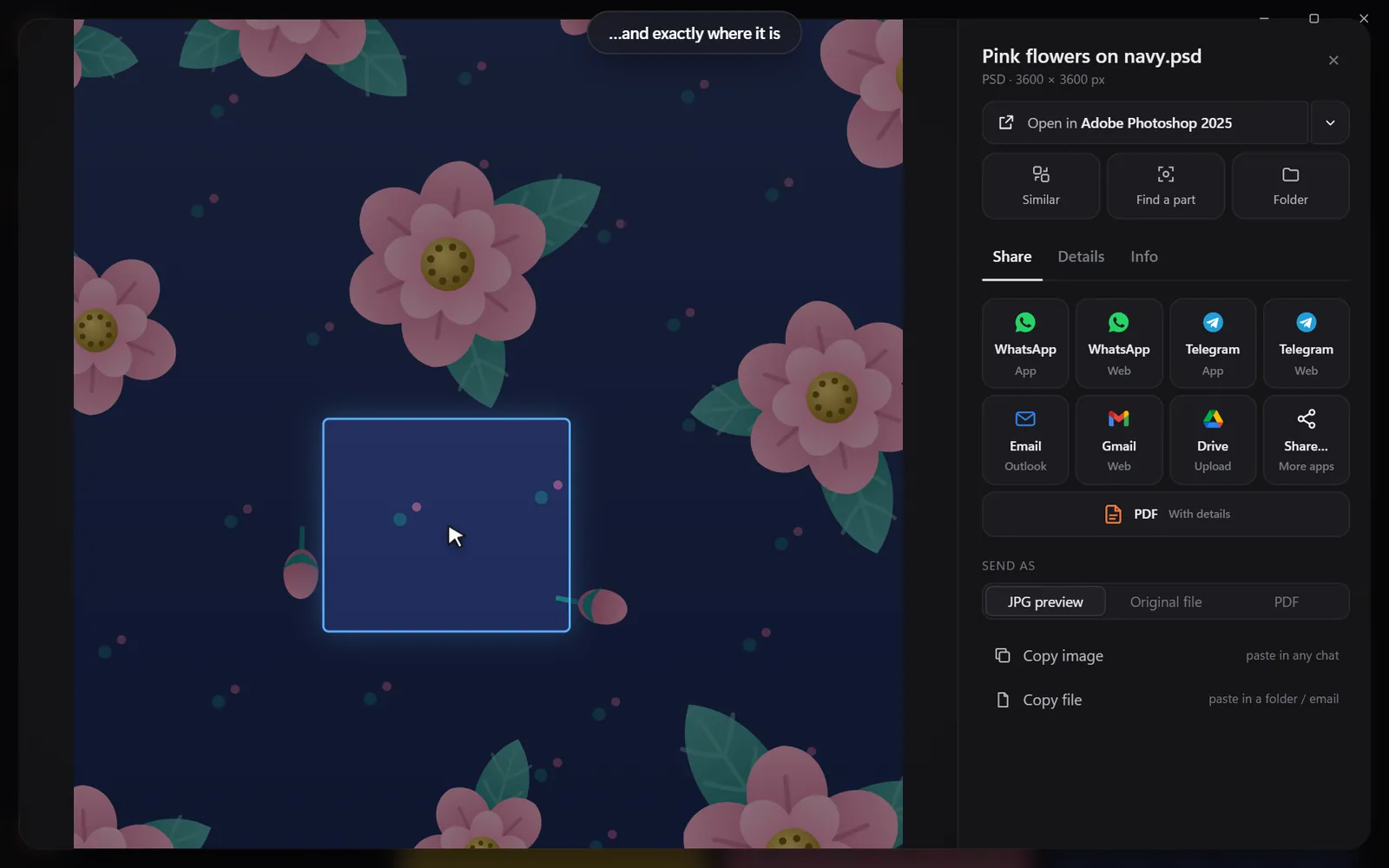
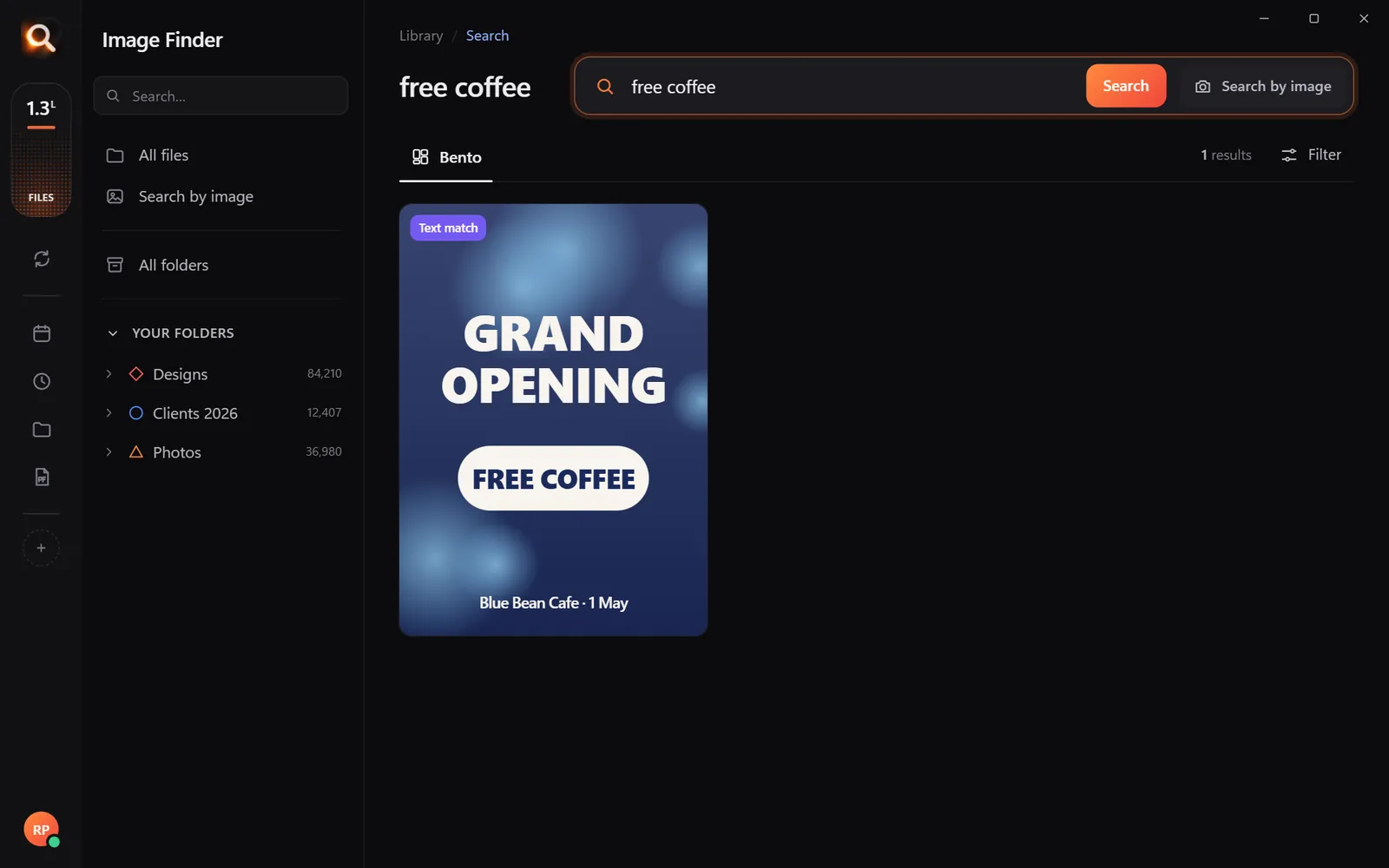
- search words in pictures - a banner, a sign, a date stamped on a scan;
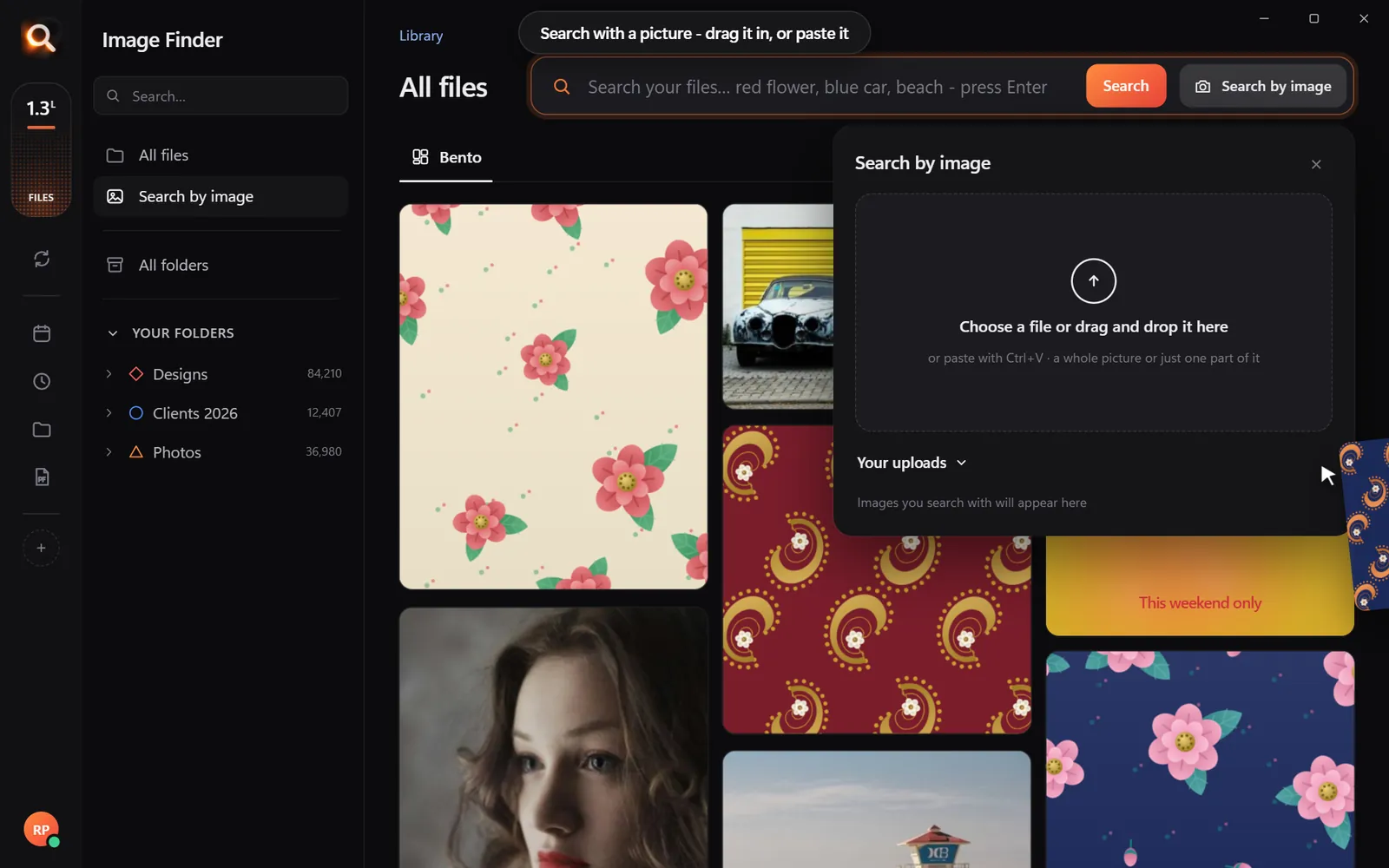
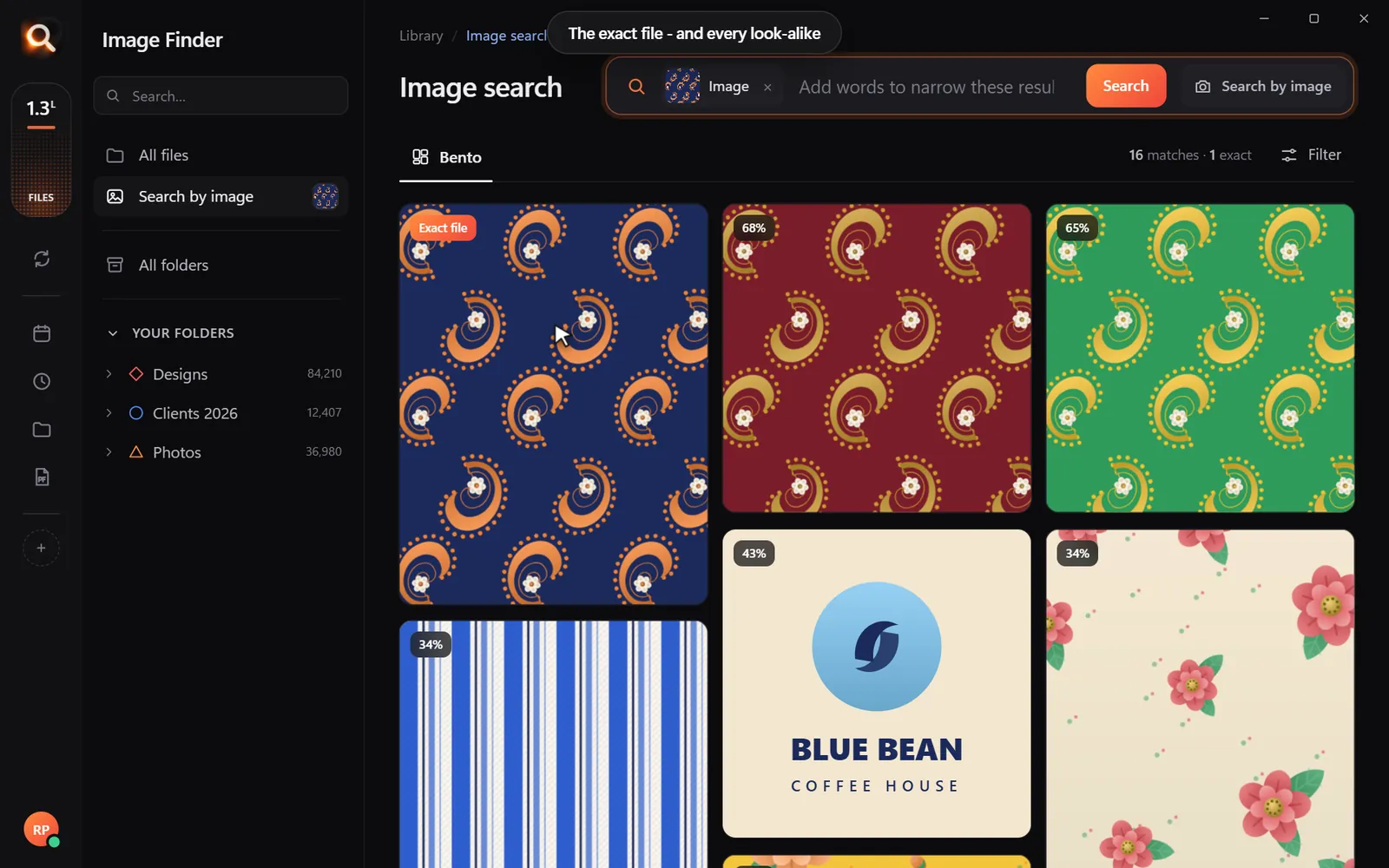
- drop in a photo to find its copies and the original.
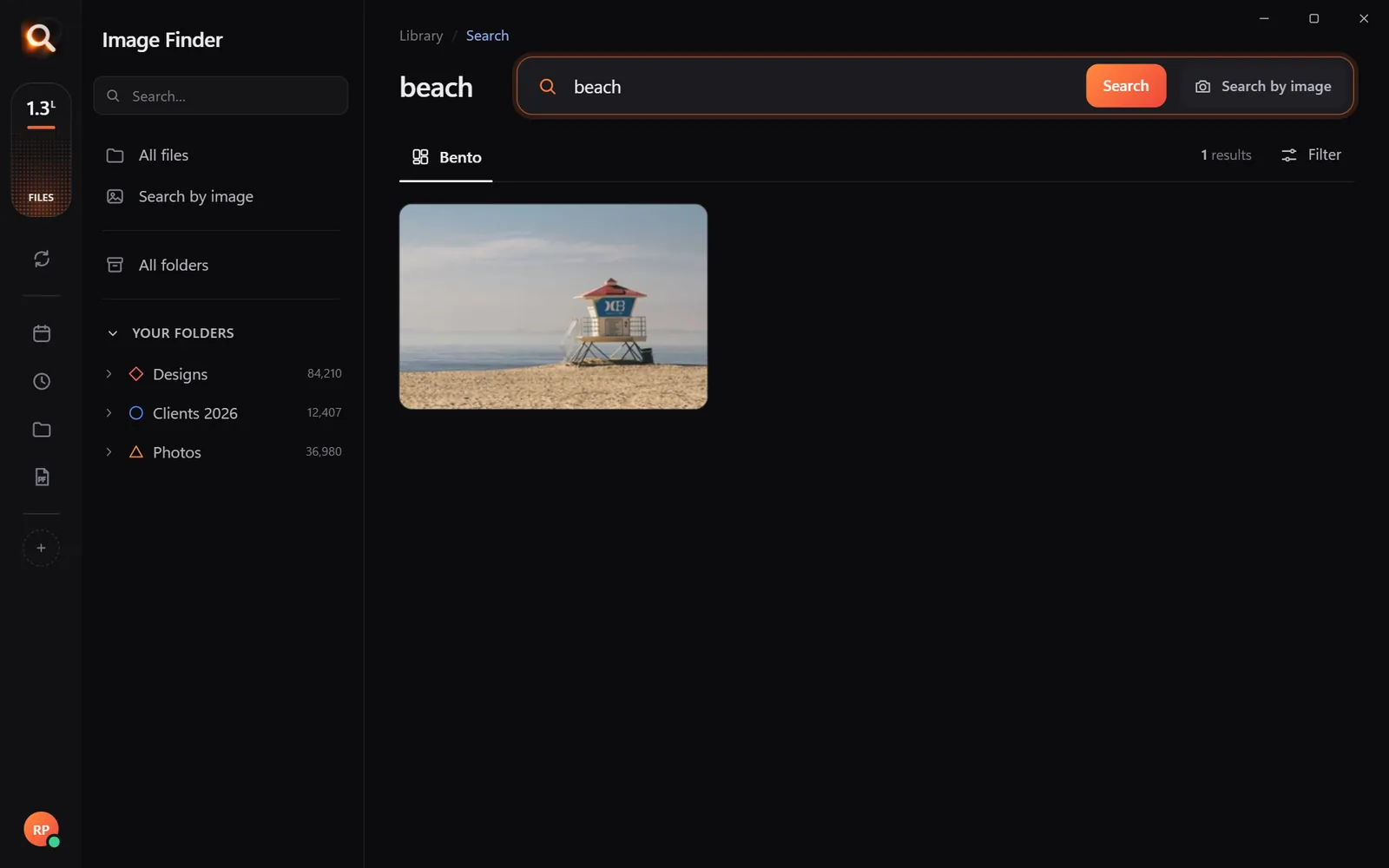
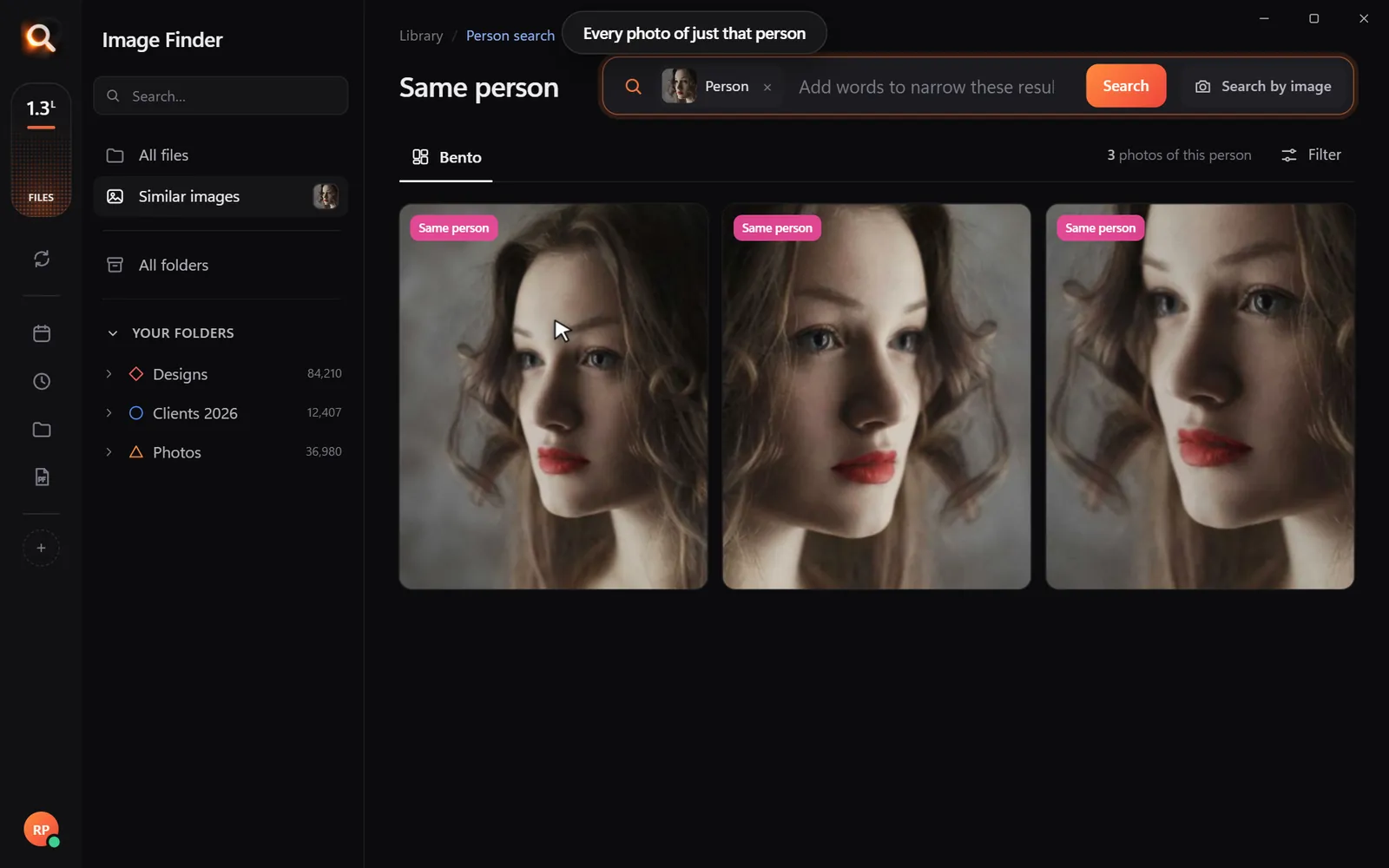
A tiny sample library in your browser. The app does this with AI across every file on your computer - try the real app in your browser.
Day 7: back up, then clean up
What about albums and folders by year?
If you enjoy organizing, go ahead - after the week is done. Many families find they never need to: when you can find "Dad at the lake" in a second, the folder it lives in stops mattering.
Sharing with the family
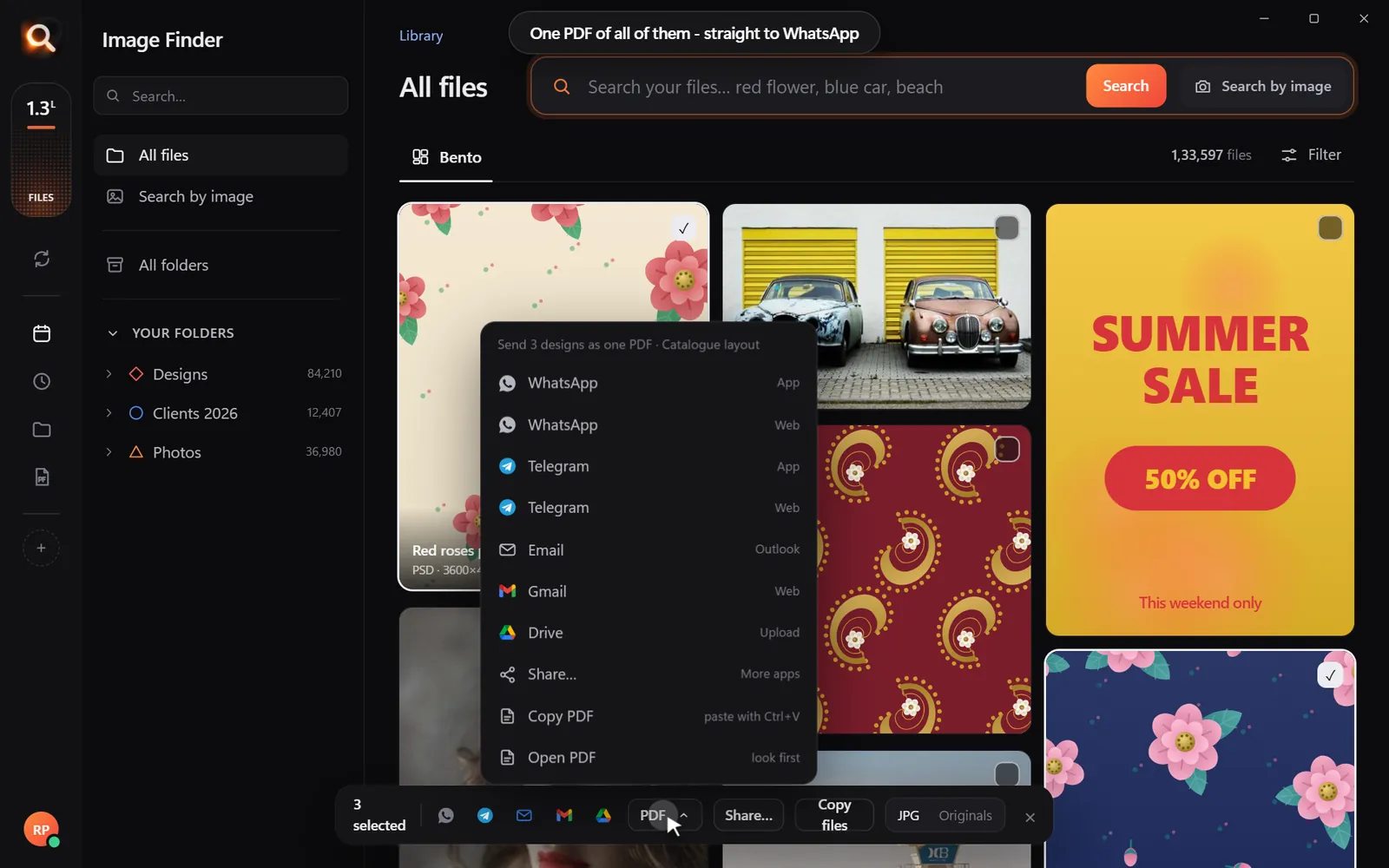
Select photos from a search and send them as one PDF or straight to a WhatsApp chat or email. Perfect for the cousin who asks "do you have any photos of Grandpa's old car?"
The family photo traps (and how to avoid them)
| Trap | Why it happens | Avoid it by |
|---|---|---|
| Trying to sort by year and event first | It feels organized | Gathering first, searching later |
| Scanning every print | Wanting completeness | Scanning the best 100-200 first |
| Deleting "duplicates" too early | Wanting a clean library | Deleting only after the backup exists |
| Renaming files | Wanting nice names | Letting search do the naming |
| Doing it alone | Nobody else volunteers | Giving each family member one source to copy |
Getting the family involved
Family photo projects stall when one person does everything. Split it:
- Teens copy photos from old phones (they know how).
- Grandparents pick which prints to scan - and tell the stories behind them.
- The organizer handles the drive, the search and the backup.
Turn the scanning into an evening together: someone scans, someone writes down names and dates on a notepad, and stories come out you would never hear otherwise.
Adding the stories
Photos without stories lose meaning over time. A simple trick: for the most important scans, take a photo of the back of the print too (where names and dates are often written), or add a short text file in the same folder. Image Finder reads the words in pictures, so even a photo of handwriting on the back of a print has a chance of being found by a printed date or name - and the front and back sit side by side in the folder.
What to do with old CDs and DVDs
Many families have photo CDs from the early 2000s. Copy them now - discs degrade, and computers with disc drives are getting rare. A cheap USB disc drive does the job. Copy each disc into its own folder like CD - Hawaii 2004.
Old phones that won't turn on
Try a different charger and wait 30 minutes - deeply drained batteries need time. If the phone still won't start, check whether its photos were backed up to a cloud account at the time (old Google, iCloud or Samsung accounts). Repair shops can sometimes recover data from phones with broken screens.
Holiday gift ideas from your new library
- A photo calendar with one photo per month from past years.
- A "then and now" frame - same people, same place, decades apart.
- A PDF album for each grandparent, made from a same-person search.
- A recipe book made from photos of handwritten family recipes.
Questions people ask
What is the easiest way to organize thousands of family photos?
Put them all in one place, back them up, and use a search that finds photos by what's in them. Skip the perfect folder system.
Should I rename my photos?
No. Renaming takes forever and loses information. Search by content instead.
How do I find all photos of one person?
Open one photo of them in Image Finder and choose Same person - every photo of them appears, across all folders.
Can I search scanned prints?
Yes. Scans are pictures like any other, so you can describe them or search by face.
Windows and Mac. Private, offline, no subscription.