



Try itFeaturesPricingHow it works QuestionsBlogToolsSign in DownloadContact usRefunds
Try it in your browser

Find any photo on your computer. Just describe it.

Type what you see - “dog on the beach”, “receipt from Costco” - and the right photo, design or PDF appears in a second. Nothing uploaded, nothing to rename.

Just ₹1 a day

Windows 10+ & macOSPay once - no subscription

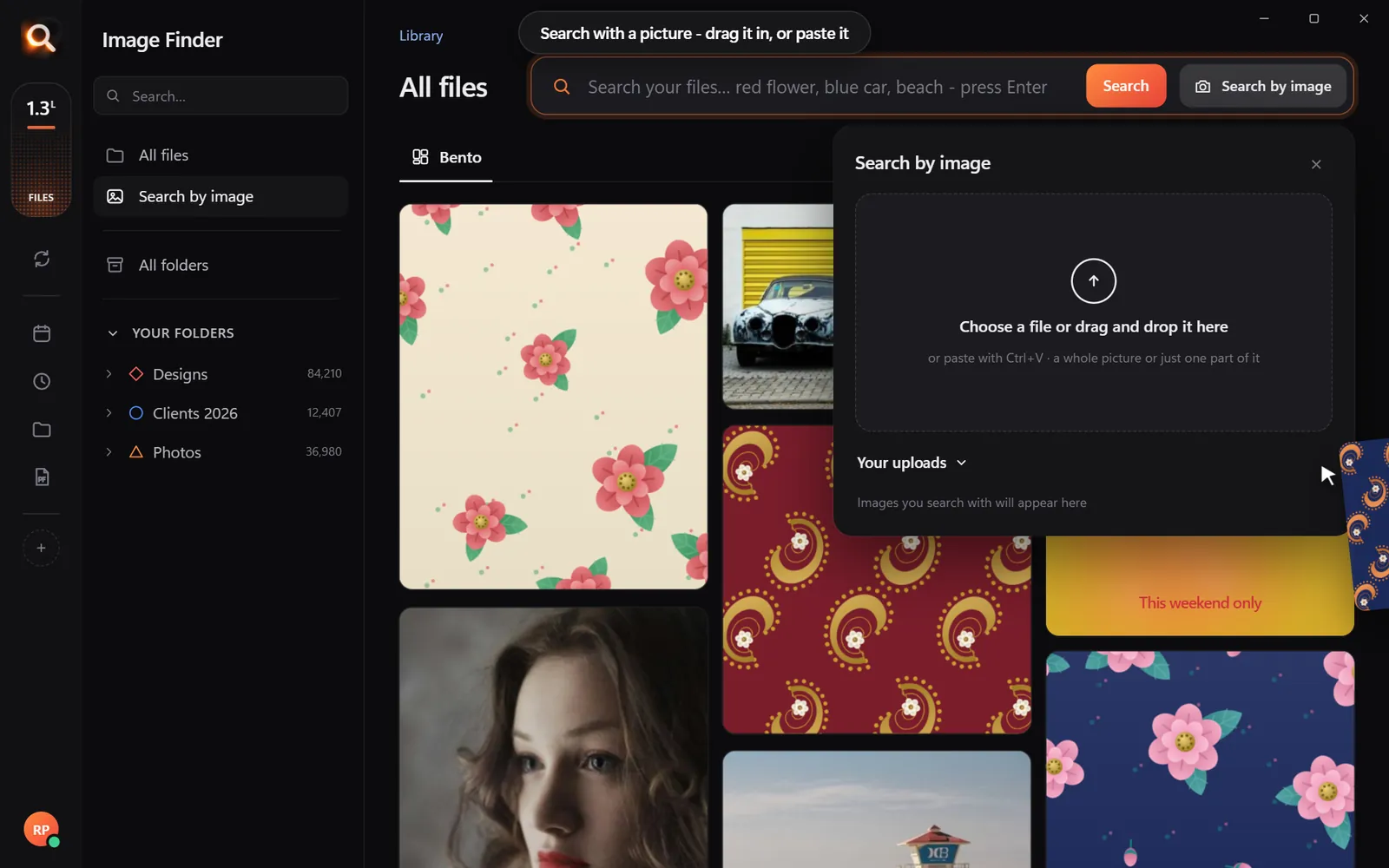
The Image Finder window with sample pictures

The real Image Finder window with sample files - click anywhere in it to try it yourself. In the app it searches hundreds of thousands of your own files in a fraction of a second, all on your PC. Open it full screen

Reads 150+ kinds of files, straight from your folders

JPGHEICPNGRAWPSDAISVGPDFZIP

A photo search that sees what you see

It looks at every picture on your computer once - what is in it, the colours, the faces, the words - so you can find any of them by simply describing it. Even with a hundred thousand files.

Image Finder logo+
Image Finder app icon

Point

Choose folders or whole drives. No importing, no renaming.

Read

Every picture is looked at once, in the background.

red flower

Describe

Type what you see, drop in a picture, or pick a face.

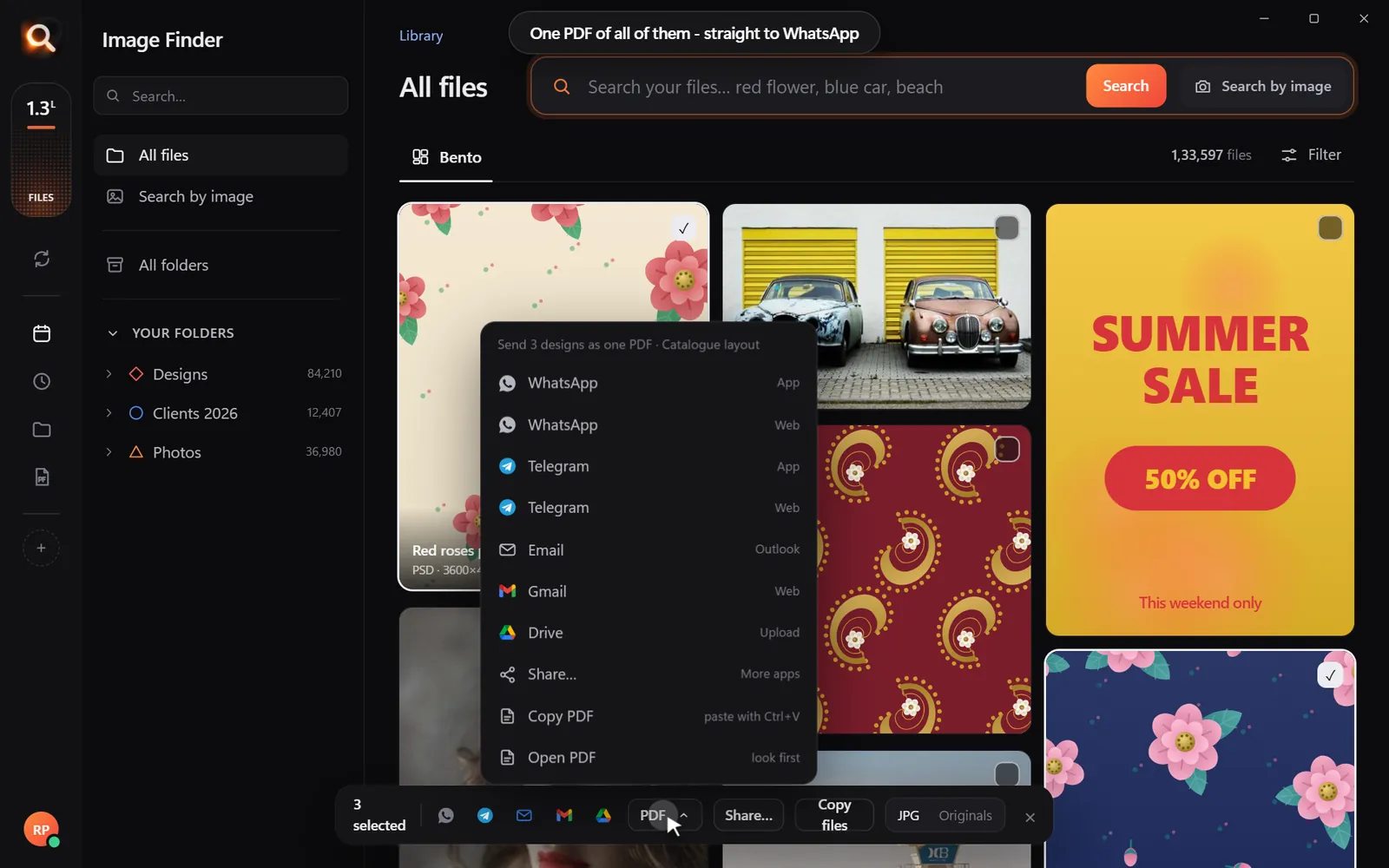
Open in appWhatsAppOne PDF

Use

Open it, copy it, or send many as one PDF.

Search by picture

Have a copy? Find the original.

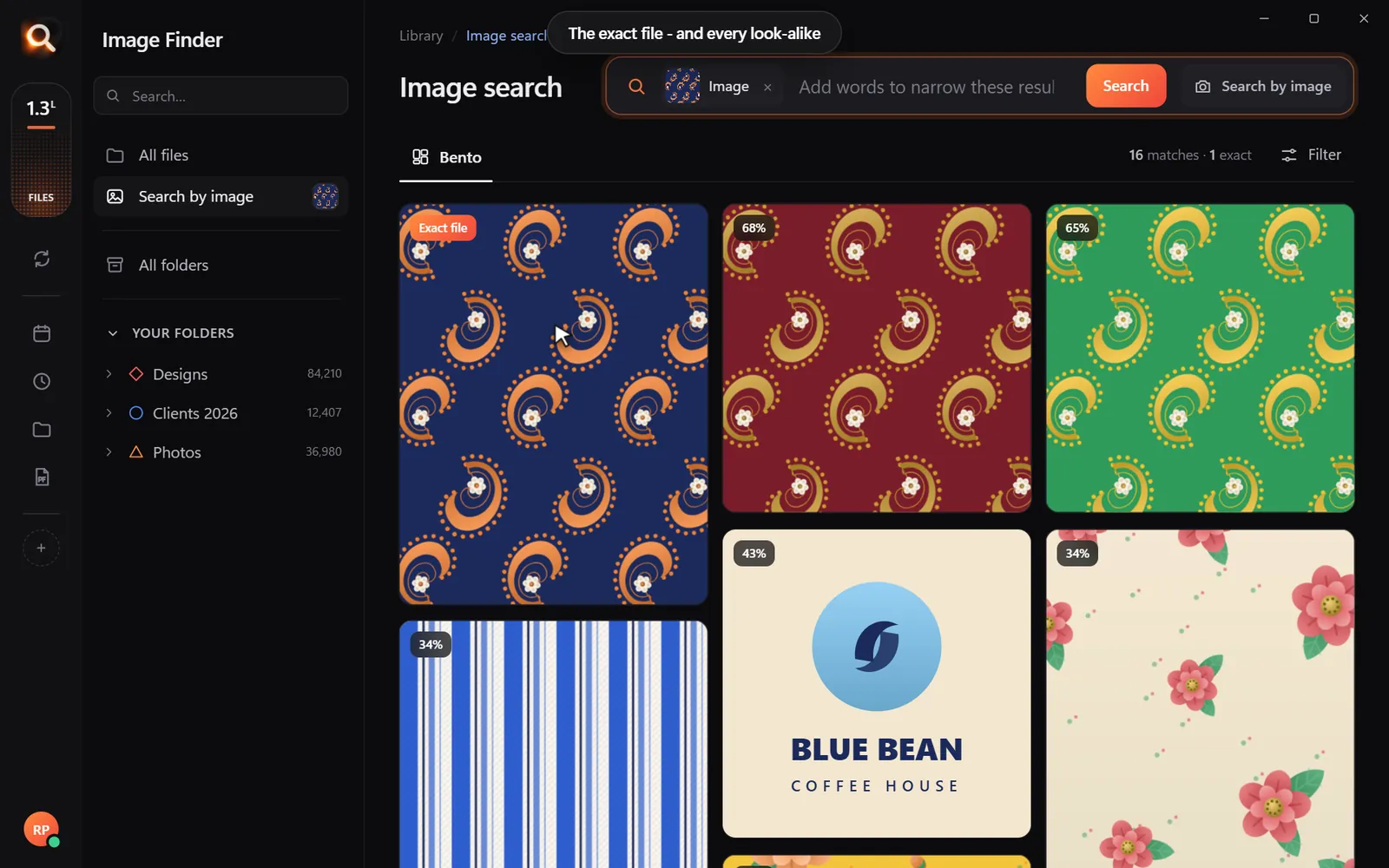
A blurry screenshot, a photo of a print, a crop someone sent you. Drop it in and get the full-size original - and every look-alike, even after crops and filters.

Search with a picture

Understands pictures the way you do - not by their file names.

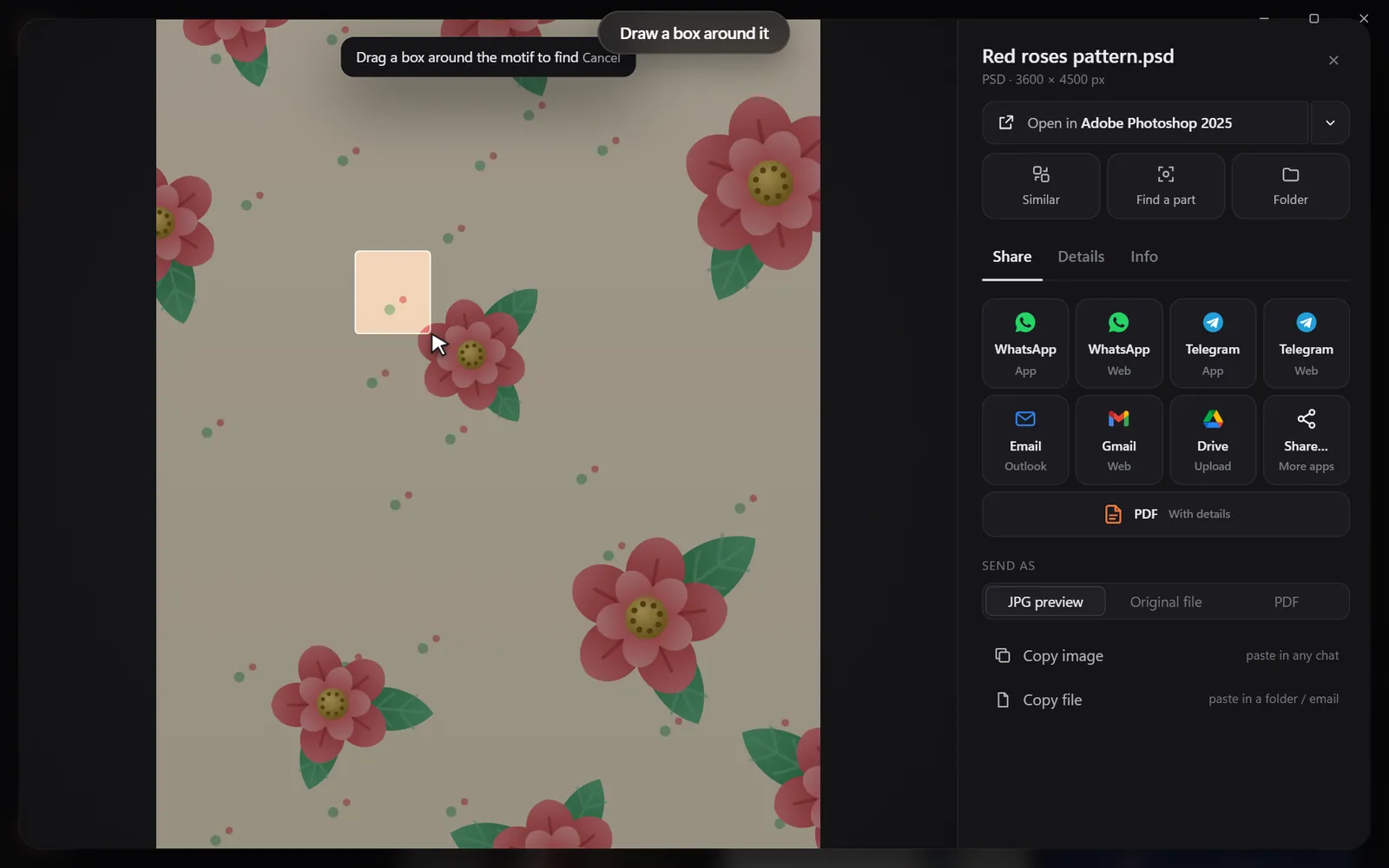
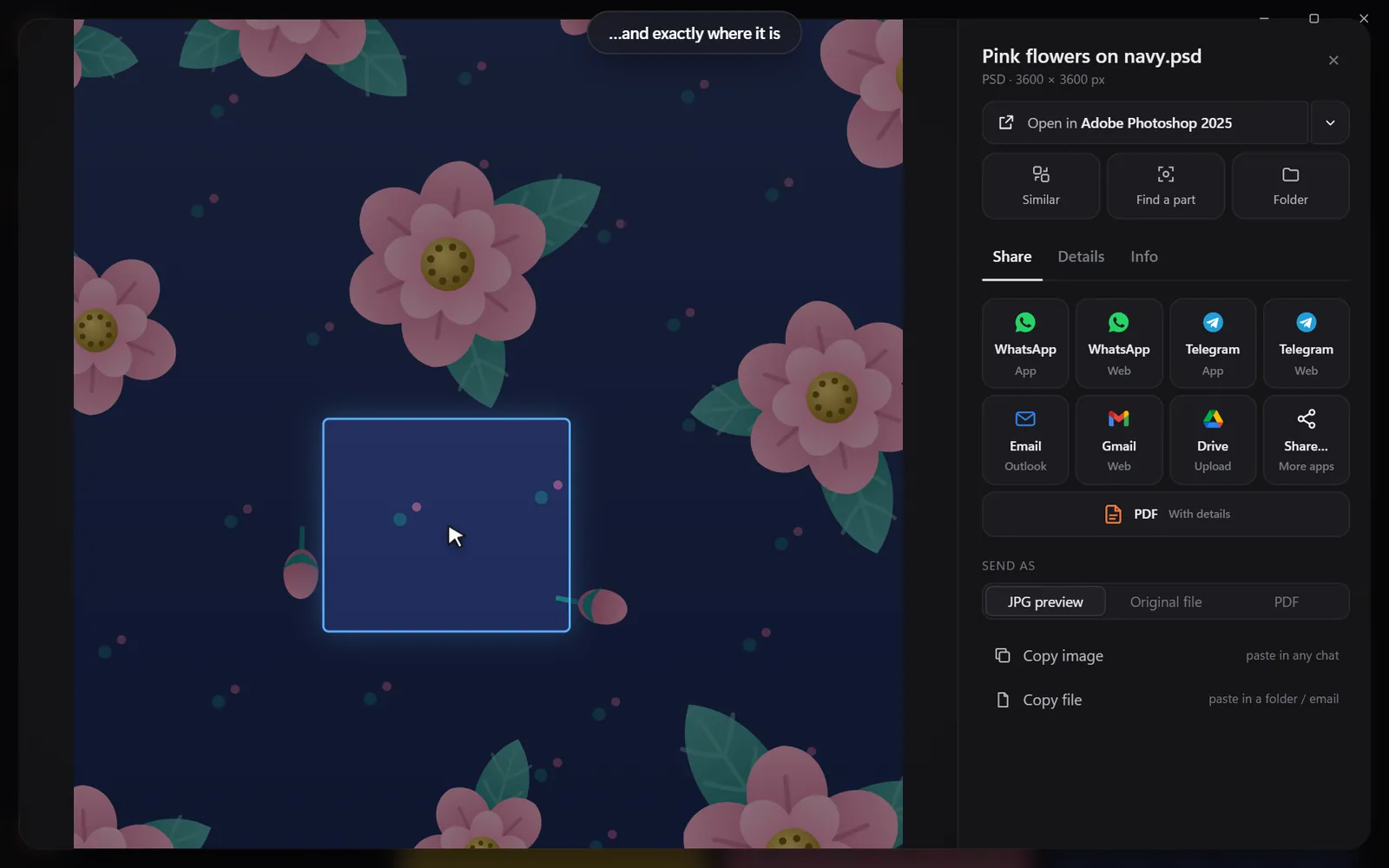
Drop in a pictureThe exact file and every look-alikeDraw a box around one partSee exactly where it is

Found it? Use it.

Every result opens in the app you made it in, copies with one click, or goes out as one tidy PDF.

Open it in your appSend many as one PDFShare in one click

Search

Search the way you remember

You never remember a file name. You remember a colour, a face, a word on a sign. That is enough.

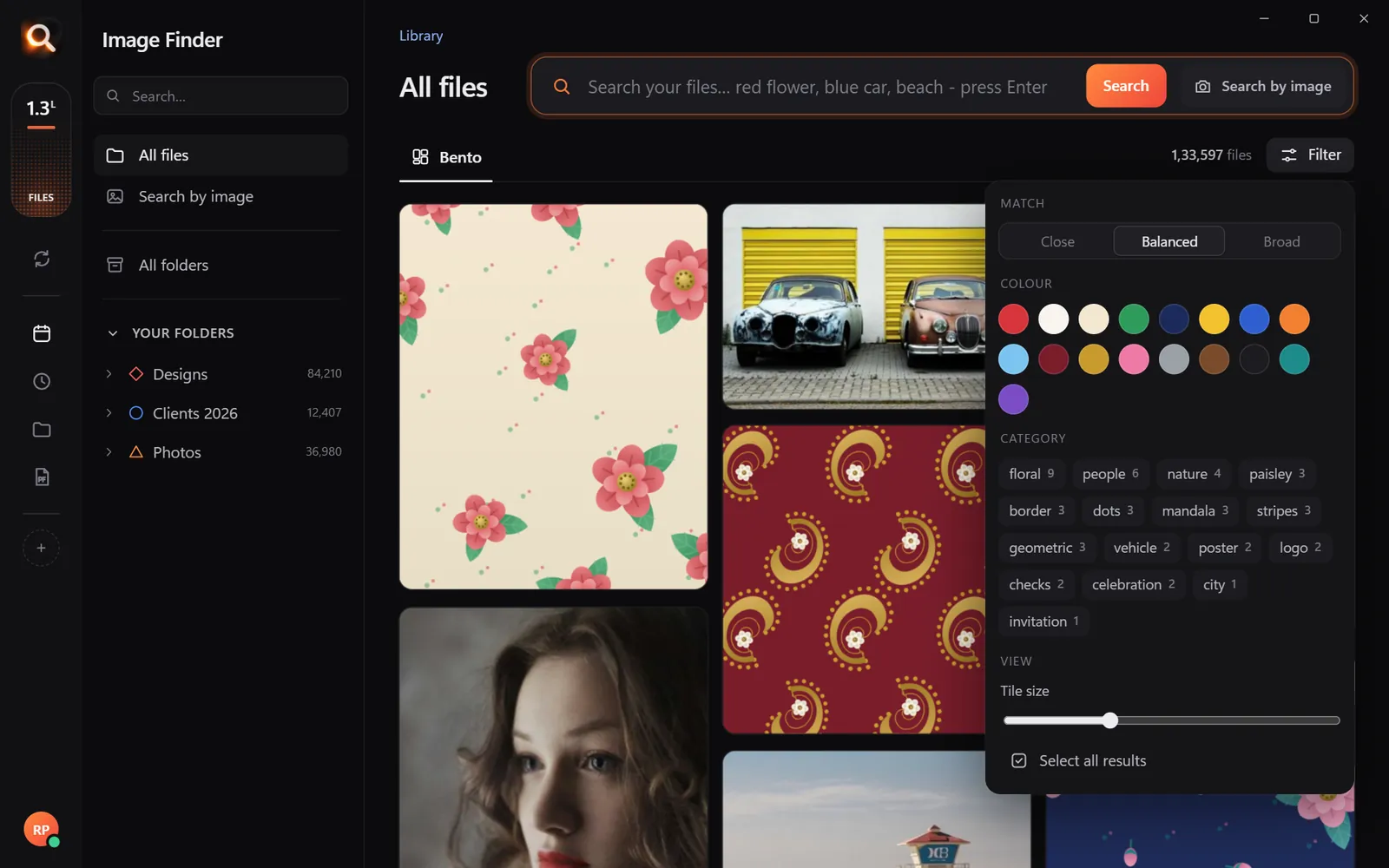
By colour

Pick a colour and the photos with the most of it come first - or narrow any search to it.

Searching by colour

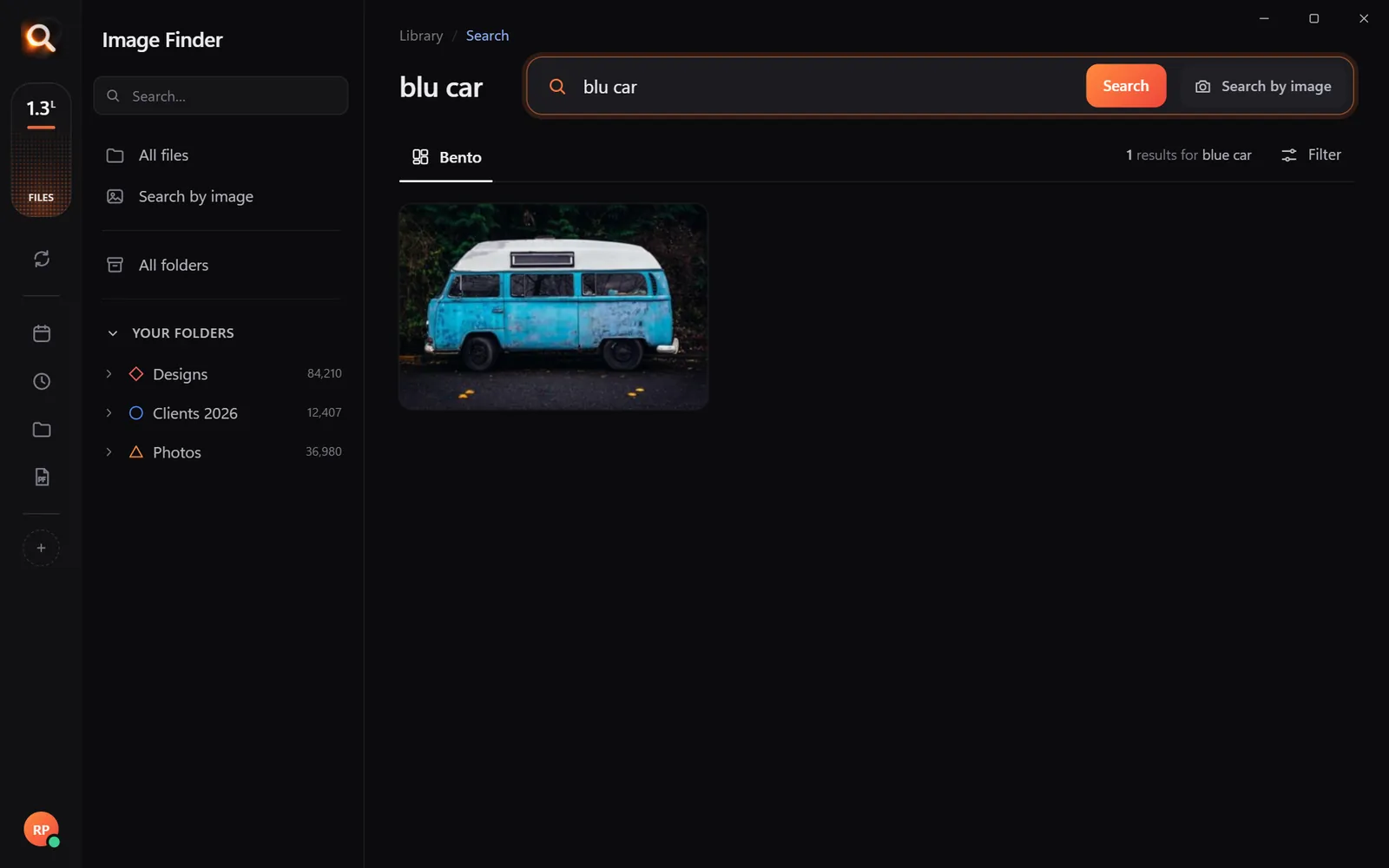
Typos welcome

"blu car" finds the blue car.

A search with a typo

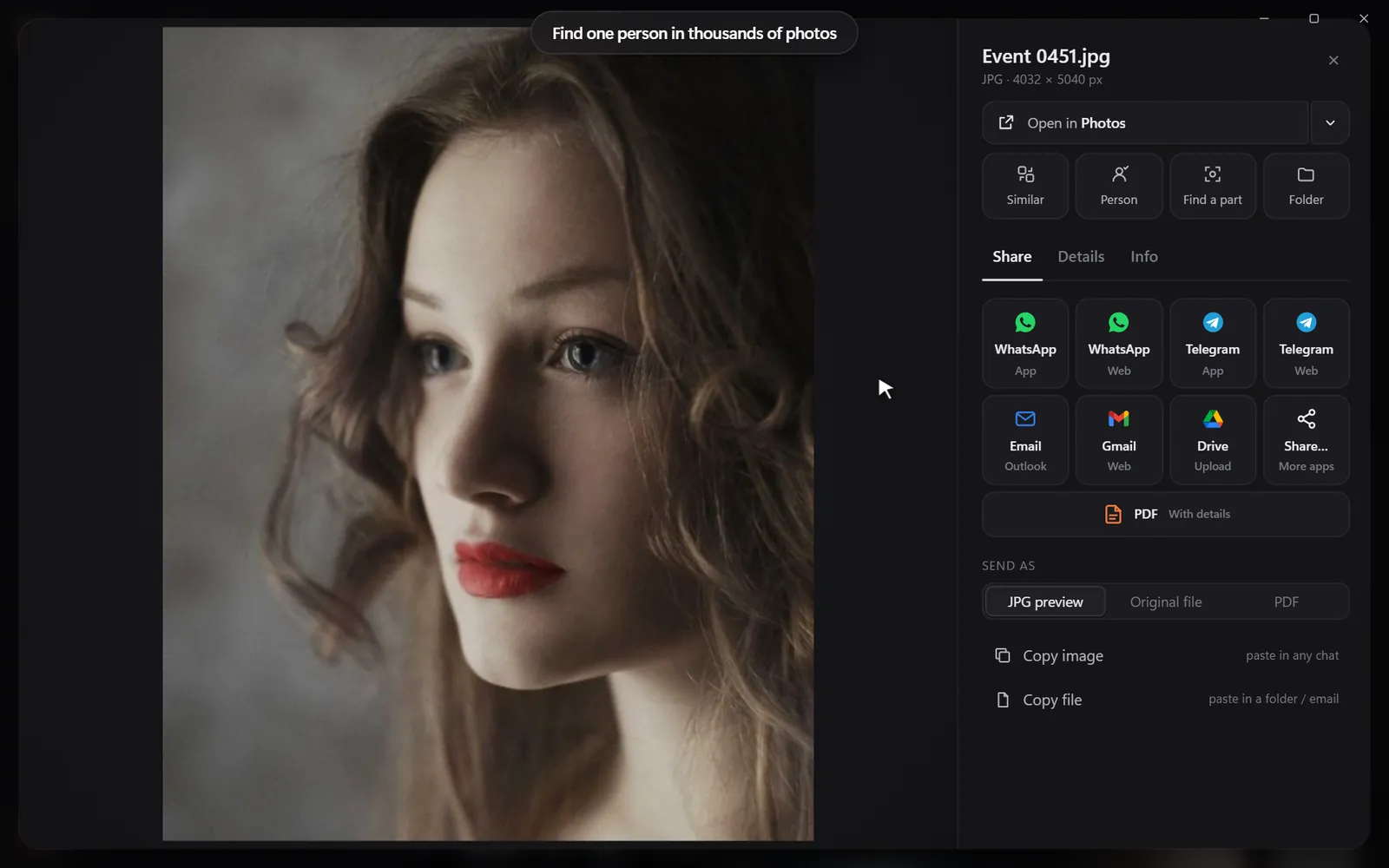
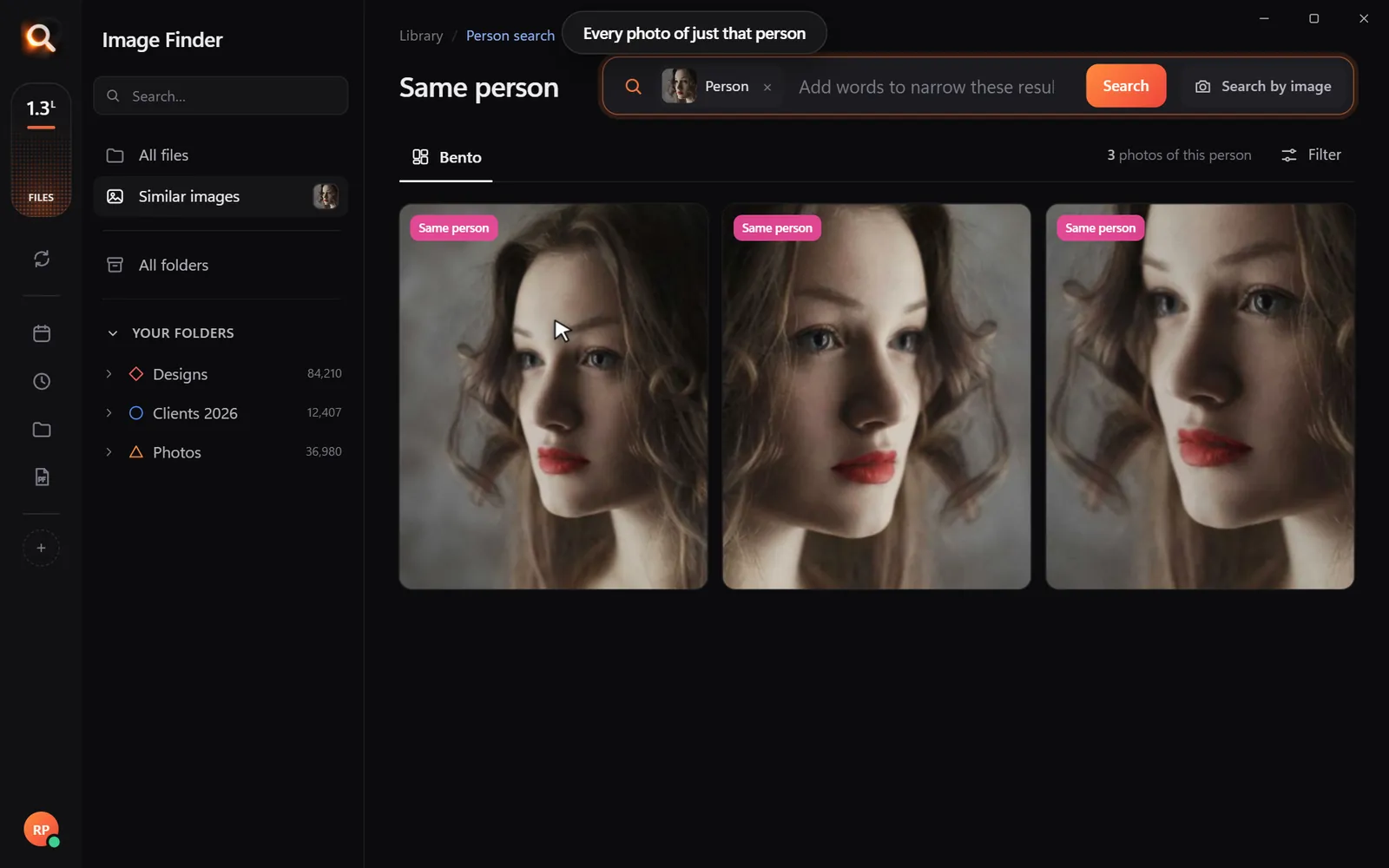
Every photo of one person

Pick a face once - from every folder and every drive.

Every photo of one person

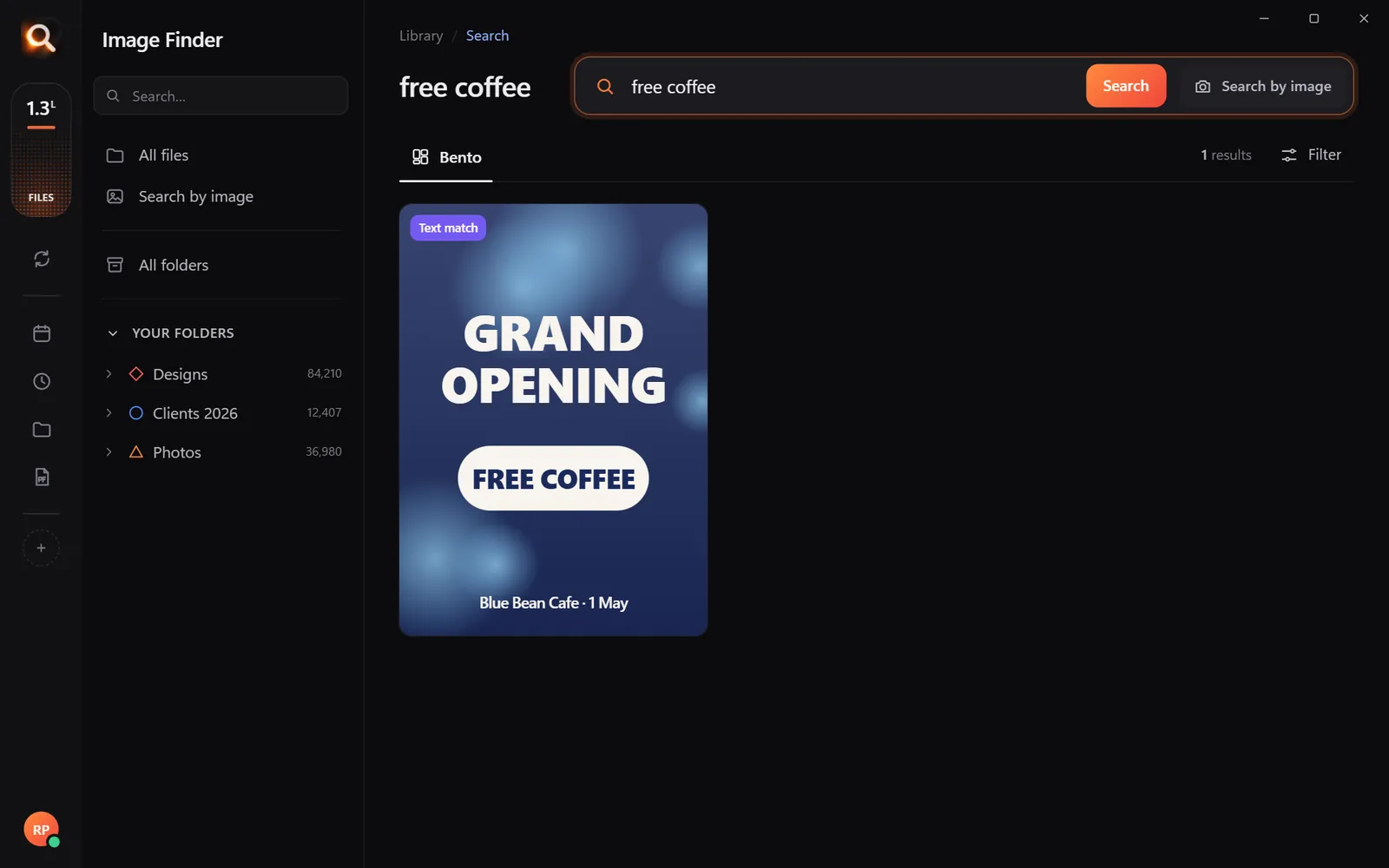
Words inside pictures

Screenshots, receipts, posters and scanned PDFs.

Finding a poster by its words

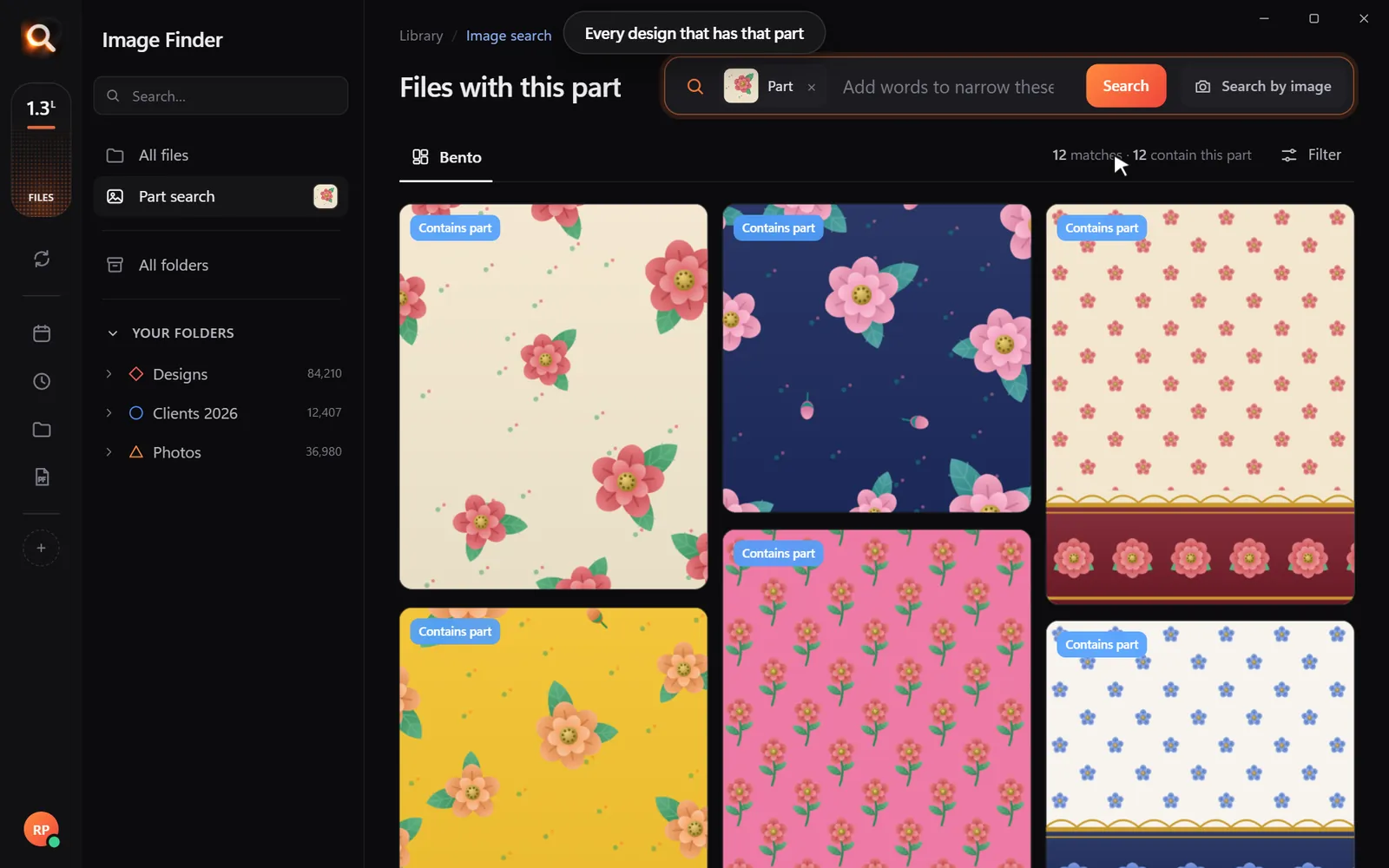
One part of a design

Draw a box around a logo or a motif.

Every design with the same part

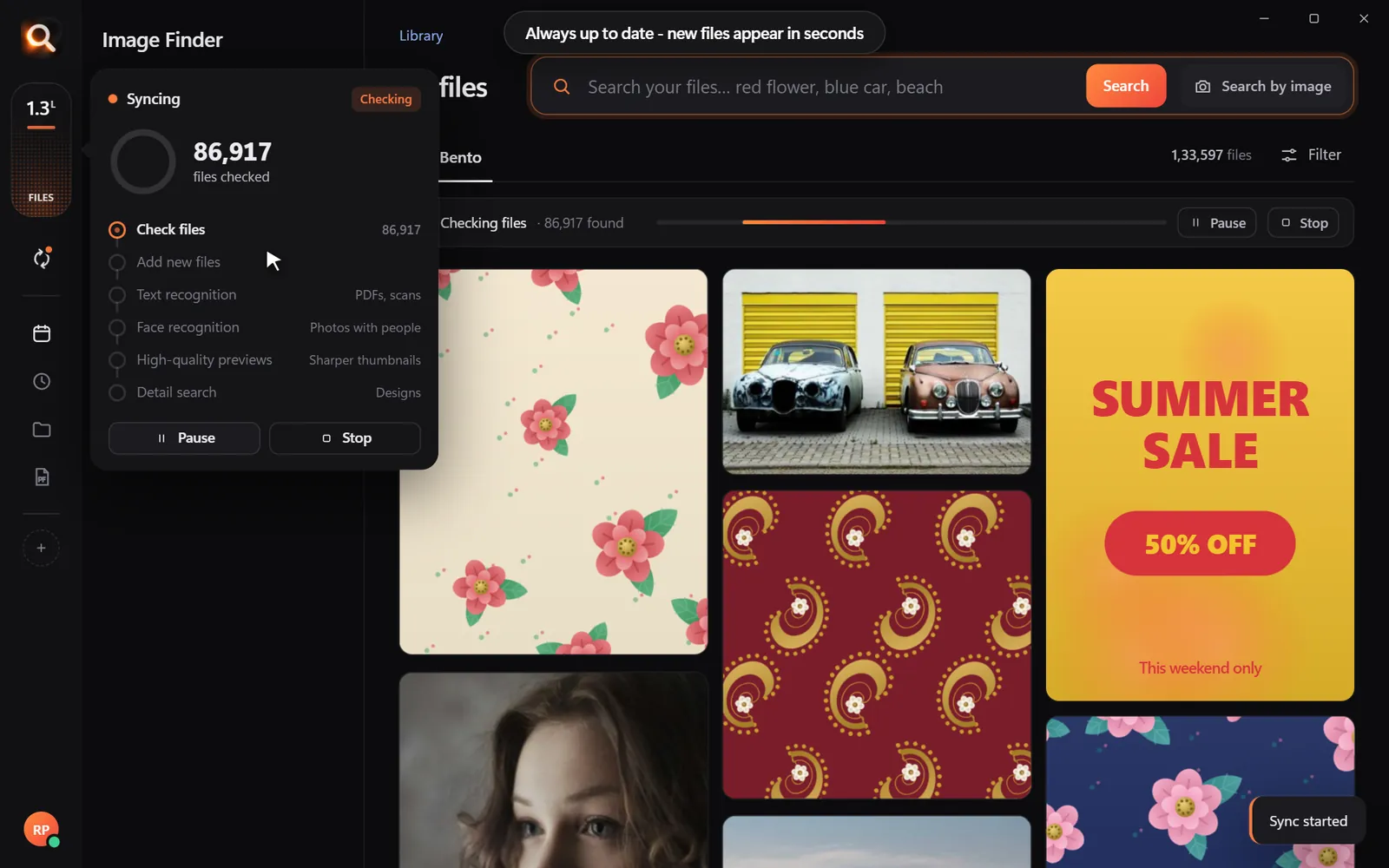
Always in sync

New files appear within seconds, by themselves.

Keeping folders up to date

Folders, whole drives, external disks

Point it at Pictures, Desktop, a whole disk or an external drive. Unplugged drives stay findable, so you know which one to grab.

Choosing folders and drives
150+ file types

JPG, PNG, HEIC, camera RAW, PSD, AI, EPS, SVG, PDF, Office files, fonts, videos and embroidery files.

Inside ZIP and RAR

Pictures inside archives are searchable - without unzipping anything.

External drives

Unplugged drives stay findable, so you know which one to grab.

Always up to date

New and changed files appear within seconds, by themselves.

A tenth of a second

Search 100,000+ files about as fast as you can type.

Typos welcome

"blu car" finds the blue car. The meaning matters, not the spelling.

Steps aside

It reads your library once in the background and pauses while you work.

Windows & Mac

Windows 10 and 11, Macs with Apple chips and Intel Macs.

Private

Your photos never leave your computer

The AI runs on your own PC or Mac. No upload, no cloud copy, no account full of your pictures that could leak.

Nothing uploaded

Your photos, designs and searches stay on your disk. Only your licence is checked now and then.

Works offline

On a plane, in a basement studio, when the internet is down - search works the same.

No subscription

Pay once for the time you choose. Nothing renews by itself, nothing to cancel.

Made for real libraries

Whatever you keep, find it by describing it

What people type - and what it saves them.

P
Photographerssearch for
the one by the window, spring shoot

Pick a client's face once - every shot of them, across every drive.

D
Graphic designerssearch for
blue logo on white

final_FINAL_v3.psd is not a search term. Find PSD, AI and SVG by how they look.

S
Online sellerssearch for
blue mug white background

Five thousand product shots, one blue mug - found in a second.

F
Familiessearch for
grandma at the cake table

Twenty years of photos, searchable without uploading a single one.

T
Teacherssearch for
fractions worksheet

Worksheets and slides, found by the words printed on them.

R
Real estate agentssearch for
white kitchen with island

Every listing photo by room, feature or view.

A
Agenciessearch for
summer sale poster

Ten people, one shared drive, nobody hunting for files any more.

U
Studentssearch for
mitosis slide

Every lecture screenshot, searched by the words on the slide.

Compare

Why not just use what you have?

Image FinderFile Explorer / FinderCloud photo apps
Find a photo by describing itNames onlyPhotos only
Search with a picture-Some
Design files: PSD, AI, EPS, RAWNames only-
Works with no internet-
Your photos stay on your computerUploaded
No monthly subscription-

Pricing

Just ₹1 a day. Paid once.

Every feature in every plan. No subscription - nothing renews by itself.

Every feature for just ₹1 a day - paid once, nothing renews by itself.

One licence works on one computer. Your days start when you activate it.

In India? See the India page - prices in ₹, pay by UPI

Questions? Answers.

How much does it cost?

Plans are priced per day in your own currency - every feature, paid once for the time you choose. Nothing is charged automatically, and nothing renews by itself.

Does it upload my photos?

No. Image Finder runs entirely on your computer. Your photos, designs and searches never leave it - there is no cloud copy to leak. Only your licence is checked online now and then.

Does it work on Mac?

Yes. There are versions for Macs with Apple M-series chips and for older Intel Macs, plus Windows 10 and 11.

Which files can it search?

150+ types: JPG, PNG, HEIC (iPhone), WEBP, camera RAW (NEF, CR2, CR3, ARW, DNG), PSD, AI, EPS, SVG, PDF, Office files, fonts, videos and embroidery files (DST, PES and more) - including files inside ZIP and RAR archives.

Can I hide files from search?

Yes. Select one or many and press Hide - they leave every search but stay on your computer. They wait under Hidden until you show them again.

Is it a subscription?

No. You pay once for the time you choose; nothing renews by itself and there is nothing to cancel.

Do I have to organize or tag anything?

No renaming, no tagging, no importing. Point it at your folders or whole drives and it reads them by itself - new files appear within seconds.

Will it slow down my computer?

It reads your library once in the background and steps aside while you work. Searching takes about a tenth of a second, even with 100,000+ files.

Can I get a refund?

Yes - see the refund policy.

Image Finder

Find any design in a second

Every feature, no credit card. Find the first photo you have been looking for in the next five minutes.

Get it - ₹1 a day
Just ₹1 a day

Blog

Tips for finding, organising and sharing your designs faster.

← All posts

The Best Photo Organizer for Windows When Folders Stop Working

When your image collection reaches thousands of files, standard Windows File Explorer folders become a chore to manage. If you are searching for the best photo organizer for windows, you have likely realized that creating subfolders and renaming every camera file is unsustainable. A hard drive containing 50,000 or 100,000 pictures quickly turns into an unsearchable maze of generic names like IMG_4021.JPG and DSC_8912.RAW.

You do not need to spend weekends dragging files into neatly named directories. Instead, modern visual search tools let you find pictures by what is actually inside them—such as a specific person, a dominant colour, or everyday words describing the scene—without altering your folder structure.

Why Manual Folders and File Renaming Break at 50,000 Files

Most people start organizing photos with good intentions. You create a folder for each year, then subfolders for months, trips, clients, or family events. For a few thousand files, this works adequately. Once your collection crosses 50,000 photos, three major problems emerge:

  1. Photos belong to multiple categories. If you take a picture of your daughter playing with a dog at a beach in Spain during a 2022 vacation, where does it live? In Family, Spain 2022, Beach, or Pets? You must either make duplicates that waste drive space or pick one folder and forget where you saved it later.
  2. Renaming takes too much time. Renaming batches of files using dates or subjects takes hours. Even when renamed, a filename cannot capture everything happening in a photo, such as the clothes worn, the background scenery, or the colours present.
  3. New photos pile up faster than you can sort. A single photo session or family trip can add 1,500 new images. When life gets busy, unsorted photos sit in downloads or camera dump folders for months, making your existing system outdated.

To learn more about skipping the renaming process completely, check out our guide on how to organize thousands of photos without renaming a single file.

For years, the standard answer to messy folders was digital asset management (DAM) software. Traditional DAM tools ask you to import your photos into a proprietary library. Then, they ask you to manually add keywords, ratings, tags, and copyright metadata to every single file.

While tags are helpful in theory, they require constant manual upkeep. If you forget to tag an image with "sunset" or "red dress", searching for those terms will never bring it up. Furthermore, many traditional DAM tools lock your photos into custom database formats or move your files into hidden folder structures that are difficult to access outside that specific app.

Content-based search takes the opposite approach. Instead of reading manual tags, intelligent software inspects the visual contents of the image itself:

  • Natural descriptions: You type what you remember, such as "beach sunset with palm trees" or "children birthday cake candles", and the software recognizes those visual concepts immediately.
  • Face grouping: It scans for matching faces so you can locate every photo of a specific relative or model across multiple drives.
  • Colour matching: You click a colour palette to locate files where a specific shade dominates, which is useful when looking for seasonal themes or matching design palettes.

By searching contents directly, you skip the hundreds of hours required to tag and catalogue files by hand.

The Best Photo Organizer for Windows: How Image Finder Works

Image Finder is built specifically for Windows 10 and 11 (as well as Mac) to solve photo clutter without changing how you store your files. It indexes your entire drive—tested on libraries with over 130,000 files—and delivers search results in roughly a tenth of a second.

Here is what makes Image Finder the practical choice for large photo collections:

  • Search in plain language: Type what you see. You can type everyday words, mix languages, or make minor spelling mistakes. Searching for "green mountain valley" or "vintage car" pulls up the right files instantly.
  • Face recognition completely offline: Select any face, and Image Finder displays every picture featuring that same person. For a deeper look at this capability, read our post on how to find every photo of one person on your computer.
  • Find look-alikes and duplicates: Drop a picture into the search window to pull up the exact original file, alongside visual duplicates and similar shots taken seconds apart. This helps you review copies without relying on filename matches. If you struggle with clutter, see how to find duplicate photos on Windows without deleting the wrong one.
  • Colour and category filters: Narrow down results with 17 precise colour swatches or predefined categories like people, nature, vehicles, floral, and cityscapes.
  • 107 supported file types: It reads standard JPG and PNG files, RAW camera files, HEIC phone photos, layered PSD and AI files, and even images saved inside ZIP, RAR, or 7z archives.

You can inspect our transparent pricing starting from US$4 a month by checking our plans on the pricing page. Every license is a one-time payment for 1, 2, or 3 months with no automatic renewals or surprise charges.

Safe Organization: Why Your Files Should Never Be Moved or Renamed

Many organizing utilities offer automated cleanup buttons that promise to rename all your photos and shuffle them into new folder structures based on dates. In practice, this often creates broken links in editing projects, ruins existing backup paths, and leads to accidental file loss.

Image Finder is strictly read-only. It scans your files to understand their contents, but it never moves, renames, edits, or deletes your photos:

  • Your hard drive folders remain untouched.
  • You can keep your existing directory layout exactly as it is.
  • It runs 100% locally on your computer, meaning your personal pictures are never uploaded to the cloud or viewed by anyone else.

You get the full search power of an organized database without risking your original file structure or privacy.

How to Organize and Find Photos in Seconds (Step by Step)

Setting up content-based organization on your Windows PC takes just a few minutes:

  1. Select your photo directories: Add the folders or external drives where your photos live. Image Finder runs a fast initial scan in the background.
  2. Type what you remember: Enter a phrase into the search box. For example, search "red sports car" or "wedding table decorations".
  3. Refine with swatches: If you remember the setting was predominantly blue, click the blue colour filter to filter out warm indoor shots.
  4. Pick a match level: Use the slider to set your search to Close, Balanced, or Broad depending on how strictly you want the tool to match your description.
  5. Share or export directly: Once you locate the photo, you can open its folder location immediately or share it to WhatsApp, Telegram, or Gmail with one click.

Folders and drives stay synchronized automatically. Whenever you copy new photos from an SD card into any watched folder, they become searchable right away.

Questions People Ask

Can a photo organizer work across external hard drives?

Yes. You can add external USB drives, SSDs, or secondary hard drives to Image Finder. Once indexed, you can search those files whenever the drive is connected to your PC.

Does Image Finder require an active internet connection to search photos?

No. All visual indexing, face detection, and text recognition run locally on your Windows machine using your own processor. Your photos stay strictly offline. The internet is only used briefly to verify your software license.

What happens if I move a photo manually in Windows File Explorer?

Image Finder monitors your watched folders. When you move, edit, or add a file using Windows File Explorer, the index updates automatically without requiring a full manual rescan.
More posts

O

Offline Photo Organizer for Windows with Face Recognition

Organize thousands of family pictures across your hard drives using offline face recognition. Learn how to search photos by face on Windows without uploading anything to the cloud.

18 Nov 2026
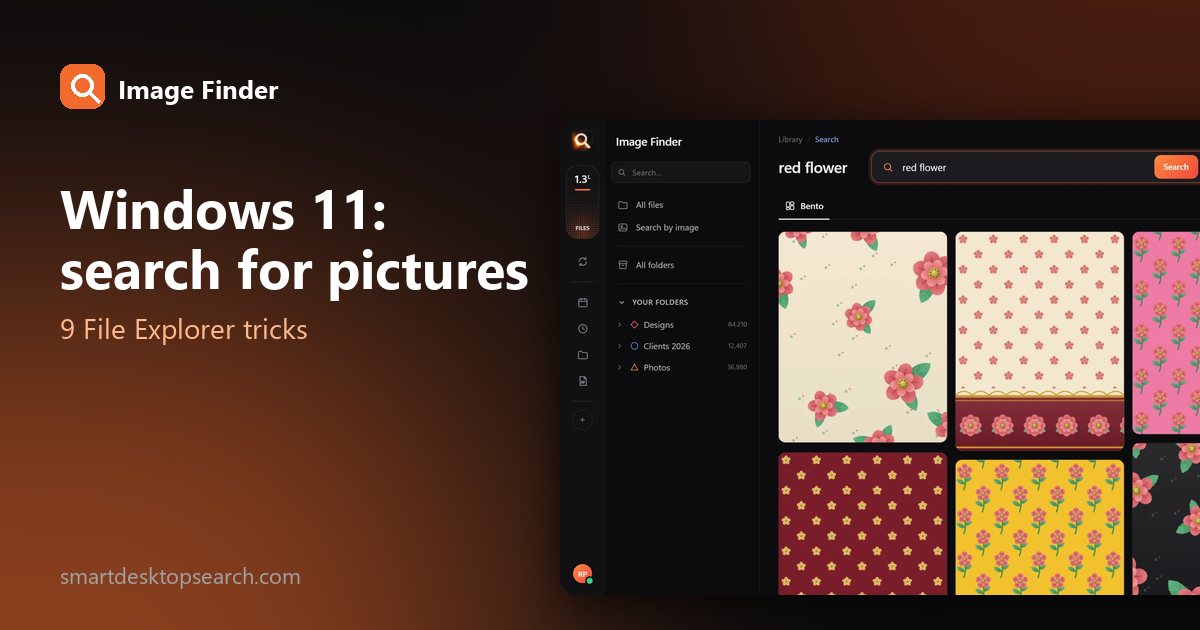
Windows 11 Search for Pictures: 9 File Explorer Tricks (and Where They Stop)

Windows 11 Search for Pictures: 9 File Explorer Tricks (and Where They Stop)

File Explorer can do more than you think: search only pictures, by date taken, size or type. Nine tricks that work today - and what to do when you need to search what is in the picture.

9 Oct 2026
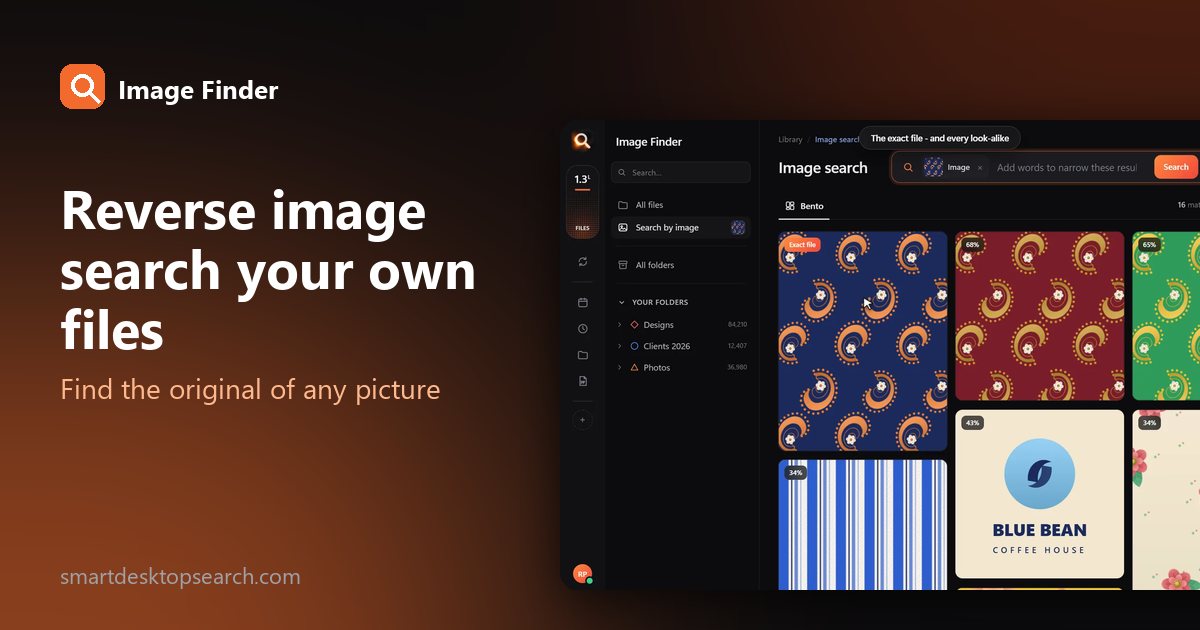
Reverse Image Search on My Computer: Find High-Res Originals

Reverse Image Search on My Computer: Find High-Res Originals

Learn how to run a reverse image search directly on your local computer to locate full-resolution originals, layered working files, and visual look-alikes without uploading anything.

28 Oct 2026