 +









You scanned a lease, a stack of business invoices, tax receipts, and warranty cards. Months later you need one specific number or clause—and pressing Ctrl+F finds nothing at all. That happens because a scanned document is saved as a picture of a page rather than digital text. When you need to search scanned pdf for text, standard computer search tools fail because they only look at filenames or embedded text layers that simply do not exist in raw scans.
Finding critical records should not take hours of opening individual files. Here is how to search scanned pdf for text across your computer, why standard search struggles, and how to make multi-page scans instantly searchable without recurring cloud fees.
Why standard tools cannot search scanned PDF for text
To understand why you cannot easily search scanned PDF for text with basic tools, look at how the file was created:
| PDF Type | How It Was Created | Can You Search It with Ctrl+F? |
|---|---|---|
| Digital PDF | Exported directly from Word, Google Docs, or accounting software | Yes, instant search works |
| Scanned PDF | Generated by a flatbed scanner, office copier, or mobile phone scan | No, unless an OCR step was run |
| Photo of Document | Taken with a phone camera (JPG, HEIC, PNG) | Never searchable by default |
Optical Character Recognition (OCR) is the process that analyzes pixels on a page, detects letterforms, and creates searchable text. Most office copiers, home scanners, and quick mobile scanner apps skip this step to save time and processing power. Unless OCR has been applied, your operating system treats your multi-page PDF as a stack of silent images.
Manual ways to search scanned PDF for text (one by one)
If you only have a single file on your desktop, there are built-in tools on Windows and Mac to extract text:
- Mac Preview & Live Text: Recent versions of macOS can recognize text inside images and scanned pages opened in Preview. You can hover your cursor over the text, highlight it, and copy it.
- Windows Snipping Tool & Photos: Windows 11 includes text actions inside the Snipping Tool and Photos app, allowing you to copy text from an image or screenshot.
- Microsoft Word: You can right-click a PDF in File Explorer and choose "Open with Word". Word will convert the scan into an editable document, though formatting and column layouts often shift.
- Adobe Acrobat Pro: Acrobat includes a dedicated "Scan & OCR" tool that recognizes text on demand, though it requires an ongoing paid subscription.
While these tools work for an isolated file, they do not solve the real problem: what happens when you have 500 scanned receipts or twenty 40-page contracts and do not know which file contains the supplier name, serial number, or date?

How to search scanned PDF for text across all your folders
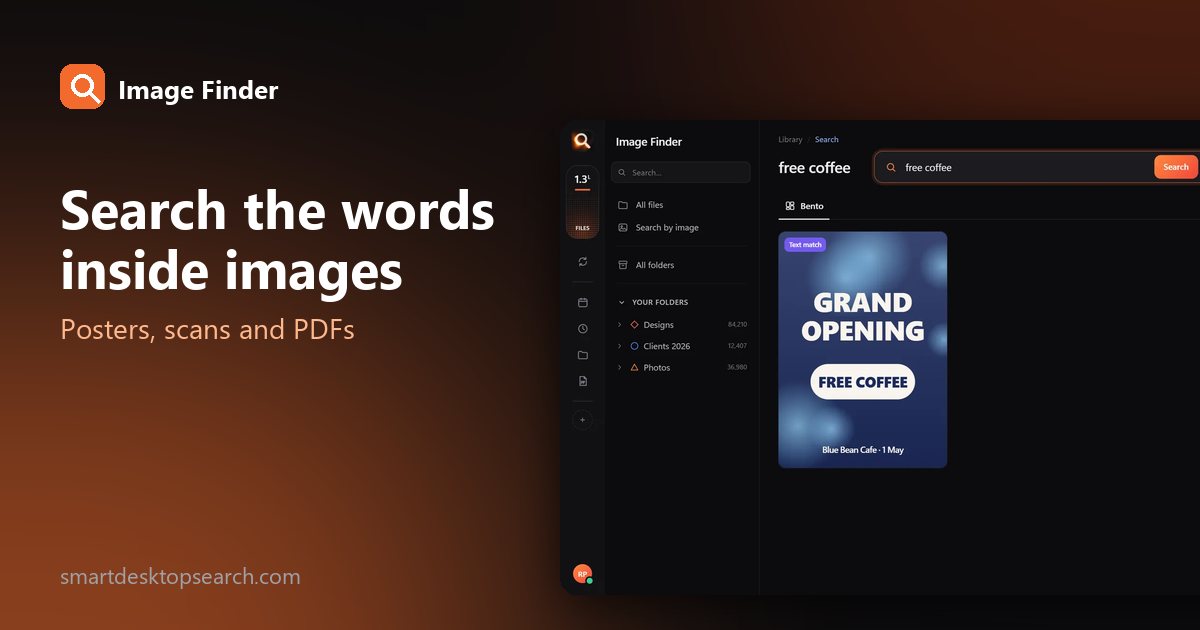
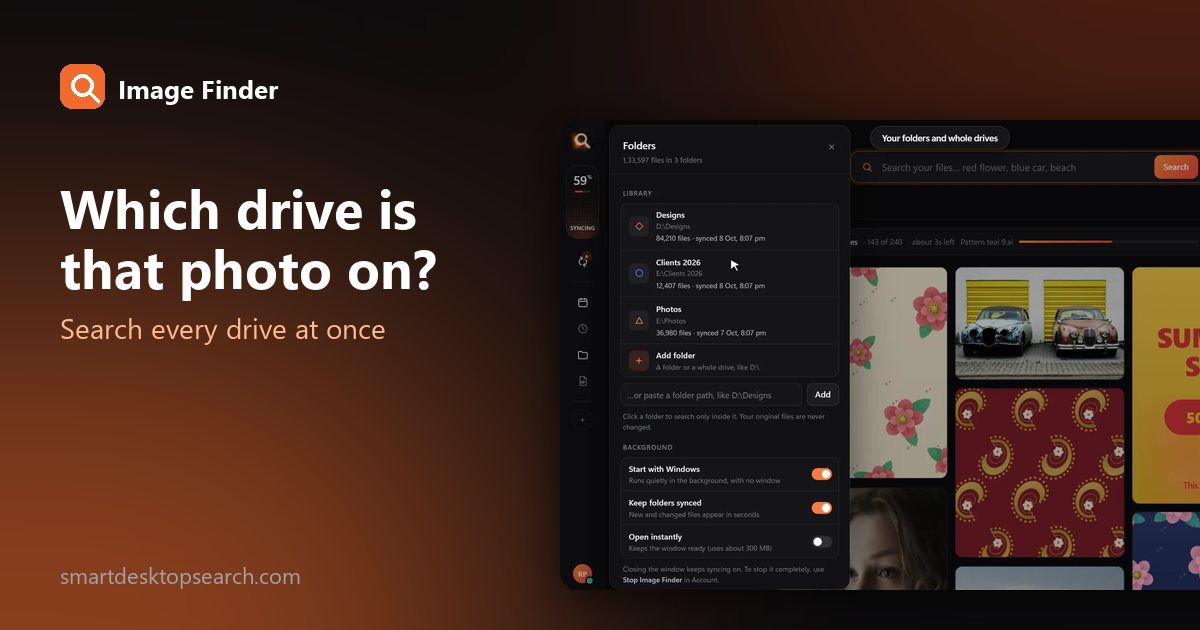
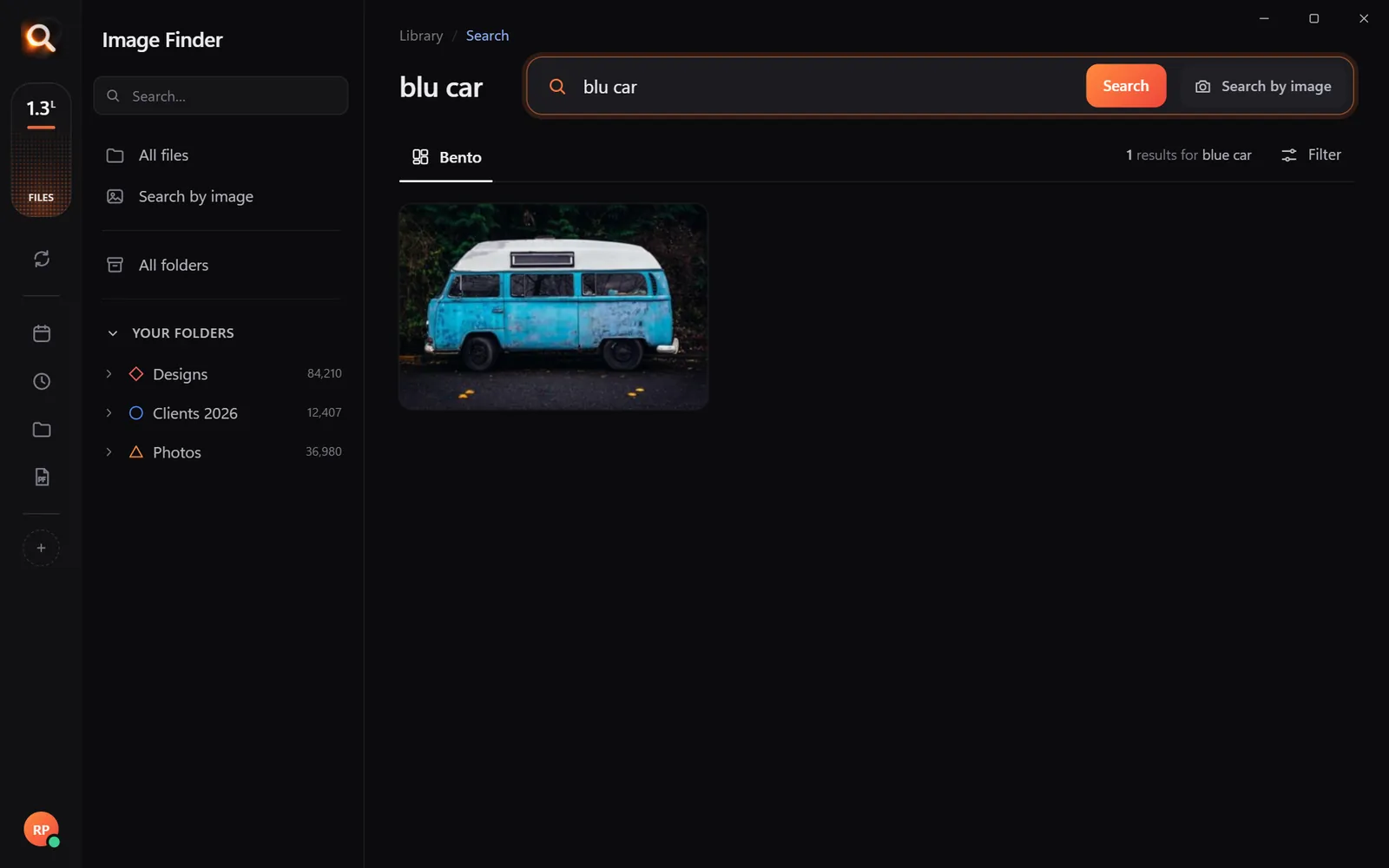
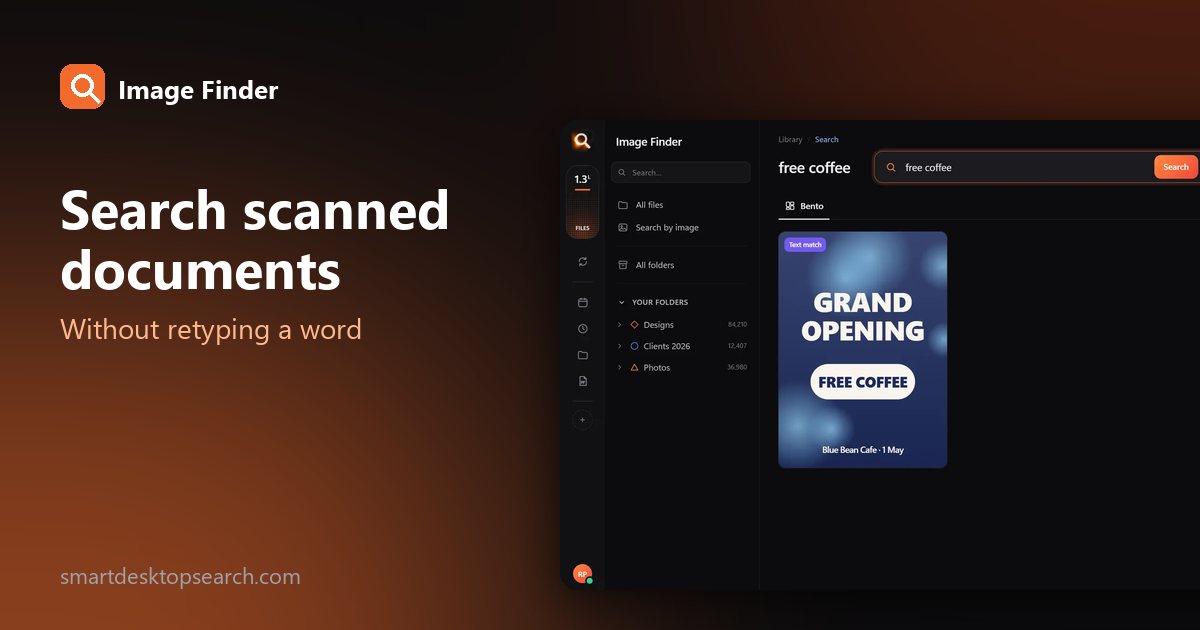
Instead of converting documents one by one or paying monthly subscription fees to upload business files to cloud OCR servers, Image Finder runs directly on your Windows or Mac desktop. It indexes your documents locally and reads the words inside every picture, scanned invoice, receipt, and multi-page PDF in about a tenth of a second.
Here is how to search scanned PDF for text across your entire drive:
Because the app runs on your machine, it eliminates third-party cloud OCR processing costs and data privacy risks. You can test the browser demo at /try to see how quick visual and text matching works in practice.
Multi-page document handling
A common headache with scanned files is multi-page depth. A supplier agreement or court filing might have 50 pages, with the critical clause buried on page 37. Image Finder inspects every individual page of PDF and Office files. When you search scanned PDF for text, the app identifies the precise page containing your query rather than simply dumping a 50-page file into your lap.
Handling scanned receipts, bills, and tax forms
Scanned financial documents come in different shapes and qualities. Whether you have tidy 300 DPI flatbed scans or wrinkled paper receipts captured on your smartphone, you can locate documents using whatever information you remember:
| Document Type | What to Search For | Example Queries |
|---|---|---|
| Invoices & Receipts | Store name, item name, total price, tax breakdown | "Home Depot $142.50", "plumbing supplies" |
| Leases & Legal Agreements | Landlord surname, tenant name, address, key clause | "security deposit", "Maple Street lease" |
| Tax Forms & W-2s | Form code, year, employer identification, tax year | "1099-MISC 2024", "W-2 wages" |
| Appliance Warranties | Brand, model number, serial number | "refrigerator warranty", "model RX-400" |
| Medical Records | Clinic name, prescription, physician name | "radiology report", "dental cleaning" |
For more advice on managing financial records, read our guide on tax time receipt organization.
A tiny sample library in your browser. The app does this with AI across every file on your computer - try the real app in your browser.
Best practices when you scan documents for reliable text search
To make sure you can reliably search scanned PDF for text in the future, follow a few simple capture habits:
- Use 300 DPI resolution: 300 DPI offers the ideal balance. Lower resolutions (like 72 or 150 DPI) can blur small characters like commas and digits, while 600 DPI creates huge file sizes without improving text recognition accuracy.
- Ensure even lighting for phone scans: When taking photos of receipts with your phone, place the paper on a dark, flat surface. Avoid harsh overhead lighting that casts hand or phone shadows across the lines of text.
- Keep text orientation straight: While modern recognition engines can tolerate slight angles, keeping lines horizontal produces the cleanest recognition on small fonts.
- Prefer black-and-white or grayscale for pure text: Color scans look nice, but high-contrast grayscale scans make it easier for recognition algorithms to distinguish faint characters on receipts.

Why local offline search beats cloud OCR tools
Many online services offer to convert scanned documents, but uploading files to third-party servers presents two major problems:
- Data privacy and compliance: Scanned documents often hold bank account numbers, medical histories, client contracts, and home addresses. Uploading sensitive files to external cloud servers exposes confidential information to data breaches or third-party storage policies. You can learn more about local security in our post on private AI photo search.
- Recurring per-page costs: Cloud OCR APIs charge per page or per gigabyte. When you have an archive containing thousands of archived pages, commercial cloud processing quickly becomes expensive.
Image Finder keeps everything 100% on your own computer. It works completely offline (only your licence checks in online periodically), never uploads your documents to external servers, and never alters or moves your files.
If your documents are archived inside compressed files, Image Finder can also read them without unpacking. Read our guide on searching images and PDFs inside ZIP and RAR files to see how archived client folders stay searchable.
Practical workflow: organize paperless records without filing
You do not need a complicated folder hierarchy with nested folders for every vendor and year. A simpler, faster workflow works better:
If you have teammates or family who also need to search scanned PDF for text across their own files, you can recommend the tool: users who share their referral link at /refer get 15 free days for each friend who starts using it, and their friend gets 5 extra days added to their plan.
Image Finder is available for Windows 10 and 11 as well as Intel and Apple Silicon Macs. Pricing is simple: straightforward 1, 2, or 3-month access passes with no recurring subscriptions or surprise renewals (from US$4 a month in the USA, with local currency pricing shown worldwide).
Questions people ask
How can I search scanned PDF for text without paying for Adobe Acrobat?
You do not need an expensive Adobe subscription. Built-in tools like macOS Preview and Windows 11 Snipping Tool can copy text from single pages. To search scanned PDF for text across hundreds of files in your folders at once, desktop tools like Image Finder index your files locally without monthly document limits.
Can Image Finder search scanned PDF for text inside multi-page files?
Yes. The software indexes every individual page of multi-page PDF and Office files. If a contract has 40 pages and your target clause or payment term is on page 28, the search result highlights that specific page immediately.
Will this work on photos of receipts taken with a smartphone?
Yes. Phone photos in JPG, PNG, or HEIC format are indexed just like scanned PDF documents. As long as the printed text is legible and well-lit, you can find the receipt by typing store names, line items, or numerical amounts.
Does the software upload my scanned documents to the internet?
No. All processing, character recognition, and indexing occur directly on your computer's hardware. Your documents remain strictly private on your local drive and are never uploaded to any remote server or cloud AI service.
Windows and Mac. Private, offline, no subscription.