
Try itFeaturesPricingHow it works QuestionsBlogSign in DownloadContact usRefunds
Try it in your browser

Find any photo on your computer. Just describe it.

Type what you see - “dog on the beach”, “receipt from Costco” - and the right photo, design or PDF appears in a second. Nothing uploaded, nothing to rename.

Just ₹1 a day

No credit cardWindows 10+ & macOSPay once - no subscription

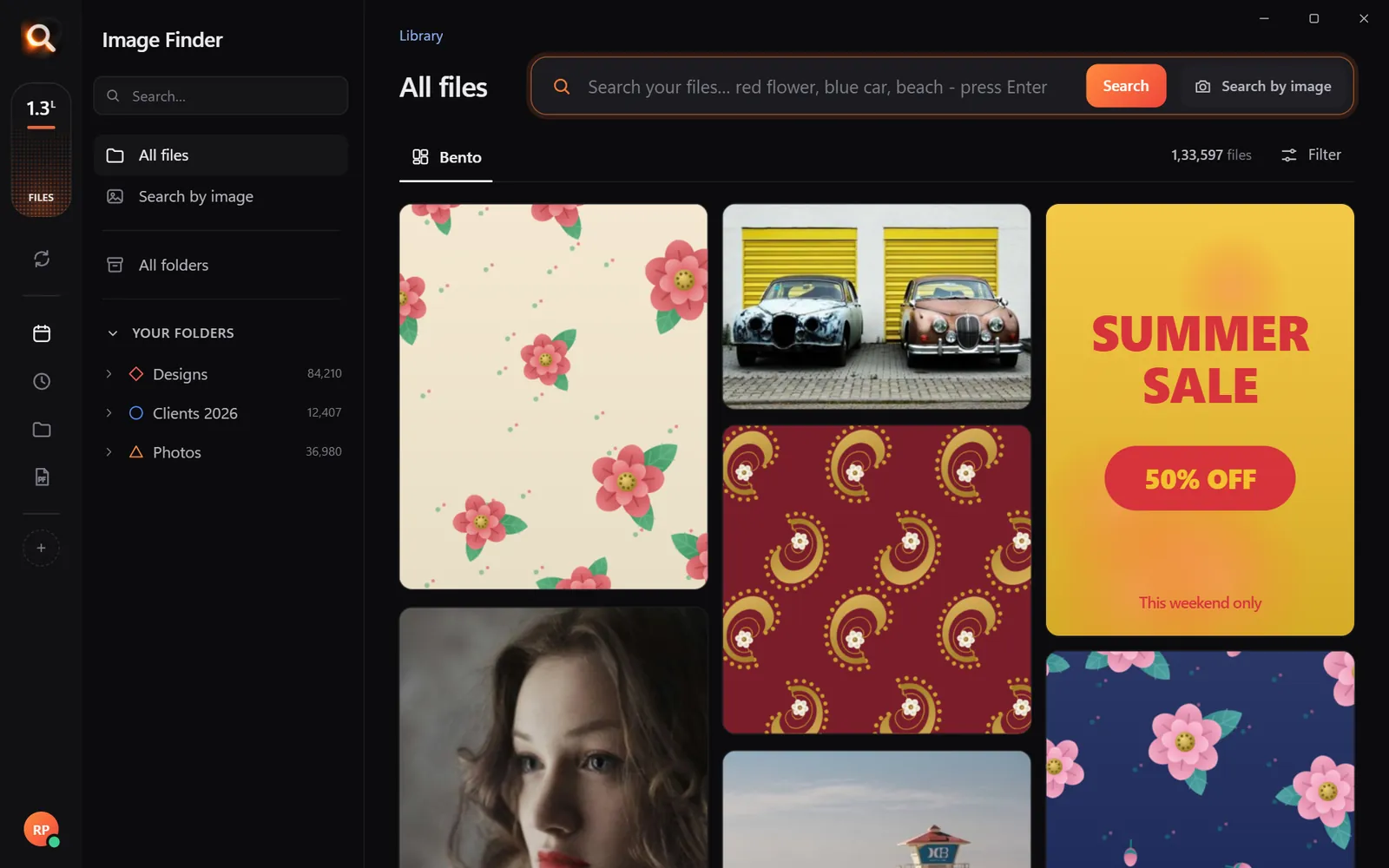
The Image Finder window with sample pictures

The real Image Finder window with sample files - click anywhere in it to try it yourself. In the app it searches hundreds of thousands of your own files in a fraction of a second, all on your PC. Open it full screen

Reads 107 kinds of files, straight from your folders

JPGHEICPNGRAWPSDAISVGPDFZIP

A photo search that sees what you see

It looks at every picture on your computer once - what is in it, the colours, the faces, the words - so you can find any of them by simply describing it. Even with a hundred thousand files.

+

Point

Choose folders or whole drives. No importing, no renaming.

Read

Every picture is looked at once, in the background.

red flower

Describe

Type what you see, drop in a picture, or pick a face.

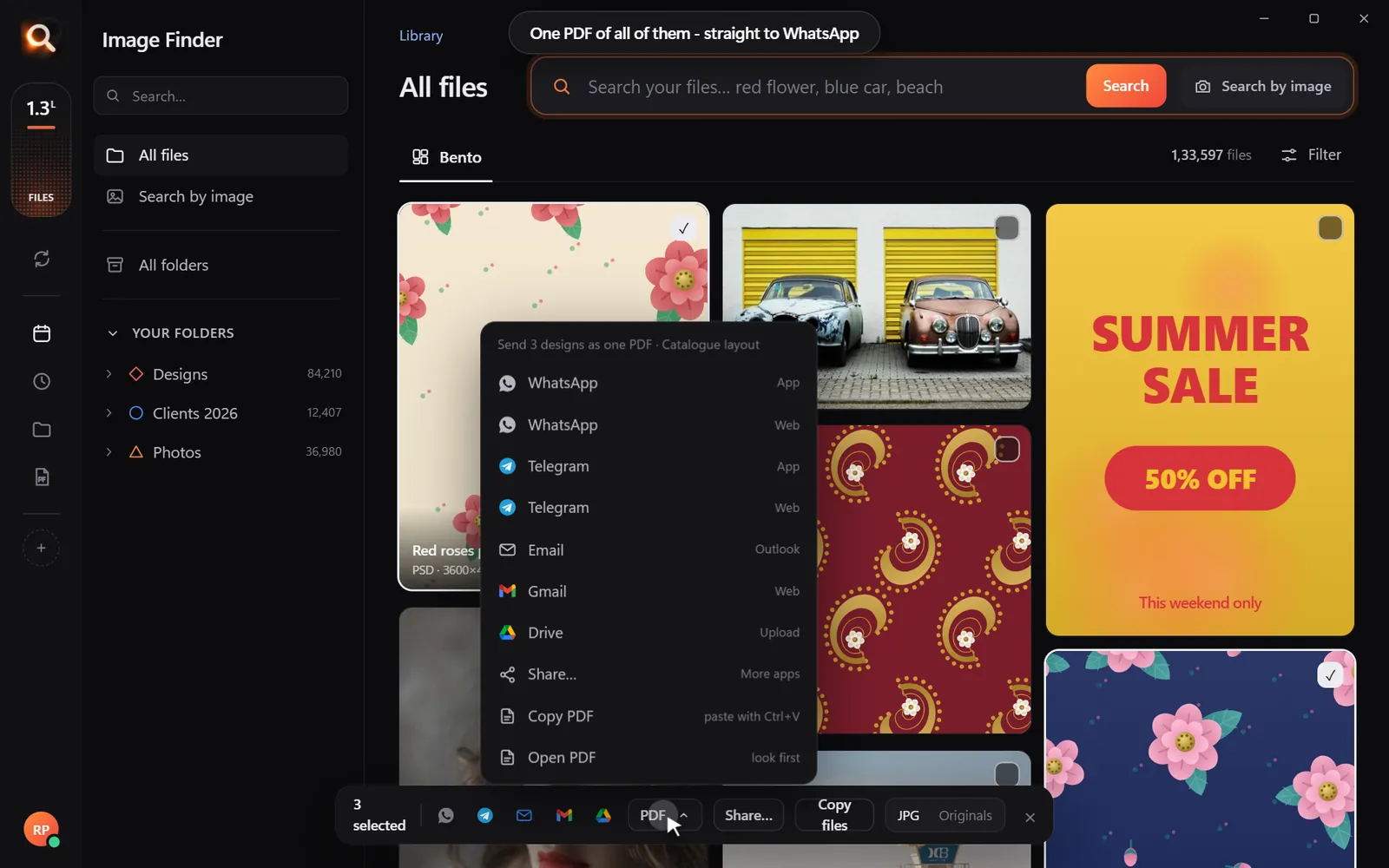
Open in appWhatsAppOne PDF

Use

Open it, copy it, or send many as one PDF.

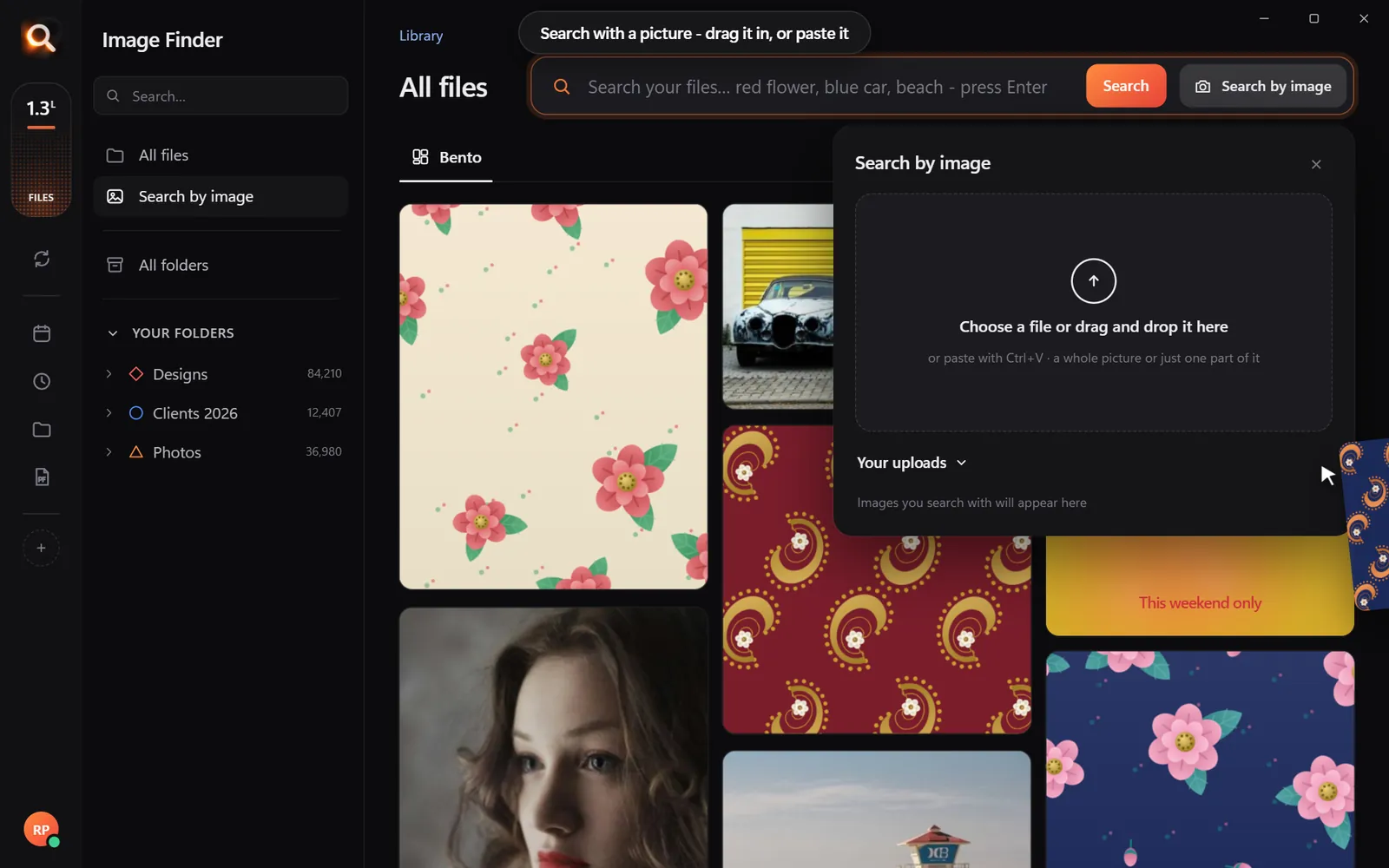
Search by picture

Have a copy? Find the original.

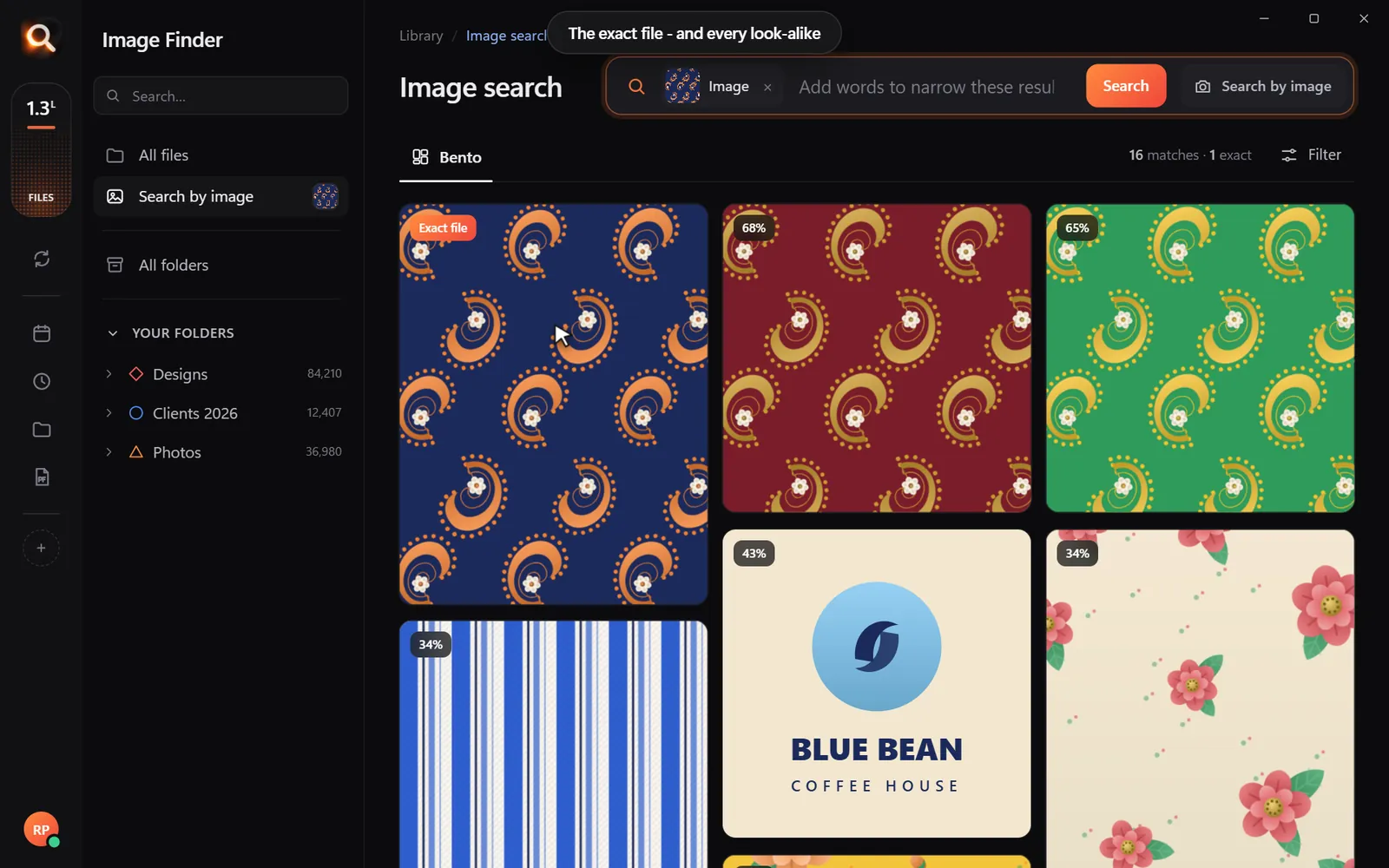
A blurry screenshot, a photo of a print, a crop someone sent you. Drop it in and get the full-size original - and every look-alike, even after crops and filters.

Search with a picture

Understands pictures the way you do - not by their file names.

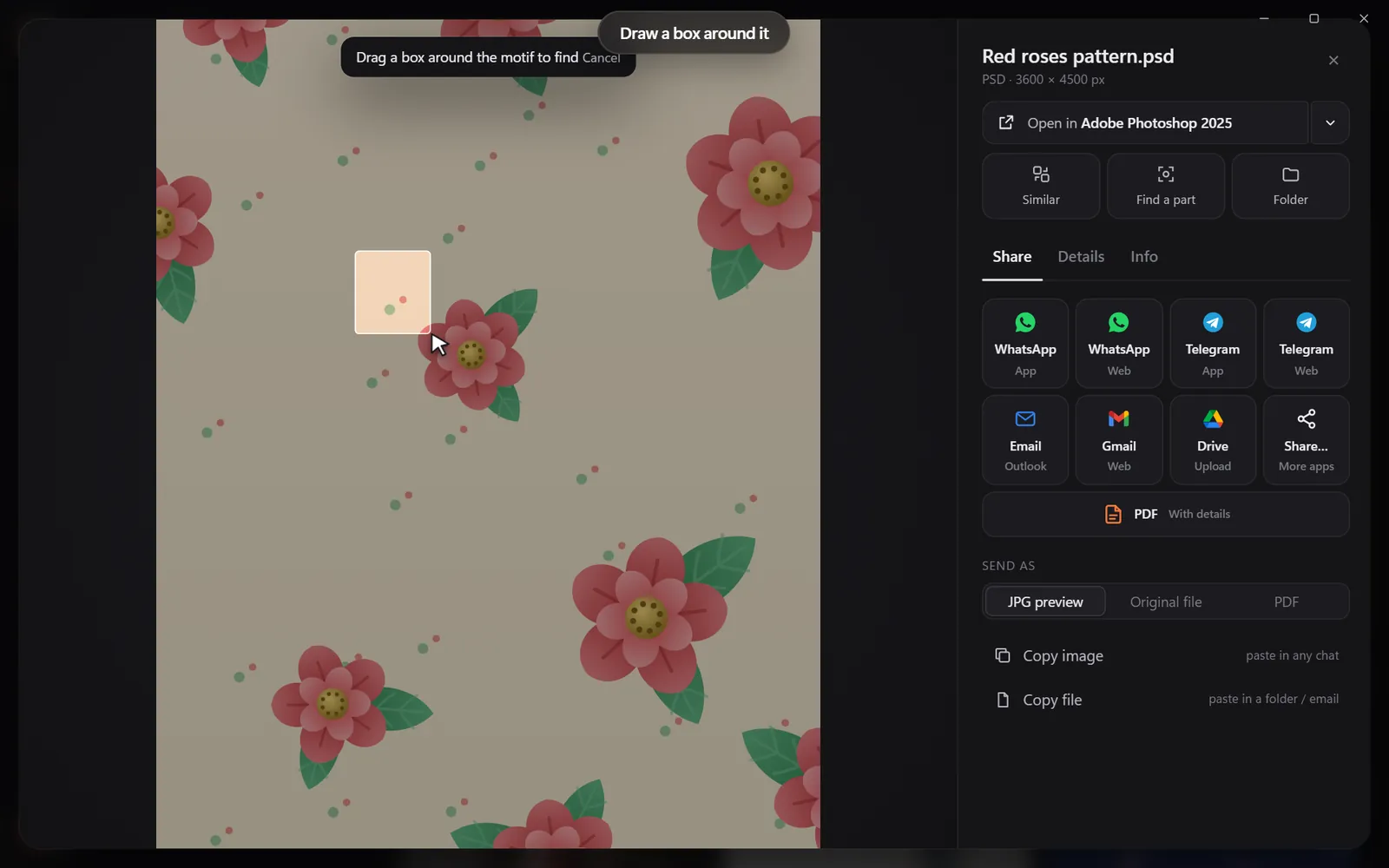
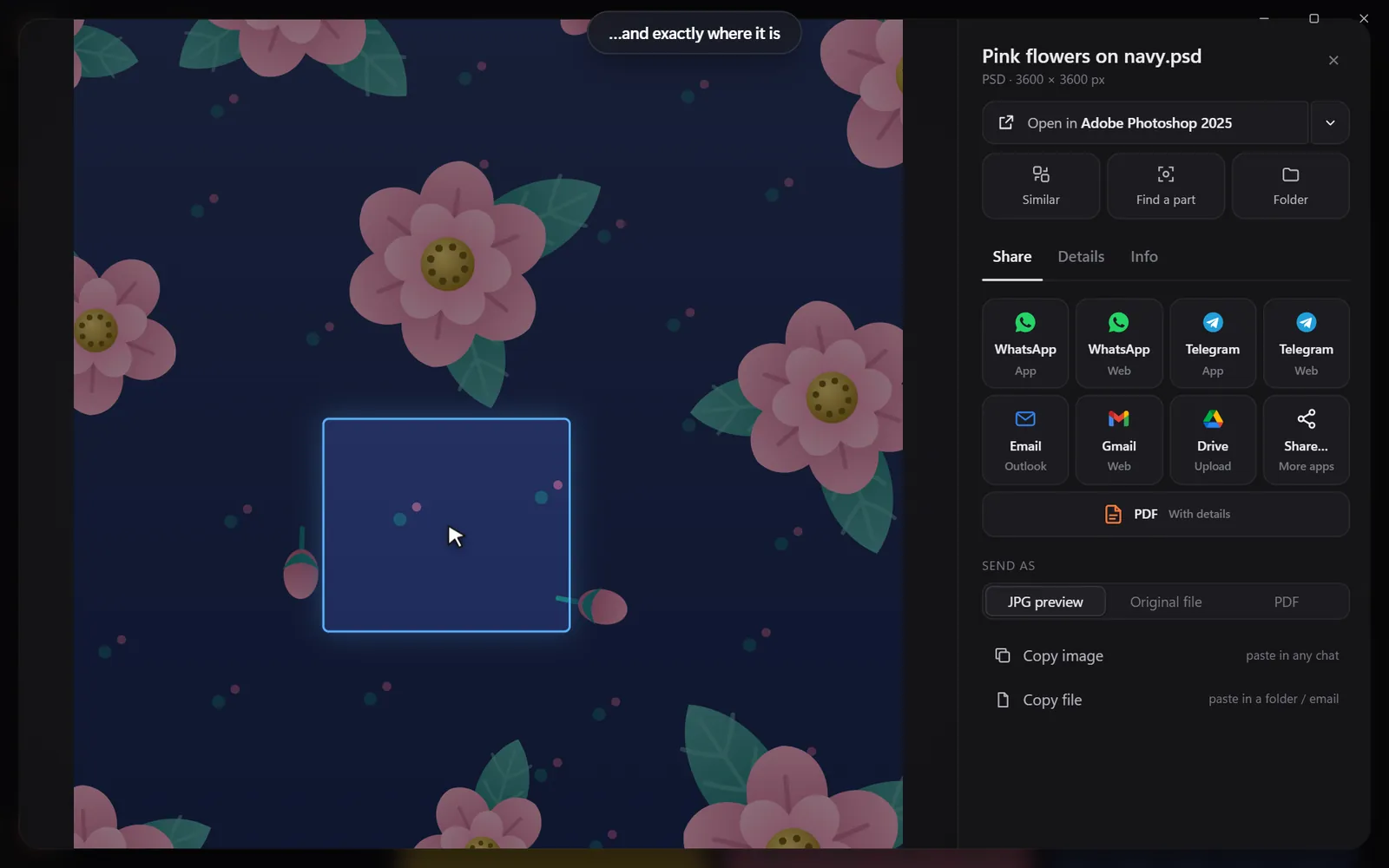
Drop in a pictureThe exact file and every look-alikeDraw a box around one partSee exactly where it is

Found it? Use it.

Every result opens in the app you made it in, copies with one click, or goes out as one tidy PDF.

Open it in your appSend many as one PDFShare in one click

Search

Search the way you remember

You never remember a file name. You remember a colour, a face, a word on a sign. That is enough.

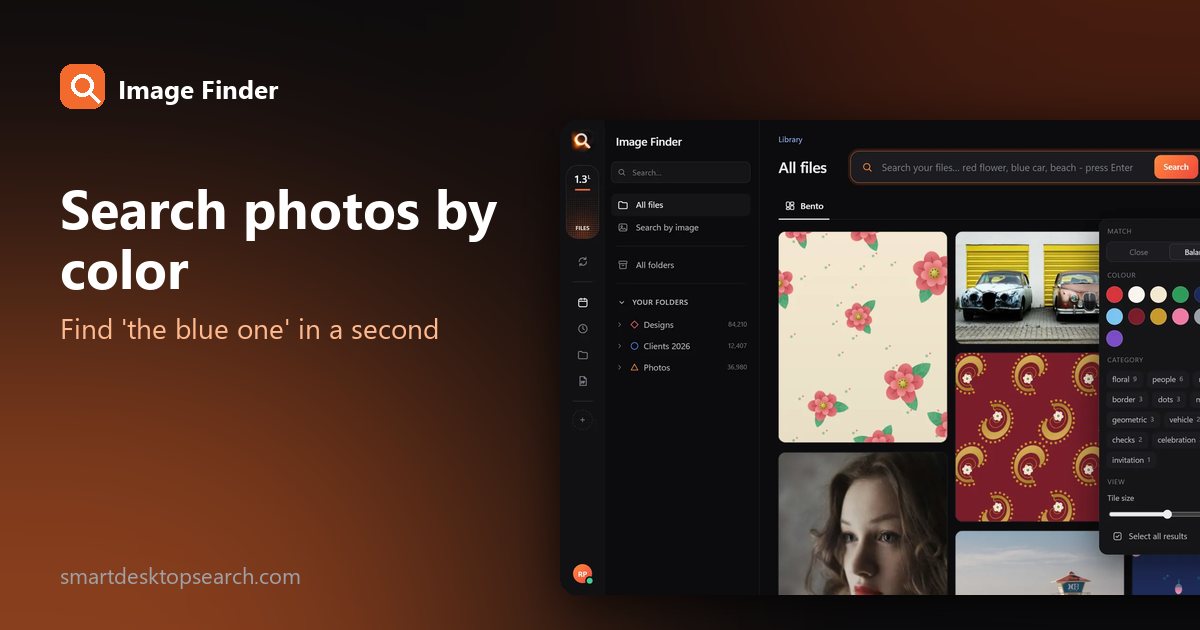
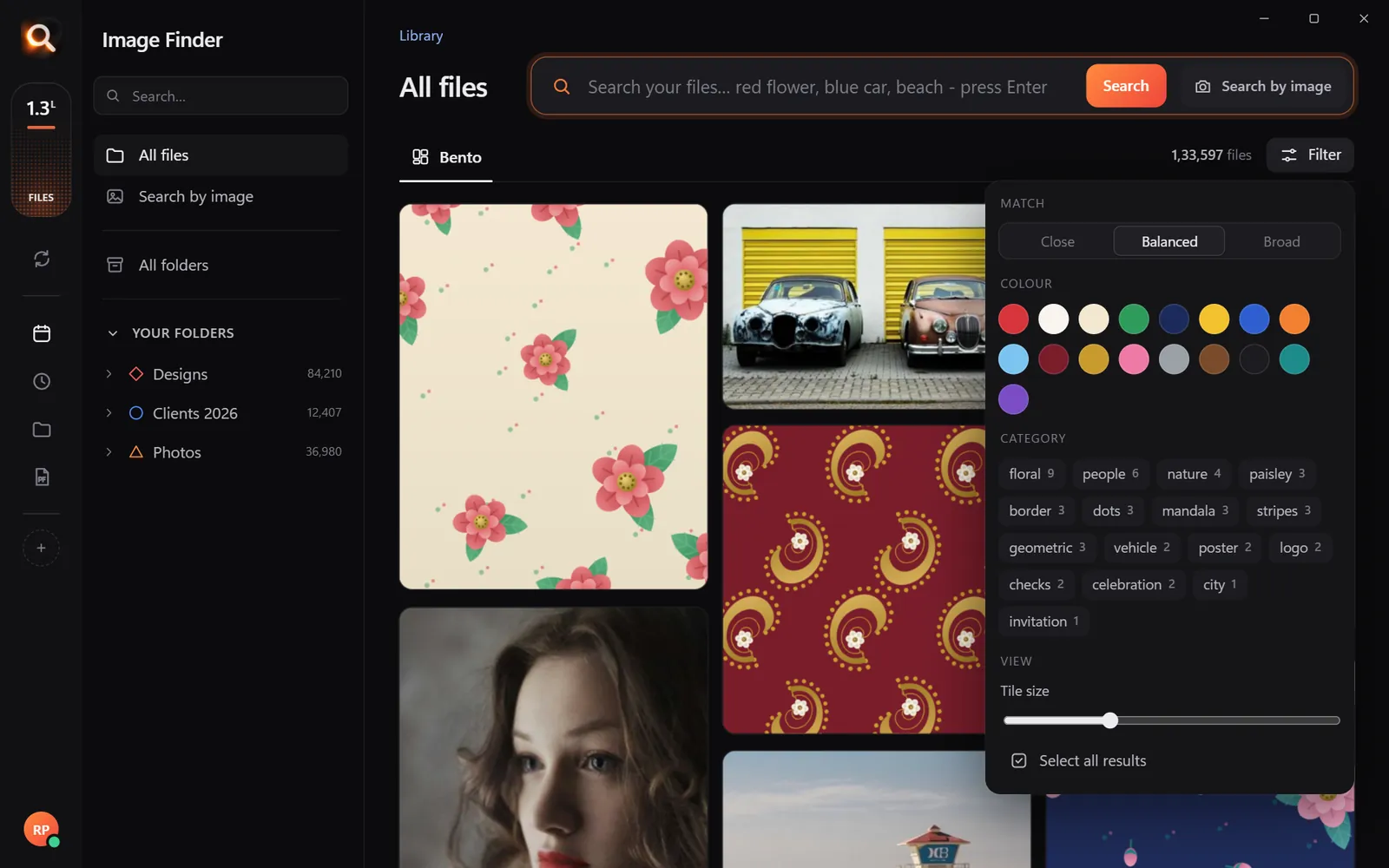
By colour

Pick a colour and the photos with the most of it come first - or narrow any search to it.

Searching by colour

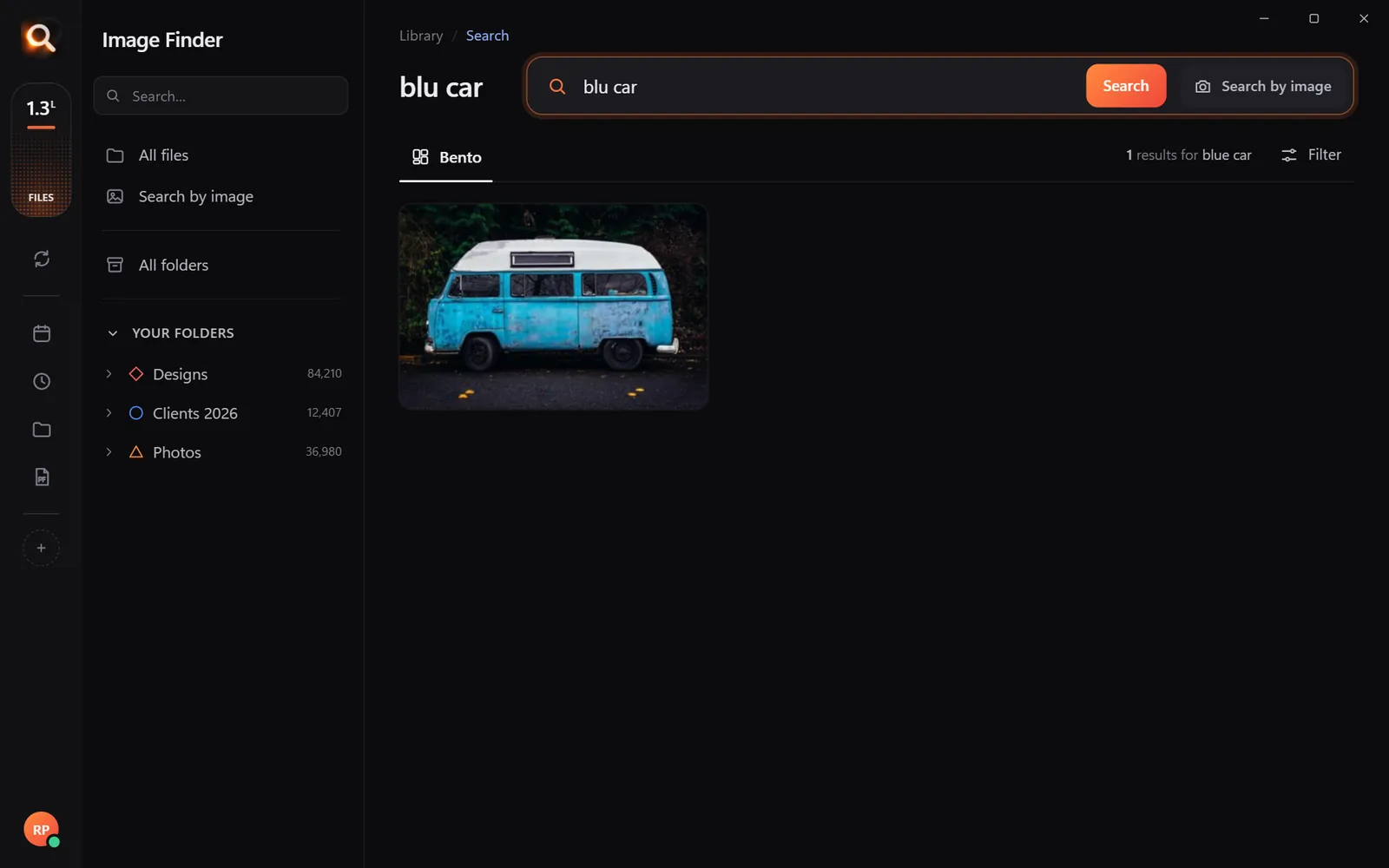
Typos welcome

"blu car" finds the blue car.

A search with a typo

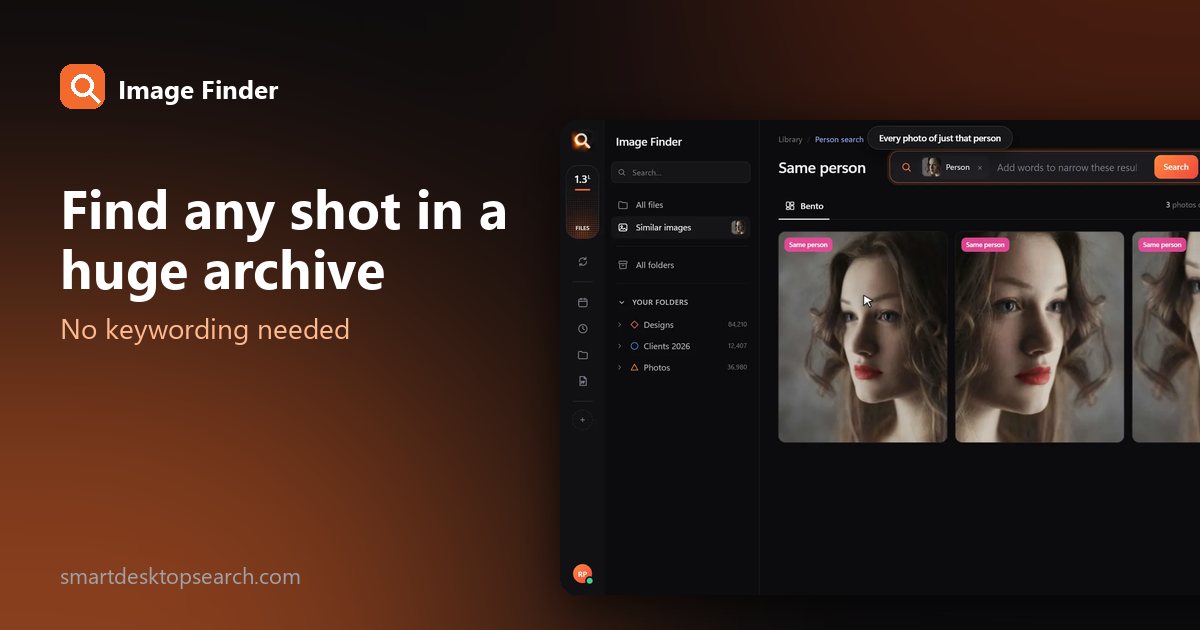
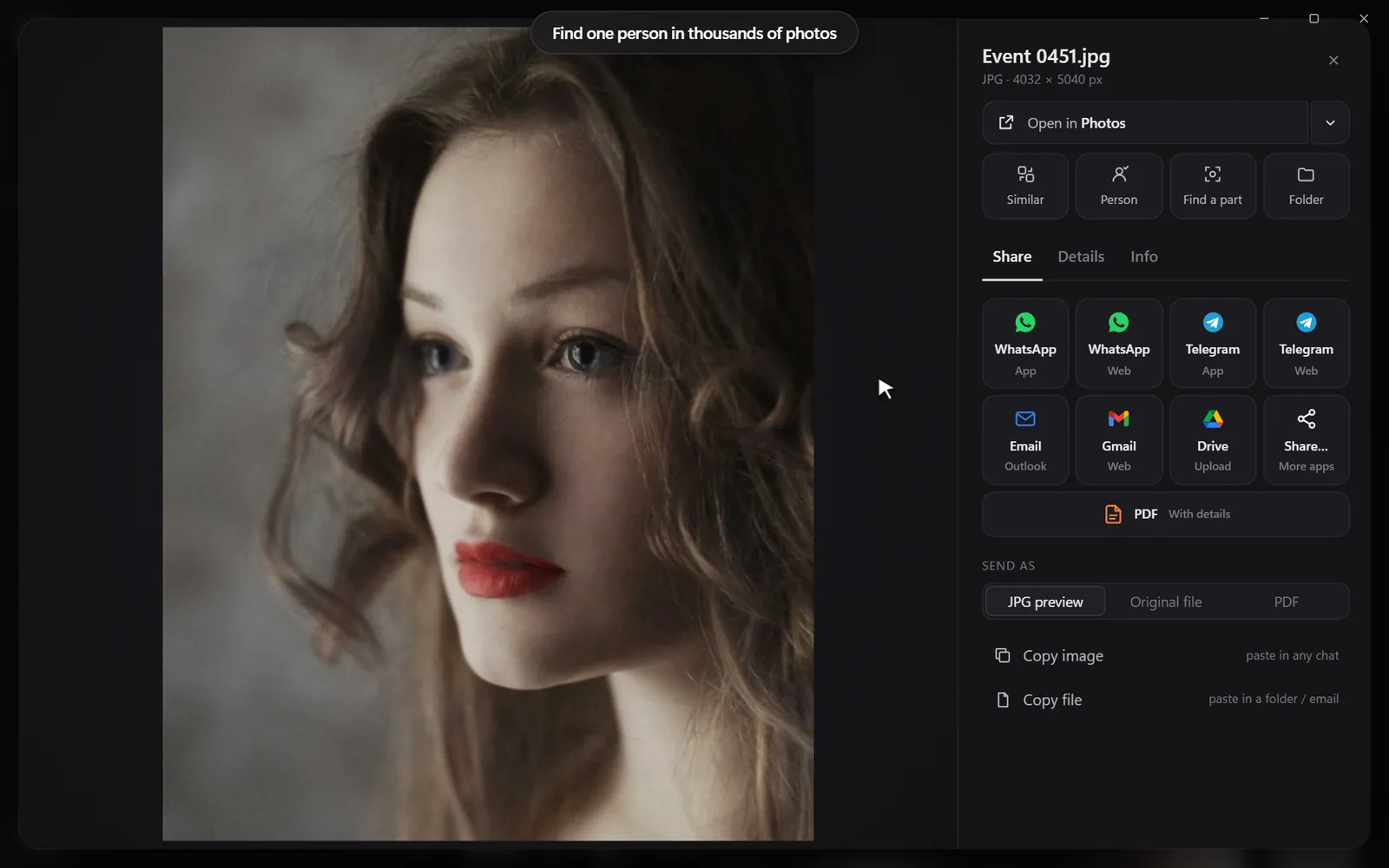
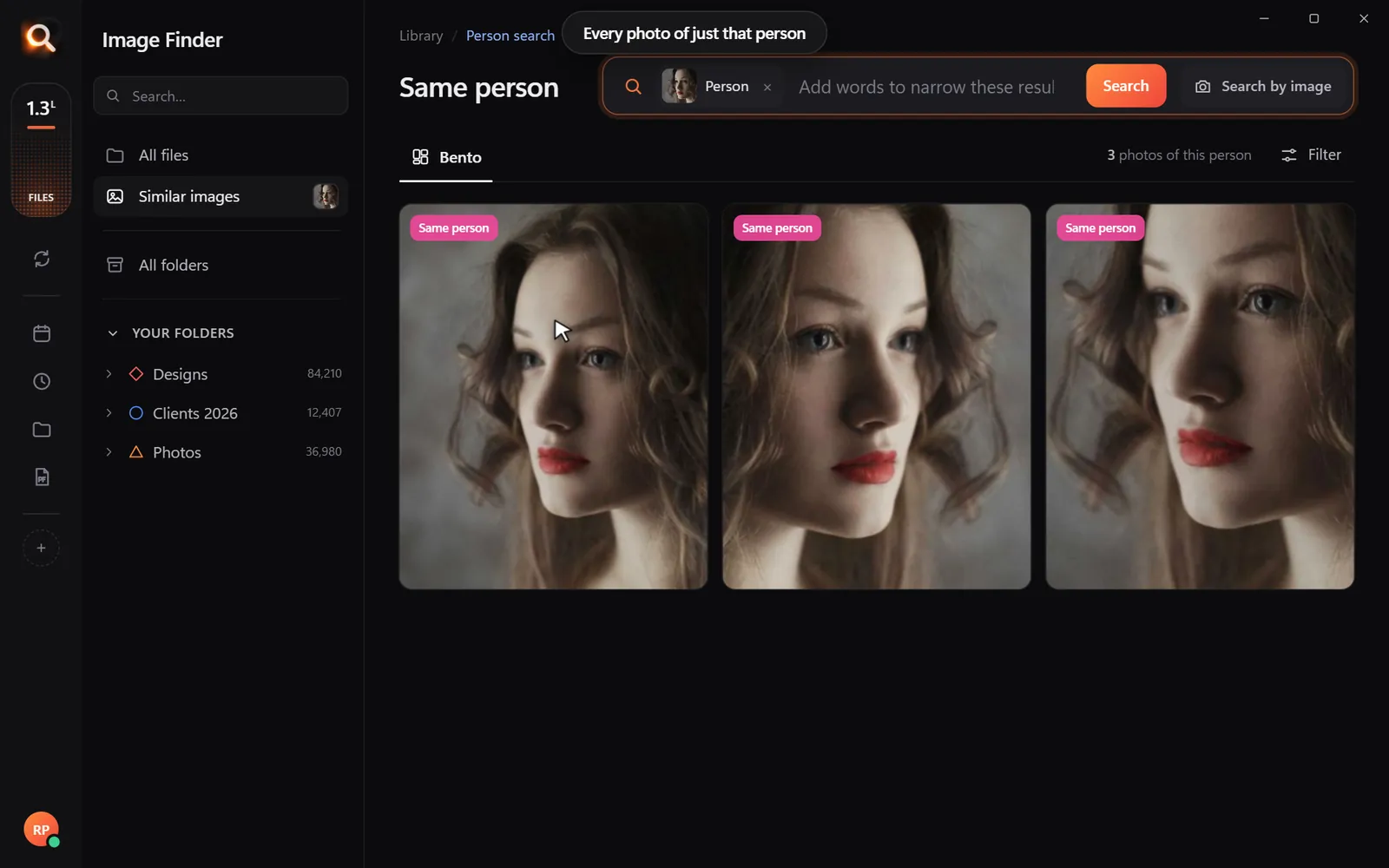
Every photo of one person

Pick a face once - from every folder and every drive.

Every photo of one person

Words inside pictures

Screenshots, receipts, posters and scanned PDFs.

Finding a poster by its words

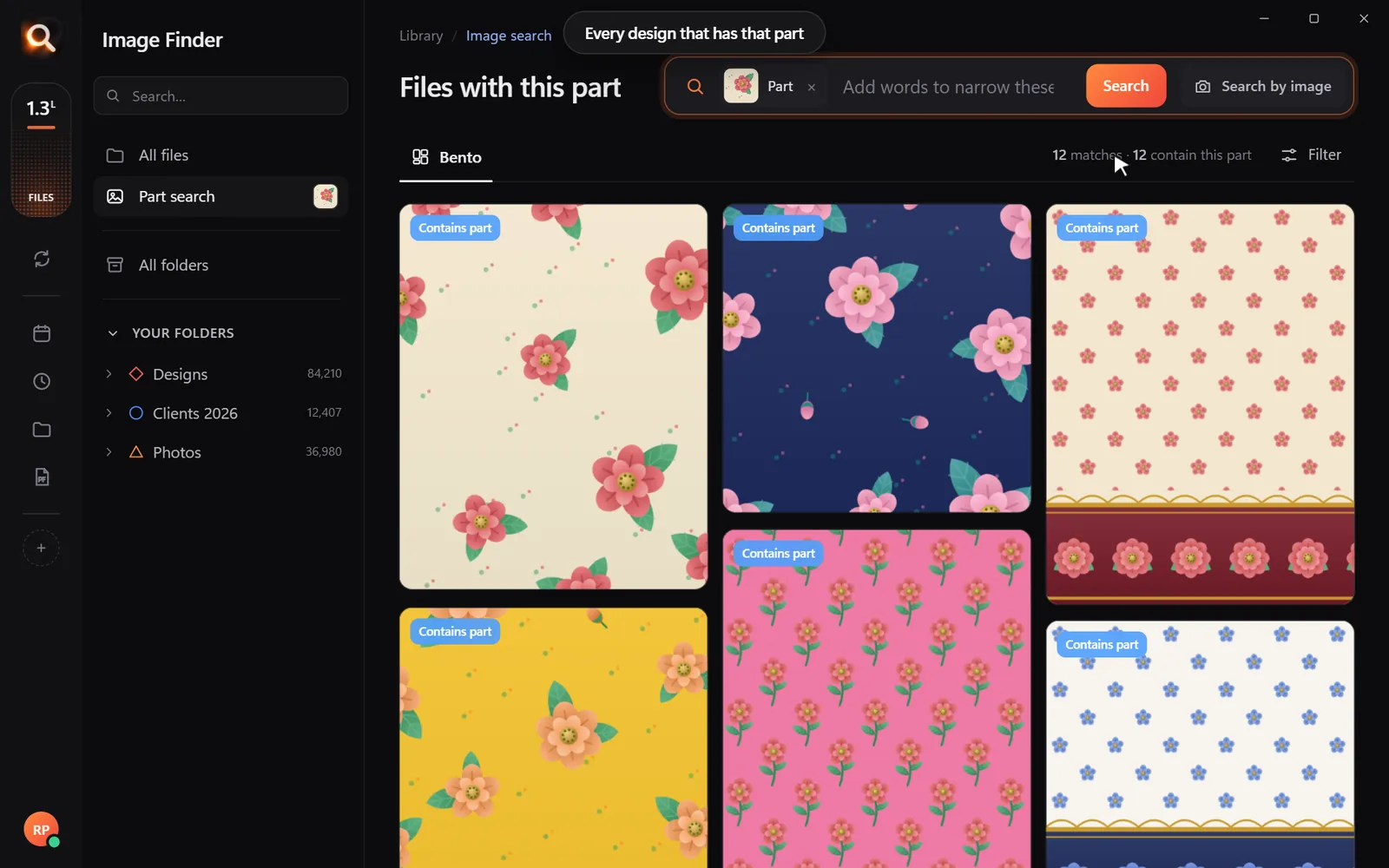
One part of a design

Draw a box around a logo or a motif.

Every design with the same part

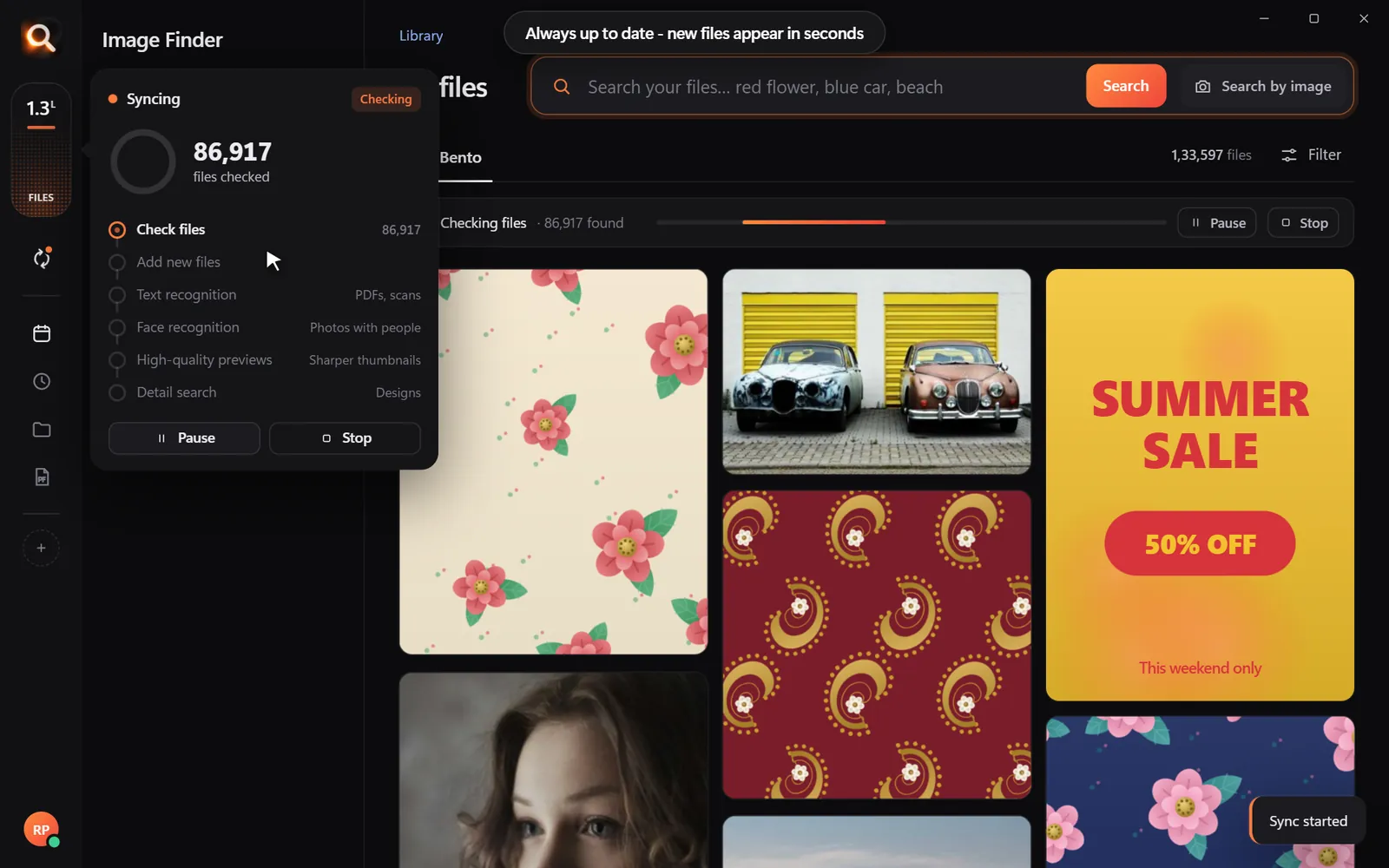
Always in sync

New files appear within seconds, by themselves.

Keeping folders up to date

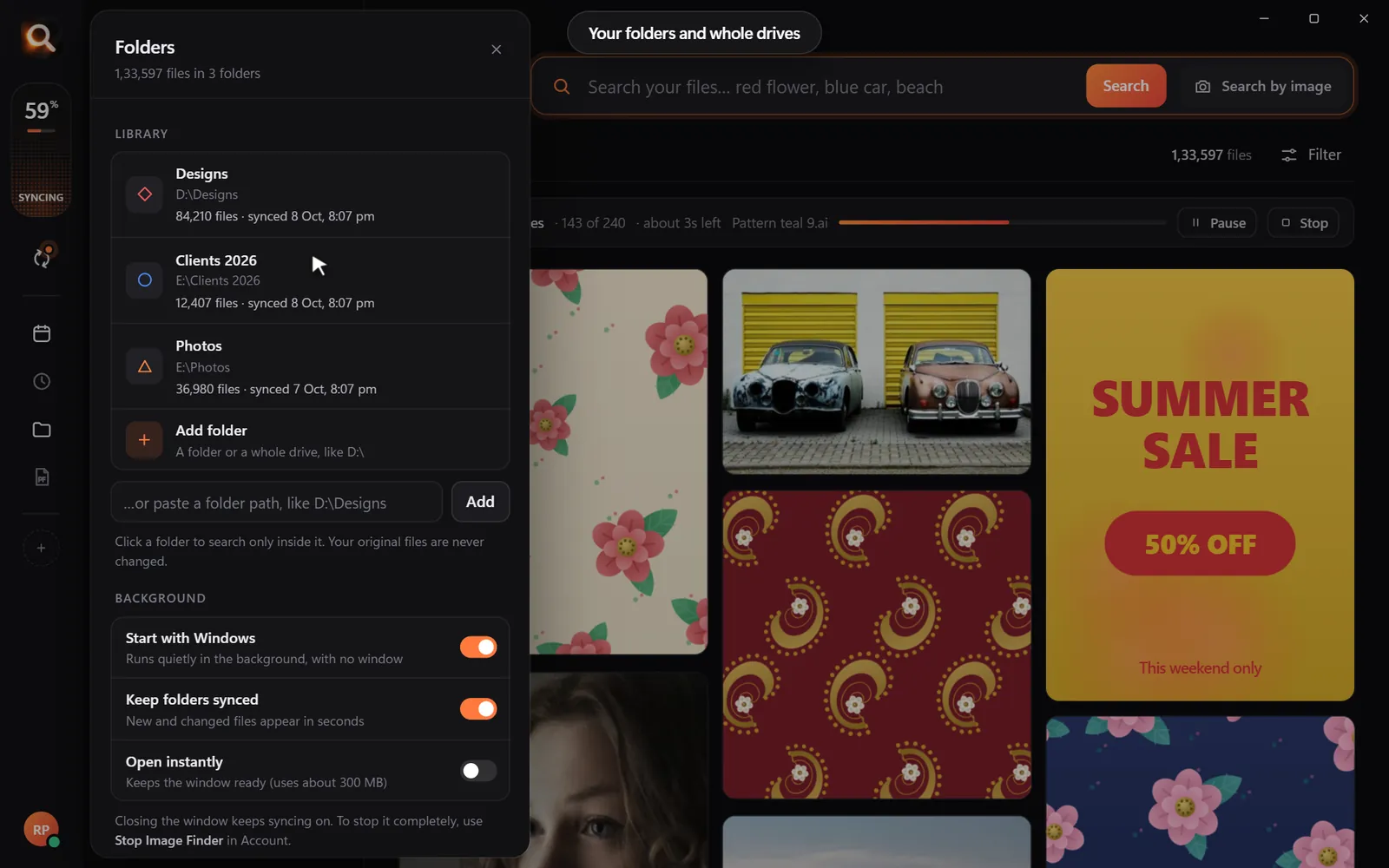
Folders, whole drives, external disks

Point it at Pictures, Desktop, a whole disk or an external drive. Unplugged drives stay findable, so you know which one to grab.

Choosing folders and drives
107 file types

JPG, PNG, HEIC, camera RAW, PSD, AI, EPS, SVG, PDF, Office files, fonts and videos.

Inside ZIP and RAR

Pictures inside archives are searchable - without unzipping anything.

External drives

Unplugged drives stay findable, so you know which one to grab.

Always up to date

New and changed files appear within seconds, by themselves.

A tenth of a second

Search 100,000+ files about as fast as you can type.

Typos welcome

"blu car" finds the blue car. The meaning matters, not the spelling.

Steps aside

It reads your library once in the background and pauses while you work.

Windows & Mac

Windows 10 and 11, Macs with Apple chips and Intel Macs.

Private

Your photos never leave your computer

The AI runs on your own PC or Mac. No upload, no cloud copy, no account full of your pictures that could leak.

Nothing uploaded

Your photos, designs and searches stay on your disk. Only your licence is checked now and then.

Works offline

On a plane, in a basement studio, when the internet is down - search works the same.

No subscription

Pay once for the time you choose. Nothing renews by itself, nothing to cancel.

Made for real libraries

Whatever you keep, find it by describing it

What people type - and what it saves them.

P
Photographerssearch for
the one by the window, spring shoot

Pick a client's face once - every shot of them, across every drive.

D
Graphic designerssearch for
blue logo on white

final_FINAL_v3.psd is not a search term. Find PSD, AI and SVG by how they look.

S
Online sellerssearch for
blue mug white background

Five thousand product shots, one blue mug - found in a second.

F
Familiessearch for
grandma at the cake table

Twenty years of photos, searchable without uploading a single one.

T
Teacherssearch for
fractions worksheet

Worksheets and slides, found by the words printed on them.

R
Real estate agentssearch for
white kitchen with island

Every listing photo by room, feature or view.

A
Agenciessearch for
summer sale poster

Ten people, one shared drive, nobody hunting for files any more.

U
Studentssearch for
mitosis slide

Every lecture screenshot, searched by the words on the slide.

Compare

Why not just use what you have?

Image FinderFile Explorer / FinderCloud photo apps
Find a photo by describing itNames onlyPhotos only
Search with a picture-Some
Design files: PSD, AI, EPS, RAWNames only-
Works with no internet-
Your photos stay on your computerUploaded
No monthly subscription-

Pricing

Just ₹1 a day. Paid once.

Every feature in every plan. No subscription - nothing renews by itself.

Every feature for just ₹1 a day - paid once, nothing renews by itself.

One licence works on one computer. Your days start when you activate it.

In India? See the India page - prices in ₹, pay by UPI

Questions? Answers.

How much does it cost?

Plans are priced per day in your own currency - every feature, paid once for the time you choose. Nothing is charged automatically, and nothing renews by itself.

Does it upload my photos?

No. Image Finder runs entirely on your computer. Your photos, designs and searches never leave it - there is no cloud copy to leak. Only your licence is checked online now and then.

Does it work on Mac?

Yes. There are versions for Macs with Apple M-series chips and for older Intel Macs, plus Windows 10 and 11.

Which files can it search?

107 types: JPG, PNG, HEIC (iPhone), WEBP, camera RAW (NEF, CR2, CR3, ARW, DNG), PSD, AI, EPS, SVG, PDF, Office files, fonts and videos - including files inside ZIP and RAR archives.

Is it a subscription?

No. You pay once for the time you choose; nothing renews by itself and there is nothing to cancel.

Do I have to organize or tag anything?

No renaming, no tagging, no importing. Point it at your folders or whole drives and it reads them by itself - new files appear within seconds.

Will it slow down my computer?

It reads your library once in the background and steps aside while you work. Searching takes about a tenth of a second, even with 100,000+ files.

Can I get a refund?

Yes - see the refund policy.

Image Finder

Find any design in a second

Every feature, no credit card. Find the first photo you have been looking for in the next five minutes.

Get it - ₹1 a day
Just ₹1 a day

Blog

Tips for finding, organising and sharing your designs faster.

← All posts

How to Search Pictures Inside ZIP and RAR Files Without Extracting Them

How to Search Pictures Inside ZIP and RAR Files Without Extracting Them

Archives are where old work goes to be forgotten: Project-2021-final.zip, client-delivery.rar, photos-backup.7z. You know a picture is in one of them - but which? Normally you would extract them one by one and look. Here is how to search images inside ZIP and RAR files without extracting anything.

Why archives are a search black hole

  • File Explorer and Finder show what is in a ZIP, but they cannot search inside many archives at once, and they cannot see RAR or 7z at all without extra apps.
  • Extracting everything doubles the space your files take and buries you in folders.
  • The names inside are often as unhelpful as DSC_0001.JPG.

Search archives like folders

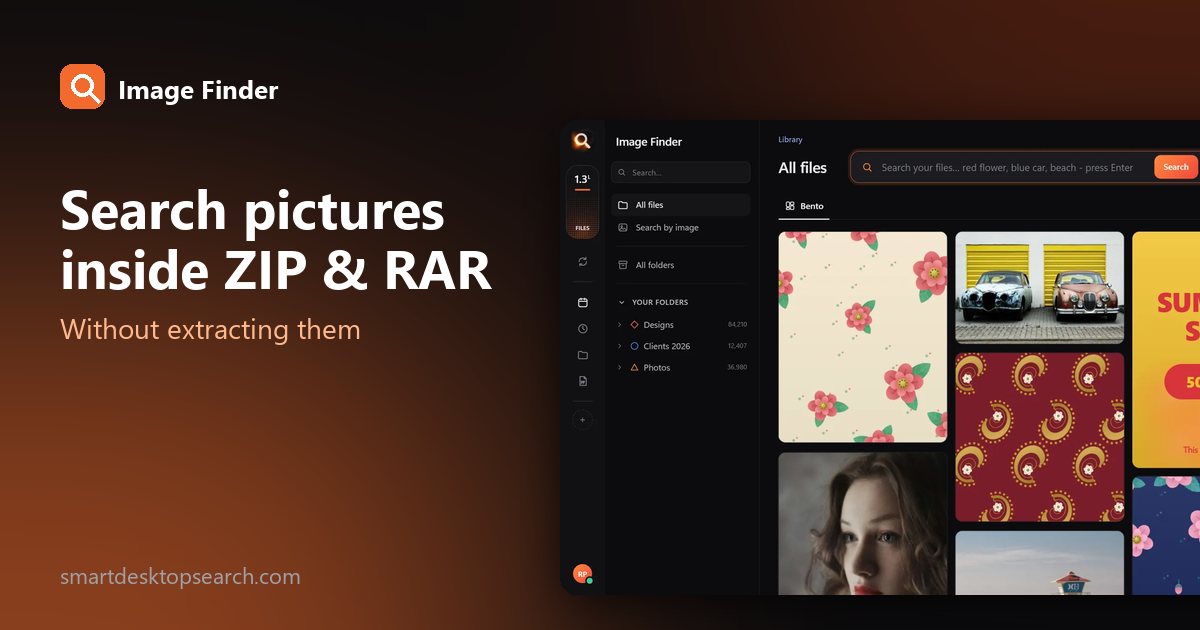
Image Finder treats every ZIP, RAR, 7z and TAR file in your folders like a folder: the pictures, designs and documents inside are in the library as files of their own. You search them exactly like any other picture:

  • describe what is in it - "blue logo", "beach";
  • search with a similar picture;
  • pick a face;
  • search the words printed in it.
Search the library - pictures inside archives come up like any other file
Archives work like folders: what's inside is searchable.
Find a picture in a pile of archives 0/4

Good to know

ArchiveSearchable
ZIPYes
RARYes
7zYes
TARYes

Inside them, the same 107 file types work: photos, RAW, HEIC, PSD, AI, PDF pages and Office files. File names in any language are read correctly.

Where archives usually hide

  • Client deliveries downloaded as ZIP files and never unpacked.
  • Old project backups packed to save space.
  • Photo exports from cloud services, which usually arrive as ZIP files.
  • Downloaded design packs - fonts, textures, mockups, icons.
  • Email attachments saved as RAR or 7z.

Search tips for archive-heavy libraries

Make old archives useful again 0/4

Why not just extract everything?

Extract everythingSearch inside archives
Uses double the disk spaceArchives stay as they are
Creates folders full of copiesNo extra folders
Takes time before you can lookSearch right away
Easy to lose track of originalsThe archive is the original

A quick history of why so much work is zipped

Archives became the default way to move and store work for good reasons:

  • Email and upload limits pushed people to zip folders before sending.
  • Client deliveries often arrive as one ZIP from a file-transfer service.
  • Backups are smaller and tidier as one archive per project.
  • Old drives get packed into a single RAR "to sort out later" - which rarely happens.

The result: in many studios and offices, a big share of past work is sealed inside archives that nobody can search.

ZIP vs RAR vs 7z in one table

FormatMade byOpens on Windows without extra appsOpens on Mac without extra apps
ZIPEveryoneYesYes
RARWinRARNewer Windows 11 versions can open itNo
7z7-ZipNewer Windows 11 versions can open itNo
TAR / TAR.GZMostly Linux and serversNewer Windows versionsYes

Opening one archive is easy. Searching inside hundreds of them at once is the hard part - and that is what Image Finder does.

Real jobs this solves

"I know the logo is in one of the 2019 client ZIPs"

Search "logo" (or drop in a picture of it) and filter results to your archive folder. The archive shows as a folder in the result, so you know which ZIP it lives in.

"The photographer sent the photos as a RAR and I lost the email"

If the RAR is anywhere in your added folders, describe a shot from the session - "bride and groom under trees" - and the photos inside appear.

"Which archive has the PDF with this table?"

Image Finder reads every page of PDFs and Office files inside archives too, including the words printed on scanned pages. Search a phrase from the document.
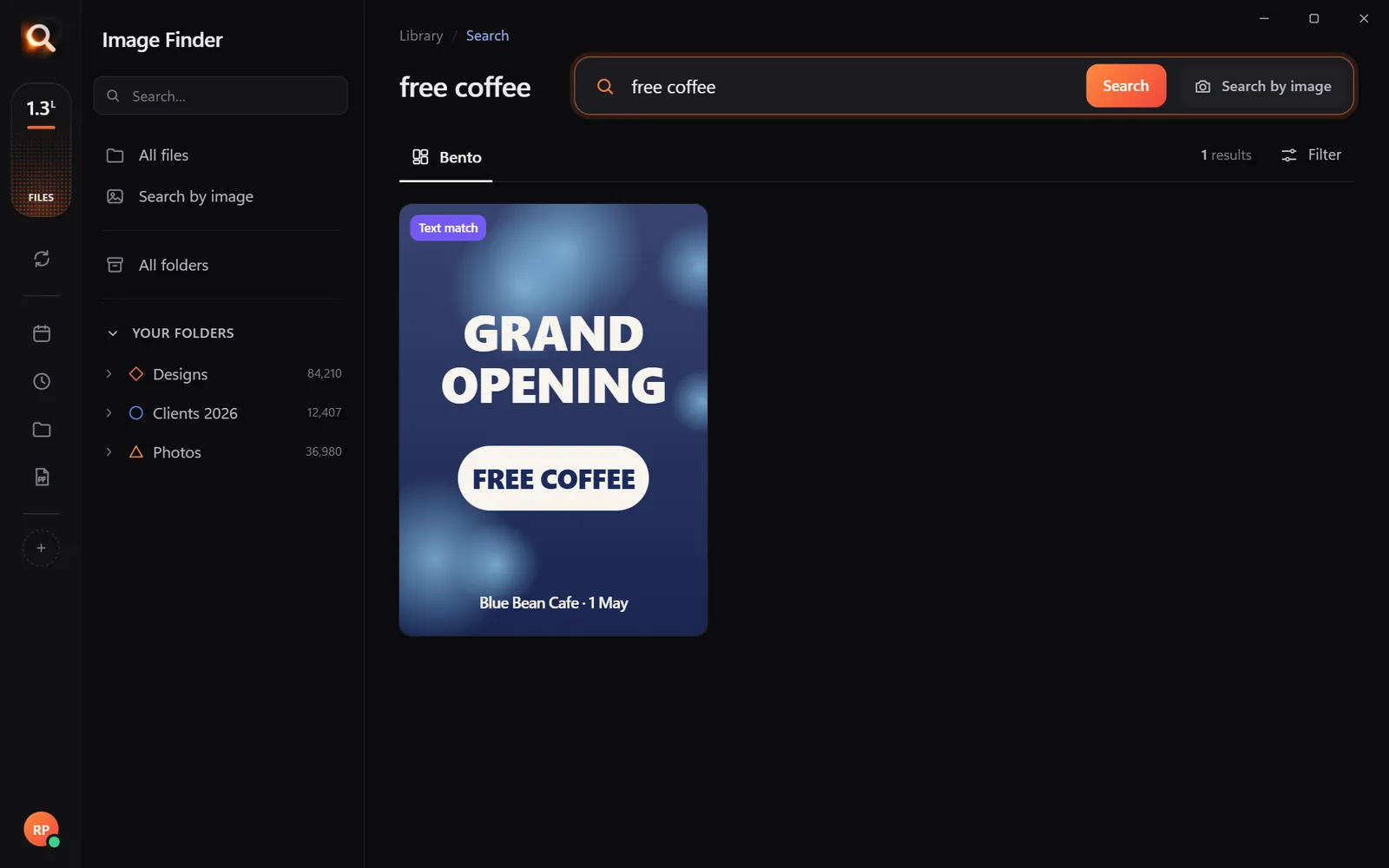
Words inside documents and pictures are searchable
Words printed in pictures and pages are searchable - inside archives too.

Open or send just one file

When you open a file from inside an archive, Image Finder unpacks a copy of that one file and opens it. The same happens when you share it: the copy goes to WhatsApp, email or a PDF - the archive stays exactly as it was.

Share a result straight from the search
Send a picture from inside an archive without unpacking everything.

Tidy up after you find things

A gentle archive clean-up 0/4

Questions people ask

Can Windows search inside ZIP files?

File Explorer can open a ZIP like a folder, but it does not search pictures inside many archives at once, and it cannot open RAR or 7z without other software.

Do I need to extract archives first?

No. Image Finder looks inside them where they are and only unpacks a copy of a file when you open or share it.

Can I search inside 7z files on a Mac?

Yes. Image Finder looks inside ZIP, RAR, 7z and TAR on both Windows and Mac - no extra unzip app needed.

Does it find documents inside archives too?

Yes. PDF and Office files inside archives are read page by page, so you can search the words in them.

Search inside ZIP, RAR and 7z without unpacking.

Windows and Mac. Private, offline, no subscription.
Try Image Finder

Find any photo, design or PDF on your computer in seconds. From ₹1 per day.

See plans
Image search softwareThe image search software your folders were missing.Five ways to find a file - words, a picture, one part of a design, a face, a colour - in one small app for Windows and Mac.

More posts

The 3-2-1 Photo Backup Plan: Protect Every Photo (and Keep Them Searchable)

The 3-2-1 Photo Backup Plan: Protect Every Photo (and Keep Them Searchable)

Drives fail, laptops get stolen, accounts get locked. The simple 3-2-1 rule that professionals use to protect photos - set up in an afternoon, with a library you can still search.

9 Dec 2026
How Photographers Find Any Shot in a Huge Archive (Without Keywording Everything)

How Photographers Find Any Shot in a Huge Archive (Without Keywording Everything)

Ten years of shoots, a client wants one photo, and nothing is keyworded. How working photographers find any shot by describing it, by face, or by a reference picture.

15 Oct 2026
How to Search Photos and Designs by Color on Your Computer

How to Search Photos and Designs by Color on Your Computer

Need 'the blue one'? Here is how to find every picture on your computer with a certain color - for brand work, mood boards, catalogs and decorating.

14 Oct 2026