


Try itFeaturesPricingHow it works QuestionsBlogToolsSign in DownloadContact usRefunds
Try it in your browser

Find any photo on your computer. Just describe it.

Type what you see - “dog on the beach”, “receipt from Costco” - and the right photo, design or PDF appears in a second. Nothing uploaded, nothing to rename.

Just ₹1 a day

Windows 10+ & macOSPay once - no subscription

The Image Finder window with sample pictures

The real Image Finder window with sample files - click anywhere in it to try it yourself. In the app it searches hundreds of thousands of your own files in a fraction of a second, all on your PC. Open it full screen

Reads 150+ kinds of files, straight from your folders

JPGHEICPNGRAWPSDAISVGPDFZIP

A photo search that sees what you see

It looks at every picture on your computer once - what is in it, the colours, the faces, the words - so you can find any of them by simply describing it. Even with a hundred thousand files.

Image Finder logo+
Image Finder app icon

Point

Choose folders or whole drives. No importing, no renaming.

Read

Every picture is looked at once, in the background.

red flower

Describe

Type what you see, drop in a picture, or pick a face.

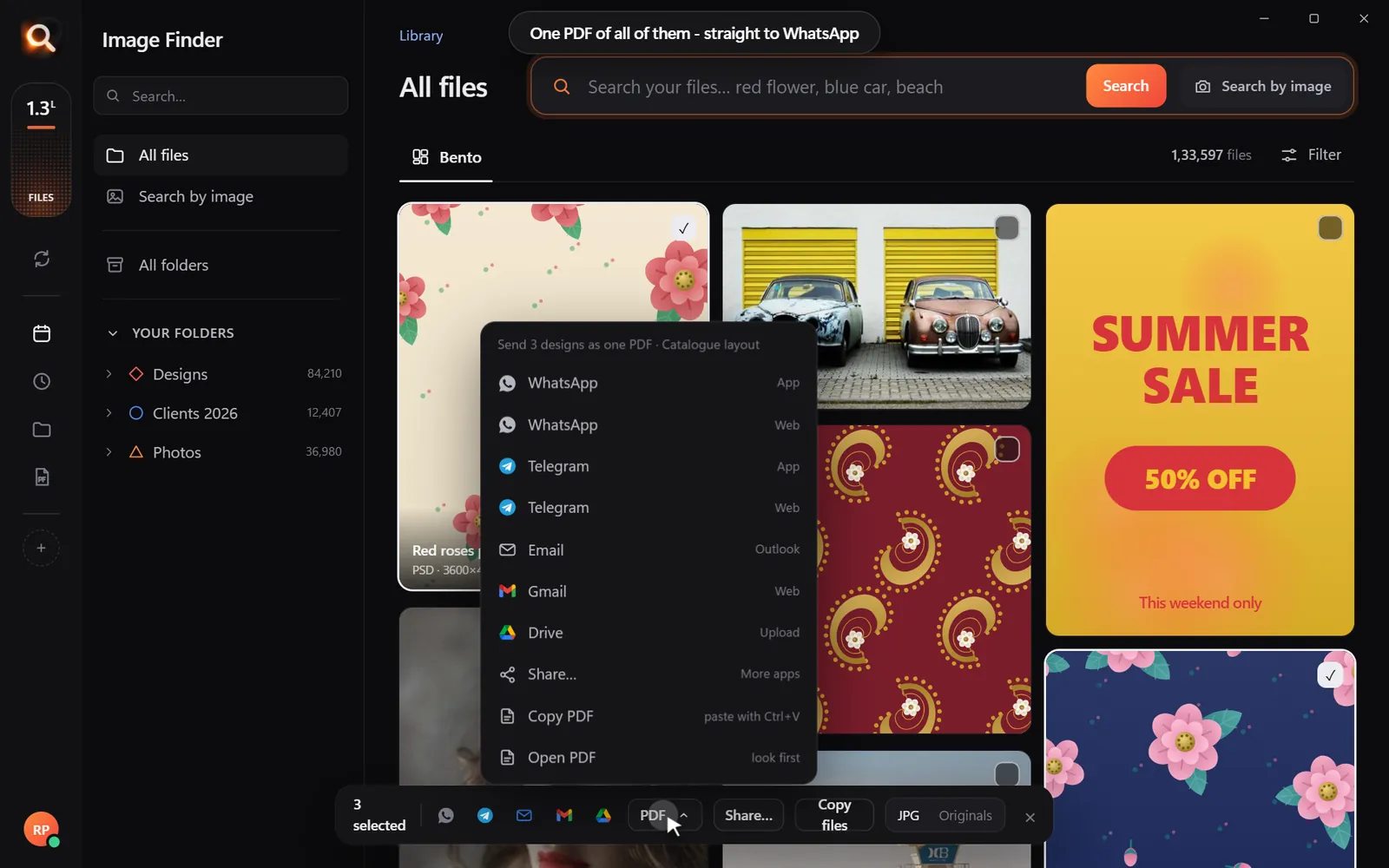
Open in appWhatsAppOne PDF

Use

Open it, copy it, or send many as one PDF.

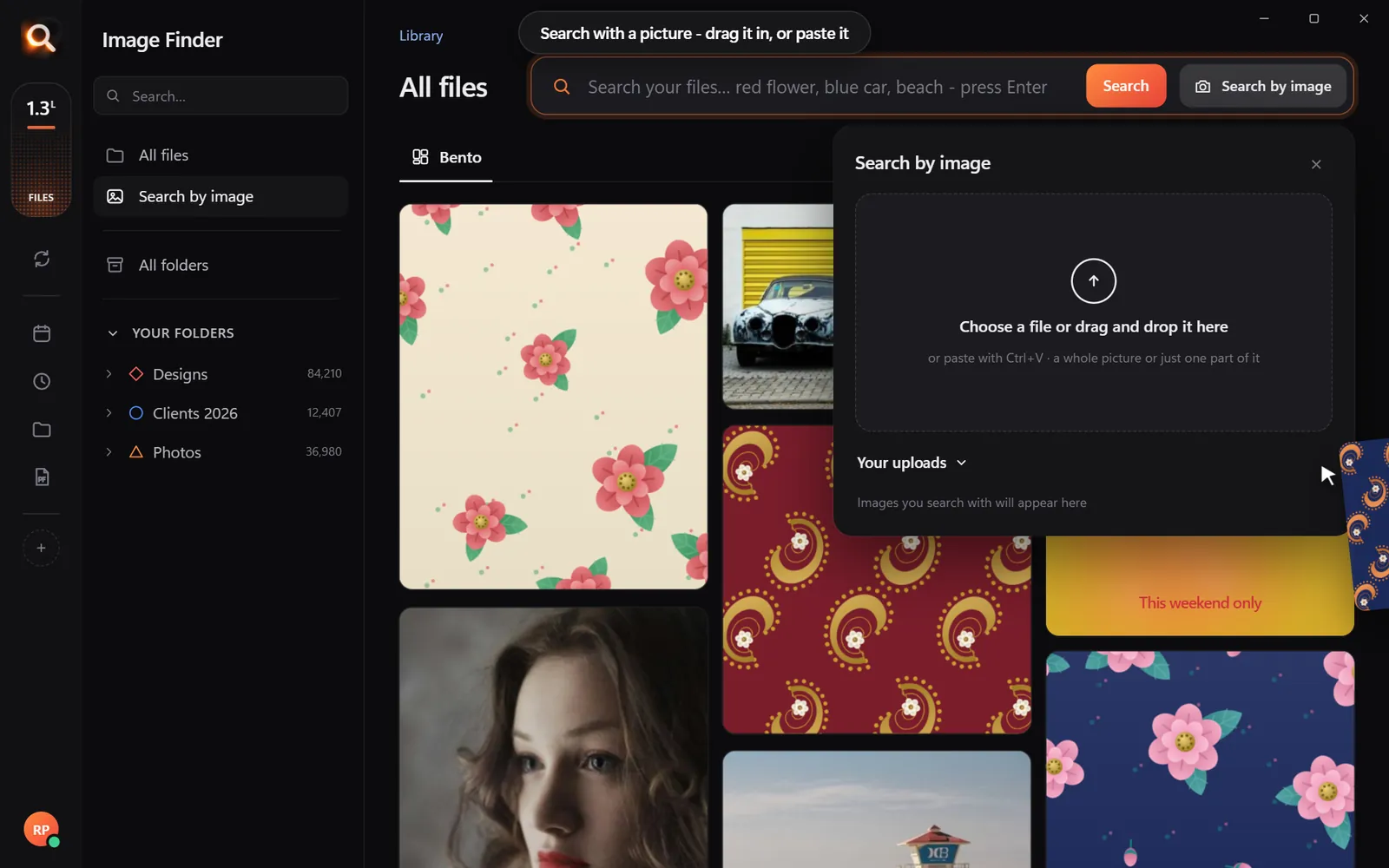
Search by picture

Have a copy? Find the original.

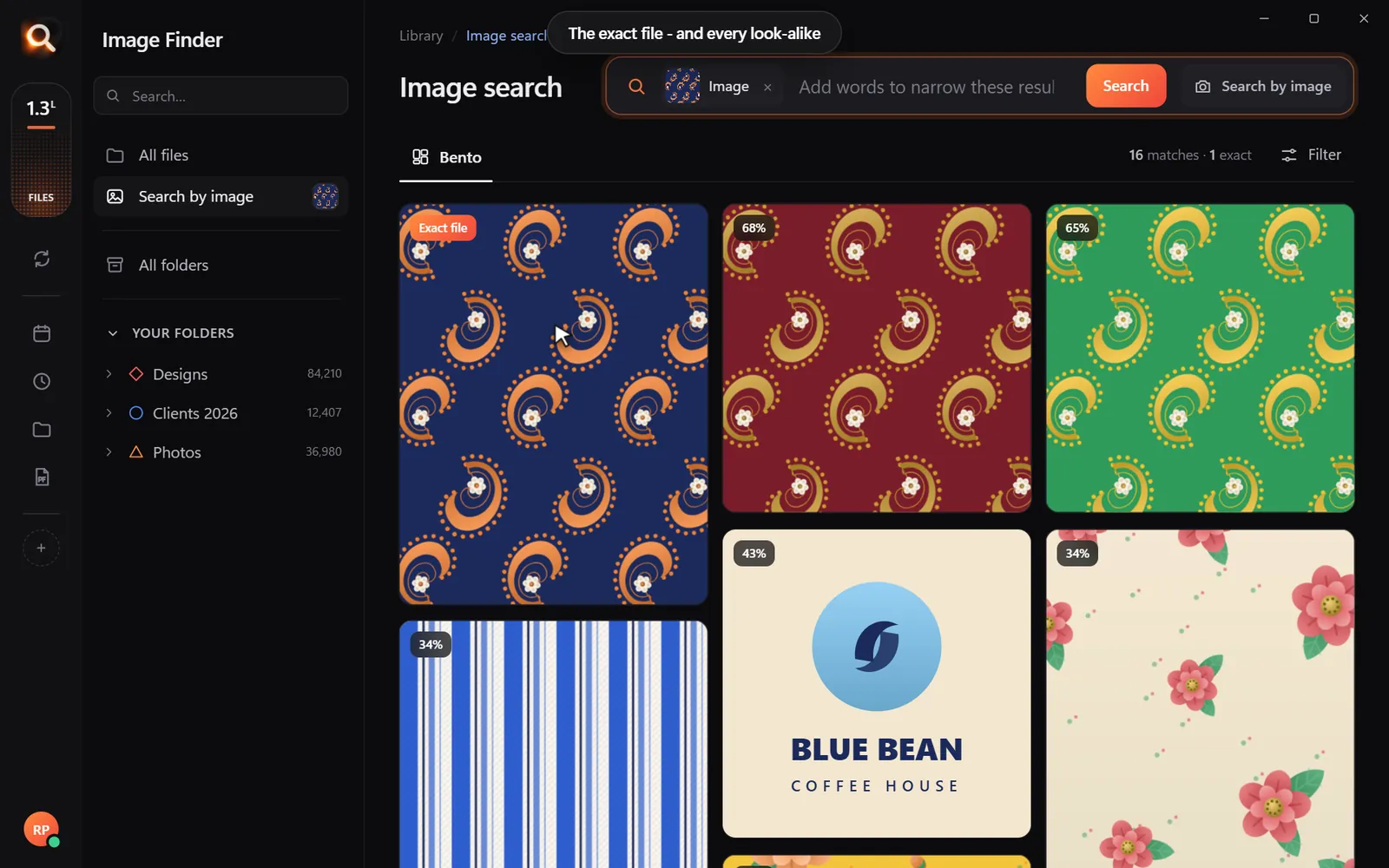
A blurry screenshot, a photo of a print, a crop someone sent you. Drop it in and get the full-size original - and every look-alike, even after crops and filters.

Search with a picture

Understands pictures the way you do - not by their file names.

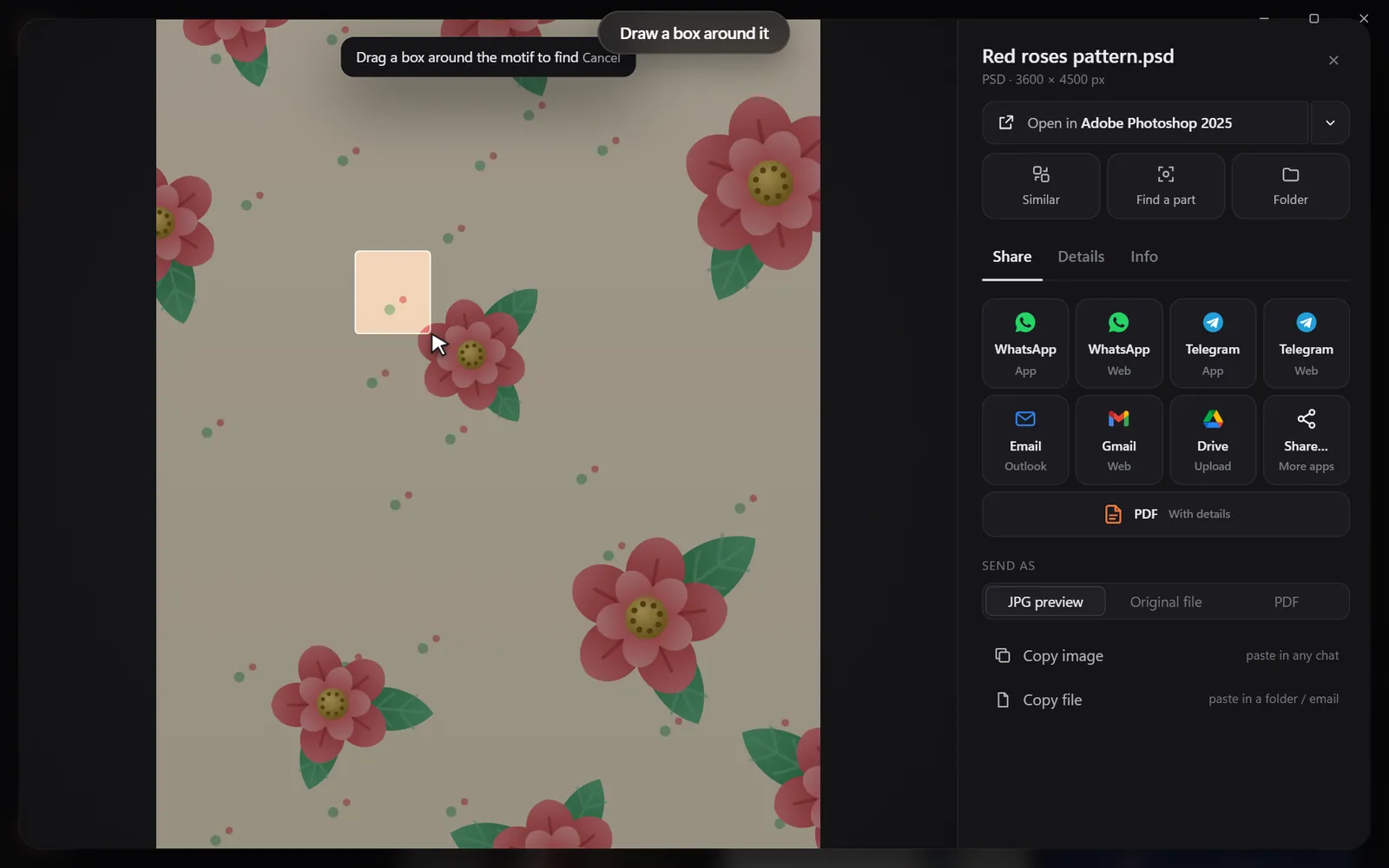
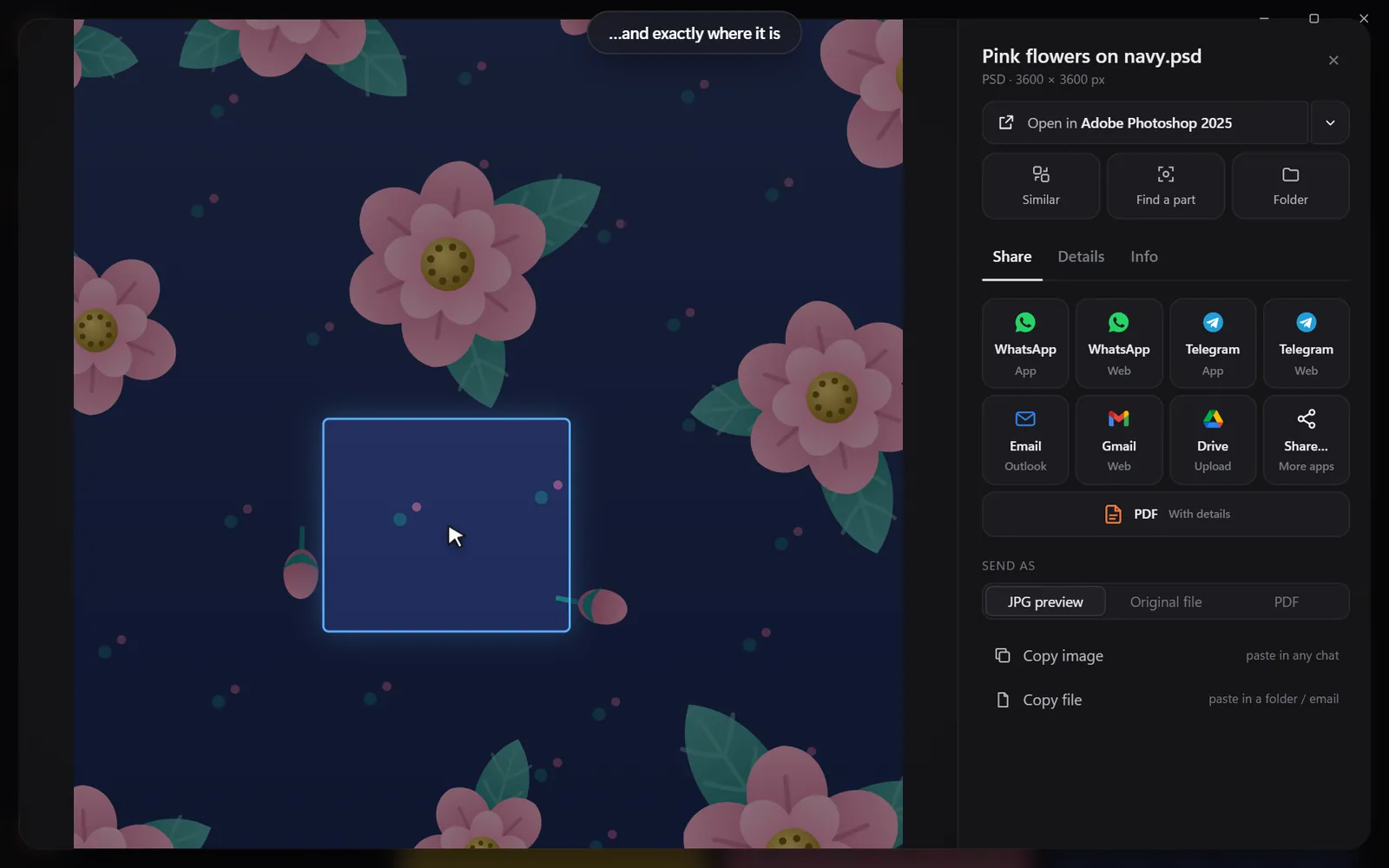
Drop in a pictureThe exact file and every look-alikeDraw a box around one partSee exactly where it is

Found it? Use it.

Every result opens in the app you made it in, copies with one click, or goes out as one tidy PDF.

Open it in your appSend many as one PDFShare in one click

Search

Search the way you remember

You never remember a file name. You remember a colour, a face, a word on a sign. That is enough.

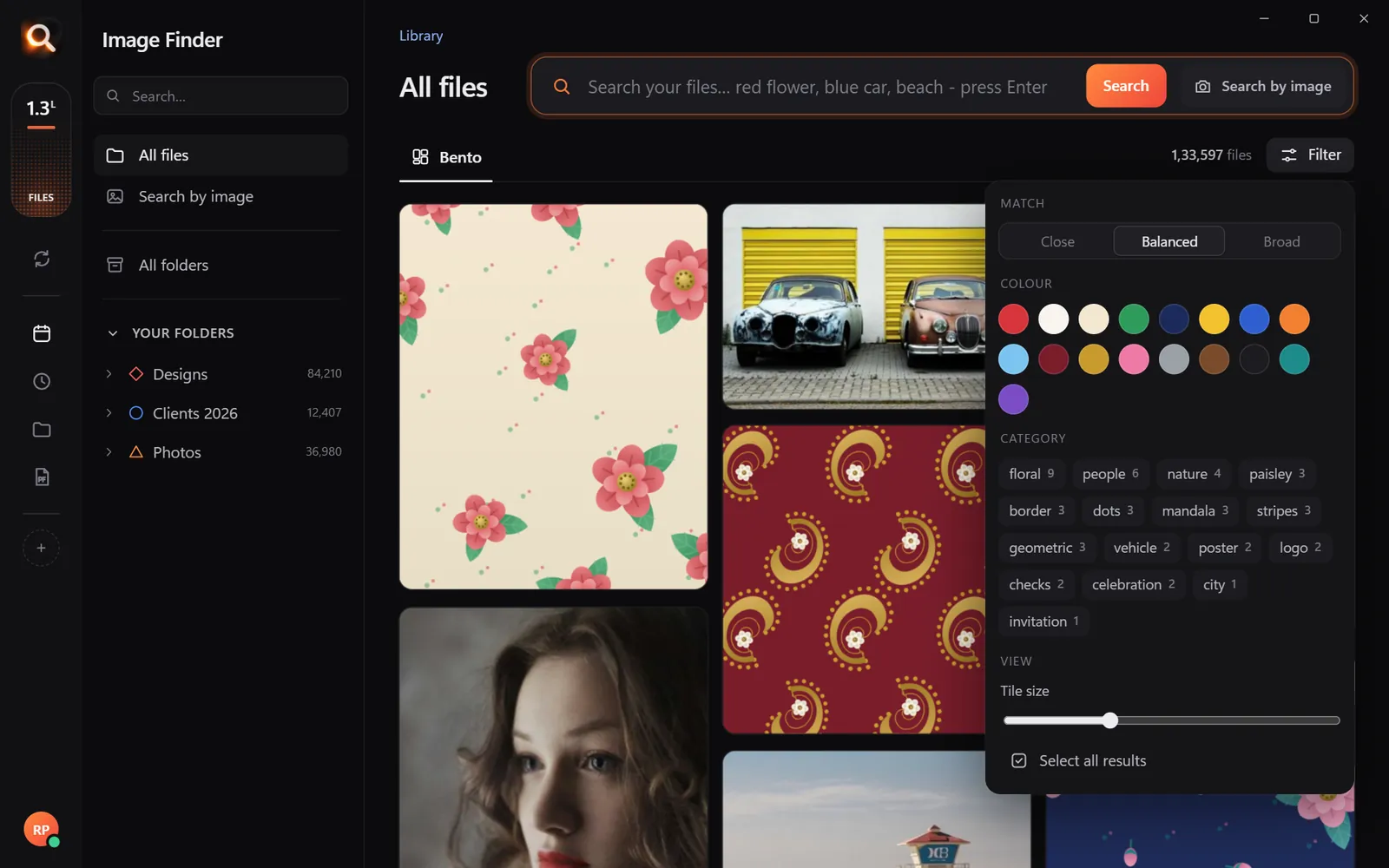
By colour

Pick a colour and the photos with the most of it come first - or narrow any search to it.

Searching by colour

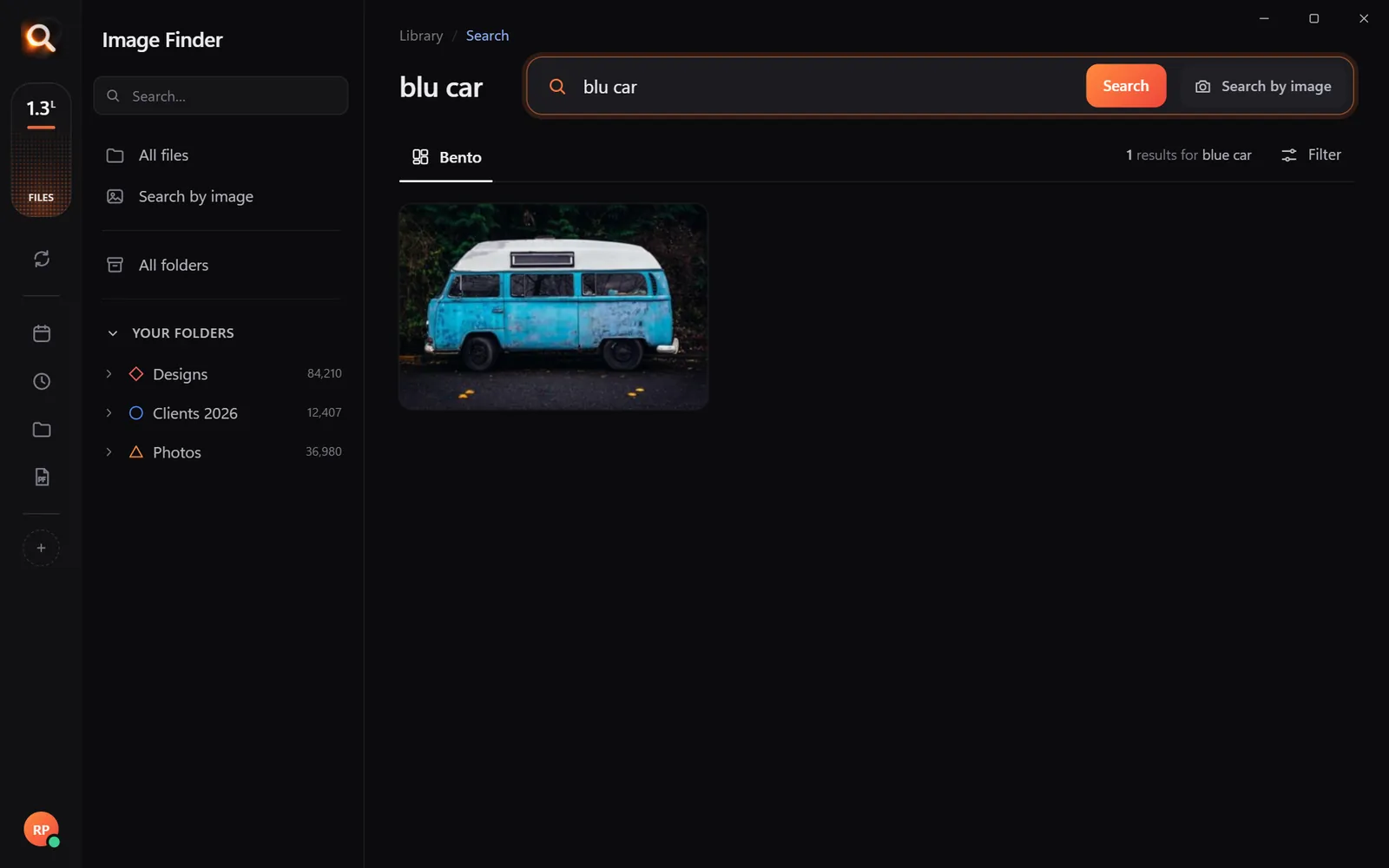
Typos welcome

"blu car" finds the blue car.

A search with a typo

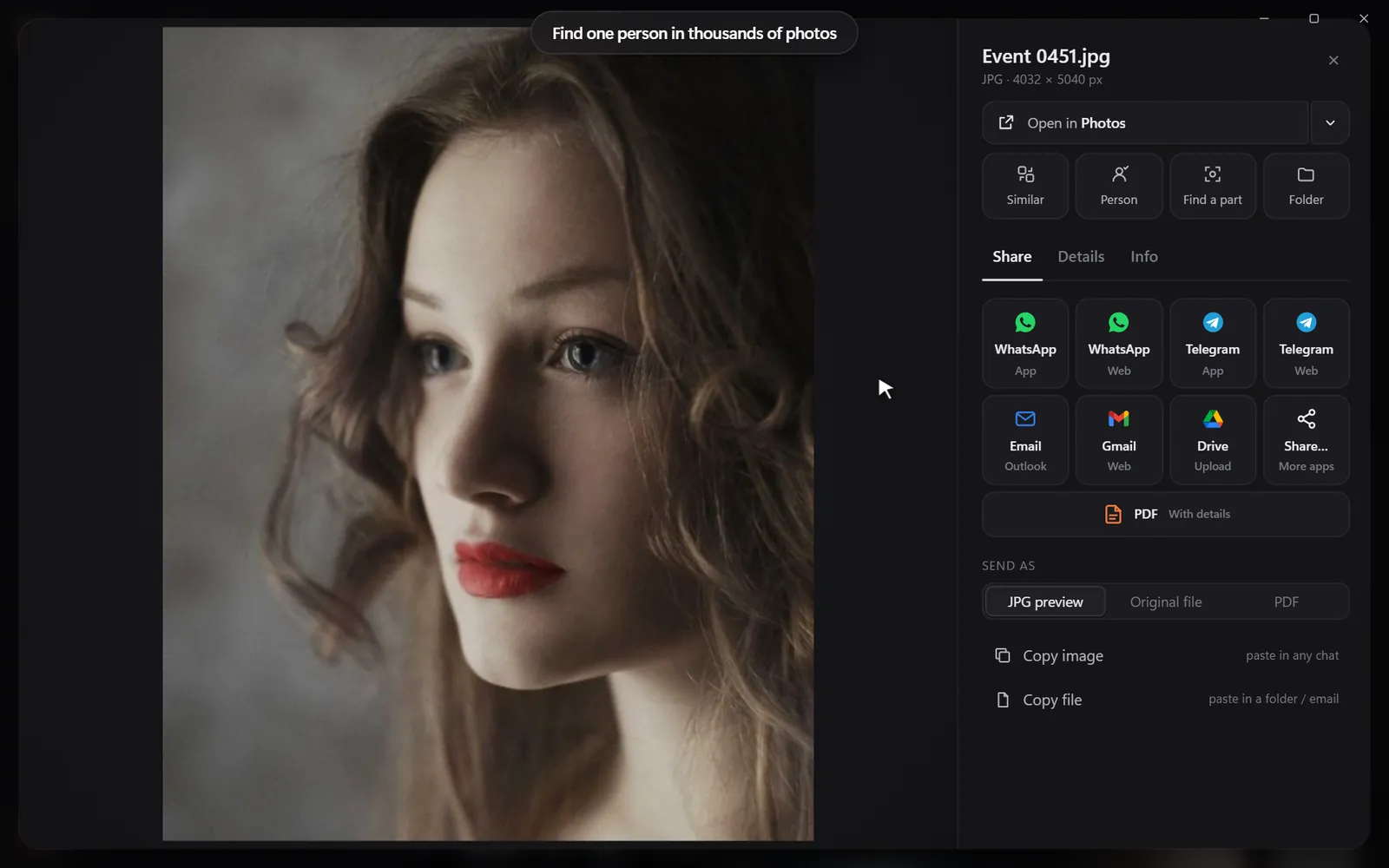
Every photo of one person

Pick a face once - from every folder and every drive.

Every photo of one person

Words inside pictures

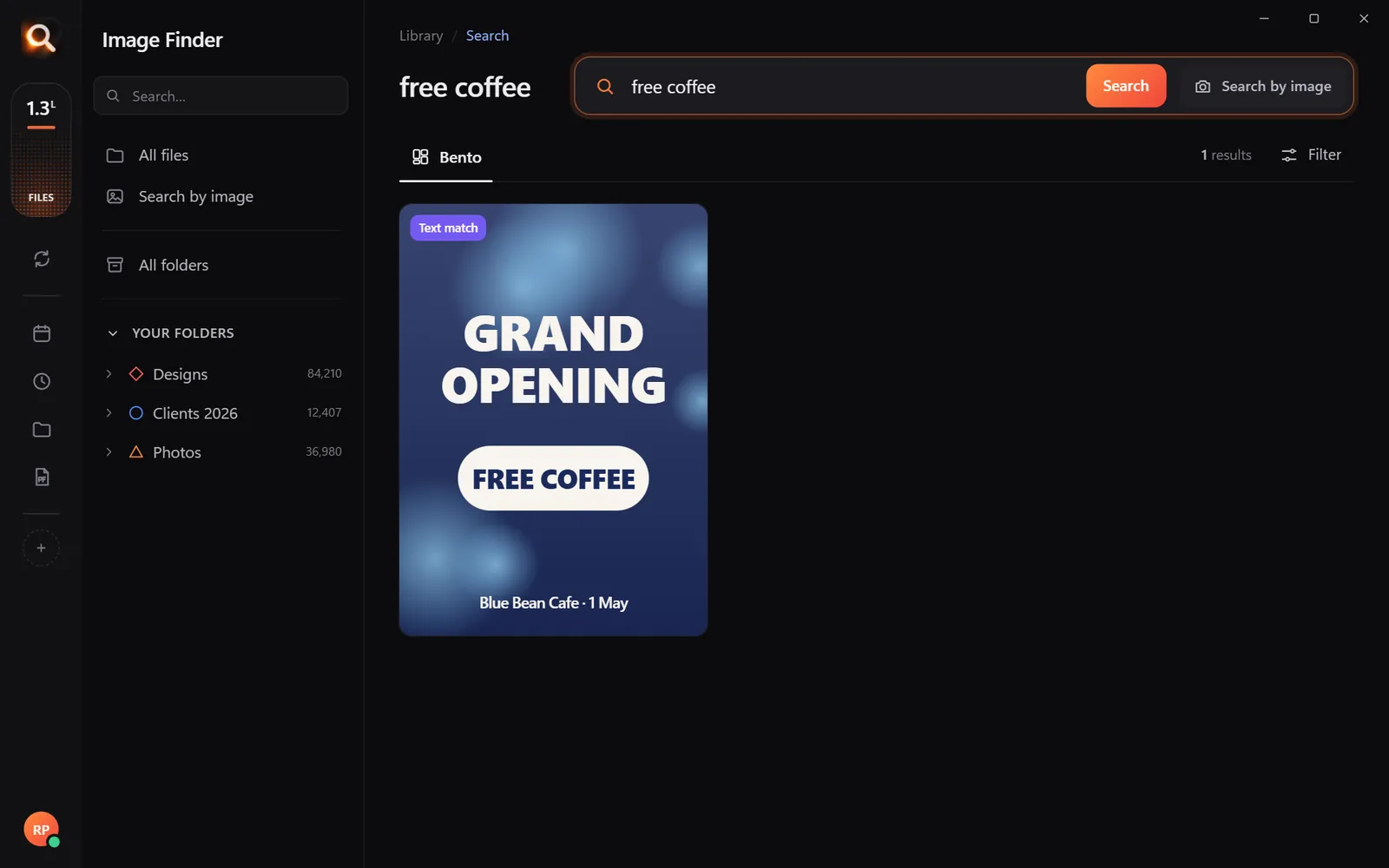
Screenshots, receipts, posters and scanned PDFs.

Finding a poster by its words

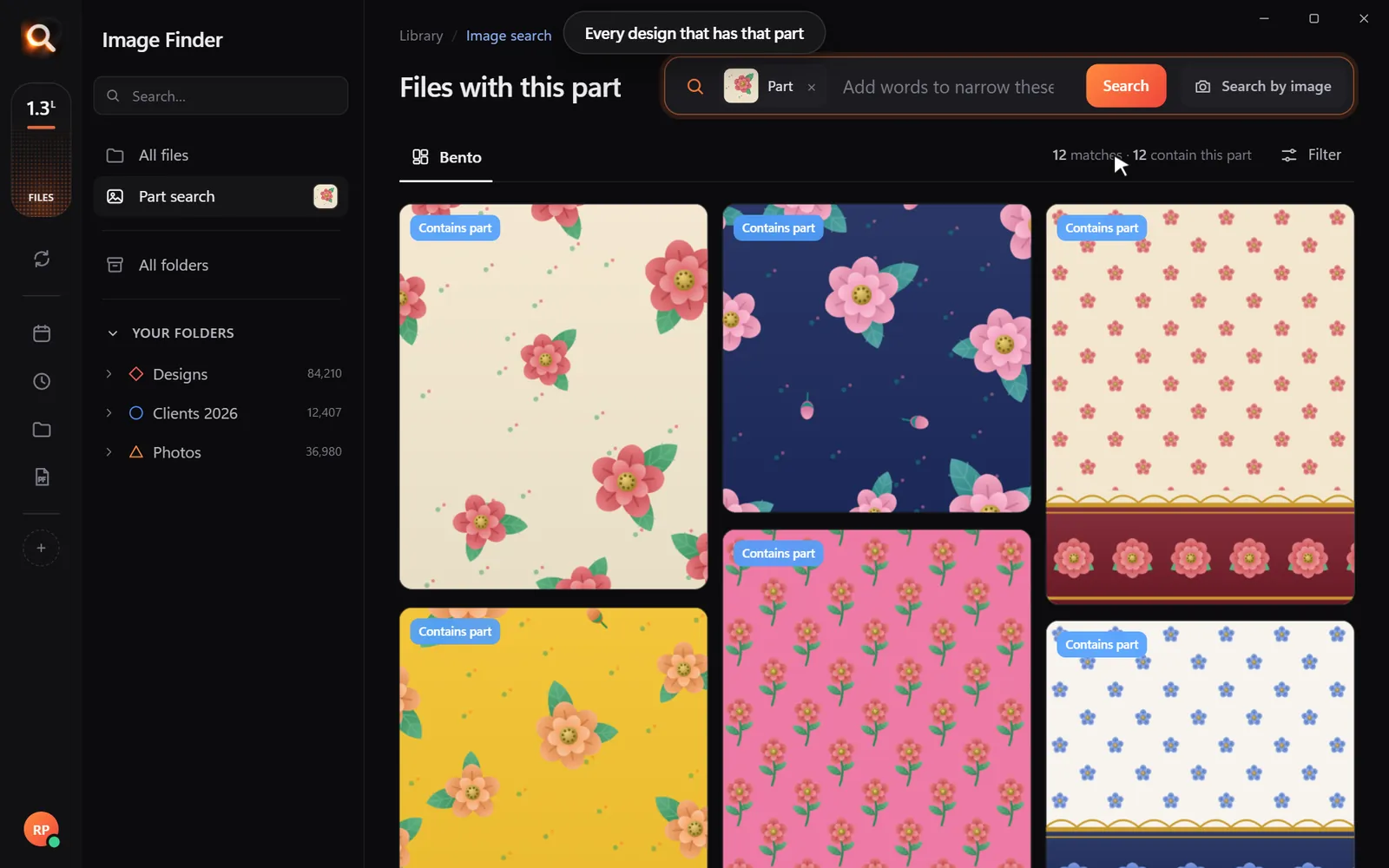
One part of a design

Draw a box around a logo or a motif.

Every design with the same part

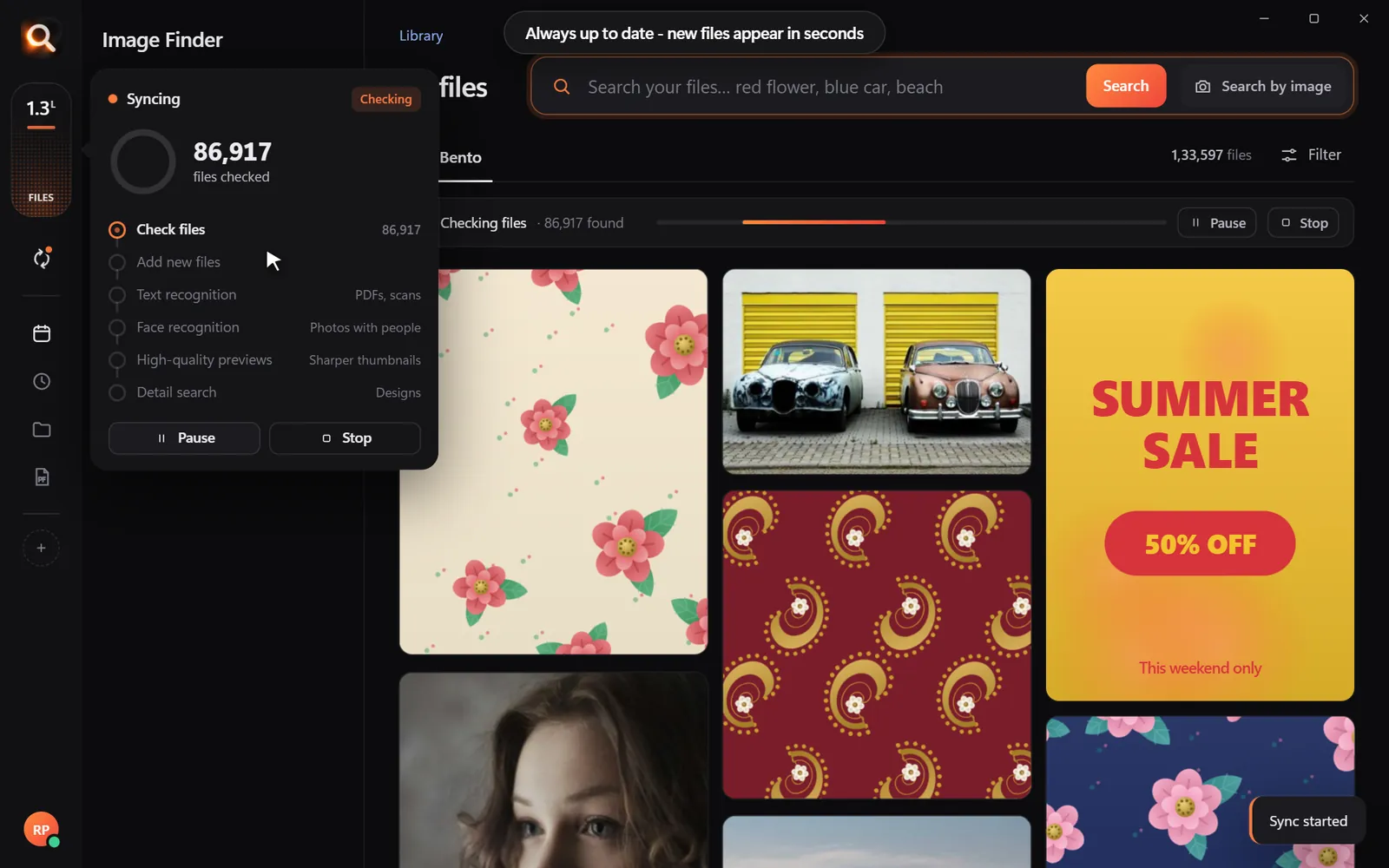
Always in sync

New files appear within seconds, by themselves.

Keeping folders up to date

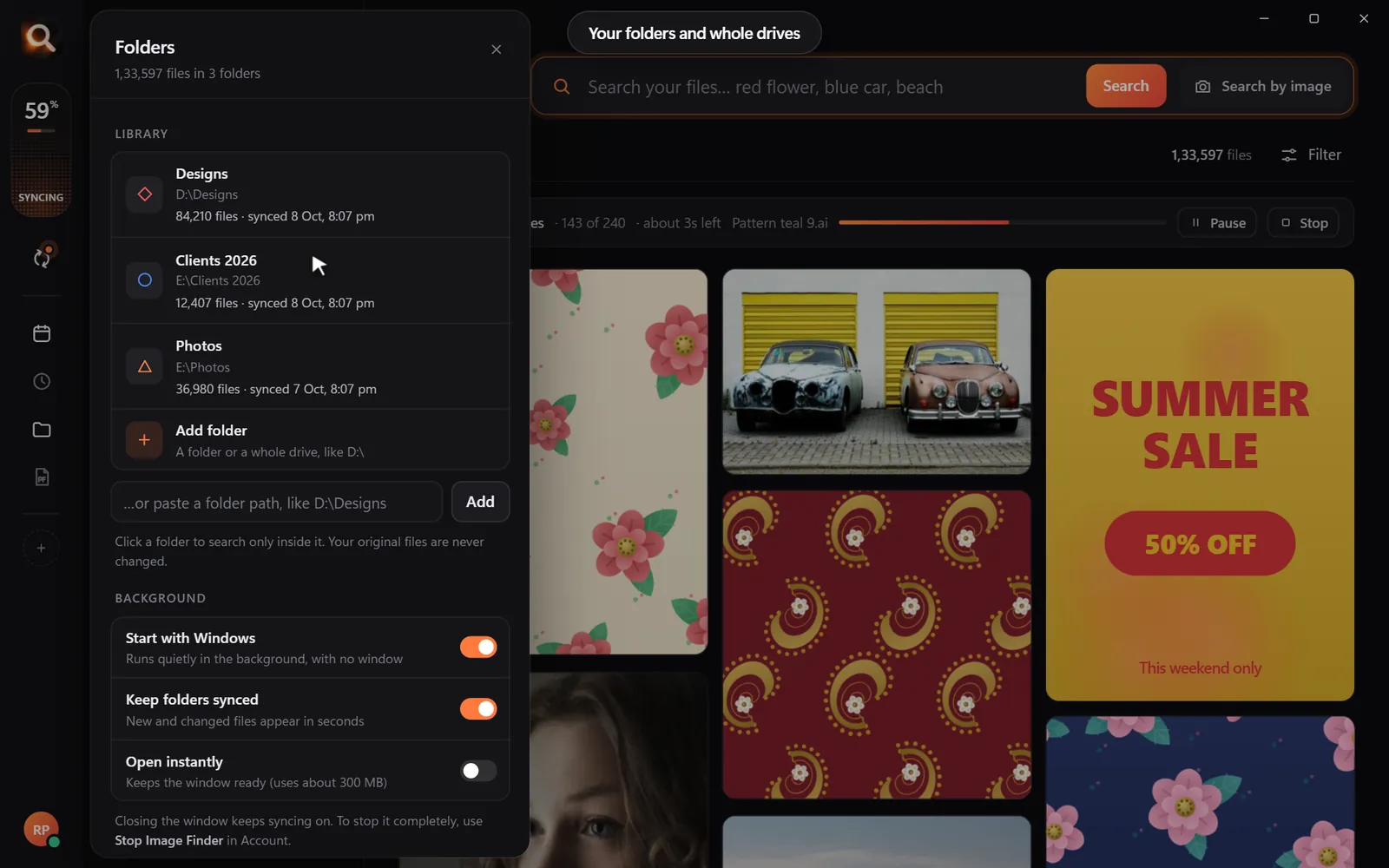
Folders, whole drives, external disks

Point it at Pictures, Desktop, a whole disk or an external drive. Unplugged drives stay findable, so you know which one to grab.

Choosing folders and drives
150+ file types

JPG, PNG, HEIC, camera RAW, PSD, AI, EPS, SVG, PDF, Office files, fonts, videos and embroidery files.

Inside ZIP and RAR

Pictures inside archives are searchable - without unzipping anything.

External drives

Unplugged drives stay findable, so you know which one to grab.

Always up to date

New and changed files appear within seconds, by themselves.

A tenth of a second

Search 100,000+ files about as fast as you can type.

Typos welcome

"blu car" finds the blue car. The meaning matters, not the spelling.

Steps aside

It reads your library once in the background and pauses while you work.

Windows & Mac

Windows 10 and 11, Macs with Apple chips and Intel Macs.

Private

Your photos never leave your computer

The AI runs on your own PC or Mac. No upload, no cloud copy, no account full of your pictures that could leak.

Nothing uploaded

Your photos, designs and searches stay on your disk. Only your licence is checked now and then.

Works offline

On a plane, in a basement studio, when the internet is down - search works the same.

No subscription

Pay once for the time you choose. Nothing renews by itself, nothing to cancel.

Made for real libraries

Whatever you keep, find it by describing it

What people type - and what it saves them.

P
Photographerssearch for
the one by the window, spring shoot

Pick a client's face once - every shot of them, across every drive.

D
Graphic designerssearch for
blue logo on white

final_FINAL_v3.psd is not a search term. Find PSD, AI and SVG by how they look.

S
Online sellerssearch for
blue mug white background

Five thousand product shots, one blue mug - found in a second.

F
Familiessearch for
grandma at the cake table

Twenty years of photos, searchable without uploading a single one.

T
Teacherssearch for
fractions worksheet

Worksheets and slides, found by the words printed on them.

R
Real estate agentssearch for
white kitchen with island

Every listing photo by room, feature or view.

A
Agenciessearch for
summer sale poster

Ten people, one shared drive, nobody hunting for files any more.

U
Studentssearch for
mitosis slide

Every lecture screenshot, searched by the words on the slide.

Compare

Why not just use what you have?

Image FinderFile Explorer / FinderCloud photo apps
Find a photo by describing itNames onlyPhotos only
Search with a picture-Some
Design files: PSD, AI, EPS, RAWNames only-
Works with no internet-
Your photos stay on your computerUploaded
No monthly subscription-

Pricing

Just ₹1 a day. Paid once.

Every feature in every plan. No subscription - nothing renews by itself.

Every feature for just ₹1 a day - paid once, nothing renews by itself.

One licence works on one computer. Your days start when you activate it.

In India? See the India page - prices in ₹, pay by UPI

Questions? Answers.

How much does it cost?

Plans are priced per day in your own currency - every feature, paid once for the time you choose. Nothing is charged automatically, and nothing renews by itself.

Does it upload my photos?

No. Image Finder runs entirely on your computer. Your photos, designs and searches never leave it - there is no cloud copy to leak. Only your licence is checked online now and then.

Does it work on Mac?

Yes. There are versions for Macs with Apple M-series chips and for older Intel Macs, plus Windows 10 and 11.

Which files can it search?

150+ types: JPG, PNG, HEIC (iPhone), WEBP, camera RAW (NEF, CR2, CR3, ARW, DNG), PSD, AI, EPS, SVG, PDF, Office files, fonts, videos and embroidery files (DST, PES and more) - including files inside ZIP and RAR archives.

Can I hide files from search?

Yes. Select one or many and press Hide - they leave every search but stay on your computer. They wait under Hidden until you show them again.

Is it a subscription?

No. You pay once for the time you choose; nothing renews by itself and there is nothing to cancel.

Do I have to organize or tag anything?

No renaming, no tagging, no importing. Point it at your folders or whole drives and it reads them by itself - new files appear within seconds.

Will it slow down my computer?

It reads your library once in the background and steps aside while you work. Searching takes about a tenth of a second, even with 100,000+ files.

Can I get a refund?

Yes - see the refund policy.

Image Finder

Find any design in a second

Every feature, no credit card. Find the first photo you have been looking for in the next five minutes.

Get it - ₹1 a day
Just ₹1 a day

Blog

Tips for finding, organising and sharing your designs faster.

← All posts

Photo Organizer for Windows 11: Manage Thousands of Pictures Without Manual Tagging

If your PC holds tens of thousands of family pictures, phone backups, and camera downloads, you know the frustration of traditional folder filing. Searching for a reliable photo organizer for windows 11 usually begins when you realize manual sorting is an endless chore. You promise yourself you will sort everything into neat folders by year, month, or event, but within weeks new downloads pile up, names like IMG_4021.JPG fill your drives, and memories get lost.

Organizing photos on Windows 11 does not have to mean spending your weekends typing tags, renaming files, or dragging thumbnails into hundreds of nested subfolders. When you switch from manual sorting to intelligent visual search, your computer does the heavy lifting for you.

Windows 11 Photos App: Useful Basics, Clear Limits

Windows 11 includes a redesigned built-in Photos app. It connects smoothly to OneDrive, shows a clean timeline view, and lets you crop or adjust basic lighting. For browsing a few hundred recent family snapshots, it works reasonably well.

However, once your collection grows past 20,000 or 50,000 pictures, the default tools hit serious walls:

  • External drives get forgotten: If you store archives across external USB hard drives or network drives, Windows Photos often struggles to index them reliably or drops thumbnails when the drive is reconnected.
  • Search relies on filenames: Searching for "beach picnic" in standard Windows File Explorer will only show files that literally have the words "beach" or "picnic" in their filename or EXIF metadata tags.
  • Format limitations: RAW camera files, HEIC pictures from iPhones, or design formats often require separate extensions or fail to display smoothly.
  • Cloud sync pressure: The default Photos app strongly encourages syncing everything to cloud storage, which can quickly trigger recurring monthly subscription fees.

If you want to keep your library on your own computer without moving files into cloud silos, you need a different strategy. You can read more about options in our guide to the best photo organizer for Windows.
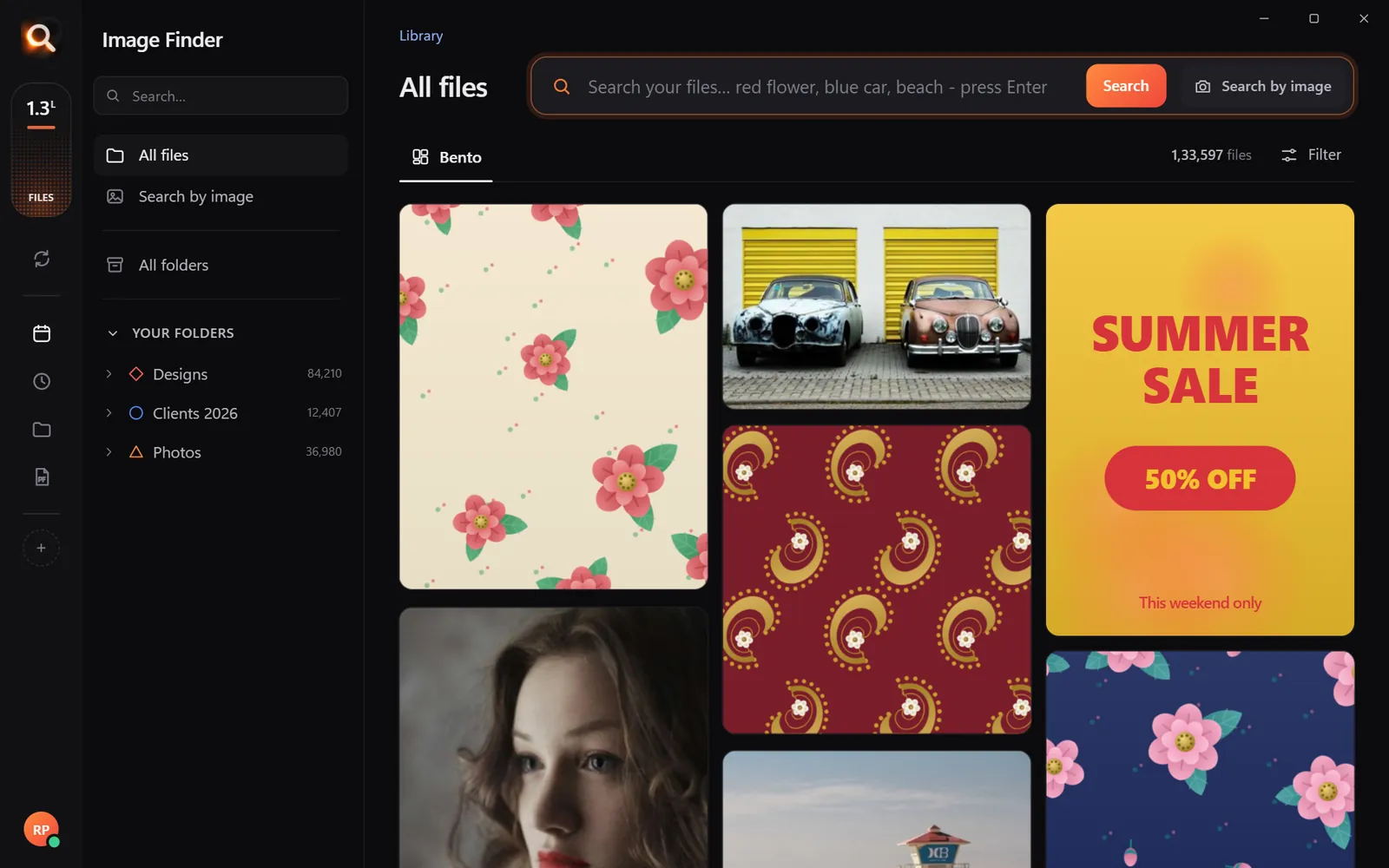
Library overview
Browsing a huge image collection without waiting for thumbnails to load

Organize by Search Instead of Rigid Subfolders

For decades, the standard advice was to build deep folder trees: Photos > 2023 > Summer > Vacation > Beach. But real life is messy. What happens to a photo that is both "Vacation", "Grandma's Birthday", and "Beach Sunset"? Where does it live?

Organizing by search solves this dilemma completely. Instead of moving a file into one rigid place, you leave your folders exactly where they are and retrieve files by asking for what you remember:

1. Search in your own words

Type what is in the picture. If you want to find a shot from three years ago, just search red sunset over water or birthday cake with candles. Even if the file is called DCIM_0892.JPG, visual search matches the scene directly.
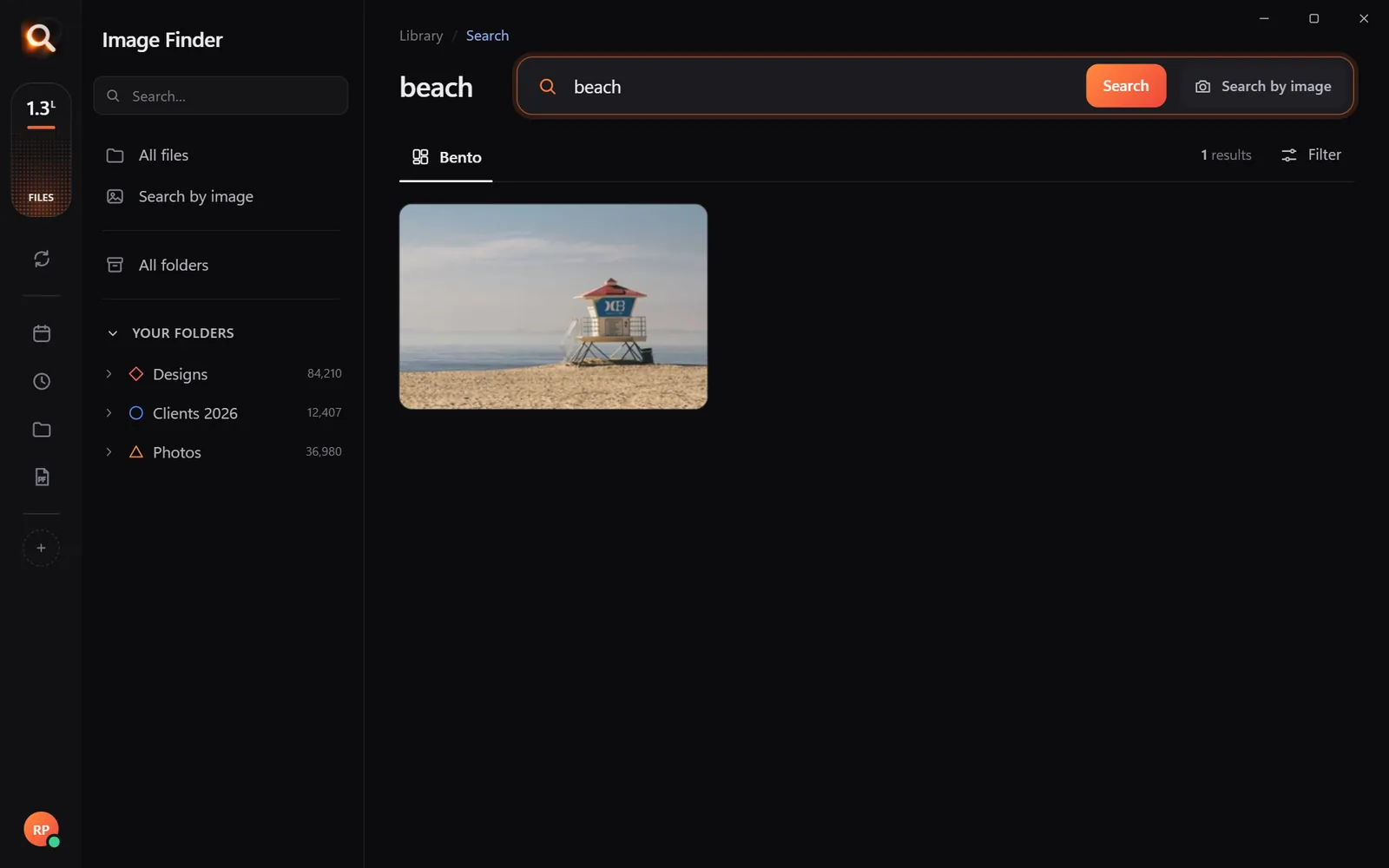
Search by text
Searching for beach photos simply by typing the words

2. Find every photo of the same person

Family albums become fun when you can pick one face and instantly see every snapshot containing that person across 10 years of photos. Facial matching locates family members whether they were photographed as children, wearing hats, or standing in a group shot.

Find same person
Matching all pictures of the same person across separate folders

3. Filter by color and category

Need pictures with a specific aesthetic for an album cover or wall print? You can pick from 17 color swatches to pull out photos dominated by ocean blue, forest green, or warm yellow, and narrow the results by category like nature, portrait, or city.
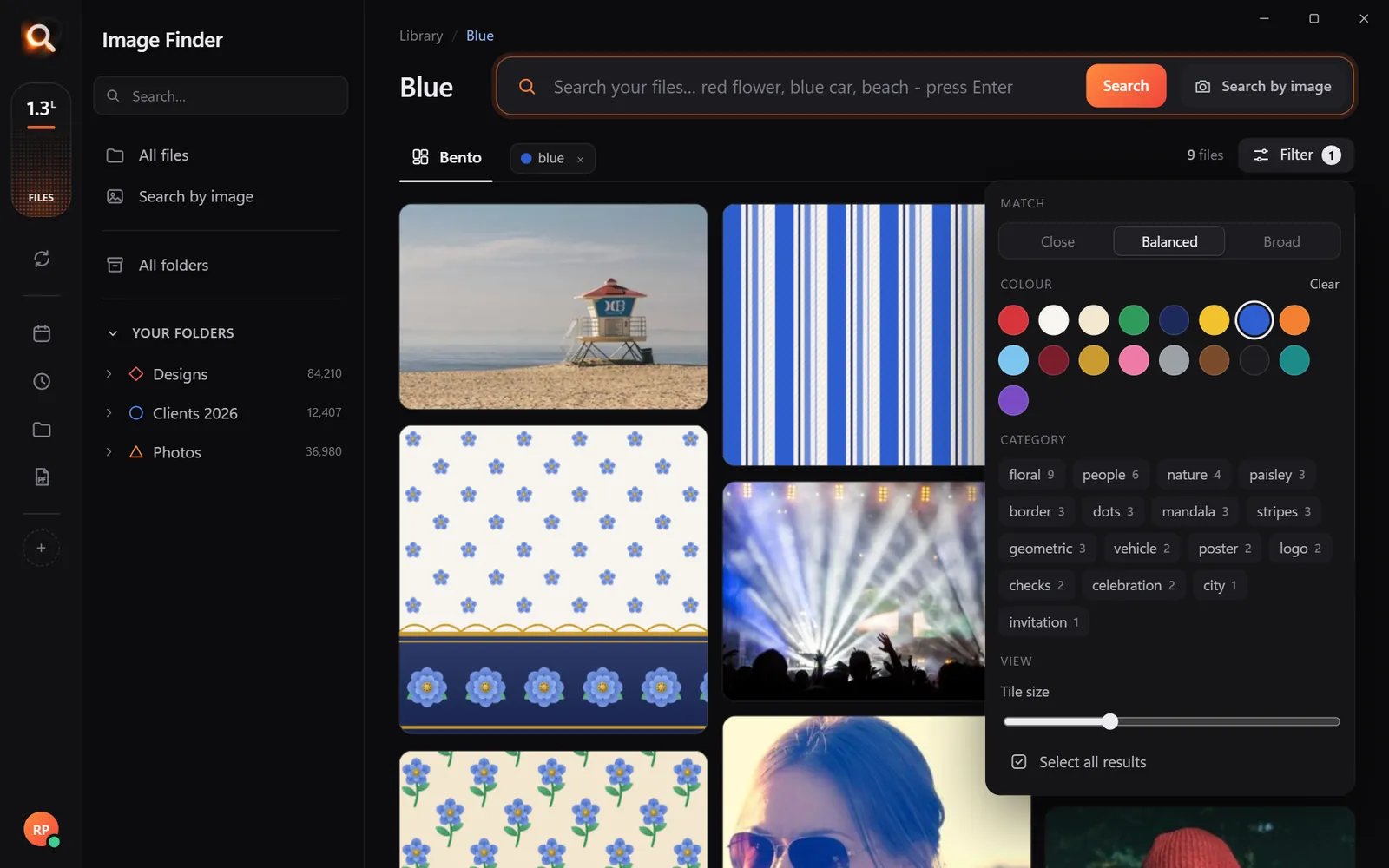
Color filter
Narrowing down thousands of pictures using color filters

If you are transitioning away from subscription platforms, check our tips on leaving Google Photos without losing searchability on your PC.

Instant Desktop Search Over 100,000+ Pictures

When choosing a photo organizer for Windows 11, speed is everything. Scrolling through endless lists waiting for blank grey squares to fill with thumbnails wastes valuable time.

This is where Image Finder completely changes your workflow. Image Finder is dedicated desktop software built for Windows 11 and Windows 10 (as well as Mac). It was tested on large libraries of over 133,000 images, delivering search results in about a tenth of a second.

How to set up Image Finder on Windows 11 0/5

Because Image Finder reads more than 150 file formats—including RAW files, HEIC iPhone photos, PSD, and PDF files—you never have to convert files first just to see what you have. It even searches inside ZIP, RAR, and 7z archives without needing extraction.

If a large part of your collection sits on unplugged disks, our guide on finding photos on external hard drives shows how to keep track of external archives smoothly.

Completely Offline and Private: Your Photos Stay on Your PC

Many modern photo apps send your personal pictures to remote servers to run machine learning models. For personal photos, sensitive documents, and client work, uploading entire hard drives to the cloud is a genuine privacy risk and uses enormous internet bandwidth.

Image Finder works 100% offline on your own machine:

  • Zero uploads: Your photos never leave your internal drives or external USB disks.
  • No data harvesting: Your images are never used to train online artificial intelligence models.
  • Safe reading: Image Finder is strictly read-only. It never moves, renames, modifies, or deletes your files. You never risk accidental data loss.
  • Automatic folder sync: When you drop new files into your existing picture folders, the app updates its index automatically in the background.
Try it here

A tiny sample library in your browser. The app does this with AI across every file on your computer - try the real app in your browser.

Simple Pricing Without Traps

Unlike software that forces you into lifetime recurring subscriptions that quietly renew, Image Finder offers straightforward 1-month, 2-month, or 3-month plans paid once. There is no automatic renewal, and every plan includes all features.

If you tell your friends or colleagues, you can also share your link through /refer. For every friend who begins using Image Finder, you receive 15 free days, and your friend gets 5 bonus days added to their licence.

Questions People Ask

Does Image Finder replace the Windows 11 Photos app?

No, it works alongside it. You can still use the Windows Photos app or any viewer to open individual pictures. Image Finder serves as your fast visual search engine to locate the exact picture you want from tens of thousands in under a second.

Will Image Finder slow down my computer while indexing?

Image Finder is built as a lightweight native desktop app. Initial scanning runs efficiently in the background without locking your system, and once indexed, searches take about 0.1 seconds with negligible CPU usage.

Can I find pictures stored on external USB hard drives?

Yes. You can add external hard drives, SSDs, or specific folder trees. Whenever the drive is plugged into your Windows 11 PC, Image Finder lets you search across its contents instantly.

Does it support iPhone HEIC photos and RAW camera files?

Yes. Image Finder natively supports HEIC, camera RAW formats, TIFF, PNG, JPEG, and over 150 file types without requiring extra Windows codecs or cloud conversion.

Try Image Finder free right now in your web browser at /try to see how fast visual search finds photos.

Windows and Mac. Private, offline, no subscription.

More posts

O

Offline Photo Organizer for Windows with Face Recognition

Organize thousands of family pictures across your hard drives using offline face recognition. Learn how to search photos by face on Windows without uploading anything to the cloud.

18 Nov 2026
T

The Best Photo Organizer for Windows When Folders Stop Working

Why manual folders and renaming break down once you hit 50,000 photos, and how content-based search lets you find any file on Windows without touching your structure.

29 Oct 2026
F

Find Duplicate Images on PC: How to Spot Resized and Look-Alike Copies Safely

Tired of bloated photo folders? Here is how to find duplicate images on PC drives—including resized, edited, and converted copies—safely and in seconds.

7 Nov 2026