

Try itFeaturesPricingHow it works QuestionsBlogToolsSign in DownloadContact usRefunds
Try it in your browser

Find any photo on your computer. Just describe it.

Type what you see - “dog on the beach”, “receipt from Costco” - and the right photo, design or PDF appears in a second. Nothing uploaded, nothing to rename.

Just ₹1 a day

Windows 10+ & macOSPay once - no subscription

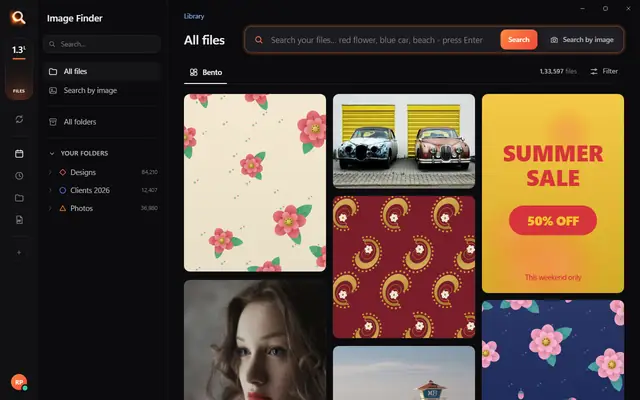
The Image Finder window with sample pictures

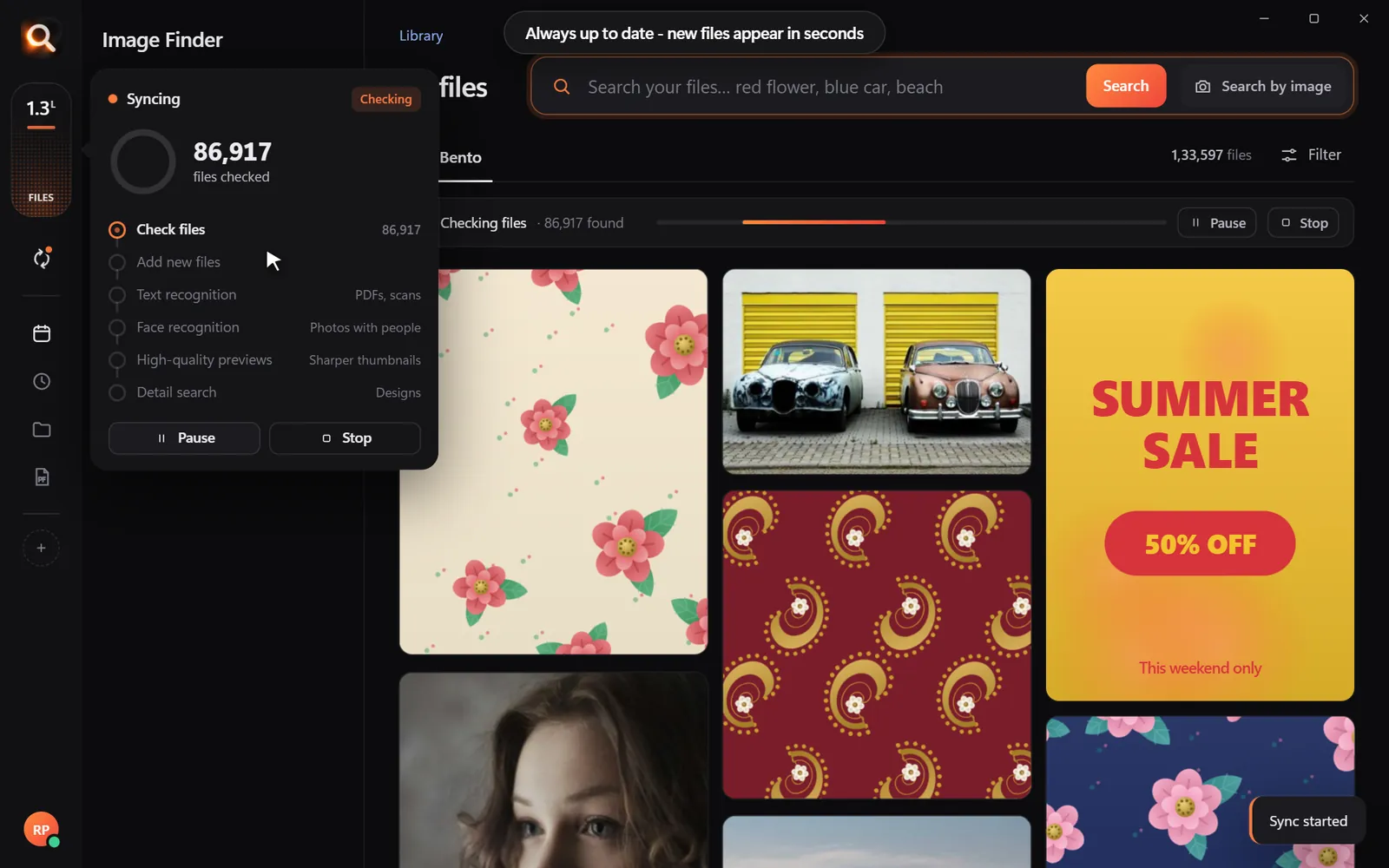
The real Image Finder window with sample files - click anywhere in it to try it yourself. In the app it searches hundreds of thousands of your own files in a fraction of a second, all on your PC. Open it full screen

Reads 150+ kinds of files, straight from your folders

JPGHEICPNGRAWPSDAISVGPDFZIP

A photo search that sees what you see

It looks at every picture on your computer once - what is in it, the colours, the faces, the words - so you can find any of them by simply describing it. Even with a hundred thousand files.

Image Finder logo+
Image Finder app icon

Point

Choose folders or whole drives. No importing, no renaming.

Read

Every picture is looked at once, in the background.

red flower

Describe

Type what you see, drop in a picture, or pick a face.

Open in appWhatsAppOne PDF

Use

Open it, copy it, or send many as one PDF.

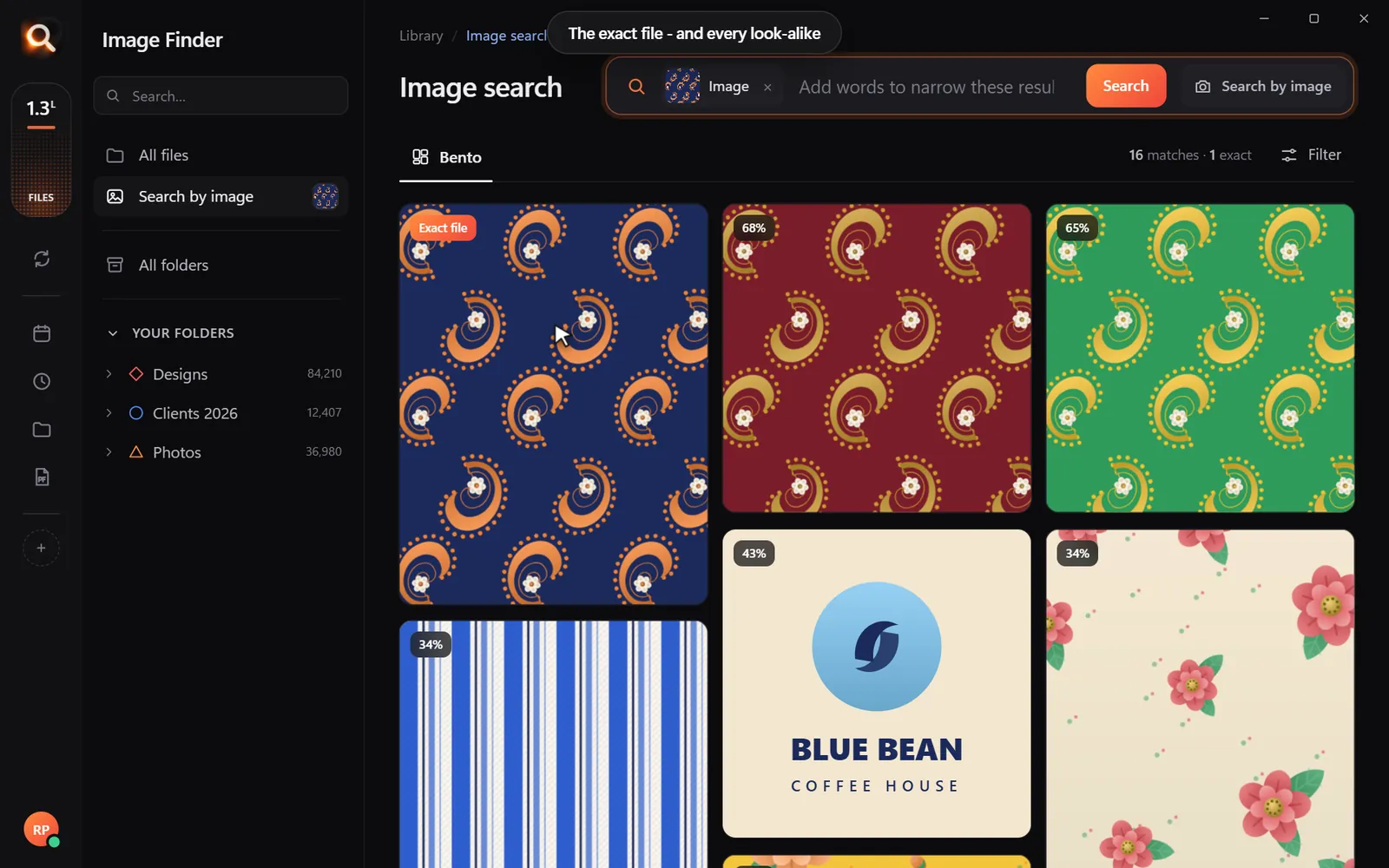
Search by picture

Have a copy? Find the original.

A blurry screenshot, a photo of a print, a crop someone sent you. Drop it in and get the full-size original - and every look-alike, even after crops and filters.

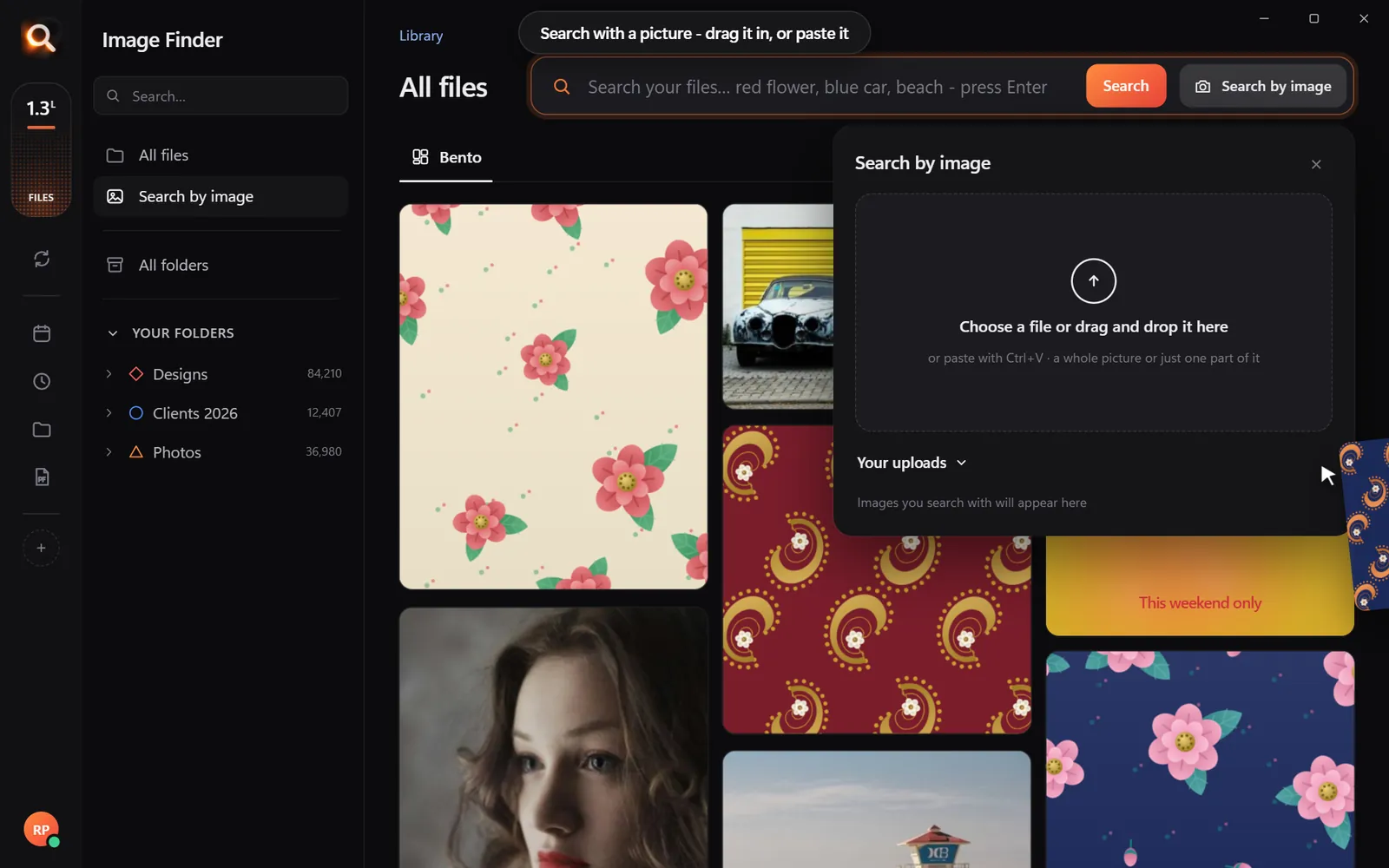
Search with a picture

Understands pictures the way you do - not by their file names.

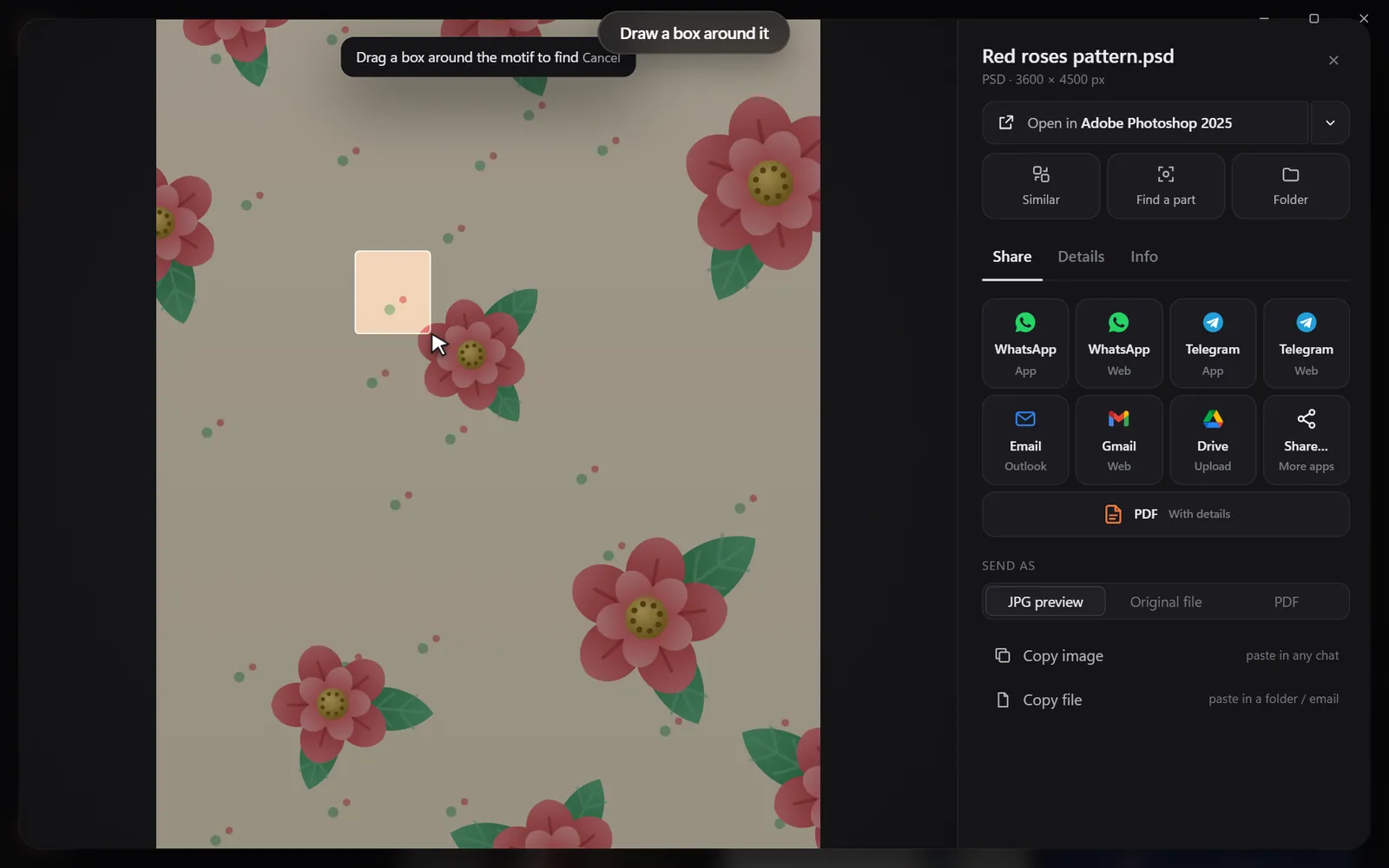
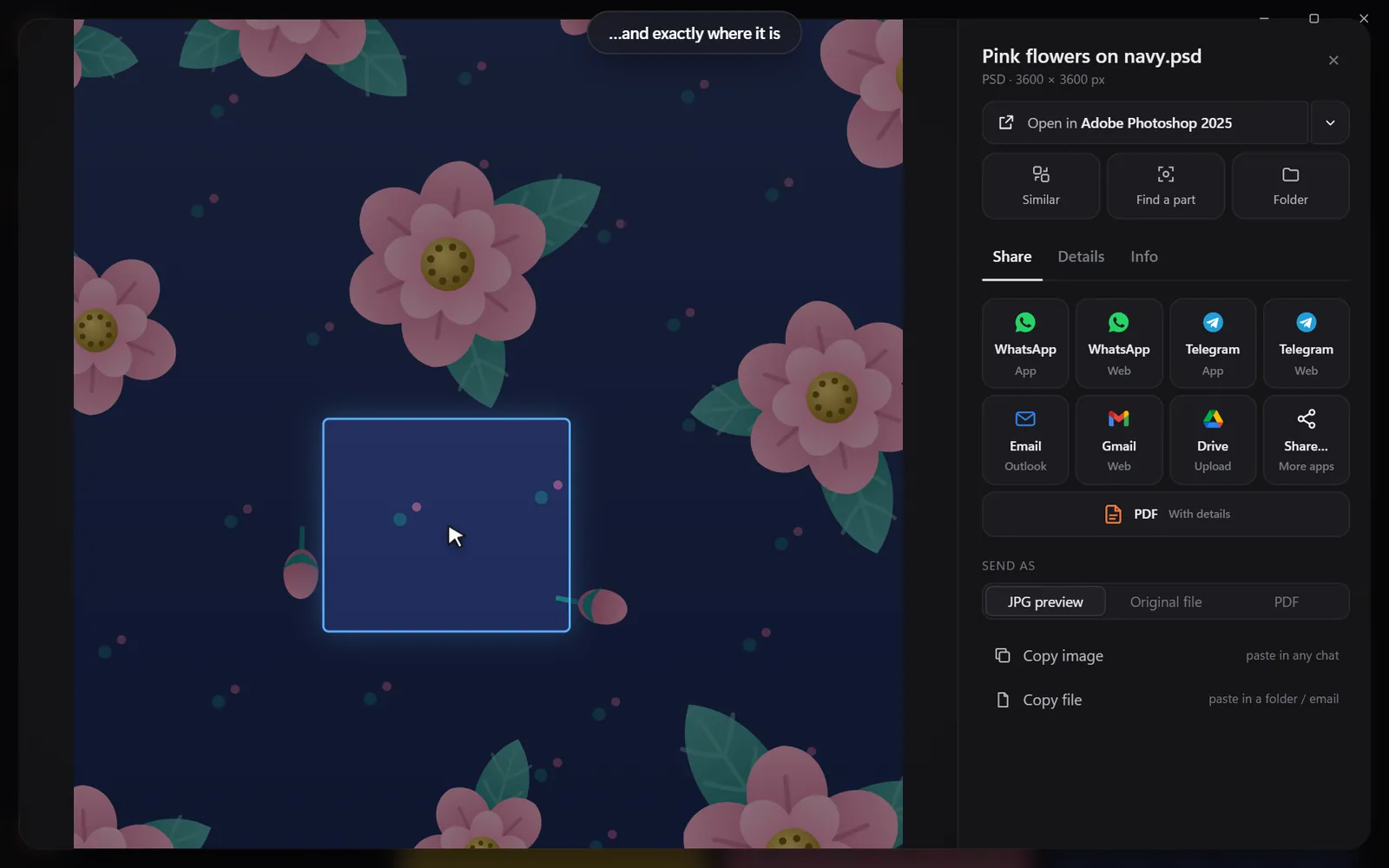
Drop in a pictureThe exact file and every look-alikeDraw a box around one partSee exactly where it is

Found it? Use it.

Every result opens in the app you made it in, copies with one click, or goes out as one tidy PDF.

Open it in your appSend many as one PDFShare in one click

Search

Search the way you remember

You never remember a file name. You remember a colour, a face, a word on a sign. That is enough.

By colour

Pick a colour and the photos with the most of it come first - or narrow any search to it.

Searching by colour

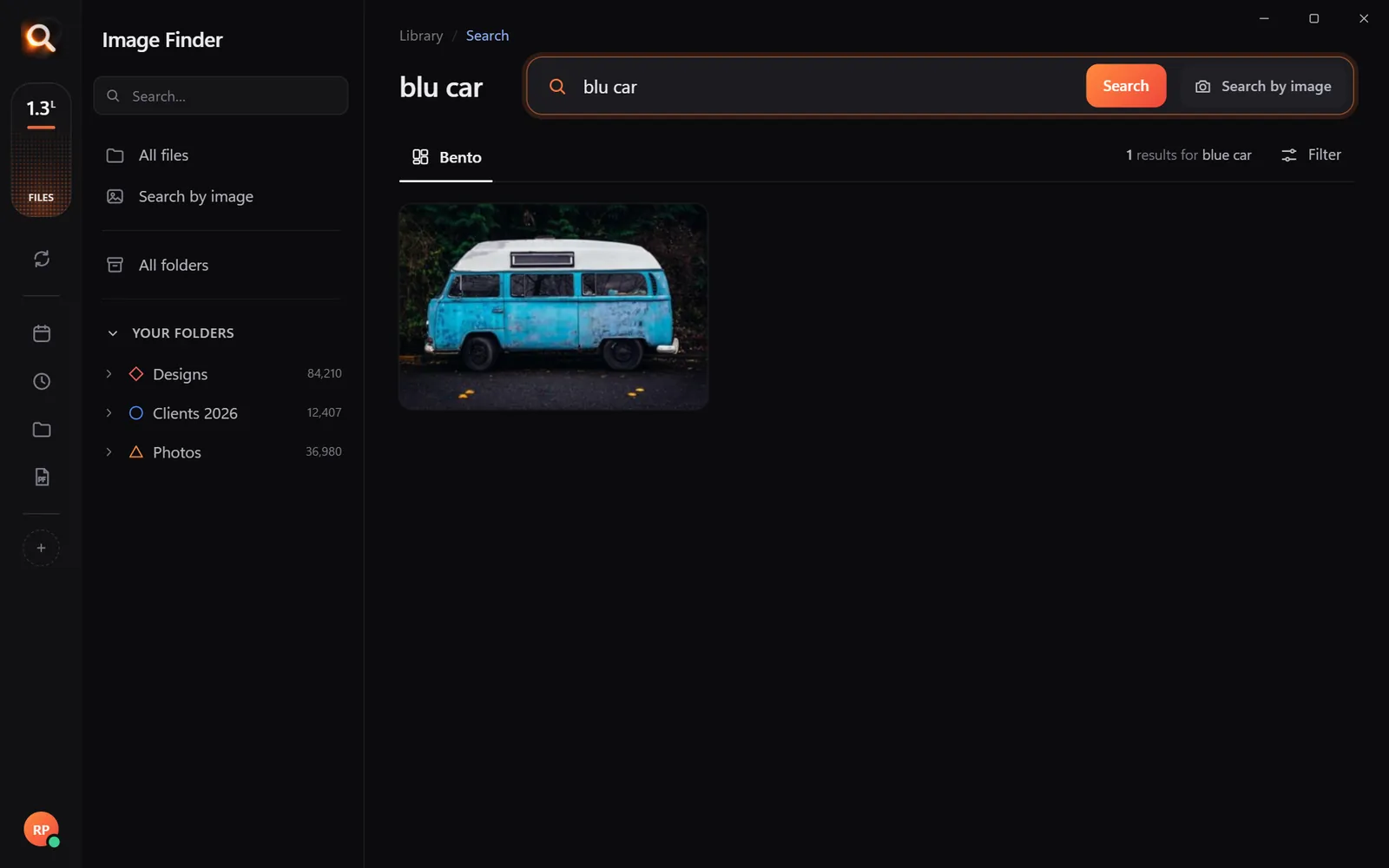
Typos welcome

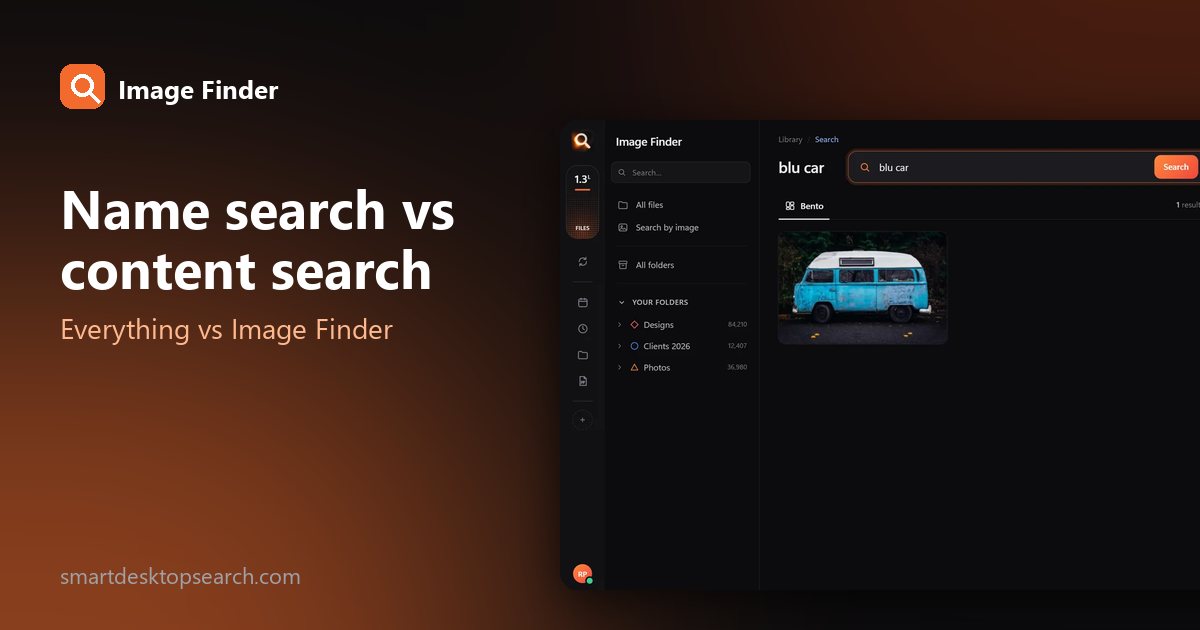
"blu car" finds the blue car.

A search with a typo

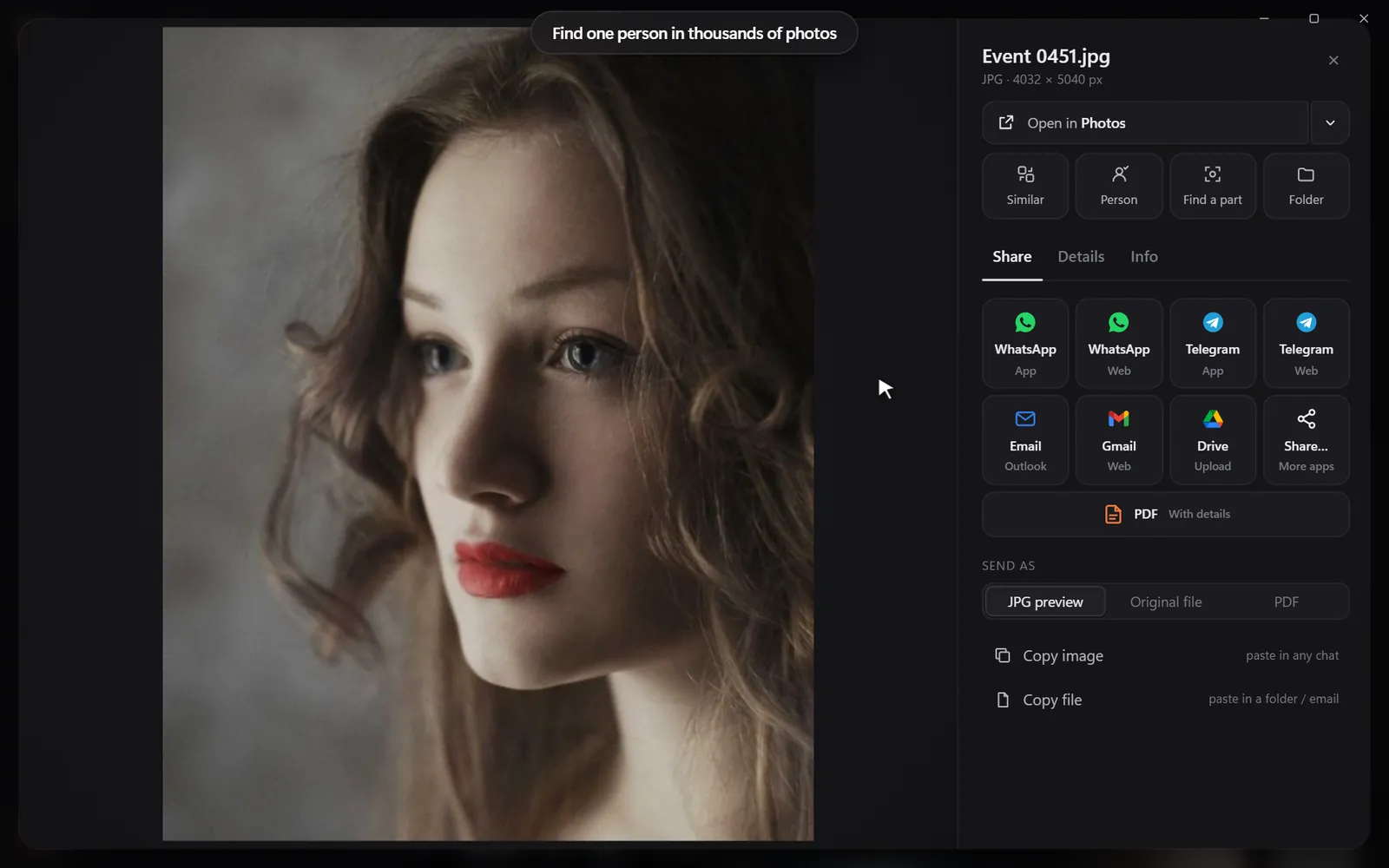
Every photo of one person

Pick a face once - from every folder and every drive.

Every photo of one person

Words inside pictures

Screenshots, receipts, posters and scanned PDFs.

Finding a poster by its words

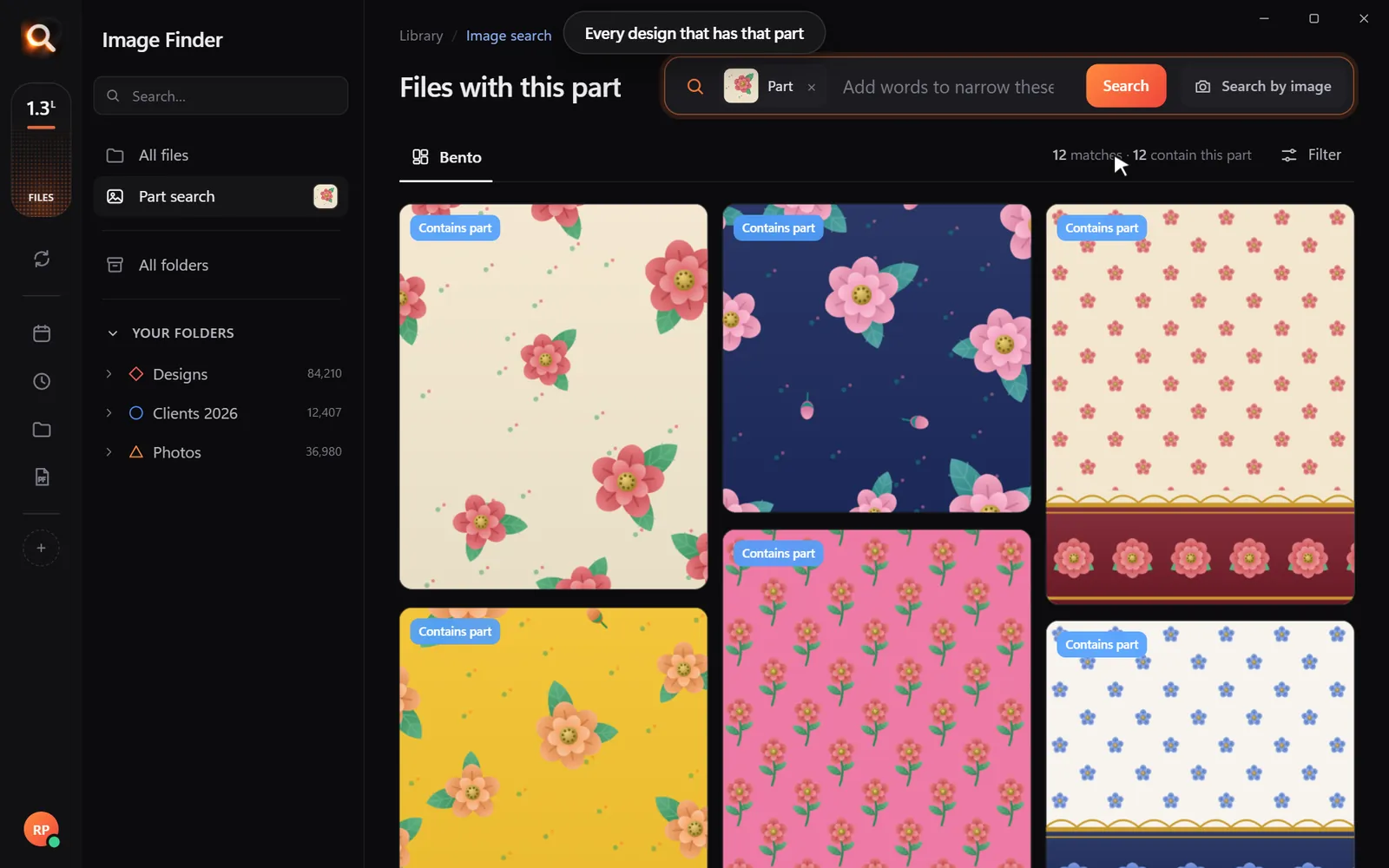
One part of a design

Draw a box around a logo or a motif.

Every design with the same part

Always in sync

New files appear within seconds, by themselves.

Keeping folders up to date

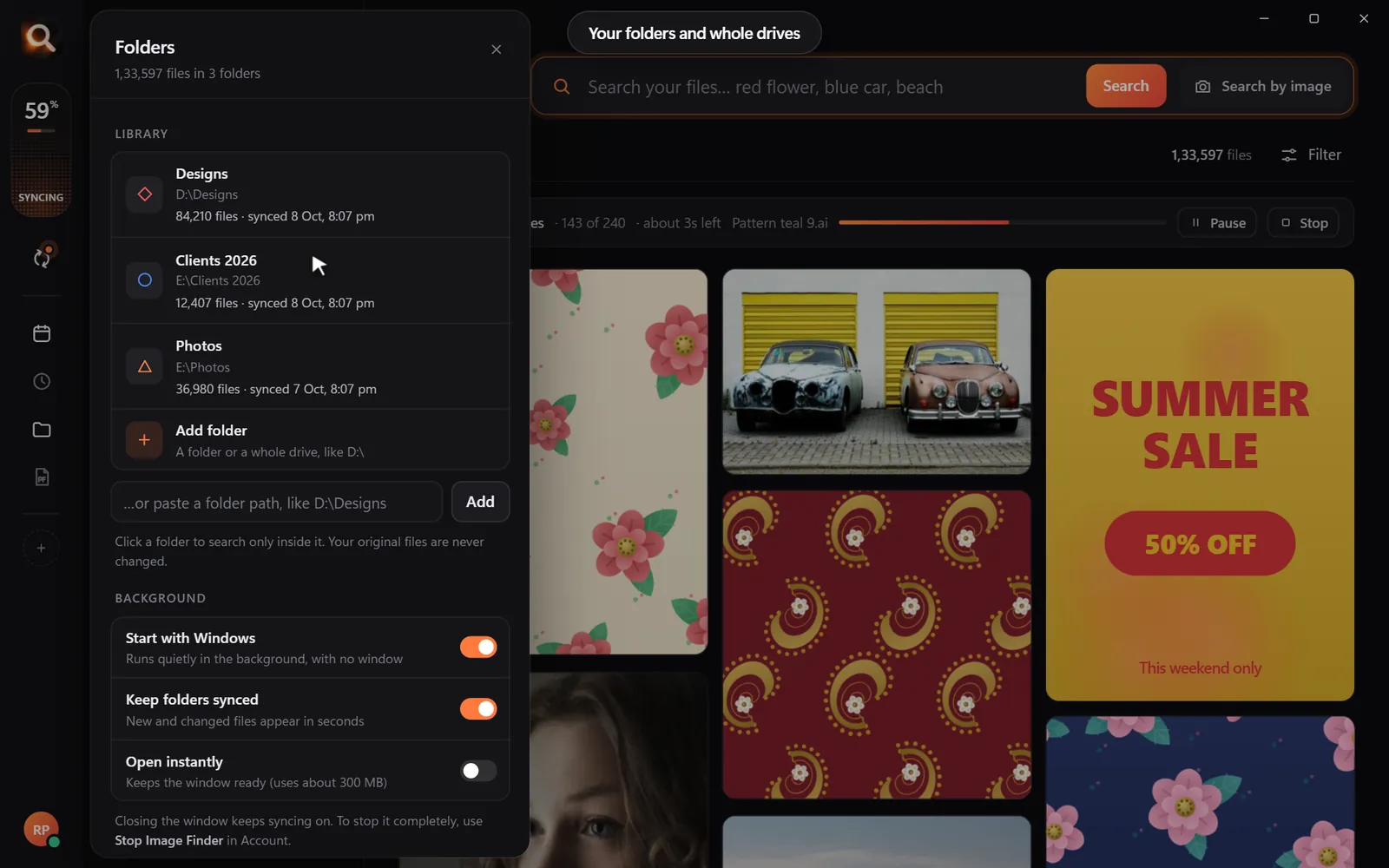
Folders, whole drives, external disks

Point it at Pictures, Desktop, a whole disk or an external drive. Unplugged drives stay findable, so you know which one to grab.

Choosing folders and drives
150+ file types

JPG, PNG, HEIC, camera RAW, PSD, AI, EPS, SVG, PDF, Office files, fonts, videos and embroidery files.

Inside ZIP and RAR

Pictures inside archives are searchable - without unzipping anything.

External drives

Unplugged drives stay findable, so you know which one to grab.

Always up to date

New and changed files appear within seconds, by themselves.

A tenth of a second

Search 100,000+ files about as fast as you can type.

Typos welcome

"blu car" finds the blue car. The meaning matters, not the spelling.

Steps aside

It reads your library once in the background and pauses while you work.

Windows & Mac

Windows 10 and 11, Macs with Apple chips and Intel Macs.

Private

Your photos never leave your computer

The AI runs on your own PC or Mac. No upload, no cloud copy, no account full of your pictures that could leak.

Nothing uploaded

Your photos, designs and searches stay on your disk. Only your licence is checked now and then.

Works offline

On a plane, in a basement studio, when the internet is down - search works the same.

No subscription

Pay once for the time you choose. Nothing renews by itself, nothing to cancel.

Made for real libraries

Whatever you keep, find it by describing it

What people type - and what it saves them.

P
Photographerssearch for
the one by the window, spring shoot

Pick a client's face once - every shot of them, across every drive.

D
Graphic designerssearch for
blue logo on white

final_FINAL_v3.psd is not a search term. Find PSD, AI and SVG by how they look.

S
Online sellerssearch for
blue mug white background

Five thousand product shots, one blue mug - found in a second.

F
Familiessearch for
grandma at the cake table

Twenty years of photos, searchable without uploading a single one.

T
Teacherssearch for
fractions worksheet

Worksheets and slides, found by the words printed on them.

R
Real estate agentssearch for
white kitchen with island

Every listing photo by room, feature or view.

A
Agenciessearch for
summer sale poster

Ten people, one shared drive, nobody hunting for files any more.

U
Studentssearch for
mitosis slide

Every lecture screenshot, searched by the words on the slide.

Compare

Why not just use what you have?

Image FinderFile Explorer / FinderCloud photo apps
Find a photo by describing itNames onlyPhotos only
Search with a picture-Some
Design files: PSD, AI, EPS, RAWNames only-
Works with no internet-
Your photos stay on your computerUploaded
No monthly subscription-

Pricing

Just ₹1 a day. Paid once.

Every feature in every plan. No subscription - nothing renews by itself.

Every feature for just ₹1 a day - paid once, nothing renews by itself.

One licence works on one computer. Your days start when you activate it.

In India? See the India page - prices in ₹, pay by UPI

Questions? Answers.

How much does it cost?

Plans are priced per day in your own currency - every feature, paid once for the time you choose. Nothing is charged automatically, and nothing renews by itself.

Does it upload my photos?

No. Image Finder runs entirely on your computer. Your photos, designs and searches never leave it - there is no cloud copy to leak. Only your licence is checked online now and then.

Does it work on Mac?

Yes. There are versions for Macs with Apple M-series chips and for older Intel Macs, plus Windows 10 and 11.

Which files can it search?

150+ types: JPG, PNG, HEIC (iPhone), WEBP, camera RAW (NEF, CR2, CR3, ARW, DNG), PSD, AI, EPS, SVG, PDF, Office files, fonts, videos and embroidery files (DST, PES and more) - including files inside ZIP and RAR archives.

Can I hide files from search?

Yes. Select one or many and press Hide - they leave every search but stay on your computer. They wait under Hidden until you show them again.

Is it a subscription?

No. You pay once for the time you choose; nothing renews by itself and there is nothing to cancel.

Do I have to organize or tag anything?

No renaming, no tagging, no importing. Point it at your folders or whole drives and it reads them by itself - new files appear within seconds.

Will it slow down my computer?

It reads your library once in the background and steps aside while you work. Searching takes about a tenth of a second, even with 100,000+ files.

Can I get a refund?

Yes - see the refund policy.

Image Finder

Find any design in a second

Every feature, no credit card. Find the first photo you have been looking for in the next five minutes.

Get it - ₹1 a day
Just ₹1 a day

Blog

Tips for finding, organising and sharing your designs faster.

← All posts

Make Your 2026 Year-in-Photos Recap Without Scrolling Through 10,000 Pictures

Make Your 2026 Year-in-Photos Recap Without Scrolling Through 10,000 Pictures
Your year in photos, in minutes
Watch: Your year in photos, in minutes

December is recap season. Apps make you a "year in review" from the photos they hold - but your year is spread across your phone, your partner's phone, the camera, screenshots and the PC. Scrolling through 10,000 pictures to pick the best 12 takes a weekend.

Here's how to make a year-in-photos recap in an hour - by searching for moments instead of scrolling.

Step 1: one folder for the year

Copy this year's photos from every phone, camera and folder into Photos/2026. Don't sort - just gather. Add the folder to Image Finder.

Step 2: search month by month - by moment

Instead of scrolling, search the moments that defined each season:

Try it here

A tiny sample library in your browser. The app does this with AI across every file on your computer - try the real app in your browser.

MonthSearches to try
January"snow", "new year", "fireworks"
February"valentine", "heart", "dinner"
March - April"flowers", "spring", "easter"
May - June"graduation", "wedding", "garden"
July - August"beach", "pool", "camping", "fireworks"
September"school", "first day"
October"pumpkin", "costume", "autumn leaves"
November"thanksgiving", "family dinner"
December"christmas tree", "lights", "gifts"
Search by moment
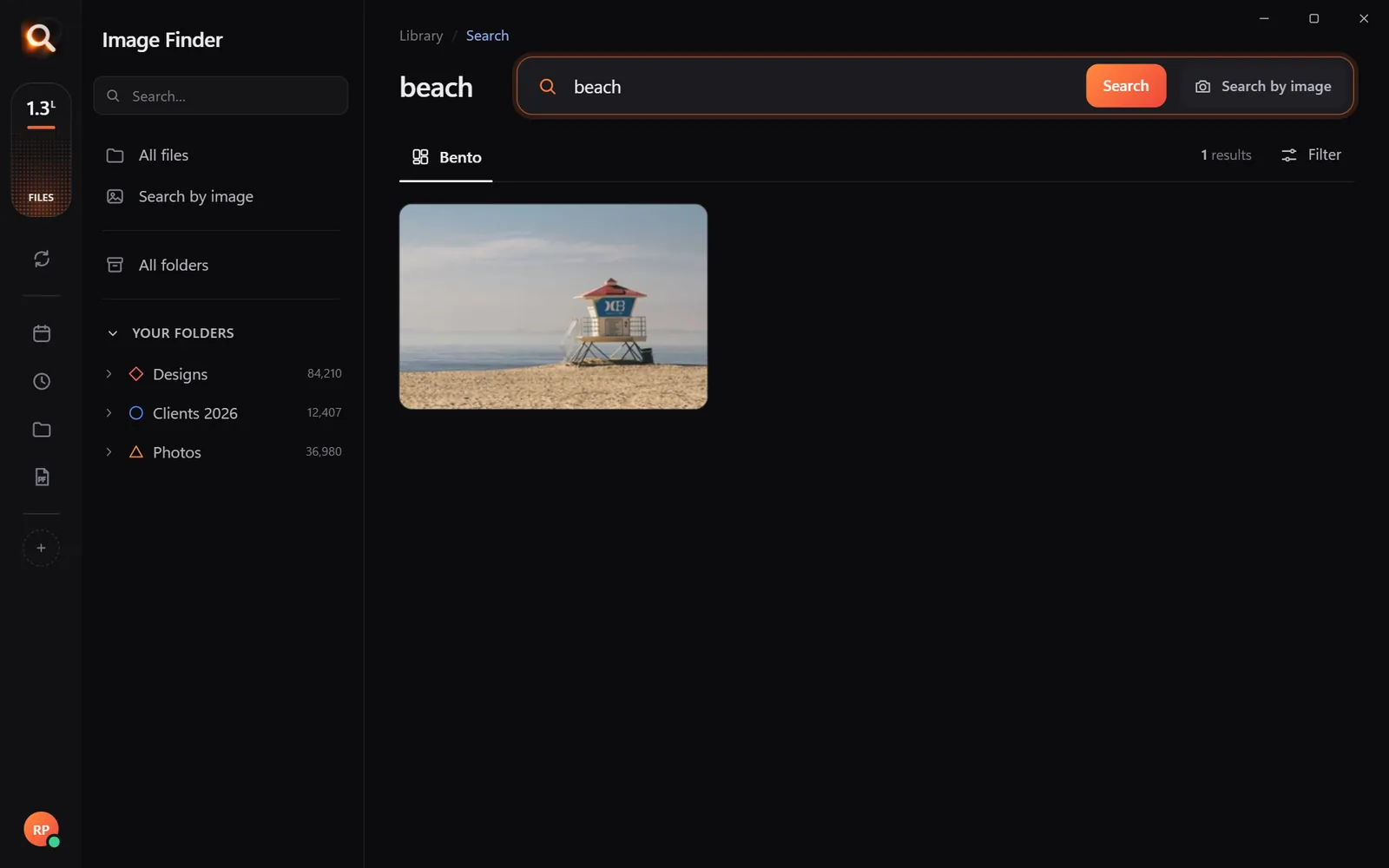
Search 'beach' - every summer moment in one place.

Step 3: search by people

Open a photo of each important person and choose Same person - every photo of them from the year appears. Pick the best one or two of each. Great for "my people of 2026" posts.
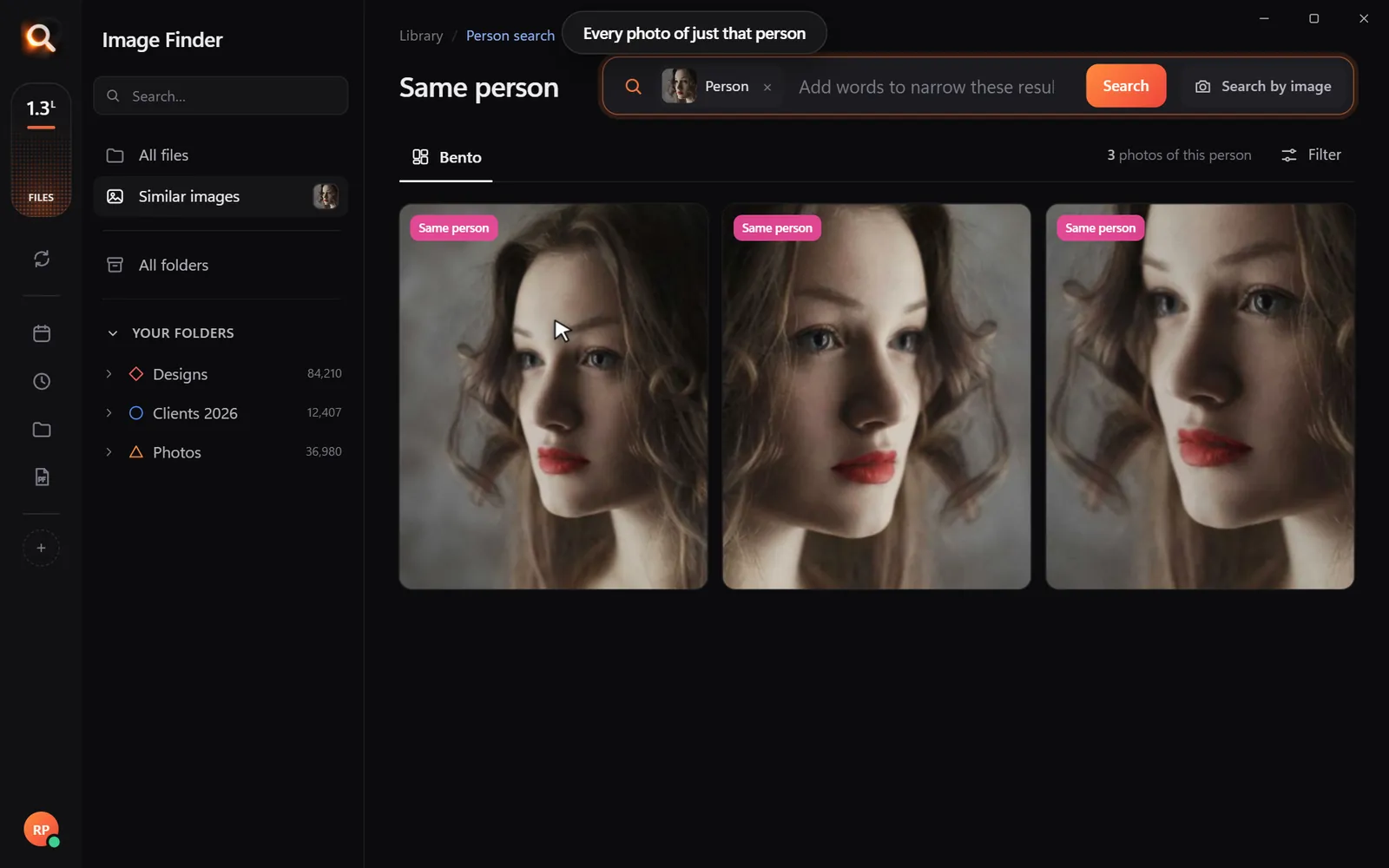
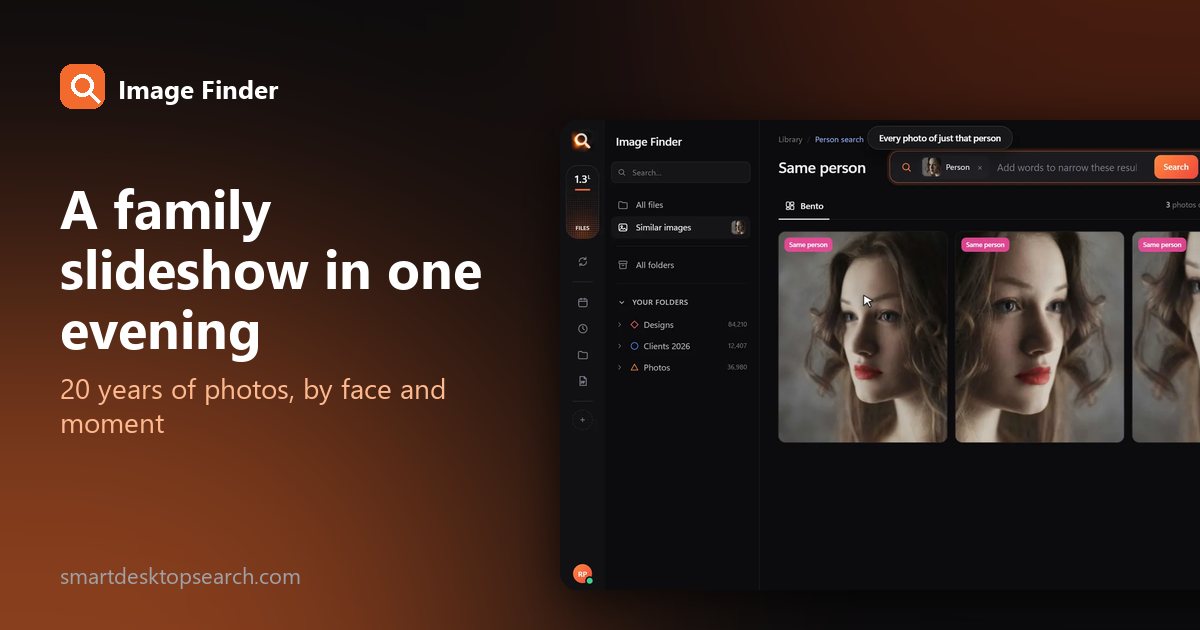
Every photo of one person
Same person: the year with each of your favorite people.

Step 4: add color for a beautiful grid

Want a recap that looks designed? Use the color filter: one row of blue (sea and sky), one of green (nature), one of warm golden tones (sunsets). Color-matched grids look great on Instagram.
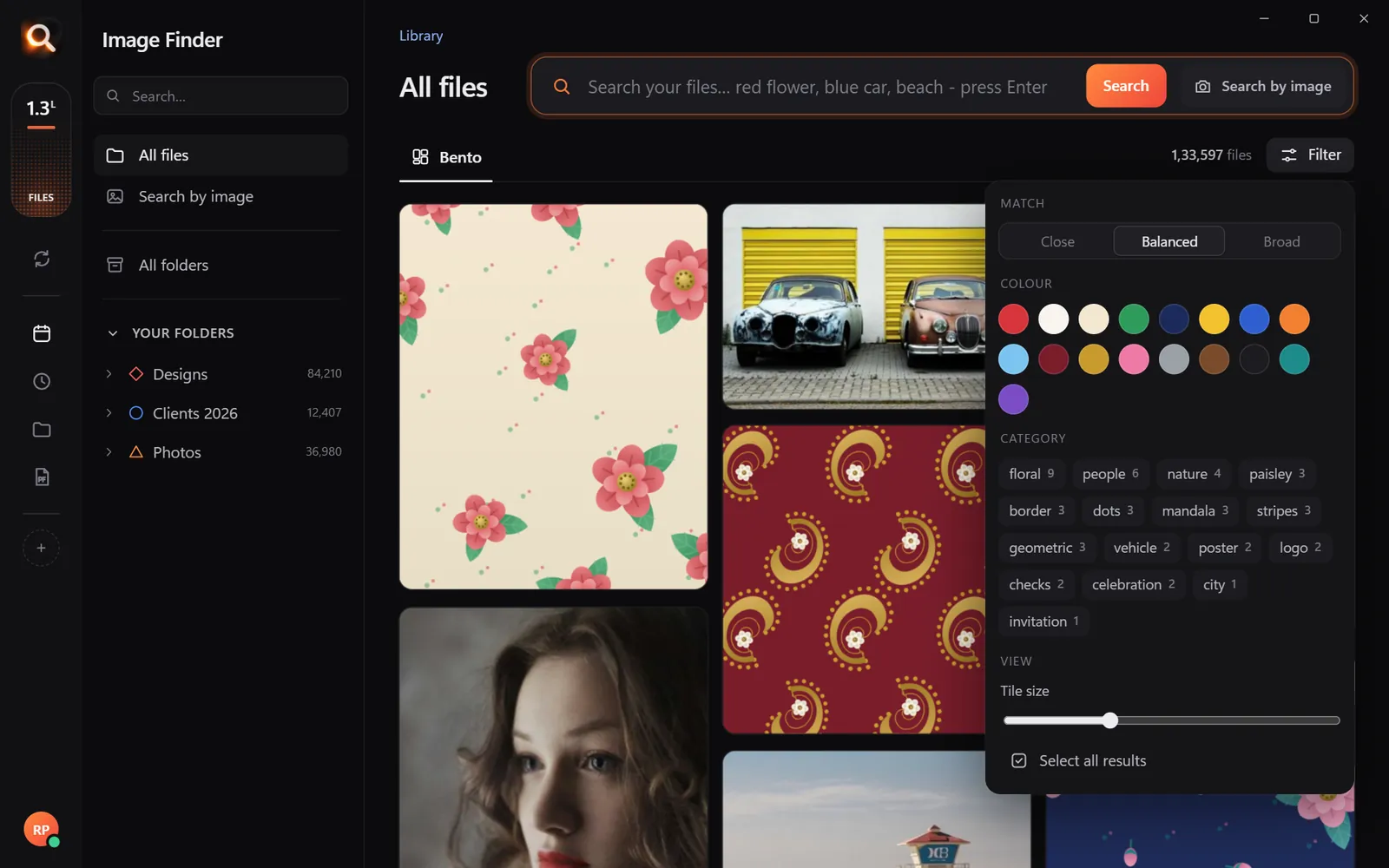
Filter by color
Pick a color for a recap grid that looks designed.

Step 5: pick, then make it

From picks to recap 0/4
FormatBest number of photos
Instagram carousel10
3x3 grid post9
Printed calendar12-13
Slideshow40-80
Family PDF20-30
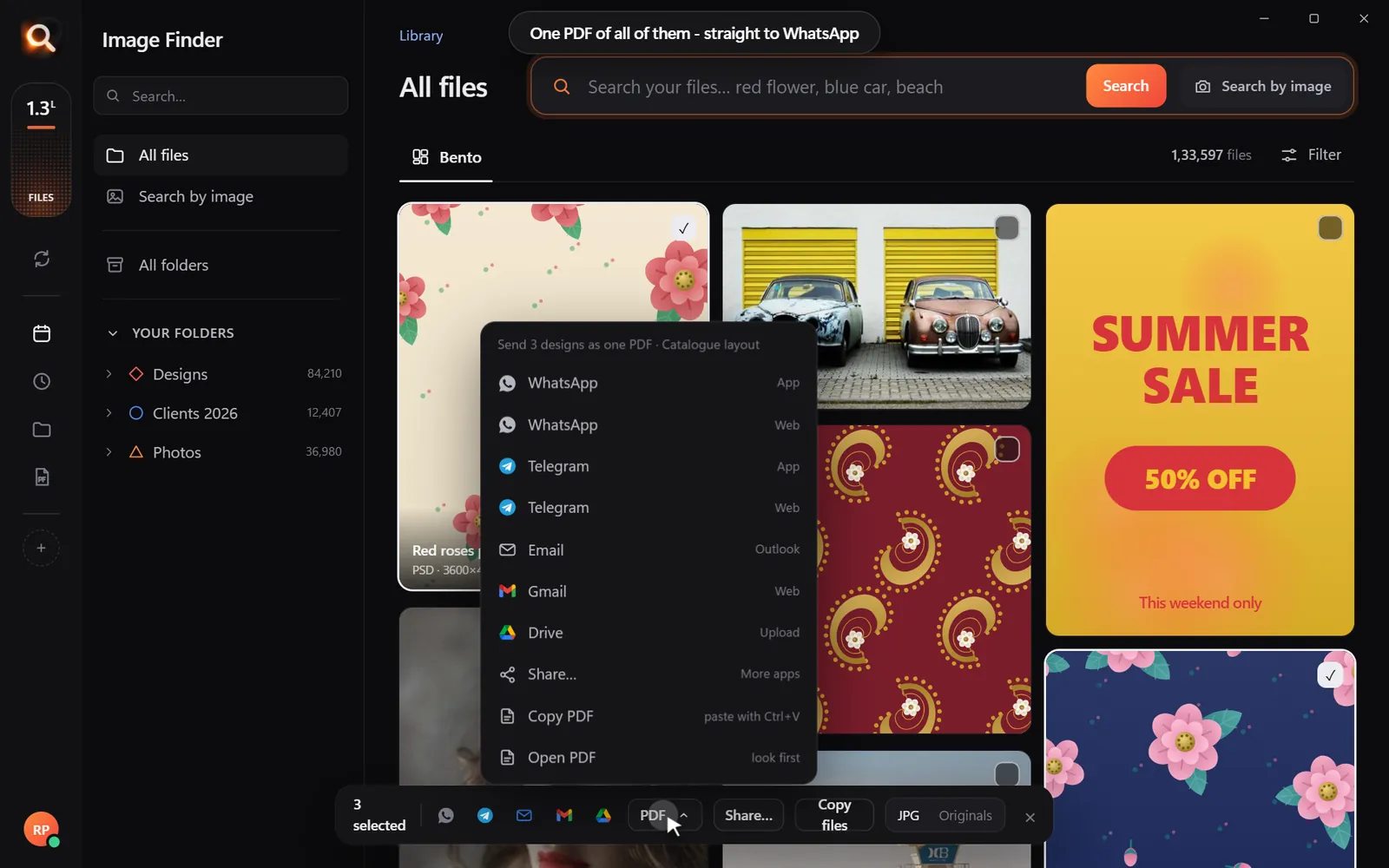
A PDF from selected photos
Share the recap with family as one PDF.

Bonus: the screenshot recap

Screenshots tell your year too - concert tickets, the funny chat, the first message from someone important. Search "ticket", "boarding pass" or "concert" to find them - Image Finder reads words in screenshots.

Make it a story, not a grid

The best recaps tell a story. Some structures that work:

StructureHow
Month by monthOne photo per month - classic and easy
FirstsFirst day of school, first trip, first home - search each moment
PeopleOne photo with each important person
PlacesEvery trip and day out - search "beach", "mountains", "city"
Then and nowJanuary vs December of the same people or place

Captions that people read

Short captions make a recap personal. Keep each to one line: where, who, and one feeling. "March - Lisbon, our first trip together." "July - Dad finally caught a fish." People skim photos but read short captions.

Don't forget the everyday

The big moments are easy to find. The everyday ones - Sunday breakfast, the walk to school, the dog asleep on the couch - are what make a year feel real. Search a few everyday scenes ("breakfast", "walk", "couch") and include two or three.

Find screenshots of the year's milestones

Some milestones only exist as screenshots: the offer letter, the acceptance email, the tickets, the first message. Image Finder reads the words in screenshots - search "congratulations", "accepted", "ticket" or "booking" and you'll find moments you forgot you captured.
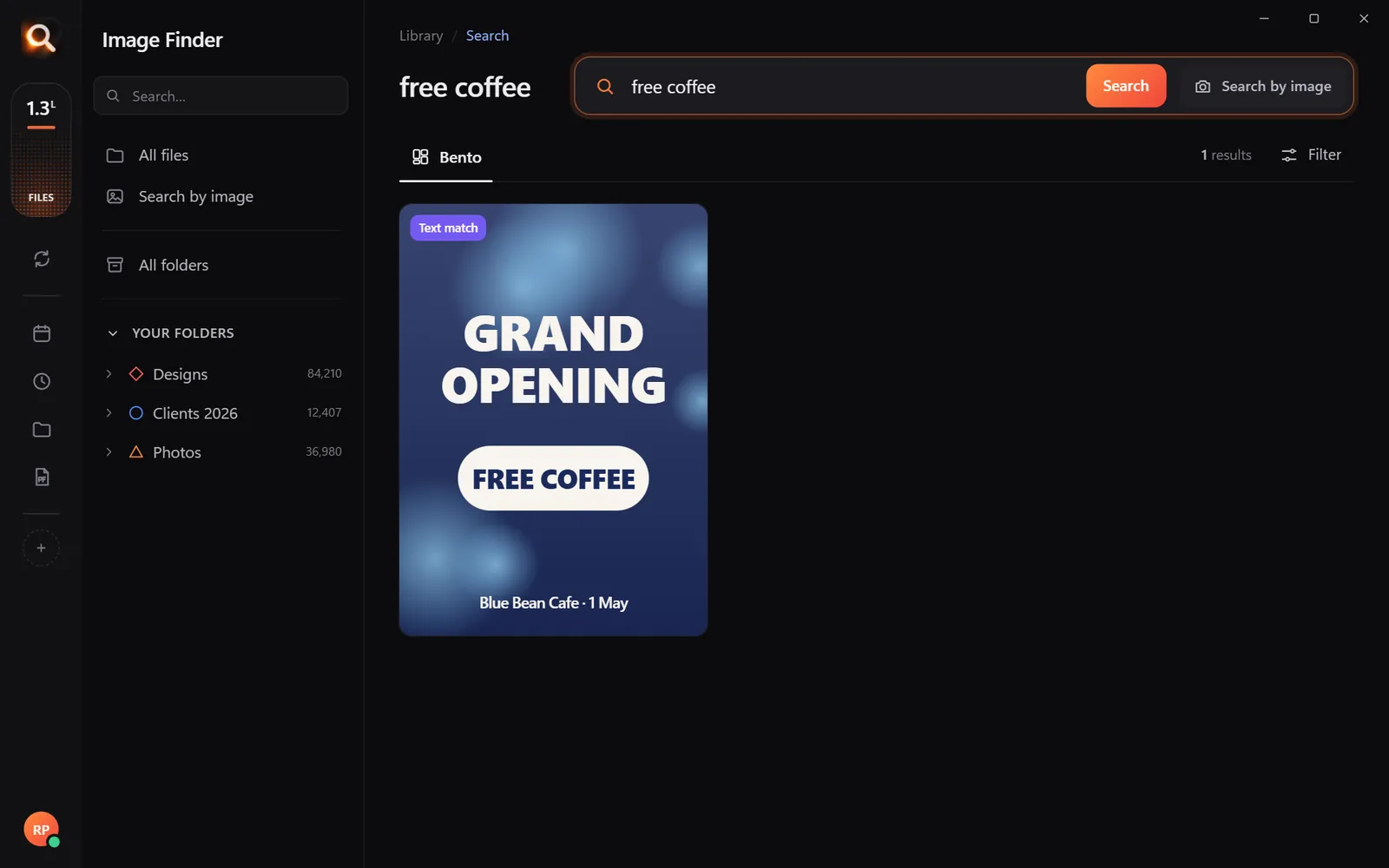
Words in screenshots are searchable
Search a word - the screenshot of that moment comes up.

A family recap tradition

Make it a December tradition: each family member picks their top three photos of the year from a shared search session. Combine them into one PDF, print it, and keep the prints in a box - a yearly time capsule.

Family recap evening 0/4

Quality tips

  • Use the original full-size photos, not chat copies - drop a copy in to find its original.
  • Avoid many photos from the same day in a row.
  • Mix close-ups with wide shots.
  • Check faces are in focus before printing.

Questions people ask

How do I make a year-in-review from my photos?

Gather the year's photos in one folder, search for moments and people instead of scrolling, pick your favorites, and make a collage, PDF or slideshow.

Can I include photos from different phones?

Yes. Copy them into one folder - names and sources don't matter for search.

How many photos should a year recap have?

Nine or ten for a social post, twelve for a calendar, 40-80 for a slideshow.

Search moments, people and colors - not 10,000 thumbnails.

Windows and Mac. Private, offline, no subscription.
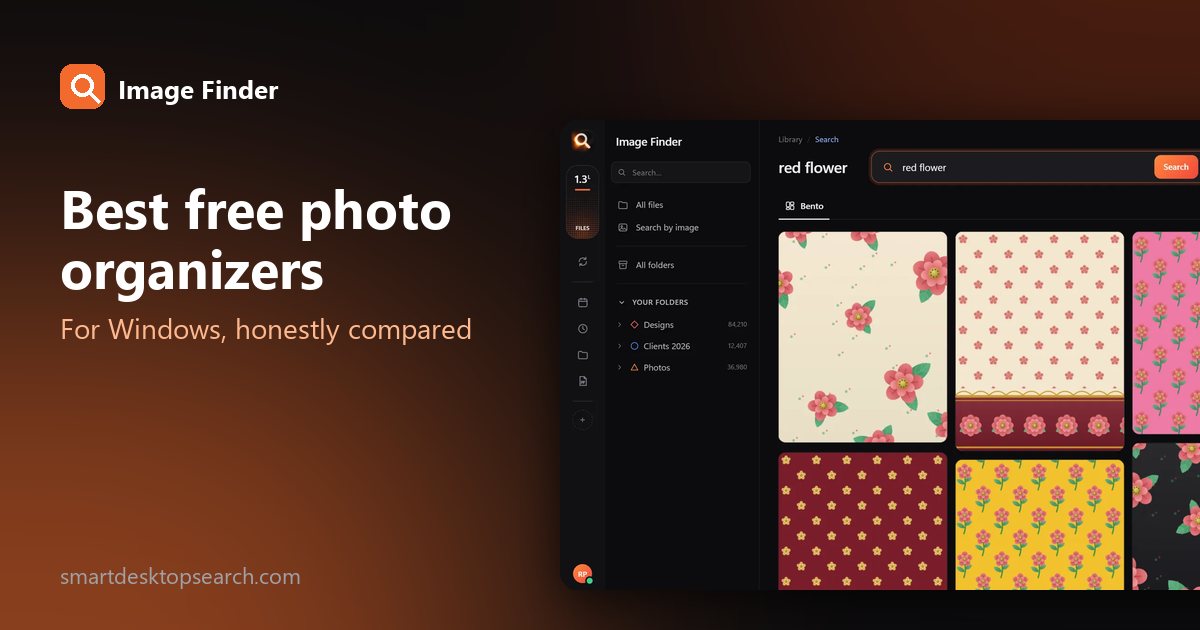
Photo library searchEvery photo, every year, one search.Twenty years of phone backups, camera cards and WhatsApp downloads. Describe the moment or pick a face - Image Finder finds it in your library, on your computer

More posts

The Best Free Photo Organizer Software for Windows in 2026 (Honest Picks)

The Best Free Photo Organizer Software for Windows in 2026 (Honest Picks)

Black Friday deals everywhere - but you may not need to pay anything. Six free photo organizers for Windows, what each is really good at, and which one fits you.

31 Oct 2026
Make a Thanksgiving Slideshow From 20 Years of Family Photos - in One Evening

Make a Thanksgiving Slideshow From 20 Years of Family Photos - in One Evening

The family wants a slideshow of 'all the old photos'. They are spread over 15 years and five devices. How to pull the best ones together in an evening, by face and by moment.

31 Oct 2026
Everything Search vs Image Finder: Name Search vs Content Search, Explained

Everything Search vs Image Finder: Name Search vs Content Search, Explained

Everything by voidtools finds any file name instantly - power users love it. So why can't it find 'the red car photo'? Name search vs content search, and when you need each.

31 Oct 2026