 +
+
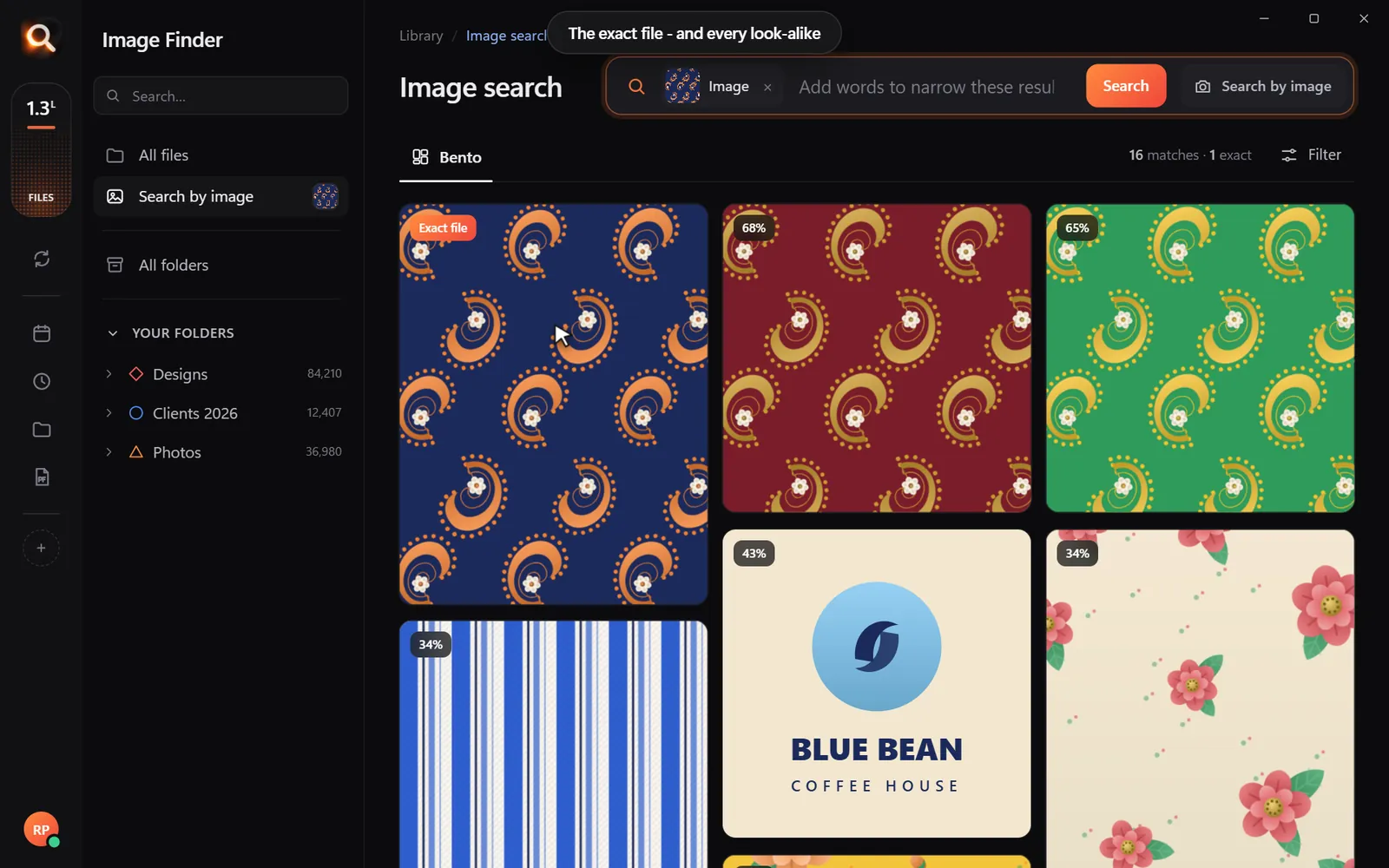

Most of us store tens of thousands of pictures, graphics, and documents on our computers. When you need one specific file, finding it often turns into a frustrating hunt through messy folders. If you are looking for dedicated image search software for pc, you probably know that standard operating system tools are no longer enough for big creative libraries.
Whether you use Windows 10, Windows 11, or macOS, visual assets require a different kind of search. A file name like IMG_4021.JPG or Banner_v3_final.psd tells you almost nothing about what is actually inside the image. In this guide, we look at the main ways people search pictures on desktop computers, why cloud tools often fall short, and what makes a modern desktop visual search tool work so well.
The Three Ways to Search Images on a Computer
When your picture collection grows into thousands or tens of thousands of items, you generally have three options to locate your files.
1. Default File Explorer and Finder Search
Windows File Explorer and macOS Finder are built into your system, but they rely almost entirely on file names, dates, and manual file tags. If you do not remember the exact name you gave a file six months ago, standard search cannot help you. It cannot look at a picture and understand that it contains a red car, a beach sunset, or a floral pattern. On Windows, indexing large external hard drives can also slow down your entire system.
2. Cloud Storage and Online Photo Galleries
Cloud services often provide smart search. They can recognise objects, faces, and text in your photos. However, they come with three big drawbacks:
- Monthly storage costs: Uploading hundreds of gigabytes or terabytes of high-resolution photos and project files requires expensive ongoing subscriptions.
- Upload speed limits: Sending massive RAW camera files or multi-layered graphic files over the internet takes hours or days.
- Privacy and confidentiality risks: Storing client work, personal family photos, or unreleased product designs on remote servers exposes your data to internet leaks and third-party terms of service.
3. Offline AI Desktop Search Software
Offline visual search applications bring modern visual recognition directly to your own computer. The software scans your local drives once and builds a private index. After that, you can search by describing what the image looks like, dropping in a reference picture, or finding specific text. Everything stays on your local hard drive, with zero cloud uploads and zero internet required for daily work.
To learn more about how this works on modern systems, read our guide on how to search images by content on Windows 11 and Mac.
What to Look for in Image Search Software for PC
Not all desktop search tools are built for the daily demands of designers, photographers, and busy agencies. When evaluating image search software for pc, look for these core capabilities:
Natural Language and Flexible Queries
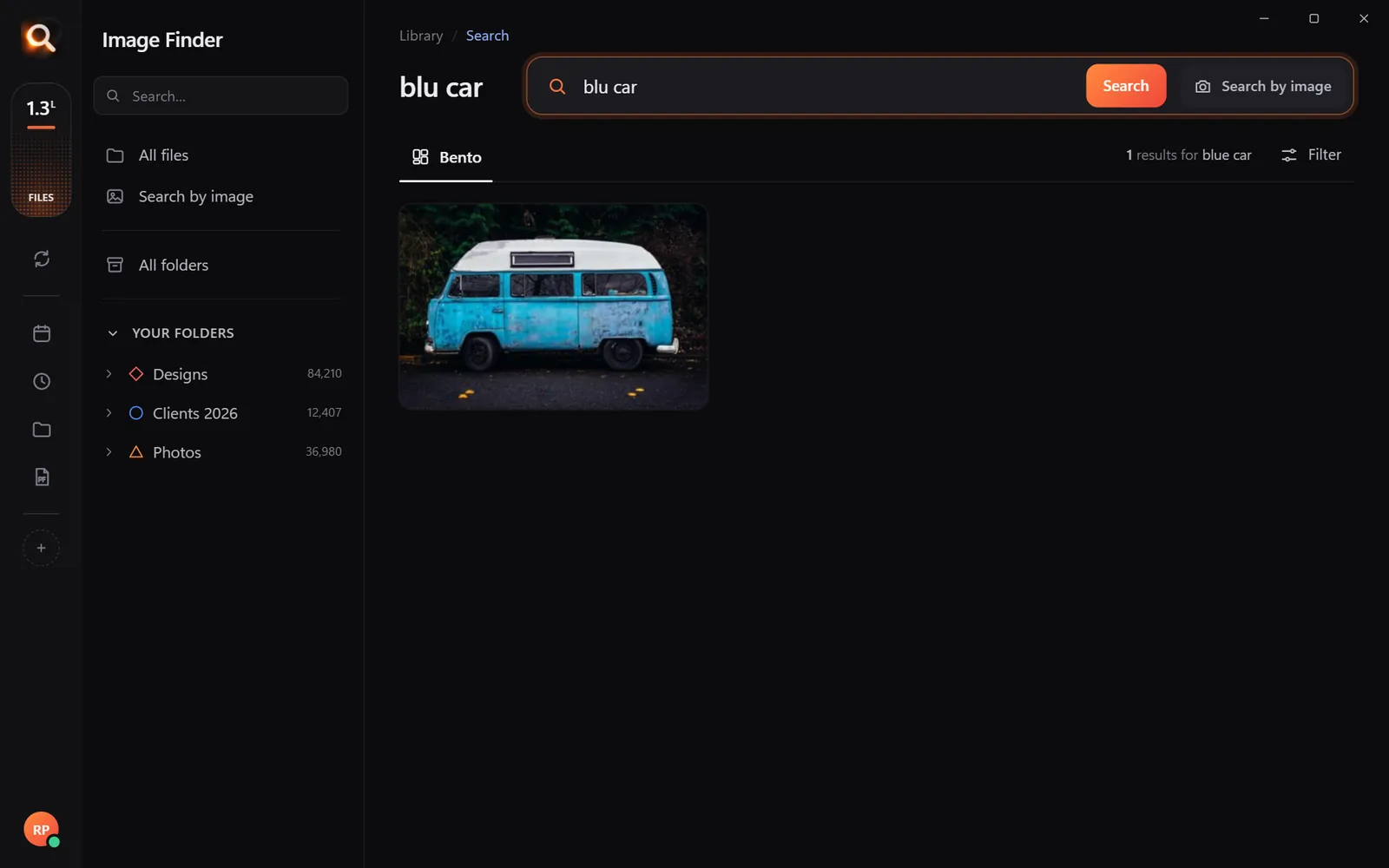
You should be able to type what you remember in everyday language, such as "yellow sports car on city street" or "rustic wooden table with coffee cup". The software should understand everyday descriptions, ignore minor spelling mistakes, and return matching pictures even if you did not write those words in the file name.
Visual Similarity and Reverse Image Search
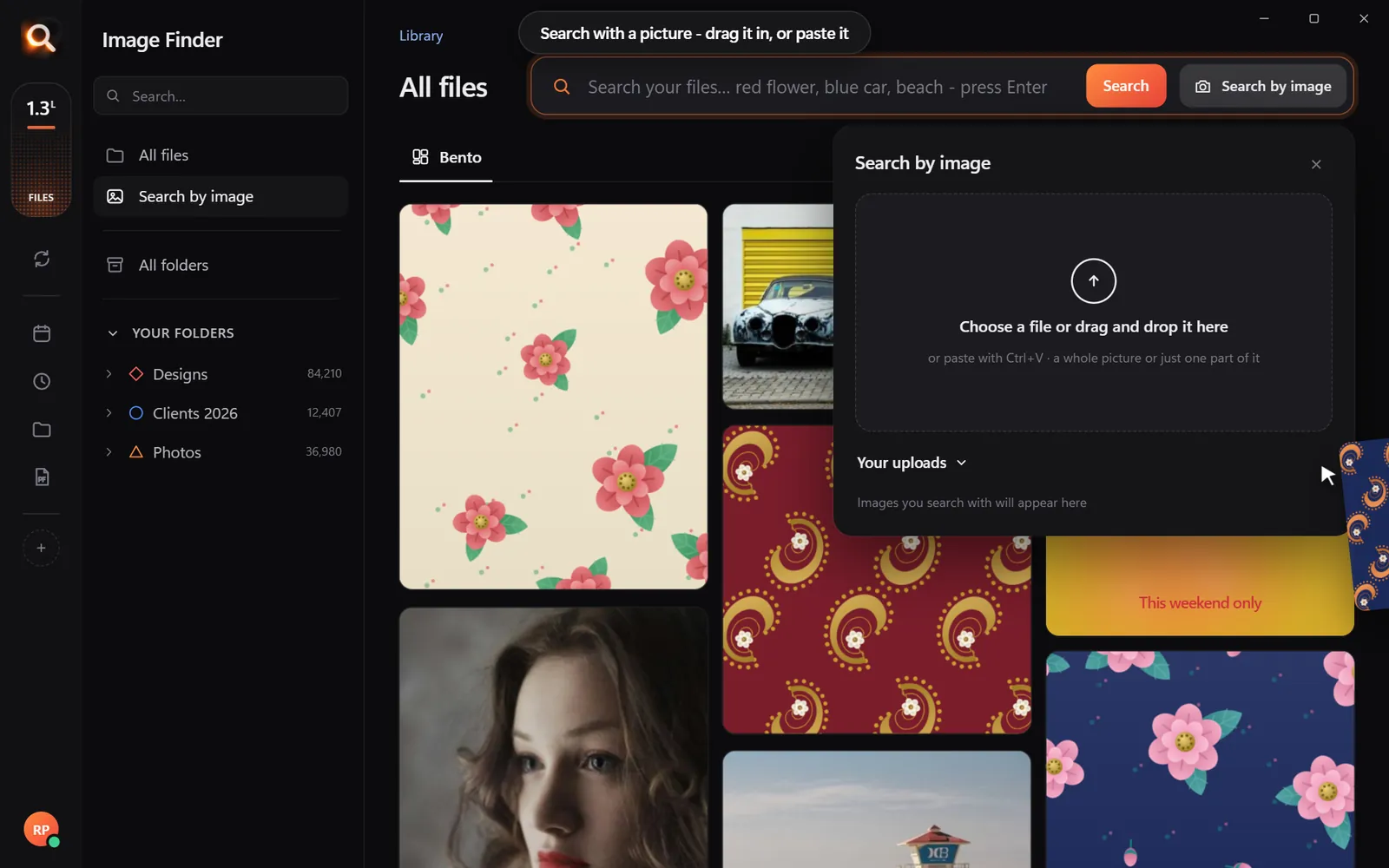
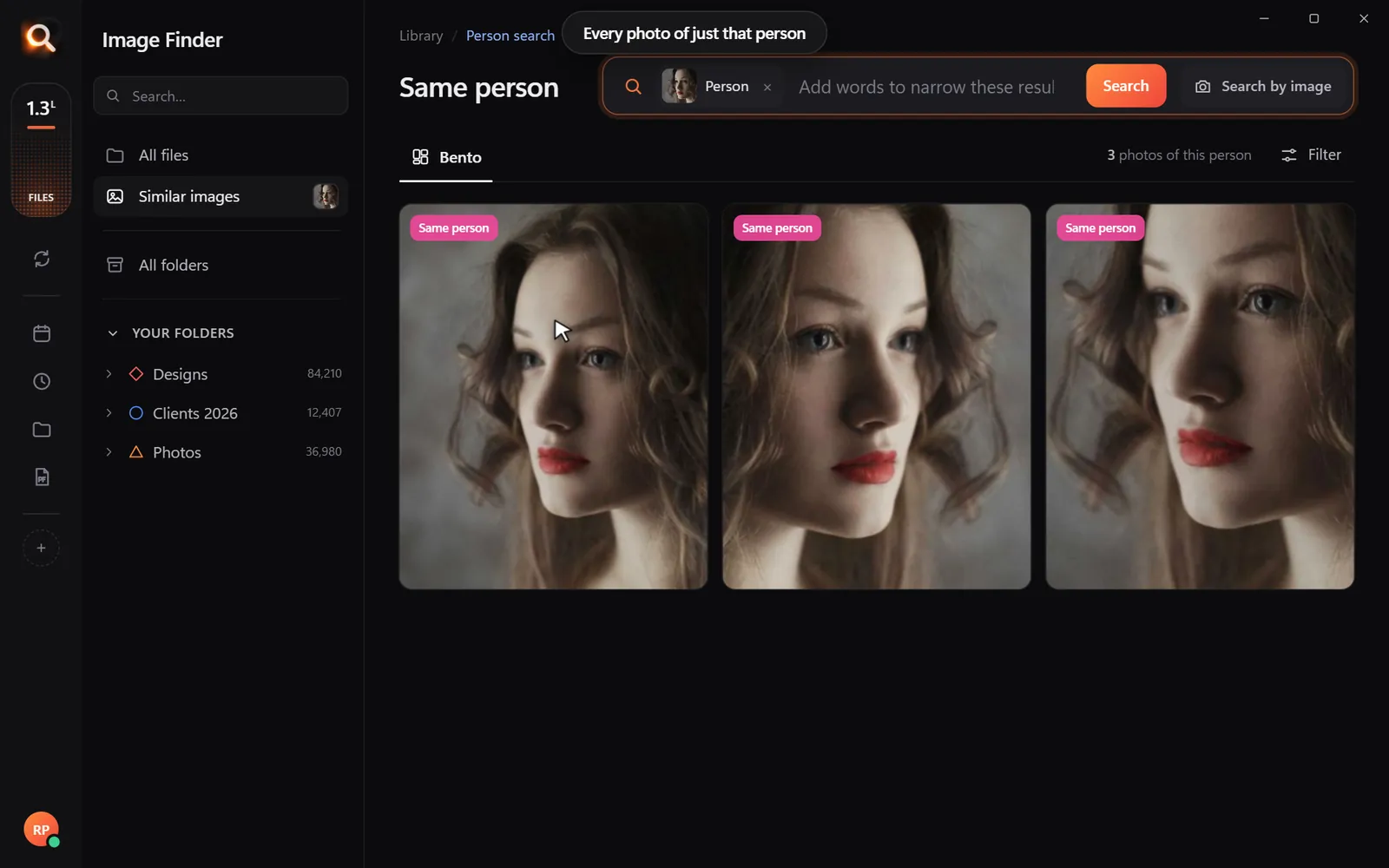
Sometimes you have a low-resolution screenshot from a client or an old sample, but you need the original master file. Good visual software lets you drag and drop an existing picture to find the exact match on your hard drive, followed by look-alikes ranked by how close they are.
Text Extraction Inside Pictures and Documents
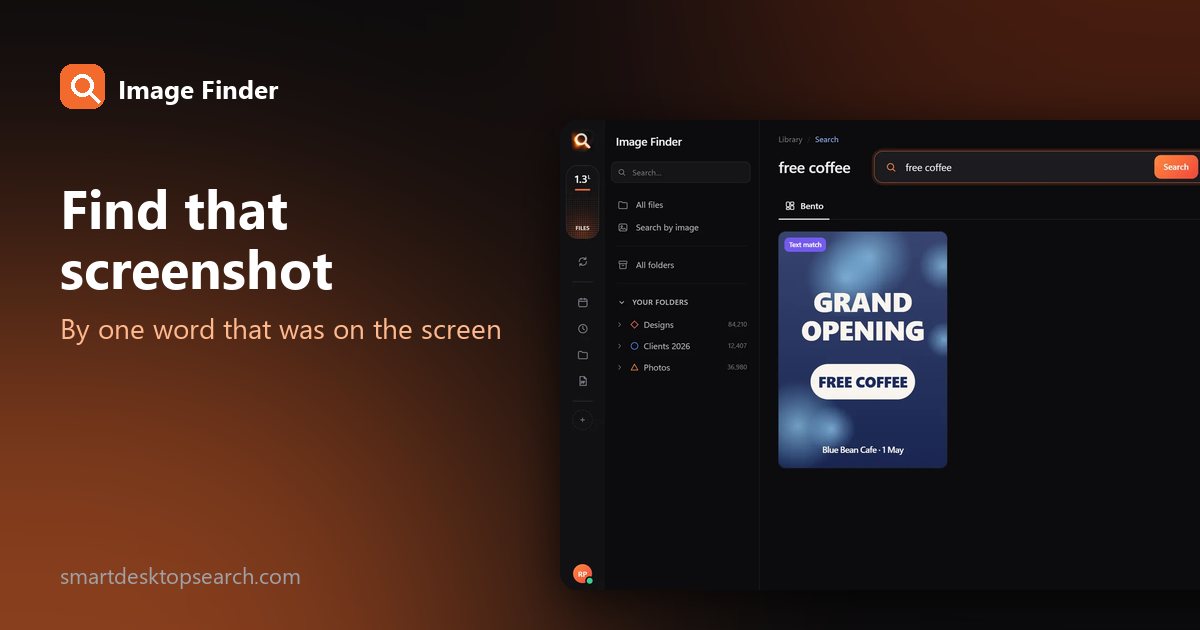
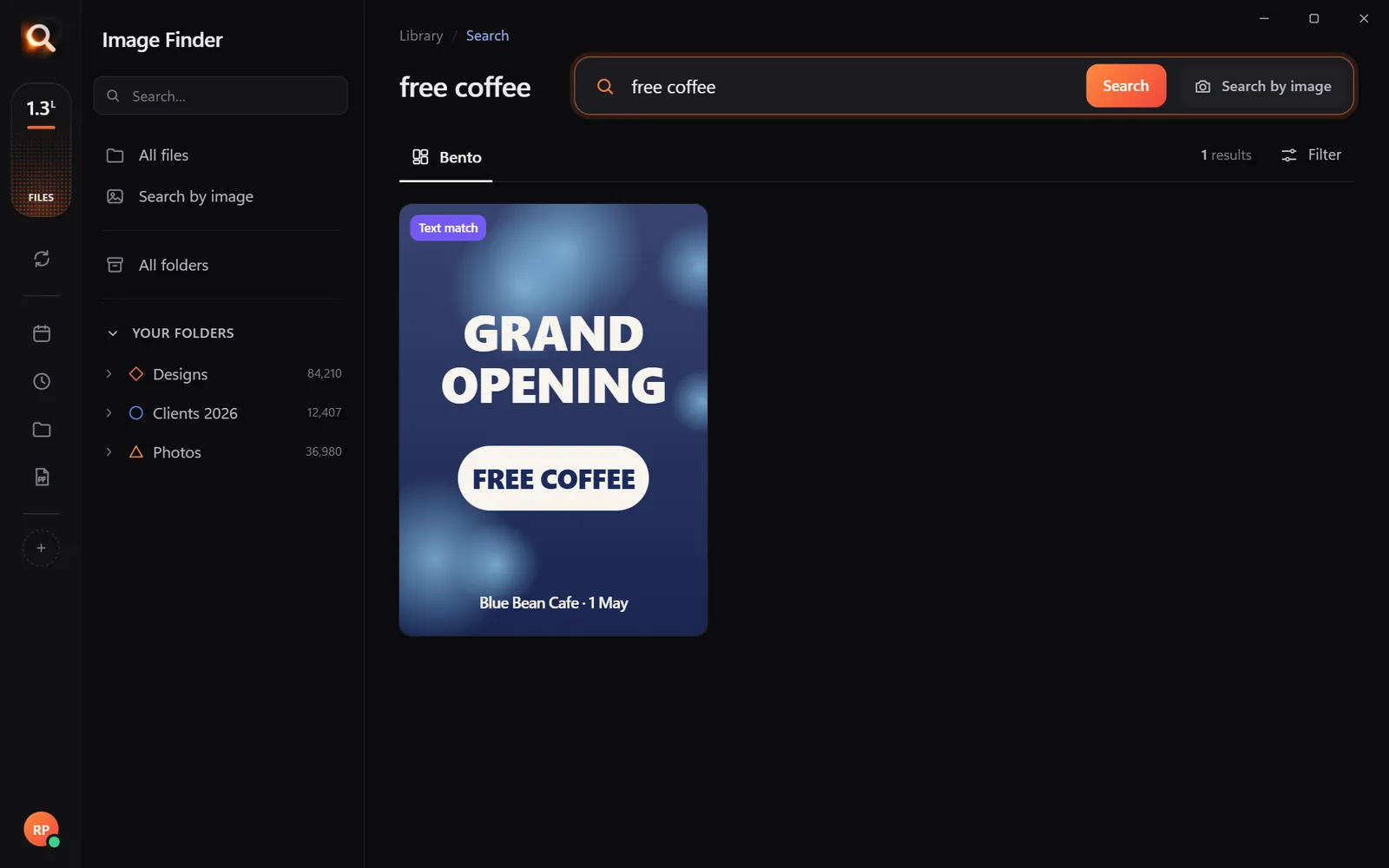
Visuals often contain text, such as store signs, motivational quotes, event dates on posters, or invoices. The tool must automatically read text inside scanned PDFs, screenshots, and graphics without requiring manual tagging.
Cropped Region Search
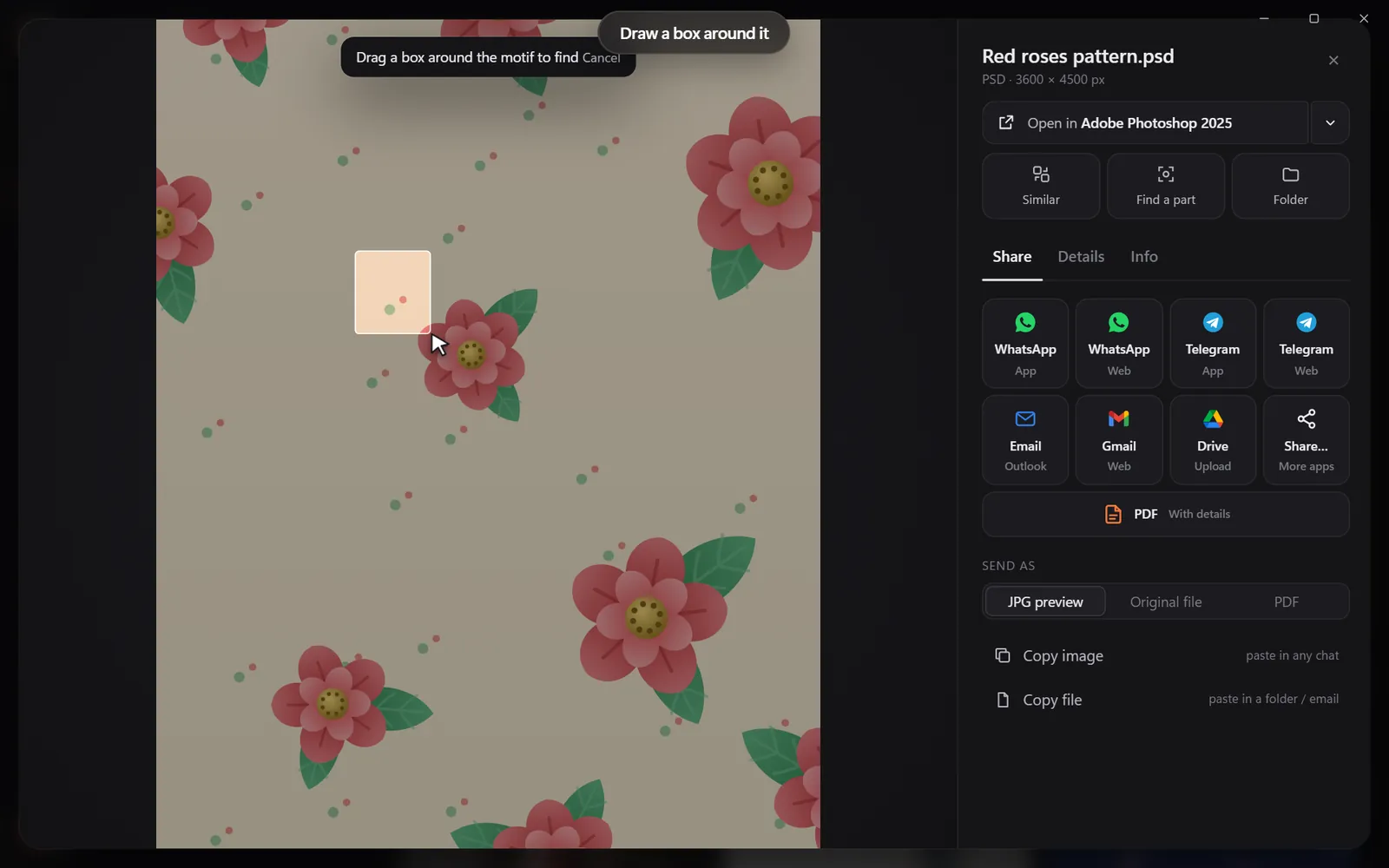
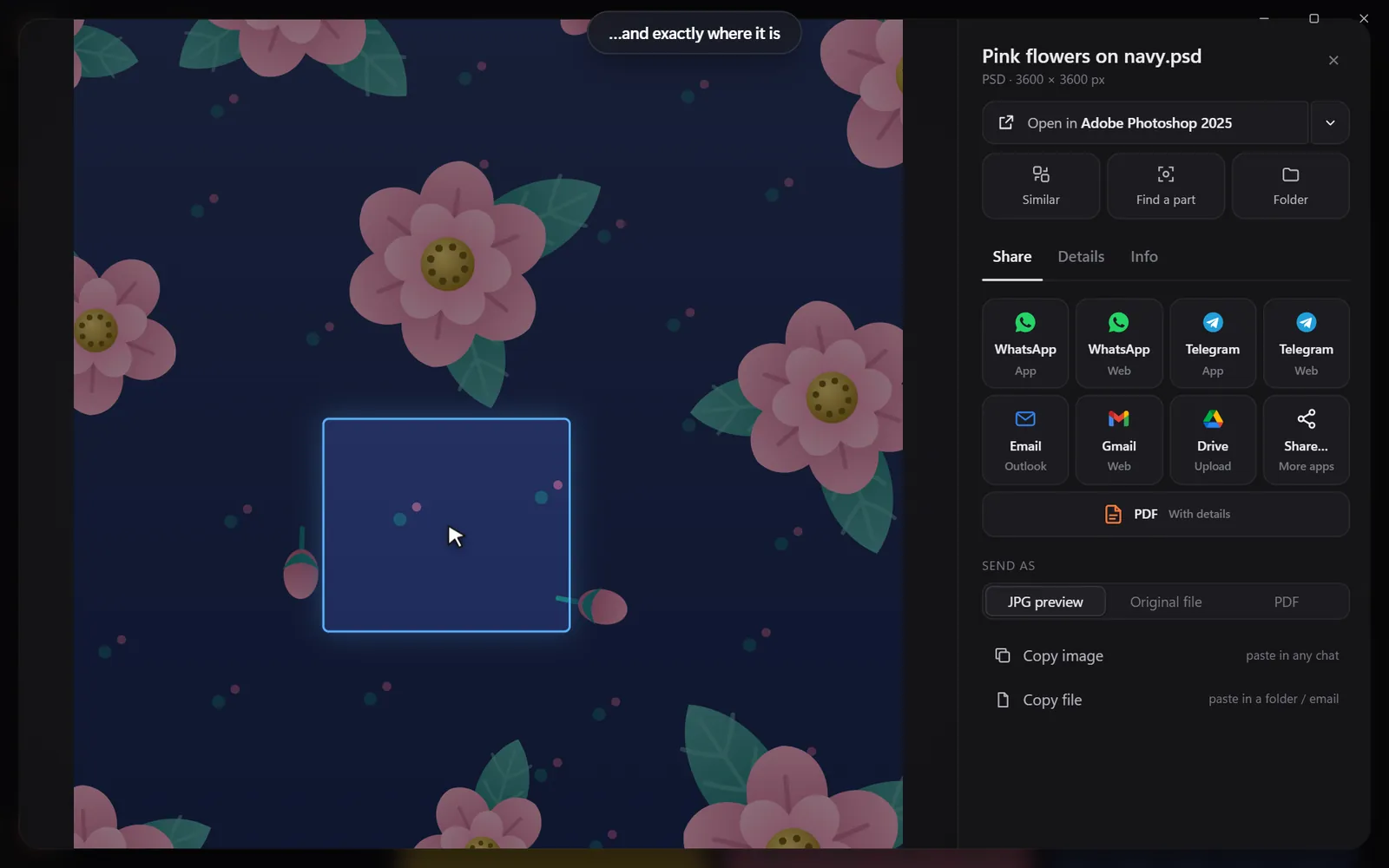
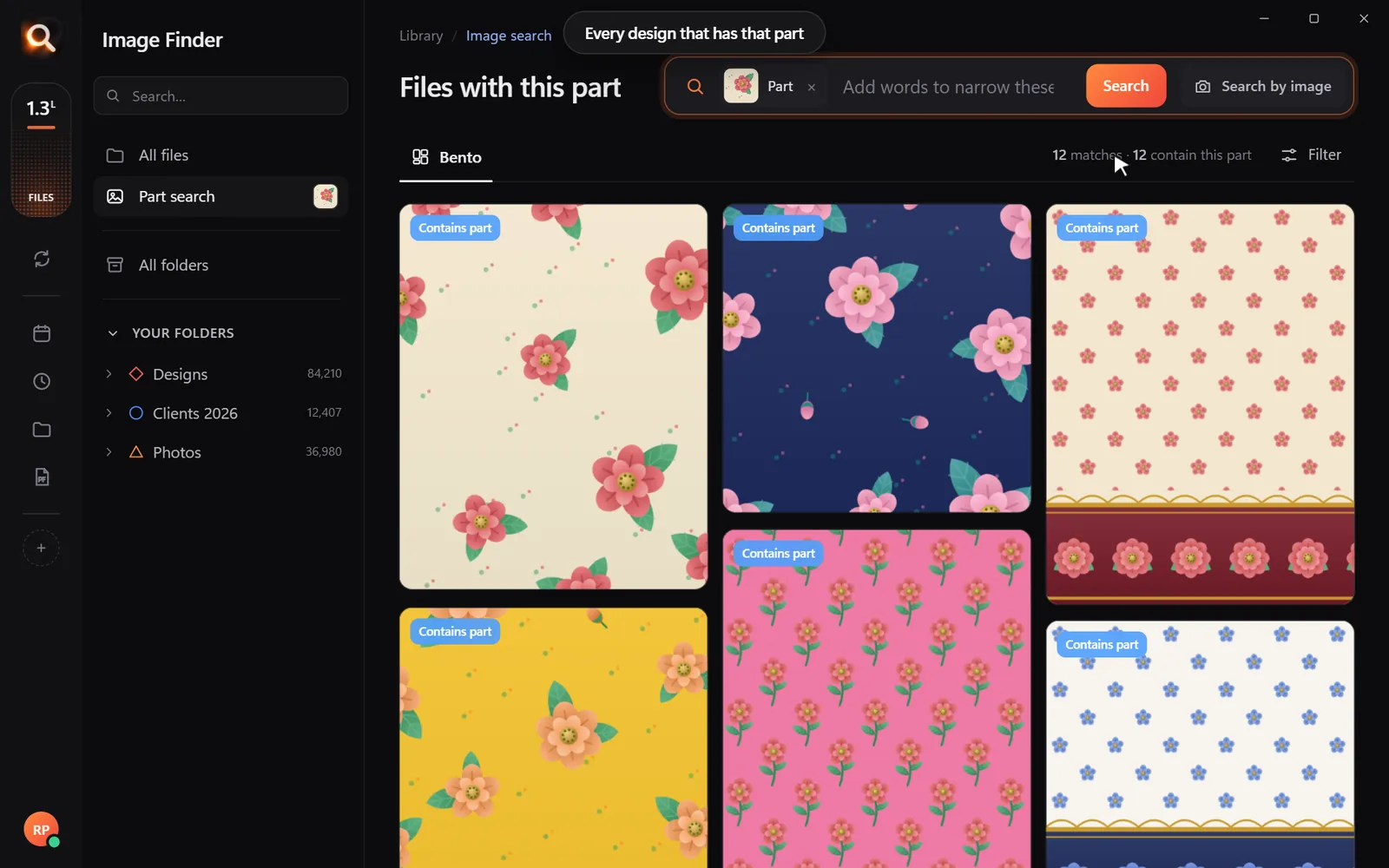
If you only need a specific motif, pattern, or logo found inside a larger design, your software should allow you to draw a box around that specific element and search your drives for any file containing that exact part.
Why Format Support and Local Privacy Matter
Many simple photo viewers only support standard web formats like JPG and PNG. But real work involves much more than that. If you work in design, print, or photography, your search tool must handle professional formats without forcing you to convert them first.
A complete solution must support professional design files, vector graphics, and digital photography formats. For example, knowing how designers find any PSD, AI or SVG file by what it looks like can save hours of tedious manual browsing each week. When your search tool opens PSD layers, Adobe Illustrator graphics, EPS files, camera RAW files, and multi-page PDFs, you can find your original project files instantly.
Equally important is local privacy. Agencies and studios handle proprietary client assets under strict non-disclosure agreements. Photographers handle private family portraits and event records. Running an offline search engine ensures your images never leave your computer. You keep total control over your files while enjoying fast, intelligent search.
How Image Finder Solves Desktop Search
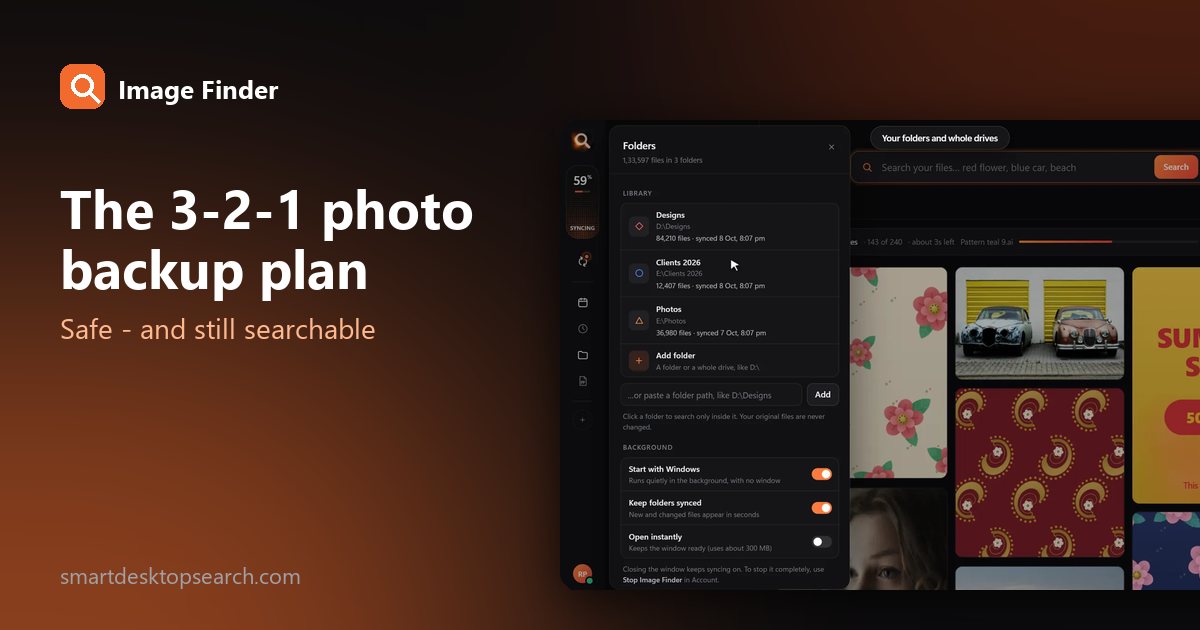
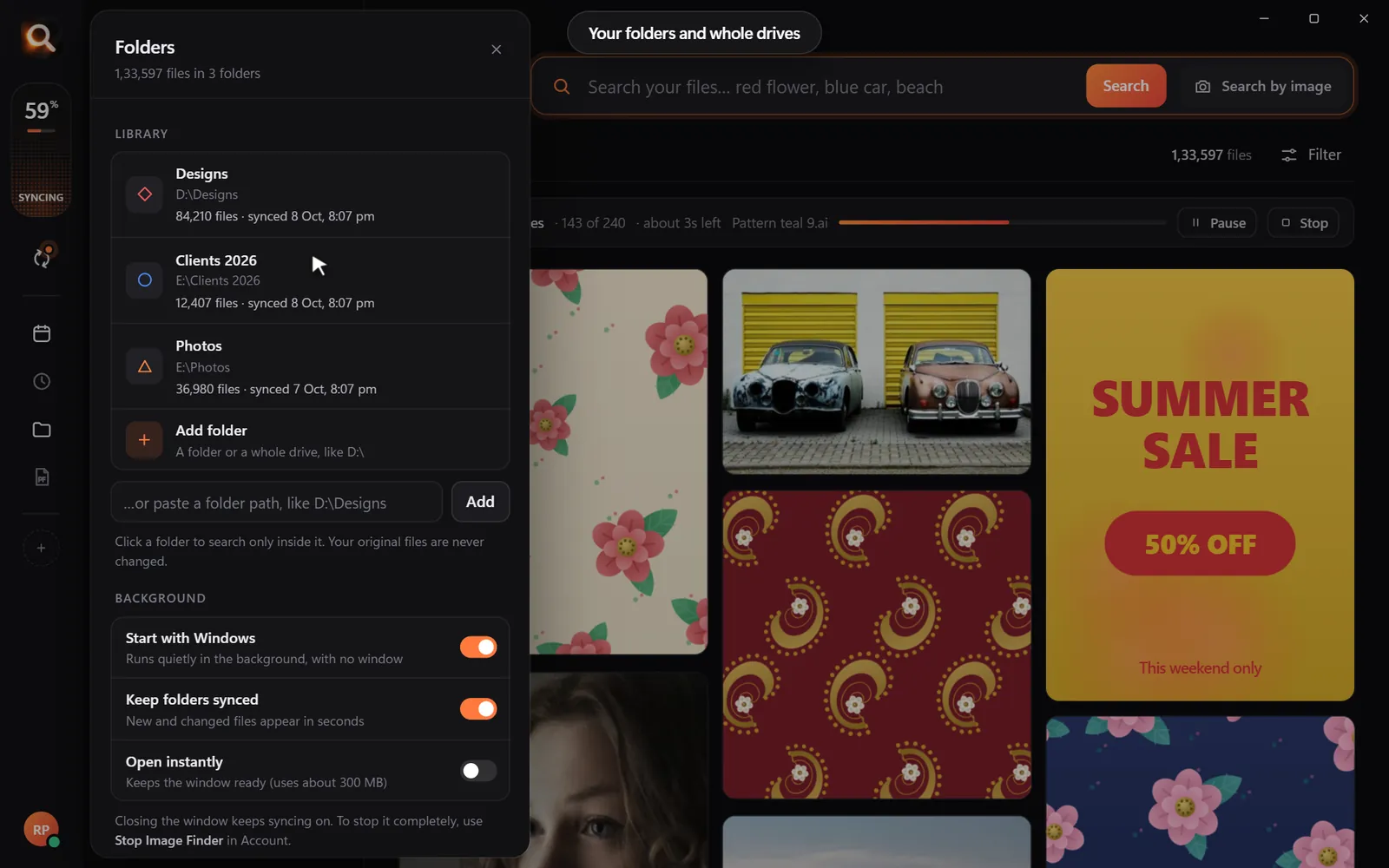
Image Finder is built from the ground up for Windows 10 and 11 and Mac (both Apple Silicon and Intel). It delivers instant, offline search across huge local libraries—tested smoothly on collections of over 130,000 files.
Here is how Image Finder works on your PC:
- Lightning-Fast Results: It returns matching files in about a tenth of a second, even across massive external hard drives.
- 107 File Types Supported: Search photos, videos, Office files, PDFs, and creative assets including PSD, AI, CDR, EPS, SVG, TIFF, HEIC, and camera RAW formats.
- Search Inside Archives: Image Finder can even look inside compressed ZIP, RAR, and 7z archives without needing you to unpack them manually.
- Strictly Safe and Read-Only: The tool only reads your files. It never moves, renames, edits, or deletes your work. While it helps you identify identical copies, it never acts as a destructive bulk cleaner.
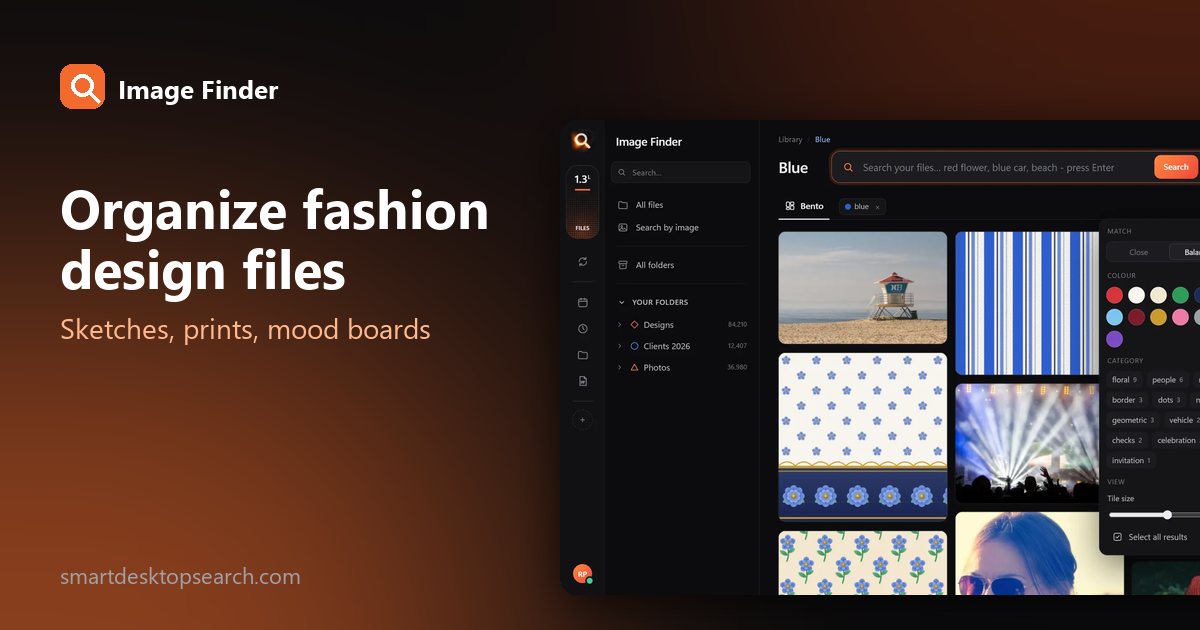
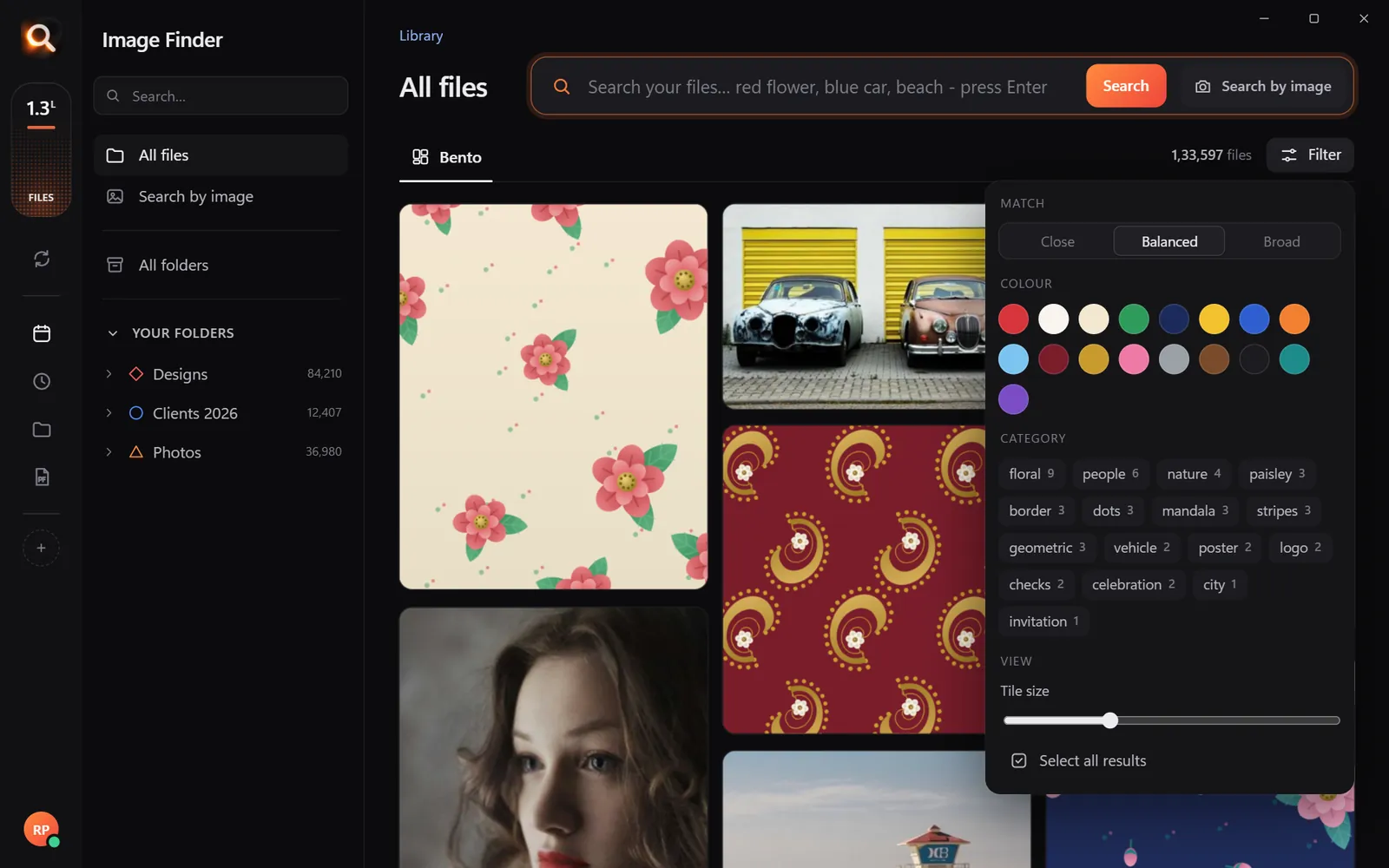
- Precise Filtering: Refine any query by 17 colour swatches, visual categories (such as floral, people, nature, logos, or posters), file types, and match strictness (Close, Balanced, or Broad).
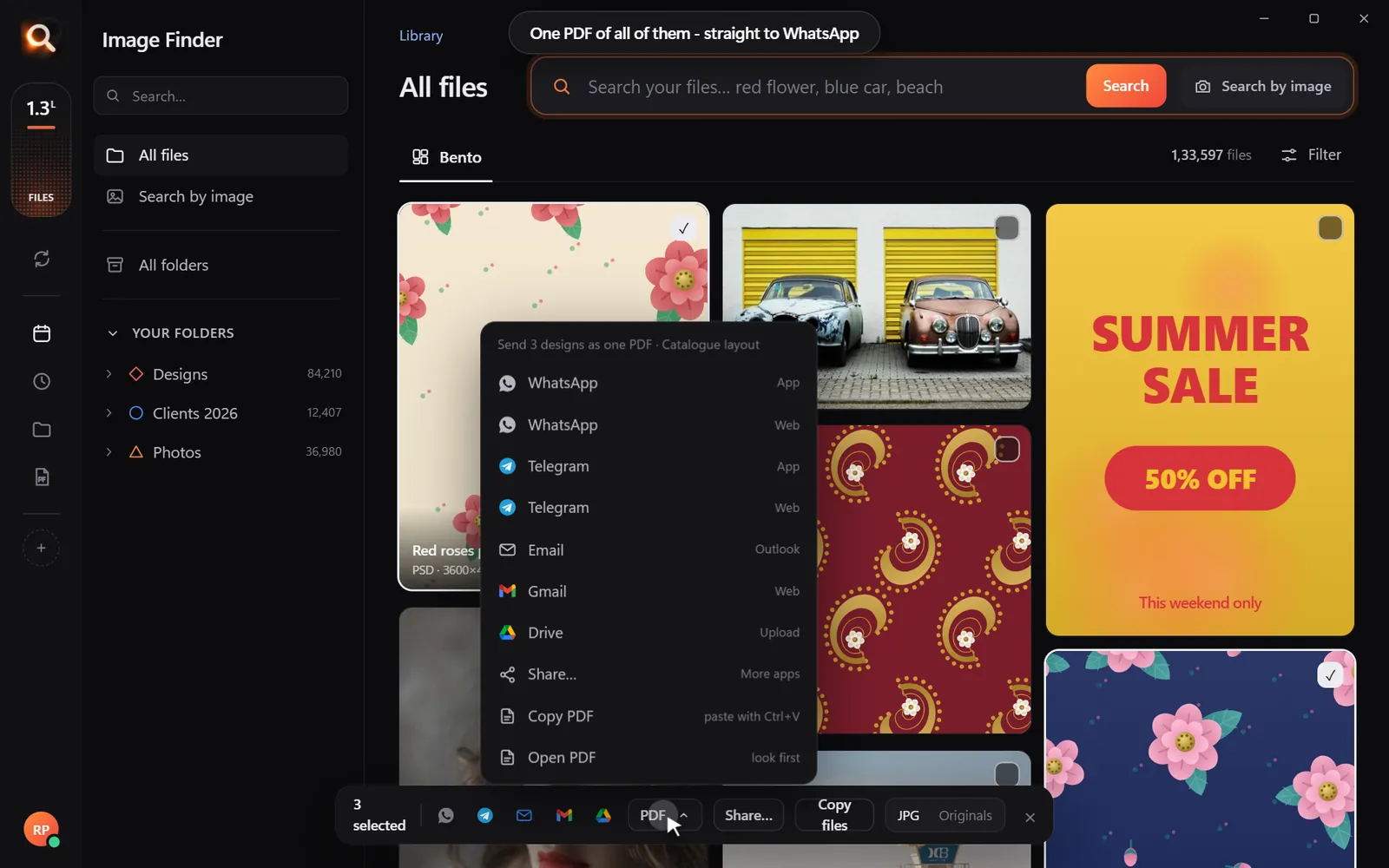
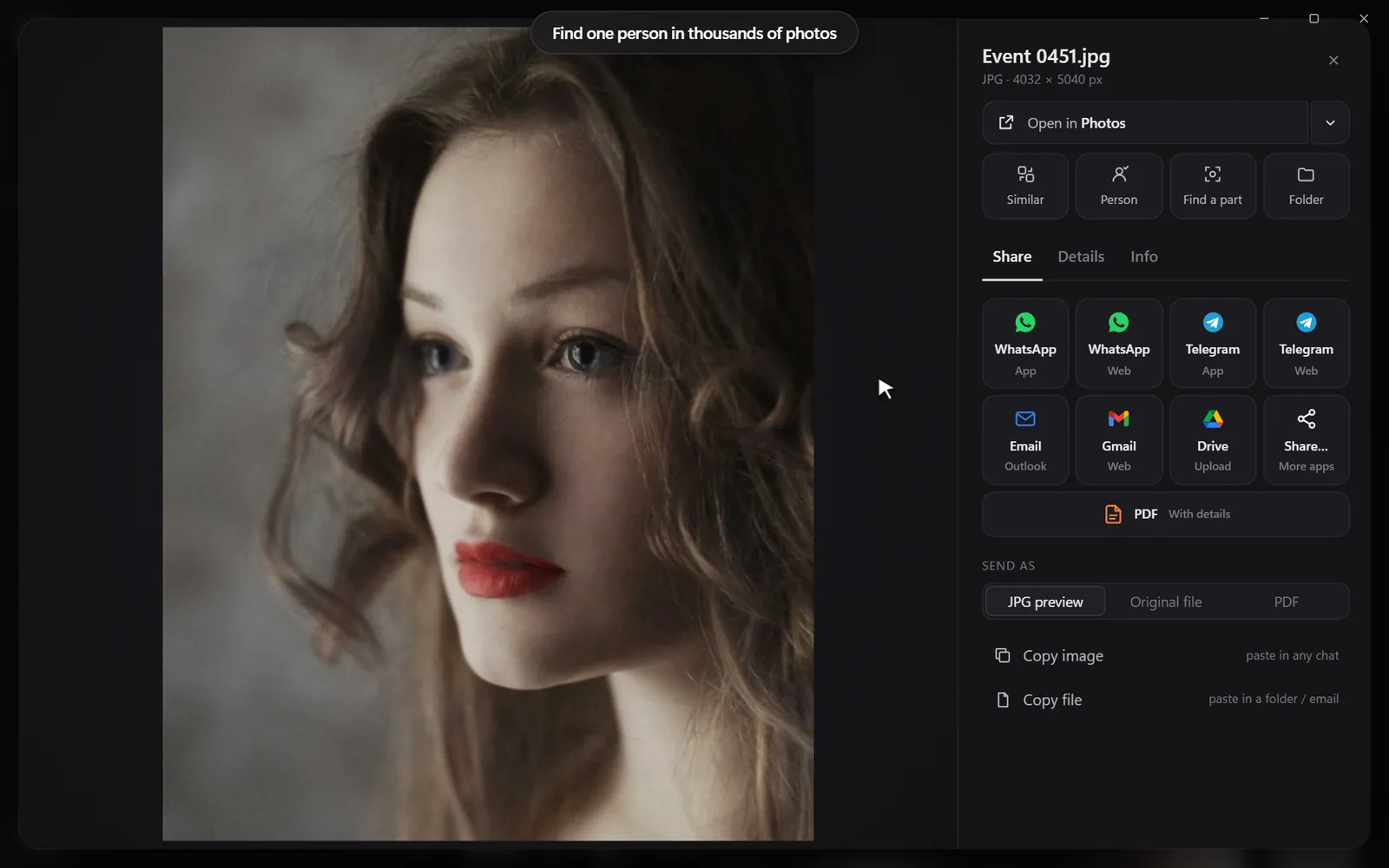
- One-Click Sharing: Send your found images straight to WhatsApp, Telegram, Gmail, or Google Drive, or export them as a clean PDF catalogue for your clients.
Because everything runs locally on your PC, your files remain completely private and secure. You can test these capabilities right now: try the live demo in your browser to see how fast visual search feels.
Questions People Ask
Does image search software slow down my computer?
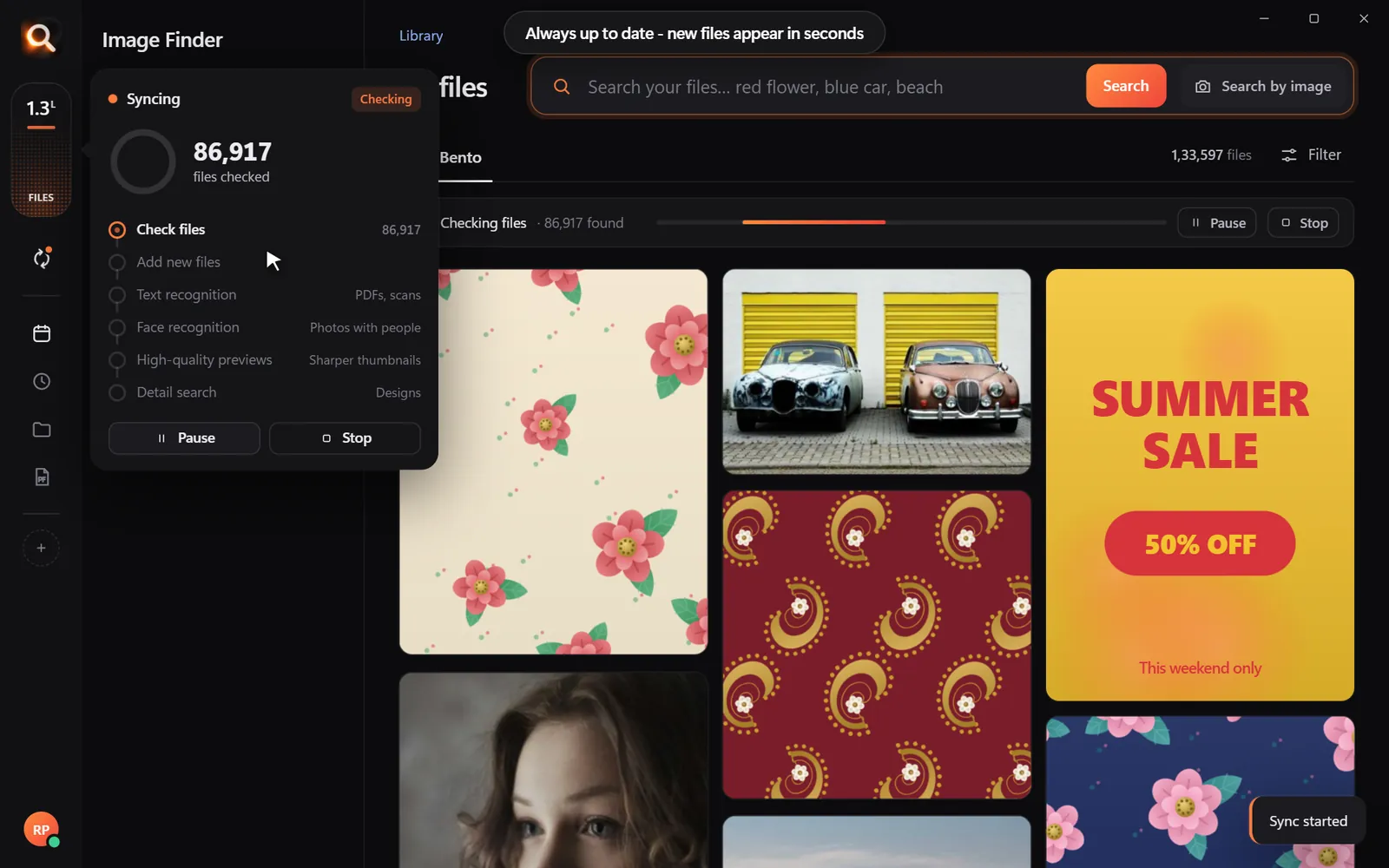
Traditional operating system indexing can slow down older hard drives if it constantly indexes background processes. Modern visual tools like Image Finder build an initial index and then run lightweight background updates only when files change. Searching takes only a fraction of a second and uses minimal system resources.
Can I search for text written inside a photo or scanned PDF?
Yes. Capable desktop visual software reads printed or digital text inside images, posters, screenshots, and scanned PDF pages. You can simply type the words shown on the image into the search bar to locate the exact file.
Will my images be uploaded to cloud servers?
With Image Finder, no files are ever uploaded. The image recognition models run entirely on your own PC hardware. You can disconnect your internet and continue searching your files offline without any disruption.