Try itFeaturesPricingHow it works QuestionsBlogSign in DownloadContact usRefunds

For Windows & Mac · Works offline

Find any image on your computer.
Just describe it.

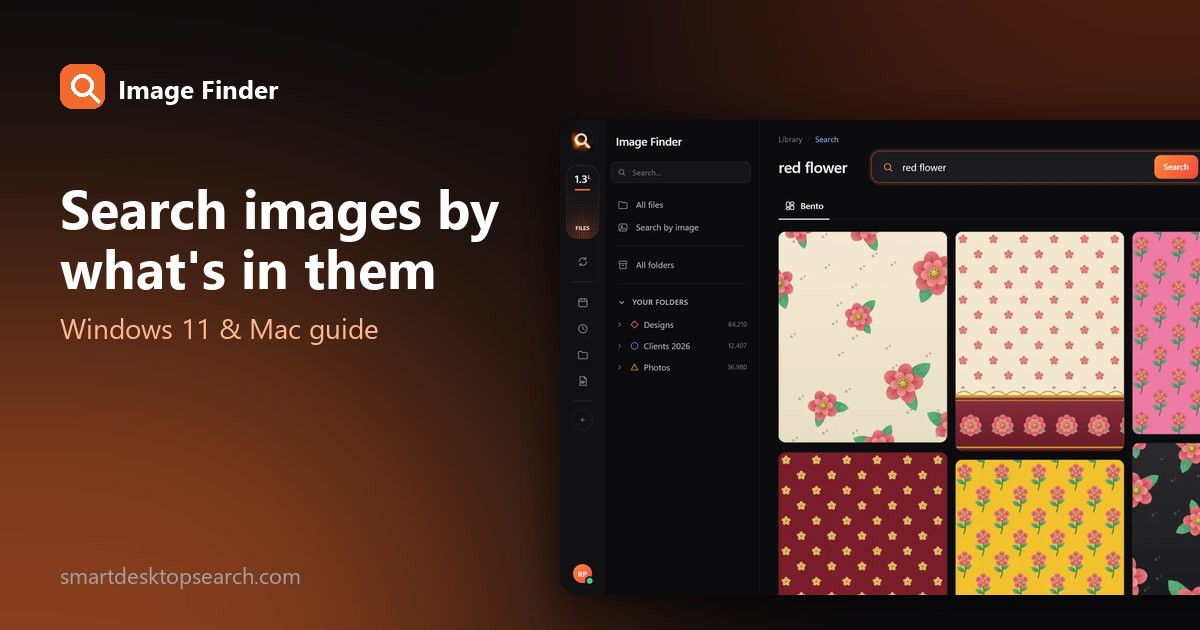
Type "red flower", drop in a photo, or pick a face - Image Finder finds the right file among lakhs of photos, designs (PSD, CDR, AI) and PDFs in about a tenth of a second. Nothing is uploaded.

On your phone? Image Finder runs on your computer. Send yourself the link and open it there.

Choose your computer and a plan - the download starts by itself right after paying

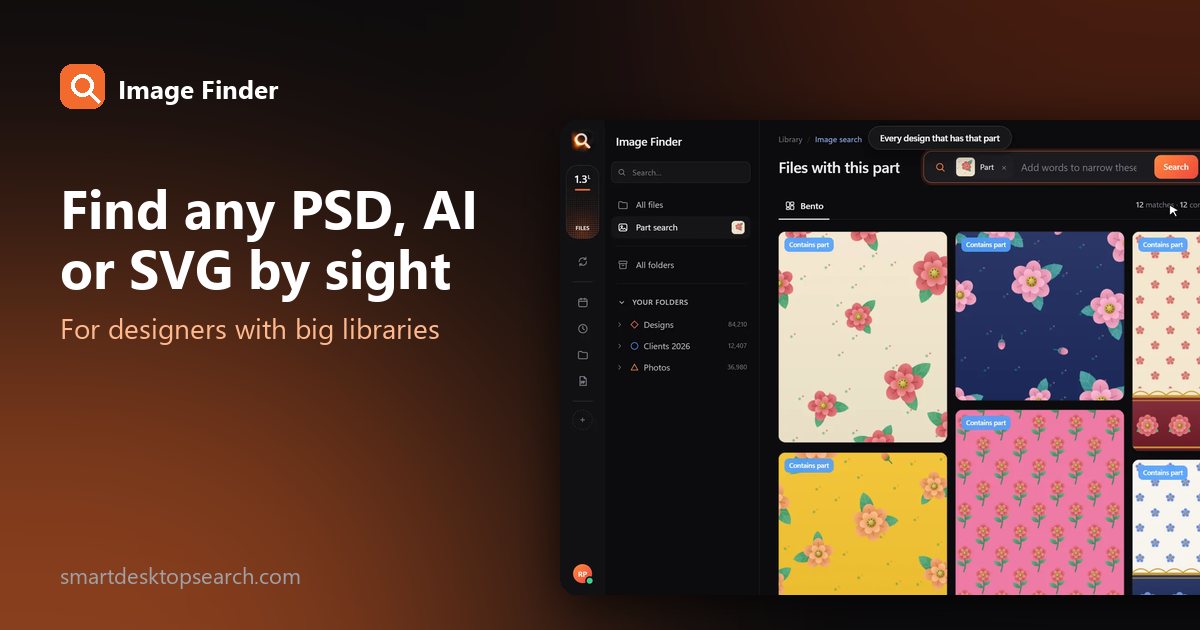
The Image Finder window with sample pictures

The real Image Finder window with sample files - click anywhere in it to try it yourself. In the app it searches lakhs of your own files in a fraction of a second, all on your PC. Open it full screen

Sound familiar?

You remember the picture,
not the file name.

It's somewhere in IMG_4821, final_final_v3.psd or New folder (7).

Windows search only
knows names.

It can't see a red flower, a logo or a face inside your files.

Photo apps want
your files uploaded.

And they can't open PSD, CDR or AI designs at all.

Image Finder looks inside every file - so you find it the way you remember it.

Four ways to find it. One click to share it.

By words

Type what you see.

By a picture

Drop in any picture.

By one part

One motif. Every file that has it.

By a face

One face. Every photo.

Then share it

WhatsApp, PDF, Drive. One click.

Always ready

New files show up in seconds.

Why not just use Windows search?

Because it only knows file names. Here is what changes.

Image FinderWindows File Explorer searchCloud photo apps
Find a picture by describing what is in it Names and dates onlyPhotos only
Search with a picture - find the original and look-alikes Some apps
Find every file that has one part of a design
Opens design files - PSD, CDR, AI, EPS - and camera RAW Names only
Works with no internet
Your files stay on your computer Uploaded
Works on any Windows 10 / 11 PC or Mac

Windows 11's Photos app can search by description only on new Copilot+ PCs, and only in photos.

Built for real libraries.

Lakhs of files, many folders, many names - and people who have no time to look.

Private by design.

Your designs, photos and searches stay with you - on your own PC. Nothing is uploaded, and nobody else can see them.

Fast on any PC.

About a tenth of a second per search - even in a lakh-plus library.

1,33,597 files searched

107 file types.

Photoshop, CorelDRAW, Illustrator, PDF, camera RAW, videos, fonts - with real previews.

Selected 0
107 types

Made for anyone with a big library.

Designers & print shops

"floral border maroon" - the right PSD or CDR from lakhs of designs, while the client waits.

Photographers & studios

Every photo of one person from a whole wedding, in one click.

Offices & agencies

Logos, posters and PDFs found by the words printed inside them.

Everyone with years of photos

"beach", "birthday cake", "red car" - no folders to dig through.

Simple pricing.

₹1 per day. Pay once for the time you need - no auto-debit.

One licence works on one PC. Your time starts when you activate Image Finder on your PC.

Searching in three minutes.

1

Choose a plan and pay

UPI, cards, net banking or wallets. Your website account is made with your email and password.

2

Download - your key is inside

Your licence key is made the moment the payment is done. Download Image Finder right away.

3

Install and choose folders

Click Install, pick the drives and folders to search - and start finding while it reads them.

Questions? Answers.

How do I find a picture on my computer if I don't know its name?

Open Image Finder and describe it - "red flower", "blue car", "birthday cake". It looks at what is inside every picture, so the file name does not matter. You can also drop in a similar picture, or pick a face.

Is it better than Windows search?

Windows File Explorer finds files by their names and dates. Image Finder finds them by what is in them - words, pictures, a part of a design or a face - and it also opens design files like PSD, CDR and AI. Windows 11's own describe-search in the Photos app needs a new Copilot+ PC; Image Finder works on any Windows 10 or 11 PC.

Does it upload my files?

No. Image Finder works fully on your computer. Your files, pictures and searches never leave it. Only your licence is checked online, once every few days.

Does it work without internet?

Yes. Searching, previews and sharing to folders work offline. It needs the internet only to check your licence now and then, and to send to WhatsApp, Gmail or Drive.

Which file types does it search?

107 types: Photoshop (PSD, PSB), CorelDRAW (CDR), Illustrator (AI, EPS), PDF, every photo format including camera RAW (NEF, CR2, ARW), HEIC, SVG, Office files, fonts and videos - all with real previews.

Can it search inside PSD and CDR files?

Yes. It sees the design itself, so "red rose border" finds the right PSD or CDR, and a photo of a printed design finds its original file.

Does it work on Mac?

Yes - there are versions for Macs with Apple M chips and for older Macs with Intel chips, and for Windows 10 and 11.

What computer do I need?

Windows 10 or 11 (or a Mac), 8 GB RAM or more, and about 2 GB free space plus room for previews of your files. No special graphics card is needed.

How much does it cost?

About ₹1 a day - from ₹30 for a month. You pay once for the time you choose; there is no auto-debit and nothing renews by itself.

Can I use one licence on two PCs?

One licence works on one PC. If you change your PC, remove the licence from the old one (in the app, or in your account on this website) and activate it on the new PC.

How do I pay?

UPI (GPay, PhonePe, Paytm), debit and credit cards (also international cards), net banking and wallets. You get an invoice by email.

Can I get a refund?

Yes - see our refund policy.

Stop searching.
Start finding.

Blog

Tips for finding, organising and sharing your designs faster.

← All posts

Blog post

How Designers Find Any PSD, AI or SVG File by What It Looks Like

Every designer has a folder called Final. Inside it: final.psd, final-2.psd, final-USE-THIS.psd and final-final-v3-NEW.psd. Multiply that by a few hundred clients and a decade of work, and finding "the floral pattern we did for that spring catalog" becomes an afternoon of opening files.

Here is how to find PSD, AI, EPS and SVG files by what they look like - so the design is on screen before the client finishes asking.

Why design files are the hardest to find

  • Previews are missing. Windows File Explorer shows a generic icon for many PSD, AI and CDR files, so you cannot even browse visually.
  • Names are meaningless. Versions, exports and client renames pile up.
  • Formats multiply. One design exists as PSD, AI, PDF, PNG export and JPG preview.

Search design files three ways

1. Describe it

Type what is in the design: "red roses on navy", "coffee logo", "yellow sale poster". Image Finder makes real previews of PSD, PSB, AI, EPS, SVG, CDR and PDF files and searches them like photos.
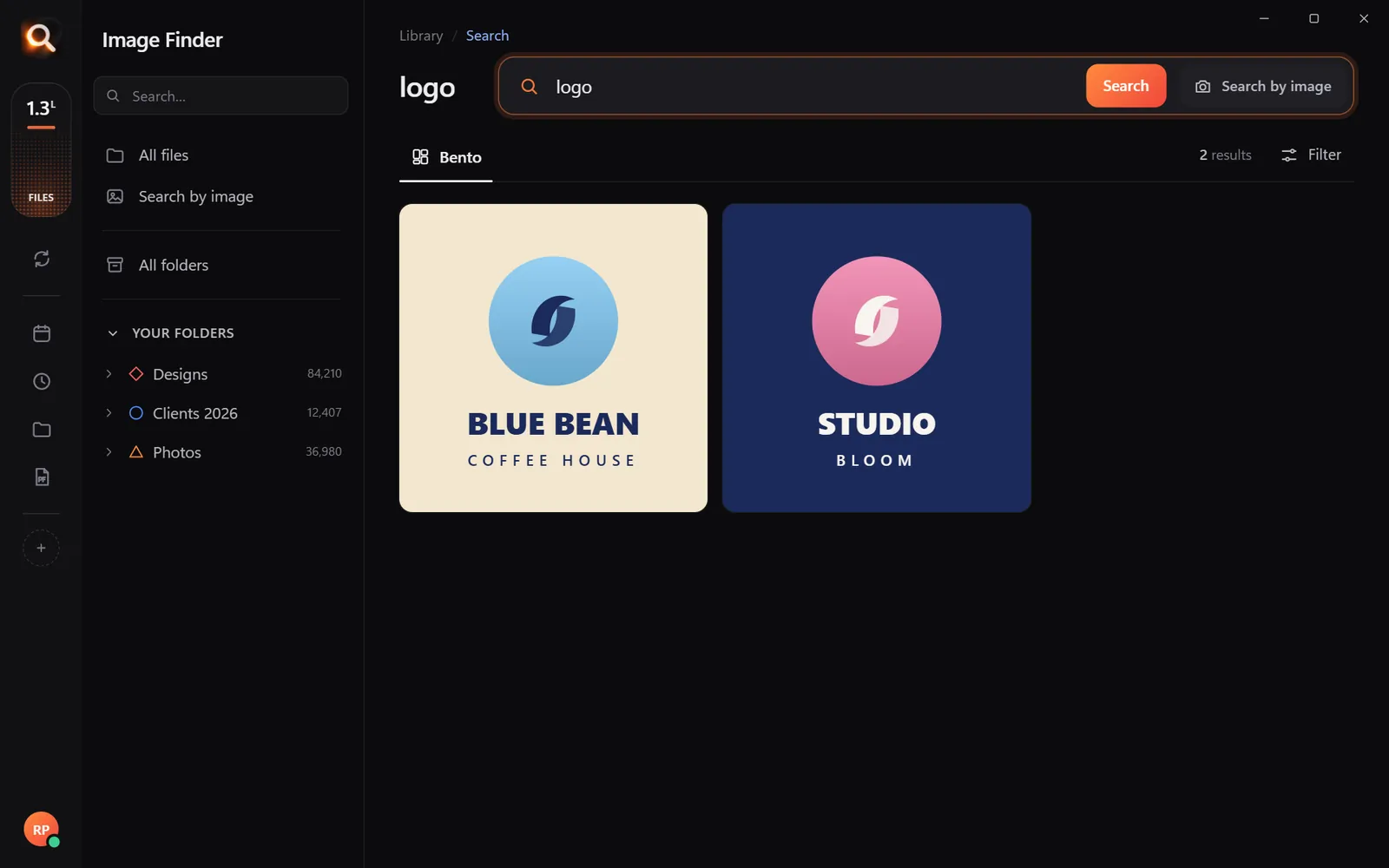
Searching 'logo' finds logo designs across formats
Describe the design - 'logo' - and every matching file comes up.

2. Search with a picture

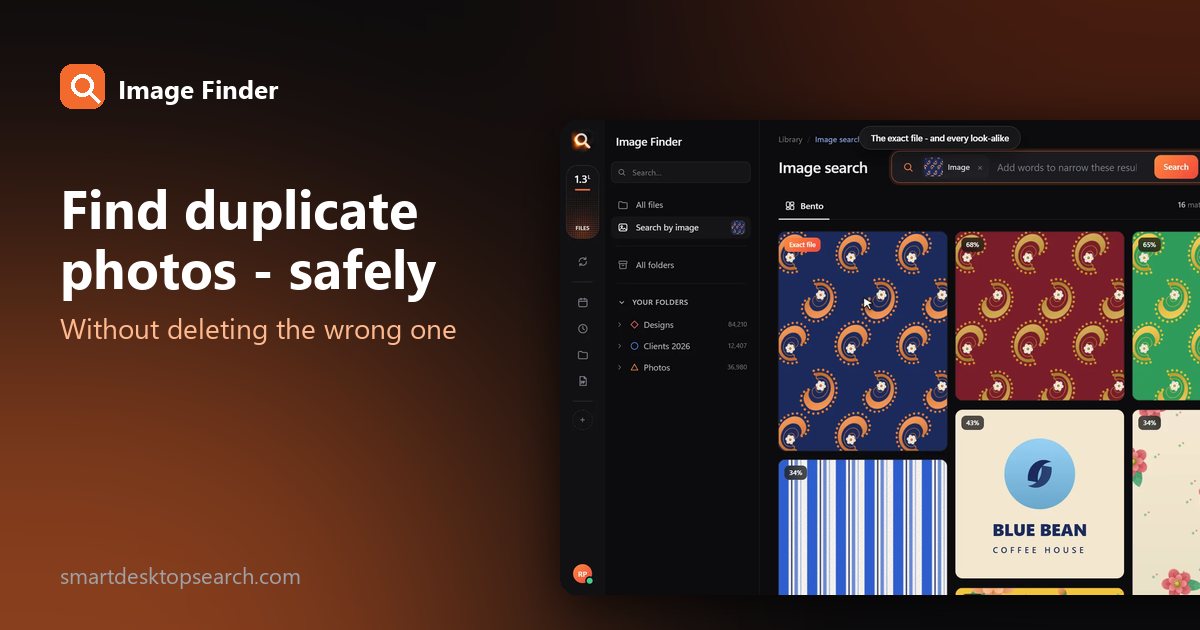
A client sends a photo of a printed sample, or a screenshot from your own portfolio. Drop it in: the original working file comes first, then variations.
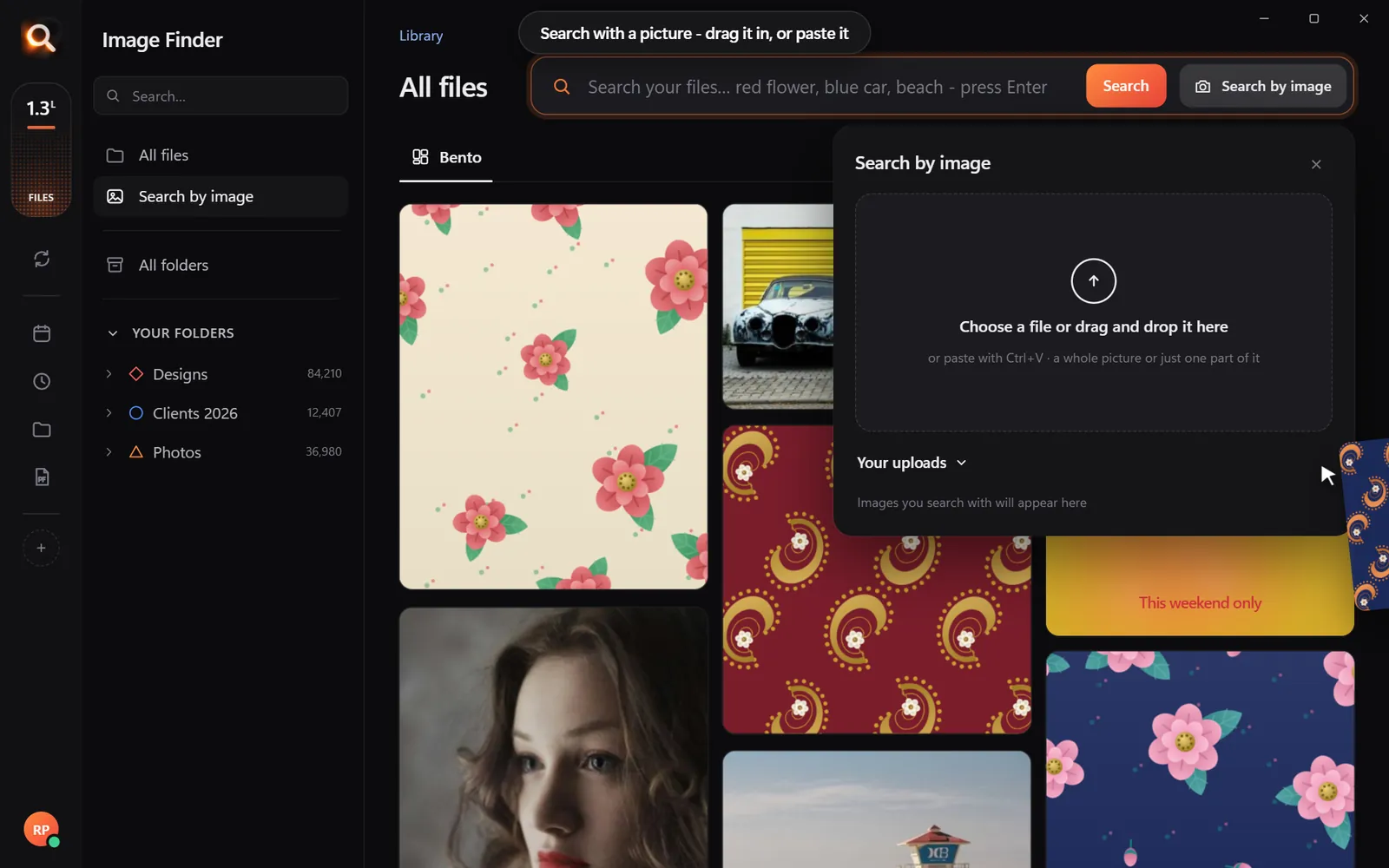
Drop in a picture to find the original design file
Drag in any picture - a screenshot, a phone photo of a print.

3. Search with one motif

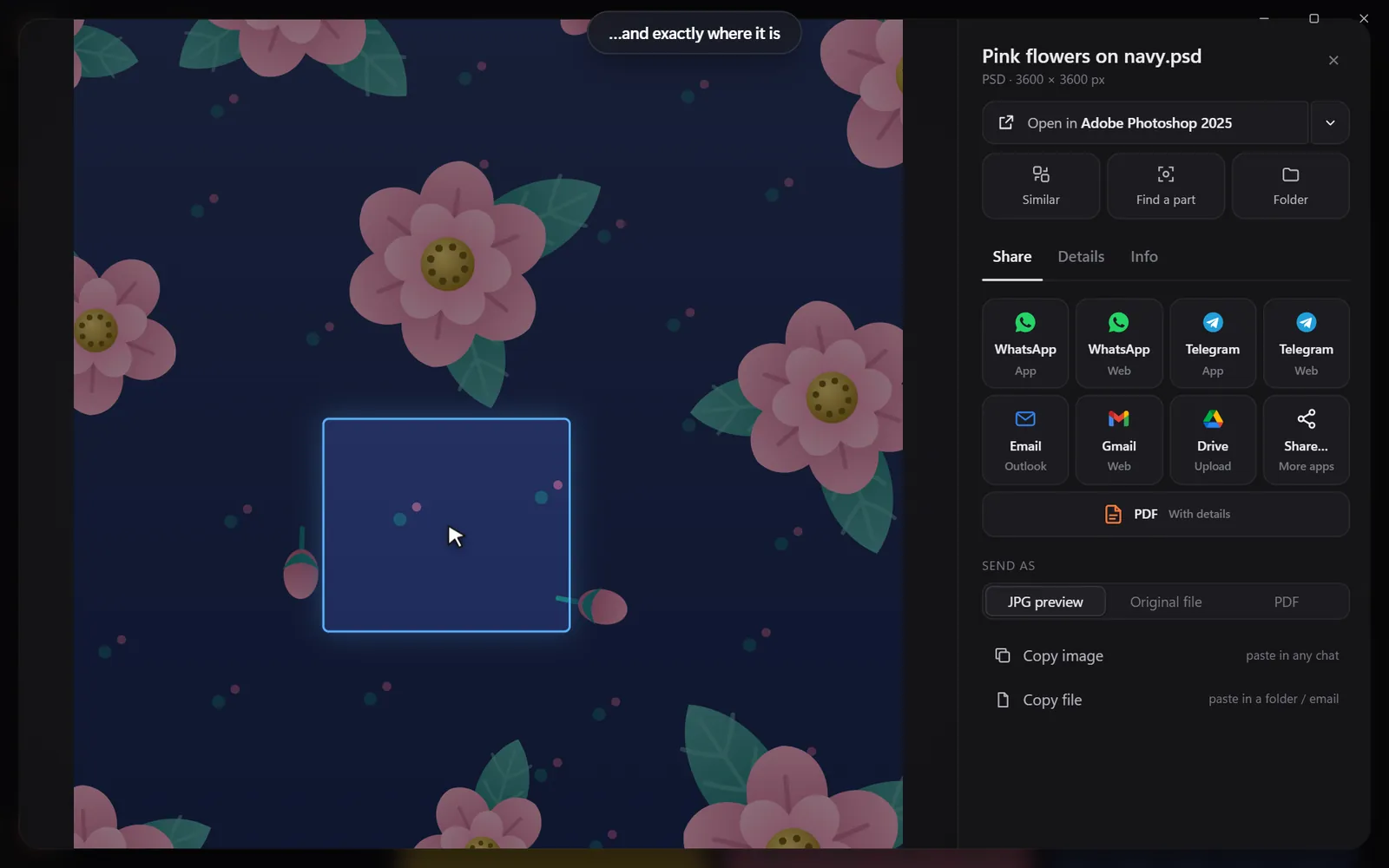
Draw a box around one element - a flower, a border, a logo - and find every file that contains it, with the spot marked.
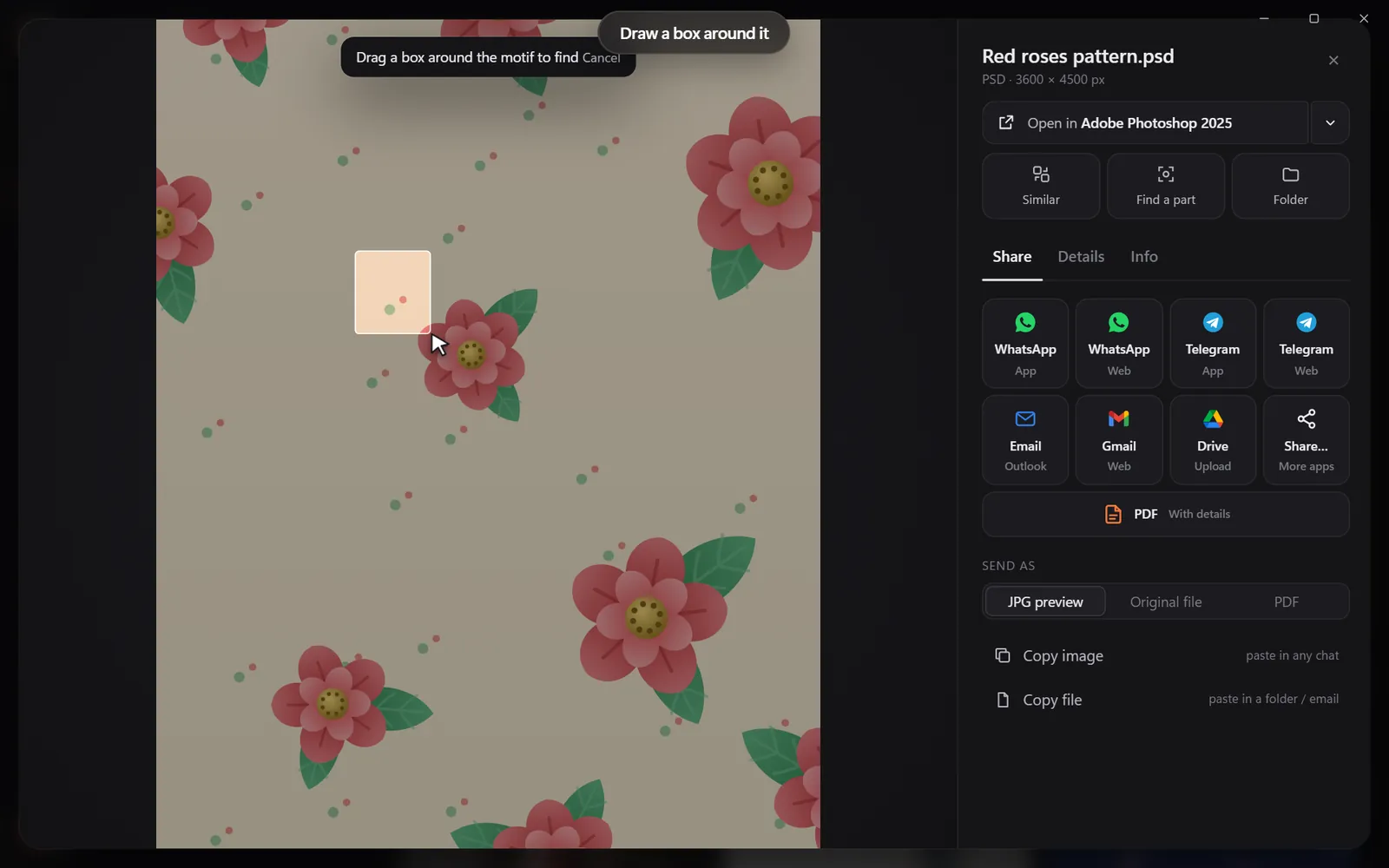
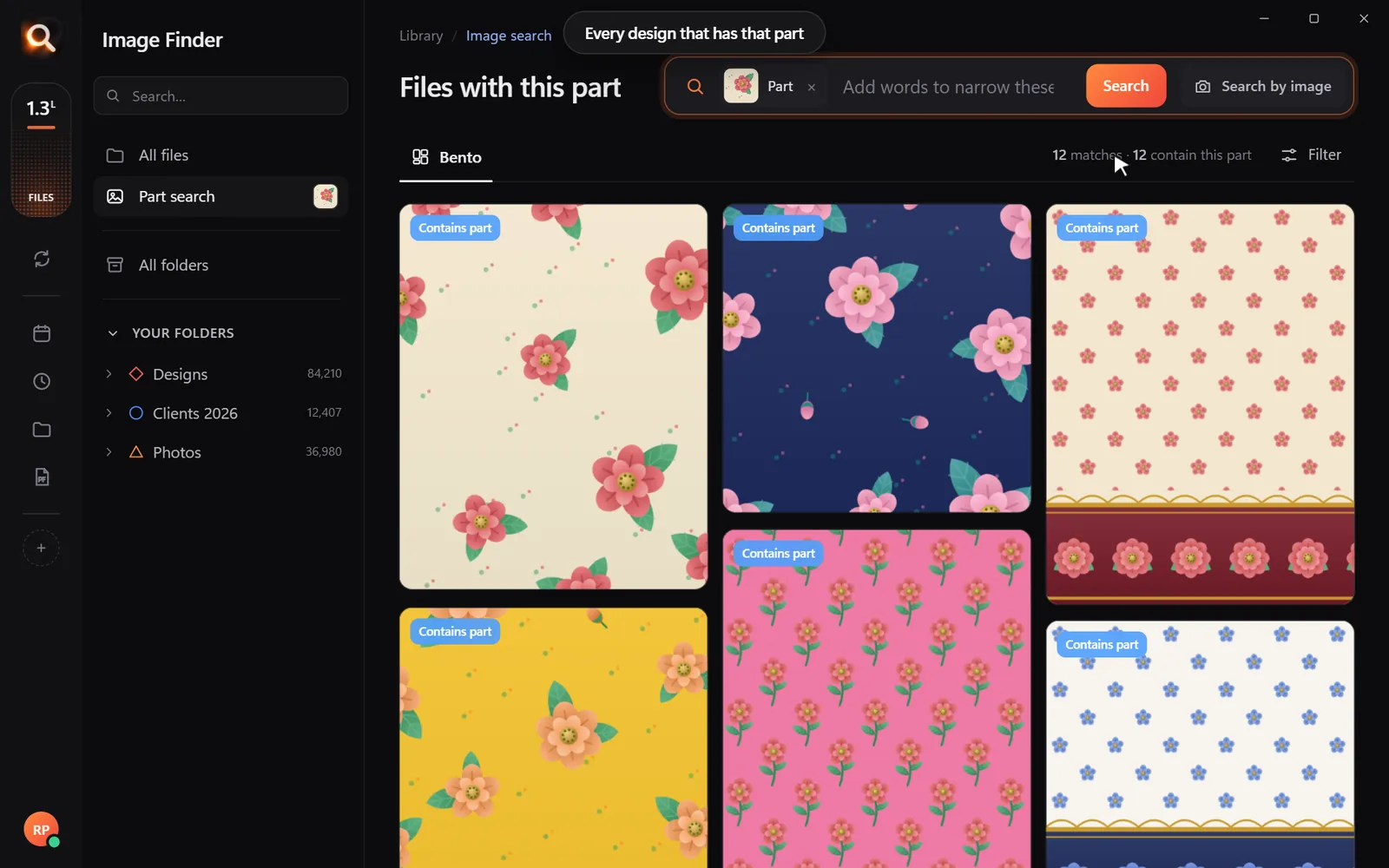
Draw a box around one motif
Every design that contains it
And exactly where it is

From search to client in one click

Once you find the design: open it in its own program, show it in its folder, send a light JPG preview to WhatsApp or Gmail, or make a neat PDF catalog of several designs. More in how to send files from your PC to WhatsApp.

What kind of design library do you have?

A smarter way to handle versions

Search changes how you deal with final-v3:

  • Find the whole family of a design by searching with one version: every export, color variation and resize comes up together.
  • Spot the newest one from the date in each result's details.
  • Stop exporting "just to look". Previews of PSD, AI and CDR files are shown right in the results.

Search by color for brand work

Brand and campaign work is full of color rules. Search "poster", then narrow by color - navy, red, gold - to see every piece in a brand palette. It is a quick way to check consistency across a campaign, or to find "the green one" a client half-remembers.

Build a client catalog in minutes

  1. Search the theme the client asked for ("spring florals", "minimal logos").
  2. Select the best ten designs.
  3. Choose PDF - you get a neat catalog with the file names - and send it to the client by email or WhatsApp.

For teams

Every designer on a team can run Image Finder on their own computer over the same shared drive, and everyone searches the whole archive - one licence per computer. See image search for creative agencies.

Questions people ask

How do I see previews of PSD and AI files in Windows?

File Explorer often shows generic icons. Image Finder shows real previews of PSD, AI, EPS, SVG, CDR and more, and makes them searchable.

Can I search CorelDRAW (CDR) files by image?

Yes. CDR, CDT and CMX files get real previews and are searched by what they show, like any other picture.

Does it change my design files?

No. It only reads them - it never moves, renames or edits your files.

Real previews of PSD, AI, CDR and SVG. Windows and Mac.

Windows and Mac. Private, offline, no subscription.
Try Image Finder

Search lakhs of designs on your PC in seconds. From ₹1 per day.

See plans
For designersEvery design you've ever made, one search away.Years of PSDs, AIs and CDRs in folders named final_v3. Image Finder sees the designs themselves - so the one the client wants is on screen before they finish as

More posts

How to Search Images by Content on Windows 11 and Mac (No Tags Needed)

How to Search Images by Content on Windows 11 and Mac (No Tags Needed)

Windows Search and Finder only read file names. Here is how to find a photo or design by what is actually in it - a red car, a beach, a logo - in about a second.

8 Oct 2026
The Best AI Photo Search Apps for Windows and Mac in 2026 (Offline and Private)

The Best AI Photo Search Apps for Windows and Mac in 2026 (Offline and Private)

Seven apps that let you find photos by describing them - compared honestly: what each one searches, whether it works offline, and who it is for.

8 Oct 2026
How to Find Duplicate Photos on Windows (Without Deleting the Wrong One)

How to Find Duplicate Photos on Windows (Without Deleting the Wrong One)

Exact copies, resized versions, edited near-copies: how to find every copy of a photo on Windows, and when a bulk duplicate cleaner is the better tool.

8 Oct 2026