 +
+



We take screenshots because we want to remember something: a confirmation number, a tracking code, a recipe, a chart from a meeting, the error message IT asked for. Then we never look at them again - until the day we need one, and it is buried among thousands of files called Screenshot 2025-03-14 at 10.42.17.png.
The good news: you probably remember something that was on the screen. One word is enough, if your search can read screenshots. Here is where screenshots hide on Windows and Mac, and how to find a screenshot by the text in it.
Why screenshots are the hardest pictures to find
- They all have the same kind of name. Date and time, nothing else.
- They pile up fast. Most people take several a day; heavy users take dozens.
- They look alike. Thumbnails of white pages with small text are impossible to tell apart.
- They are everywhere. Desktop, Screenshots folder, Downloads, chat apps, cloud folders, phone backups.
0 hours a year spent looking for files - with a search that takes a second, that is about 0 working days back.
Where screenshots are saved
Windows 10 and 11
| How you took it | Where it goes |
|---|---|
| Win + PrtScn | Pictures\Screenshots |
| Win + Shift + S (Snipping Tool) | Clipboard; newer versions also save to Pictures\Screenshots |
| PrtScn alone | Clipboard only (or OneDrive, if it is set to save screenshots) |
| Xbox Game Bar (Win + Alt + PrtScn) | Videos\Captures |
| OneDrive "save screenshots" on | OneDrive\Pictures\Screenshots |
Mac
| How you took it | Where it goes |
|---|---|
| Cmd + Shift + 3 / 4 | Desktop (by default) |
| Cmd + Shift + 5 | Wherever you chose in Options > Save to |
| Cmd + Ctrl + Shift + 4 | Clipboard only |
Phone screenshots copied to your computer
iPhone and Android screenshots copied with a cable or synced through iCloud, Google Photos or OneDrive usually land among your normal photos, named IMG_1234.PNG or Screenshot_20250314-104217.png.
Method 1: browse by date (when you remember when)
If you remember roughly when you took it, open the Screenshots folder (or Desktop on a Mac), switch to large icons and sort by date. This works for "yesterday" - it falls apart for "sometime last spring".
Method 2: built-in text recognition, one picture at a time
Both systems can now read text in a picture you open:
- Windows: the Snipping Tool's Text actions and the Photos app can copy text from an image.
- Mac: Live Text lets you select text in any image in Preview or Quick Look.
Useful once you have the screenshot open - but they do not search across all your screenshots to tell you which one has the word.
Method 3: search every screenshot by the words in it
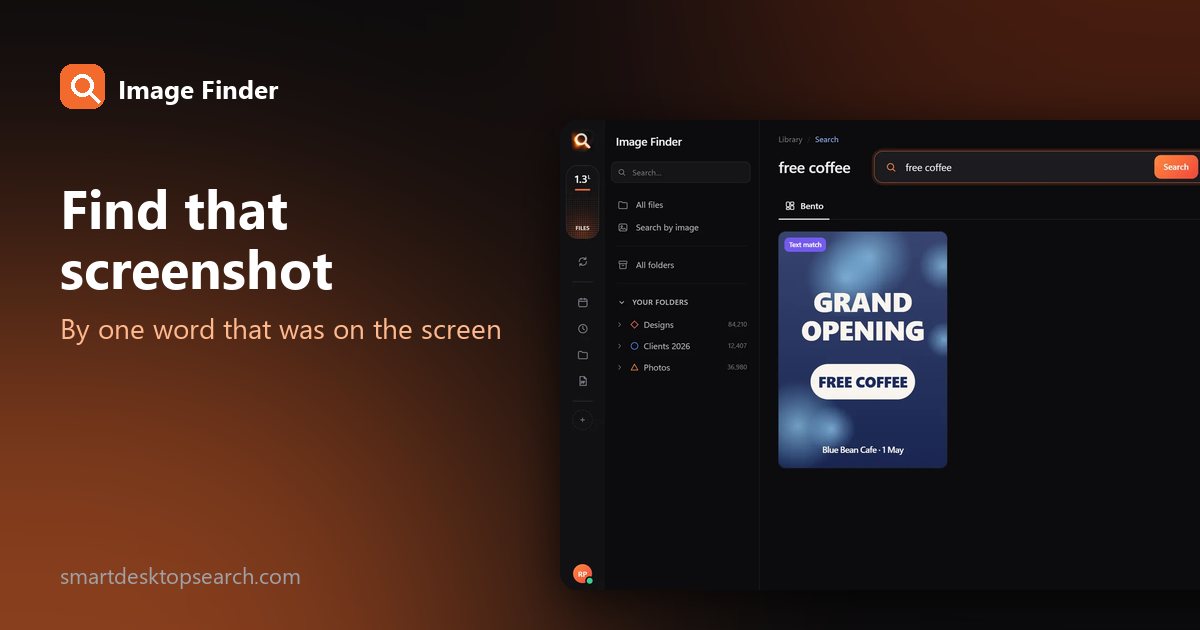
This is what actually solves the problem. A search that has read every picture in advance lets you type a word and see every screenshot that contains it.
Image Finder reads the text printed in your pictures - screenshots, photos of signs and receipts, scanned pages, slides - on your own computer. Then:
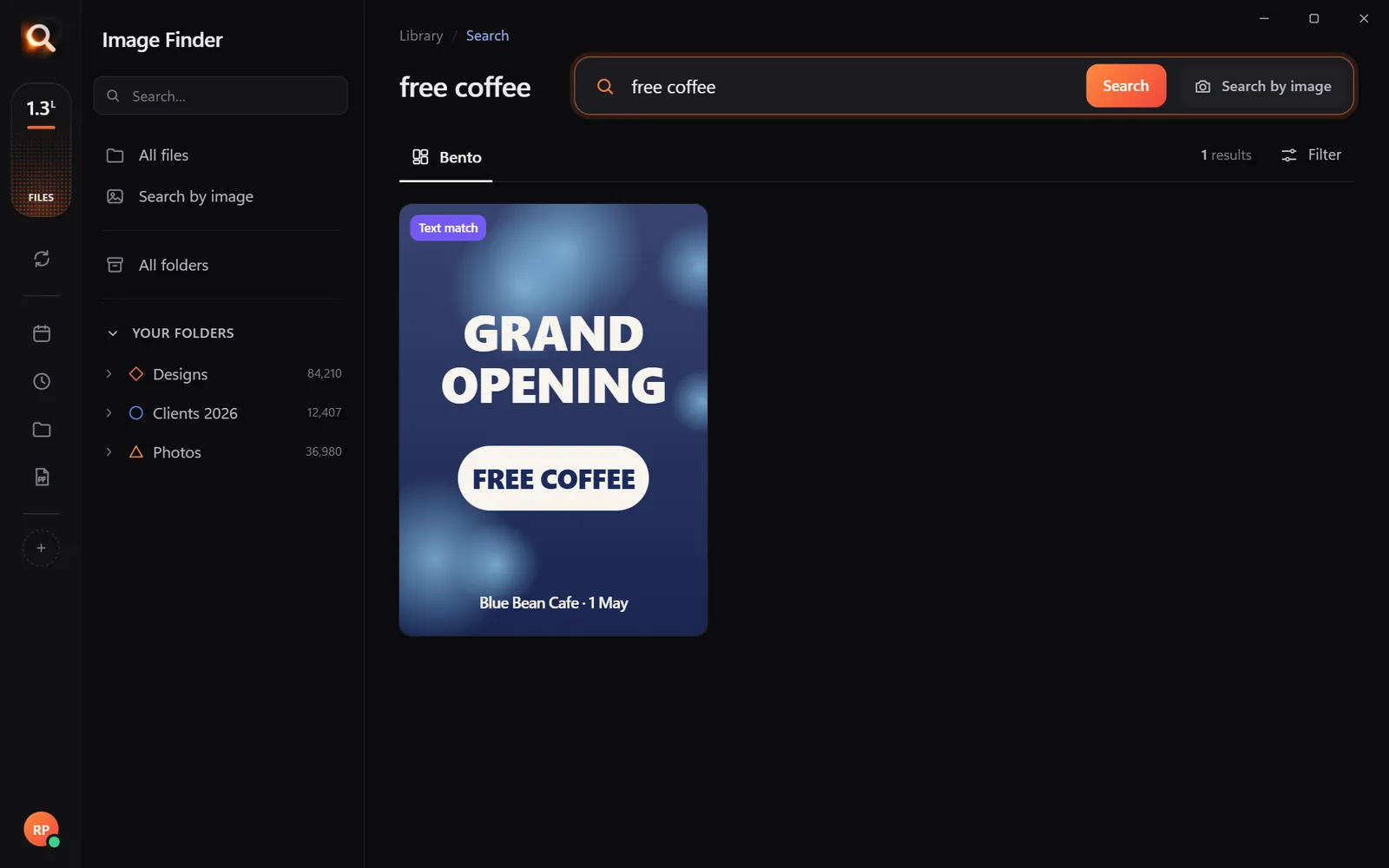
Searches that work surprisingly well
| You remember | Type |
|---|---|
| A flight or booking | The airline or the confirmation code |
| A package | "tracking" or the carrier's name |
| A recipe someone shared | An ingredient: "paprika" |
| A chart from a meeting | A word from the chart title |
| An error on screen | The error number or a word from it |
| A social media post | The account name or a phrase |
A tiny sample library in your browser. The app does this with AI across every file on your computer - try the real app in your browser.
When you remember what it looked like, not the words
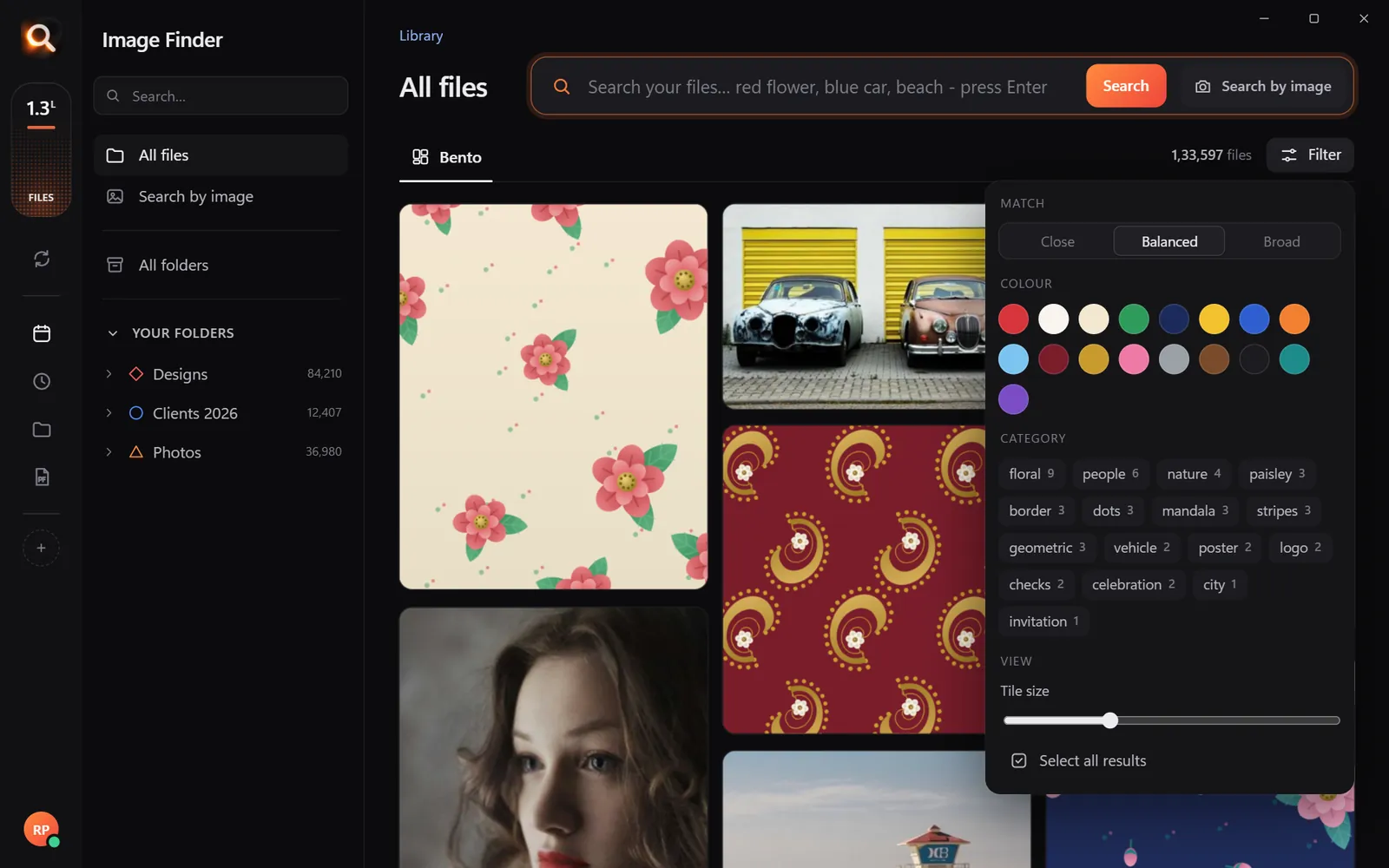
Describe it instead: "screenshot of a map", "chat conversation", "bar chart", "shopping cart". Image Finder searches by what pictures show as well as the words in them. And typos are fine - "recipie" still finds the recipe.
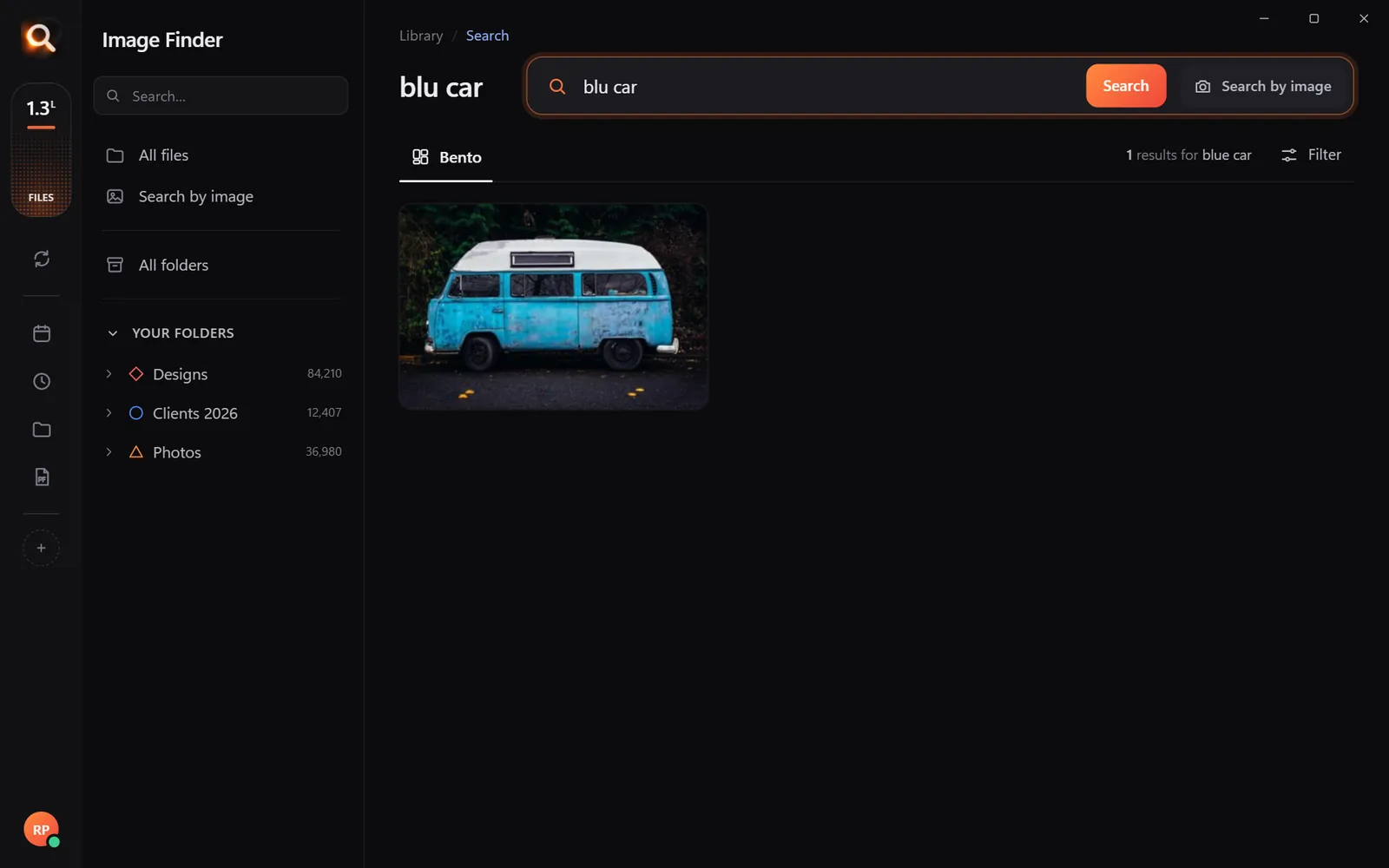
Keep screenshots from piling up again
Screenshots at work: a quiet productivity win
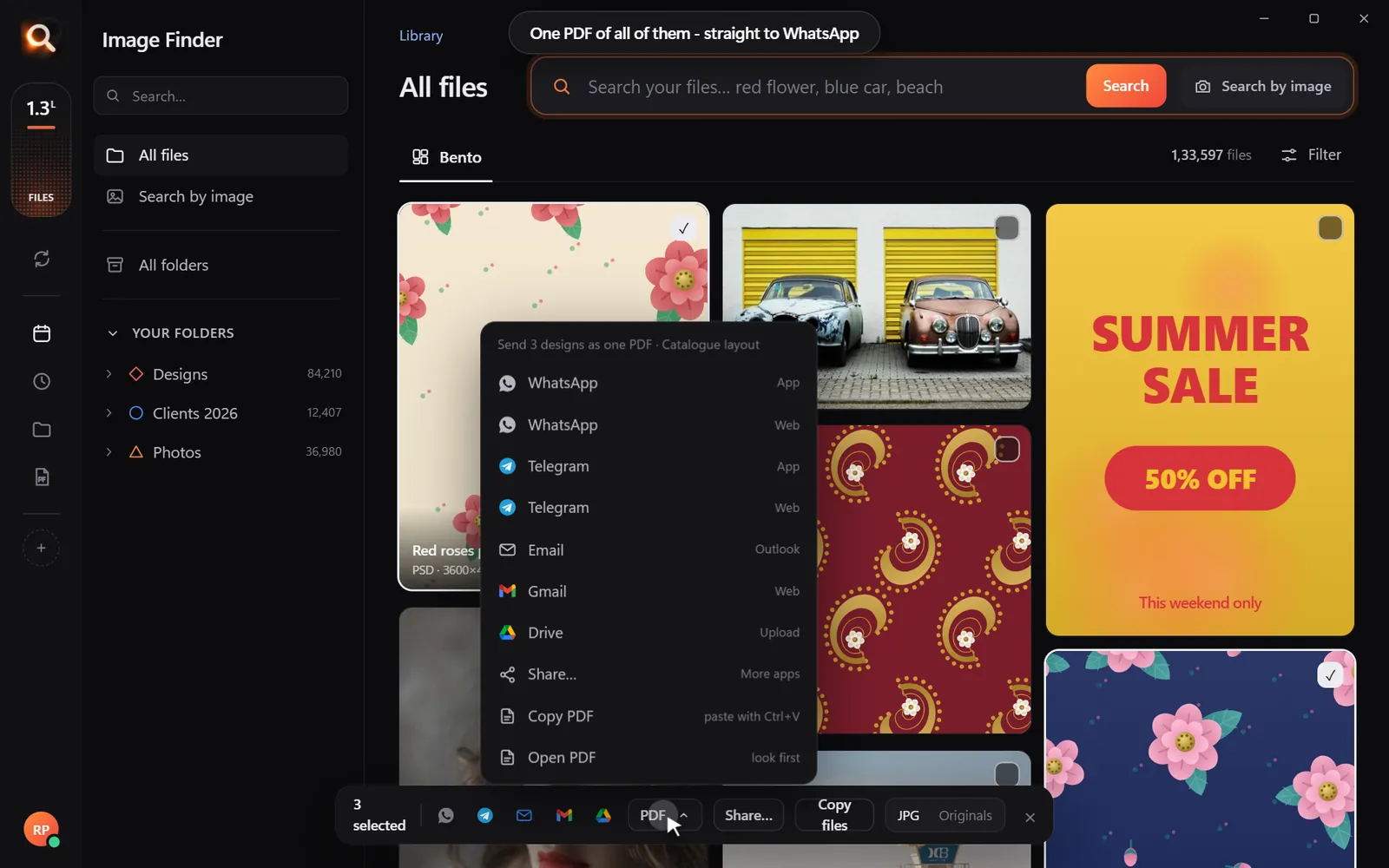
Teams screenshot everything: dashboards, bug reports, client feedback, design approvals. A searchable screenshot archive means "can you send me the screenshot of what the client approved?" takes seconds. Search the client's name or a word from the comment, select the right screenshot, and send it straight to email or WhatsApp.

Why screenshots matter more than you think
Screenshots have quietly become the way many of us take notes. A study habit, a work habit, a memory habit: instead of writing something down, we capture the screen. That makes your screenshot folder one of the most valuable - and most chaotic - collections on your computer. It holds:
- Proof: order confirmations, payment receipts, chat agreements, return labels.
- Reference: settings you changed, codes, Wi-Fi passwords, instructions.
- Inspiration: designs, outfits, recipes, quotes, interiors.
- Work: bug reports, dashboards, approvals, meeting slides.
- Memories: funny chats, first messages, tickets to concerts.
Treat it like a notebook, and give it a search that works like one.
Screenshot naming: should you bother?
You can rename screenshots as you go, and some people swear by it. In practice:
| Approach | Effort | Works long term? |
|---|---|---|
| Rename every screenshot | High | Rarely - you stop after a week |
| Sort into folders weekly | Medium | Sometimes |
| Leave them, search by text | None | Yes |
The third approach wins because it relies on information that is already in the screenshot: the words on the screen.
Screenshots of things that change
A lot of screenshots capture things that later change or disappear: a product page with a price, a social post that gets deleted, an online form you submitted, a policy page. Searching them by the words on screen lets you prove what something said on a certain day - handy for returns, disputes and price-match requests.
Phone and computer together
Most people take more screenshots on their phone than on their computer. Bring them together:
| Phone | How to get screenshots to your computer |
|---|---|
| iPhone | iCloud Photos on Windows/Mac, or copy the DCIM folder by cable |
| Android | Google Photos download, OneDrive camera upload, or copy Pictures/Screenshots by cable |
Then add that folder to Image Finder with your computer's Screenshots folder. One search covers both.
A note on sensitive screenshots
Screenshots often contain things you would never put in a cloud service: bank balances, ID numbers, medical results, private chats. That is exactly why searching them on your own computer matters. Image Finder reads the words in your screenshots locally and never uploads them - so you get the convenience of search without handing your screen history to anyone.
Questions people ask
How do I search screenshots by text on Windows?
File Explorer cannot. Use an app that reads text in pictures, such as Image Finder, then type any word that was on the screen.
Where do Mac screenshots go?
To the Desktop by default. Change it with Cmd + Shift + 5 > Options > Save to.
Can I search phone screenshots on my computer?
Yes, once they are copied or synced to a folder on your computer. Add that folder to Image Finder and search them like any other screenshot.
Does it work with handwriting?
Printed and on-screen text works best. Clear handwriting is sometimes read, but do not count on it.
Windows and Mac. Private, offline, no subscription.