
Try itFeaturesPricingHow it works QuestionsBlogFree toolsSign in DownloadContact usRefunds
Try it in your browser

Find any photo on your computer. Just describe it.

Type what you see - “dog on the beach”, “receipt from Costco” - and the right photo, design or PDF appears in a second. Nothing uploaded, nothing to rename.

Just ₹1 a day

No credit cardWindows 10+ & macOSPay once - no subscription

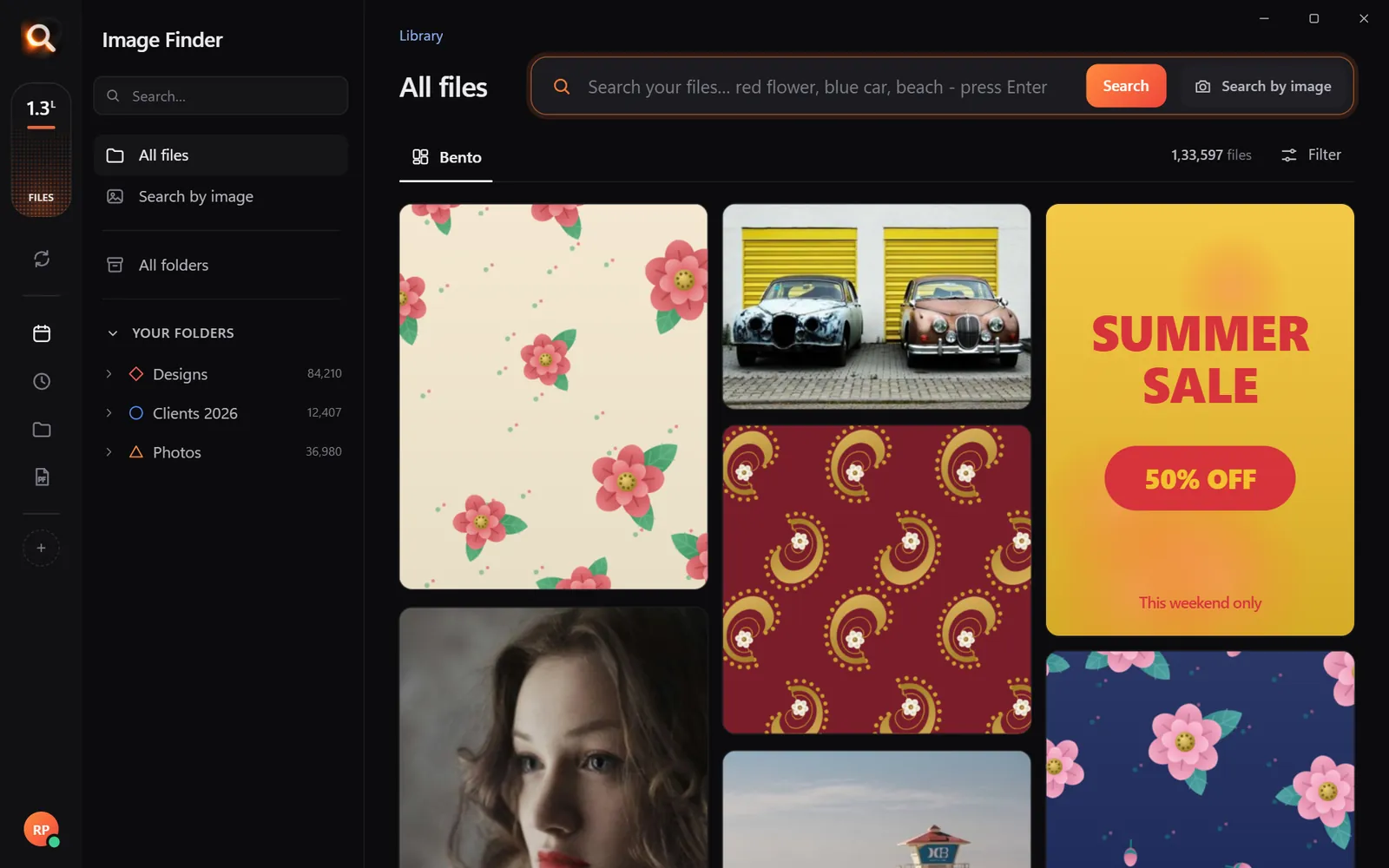
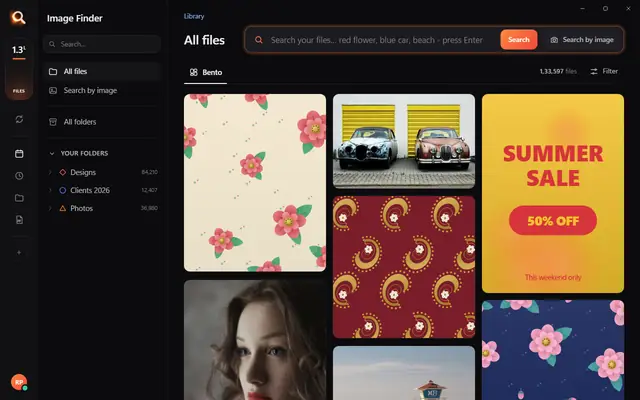
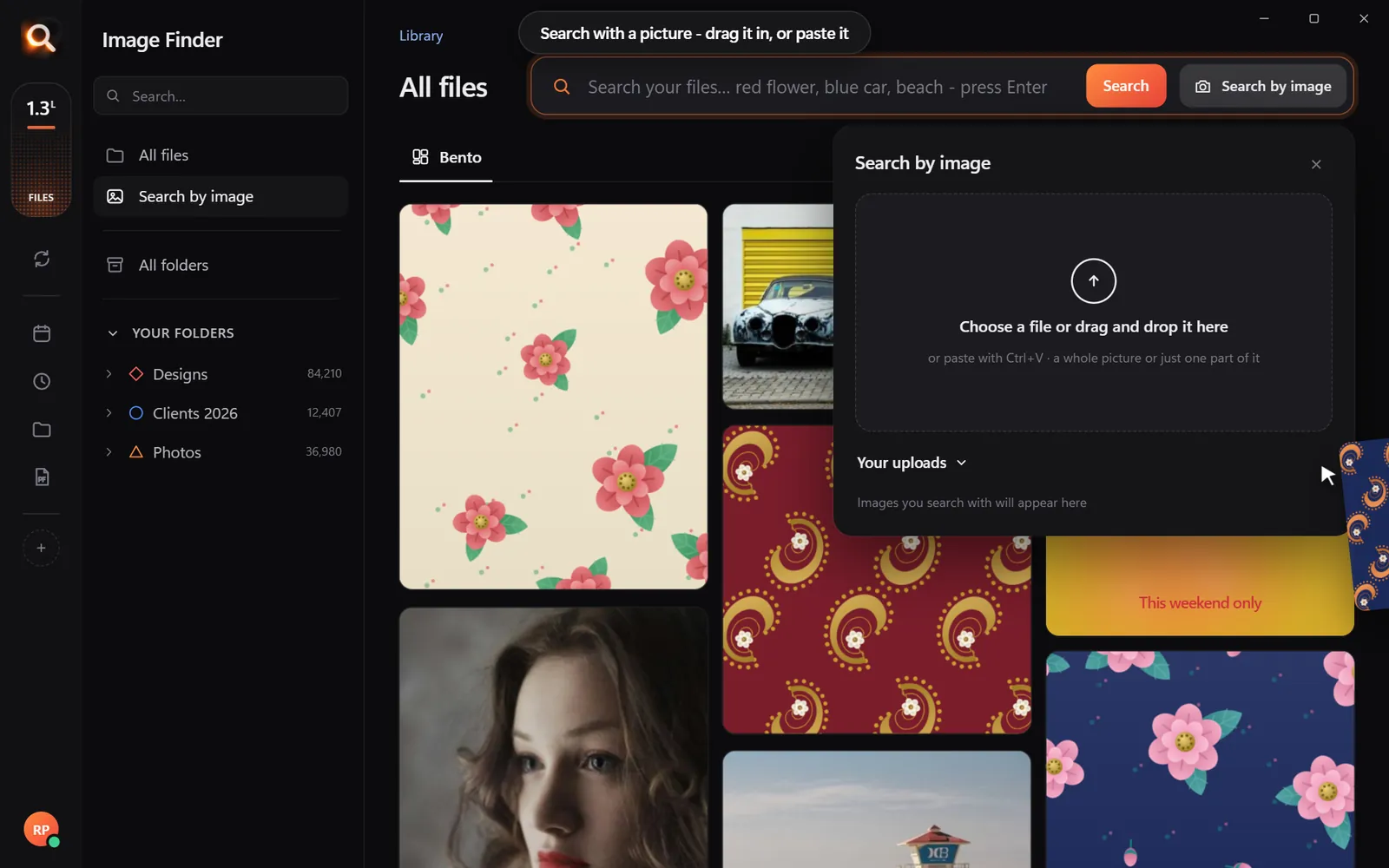
The Image Finder window with sample pictures

The real Image Finder window with sample files - click anywhere in it to try it yourself. In the app it searches hundreds of thousands of your own files in a fraction of a second, all on your PC. Open it full screen

Reads 150+ kinds of files, straight from your folders

JPGHEICPNGRAWPSDAISVGPDFZIP

A photo search that sees what you see

It looks at every picture on your computer once - what is in it, the colours, the faces, the words - so you can find any of them by simply describing it. Even with a hundred thousand files.

+

Point

Choose folders or whole drives. No importing, no renaming.

Read

Every picture is looked at once, in the background.

red flower

Describe

Type what you see, drop in a picture, or pick a face.

Open in appWhatsAppOne PDF

Use

Open it, copy it, or send many as one PDF.

Search by picture

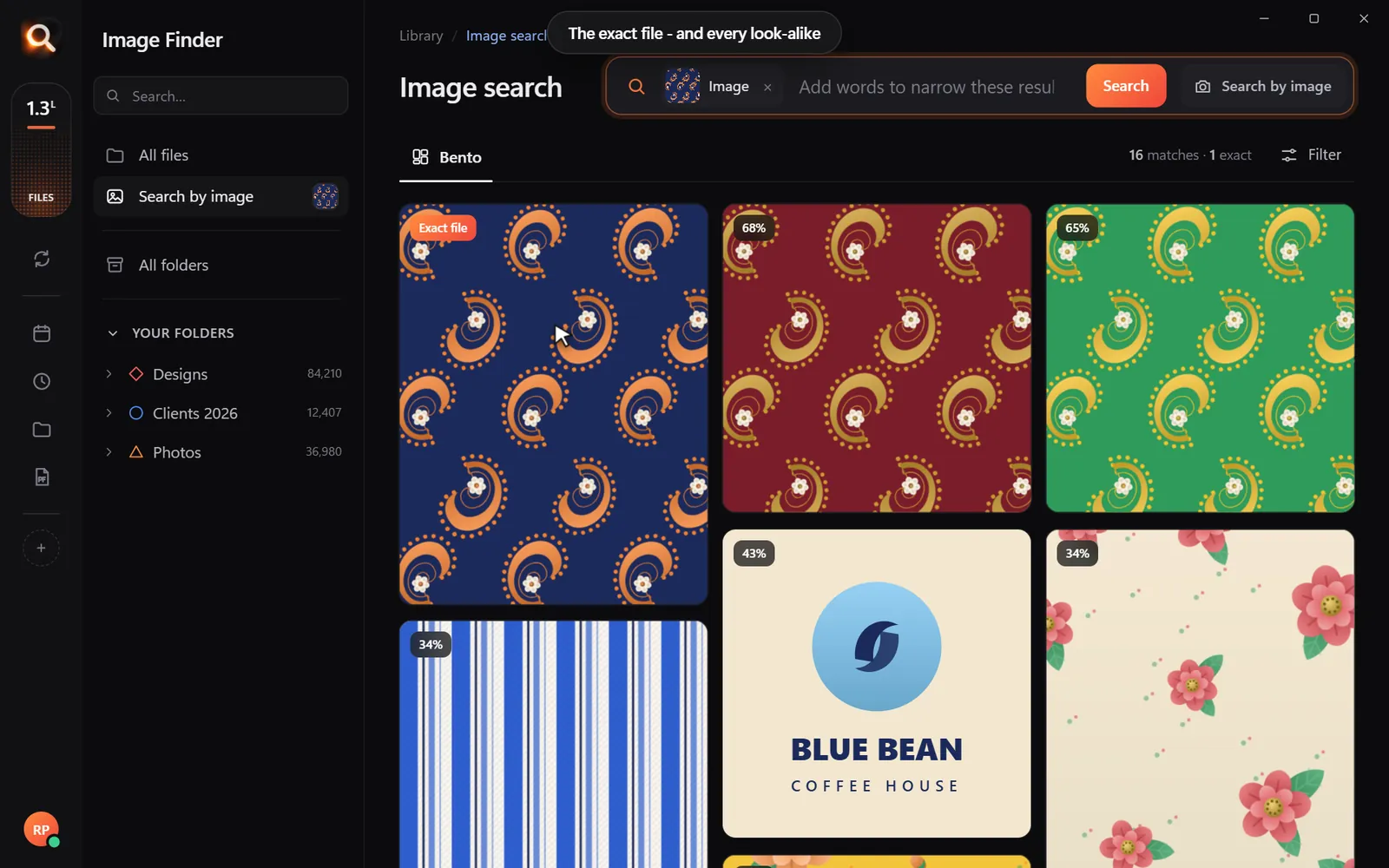
Have a copy? Find the original.

A blurry screenshot, a photo of a print, a crop someone sent you. Drop it in and get the full-size original - and every look-alike, even after crops and filters.

Search with a picture

Understands pictures the way you do - not by their file names.

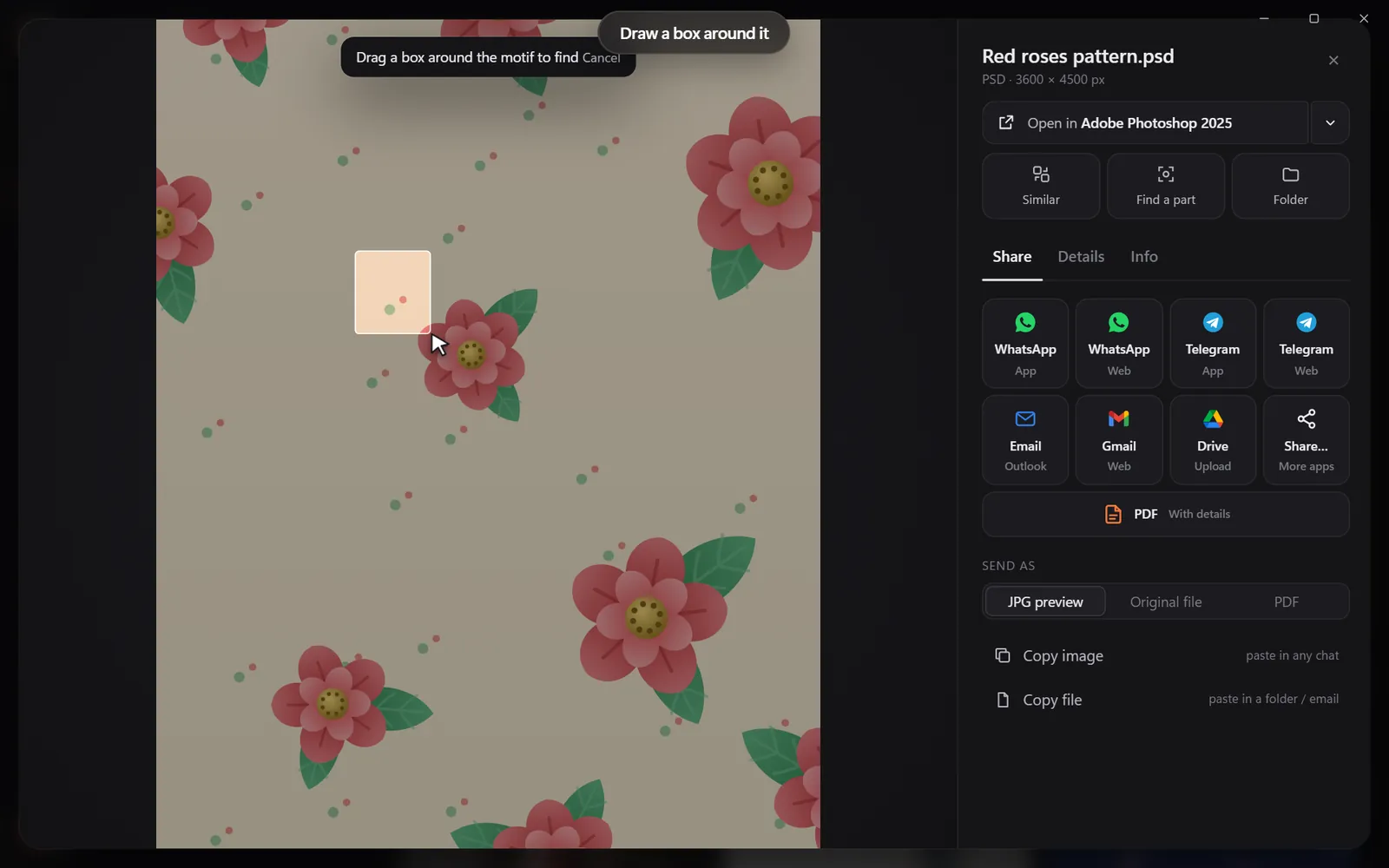
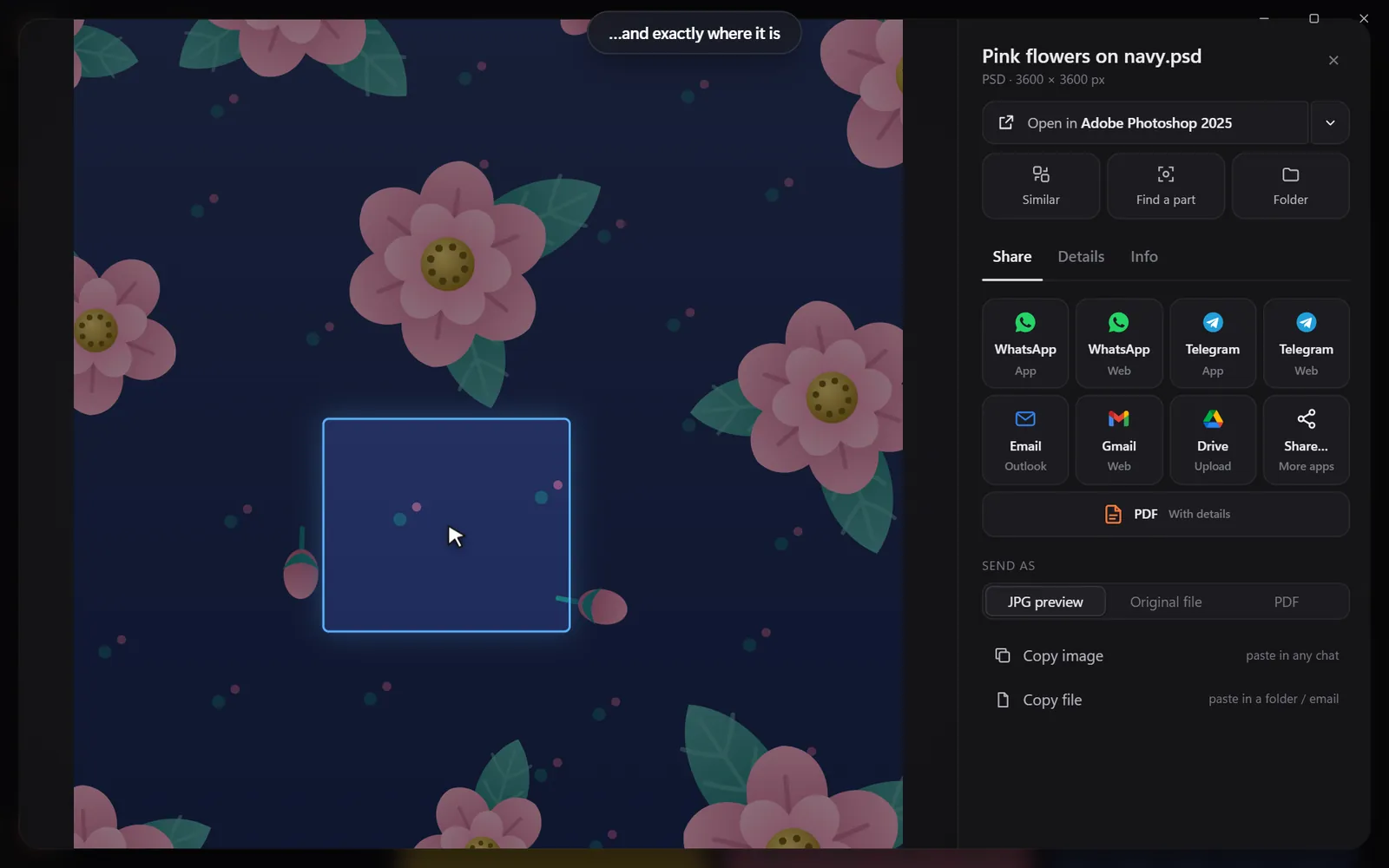
Drop in a pictureThe exact file and every look-alikeDraw a box around one partSee exactly where it is

Found it? Use it.

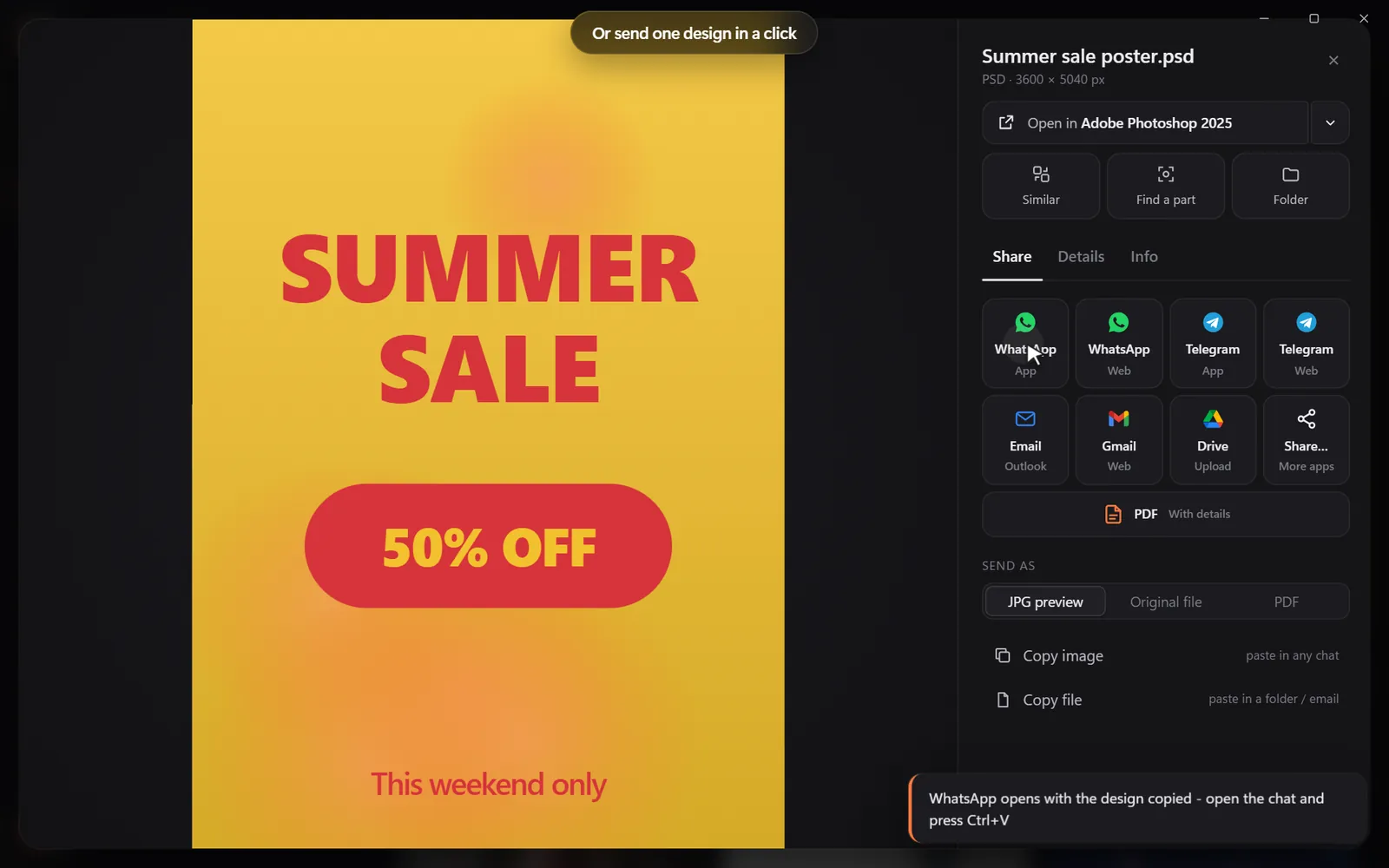
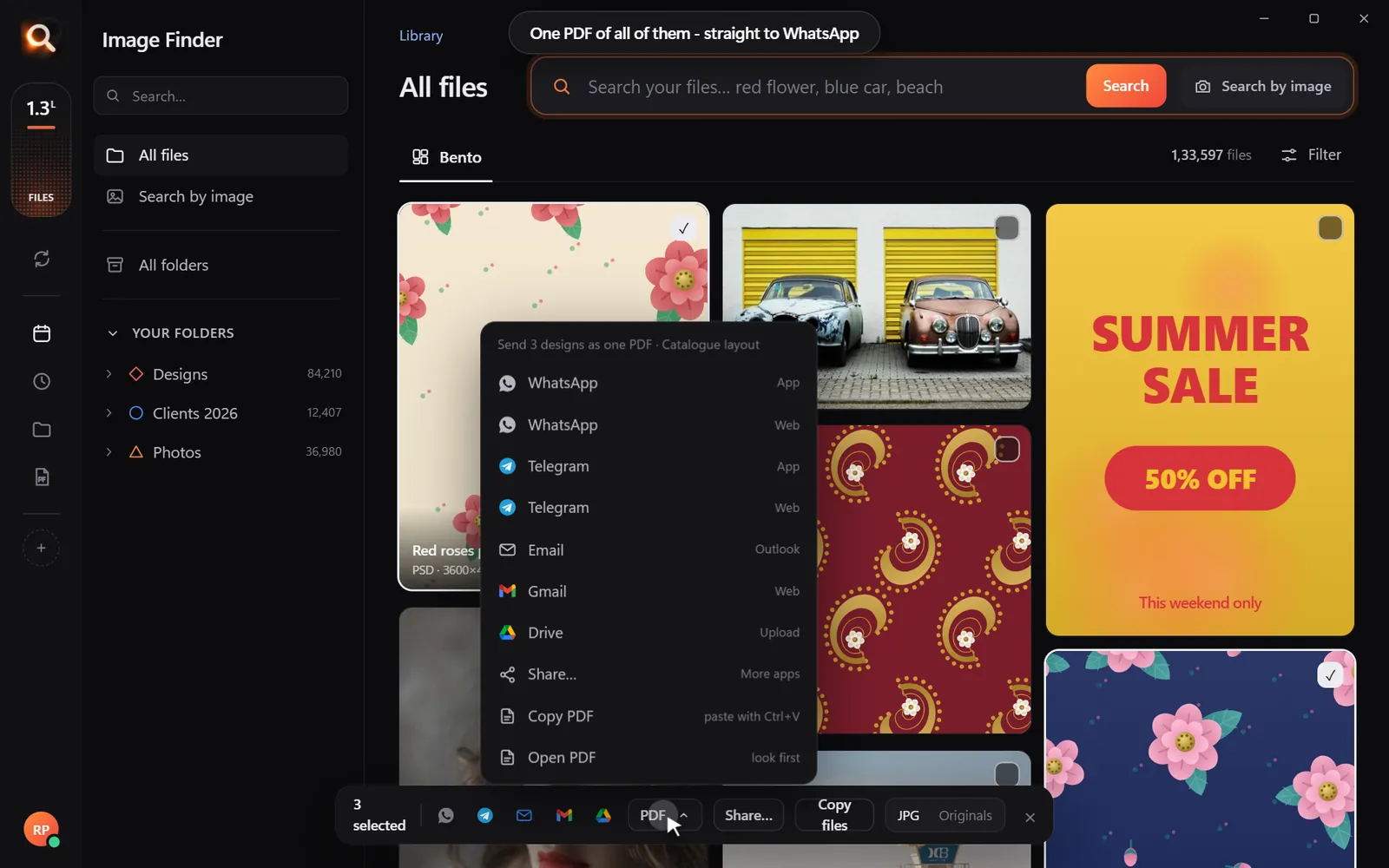
Every result opens in the app you made it in, copies with one click, or goes out as one tidy PDF.

Open it in your appSend many as one PDFShare in one click

Search

Search the way you remember

You never remember a file name. You remember a colour, a face, a word on a sign. That is enough.

By colour

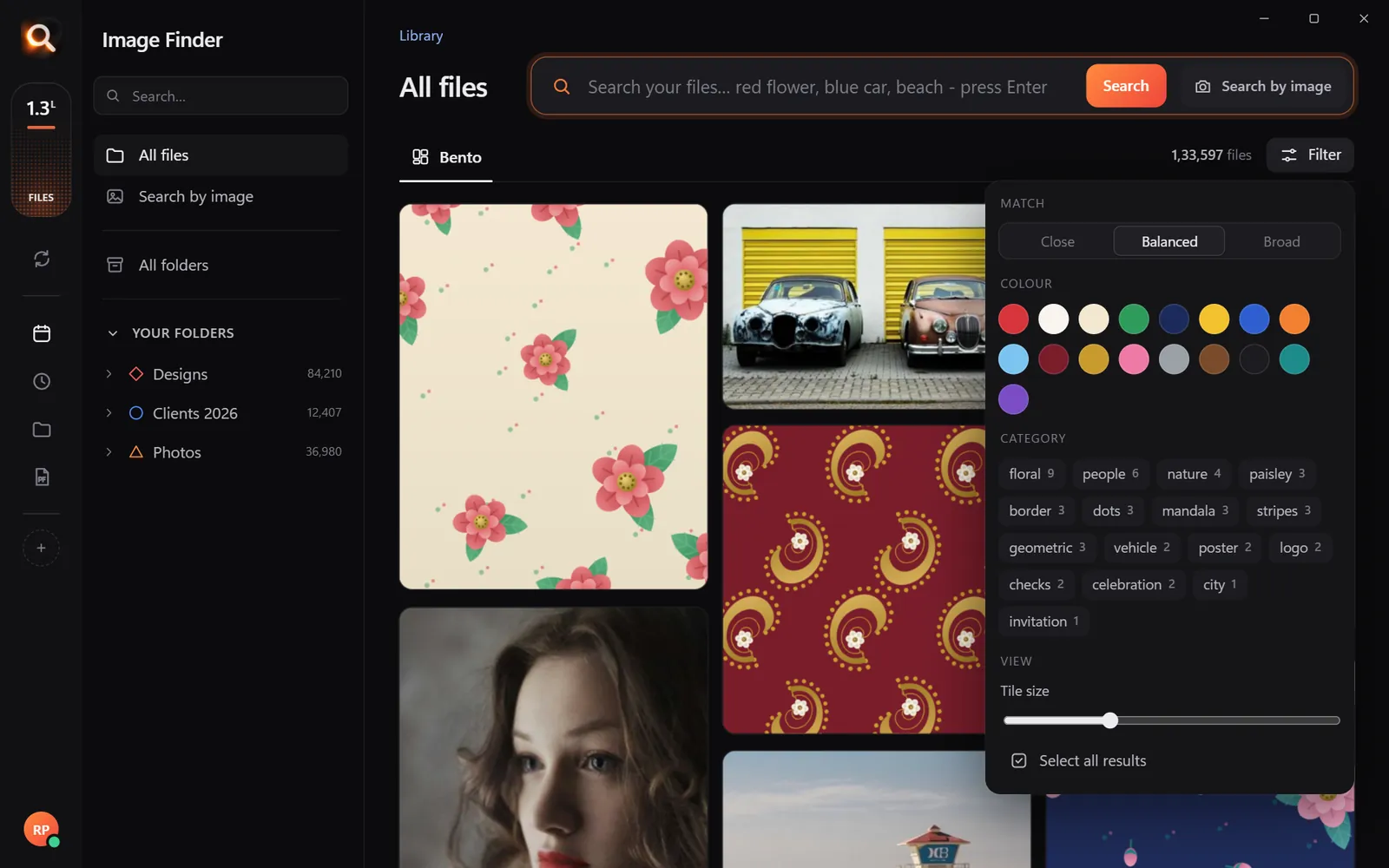
Pick a colour and the photos with the most of it come first - or narrow any search to it.

Searching by colour

Typos welcome

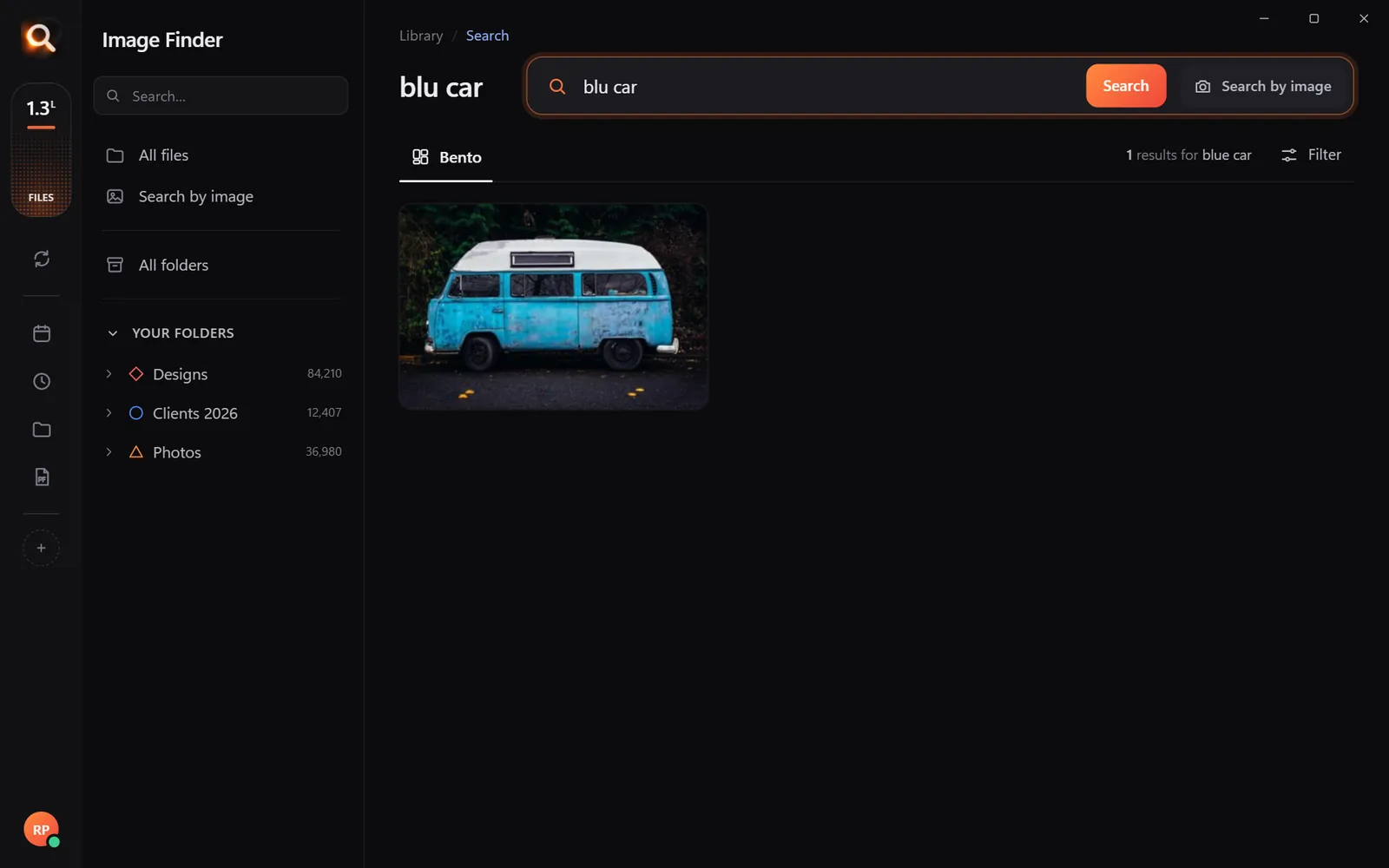
"blu car" finds the blue car.

A search with a typo

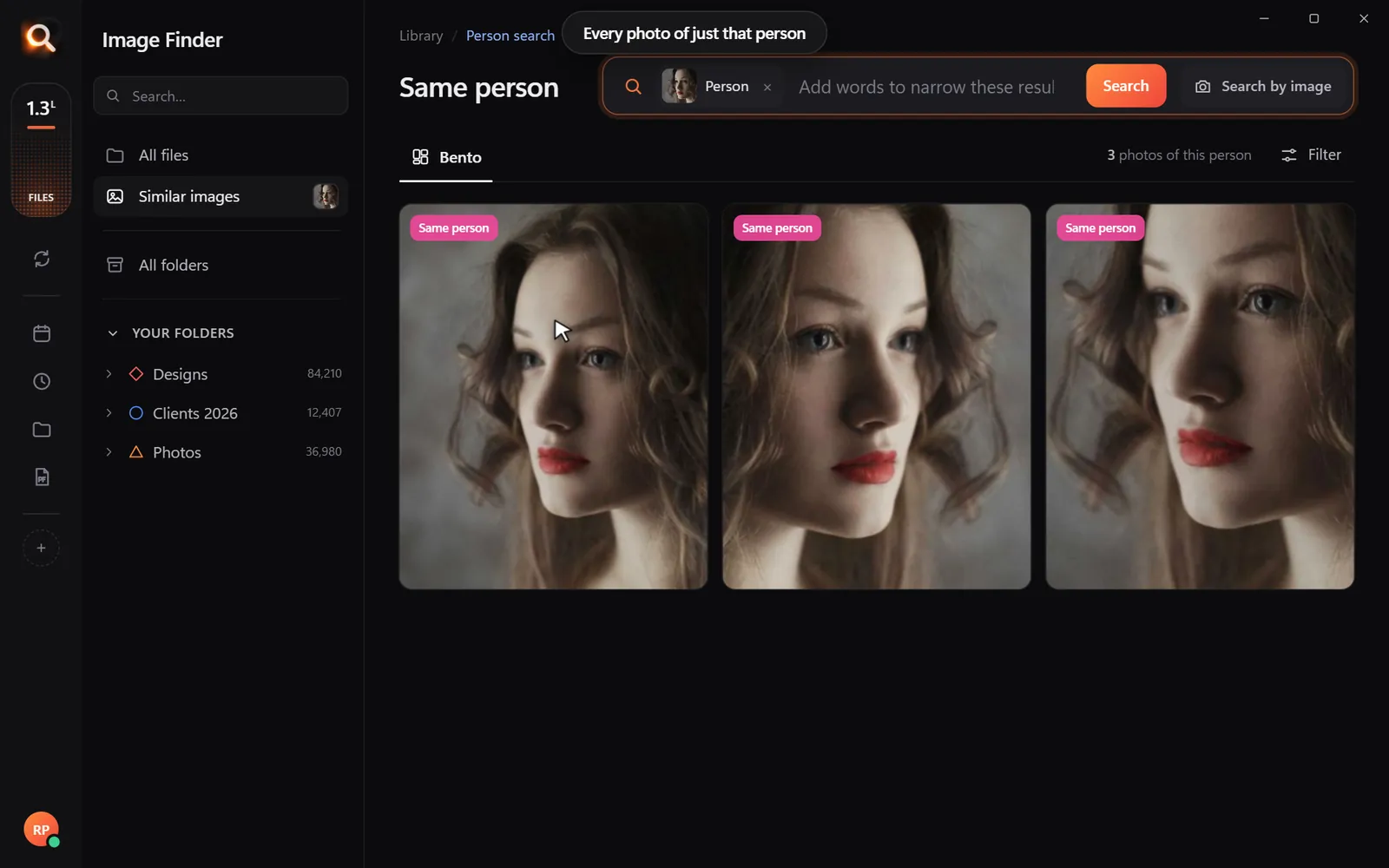
Every photo of one person

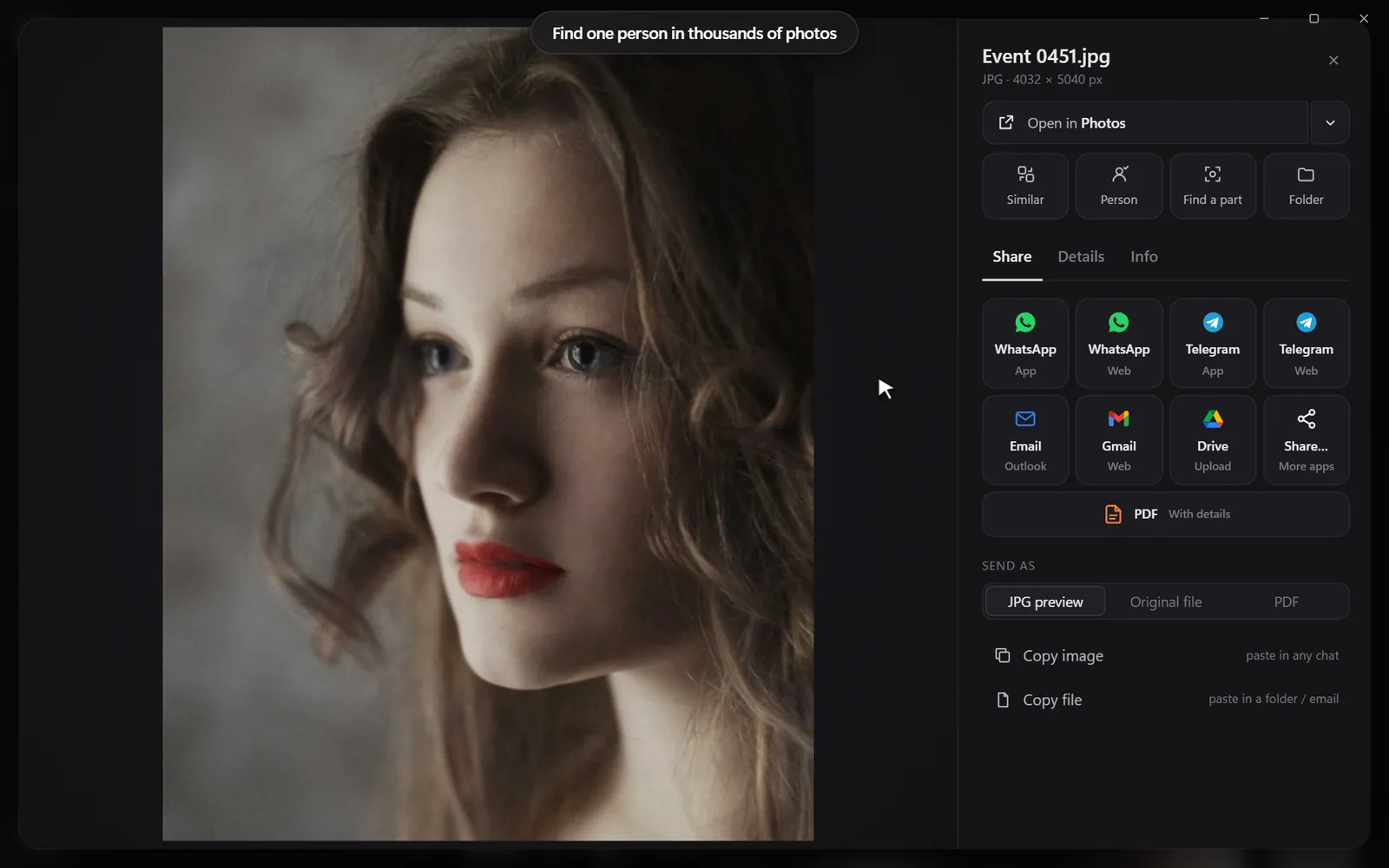
Pick a face once - from every folder and every drive.

Every photo of one person

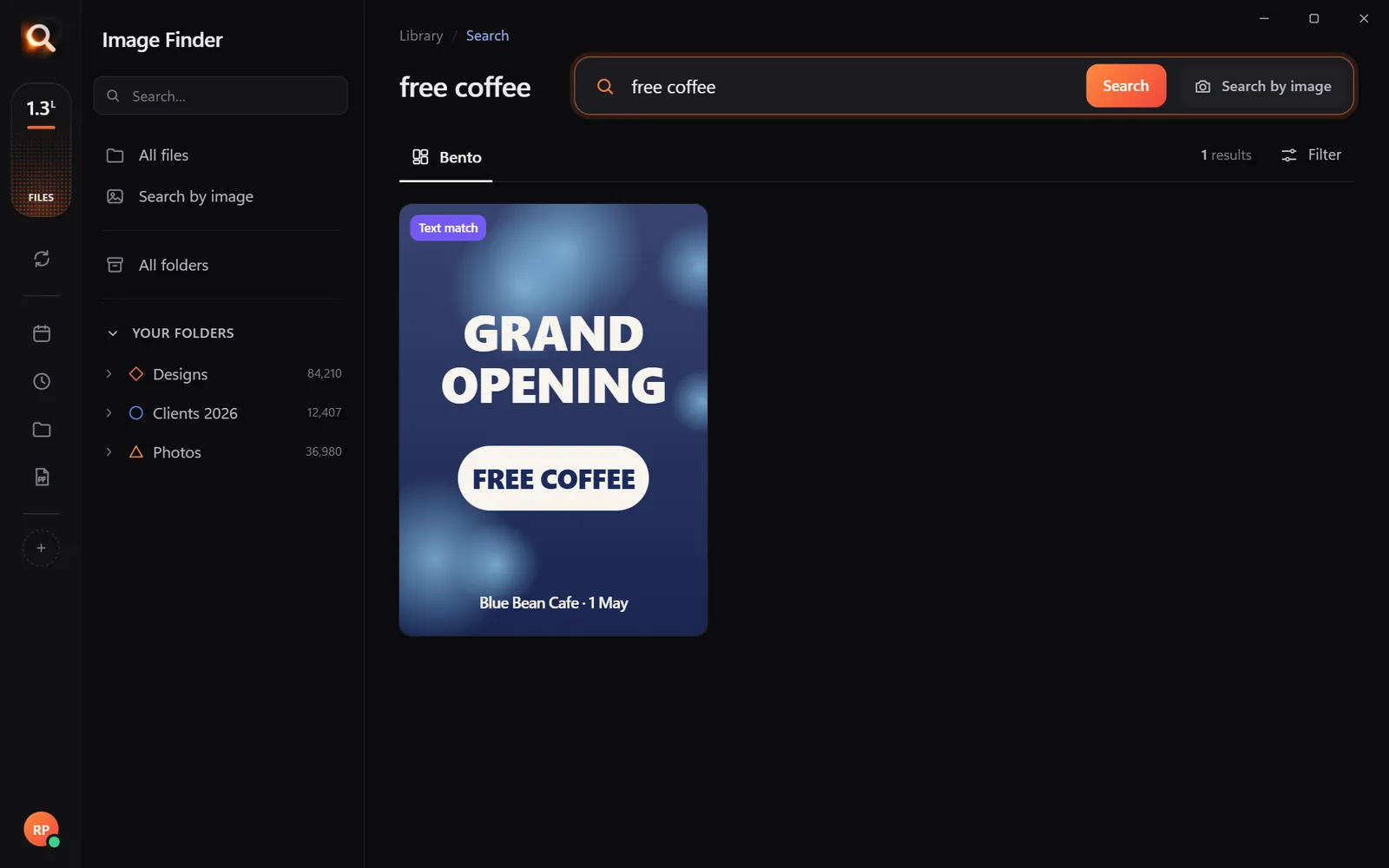
Words inside pictures

Screenshots, receipts, posters and scanned PDFs.

Finding a poster by its words

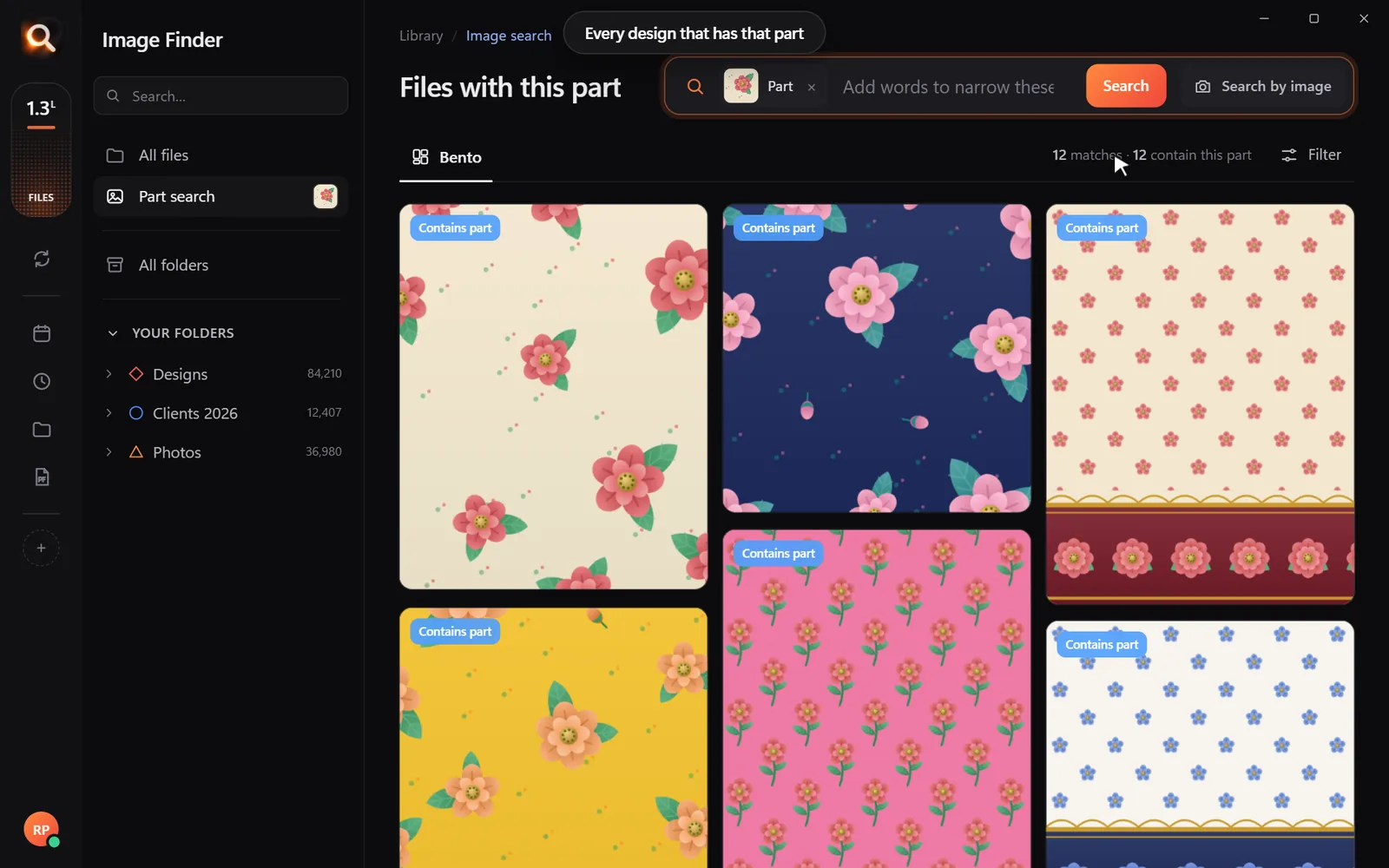
One part of a design

Draw a box around a logo or a motif.

Every design with the same part

Always in sync

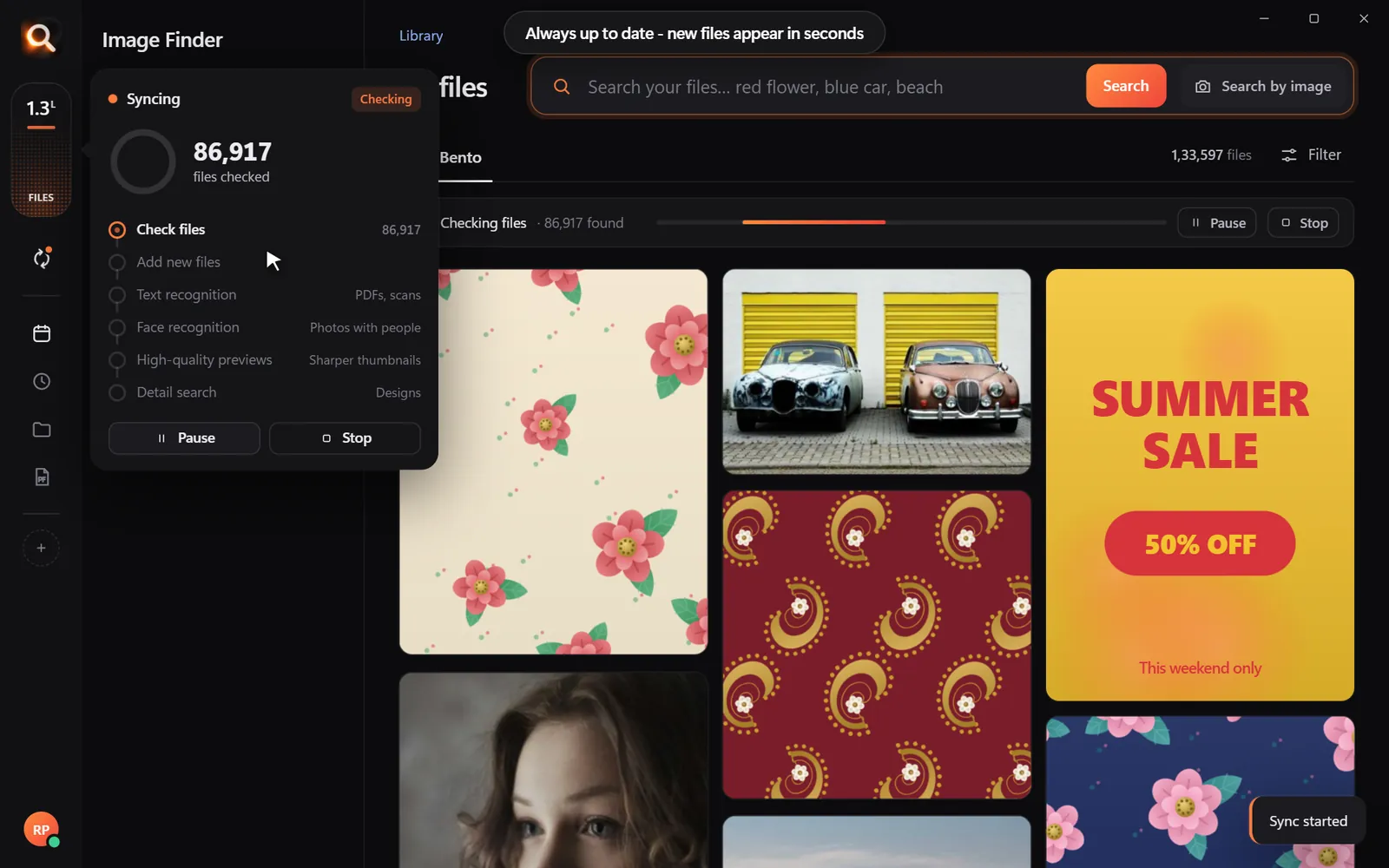
New files appear within seconds, by themselves.

Keeping folders up to date

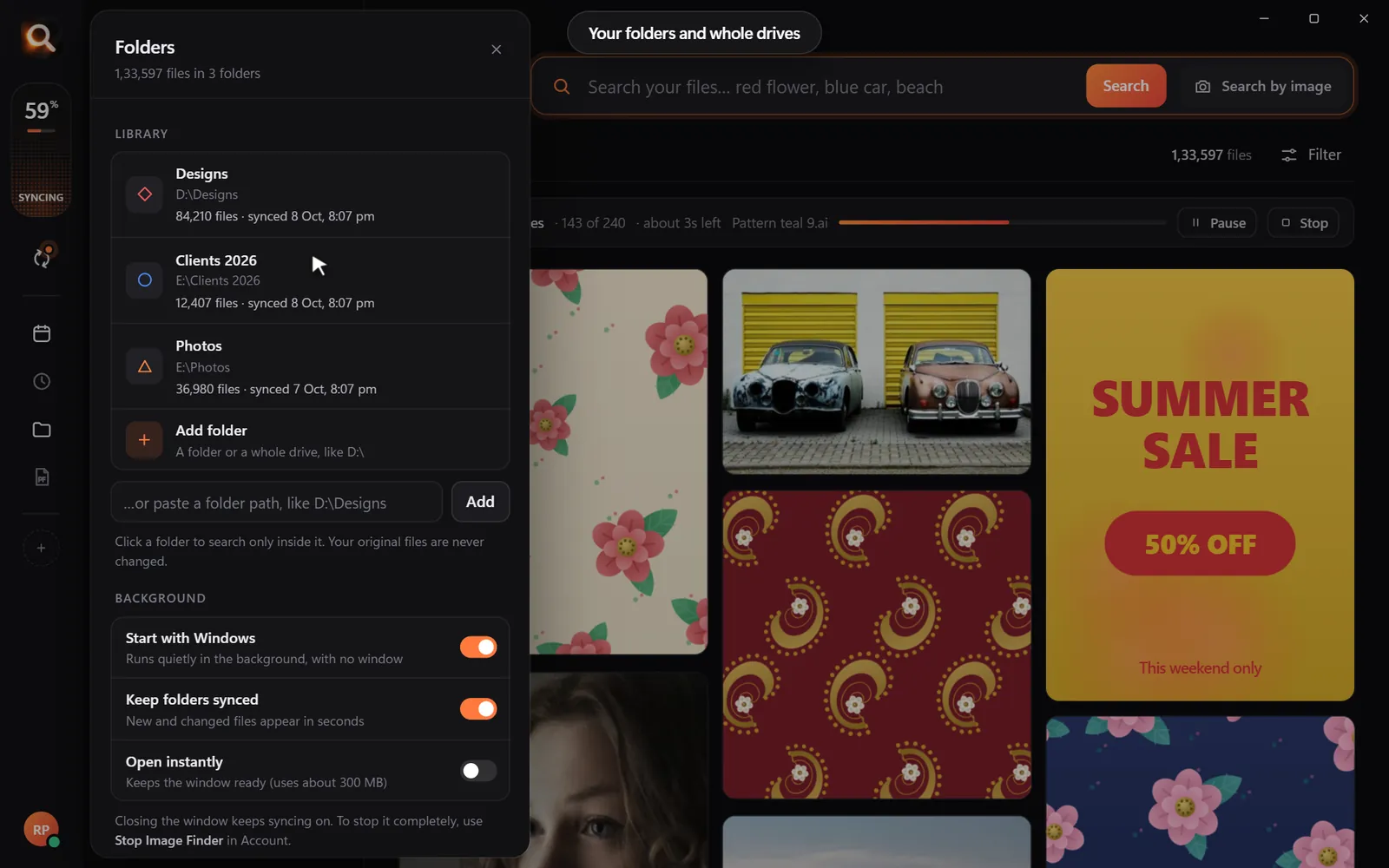
Folders, whole drives, external disks

Point it at Pictures, Desktop, a whole disk or an external drive. Unplugged drives stay findable, so you know which one to grab.

Choosing folders and drives
150+ file types

JPG, PNG, HEIC, camera RAW, PSD, AI, EPS, SVG, PDF, Office files, fonts, videos and embroidery files.

Inside ZIP and RAR

Pictures inside archives are searchable - without unzipping anything.

External drives

Unplugged drives stay findable, so you know which one to grab.

Always up to date

New and changed files appear within seconds, by themselves.

A tenth of a second

Search 100,000+ files about as fast as you can type.

Typos welcome

"blu car" finds the blue car. The meaning matters, not the spelling.

Steps aside

It reads your library once in the background and pauses while you work.

Windows & Mac

Windows 10 and 11, Macs with Apple chips and Intel Macs.

Private

Your photos never leave your computer

The AI runs on your own PC or Mac. No upload, no cloud copy, no account full of your pictures that could leak.

Nothing uploaded

Your photos, designs and searches stay on your disk. Only your licence is checked now and then.

Works offline

On a plane, in a basement studio, when the internet is down - search works the same.

No subscription

Pay once for the time you choose. Nothing renews by itself, nothing to cancel.

Made for real libraries

Whatever you keep, find it by describing it

What people type - and what it saves them.

P
Photographerssearch for
the one by the window, spring shoot

Pick a client's face once - every shot of them, across every drive.

D
Graphic designerssearch for
blue logo on white

final_FINAL_v3.psd is not a search term. Find PSD, AI and SVG by how they look.

S
Online sellerssearch for
blue mug white background

Five thousand product shots, one blue mug - found in a second.

F
Familiessearch for
grandma at the cake table

Twenty years of photos, searchable without uploading a single one.

T
Teacherssearch for
fractions worksheet

Worksheets and slides, found by the words printed on them.

R
Real estate agentssearch for
white kitchen with island

Every listing photo by room, feature or view.

A
Agenciessearch for
summer sale poster

Ten people, one shared drive, nobody hunting for files any more.

U
Studentssearch for
mitosis slide

Every lecture screenshot, searched by the words on the slide.

Compare

Why not just use what you have?

Image FinderFile Explorer / FinderCloud photo apps
Find a photo by describing itNames onlyPhotos only
Search with a picture-Some
Design files: PSD, AI, EPS, RAWNames only-
Works with no internet-
Your photos stay on your computerUploaded
No monthly subscription-

Pricing

Just ₹1 a day. Paid once.

Every feature in every plan. No subscription - nothing renews by itself.

Every feature for just ₹1 a day - paid once, nothing renews by itself.

One licence works on one computer. Your days start when you activate it.

In India? See the India page - prices in ₹, pay by UPI

Questions? Answers.

How much does it cost?

Plans are priced per day in your own currency - every feature, paid once for the time you choose. Nothing is charged automatically, and nothing renews by itself.

Does it upload my photos?

No. Image Finder runs entirely on your computer. Your photos, designs and searches never leave it - there is no cloud copy to leak. Only your licence is checked online now and then.

Does it work on Mac?

Yes. There are versions for Macs with Apple M-series chips and for older Intel Macs, plus Windows 10 and 11.

Which files can it search?

150+ types: JPG, PNG, HEIC (iPhone), WEBP, camera RAW (NEF, CR2, CR3, ARW, DNG), PSD, AI, EPS, SVG, PDF, Office files, fonts, videos and embroidery files (DST, PES and more) - including files inside ZIP and RAR archives.

Can I hide files from search?

Yes. Select one or many and press Hide - they leave every search but stay on your computer. They wait under Hidden until you show them again.

Is it a subscription?

No. You pay once for the time you choose; nothing renews by itself and there is nothing to cancel.

Do I have to organize or tag anything?

No renaming, no tagging, no importing. Point it at your folders or whole drives and it reads them by itself - new files appear within seconds.

Will it slow down my computer?

It reads your library once in the background and steps aside while you work. Searching takes about a tenth of a second, even with 100,000+ files.

Can I get a refund?

Yes - see the refund policy.

Image Finder

Find any design in a second

Every feature, no credit card. Find the first photo you have been looking for in the next five minutes.

Get it - ₹1 a day
Just ₹1 a day

Blog

Tips for finding, organising and sharing your designs faster.

← All posts

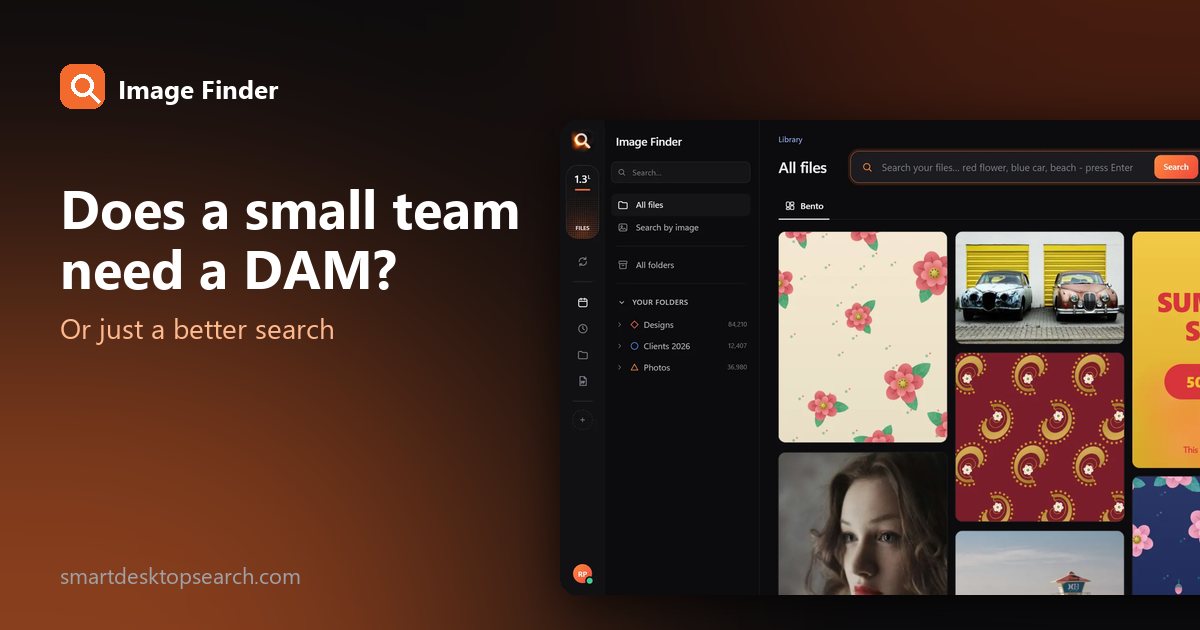
Digital Asset Management for Small Teams: Do You Really Need a DAM?

Digital Asset Management for Small Teams: Do You Really Need a DAM?

Somewhere around the tenth "where's the latest logo?" message, every small team starts looking at digital asset management (DAM) software. Some teams need it. Many just need to find their files. Here is how to tell the difference.

What a DAM actually does

A DAM is a central library for brand files: you upload assets, tag them, set permissions and share approved versions with people inside and outside the company. Good DAMs add version control, approval workflows and brand portals.

What it costs a small team

  • Money: often priced per user or by storage, usually as a yearly subscription.
  • Time: every asset has to be uploaded and tagged - and kept tagged.
  • Change: the team must work from the DAM instead of their folders.
Which describes your team?

The lighter option: search what you already have

Many small teams do not have a management problem, they have a finding problem. The files are on a shared drive or a synced folder (Dropbox, Google Drive, OneDrive) - nobody can find anything in them.

Image Finder adds visual search over those folders, on each team member's computer:

Typical DAMImage Finder
SetupUpload and tag everythingAdd your folders
Finding filesTags and filtersDescribe, picture, face, part, color
Where files liveIn the DAMWhere they are now
Design filesVariesPSD, AI, CDR, SVG, PDF and more
PrivacyIn the vendor's cloudSearched on your computers
PriceSubscription per seatOne licence per computer, 1-3 month plans
Every file in your folders, searchable without uploading
No uploading, no tagging: your folders, searchable.

A practical path for a growing team

Start small, grow when needed 0/4

Questions to ask before buying a DAM

  1. What is the real problem? Finding files, sharing them outside, or controlling versions?
  2. Who will upload and tag? If nobody owns it, the DAM goes stale within months.
  3. How many outside people need access? Portals are a DAM's strongest feature.
  4. Where must files live? Some clients require that their files stay on your own systems.
  5. What does it cost in two years? Per-seat yearly prices add up as a team grows.

The finding problem, measured

How much time does your team spend looking for files?

0 hours a year spent looking for files - with a search that takes a second, that is about 0 working days back.

If the number above is big but outside sharing is rare, fix finding first. It is the cheapest win, and it makes a later move to a DAM easier because you already know what you have.

The real cost of "where is that file?"

Industry surveys over the years have put the time knowledge workers spend searching for information at around a fifth of the working week. Whatever the exact figure for your team, the pattern is familiar: interruptions ("do you have the latest logo?"), duplicate work (making a banner that already exists) and mistakes (sending the old version).

For a five-person creative team, even 30 minutes per person per day adds up to more than 600 hours a year.

DAM features, sorted by who really needs them

FeatureWho needs it
Central upload libraryTeams with many outside partners
Permissions and rolesLarger teams, regulated industries
Approval workflowsBrands with legal or compliance review
Brand portal for partnersFranchises, distributors, agencies with many clients
Version controlTeams where many people edit the same files
Fast, visual searchEveryone

The last row is the one that matters most to small teams - and it does not require moving your files into a new system.

Three small-team setups that work

The solo designer or photographer

All work on one computer plus backup drives. Needs: fast visual search across drives. Doesn't need: a DAM.

The 3-10 person studio

A shared drive or synced cloud folder, a few people making and reusing work. Needs: everyone able to search the shared folder by what files show; a simple "approved" folder. Maybe later: a DAM if outside sharing grows.

The in-house marketing team

Brand files used by many departments and partners. Needs: search, plus a controlled place for approved assets. Consider: a DAM for distribution, with search for the working archive.

How to try search-first for two weeks
Two-week search trial for your team 0/5
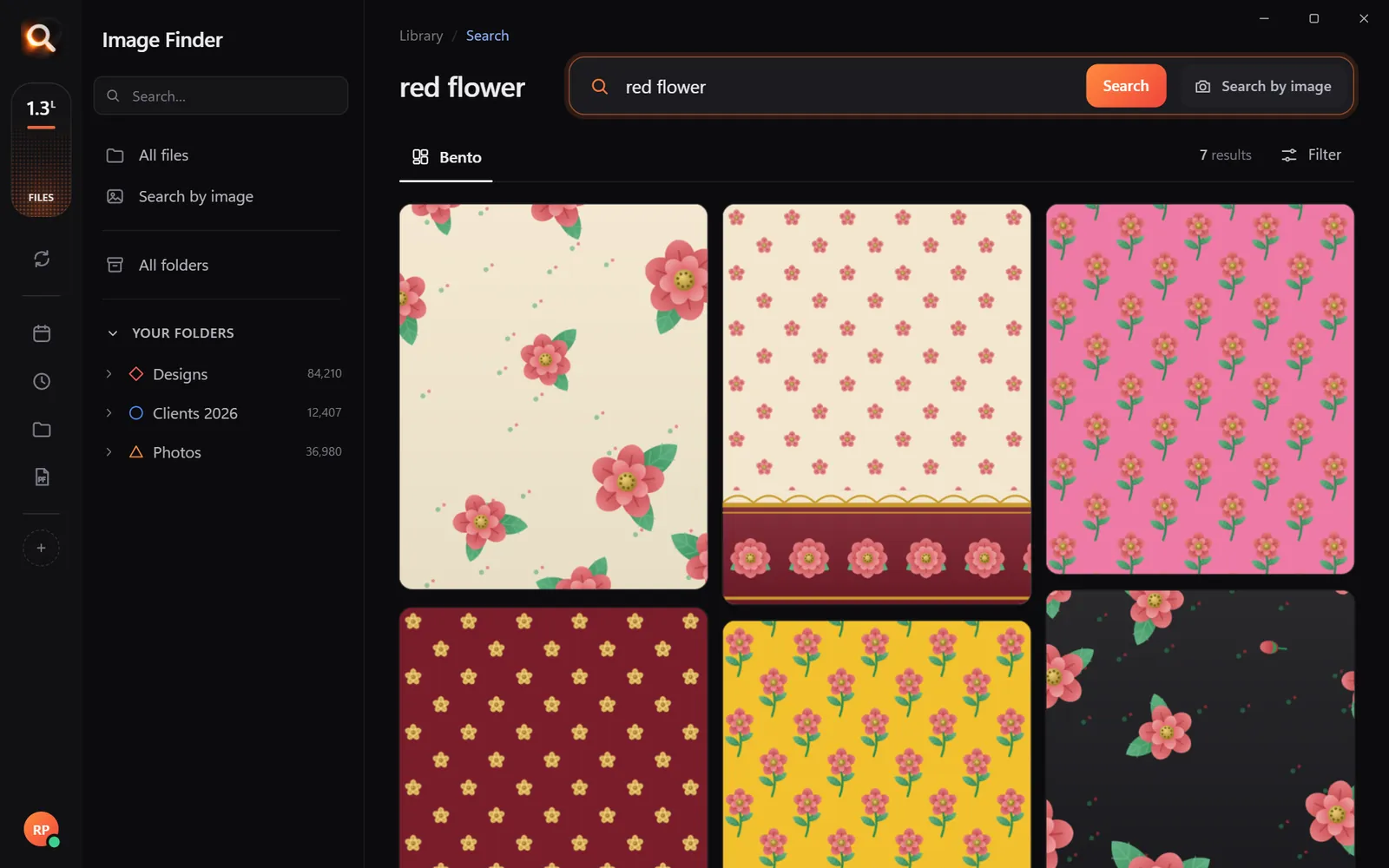
Searching by description across the team's folder
Describe it and the file comes up, wherever it is in the shared folder.

Questions to ask any DAM vendor

  • How long does a full migration of our archive take, and who does the tagging?
  • Can we search by what is in a picture, or only by tags?
  • What happens to our files if we stop paying?
  • Do design files (PSD, AI, CDR) get real previews?
  • Where are our files stored, and who can access them?

Questions people ask

Does a small business need a DAM?

Only if sharing, permissions and approvals are a daily pain. If the main problem is finding files, search over your existing folders is cheaper and faster to set up.

What is the difference between a DAM and file search?

A DAM is a managed library you upload into. File search finds things where they already are.

Can a team search a shared Dropbox or Google Drive folder?

Yes, when the folder is synced to each computer. Each team member runs Image Finder on their own computer.

What is the cheapest way to organize team files?

A shared or synced folder with a simple structure, plus fast visual search on each computer. No uploads or tagging needed.

Can we use search now and a DAM later?

Yes. Search works over folders, so it keeps working if you later add a DAM for sharing approved files.

No uploading, no tagging. Windows and Mac.

Windows and Mac. Private, offline, no subscription.
Try Image Finder

Find any photo, design or PDF on your computer in seconds. From ₹1 per day.

See plans
Image library managementA managed library, with nothing to manage.No importing, no tagging, no catalogue to keep. Your folders stay as they are - Image Finder keeps every file searchable and up to date.

More posts

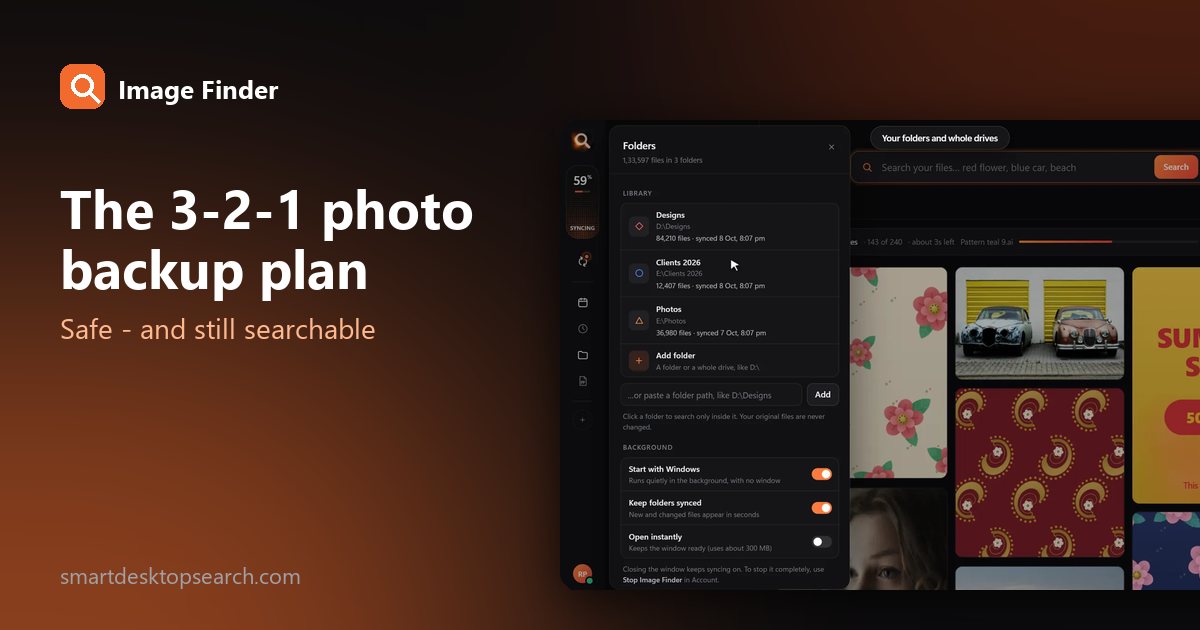
The 3-2-1 Photo Backup Plan: Protect Every Photo (and Keep Them Searchable)

The 3-2-1 Photo Backup Plan: Protect Every Photo (and Keep Them Searchable)

Drives fail, laptops get stolen, accounts get locked. The simple 3-2-1 rule that professionals use to protect photos - set up in an afternoon, with a library you can still search.

9 Dec 2026
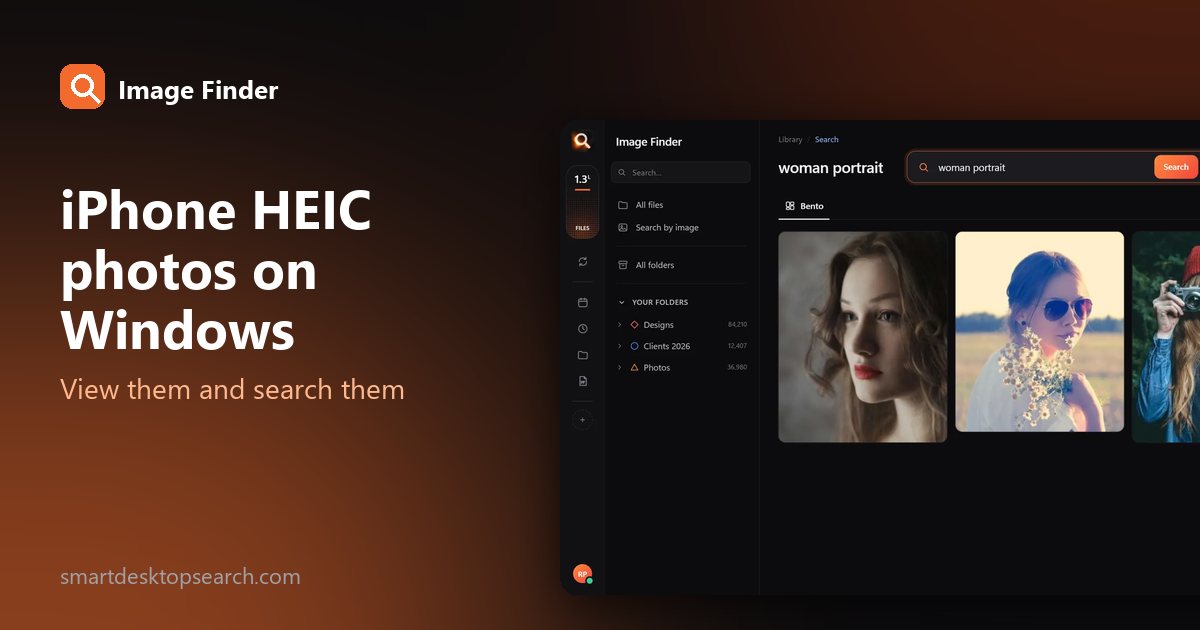
iPhone Photos on Windows: How to View and Search Your HEIC Files

iPhone Photos on Windows: How to View and Search Your HEIC Files

Copied your iPhone photos to a PC and got a folder of HEIC files that won't open? How to view them on Windows - and how to search them by what's in them.

19 Oct 2026
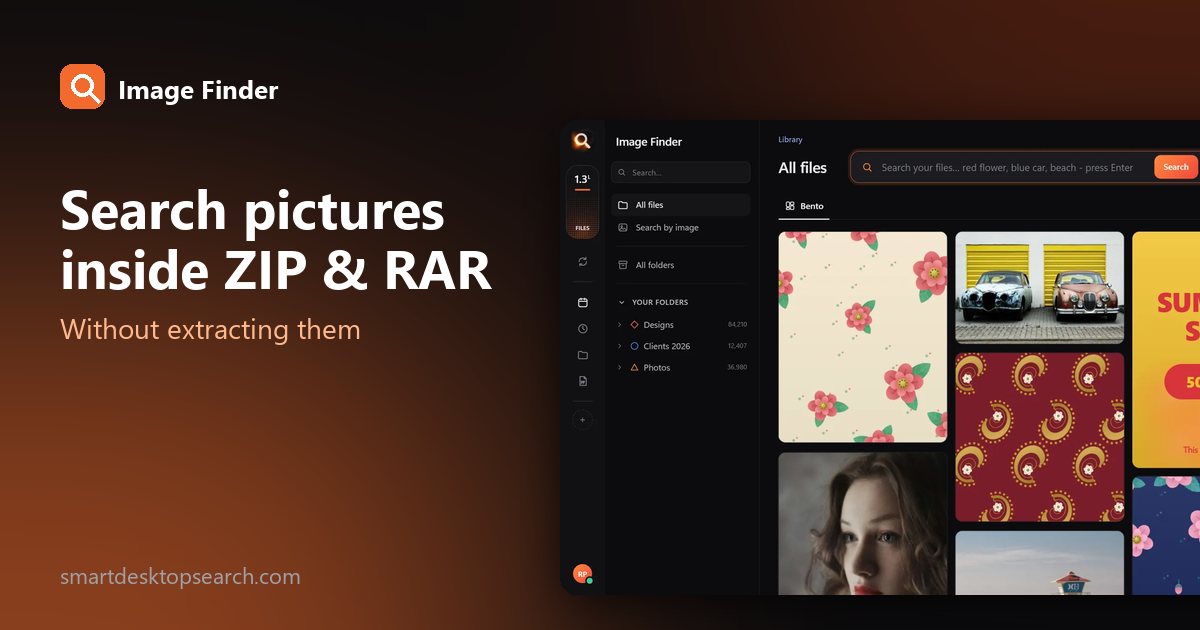
How to Search Pictures Inside ZIP and RAR Files Without Extracting Them

How to Search Pictures Inside ZIP and RAR Files Without Extracting Them

Old projects, client deliveries and photo backups often sit in ZIP, RAR and 7z archives. Here is how to find a picture inside them without unpacking everything.

16 Oct 2026